Document Templates
Accessing Variables in Document Templates
In this guide, you will learn how to access variables for your document templates in FieldMagic.
Step-by-step instructions
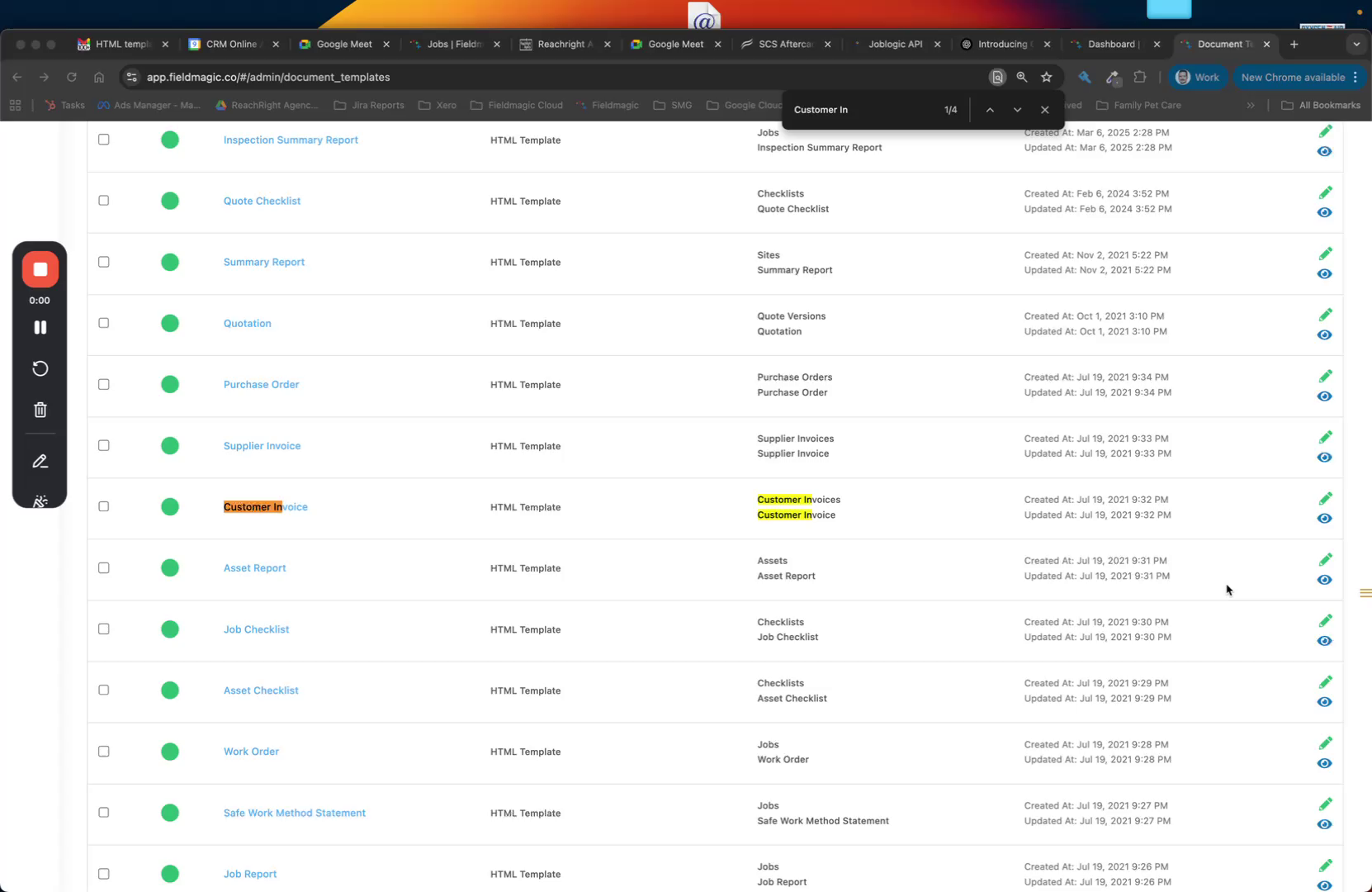 Step 1
In this guide, you will learn how to access variables for your document templates in FieldMagic.
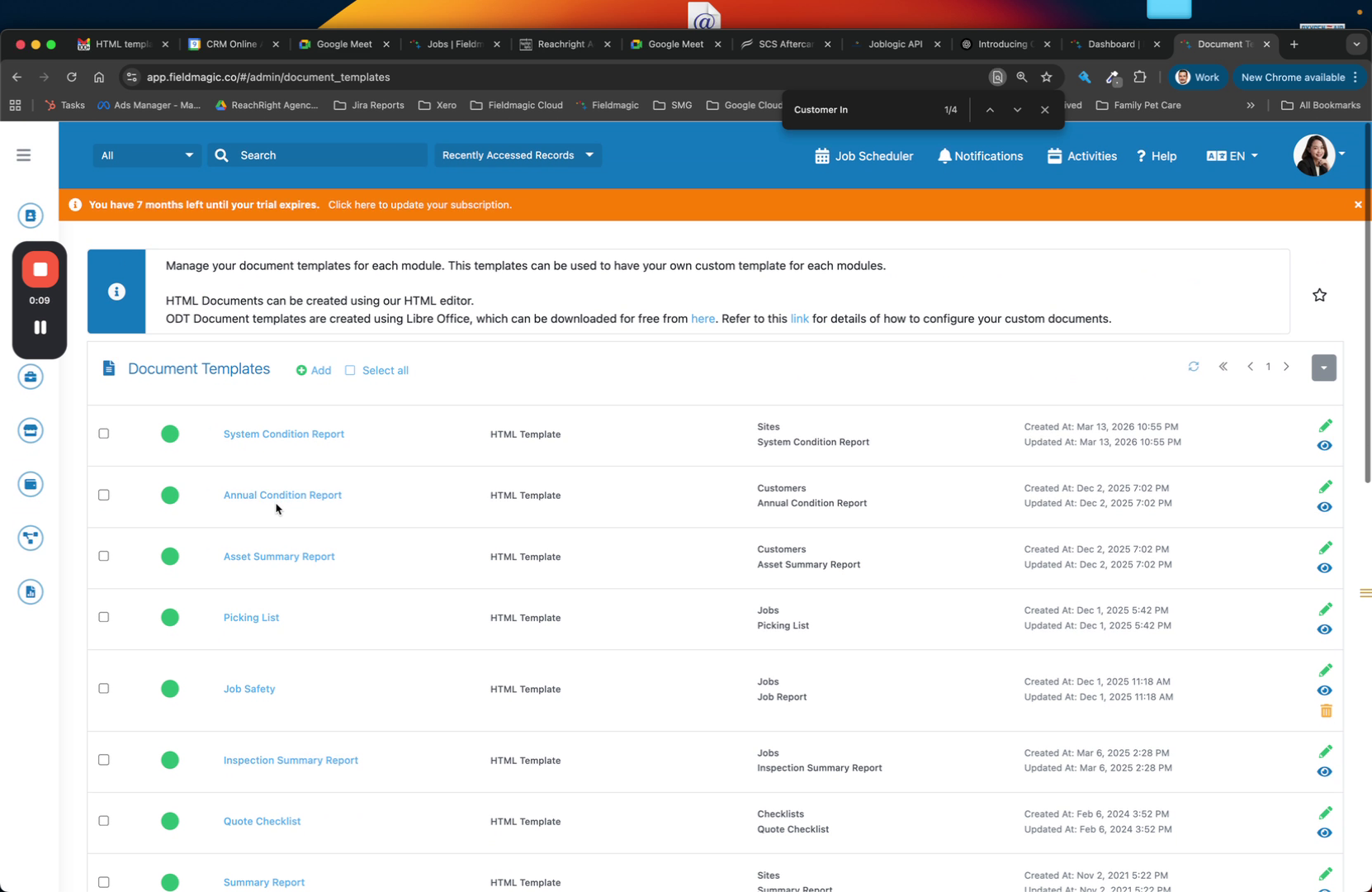 Step 2
Navigate to the Document Templates section and open Customer Invoices. You will see the available templates listed here.
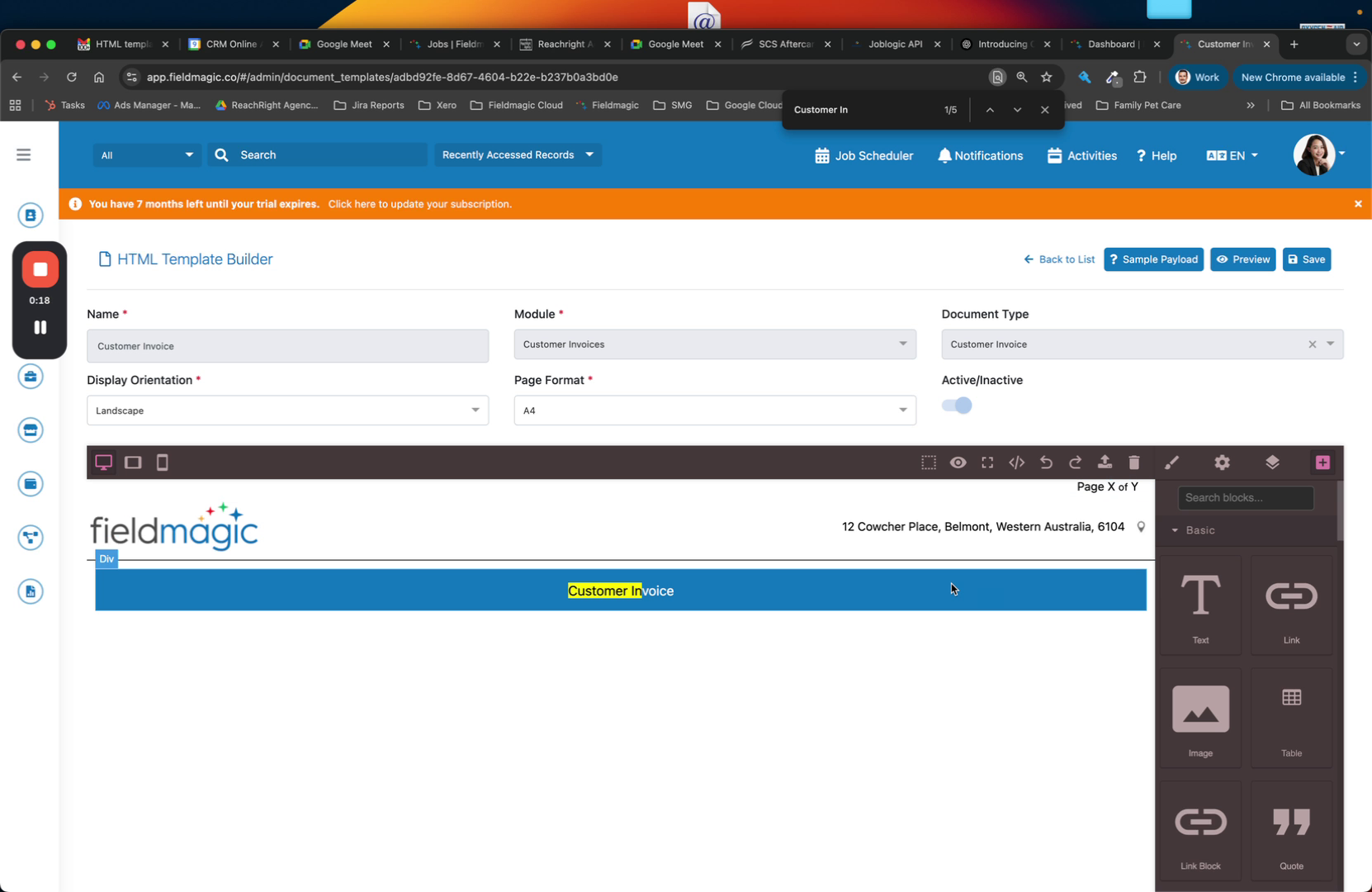 Step 3
Open a template such as Customer Invoice to view its structure. Click the Sample Payload button to access the available variables.
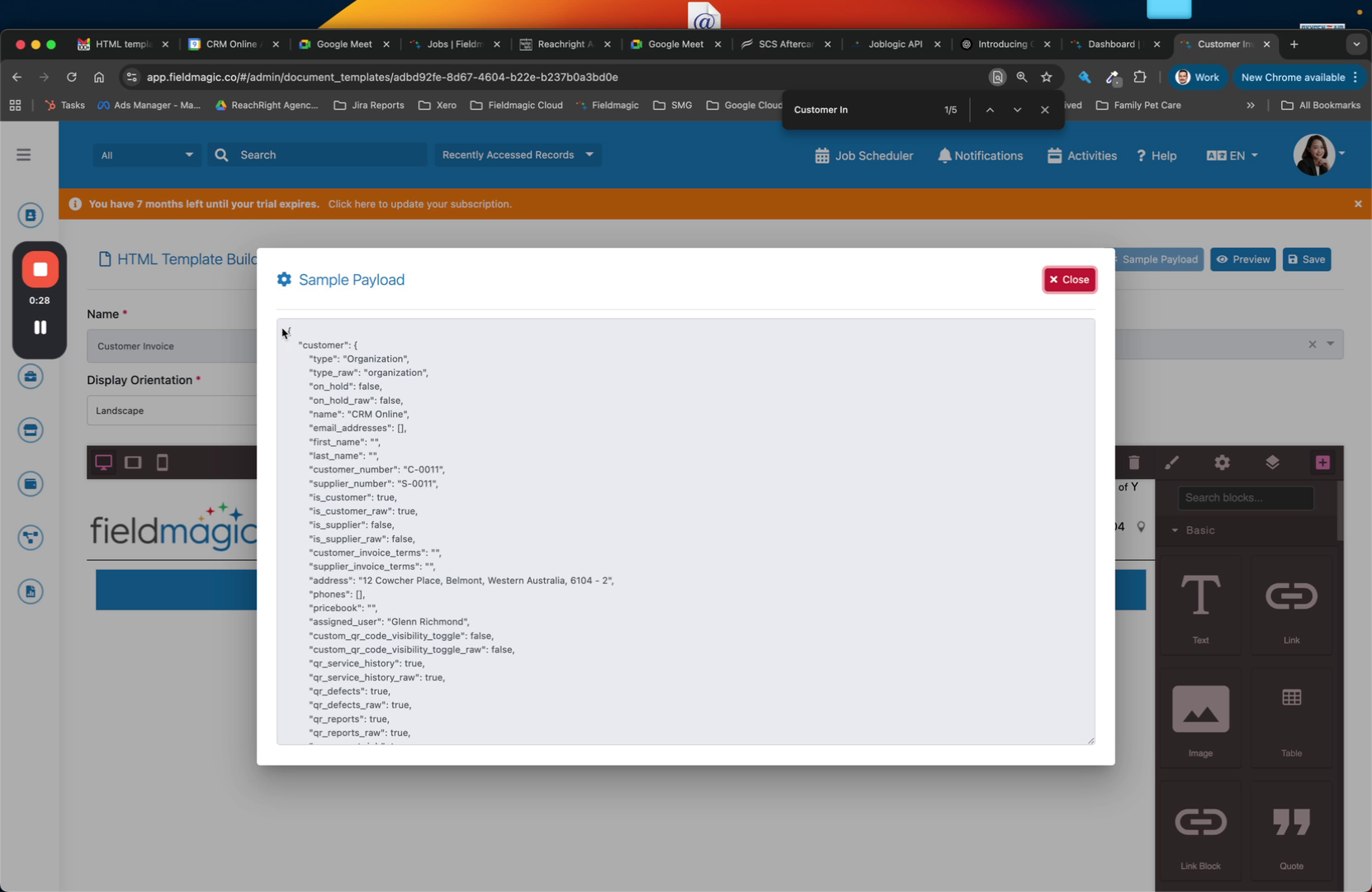 Step 4
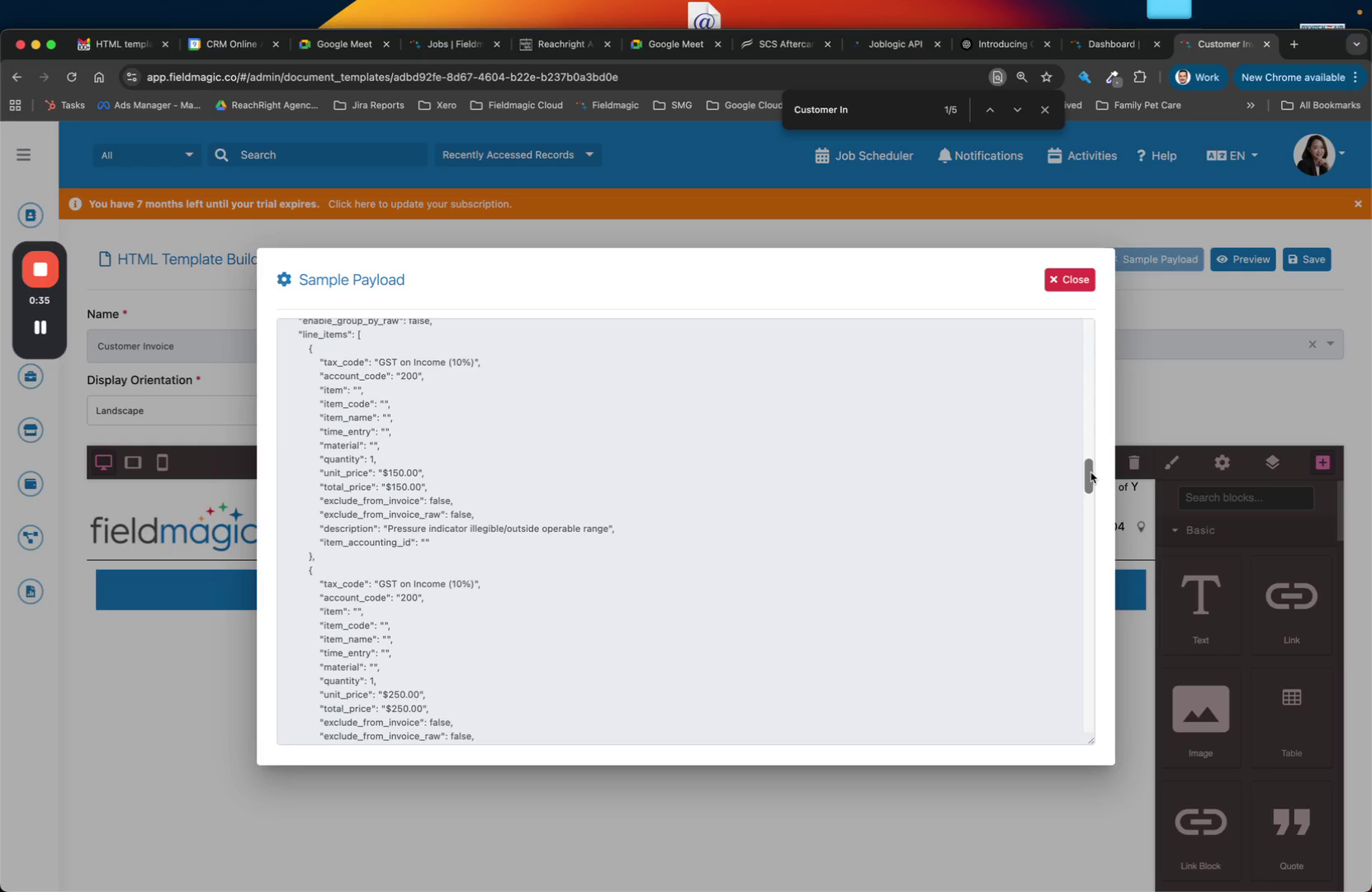
The sample payload is displayed in JSON format. Here you can see the customer details, line items, and other available fields.
 Step 5
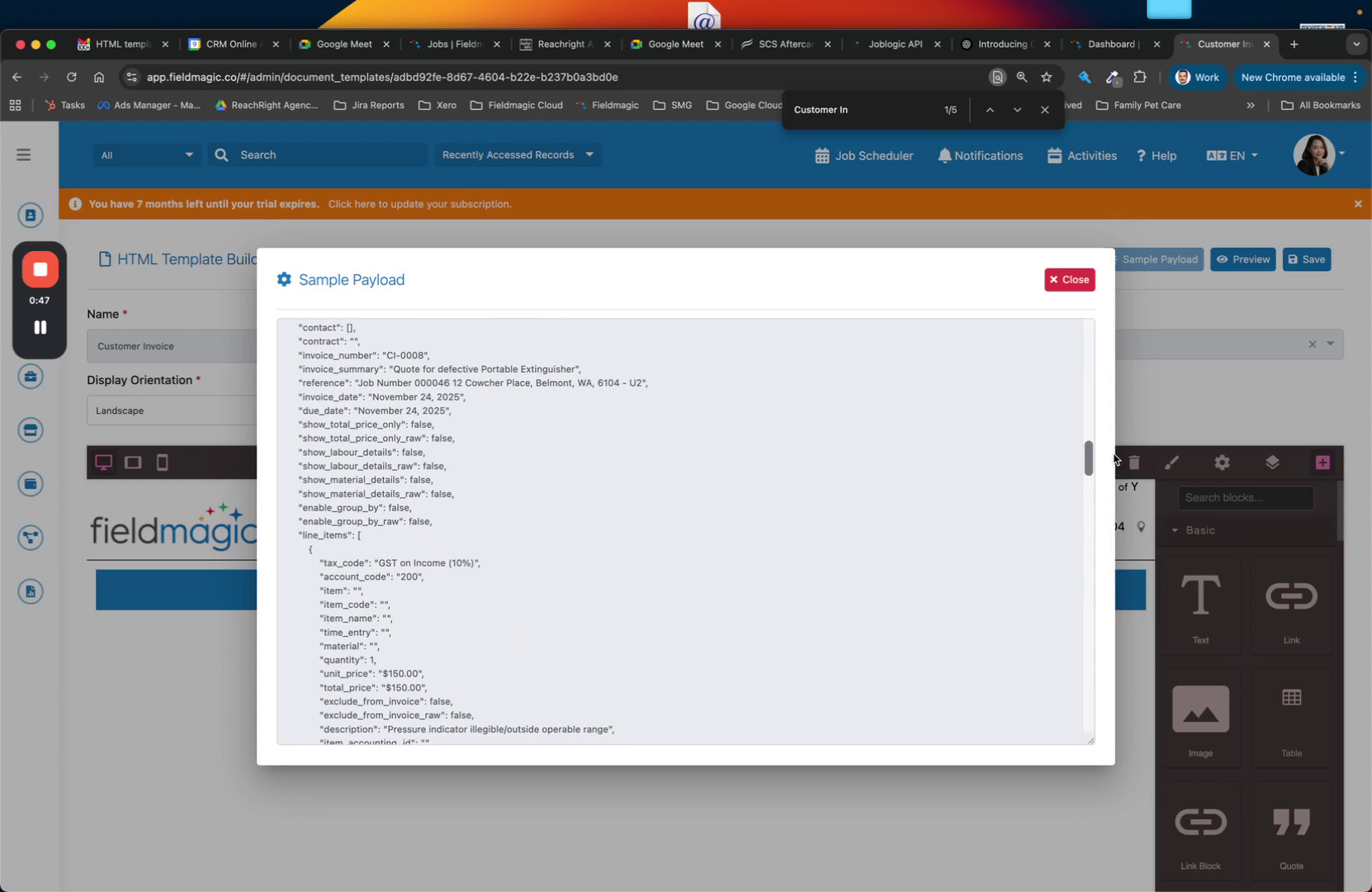
Scroll through the payload to find job details and any additional fields. Use these variable names in your template to pull in dynamic data.
 Step 6
The payload also includes related time entries, materials, and other associated records. This same approach applies to all record types in FieldMagic.