Job Management
Add a Customer Sign-off Checklist
Begin by planning to add a customer sign-off form as a checklist within your FieldMagic system.
Step-by-step instructions
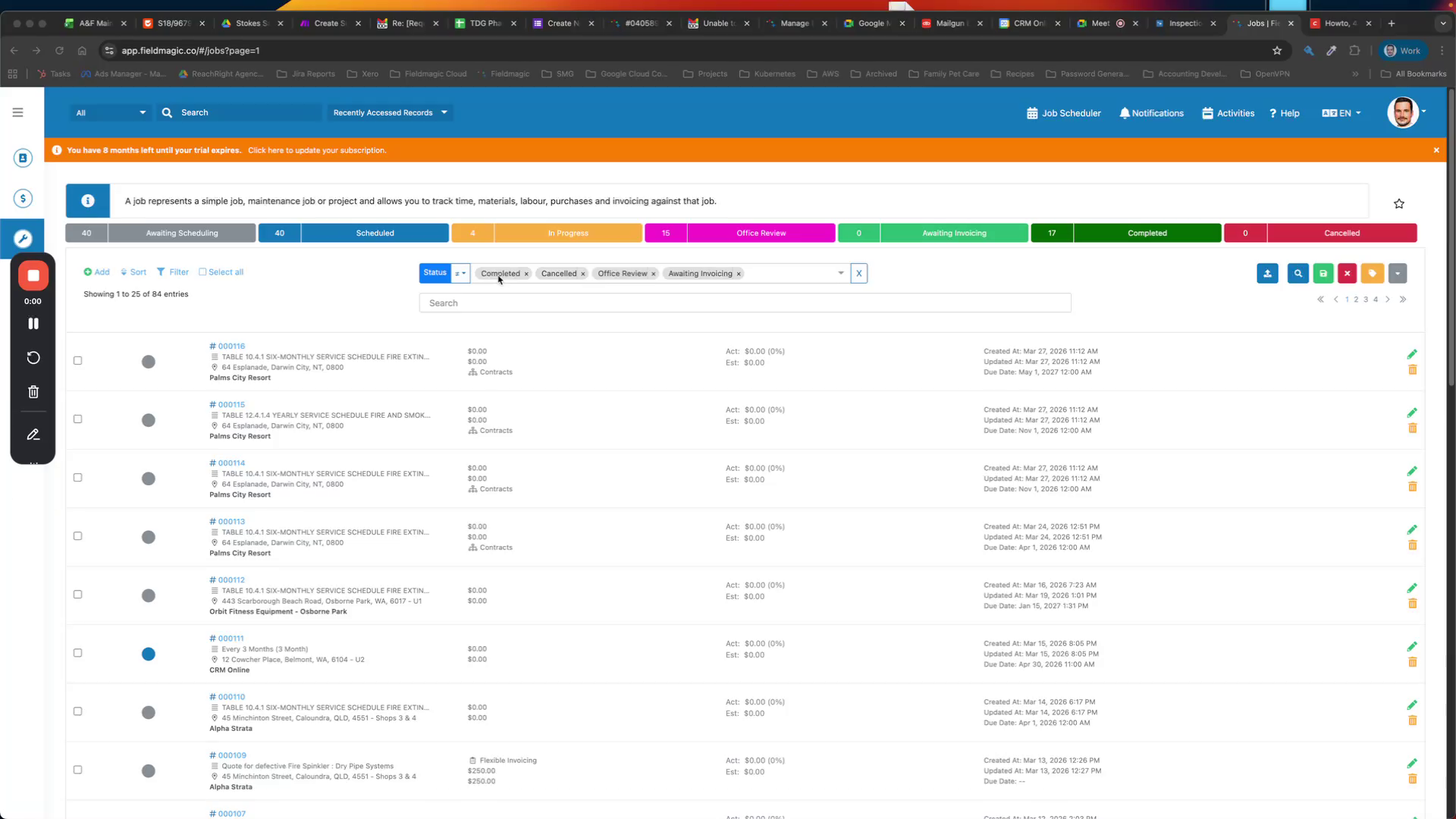 Step 1
Begin by planning to add a customer sign-off form as a checklist within your FieldMagic system.
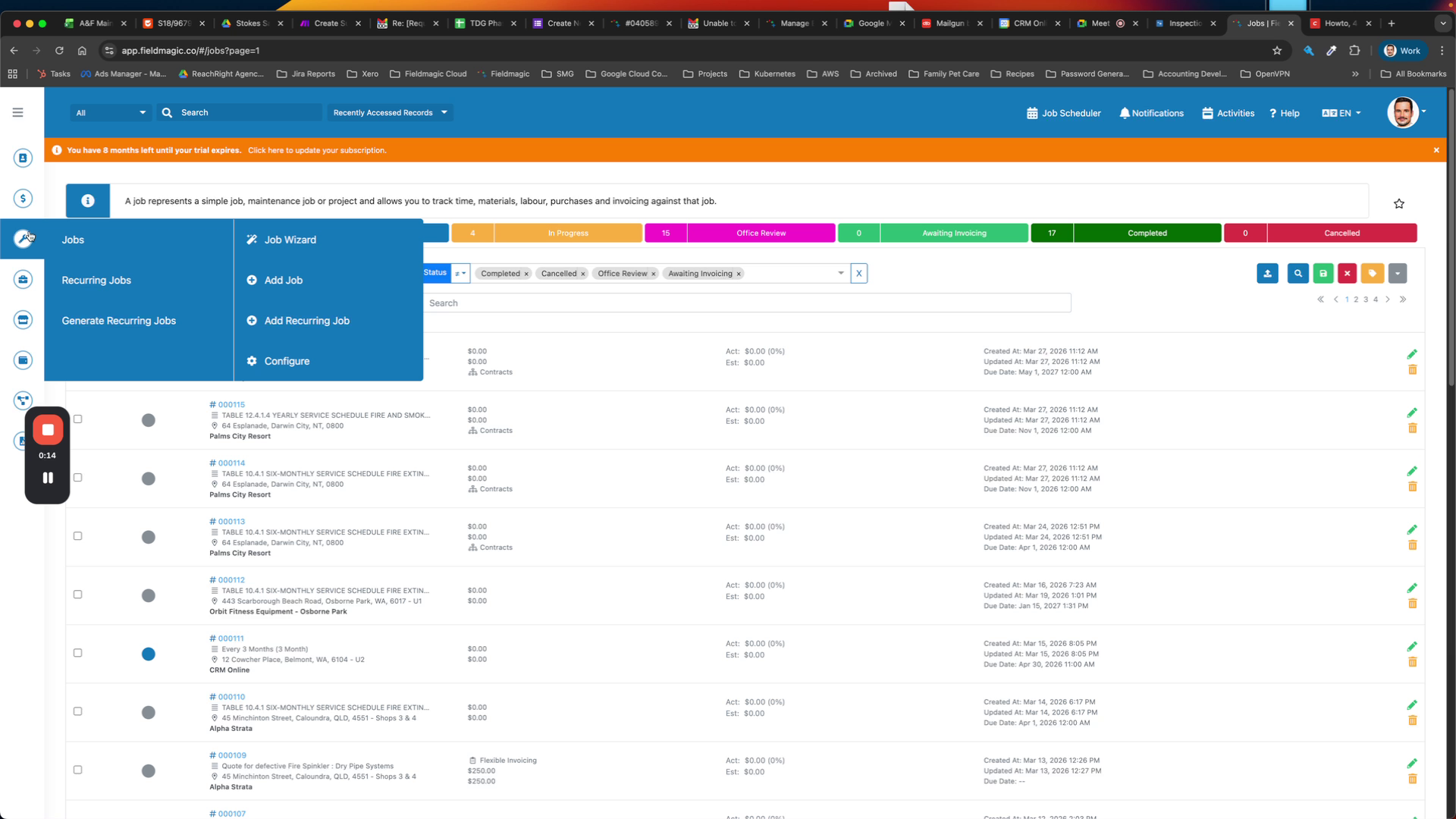 Step 2
Navigate to the Jobs menu, select Configure, and choose to add a new job checklist.
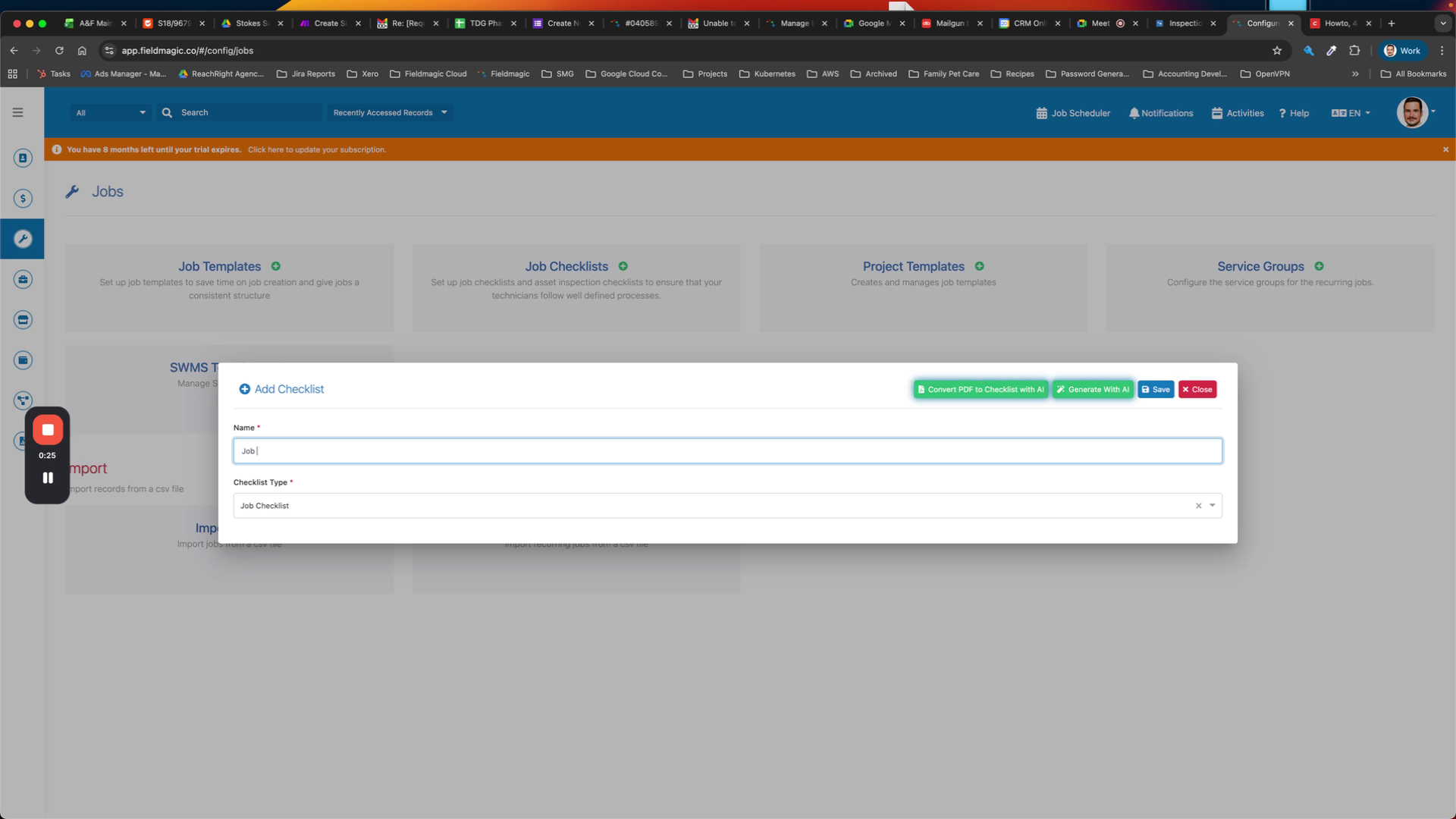 Step 3
Name the new checklist 'Job Sign-off Form' and save it.
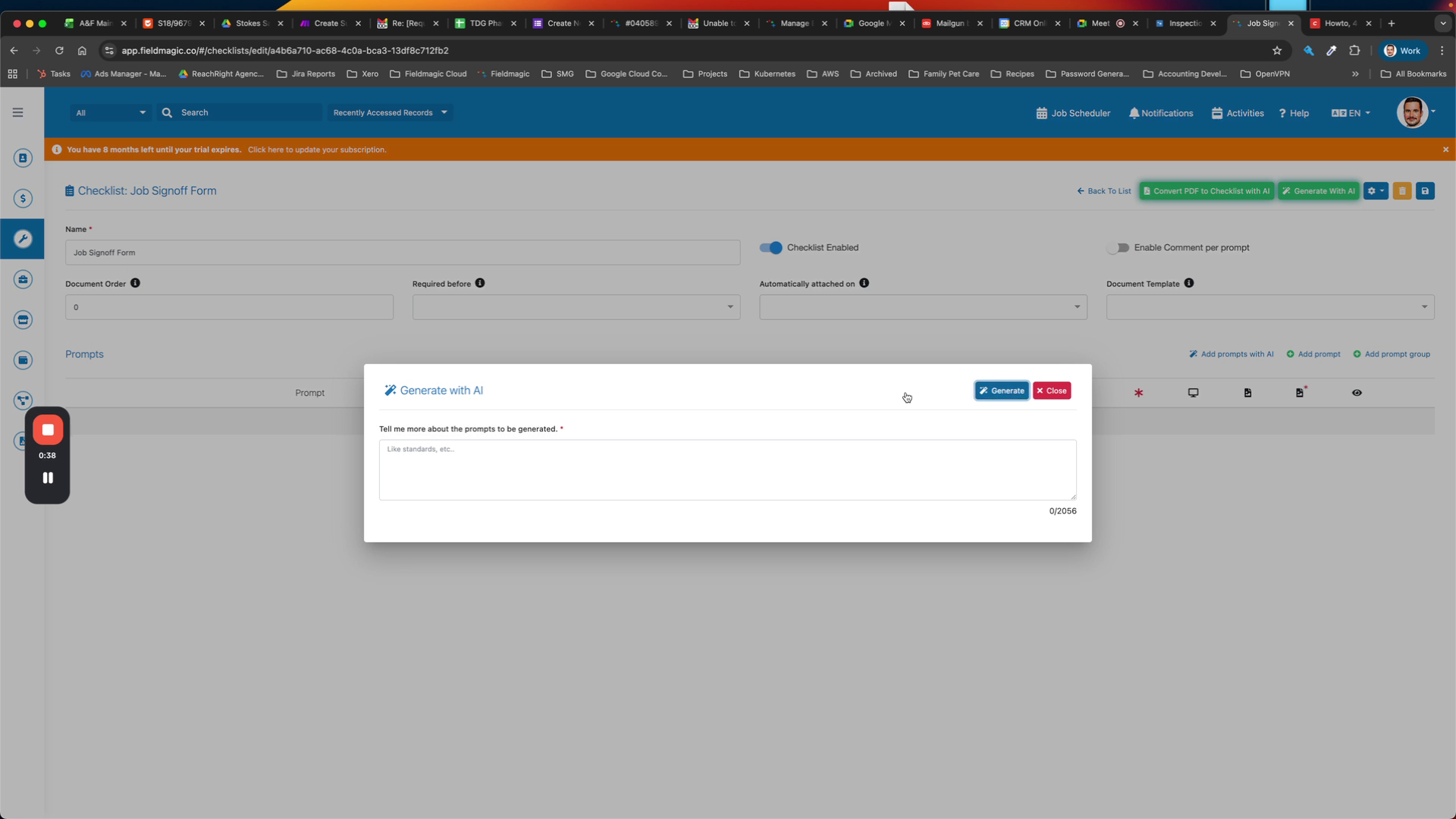 Step 4
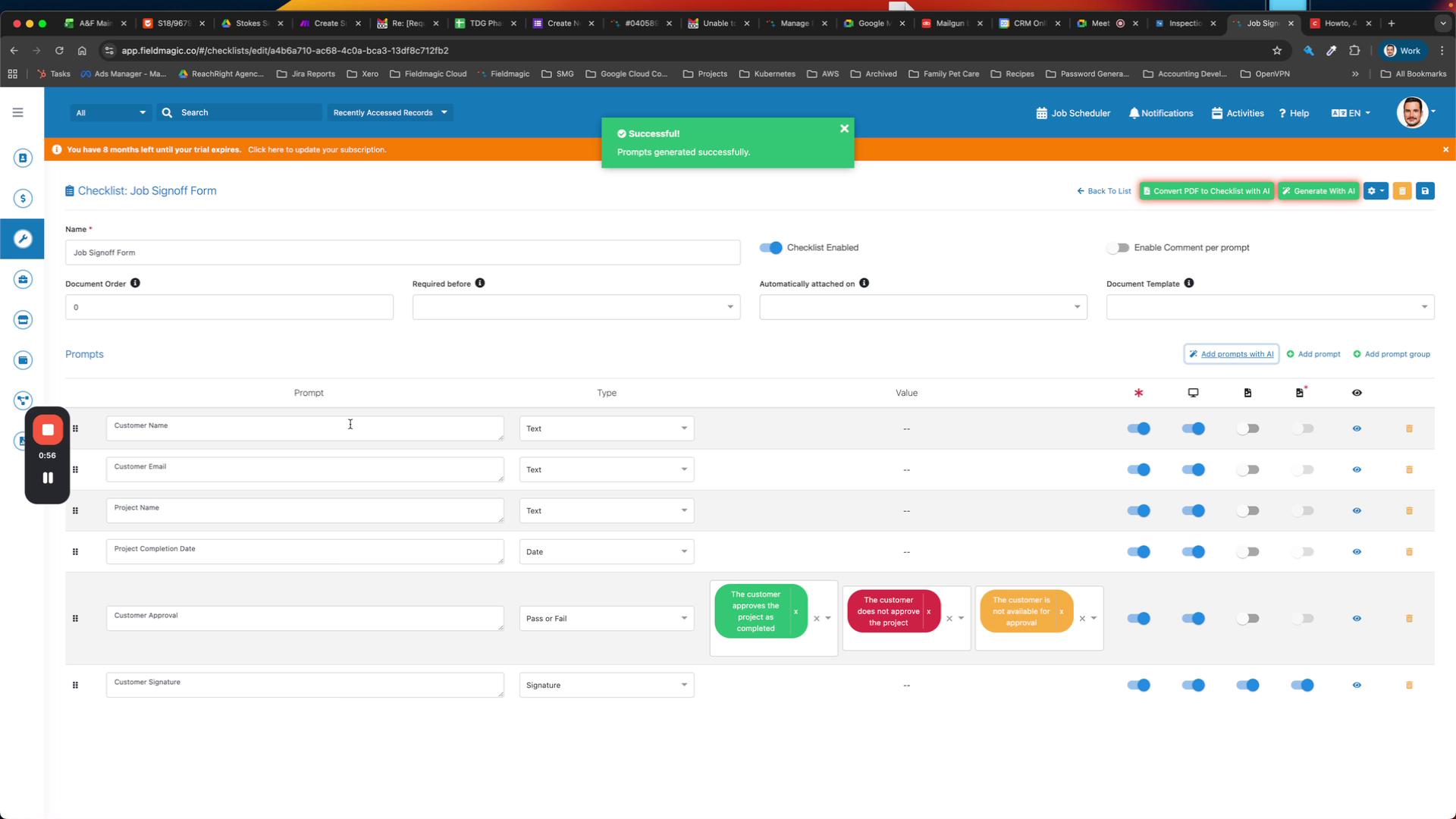
Use the AI feature to generate the customer sign-off form within the checklist.
 Step 5
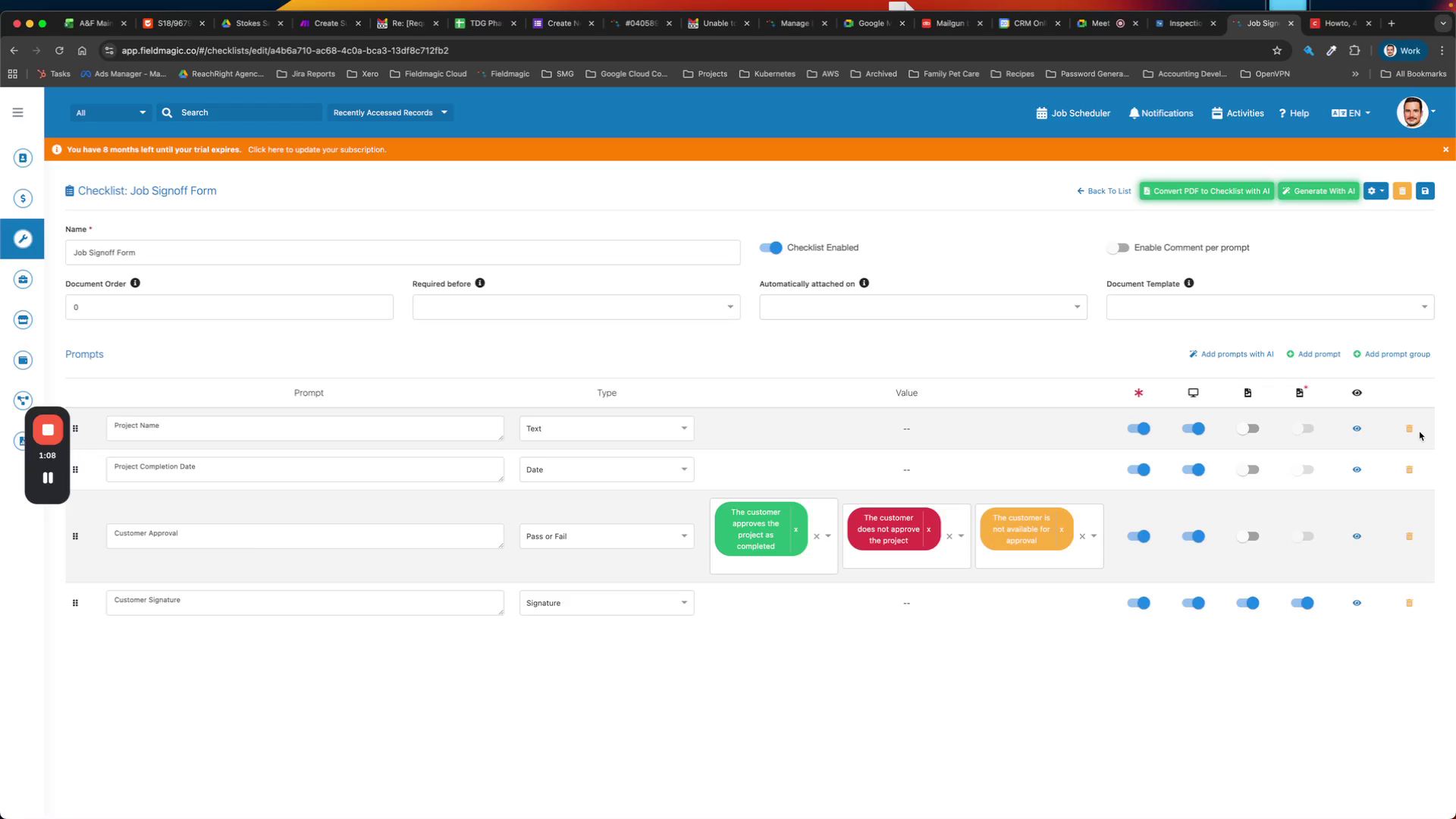
Review the generated form and remove unnecessary fields such as customer name and email.
 Step 6
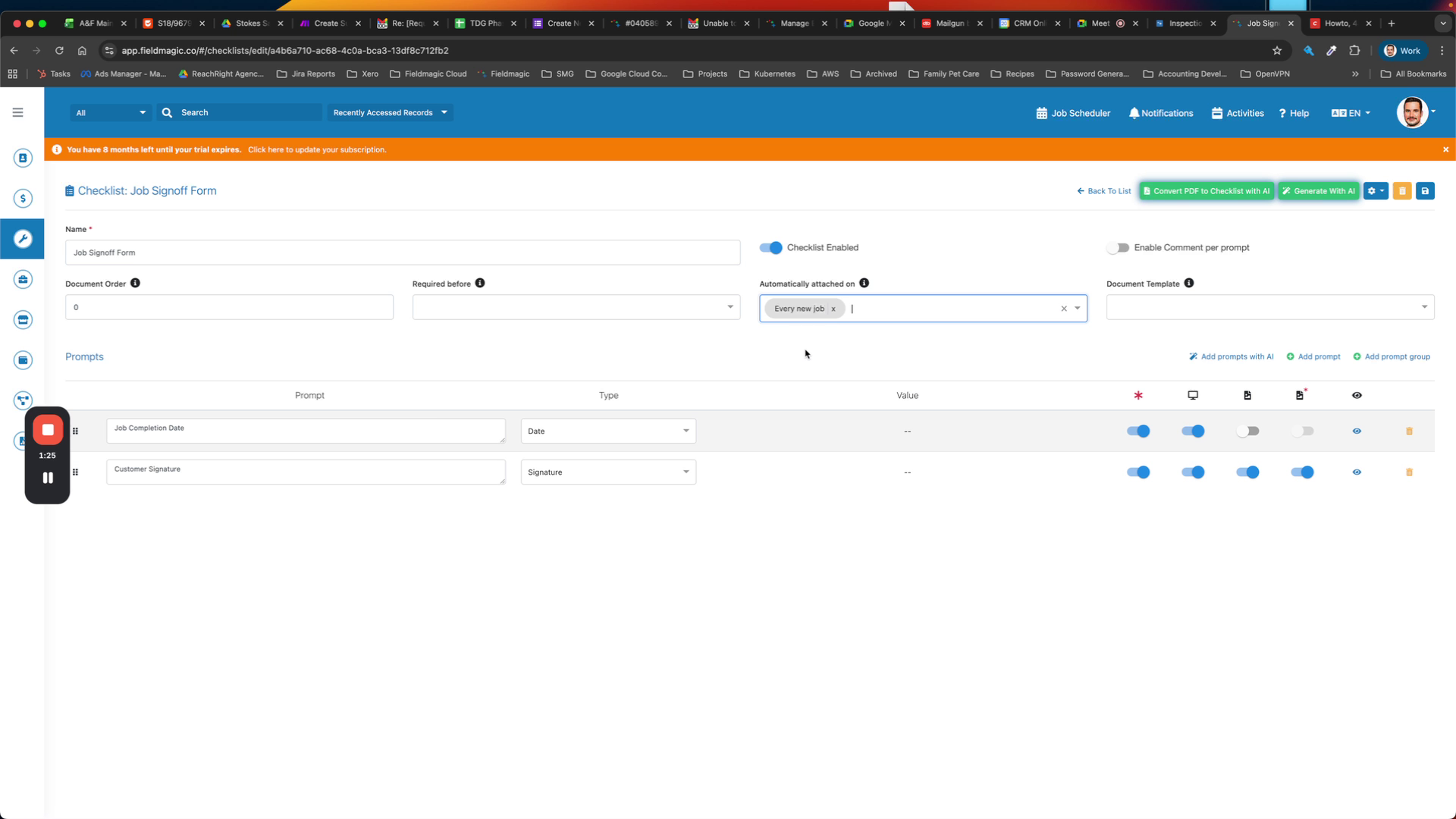
Rename 'Project Completion Date' to 'Job Completion Date' and ensure the customer sign-off field is included.
 Step 7
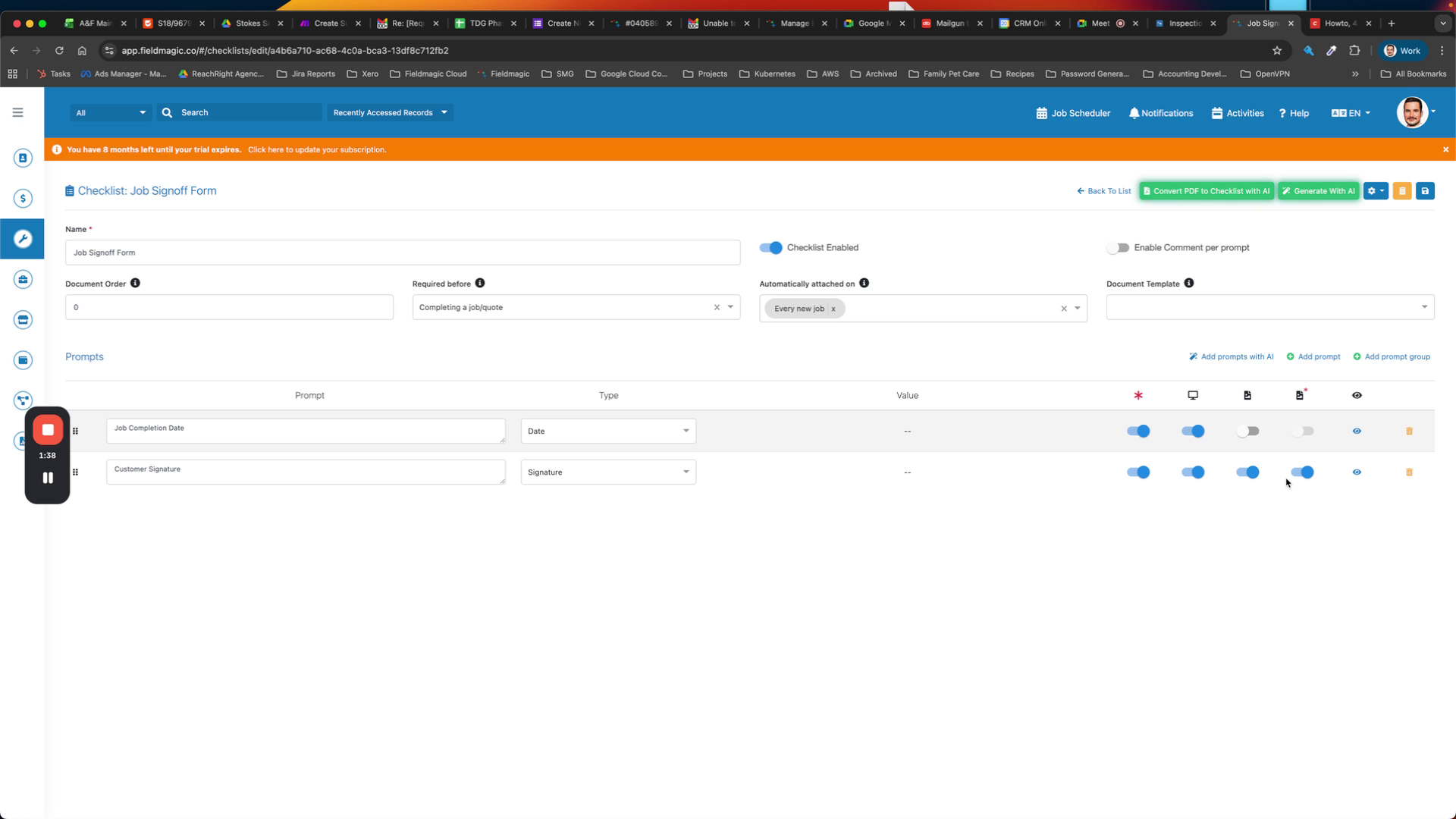
Set the checklist to be required for every new job and mandatory before job completion.
 Step 8
Adjust signature requirements and optionally add a required job photo, then save the checklist to finalize.