Checklists and Safety
Add Customer Sign-Off Checklist to Jobs
Add a customer sign-off form as a checklist to require technicians to complete it every time they finish a job.
Step-by-step instructions
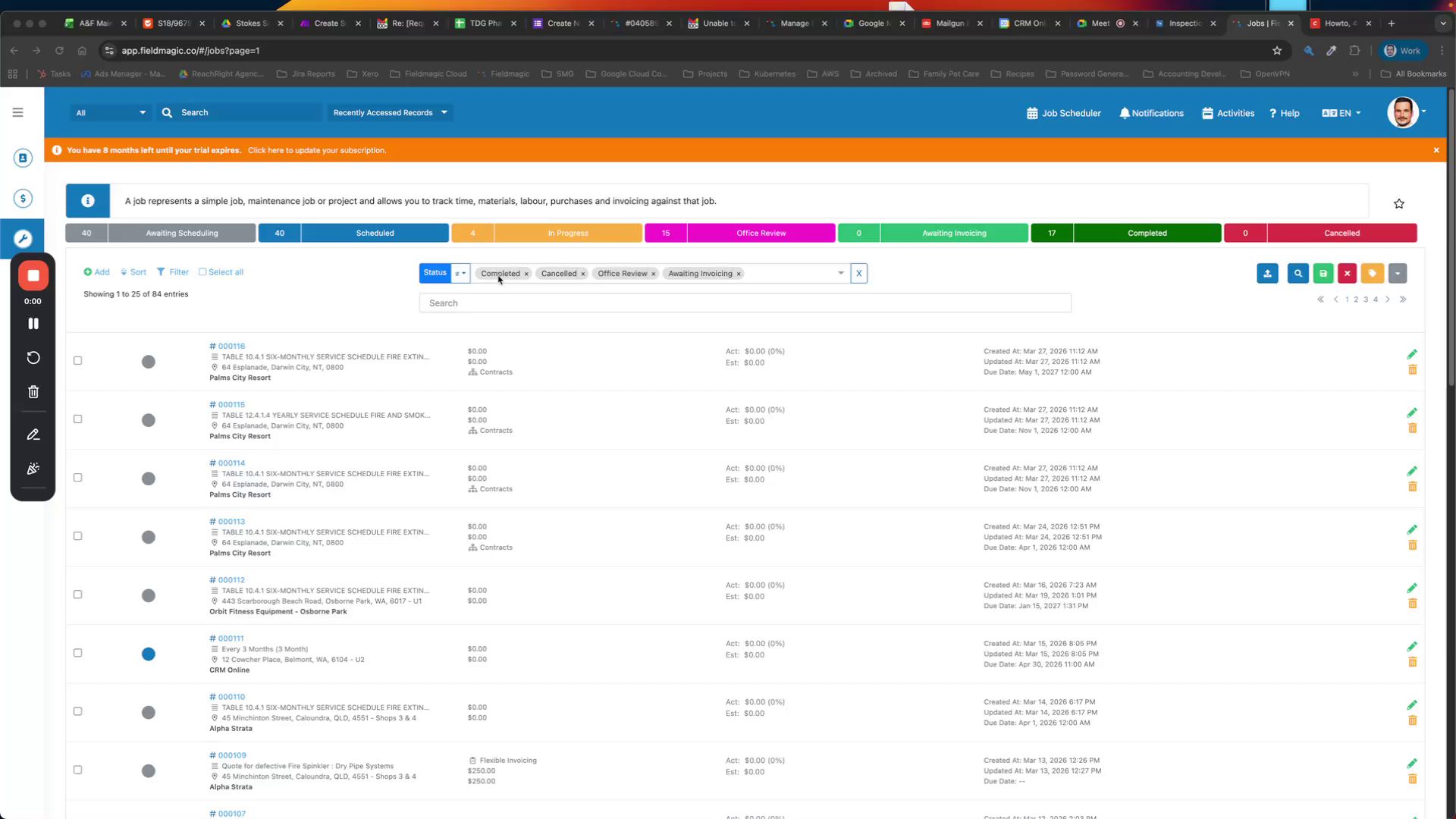 Step 1
Add a customer sign-off form as a checklist to require technicians to complete it every time they finish a job.
 Step 2
Configure the checklist so that a customer signature is required for job completion.
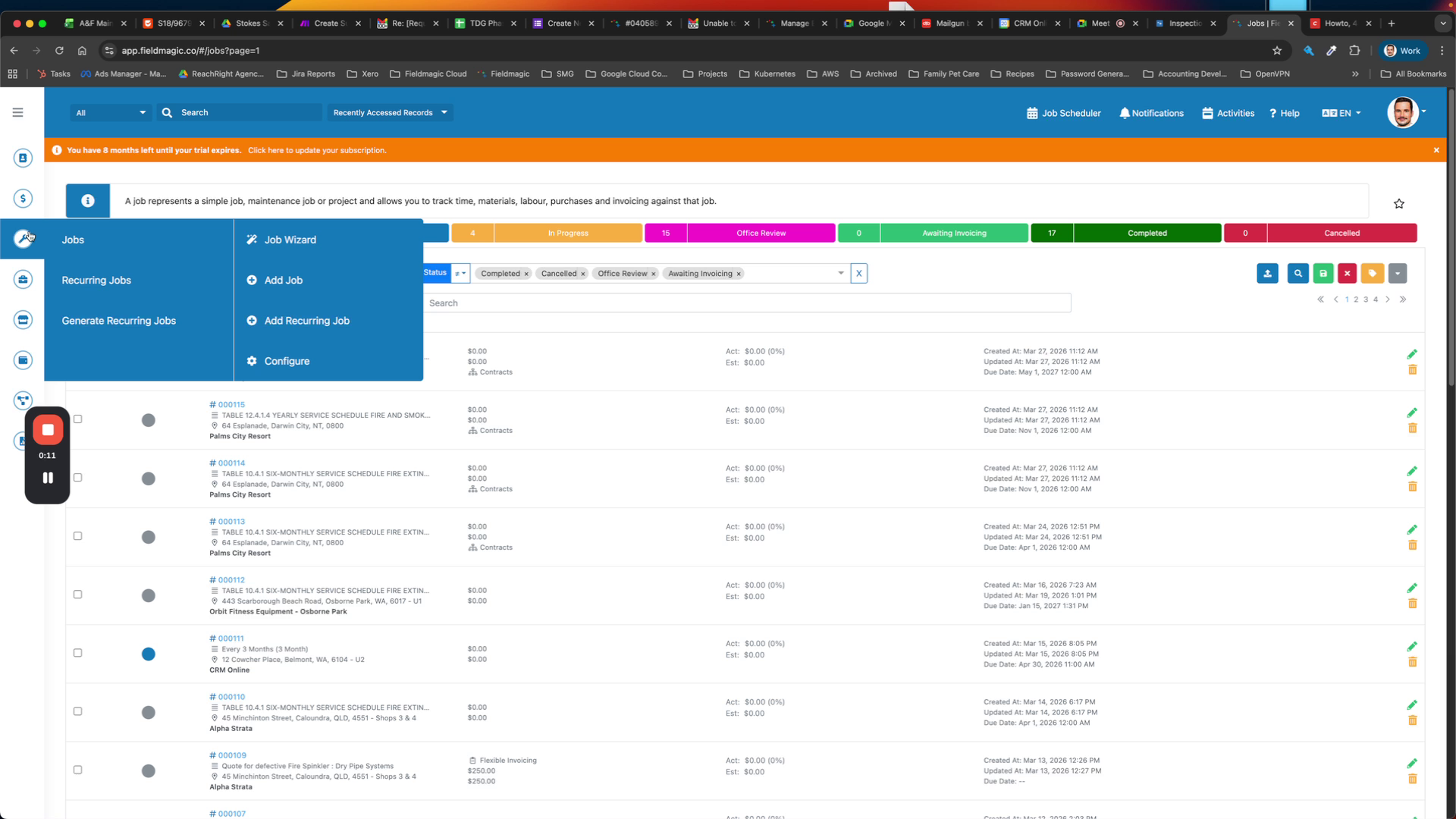
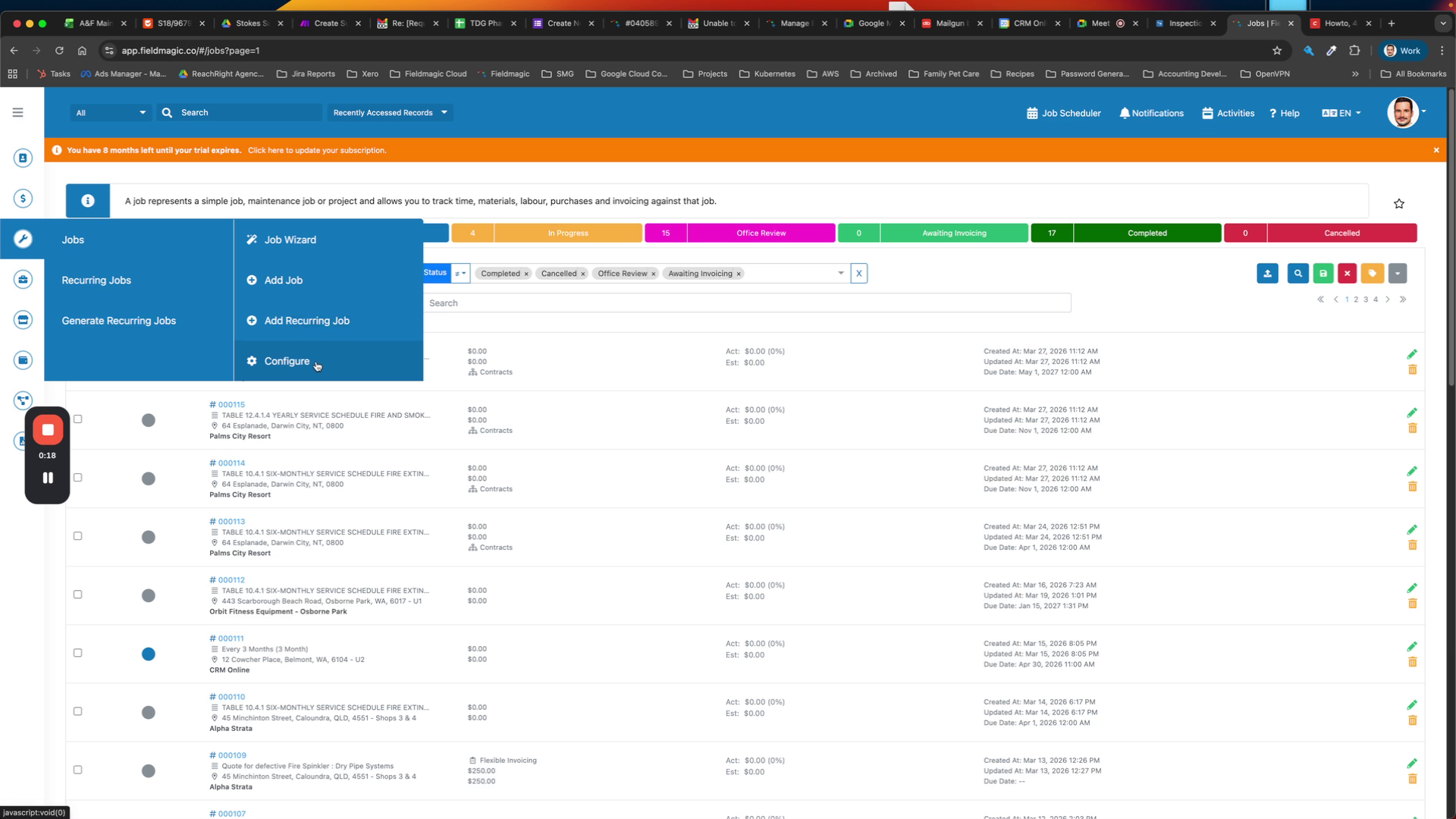 Step 3
Go to the Jobs menu, navigate to Configure, and add a new job checklist. Name it 'Job Sign-Off Form'.
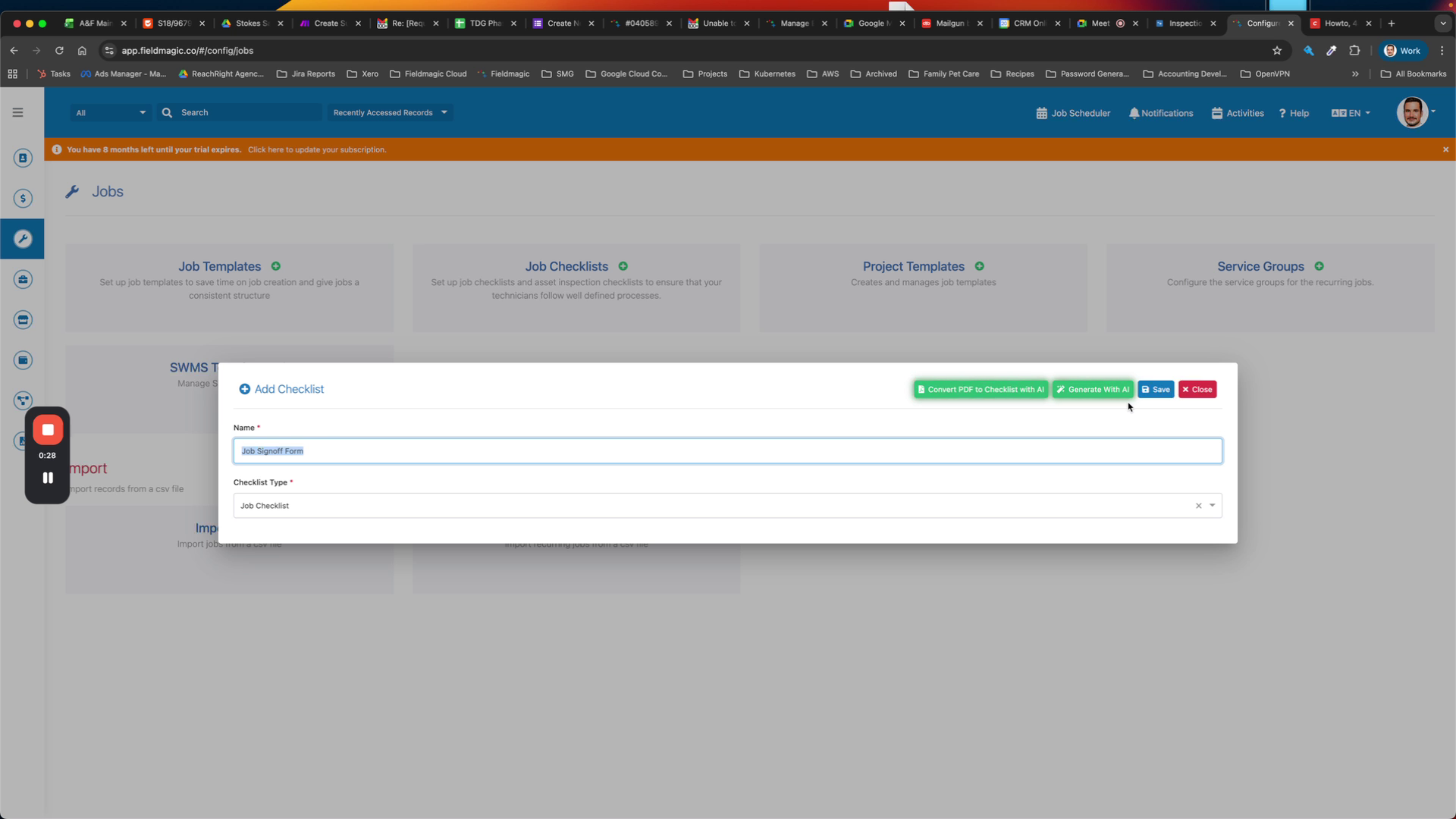 Step 4
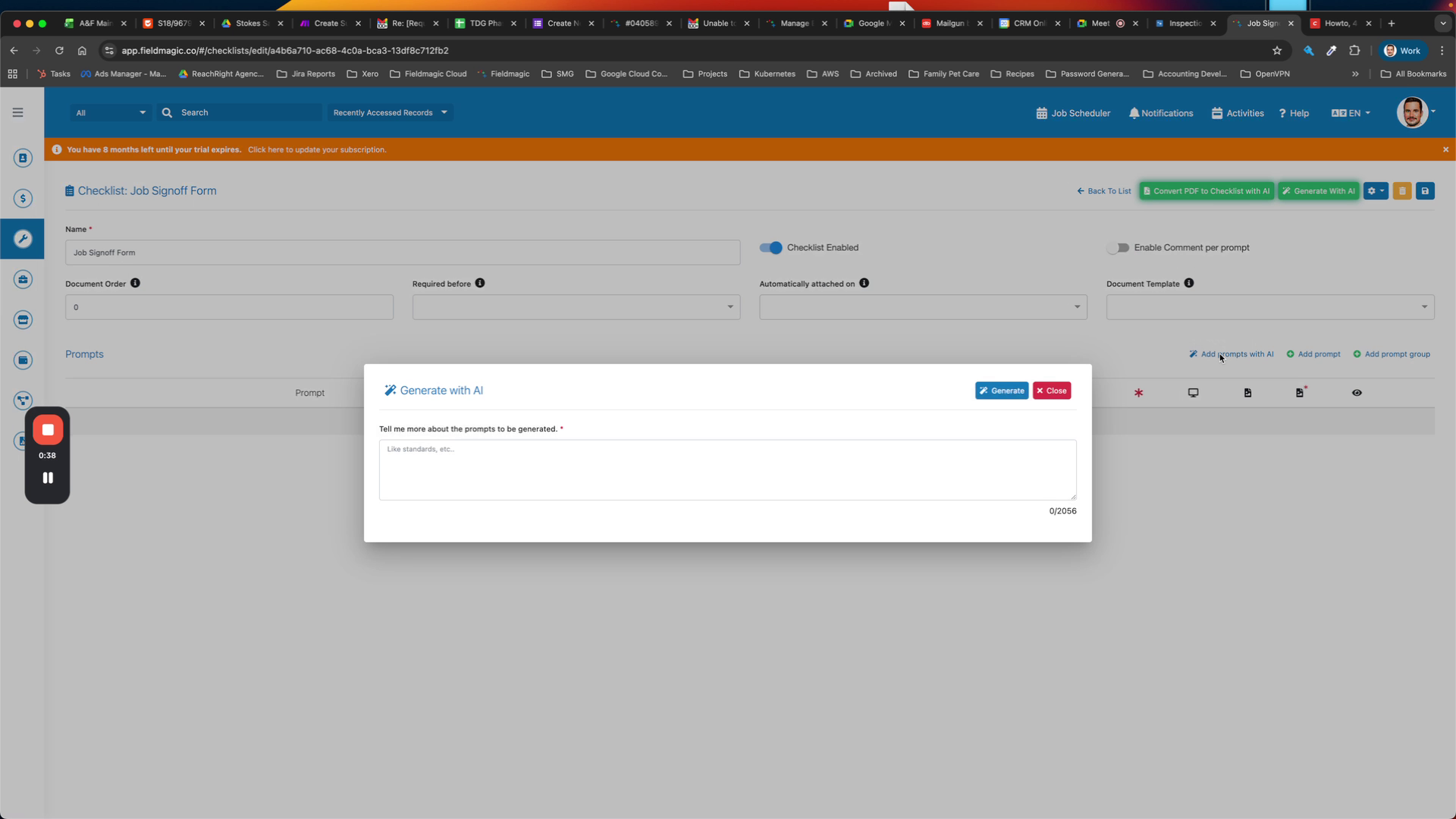
Save the checklist, then use the AI feature to generate it.
 Step 5
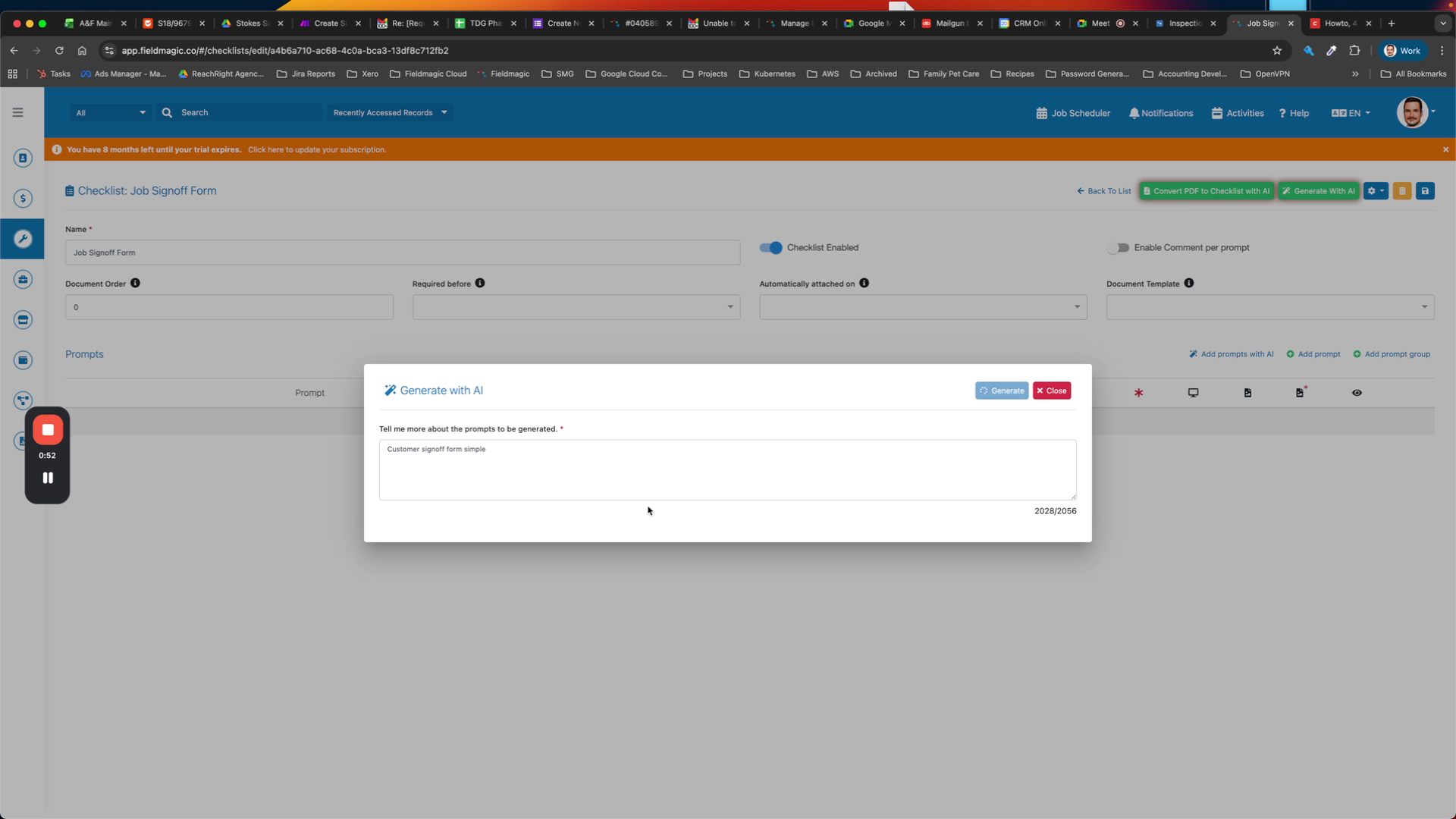
Create a customer sign-off form using the AI generator.
 Step 6
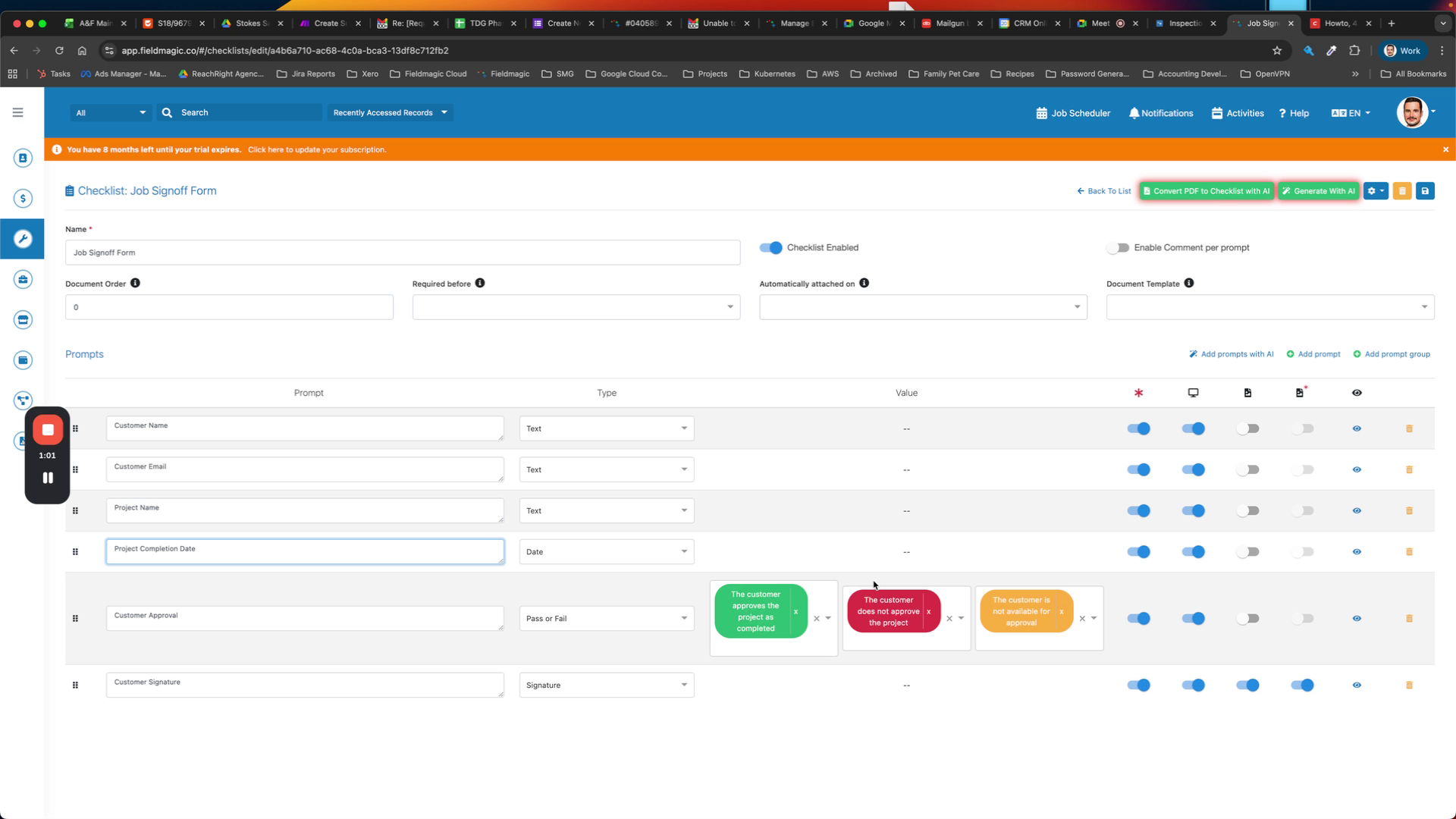
Review the generated fields, which include customer name, customer email, project name, and project completion date.
 Step 7
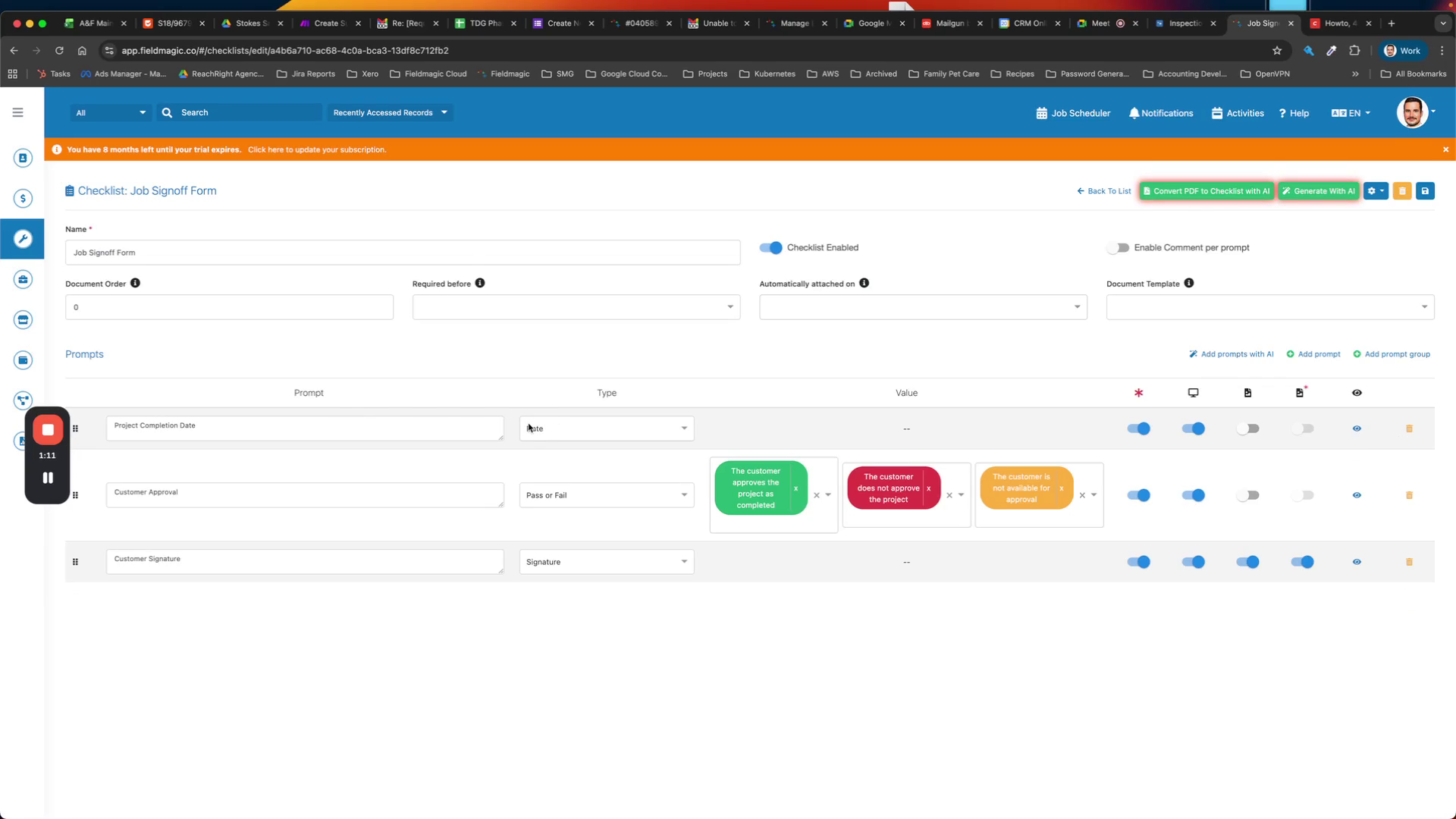
Remove the customer name, customer email, and project name fields since this information already exists in the job.
 Step 8
Rename 'project completion date' to 'job completion date', then add the customer sign-off field.
 Step 9
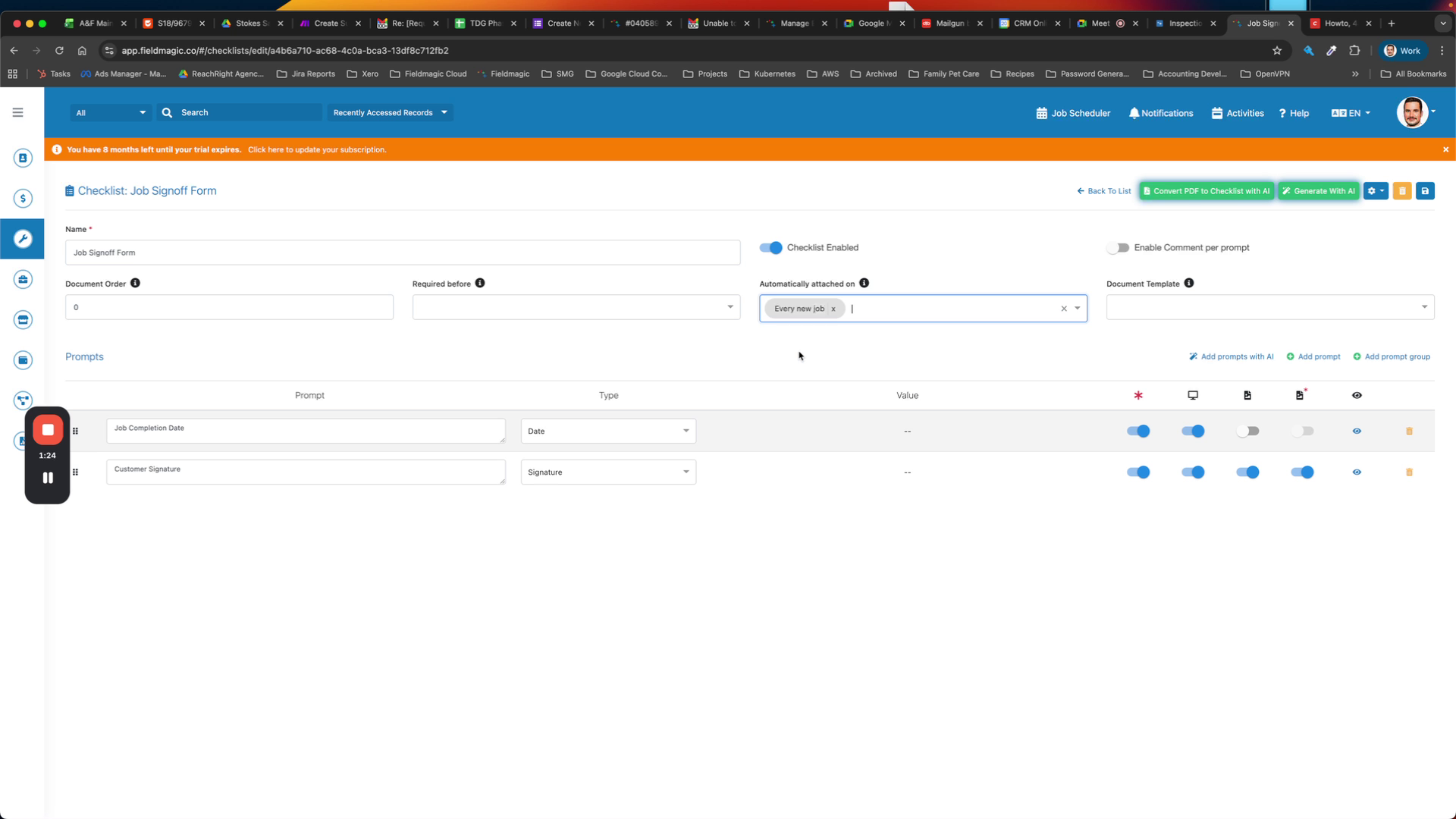
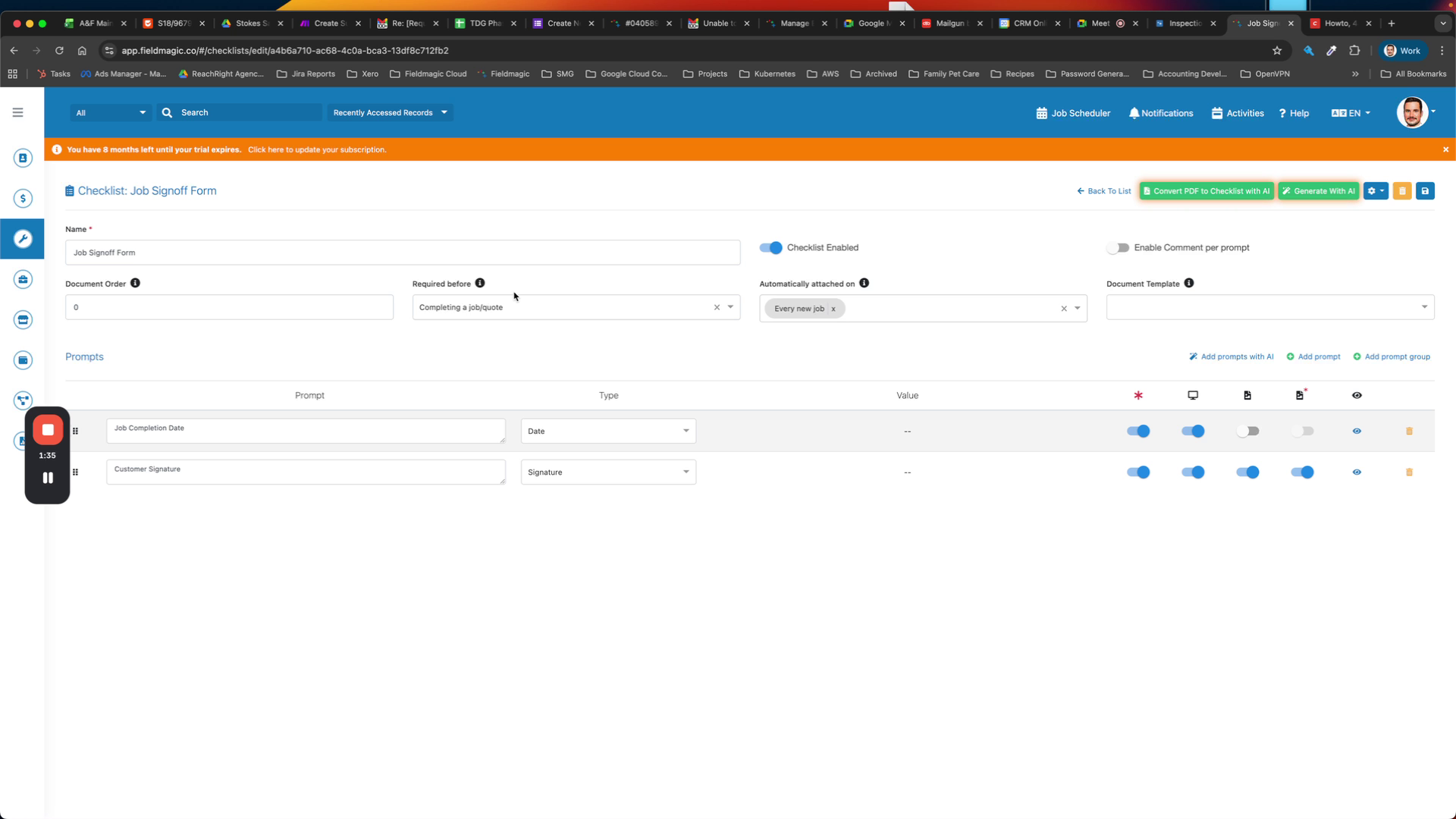
Set the checklist to appear on every new job and mark it as required before the job can be completed.
 Step 10
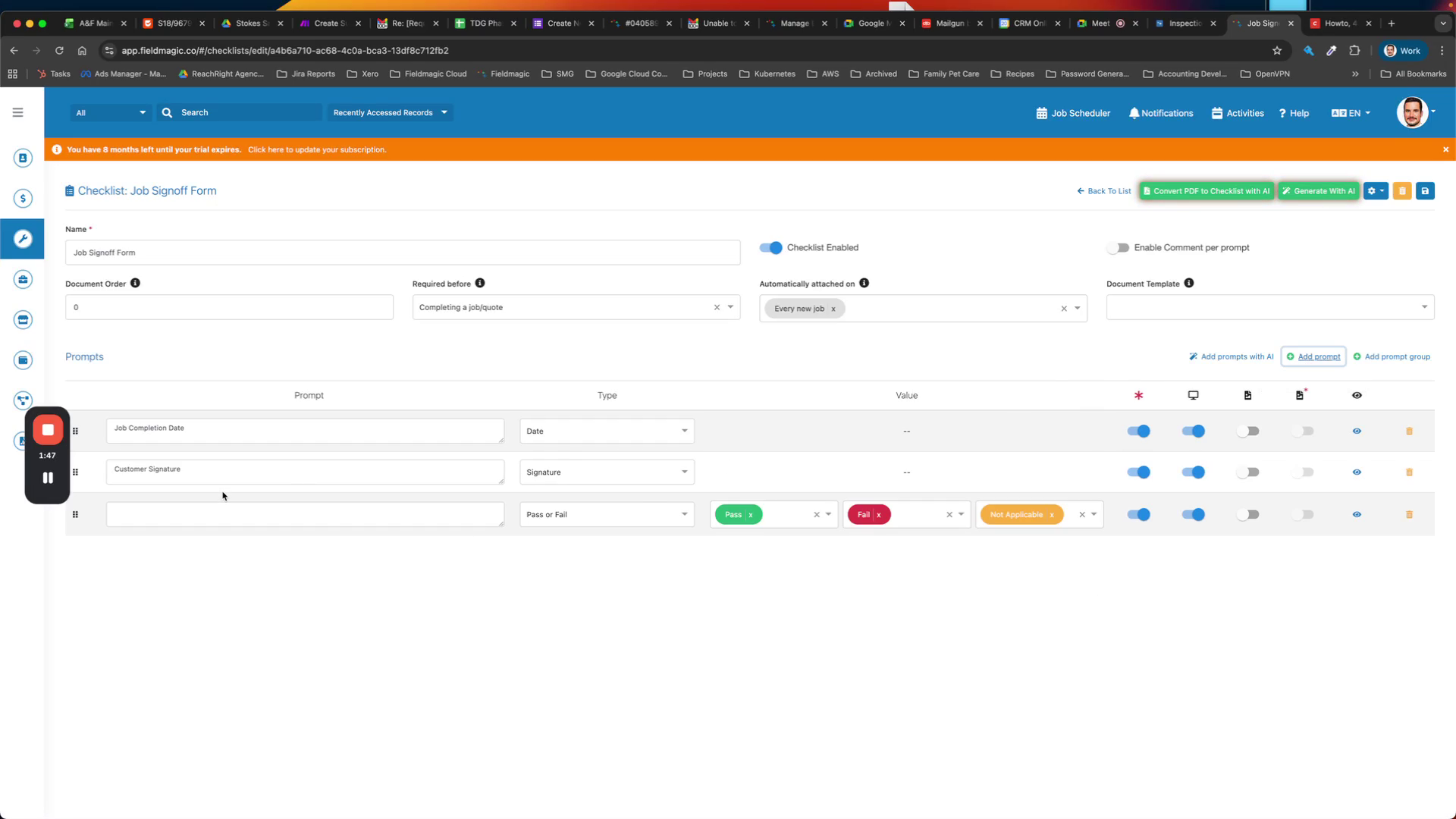
Remove the required image setting on the signature field, then add a job photo field.
 Step 11
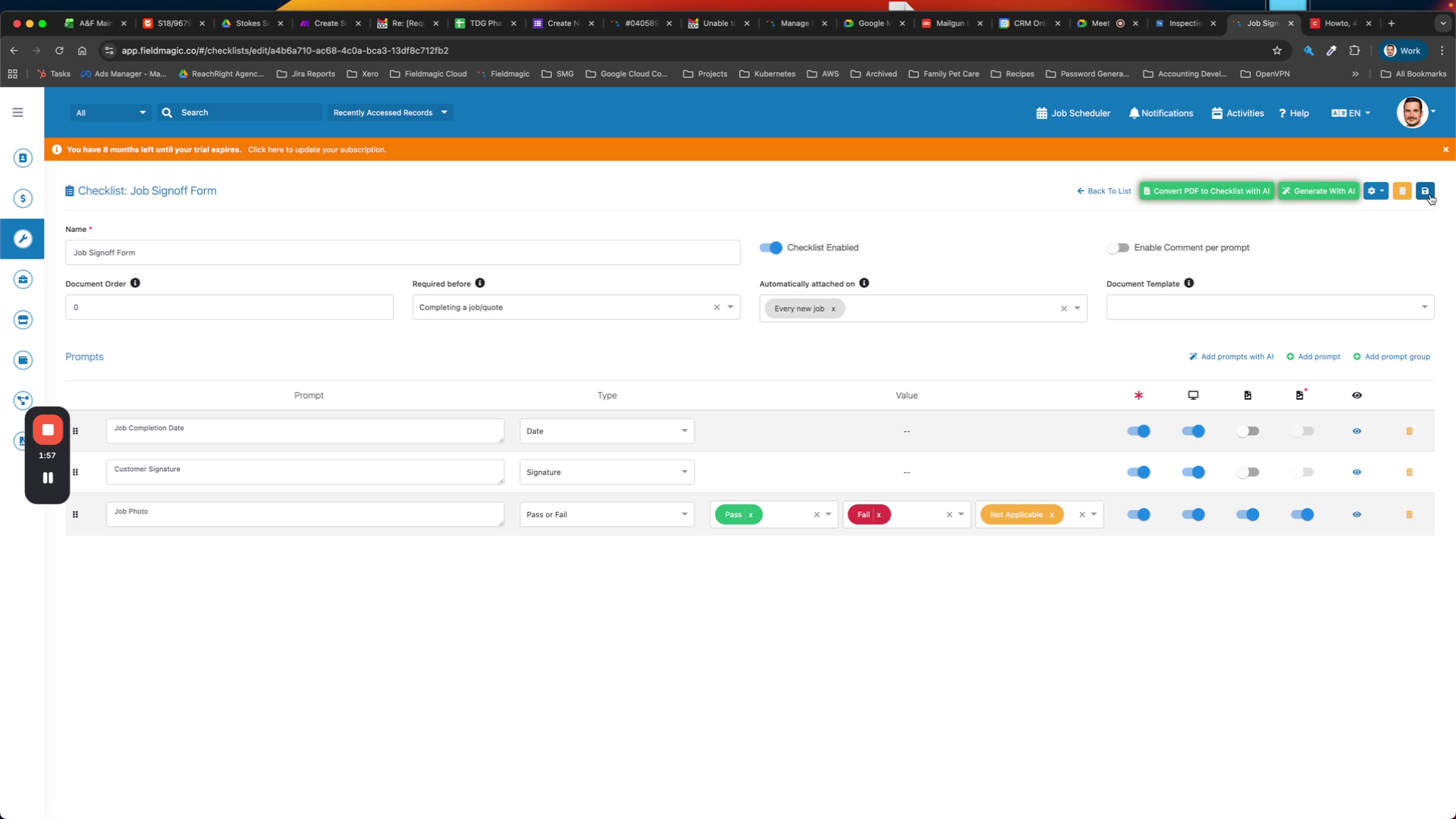
Ensure the job photo field is included in the checklist.
 Step 12
Save the checklist so it automatically attaches to all new jobs and is required for completion.