Asset Inspections & Management
Asset Inspection
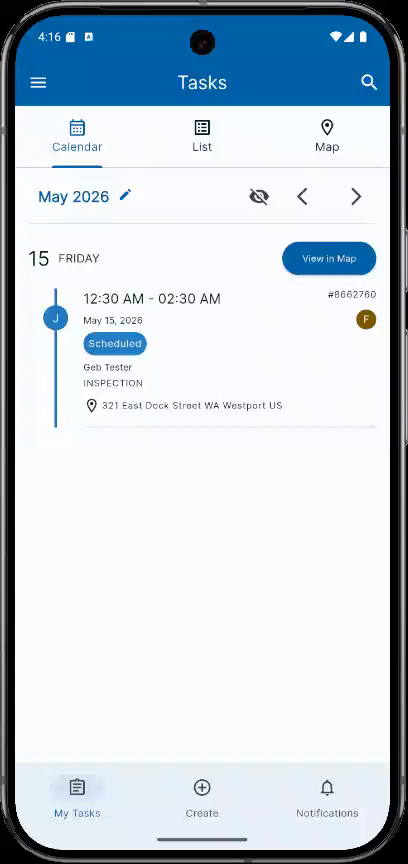
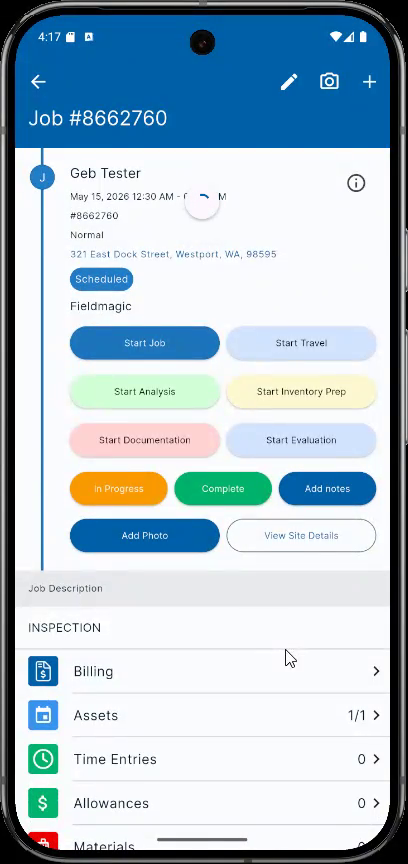
Inspect an asset and its checklist. Navigate to a job where an asset is already created and the checklist is linked.
Step-by-step instructions
 Step 1
Inspect an asset and its checklist. Navigate to a job where an asset is already created and the checklist is linked.
 Step 2
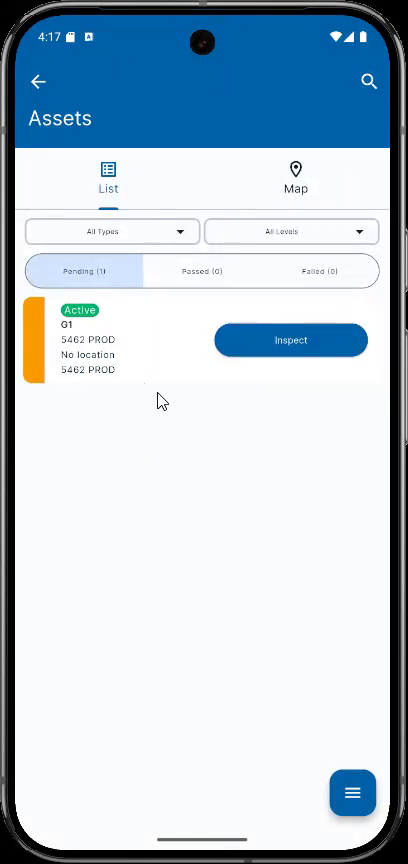
In Assets, view the asset linked to the job. Click Inspect to open the checklist. Complete and pass the checklist.
 Step 3
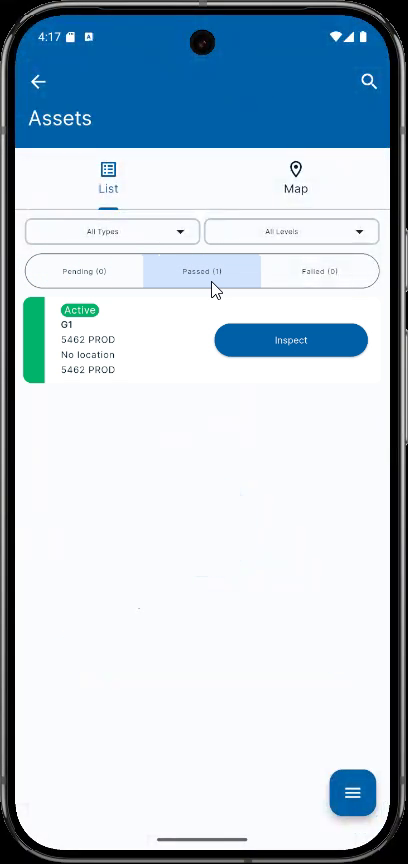
Click Save. The asset is now passed. In Checklist, the checklist is also passed, showing the inspected asset.
 Step 4
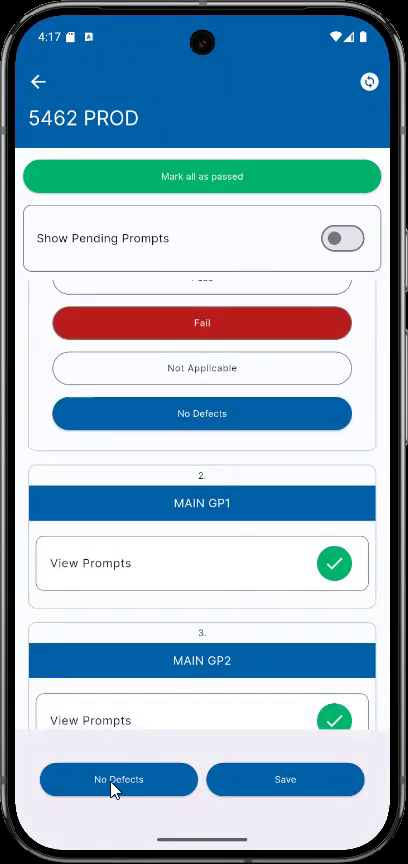
To fail an asset, add a defect. In the prompt, select No defects. Click Add defects.
 Step 5
Select a defect and click Save. Go back and save the checklist again. The asset is now failed with one defect.
 Step 6
In Checklist, the checklist is now failed because the asset within it is failed.