Data Warehouse
Connecting FieldMagic to Google BigQuery
Learn how to connect FieldMagic to Google BigQuery to query your data directly from BI tools such as Microsoft Power BI and Google Looker Studio.
Step-by-step instructions
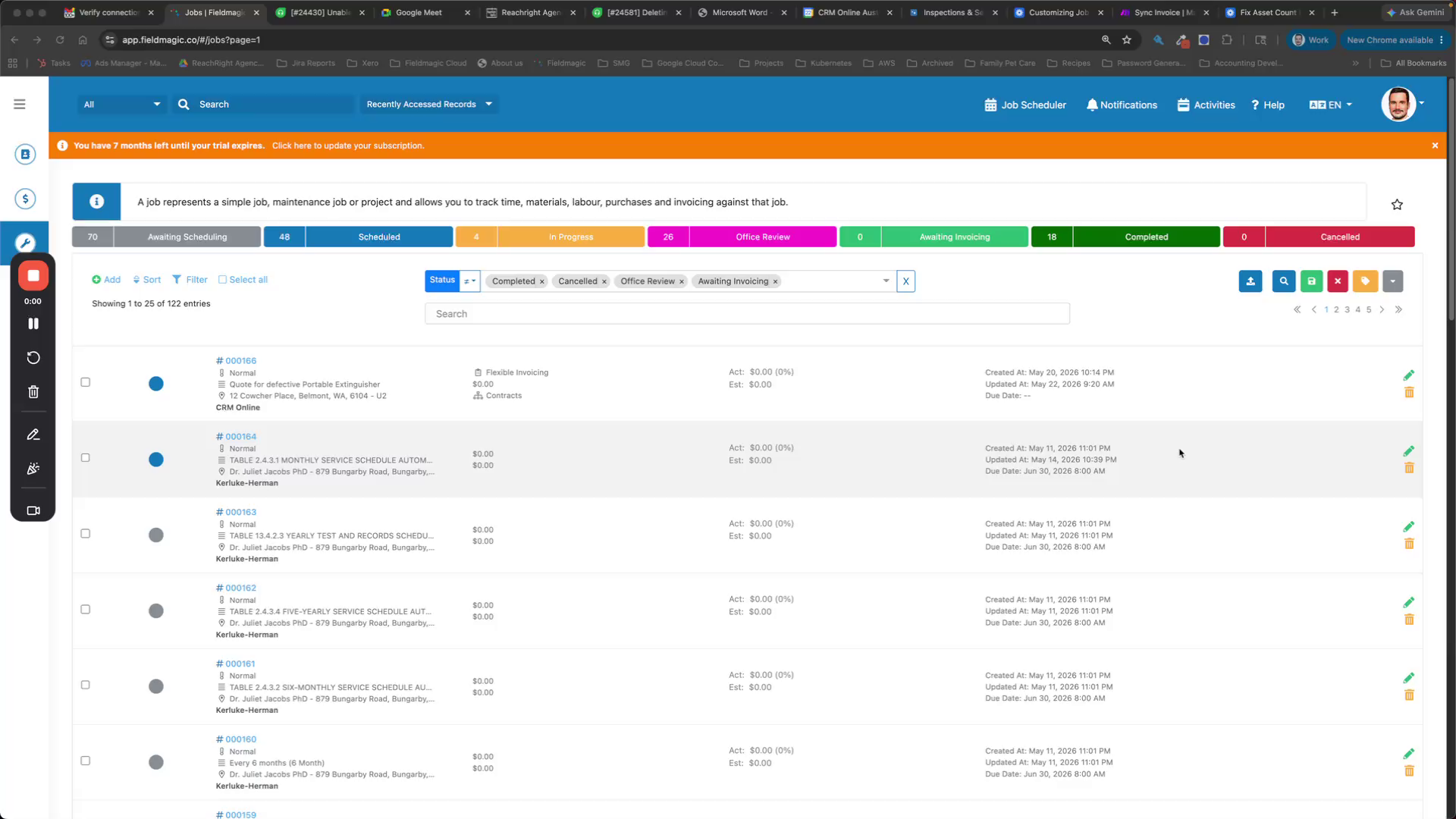 Step 1
Learn how to connect FieldMagic to Google BigQuery to query your data directly from BI tools such as Microsoft Power BI and Google Looker Studio.
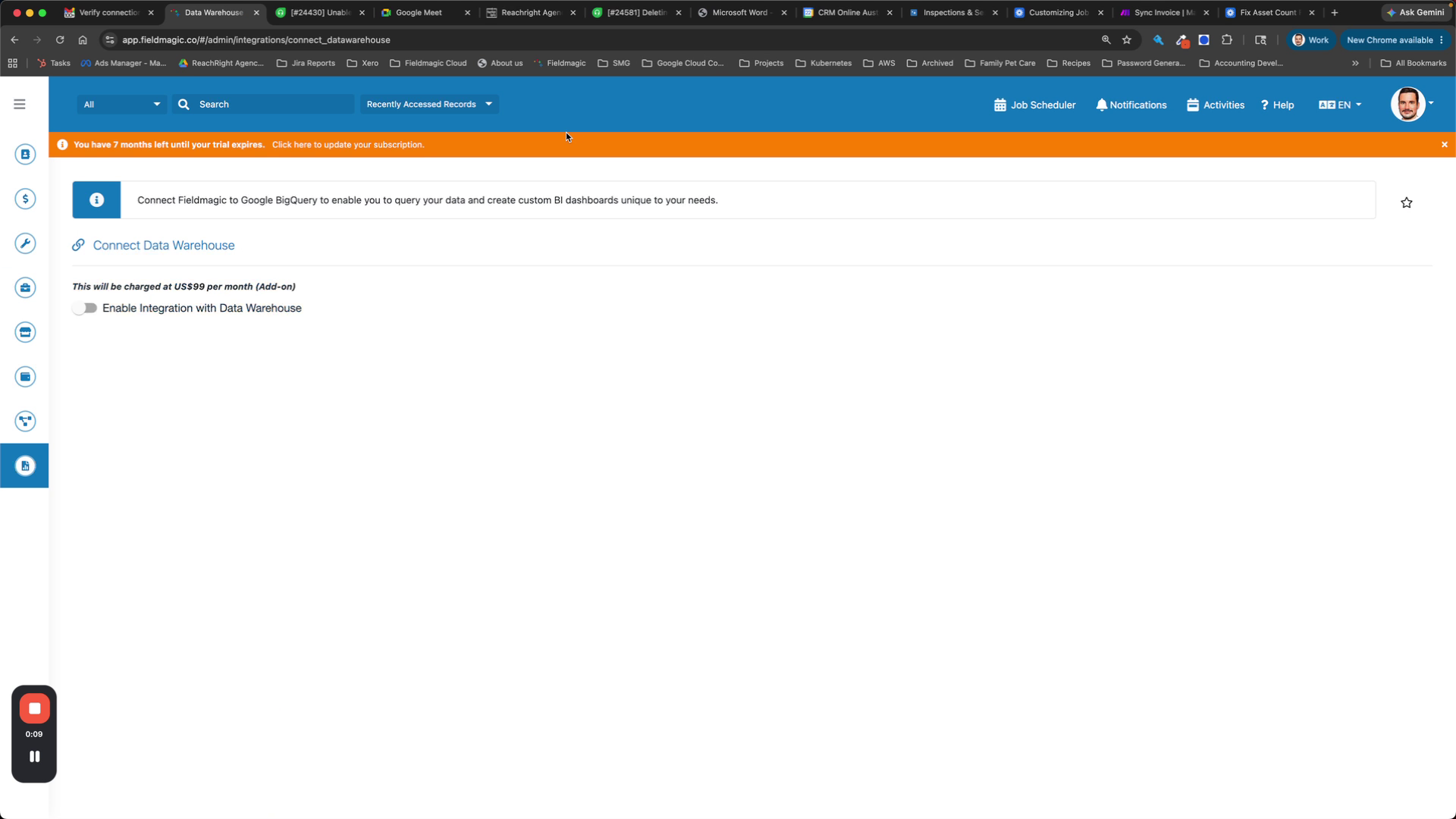 Step 2
Navigate to the data integration settings in FieldMagic and enable the Google BigQuery connection.
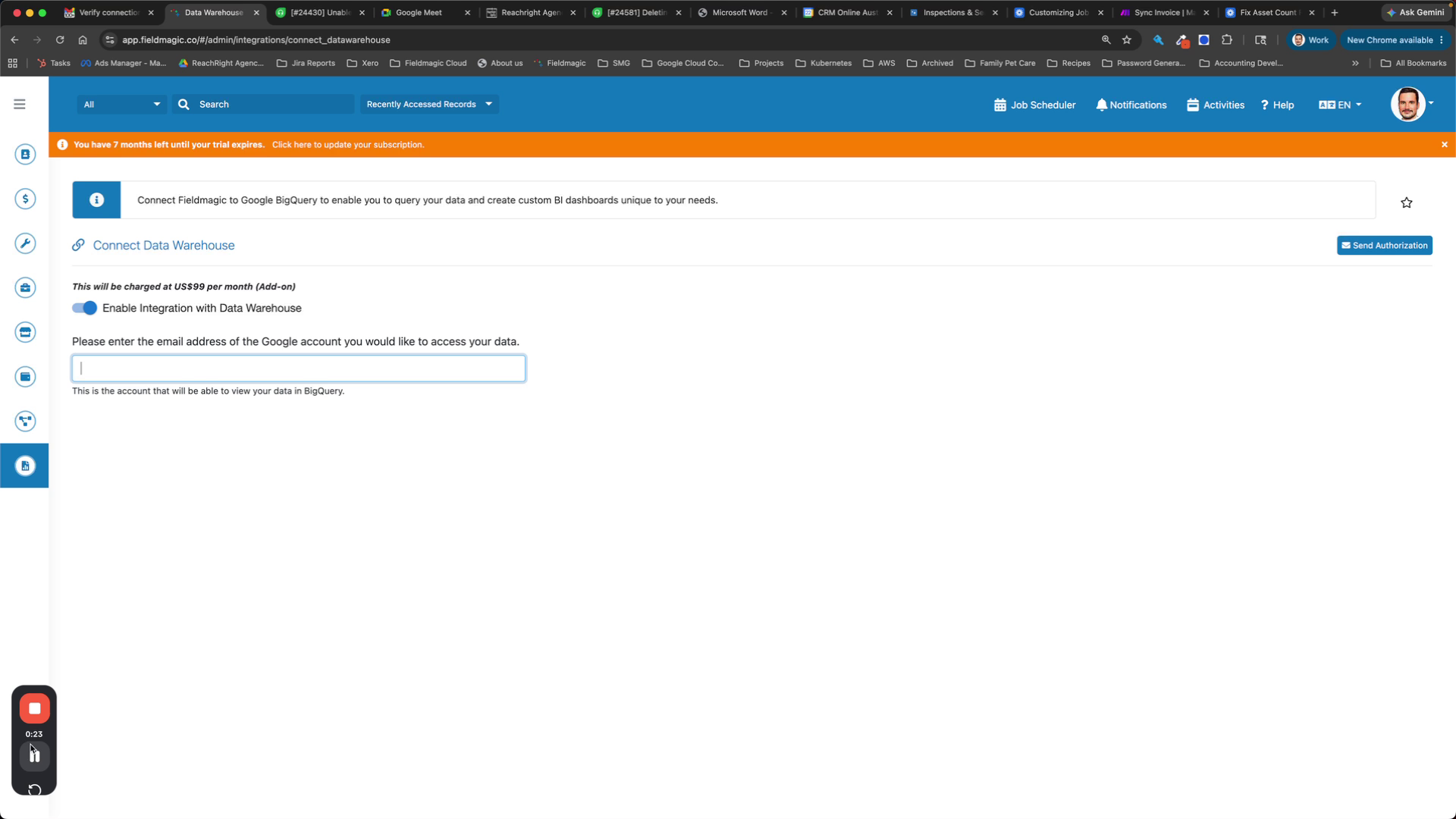 Step 3
Enter a Google email address in the configuration field. Use a Gmail or Google Apps address, or create a free Gmail address if you do not have a Google Apps account.
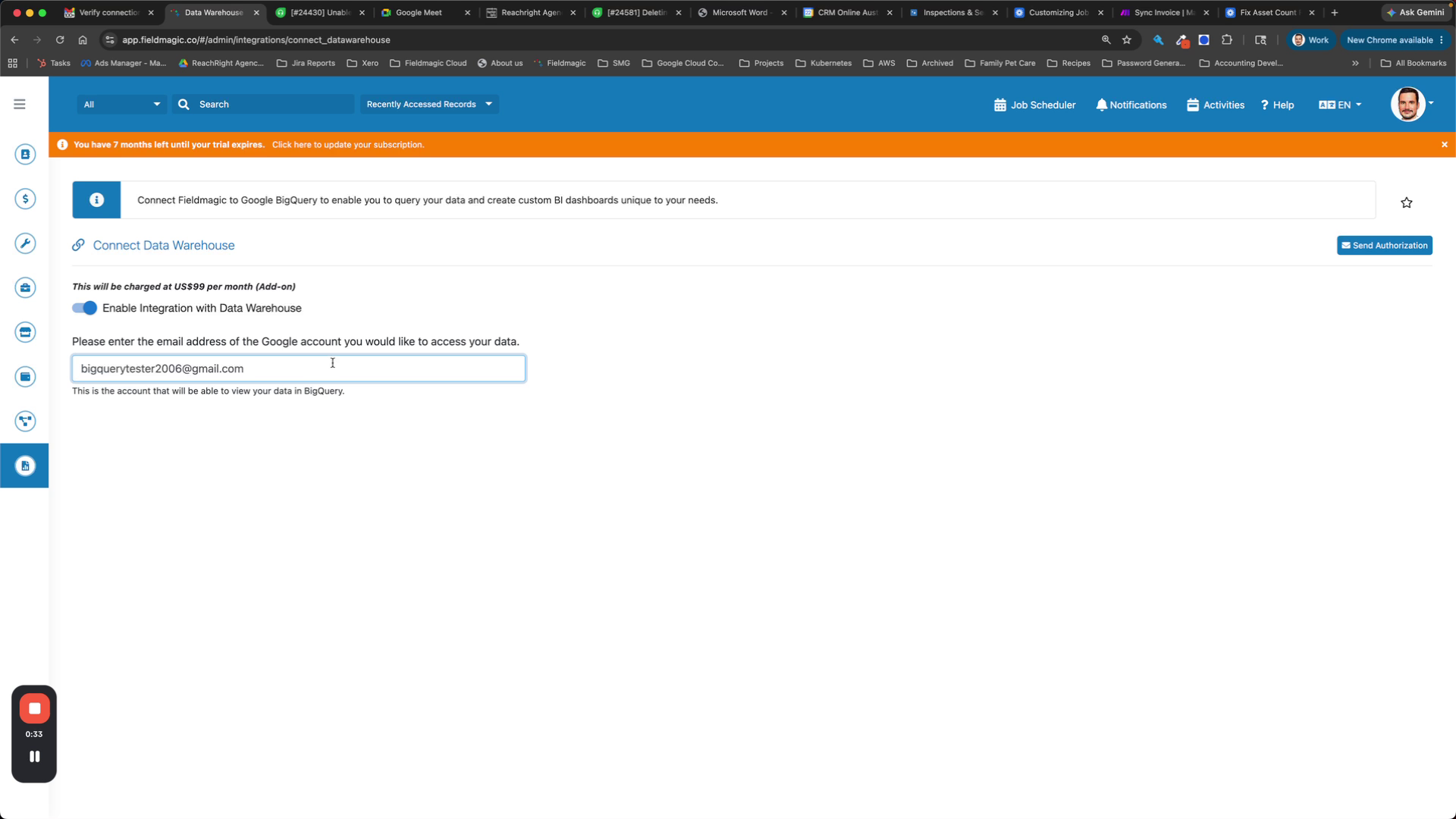 Step 4
Send the authorization email to the entered Google email address.
 Step 5
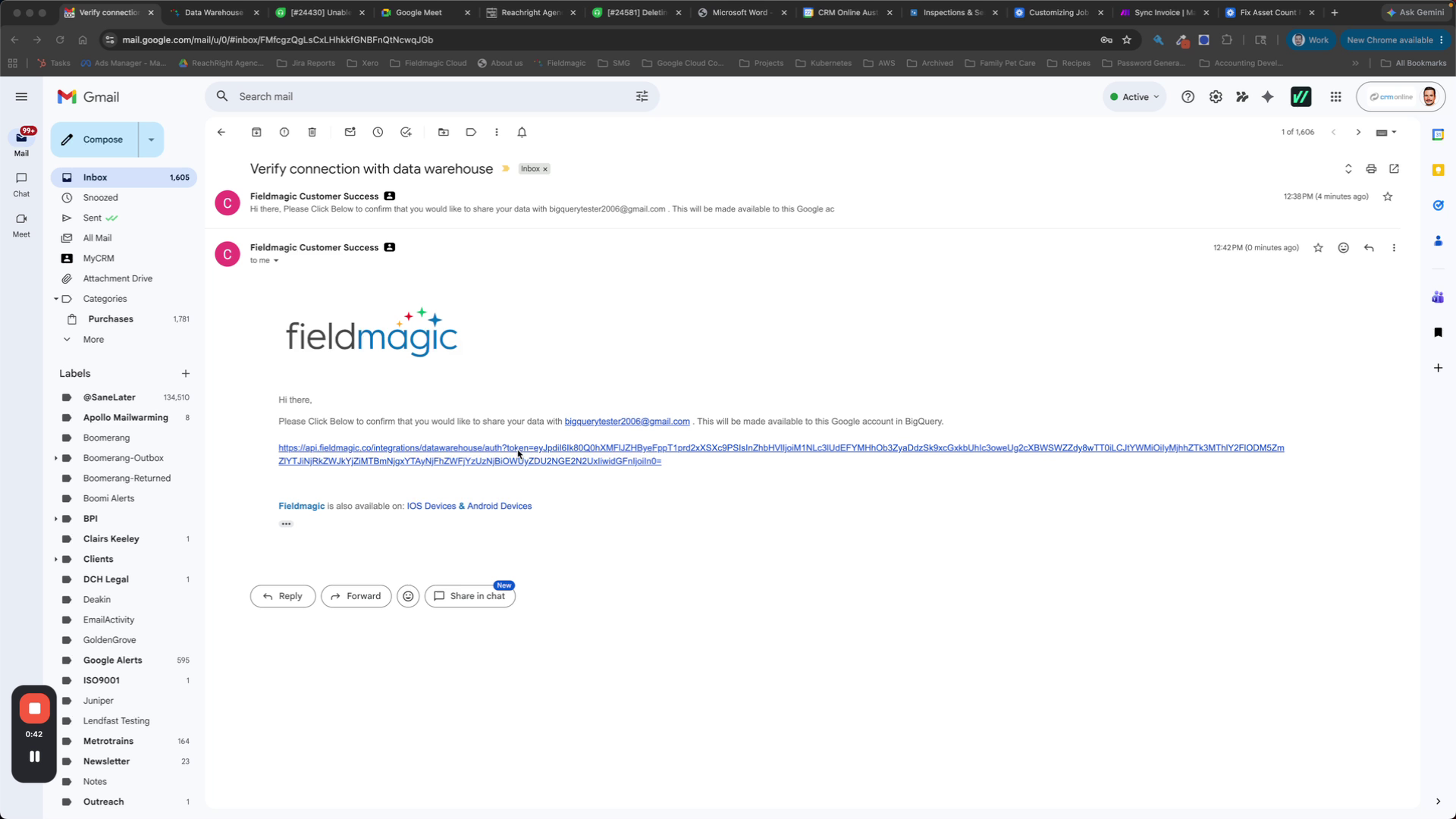
Open the authorization email and click the approval button. The approval request is sent to all administrators in your FieldMagic organization.
 Step 6
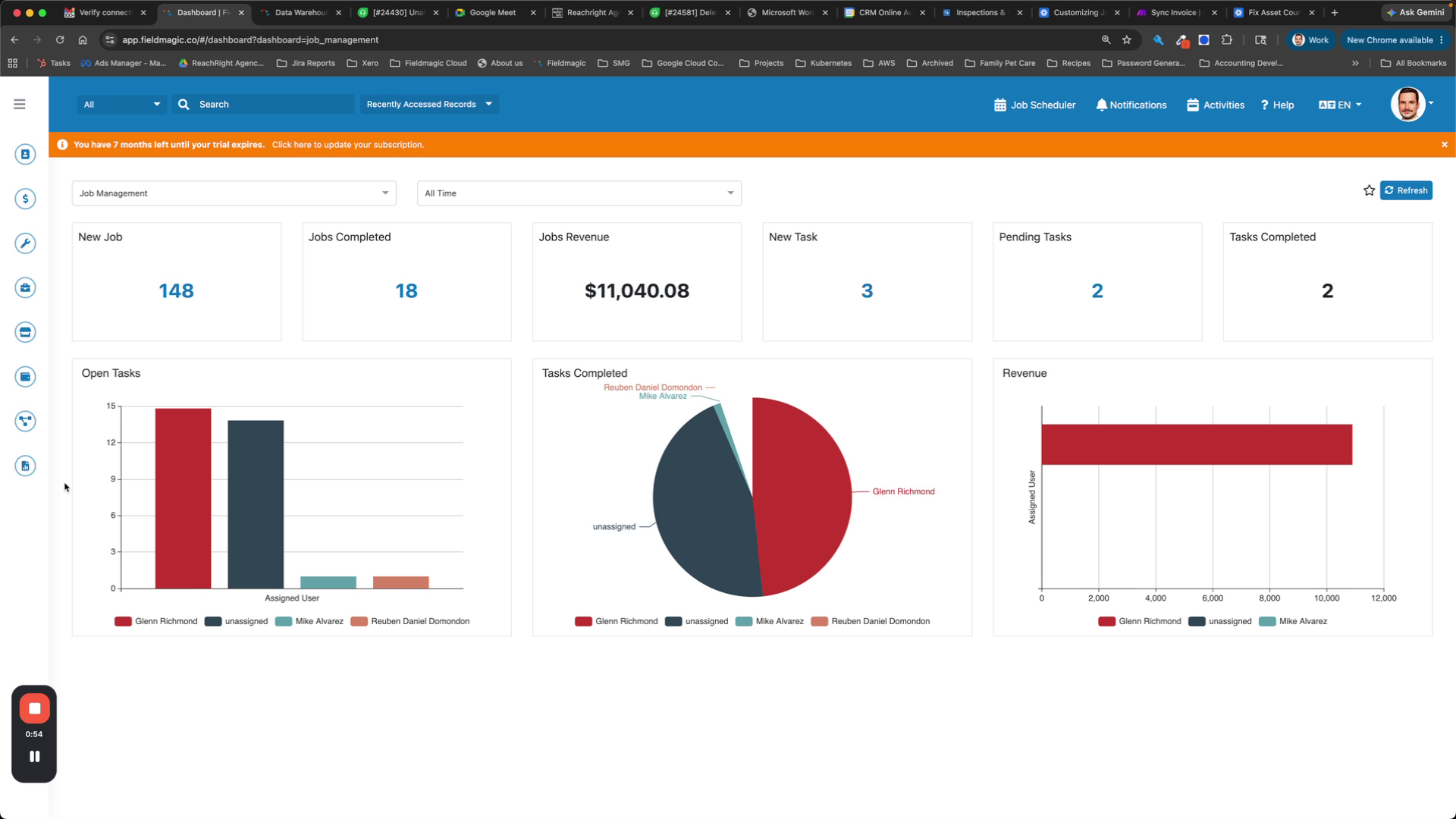
Access your data warehouse and confirm that the Google BigQuery connection is now active. Log in to Chrome with the authorized email address to access the connected data.