Contract Pricing
Contracts | creating and generating Recurring Invoice with the Contract Pricing
Create a recurring invoice using the contract pricing from an existing contract.
Step-by-step instructions
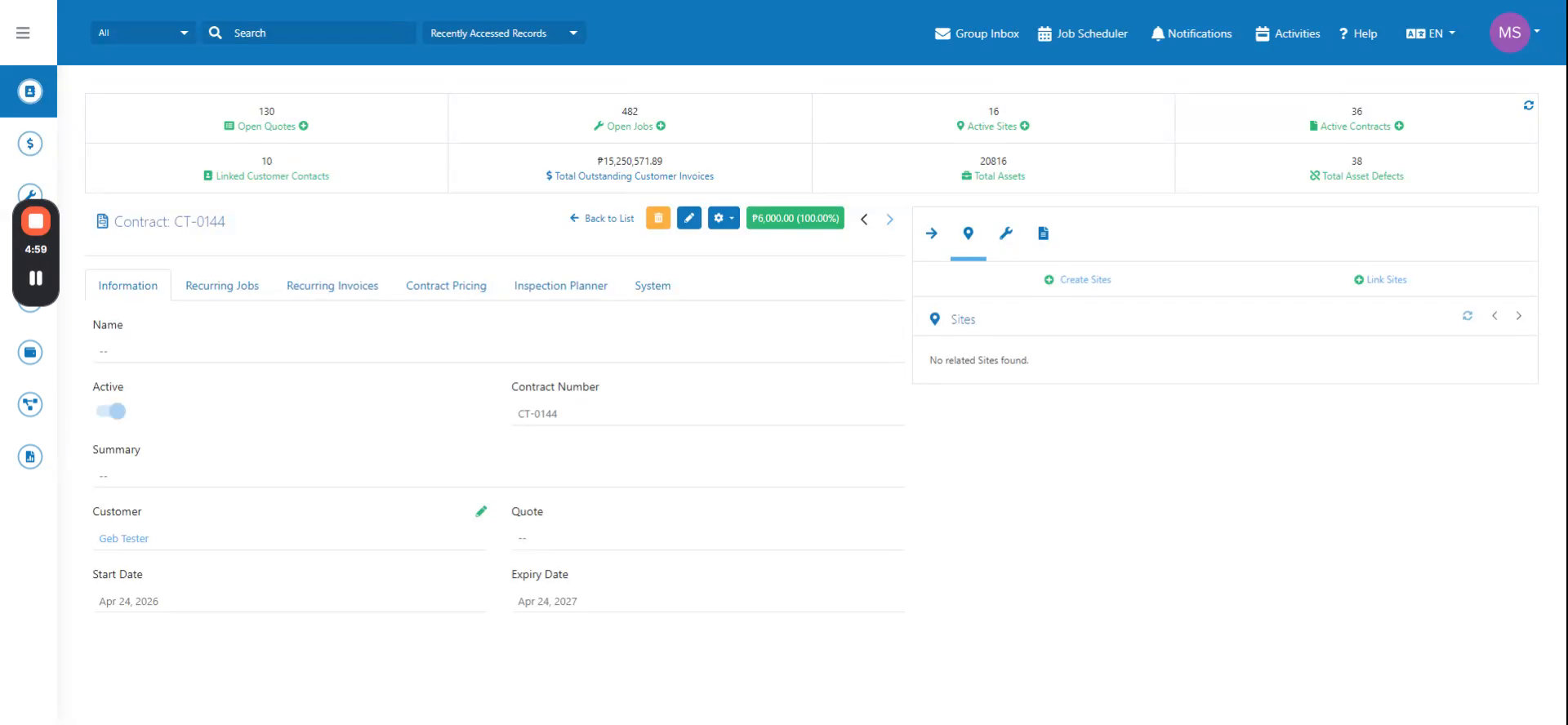 Step 1
Create a recurring invoice using the contract pricing from an existing contract.
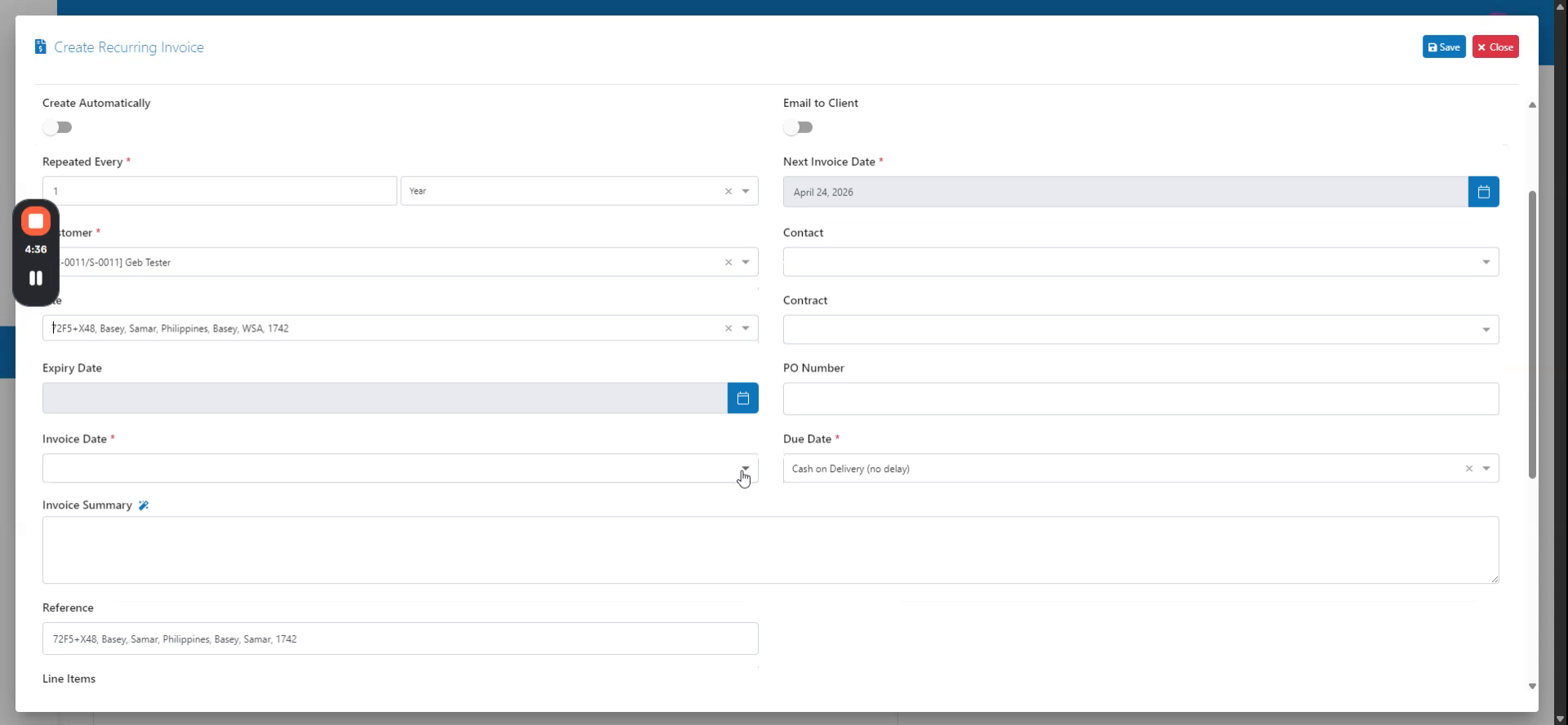 Step 2
In the contract field, search for and select the contract you want to use (e.g., CT0-0144).
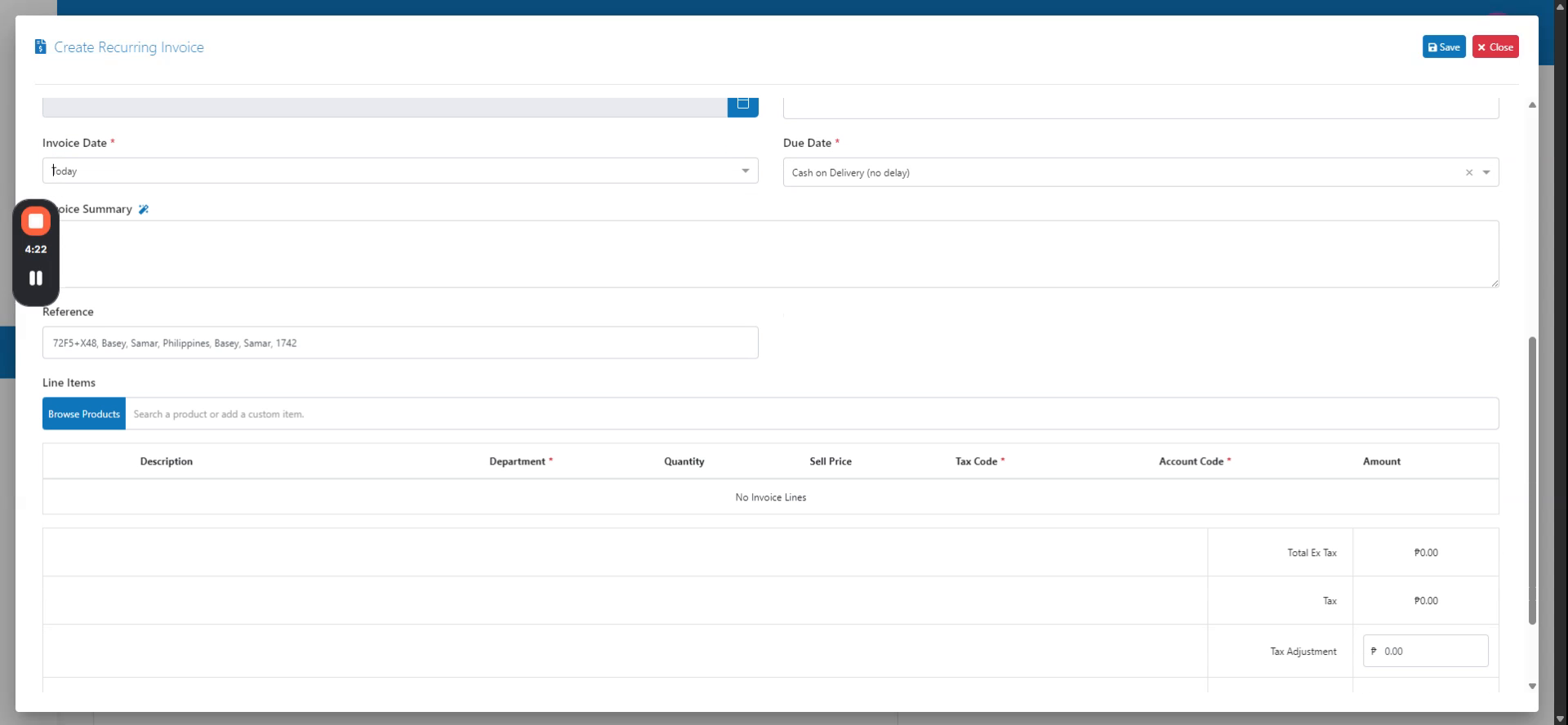 Step 3
Verify that the contract pricing products are suggested and that the sale price matches the contract pricing.
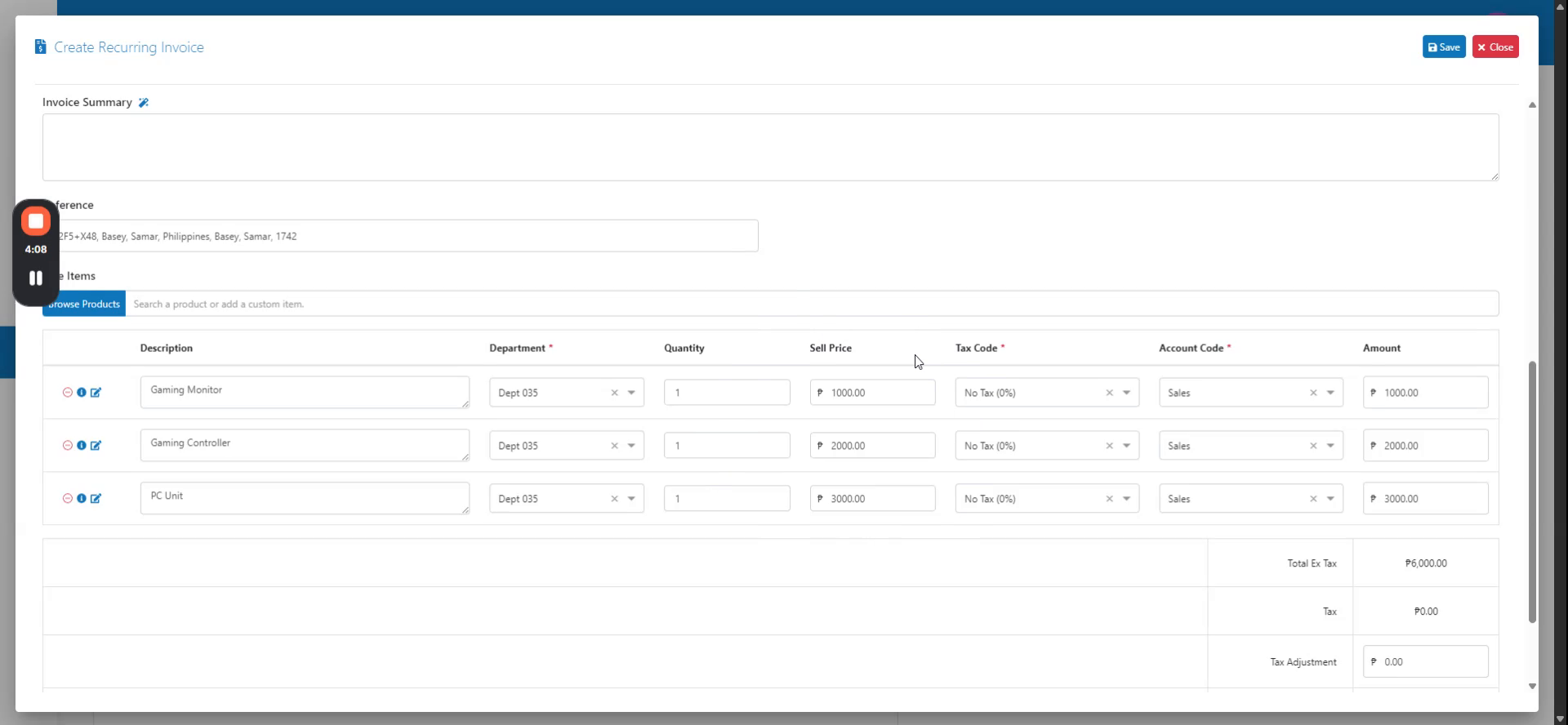 Step 4
Click Save to create the record, then navigate to generate scheduled invoices.
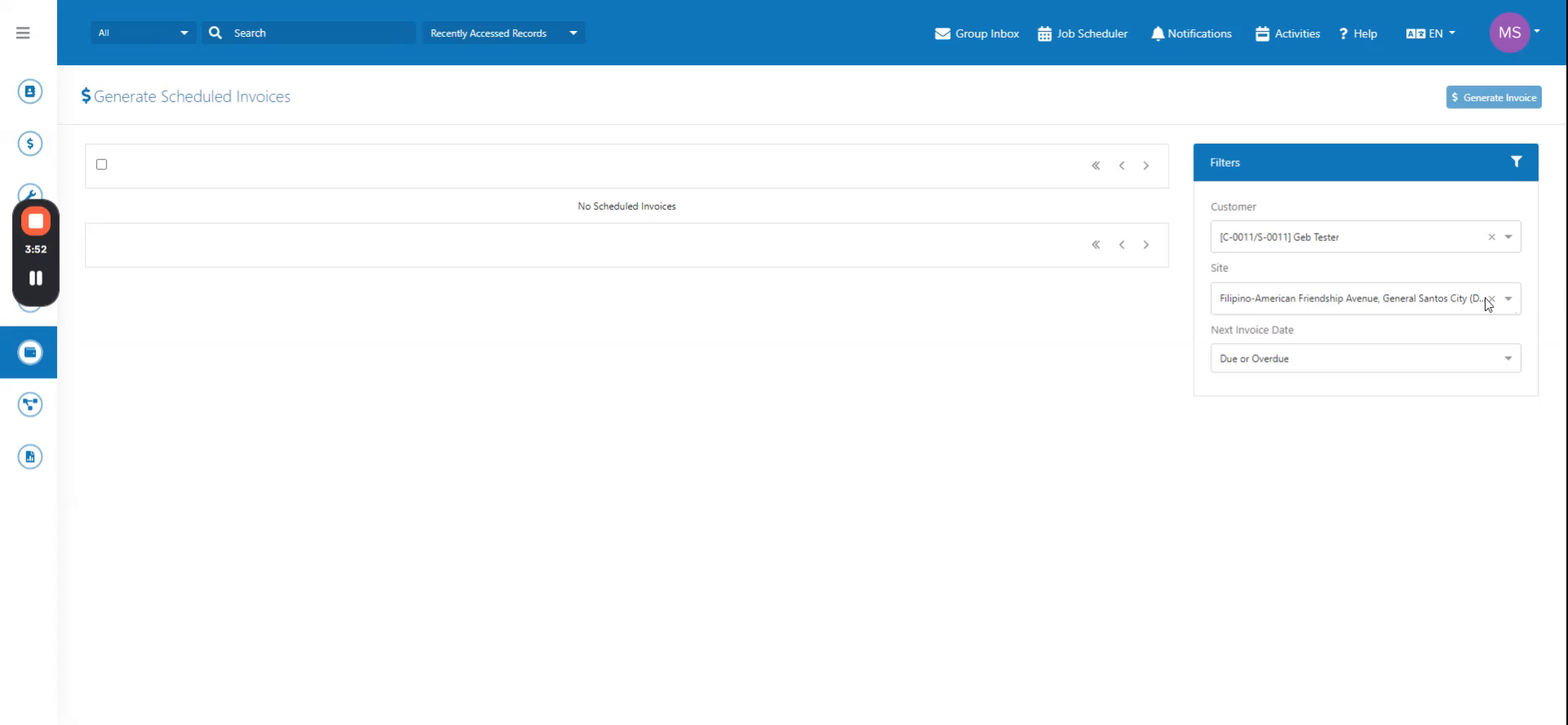 Step 5
Search for the recurring invoice you created and verify it appears in the customer invoices section.
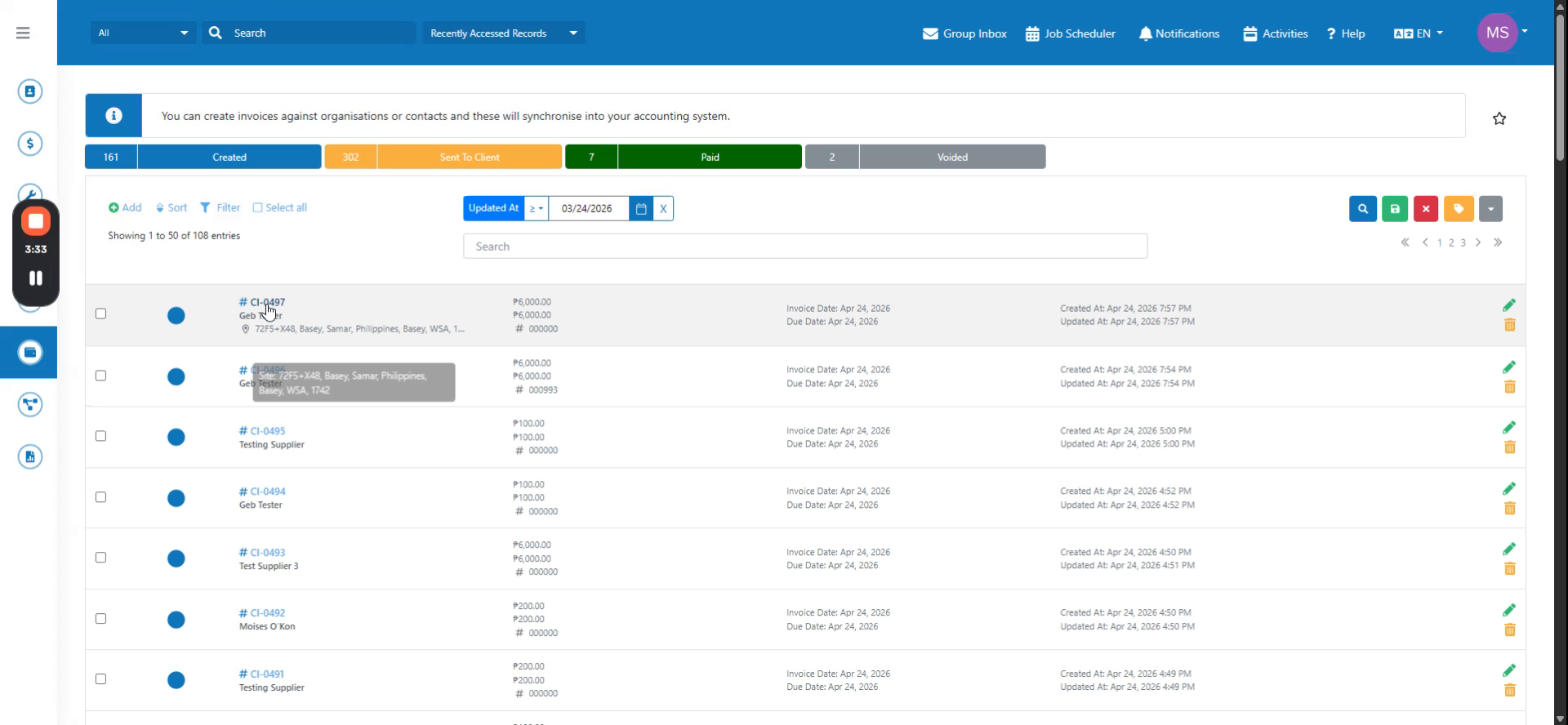 Step 6
Open the generated invoice to confirm the customer invoices were created using the recurring contract pricing.