Asset Management
Create an Asset Checklist
Learn how to create an asset checklist in FieldMagic.
Step-by-step instructions
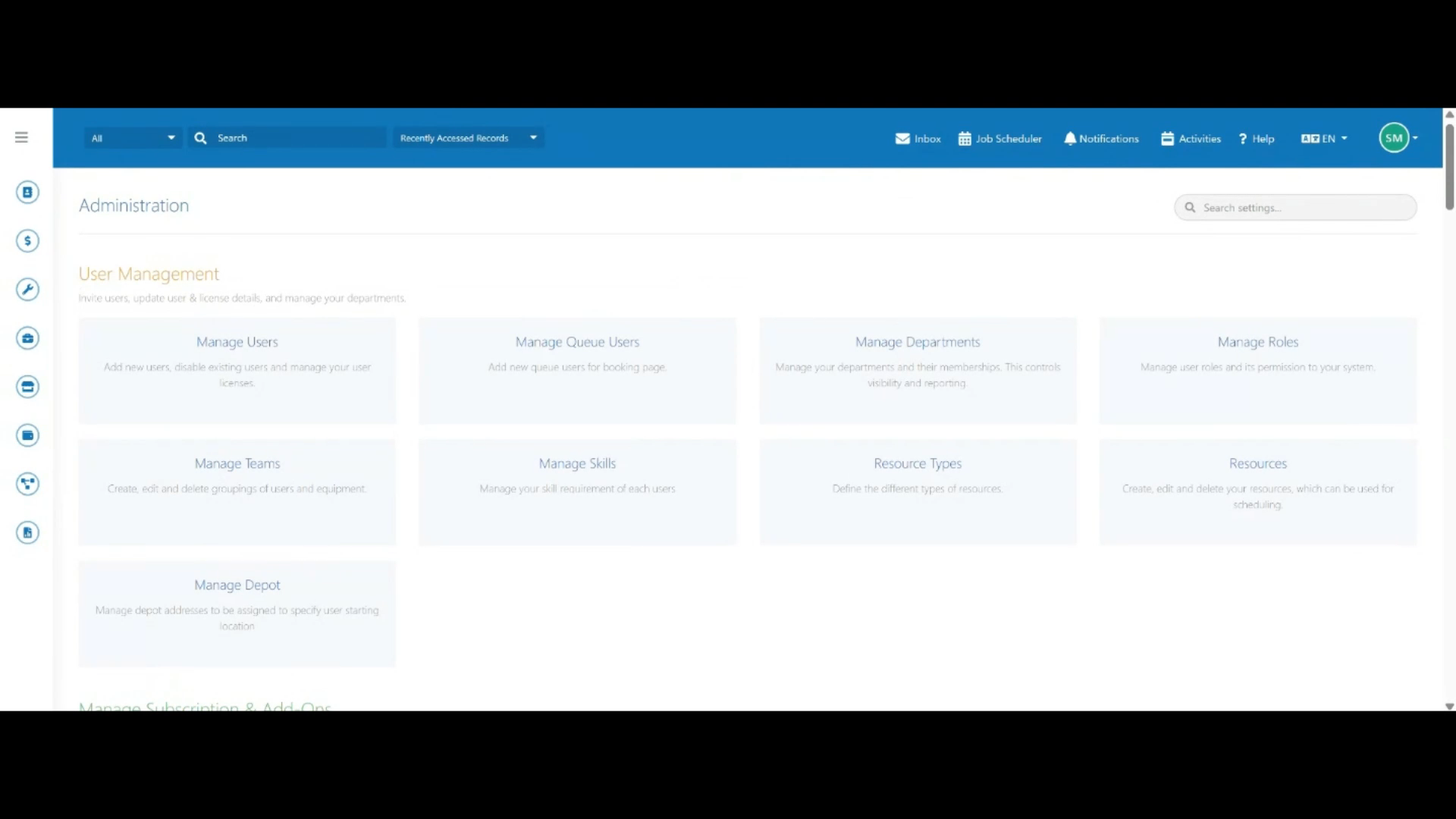 Step 1
Open Settings and go to the Administration area to begin setting up a new asset checklist.
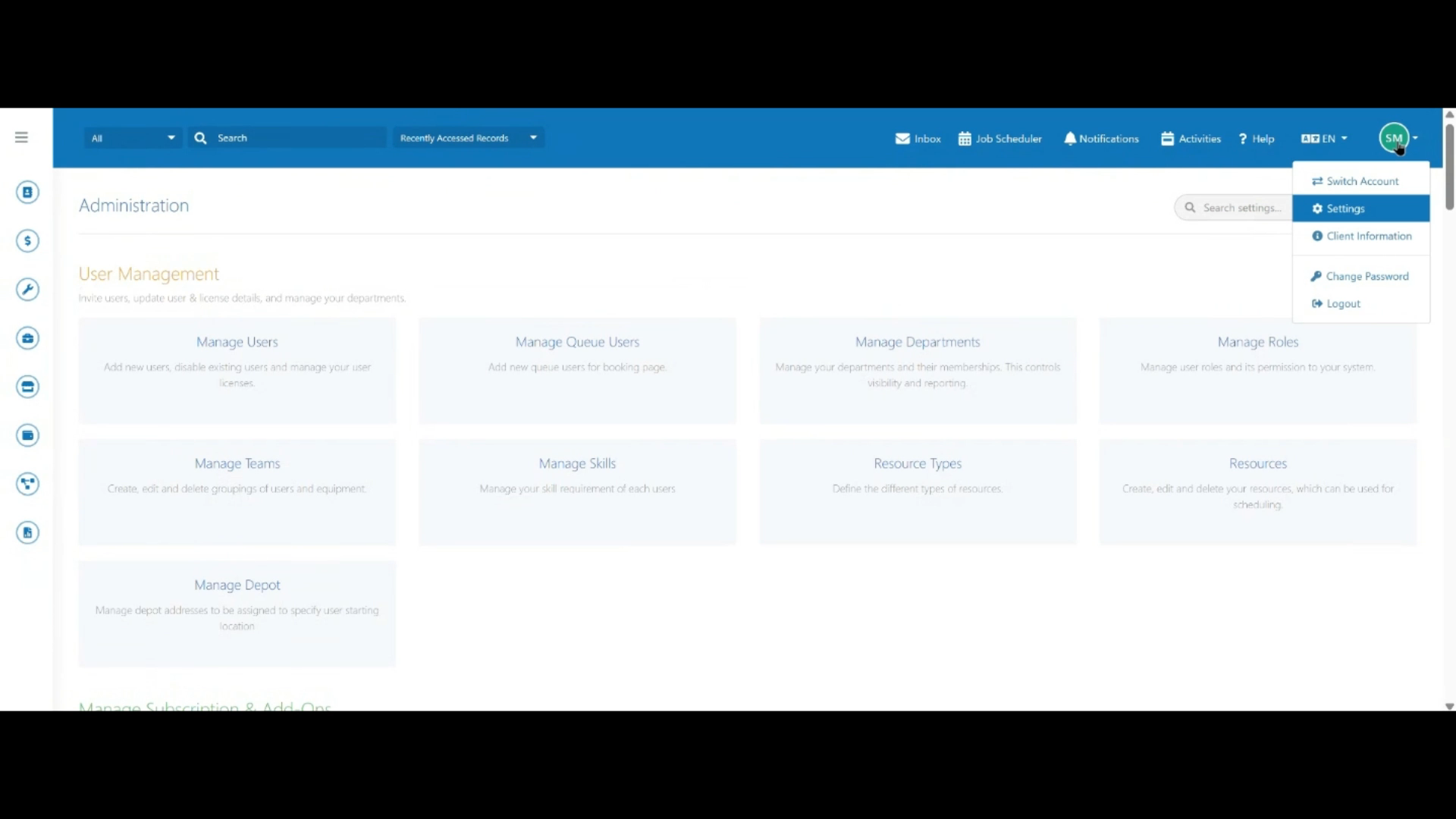 Step 2
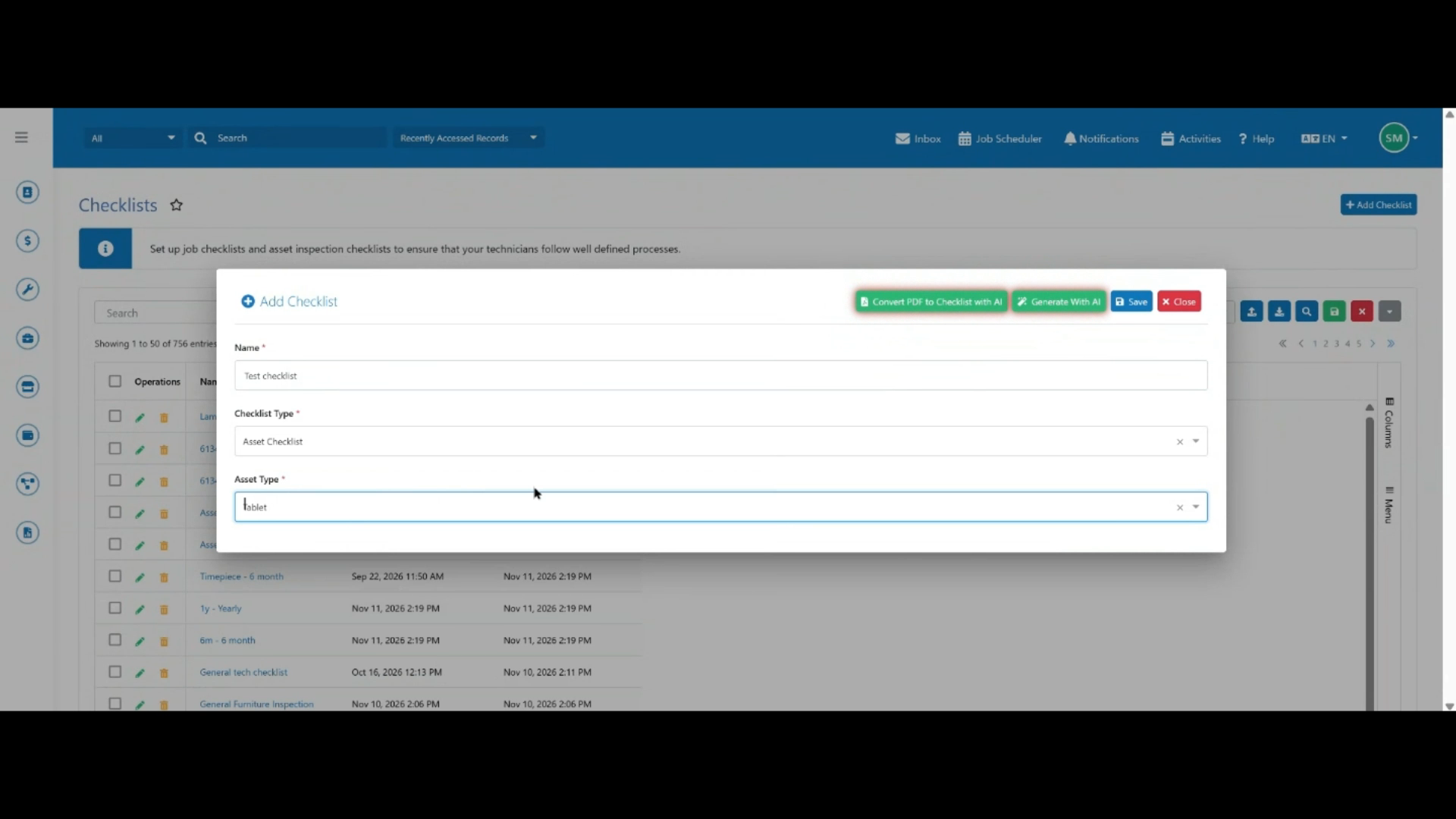
Go to Settings, search for Checklists, then click Add Checklist and enter a name for your checklist.
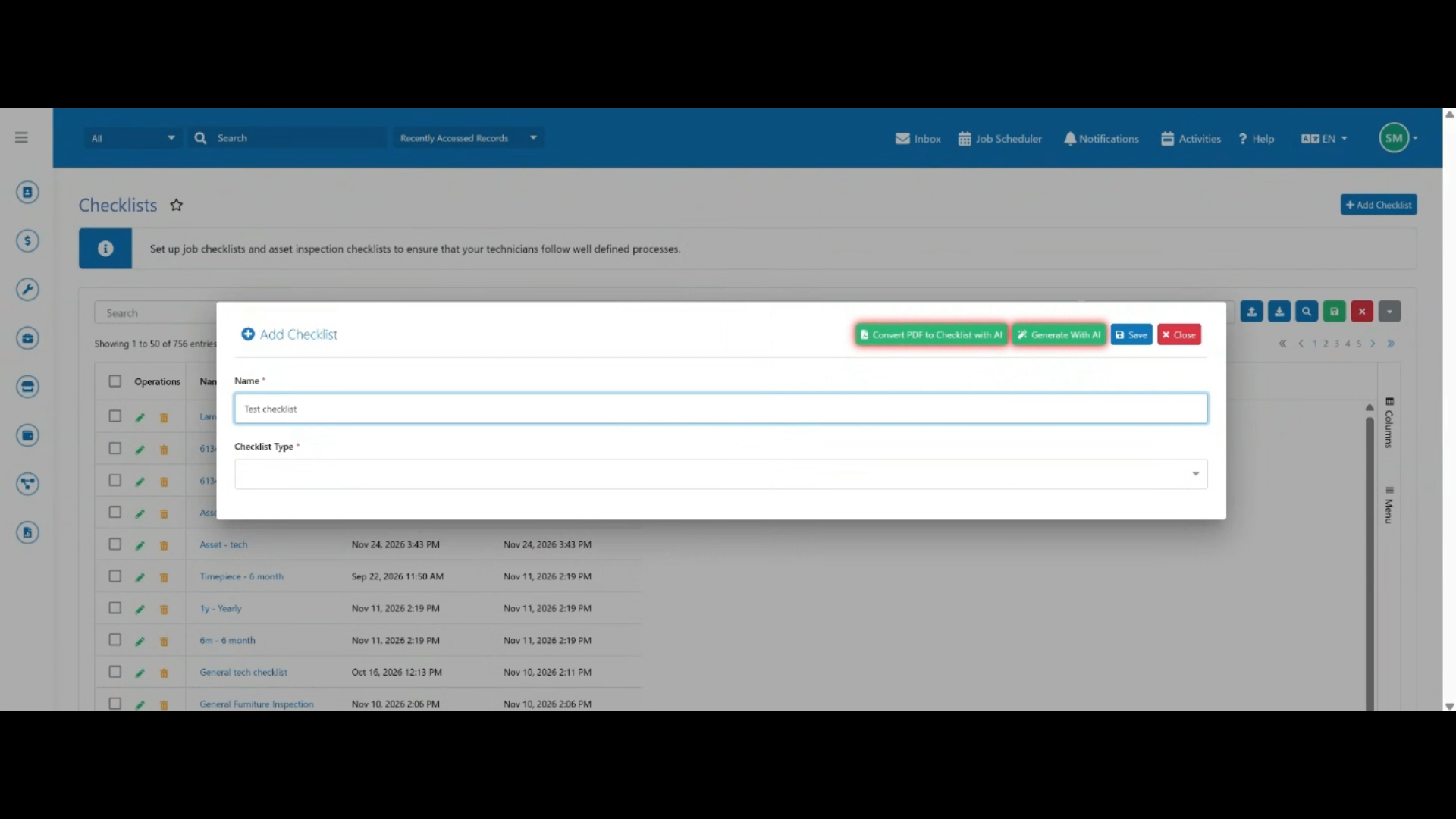 Step 3
Select a Checklist Type. For this example, choose Asset Checklist.
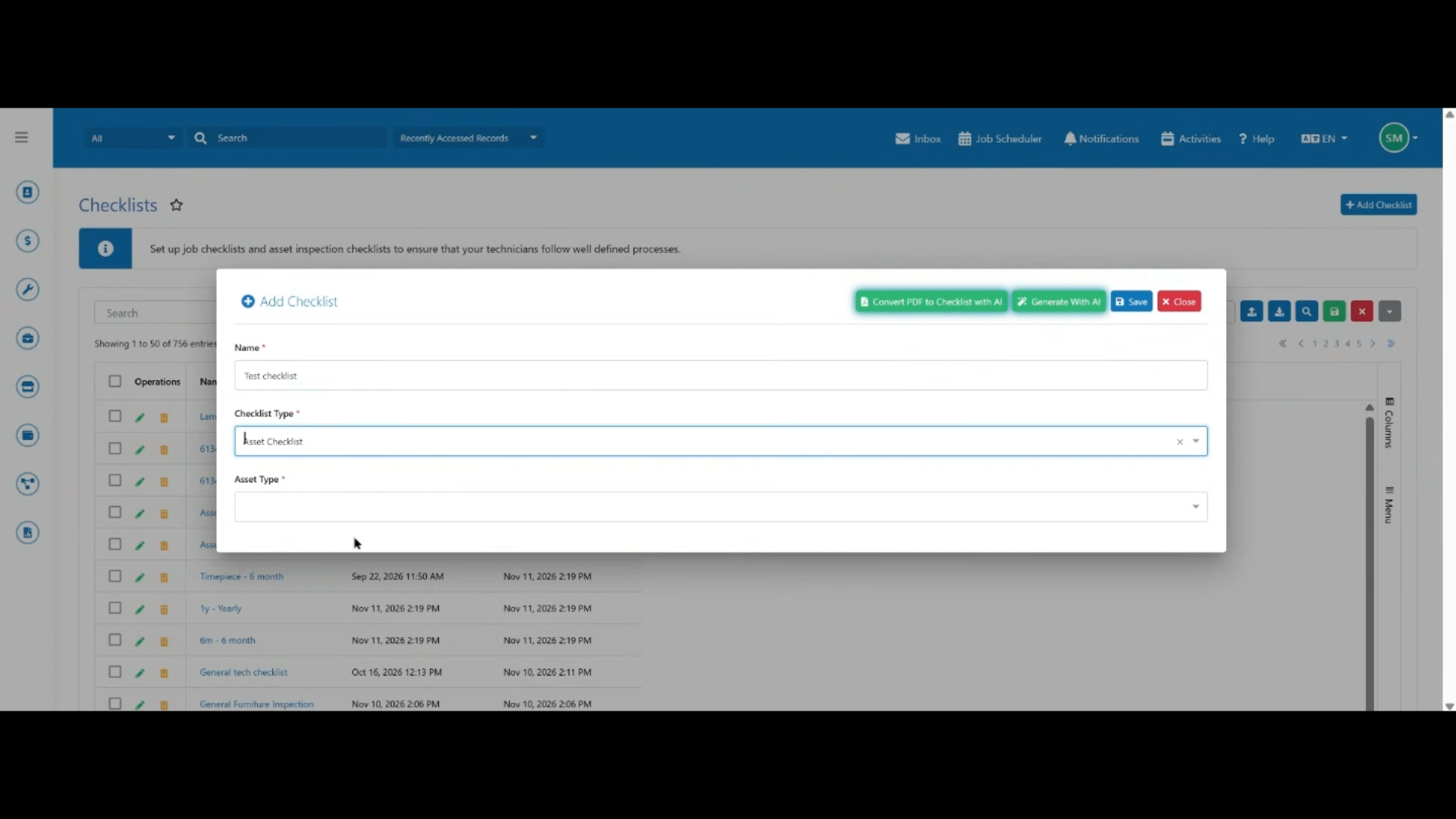 Step 4
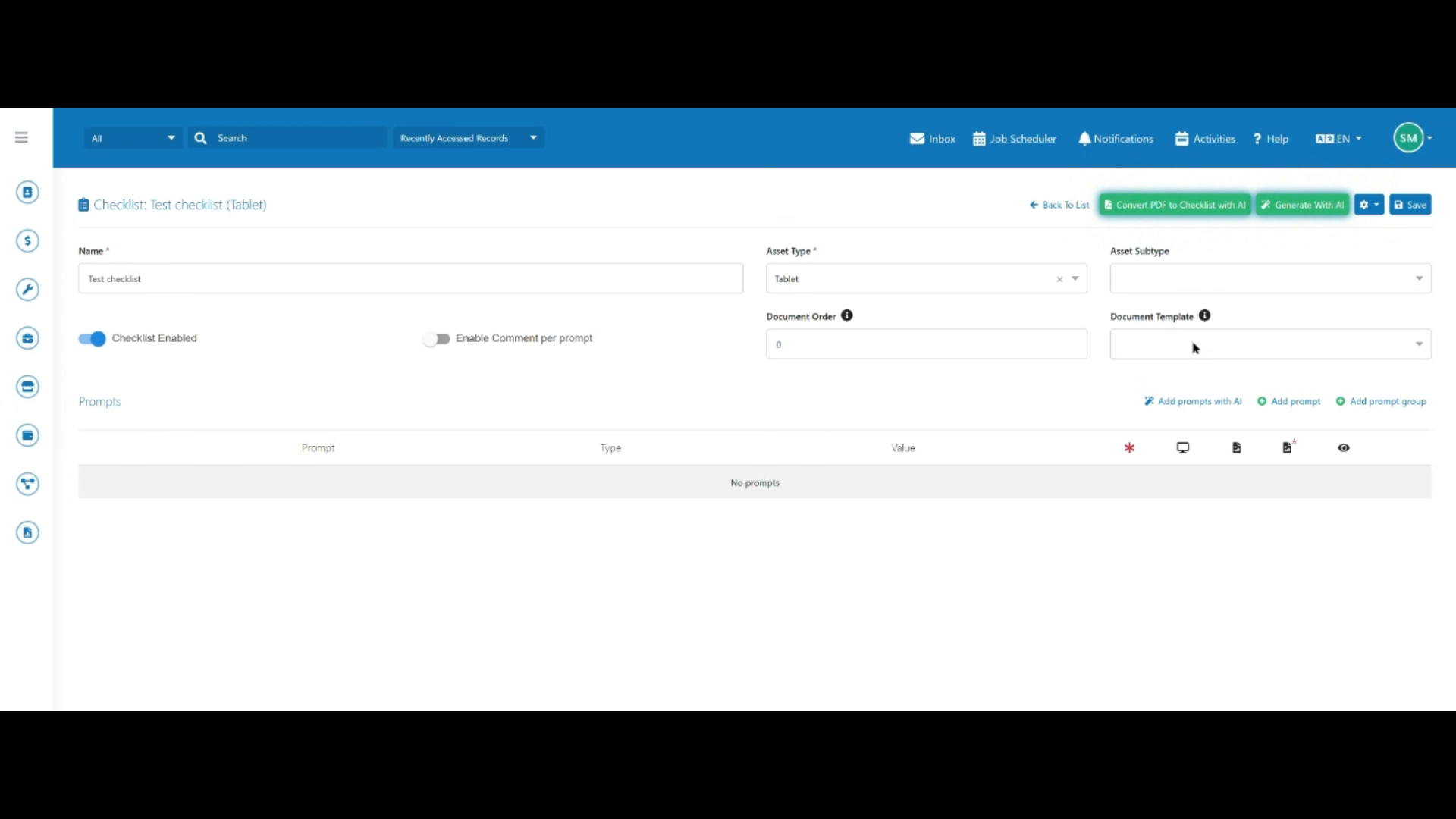
Select the Asset Type you want to link the checklist to. For this example, choose Tablet.
 Step 5
Optionally use AI to speed up setup by converting a PDF to a checklist or generating prompts automatically with Generate with AI, then click Save.
 Step 6
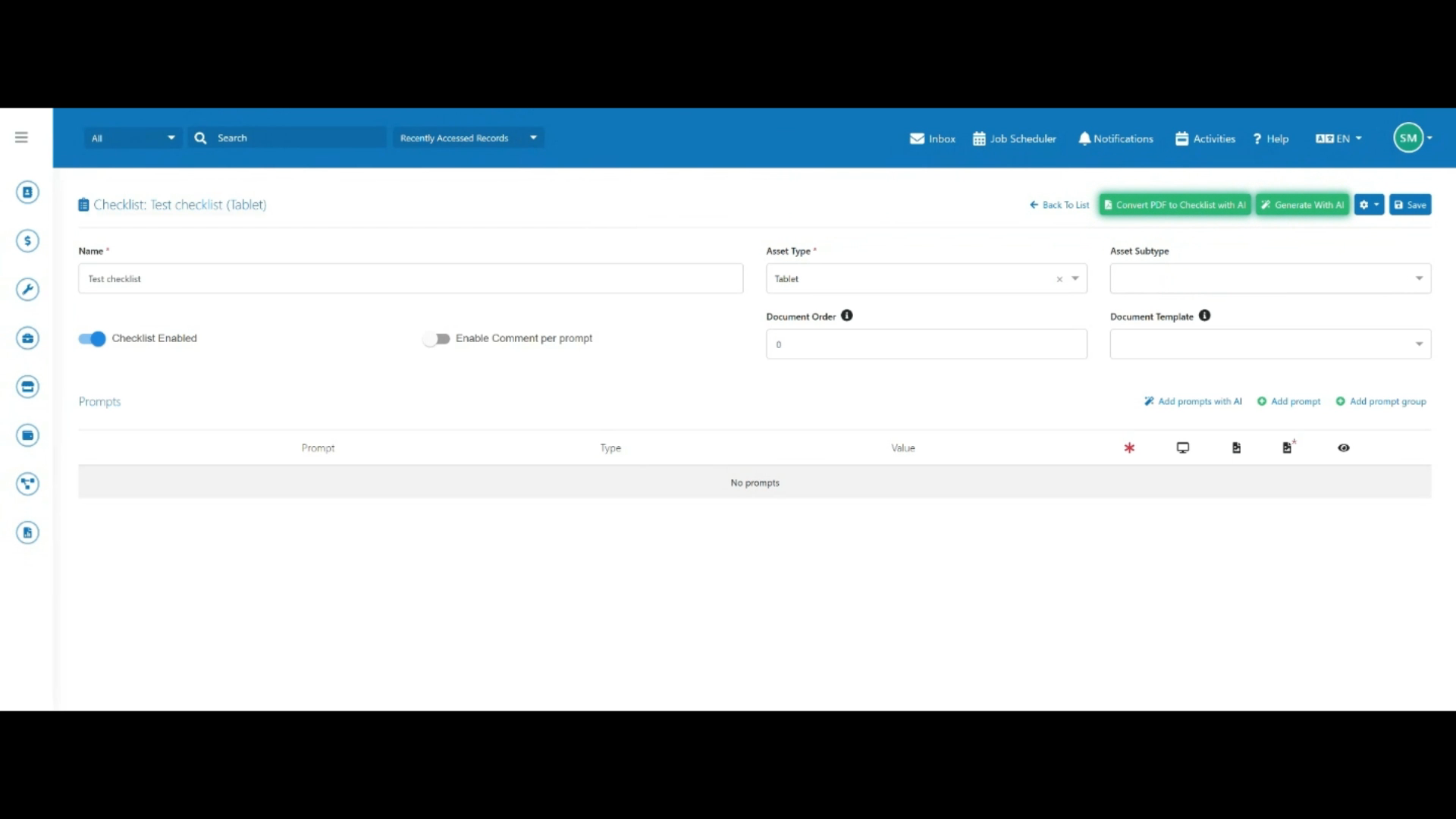
Select an Asset Subtype if one applies to your asset type; otherwise, leave it blank.
 Step 7
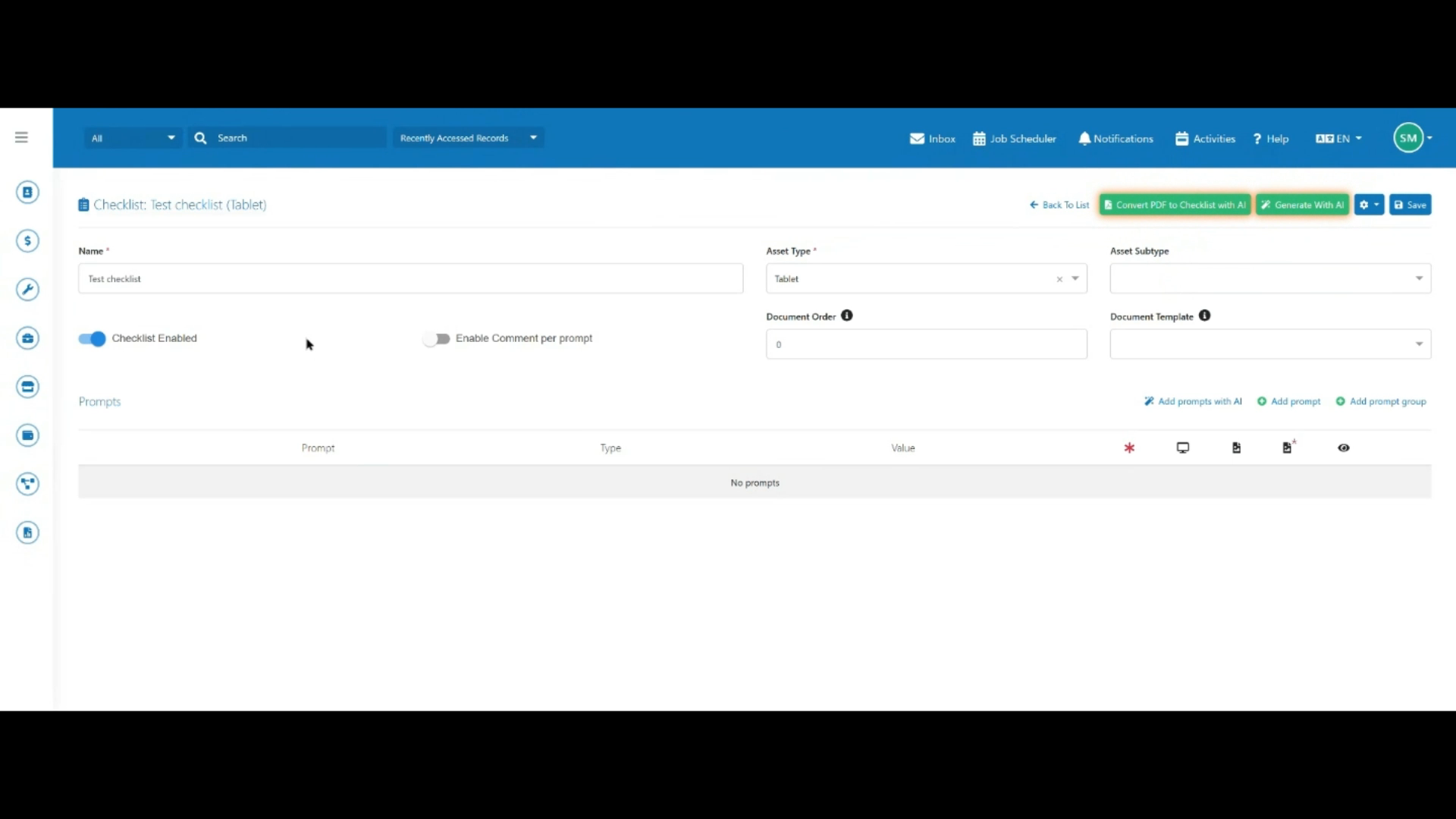
Make sure Checklist Enabled is turned on, and enable Comment per Prompt if you want technicians to add comments to each prompt.
 Step 8
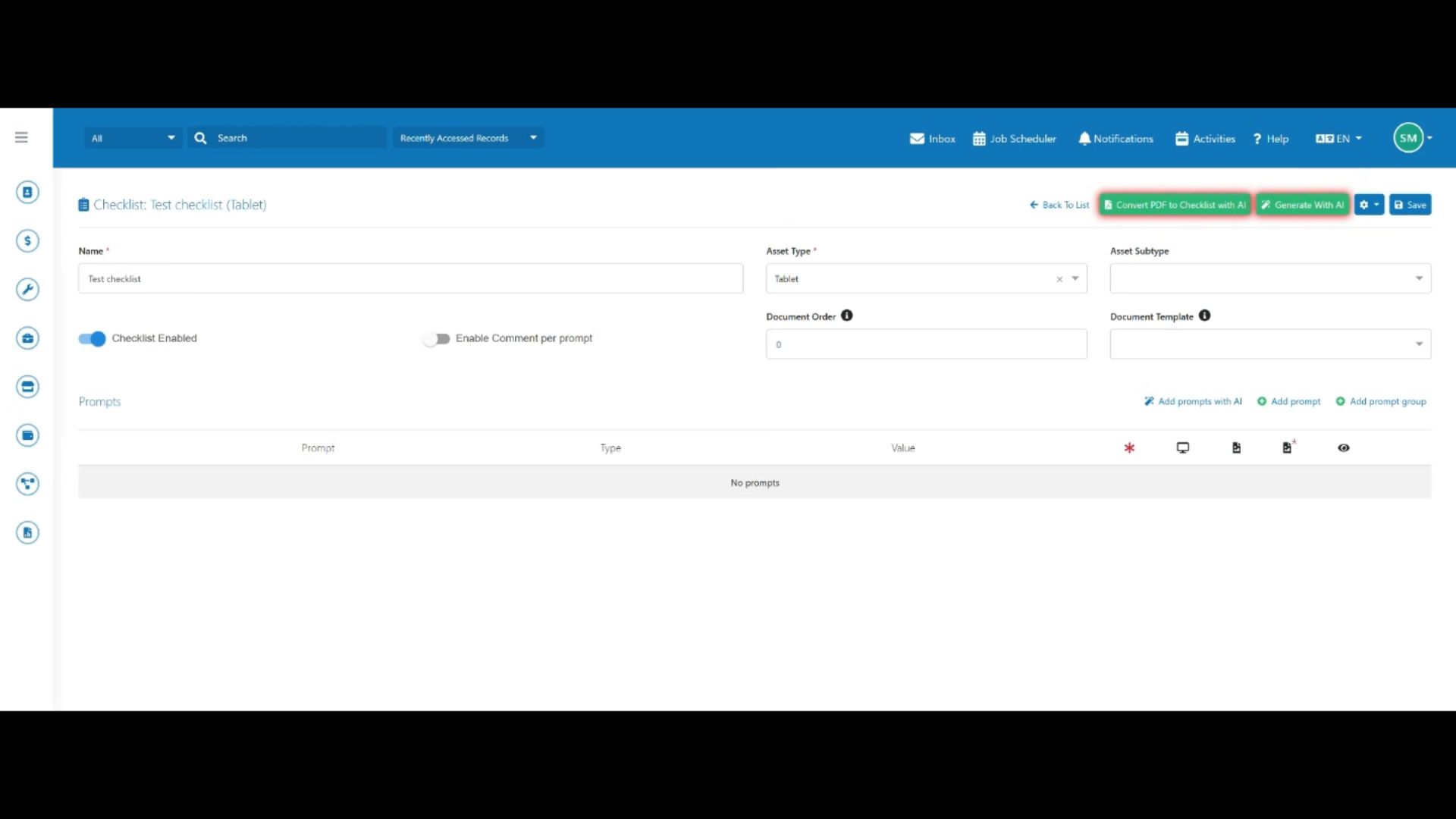
Optionally set the Document Order and select a Document Template for the checklist.
 Step 9
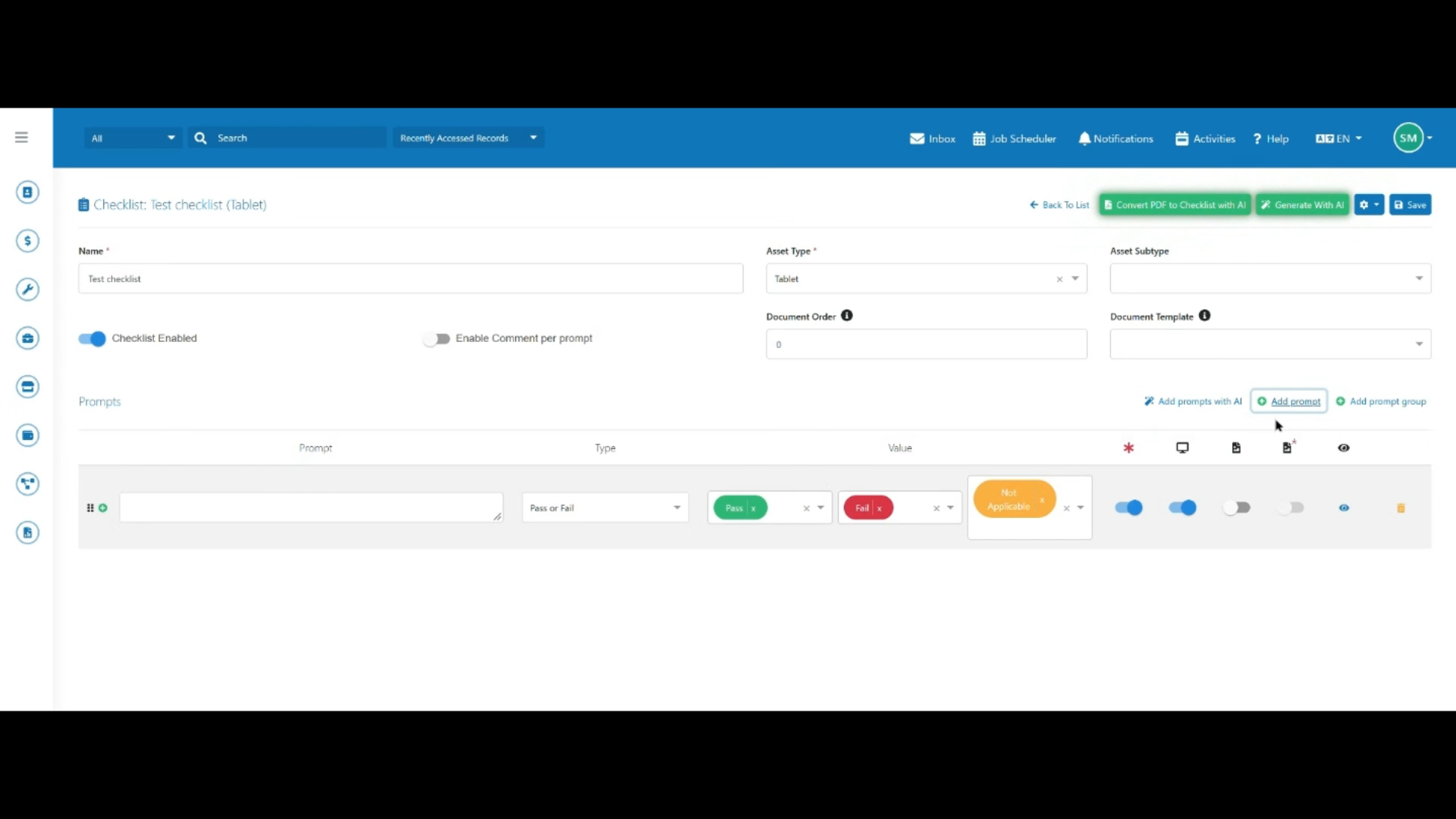
Click Add Prompts and enter a description for your first checklist prompt.
 Step 10
Choose a prompt type, configure prompt options such as required fields, report visibility and image uploads, then click Save to finalize the checklist. You can also add prompts with AI or group prompts together.