Asset Management
Create an Inspection Period
Learn how to create an inspection period in FieldMagic.
Step-by-step instructions
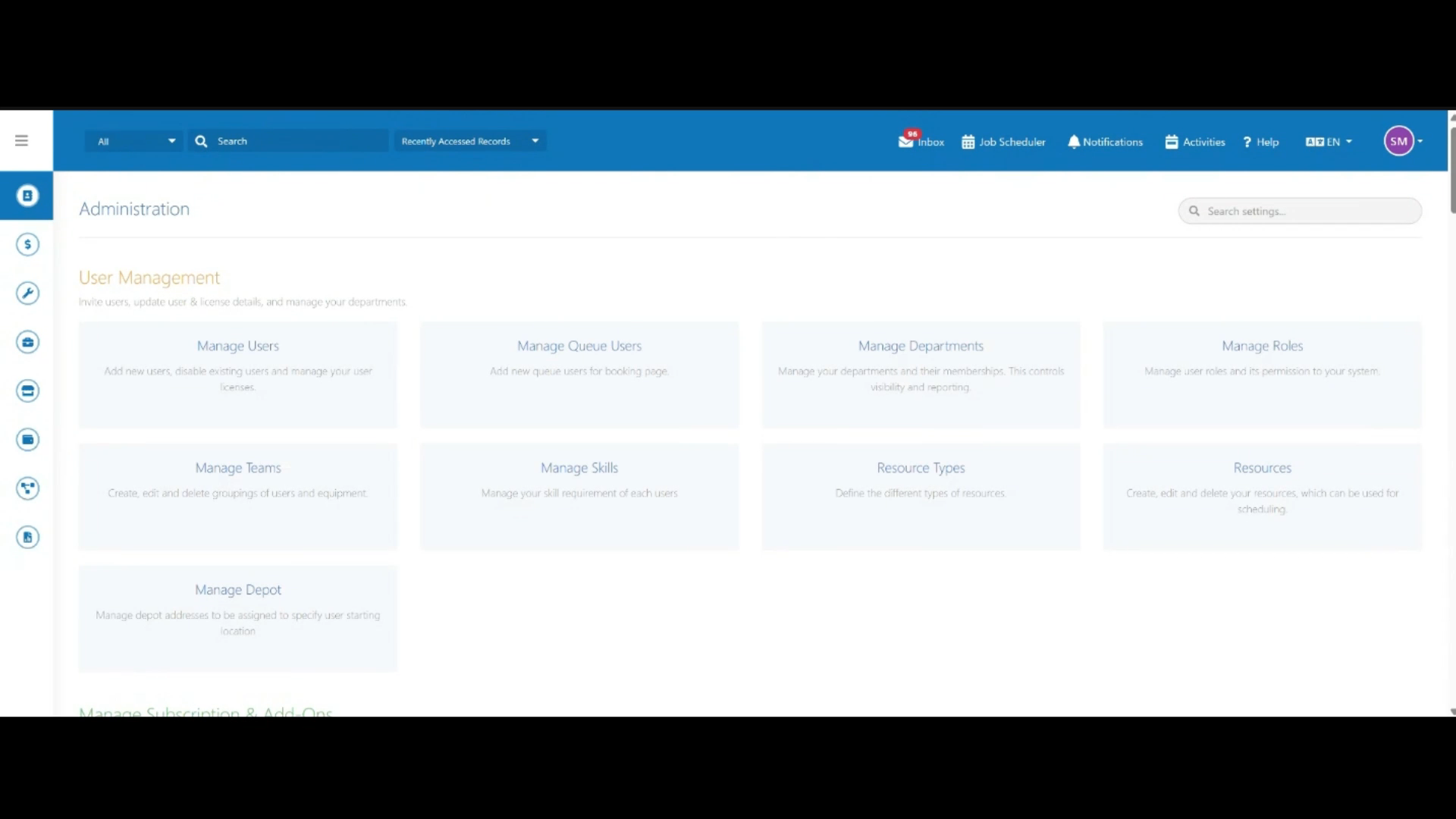 Step 1
Open Administration from the main menu.
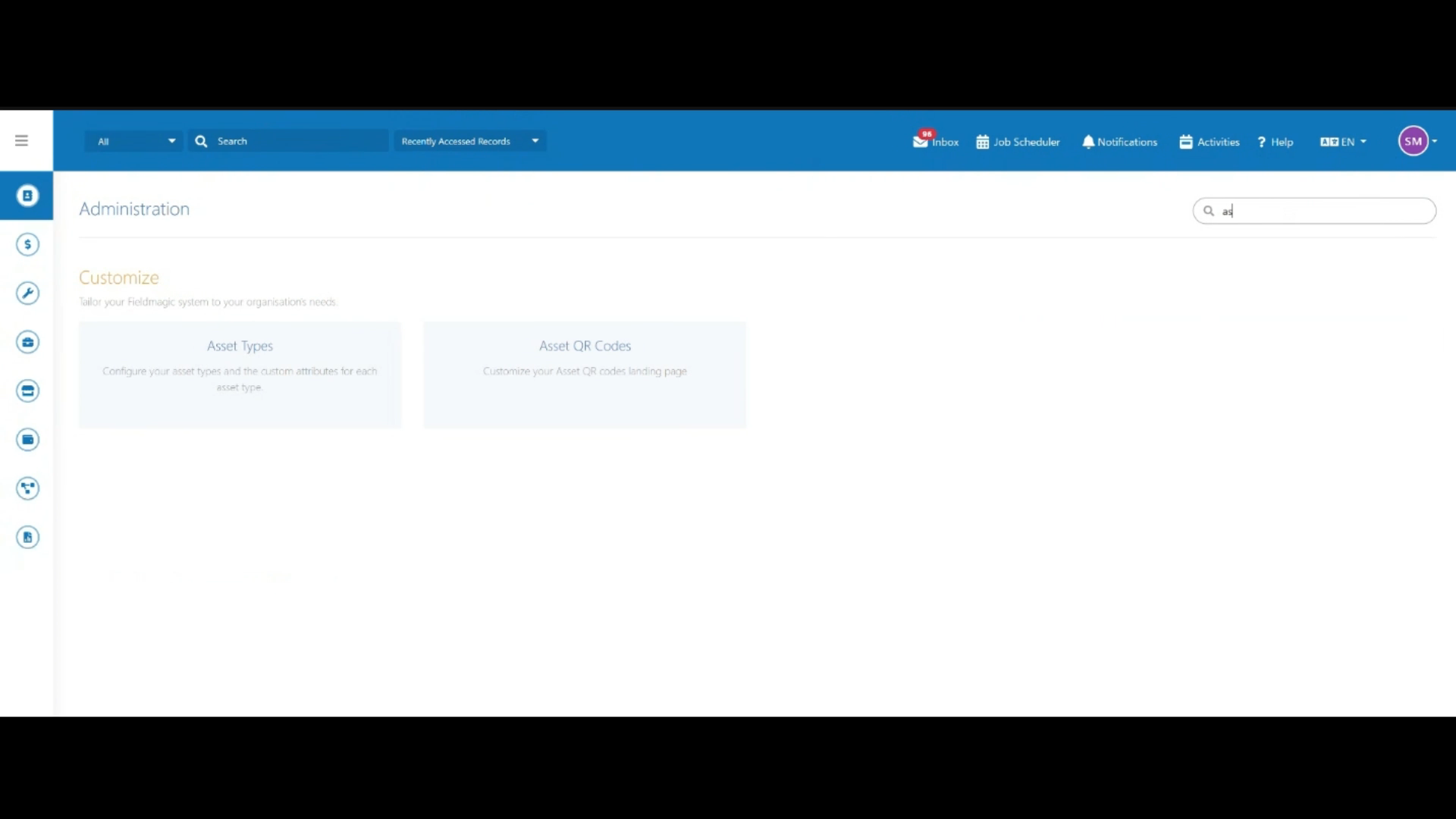 Step 2
Search for "Asset Types" using the settings search field.
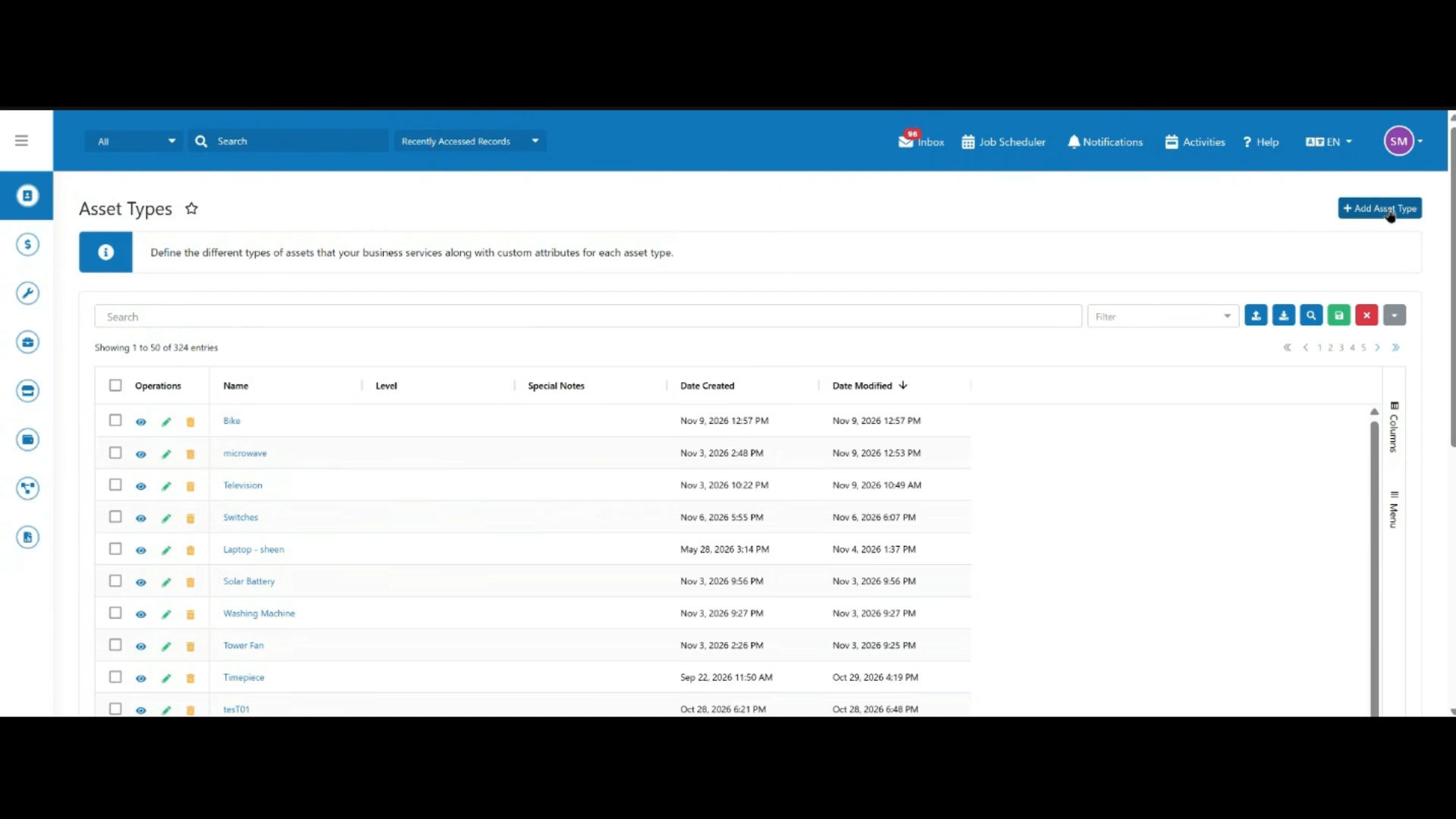 Step 3
Open Asset Types, then click "Add Asset Type".
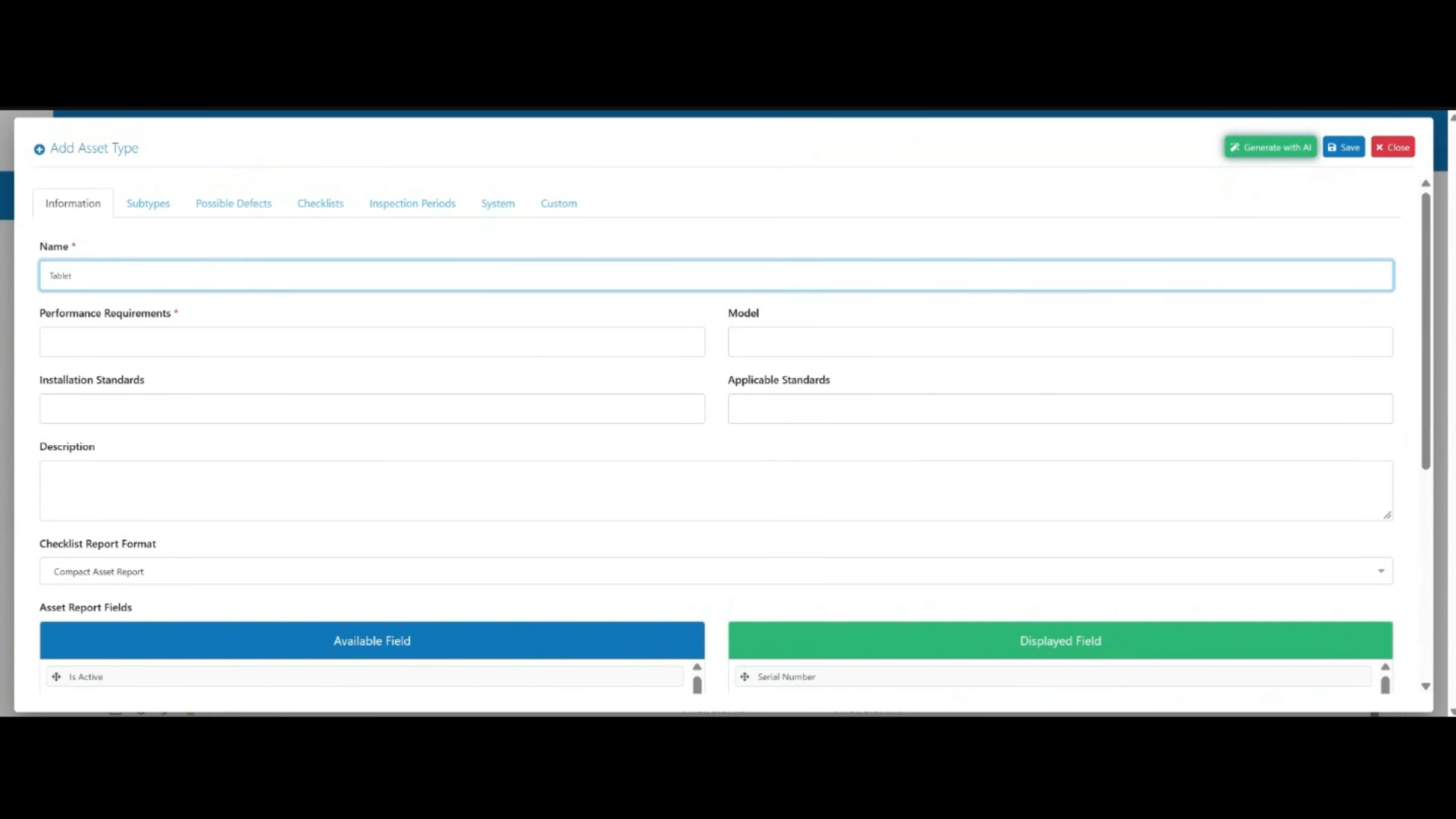 Step 4
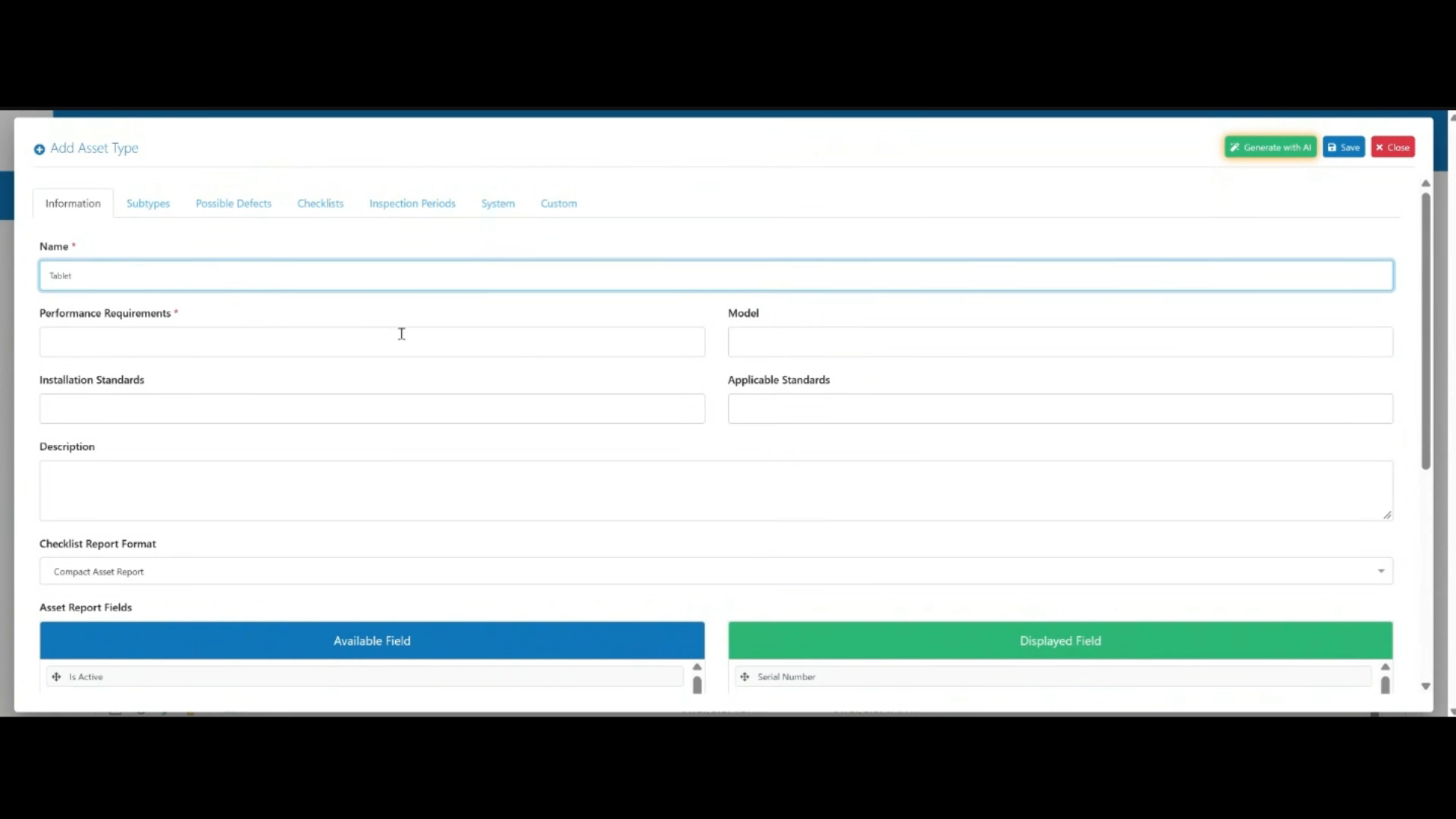
Enter a name for the asset type, for example "Tablet".
 Step 5
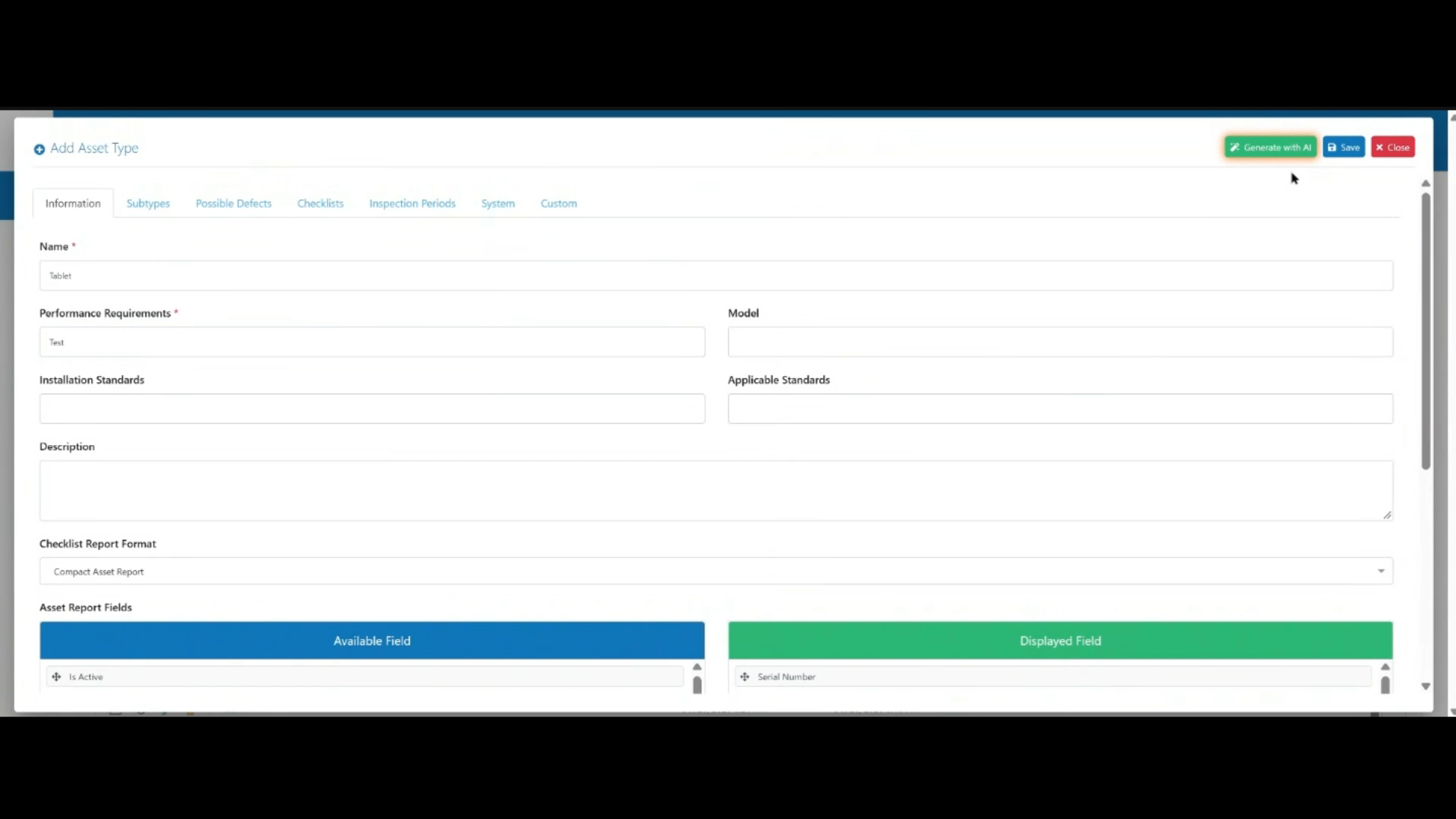
Enter the performance requirements, for example "Test".
 Step 6
Click Save to create the asset type.
 Step 7
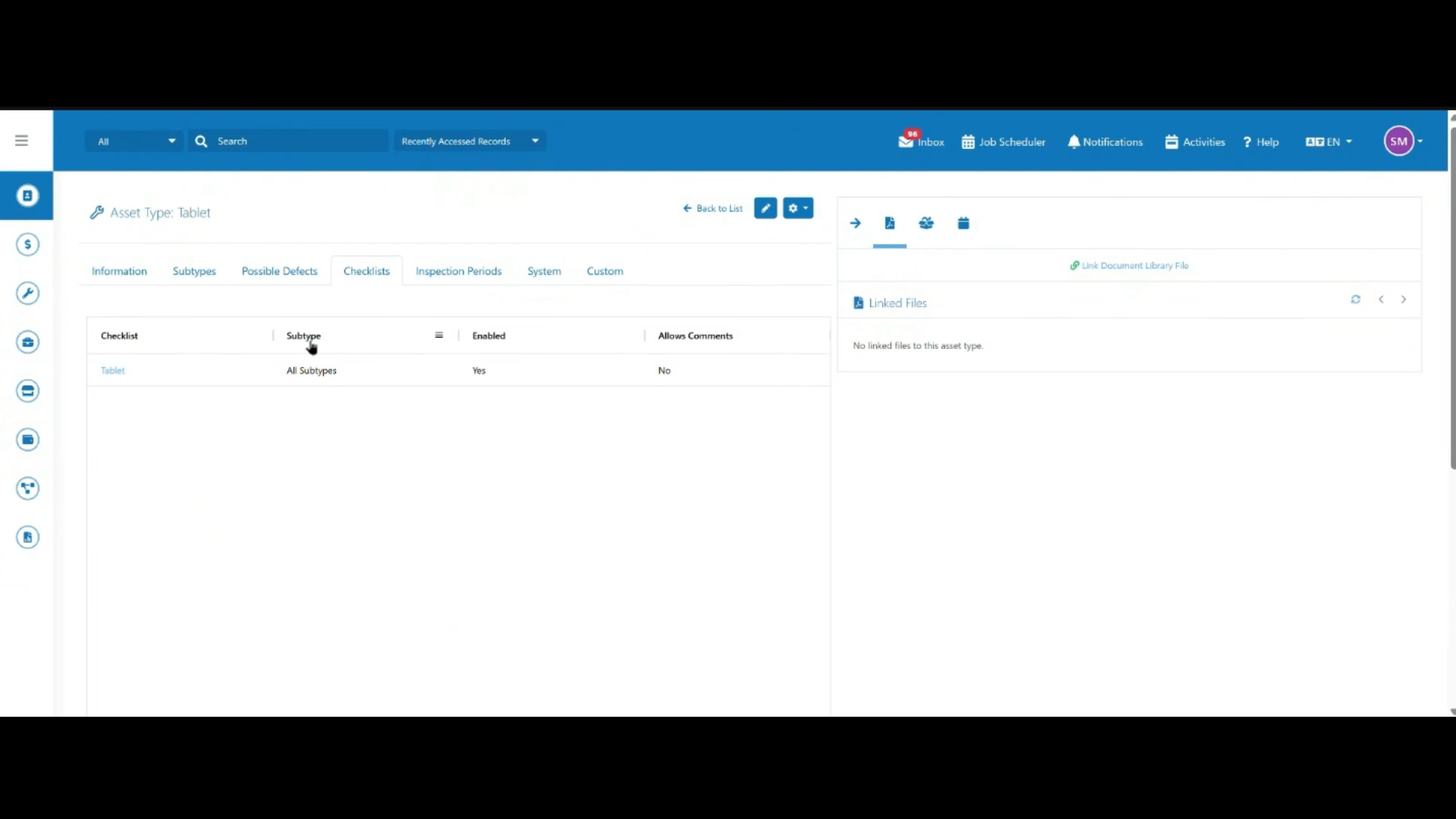
A default checklist is automatically created and linked to the new asset type.
 Step 8
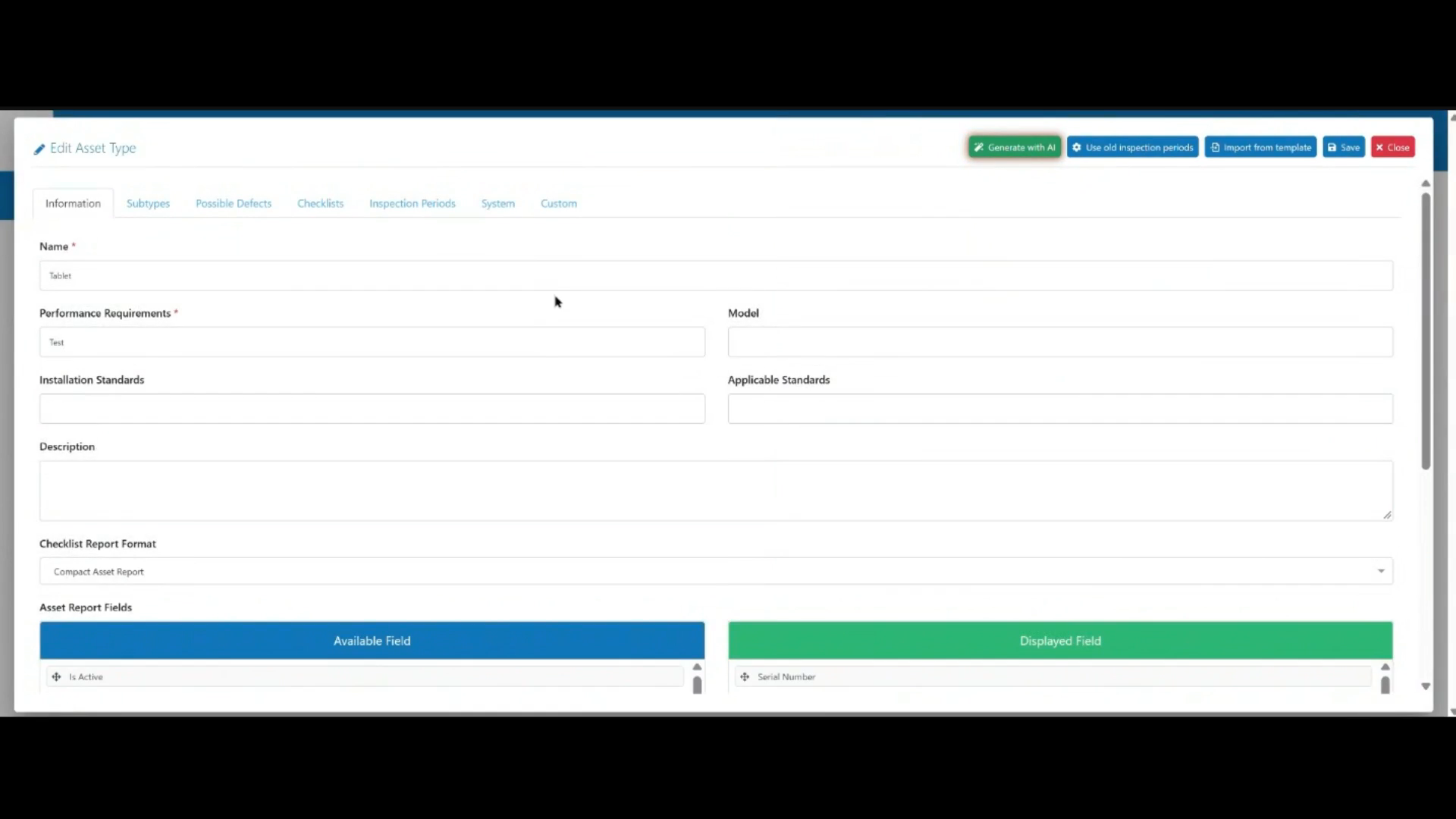
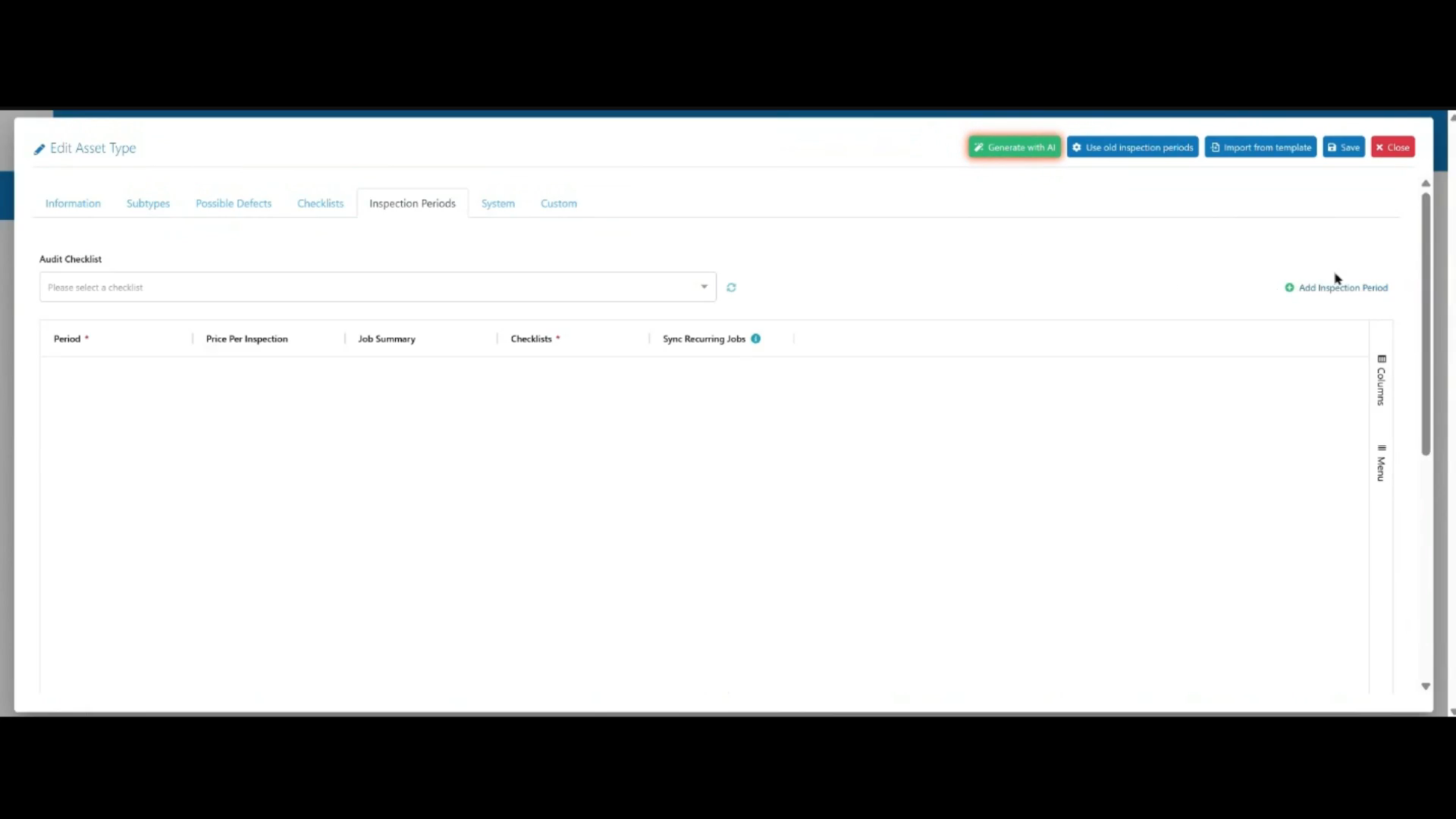
Click Edit on the newly created asset type, then navigate to the Inspection Periods tab.
 Step 9
Click "Add Inspection Period".
 Step 10
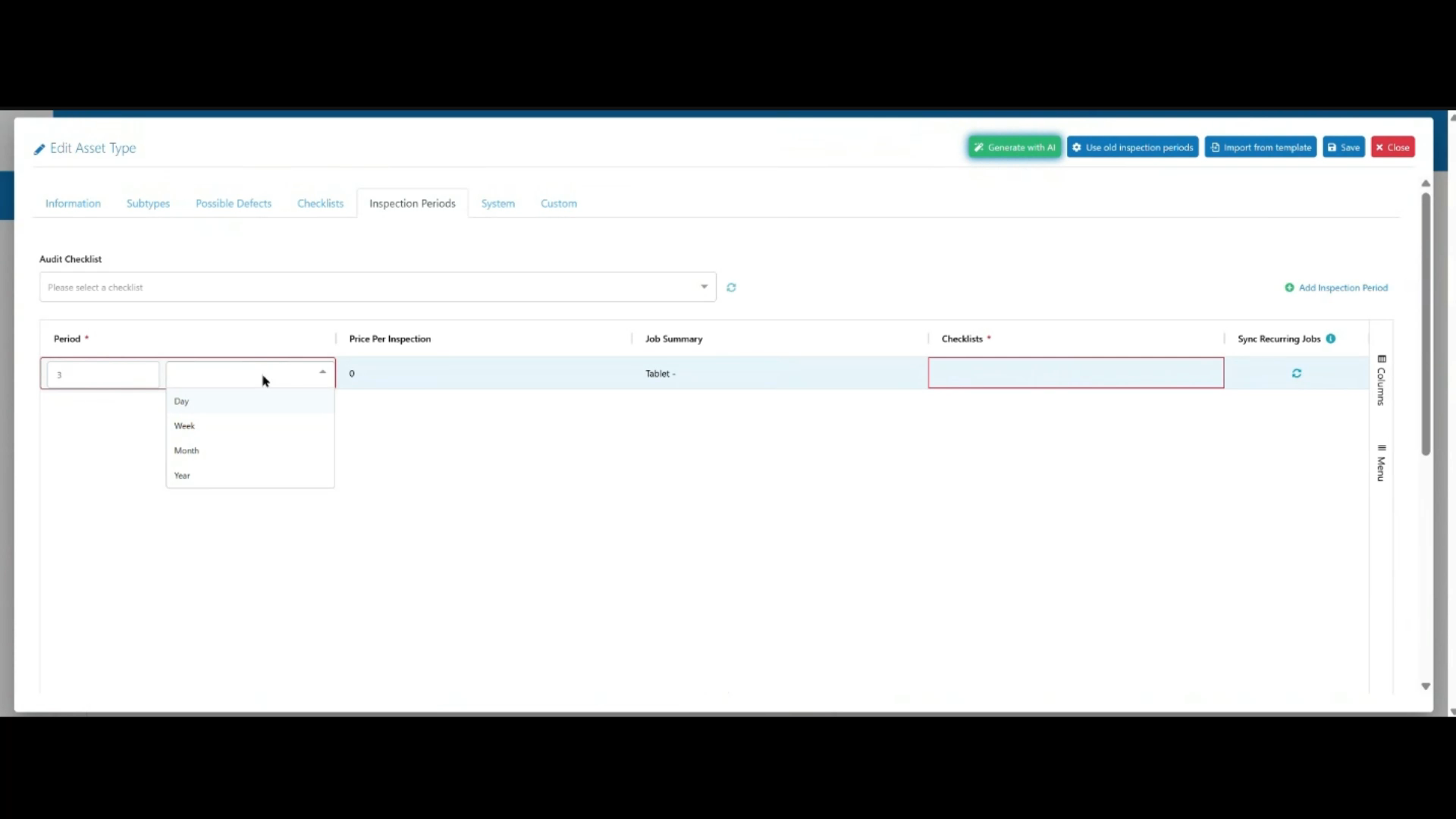
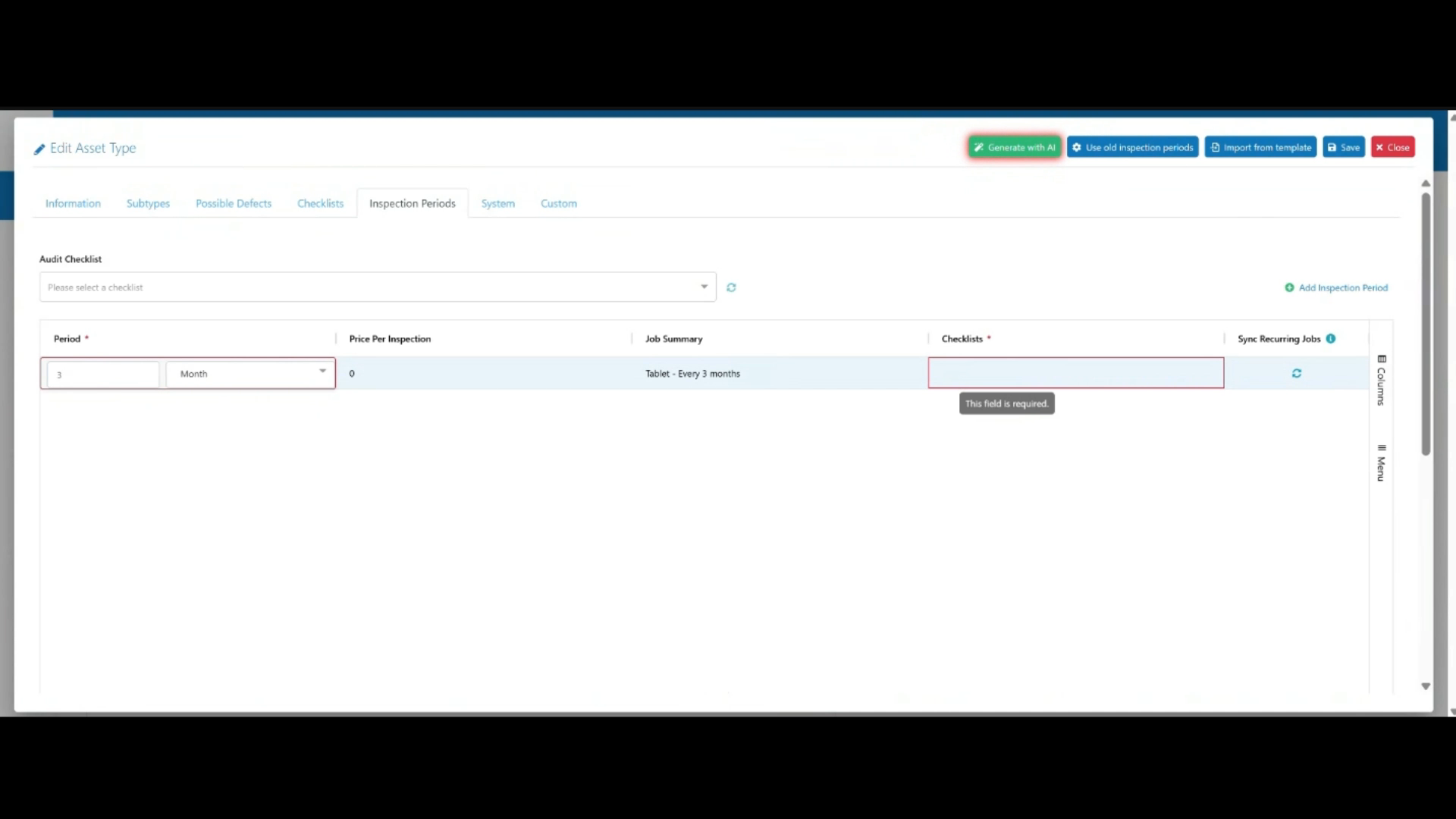
Select your desired inspection frequency, such as day, week, month, or year.
 Step 11
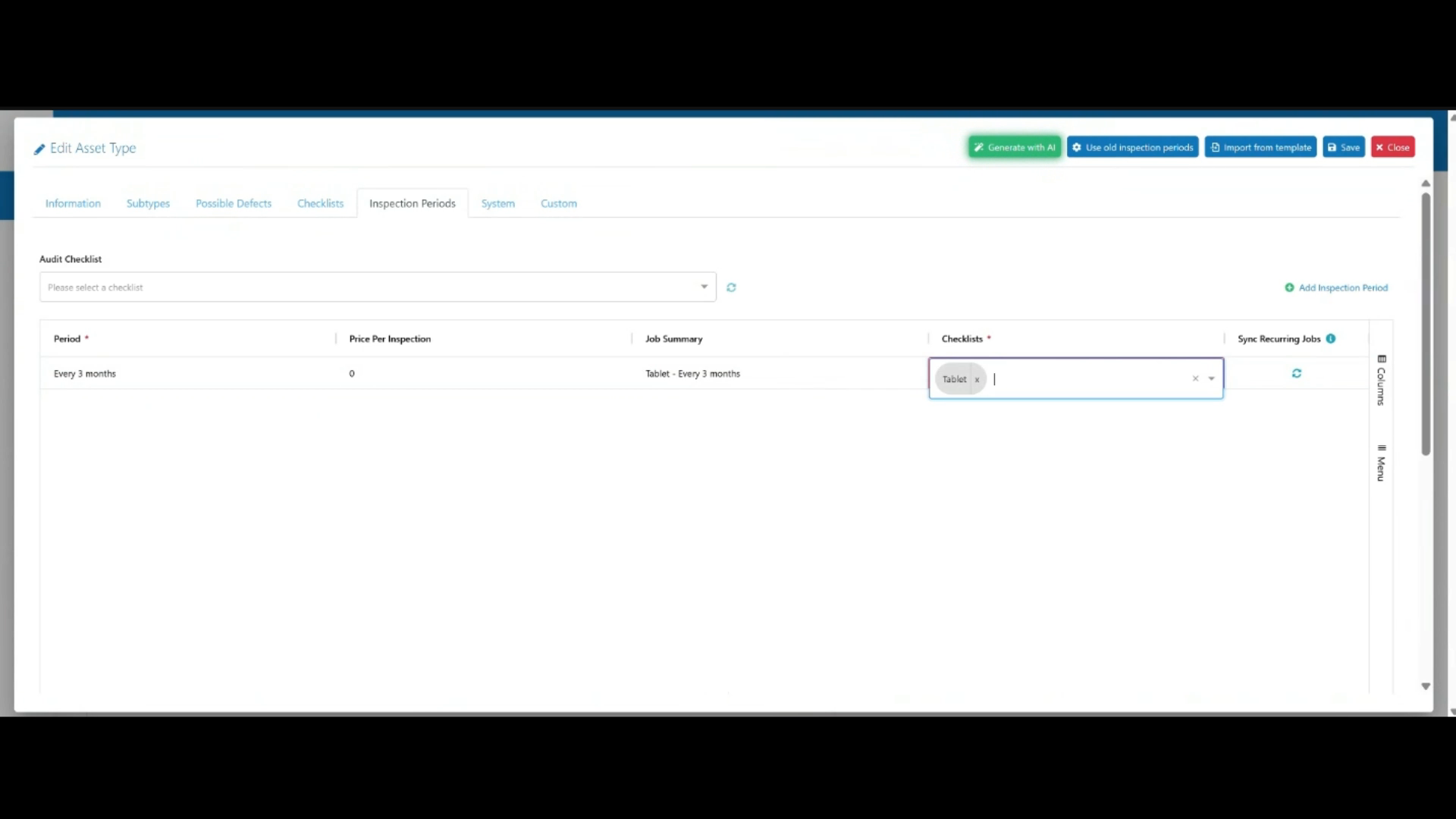
Select the checklist to link to the inspection period.
 Step 12
Click Save to apply your changes.