Group Email Management
Create and utilize Group Emails
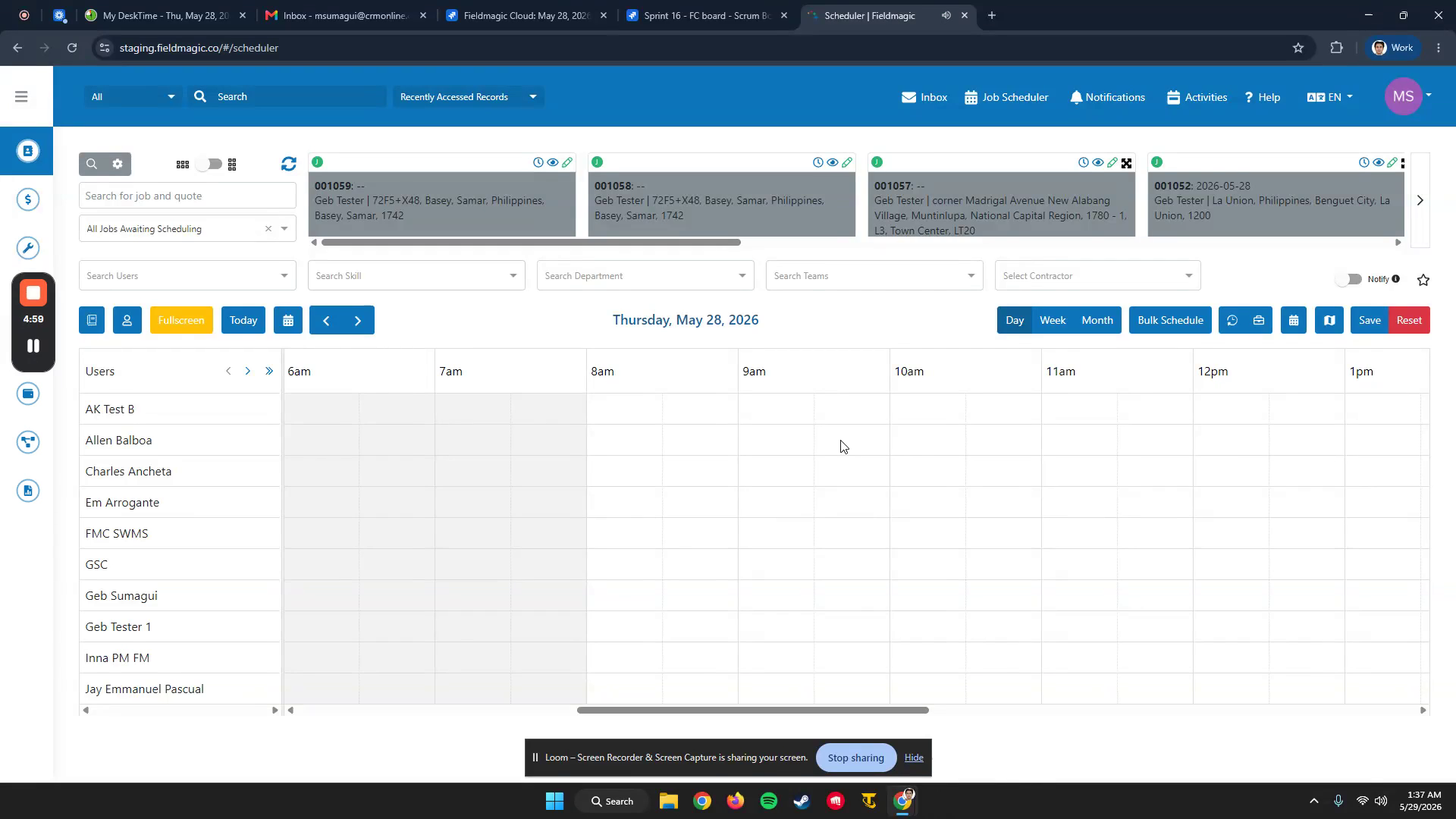
Navigate to Settings and open the Group Emails module.
Step-by-step instructions
 Step 1
Navigate to Settings and open the Group Emails module.
 Step 2
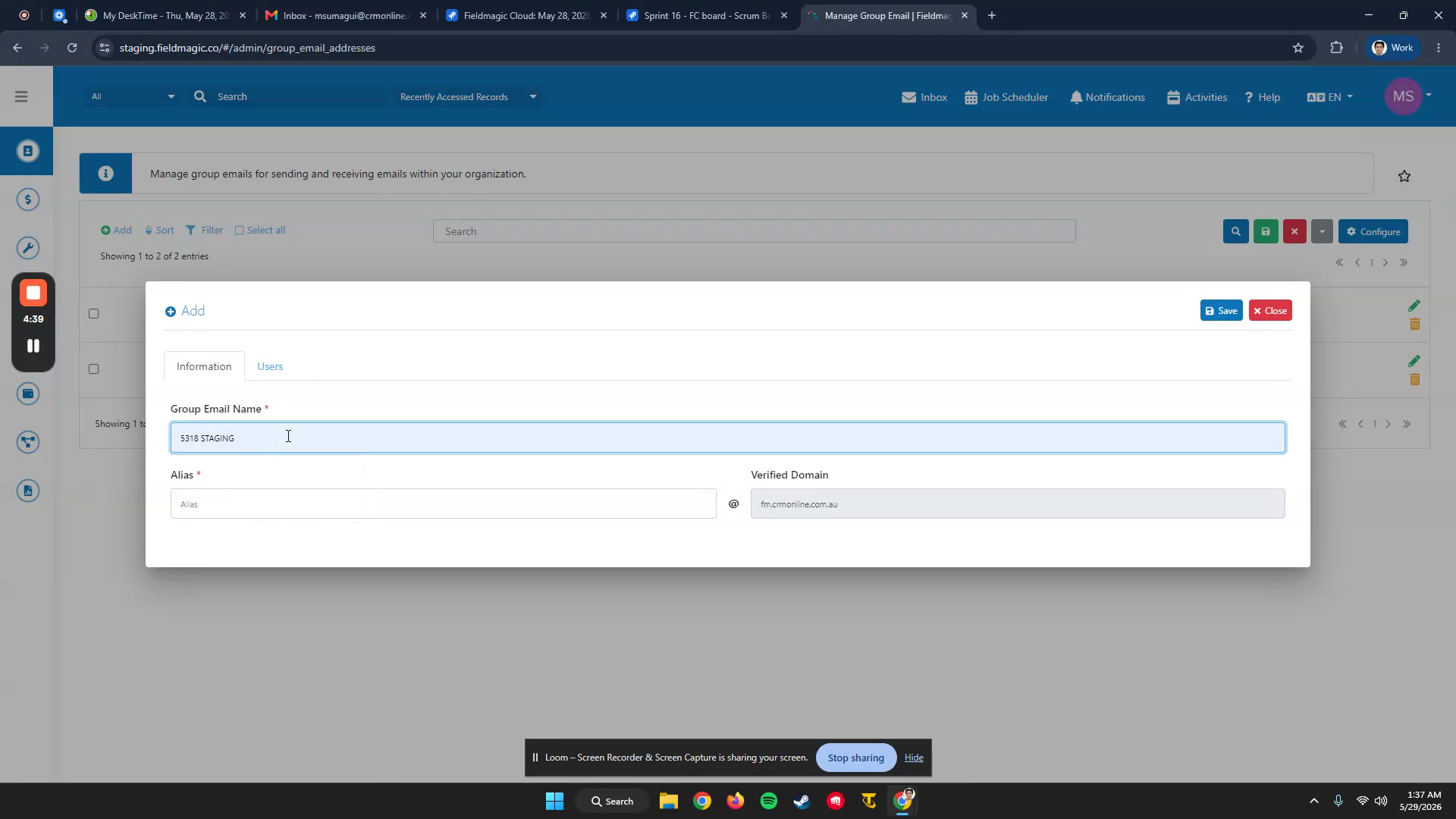
Start a new group email and enter an alias for the group. This alias determines the full email address for the group.
 Step 3
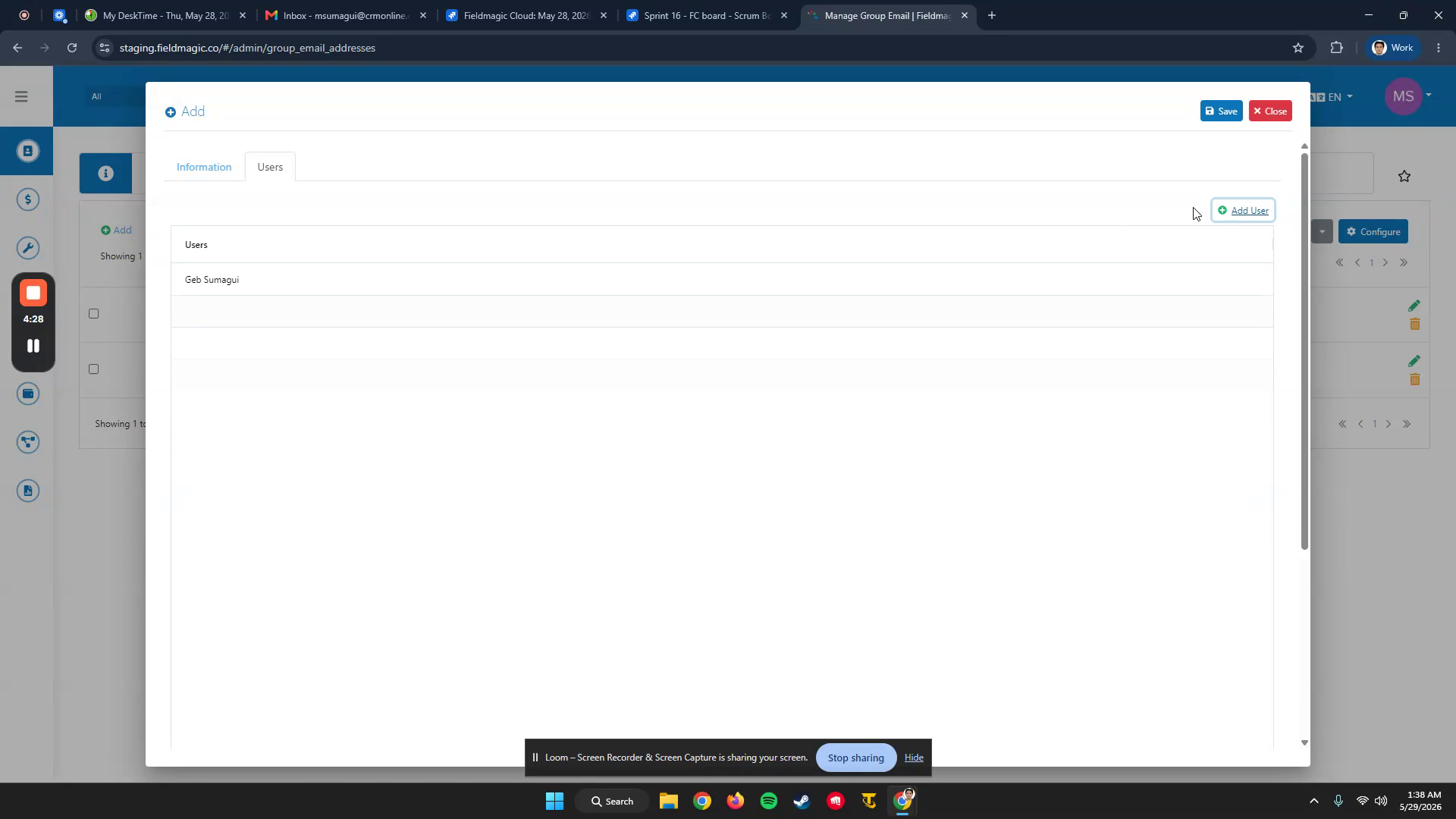
Add users who should receive emails sent to this group, then click Save. Copy the generated email address for later use.
 Step 4
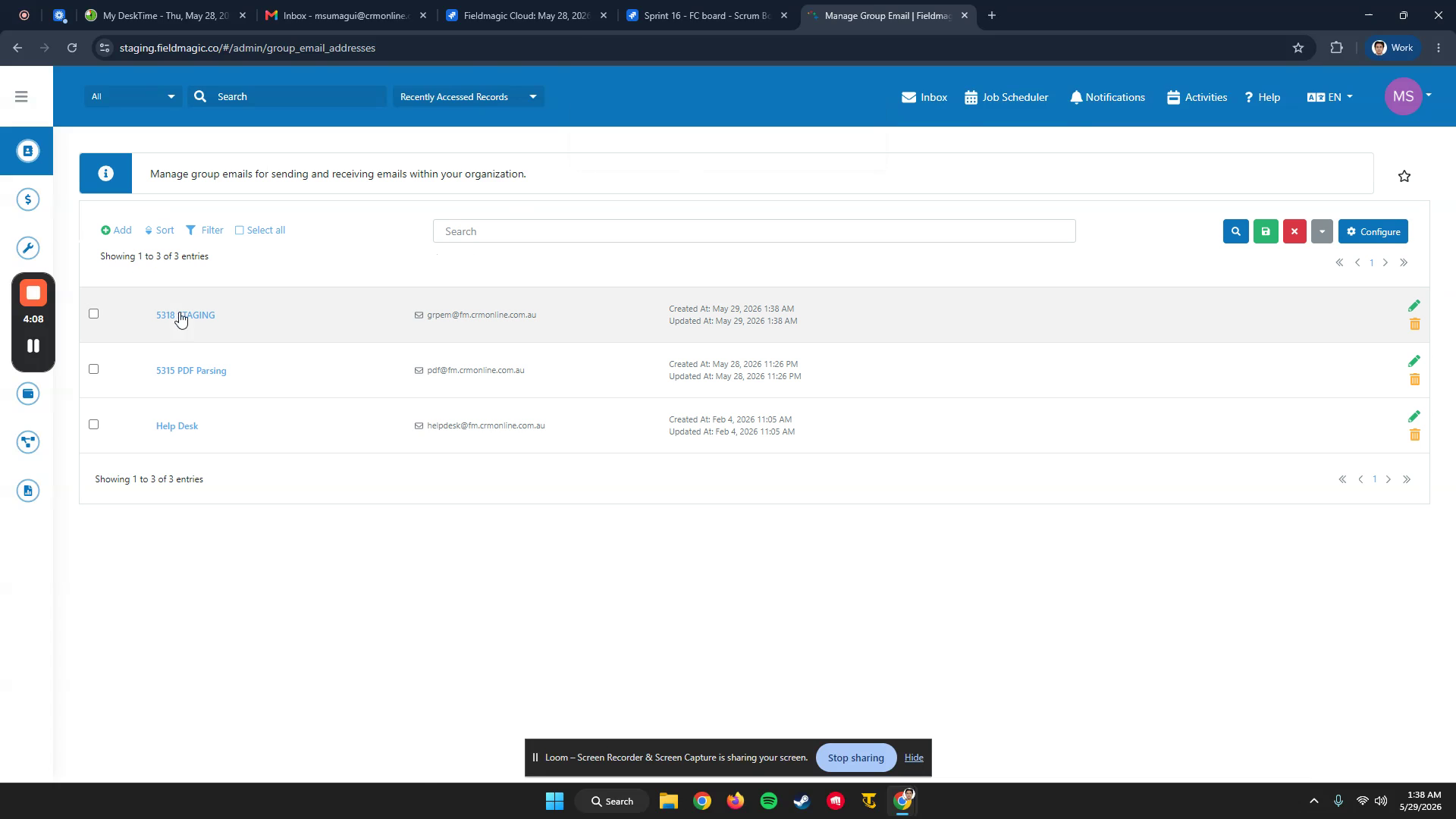
The group email now appears in the Group Emails list.
 Step 5
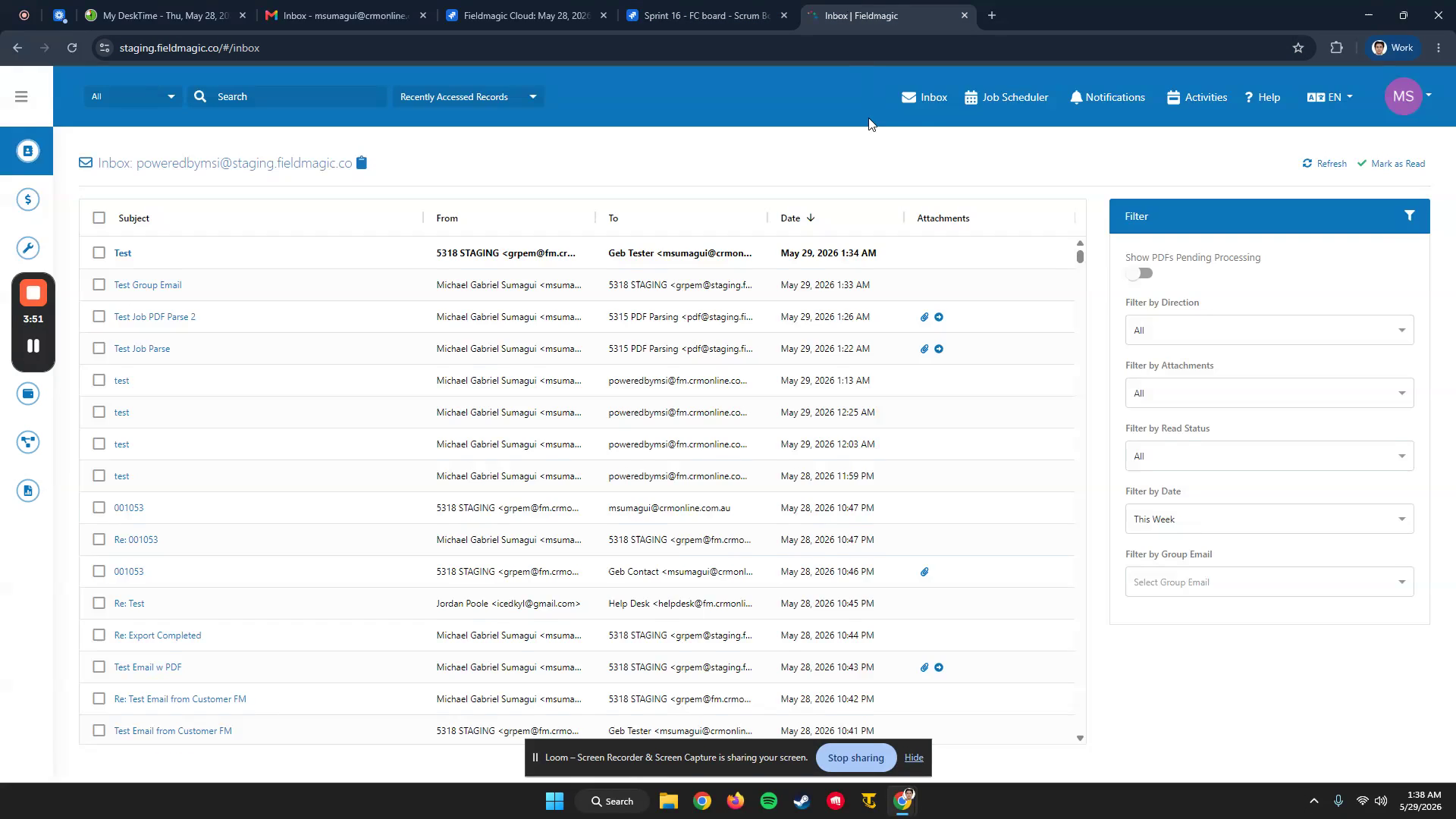
Send a test email to the group email address. Wait a moment for the email to appear in your inbox.
 Step 6
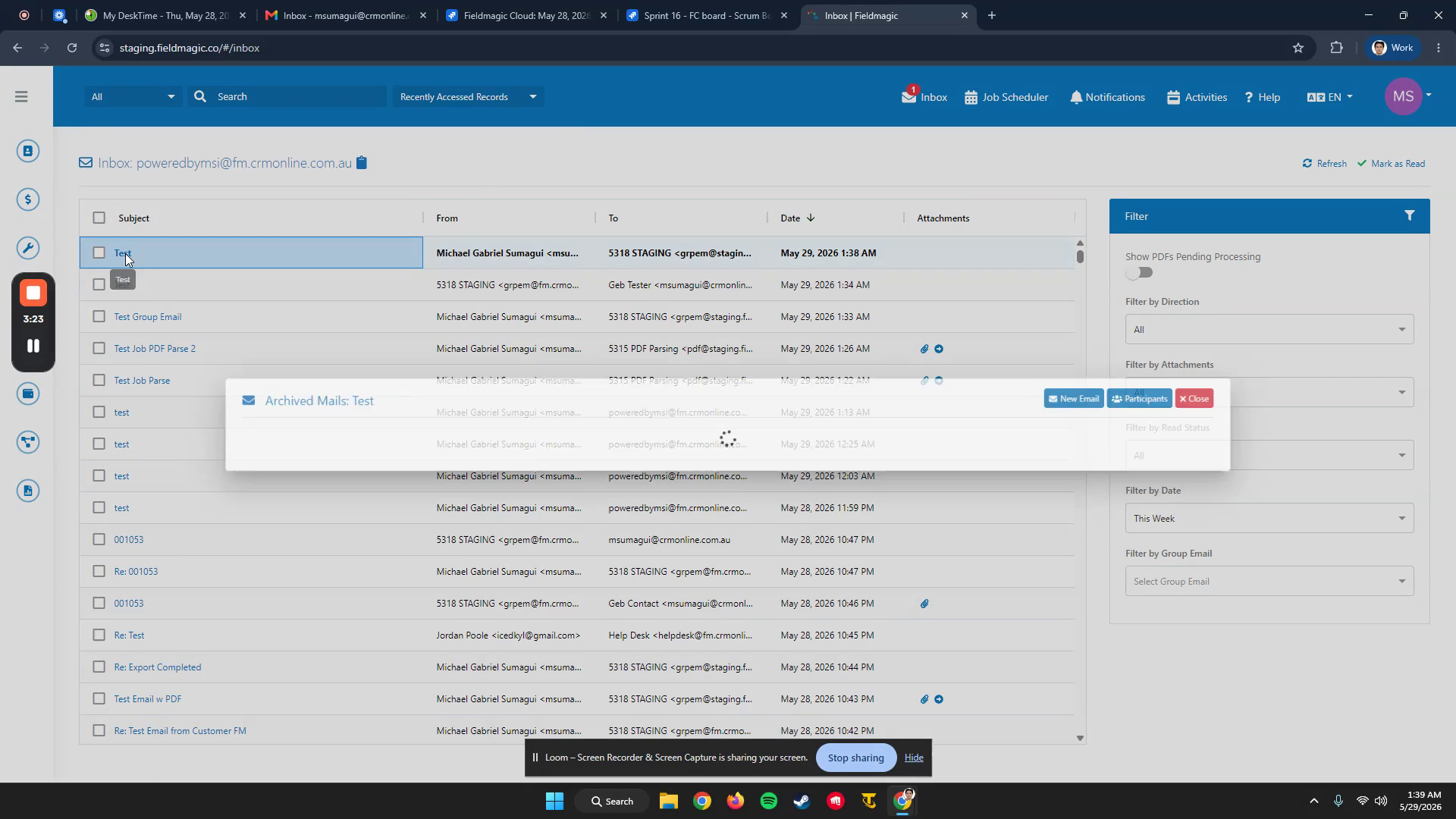
Confirm the test email appears both in your inbox and in the Group Emails module.
 Step 7
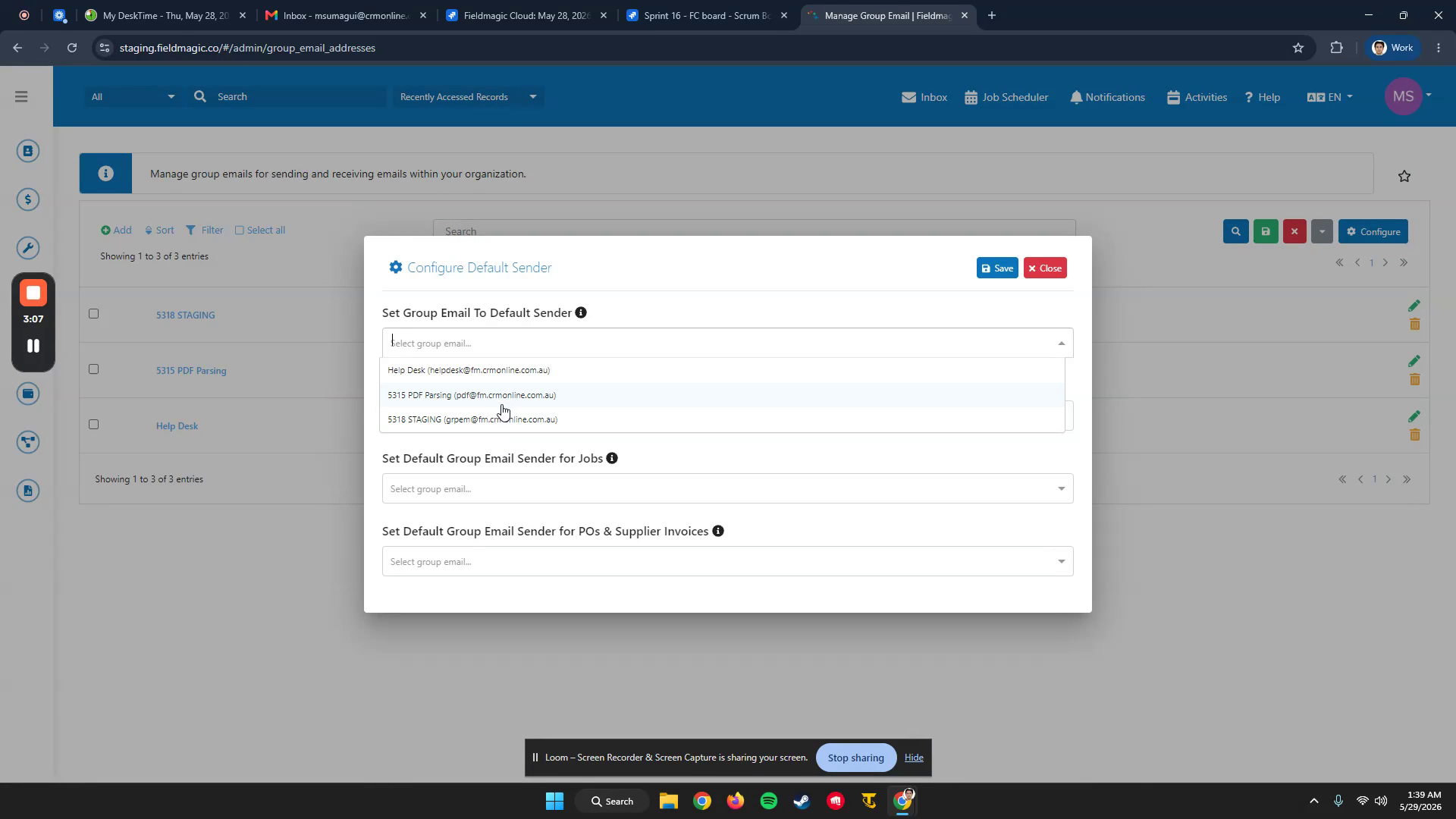
In the Group Emails module, click Configure and select a default sender for the group email.
 Step 8
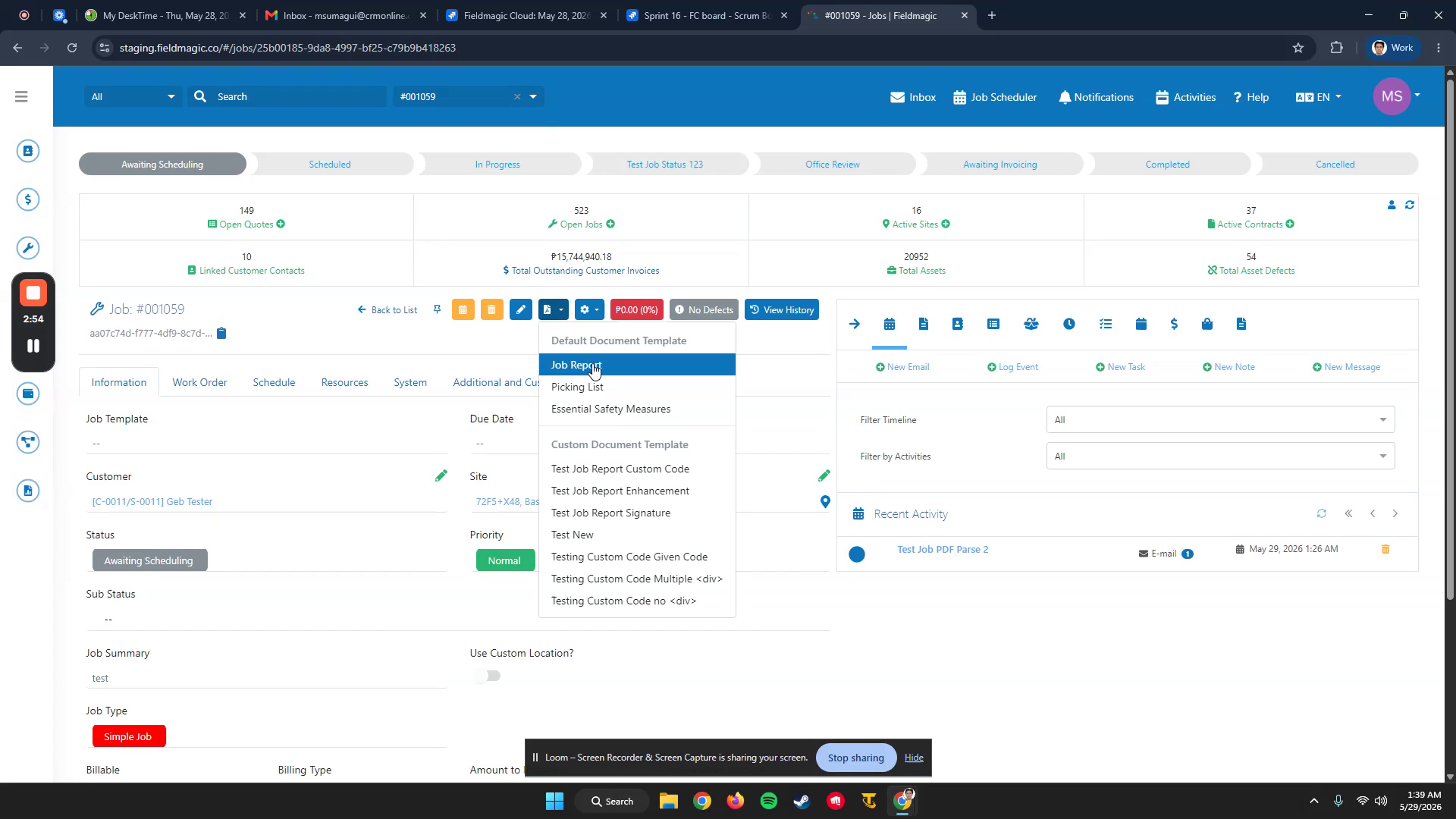
When you send a job report or document from a job, the email sender will be the group email address, and the sent email will appear in the relevant module.