Sales & Quoting
Creating a New Quote with Quote Wizard
Navigate to the Quotes section in the side menu and select Quote Wizard to create a new quote.
Step-by-step instructions
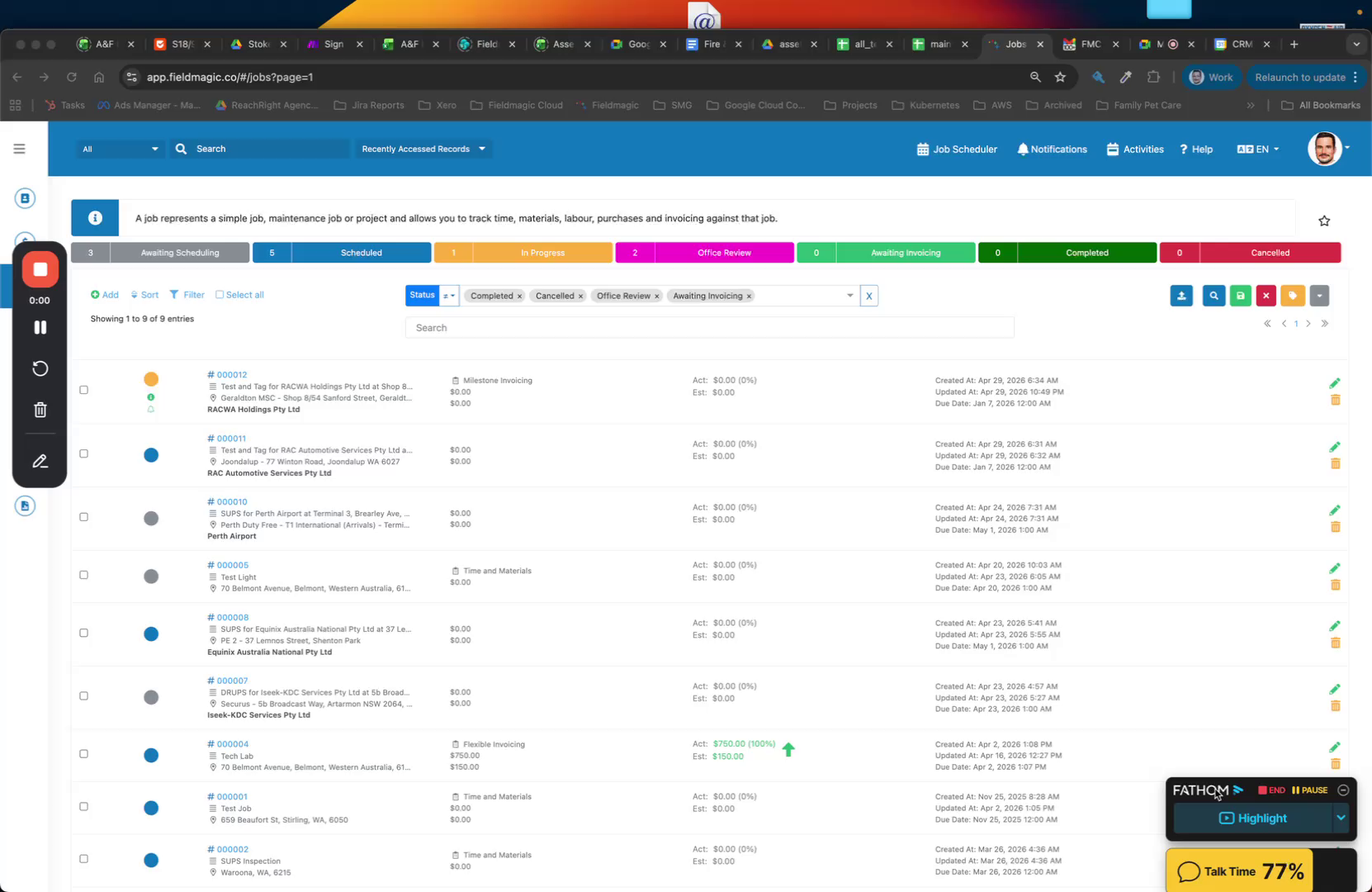 Step 1
Navigate to the Quotes section in the side menu and select Quote Wizard to create a new quote.
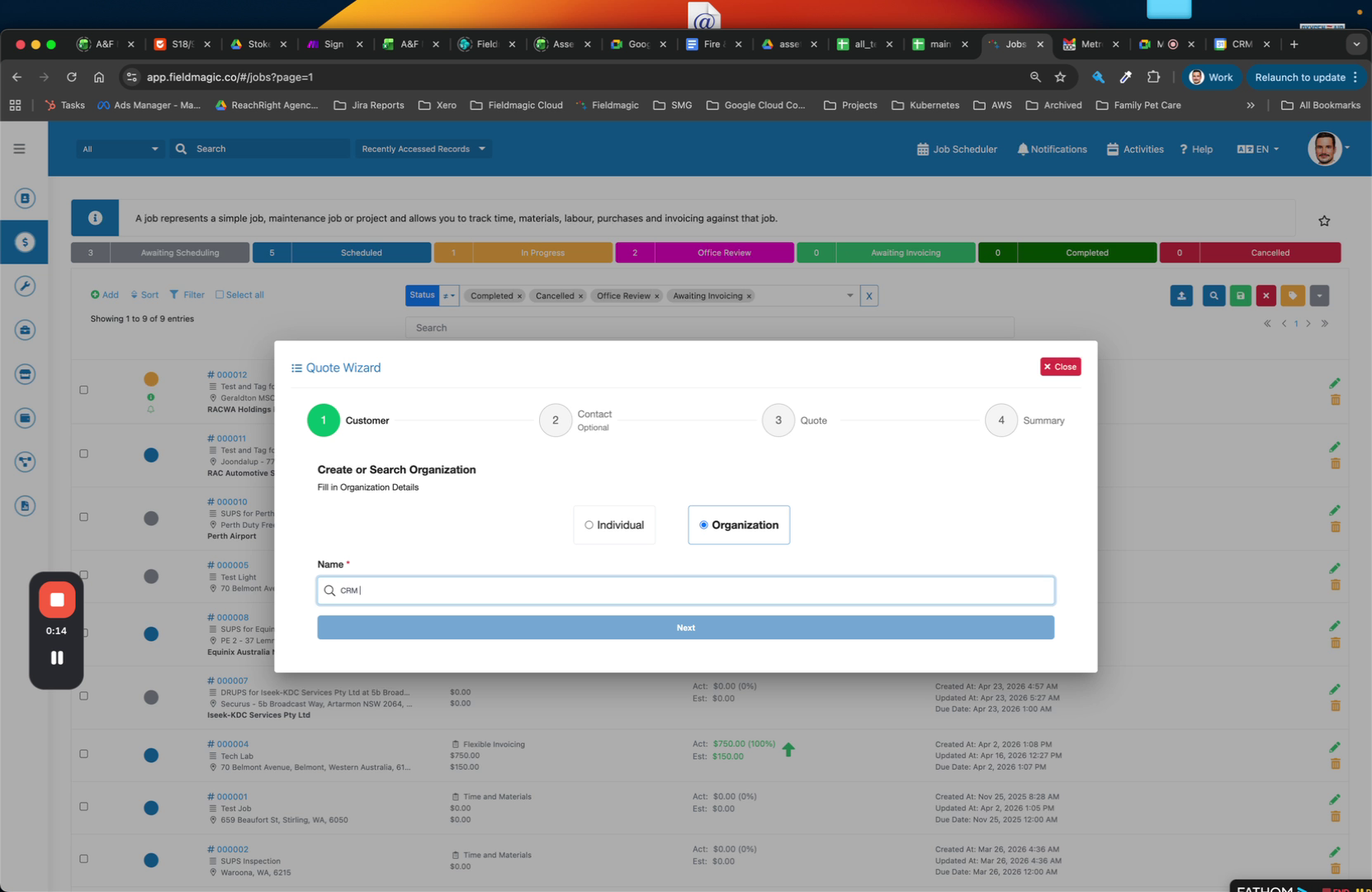 Step 2
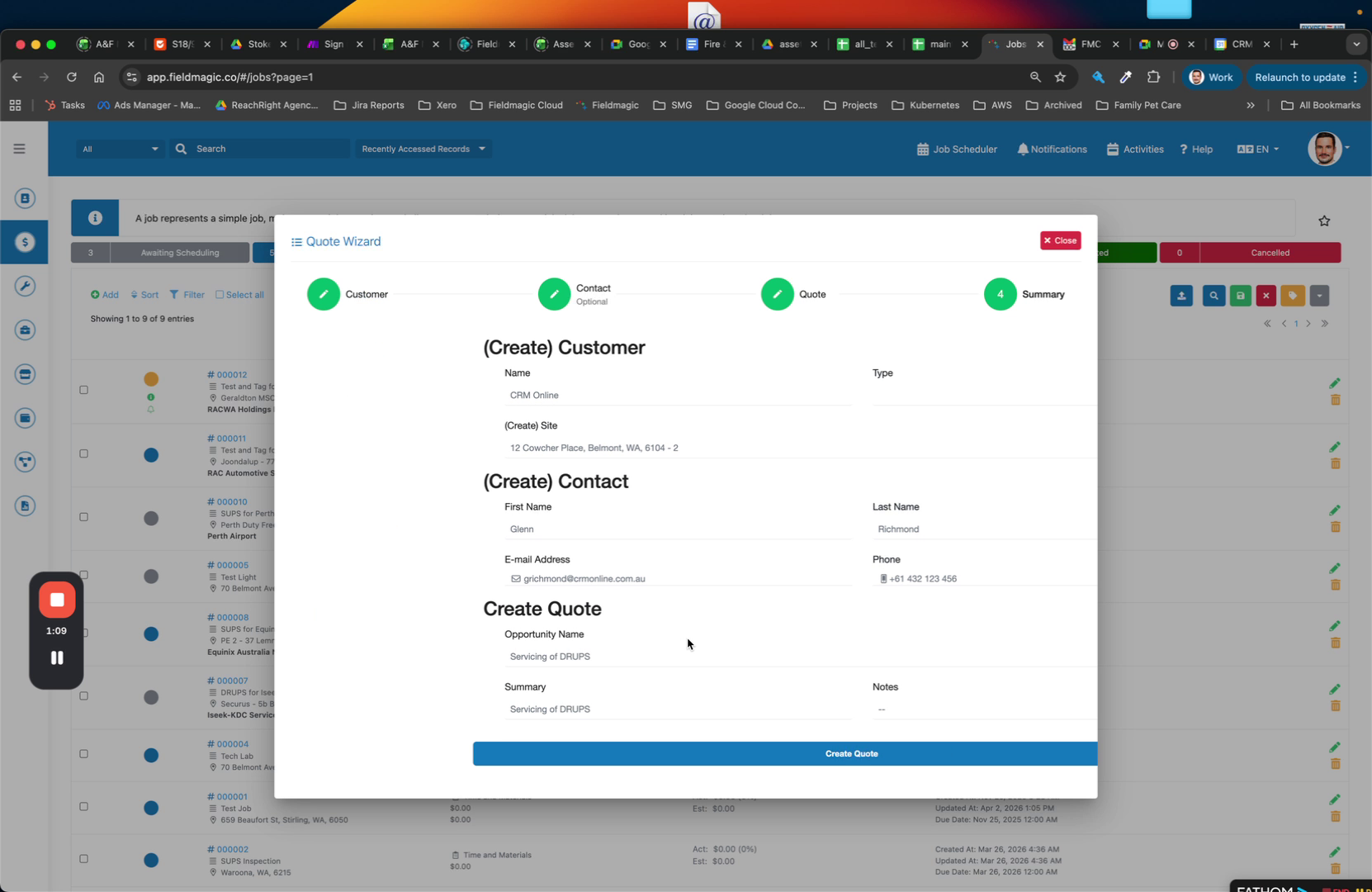
Enter the customer name in the search field. The system searches for existing records or uses Google Maps to find the address if no record exists.
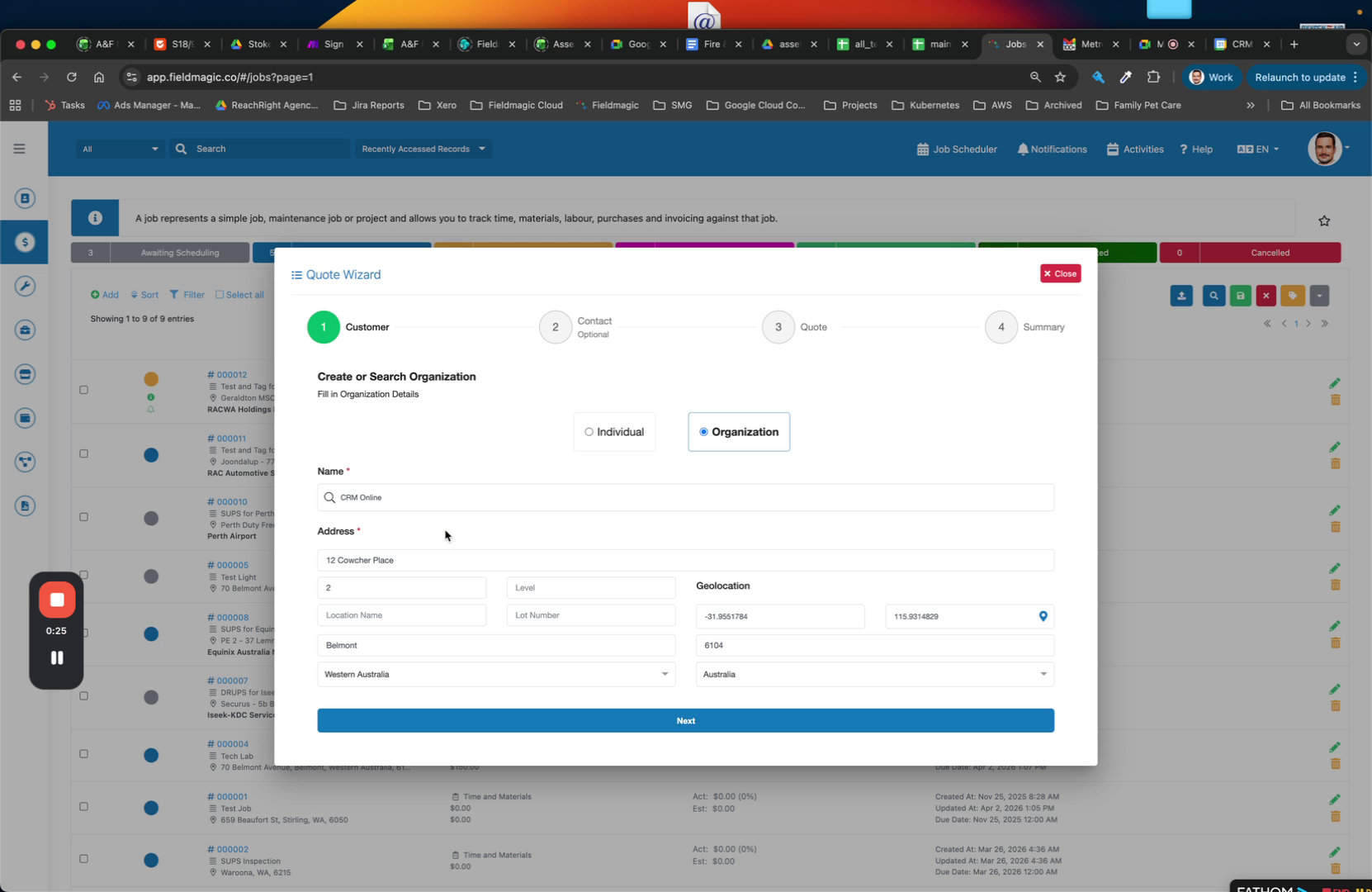 Step 3
Enter the contact name and select the contact role, such as Admin or Owner.
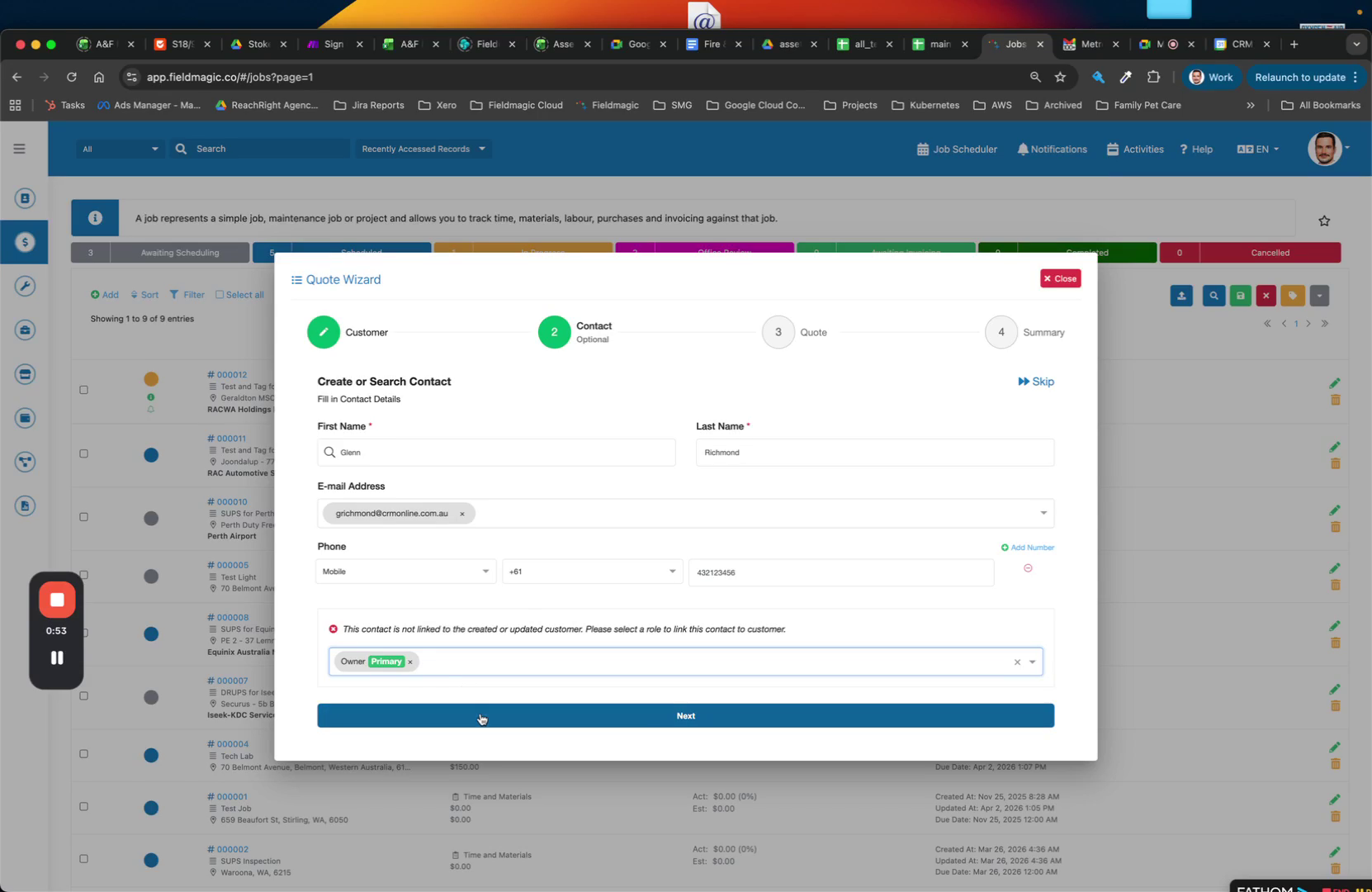 Step 4
Enter a name for the quote, such as a service description or project name.
 Step 5
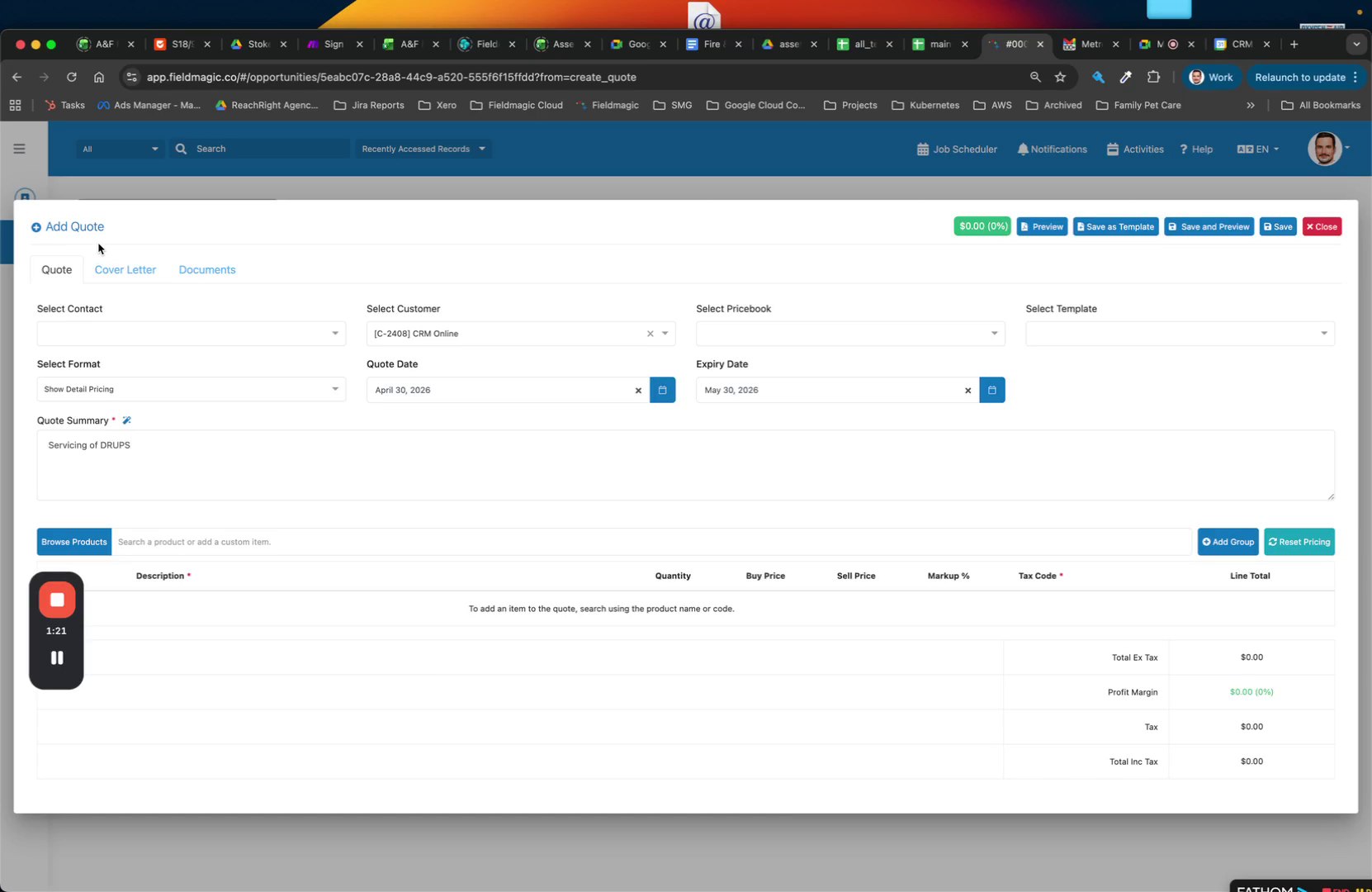
Click Next to create the quote. If the customer and site do not exist, the system creates them, links them together, and generates the quote and quote version.
 Step 6
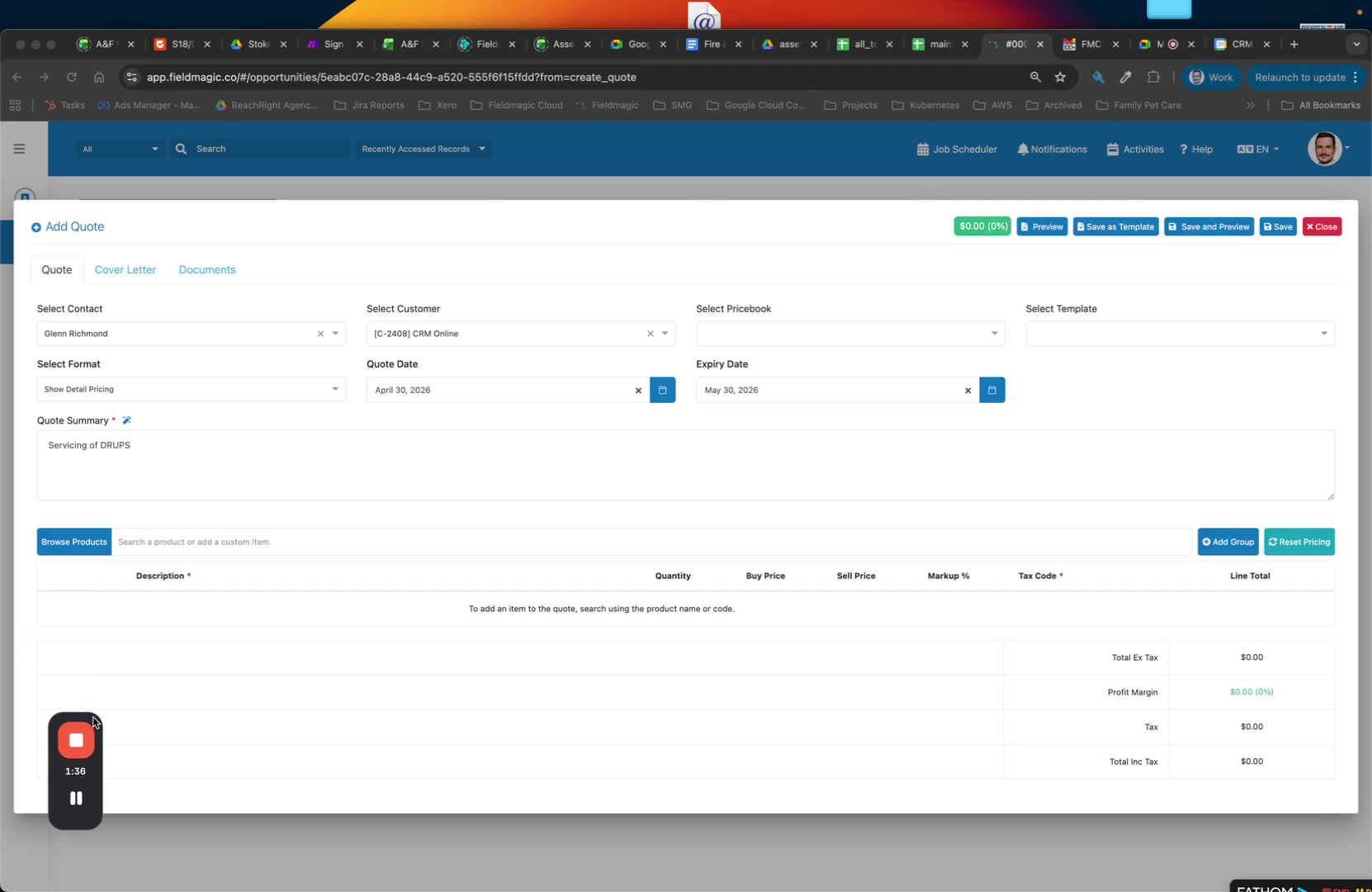
Select the contact you want to send the quote to. The system generates the quote summary.
 Step 7
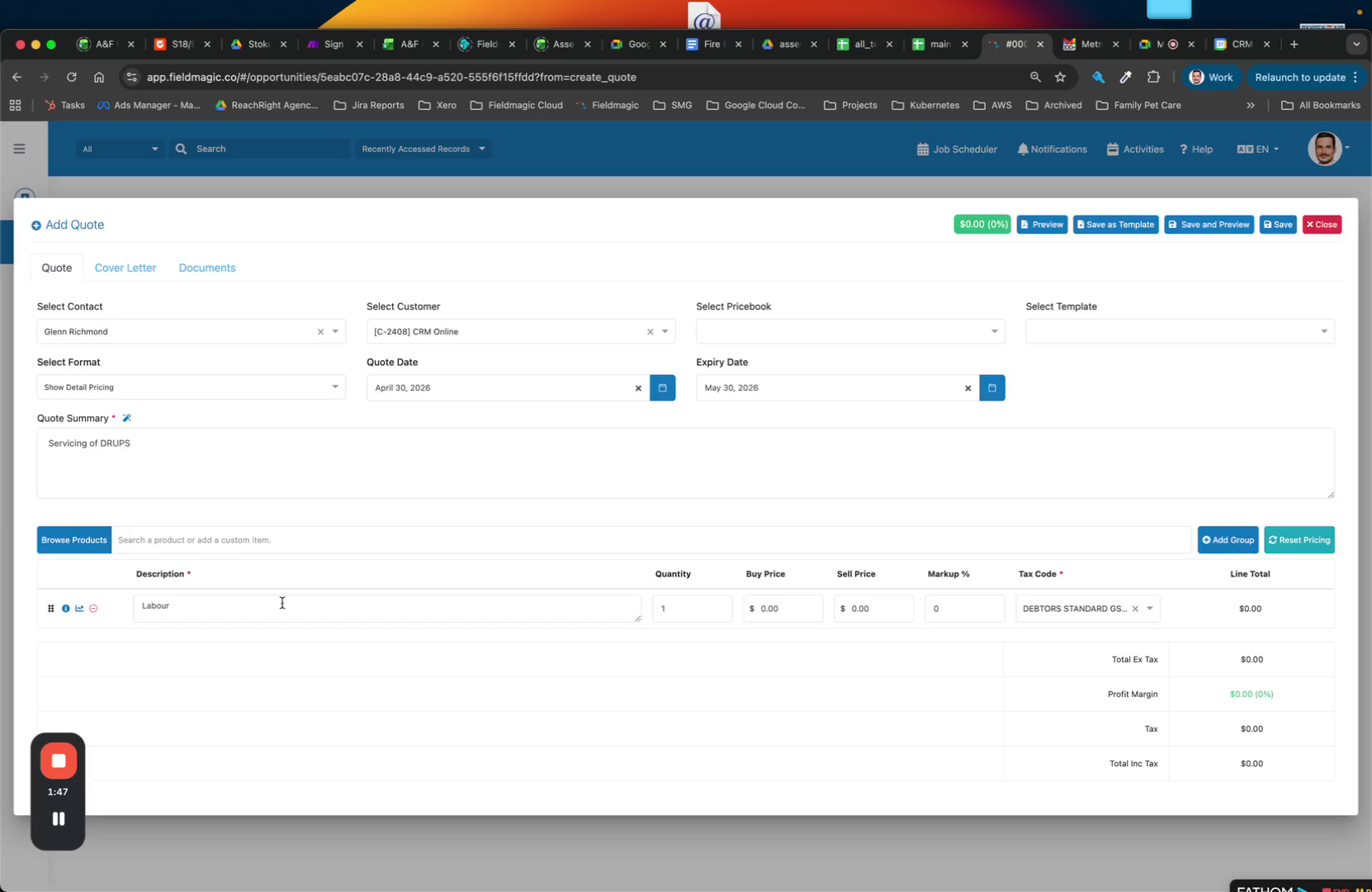
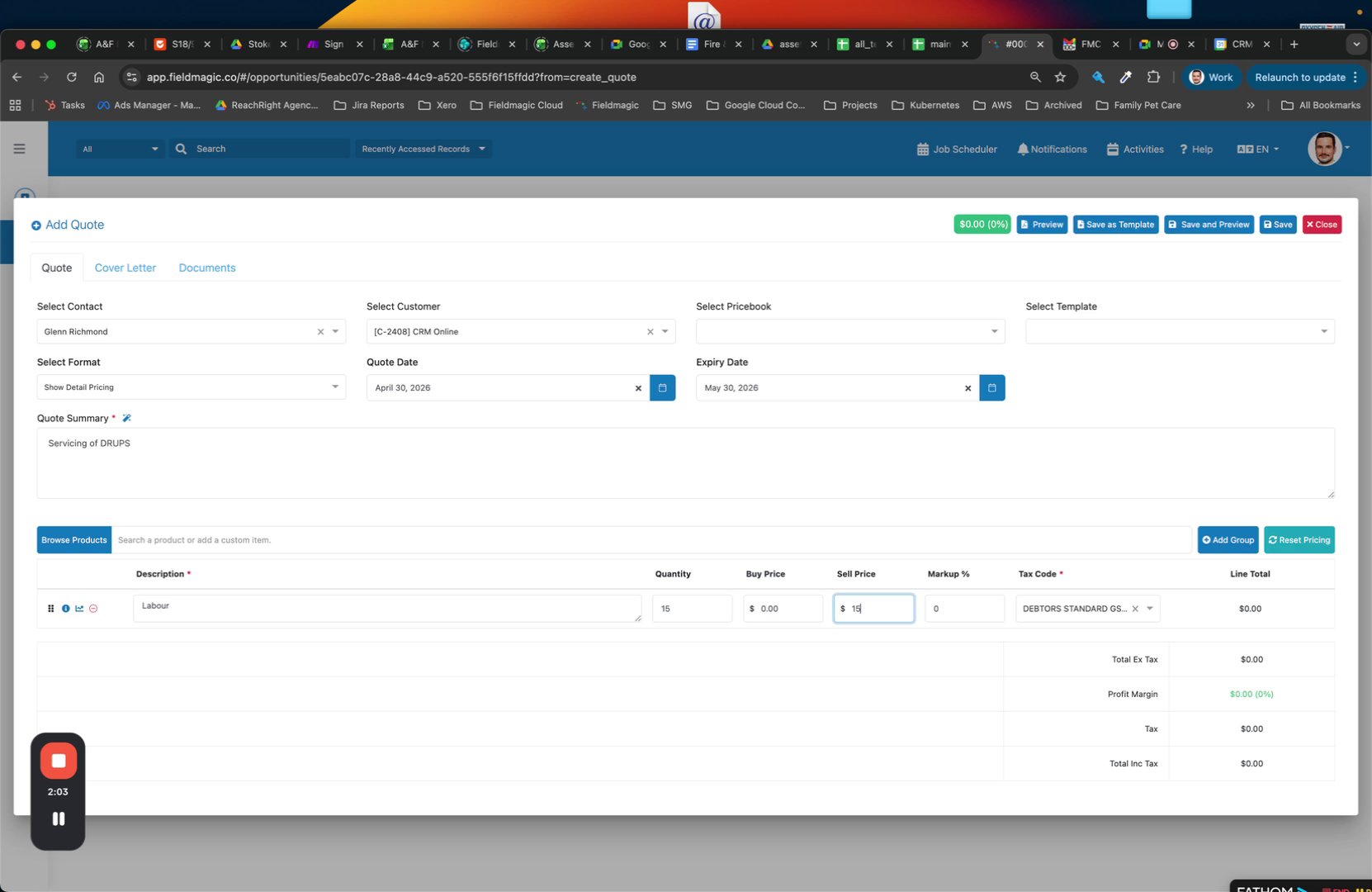
Add line items to your quote or select a quote template to pre-populate the quote.
 Step 8
Enter the quote details, such as 15 hours of labor at a rate of $150.
 Step 9
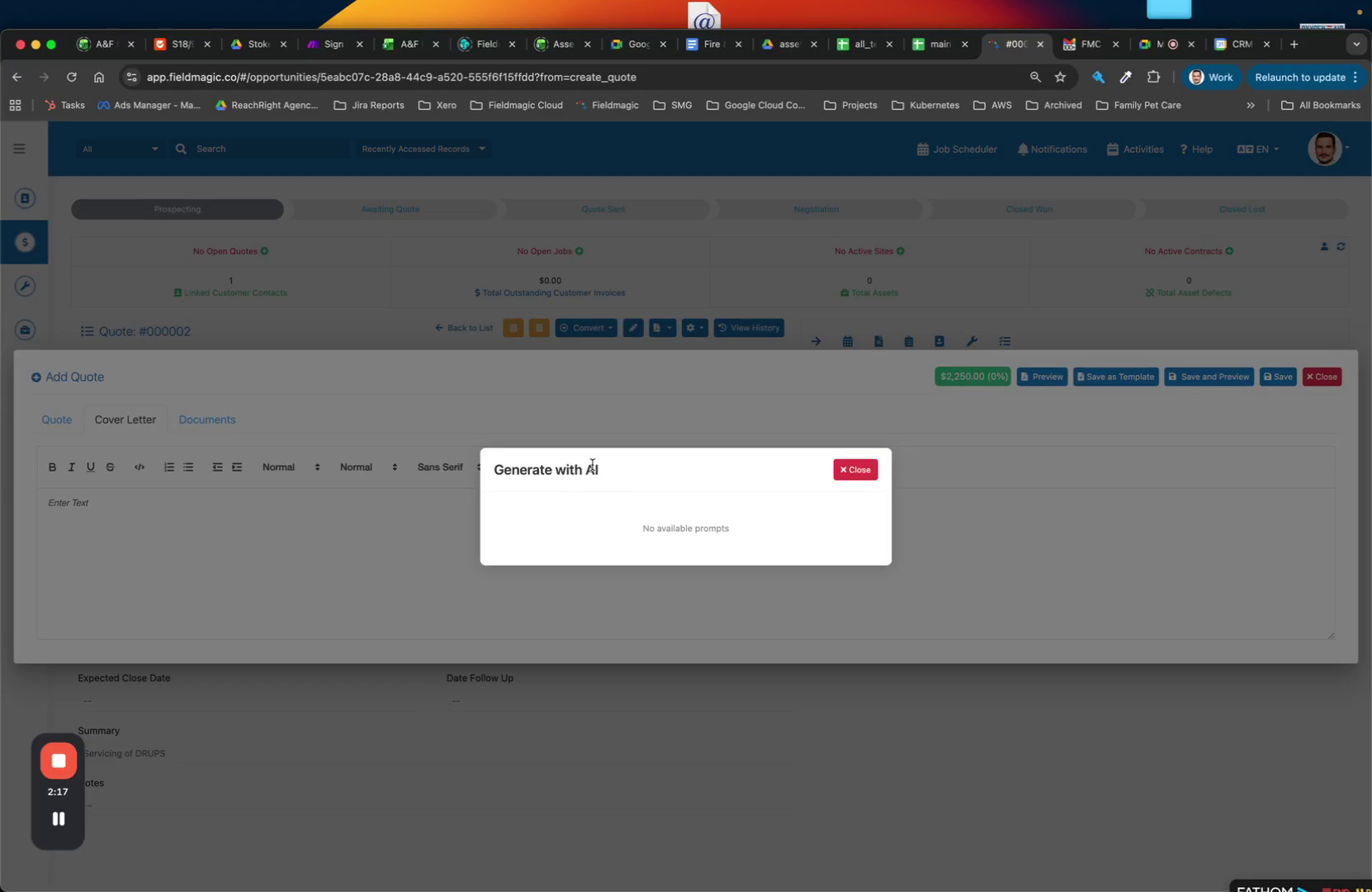
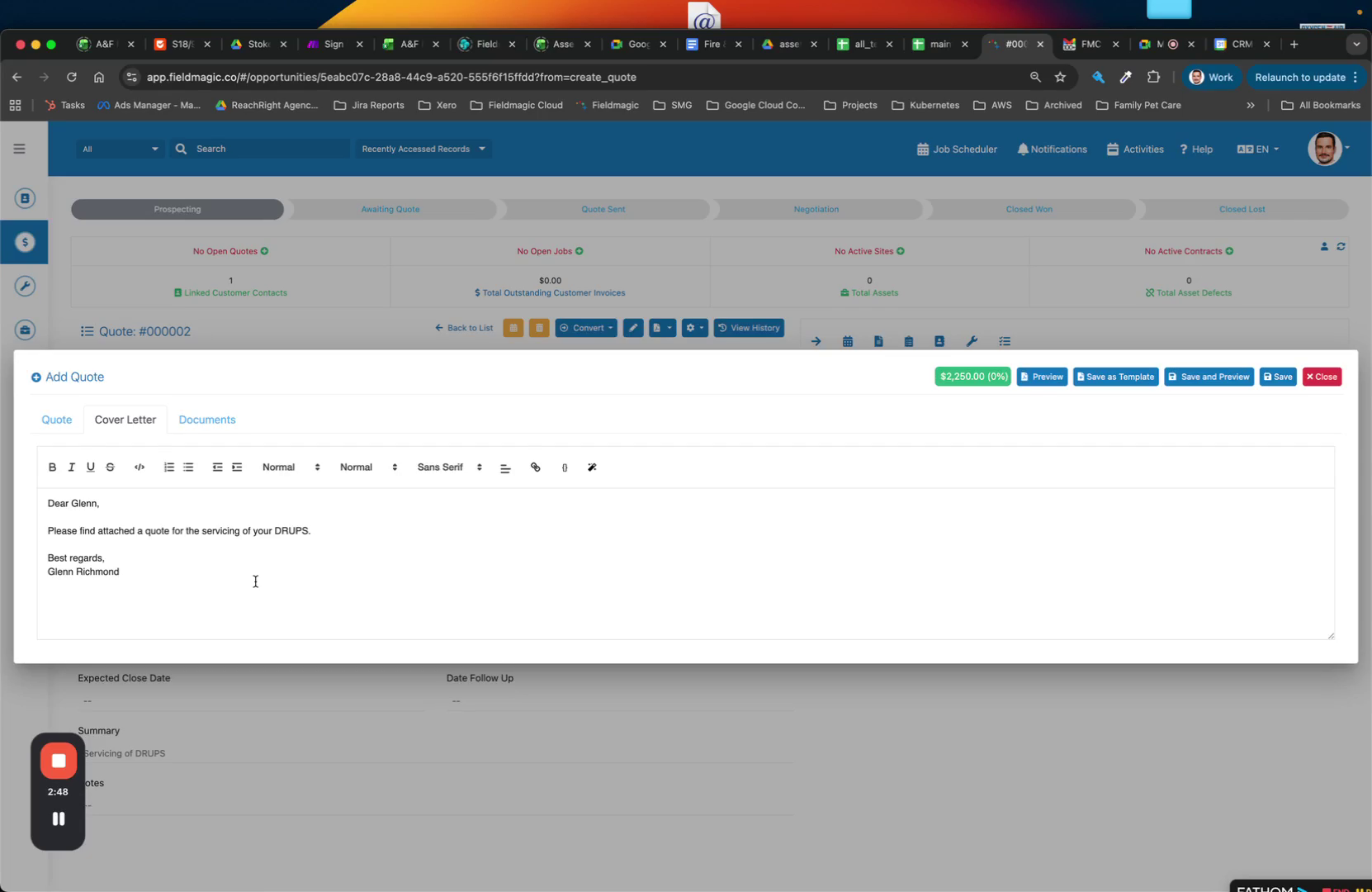
Configure your default prices in the product catalogue. Add a cover letter to describe the quote.
 Step 10
Use the AI generator to create a summary that appears before the quote details.
 Step 11
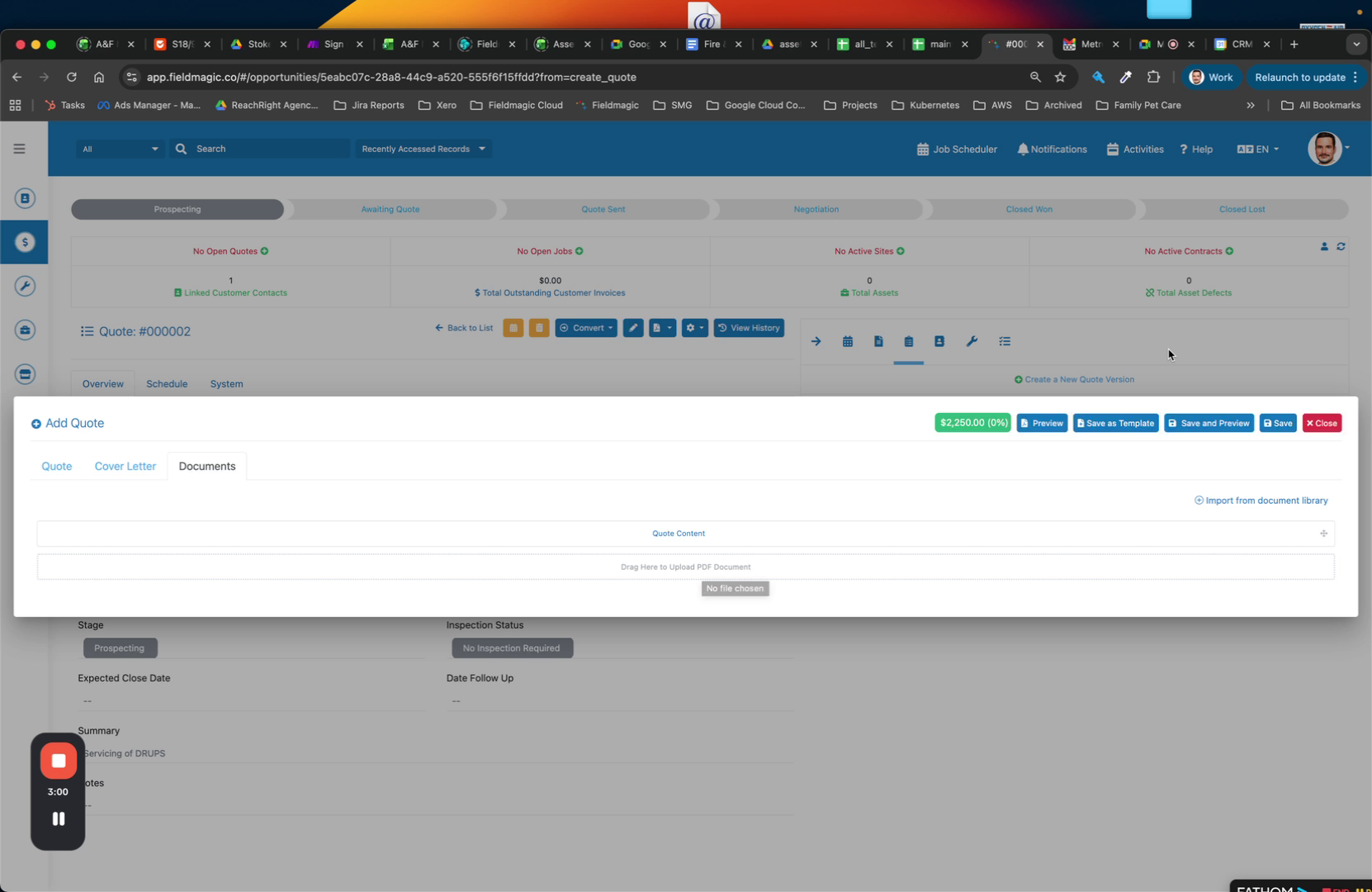
In the Documents section, include additional files such as a company profile.
 Step 12
Click Save and Preview to generate the quote. Review the summary and email the quote directly from the system.