PDF Annotation
How to Annotate PDF Files of a Job in the Mobile App
Open the job with the attached PDF file in the FieldMagic mobile app.
Step-by-step instructions
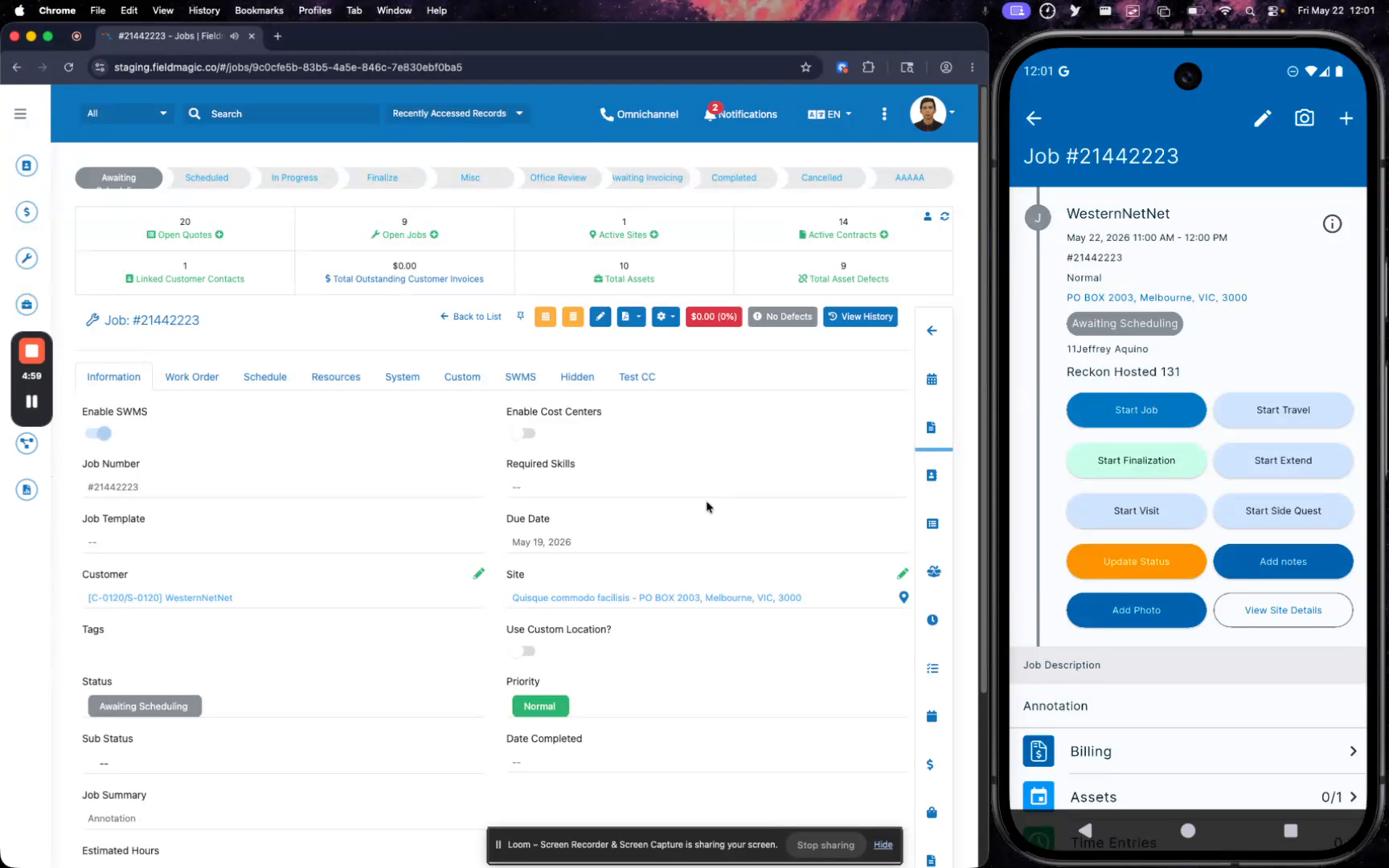 Step 1
Open the job with the attached PDF file in the FieldMagic mobile app.
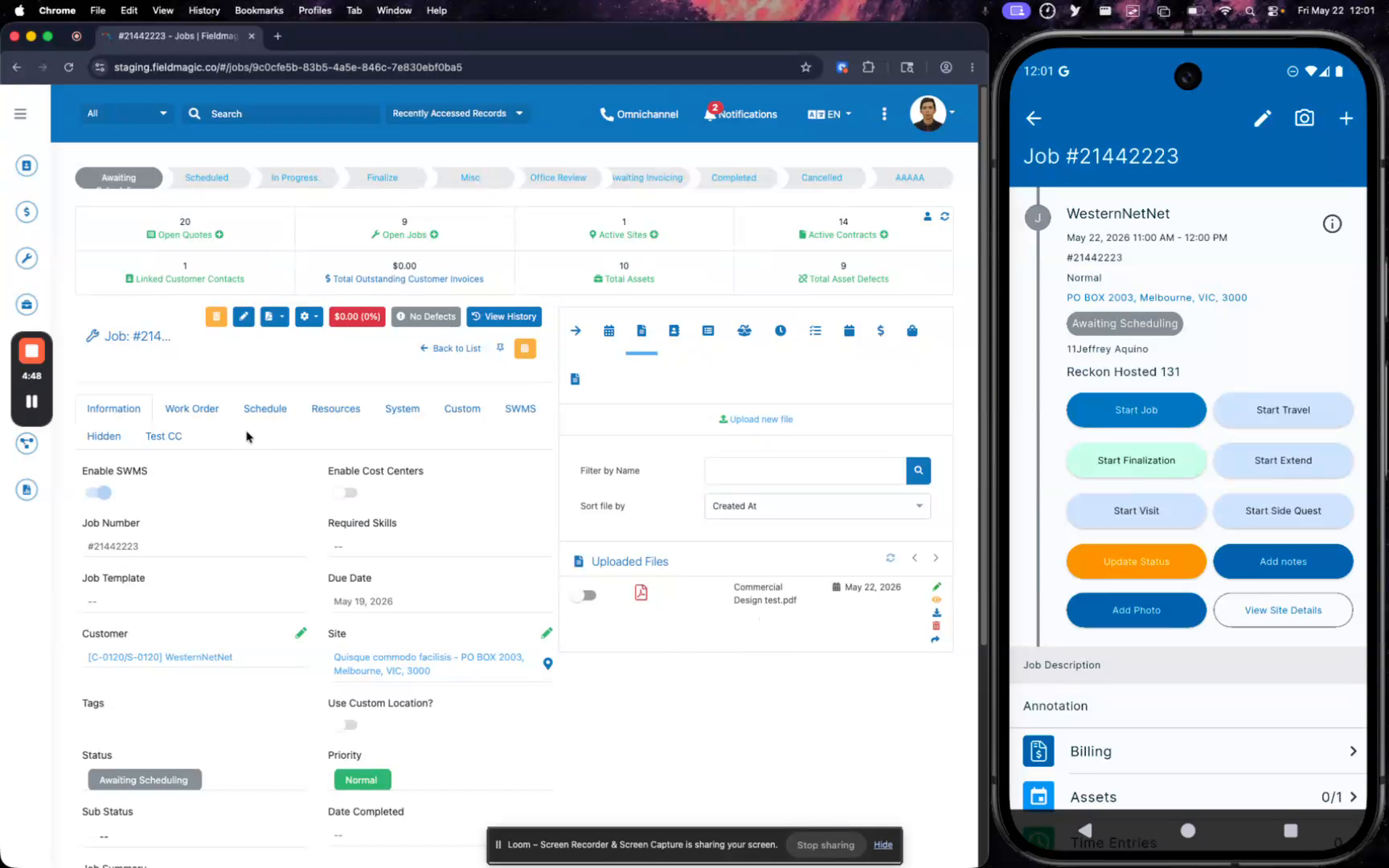 Step 2
Navigate to the Files section of the job and tap on the PDF file to open it.
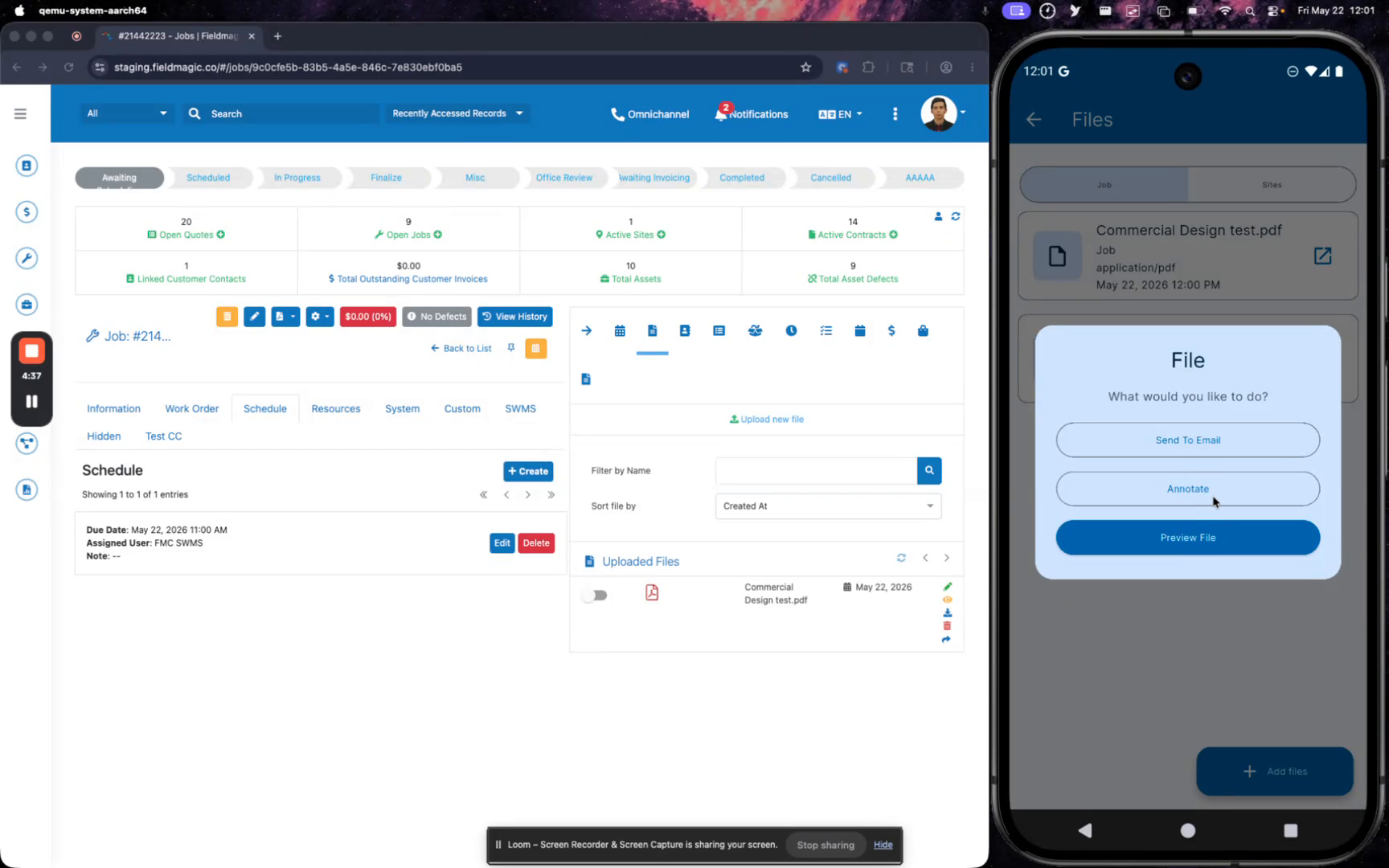 Step 3
Tap the Annotate button to access the available annotation tools.
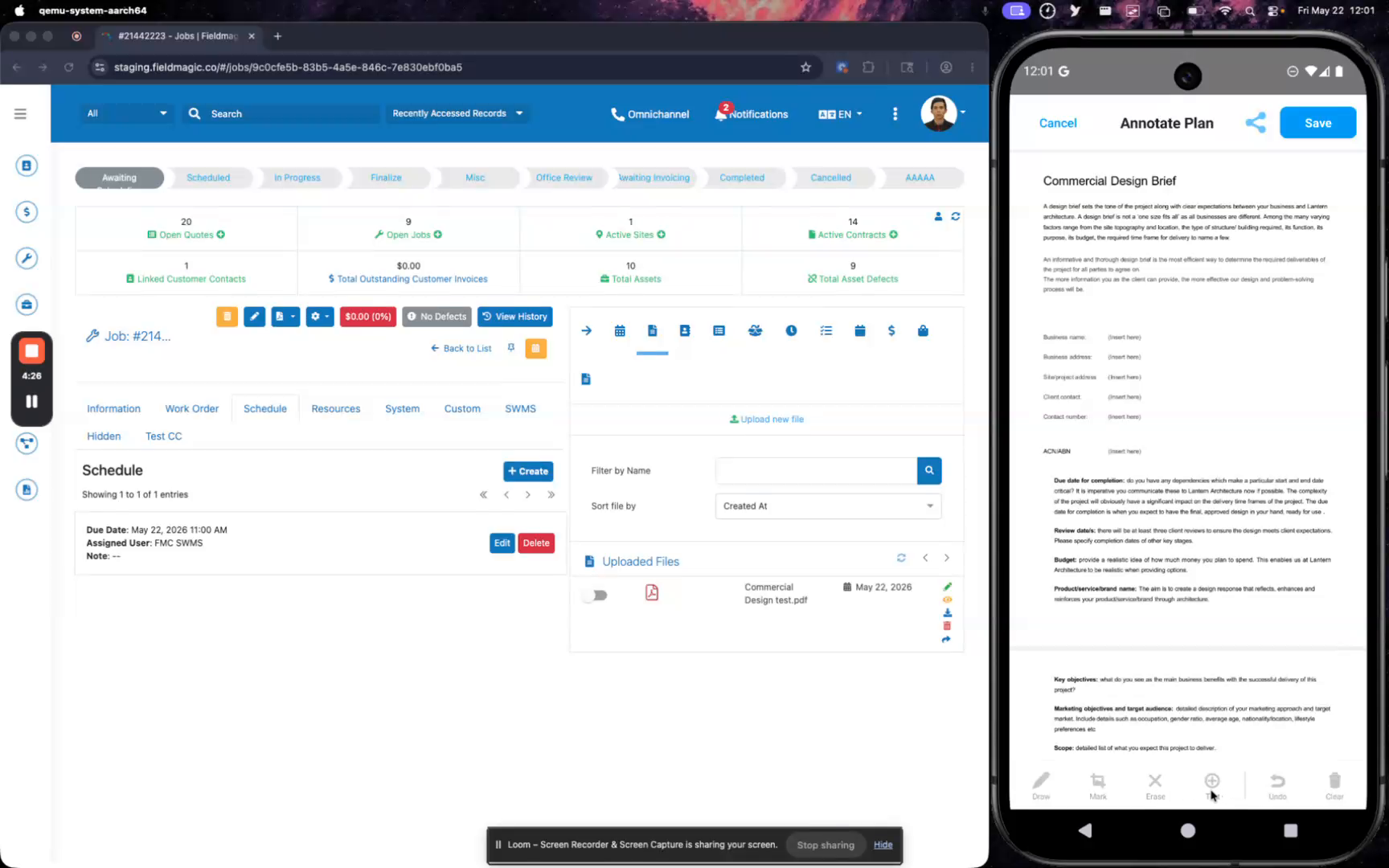 Step 4
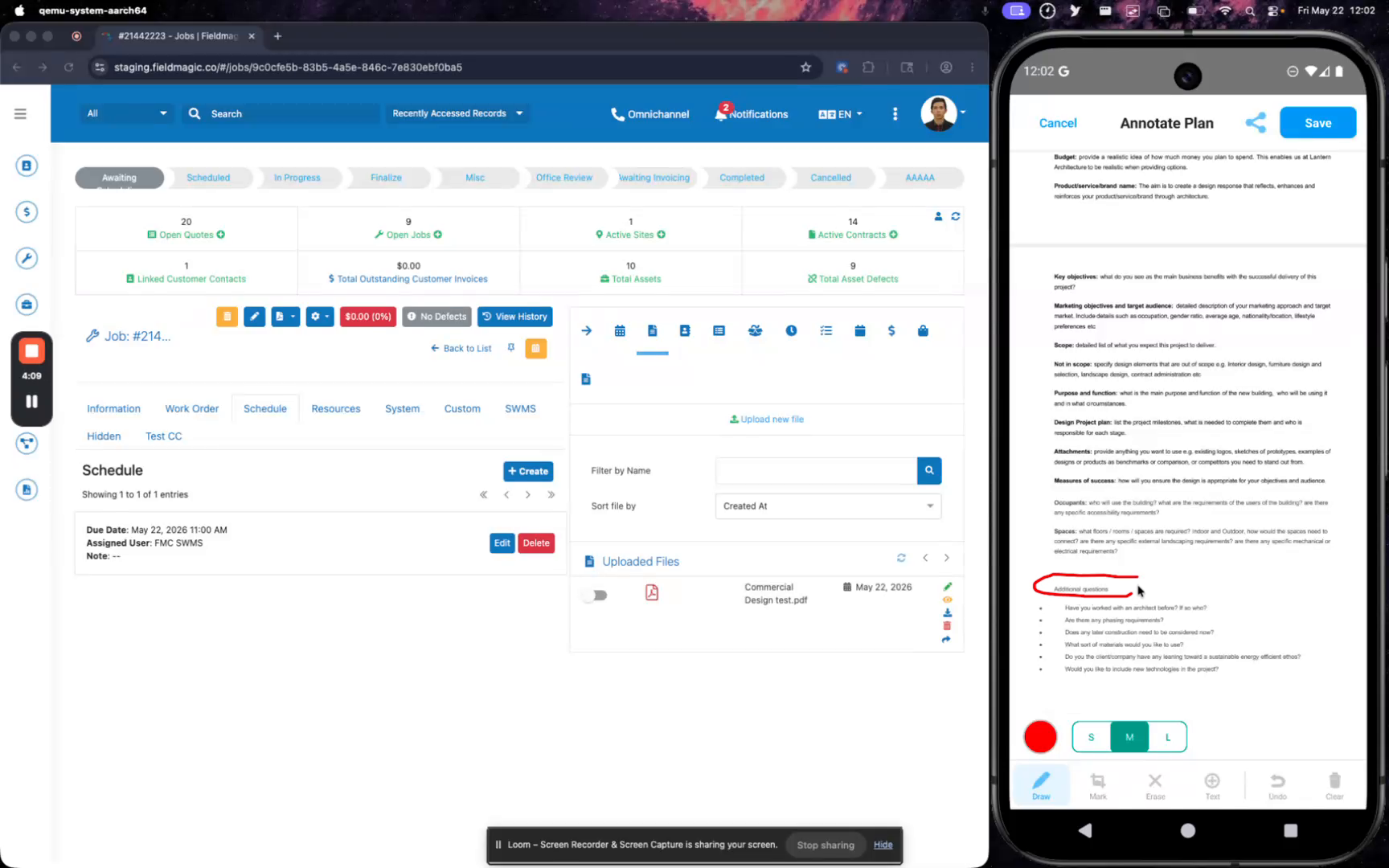
Select the Draw tool to freely draw on the PDF.
 Step 5
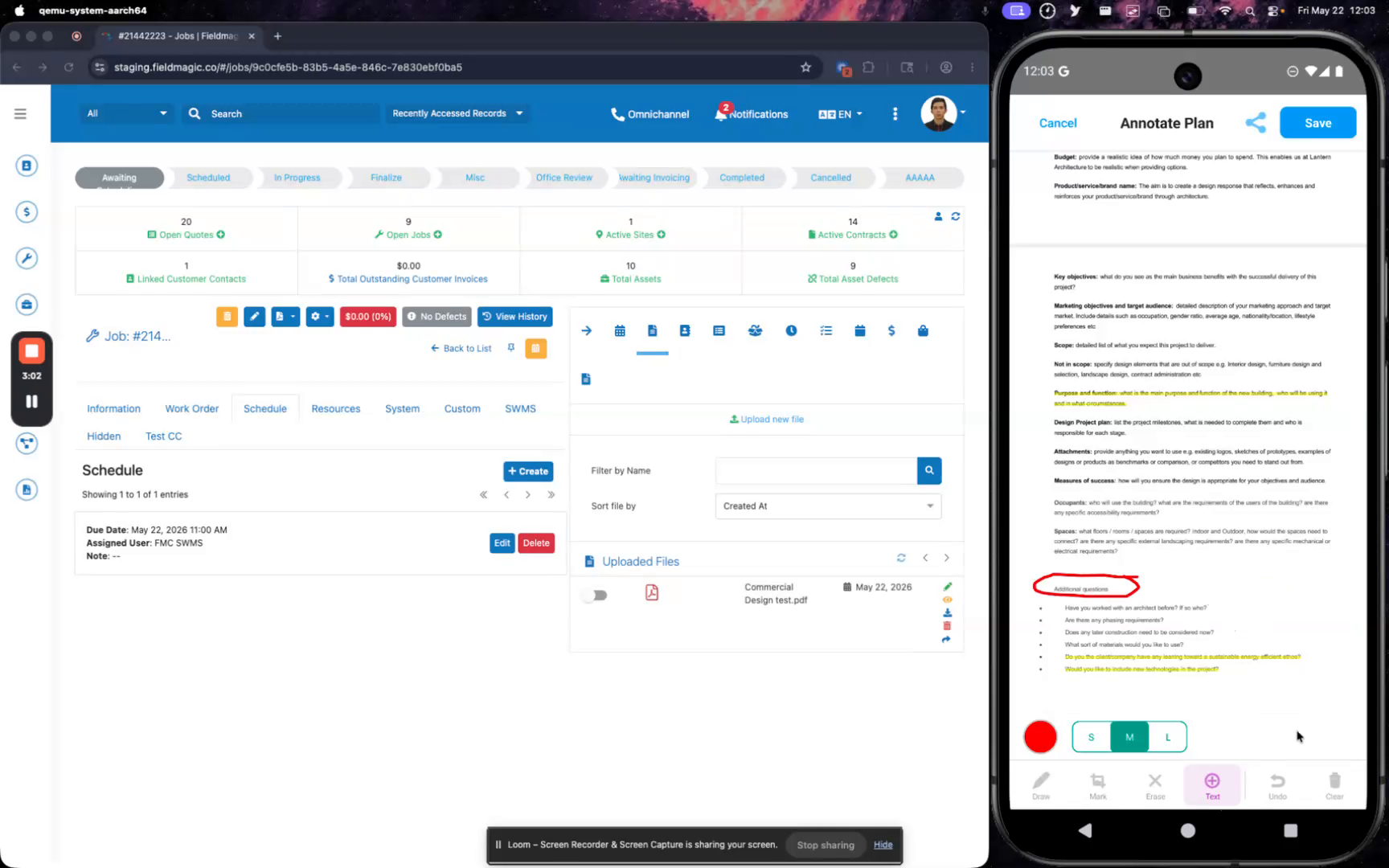
Unselect the current tool to swipe or scroll through the PDF, then select the Highlight tool to highlight text.
 Step 6
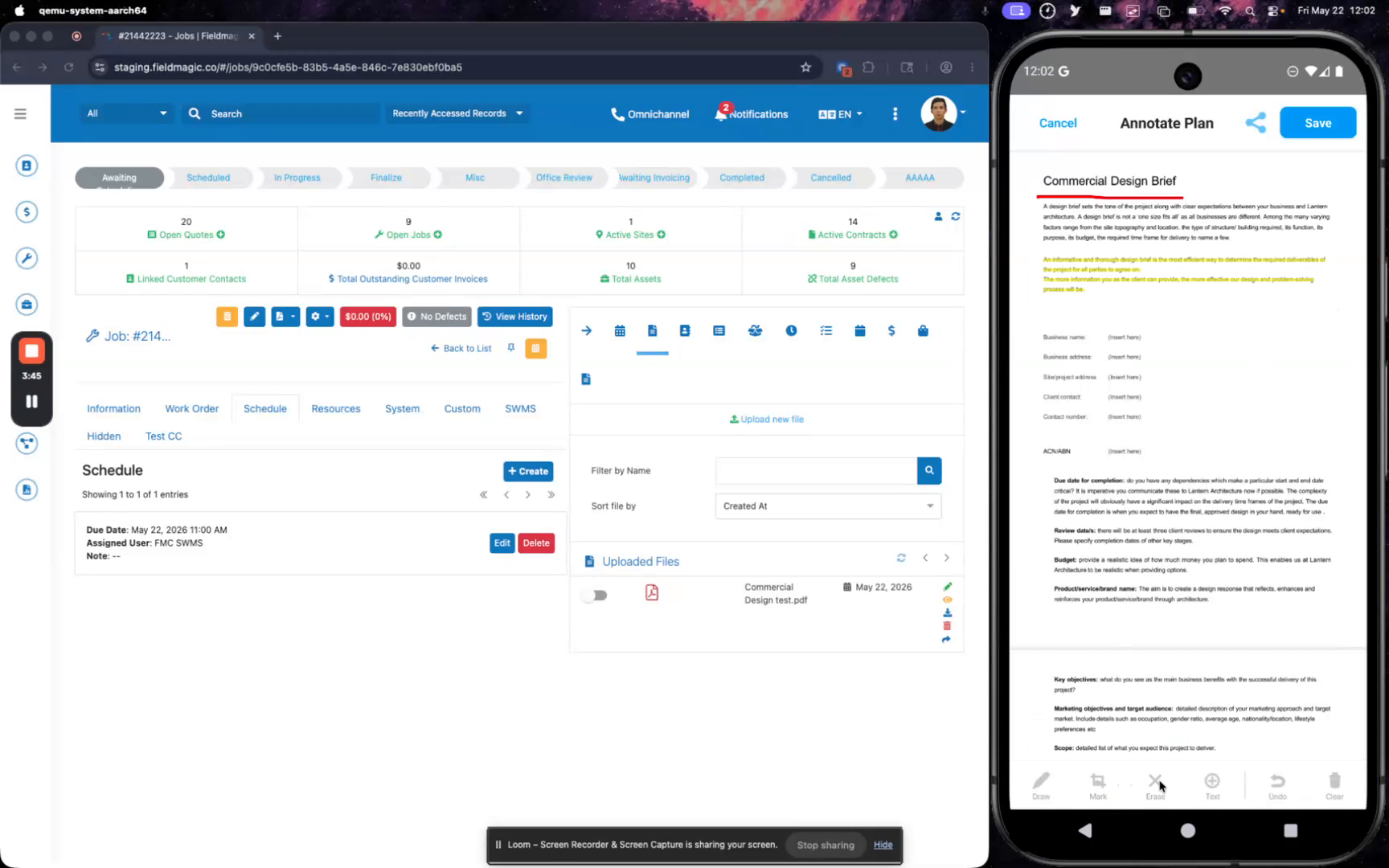
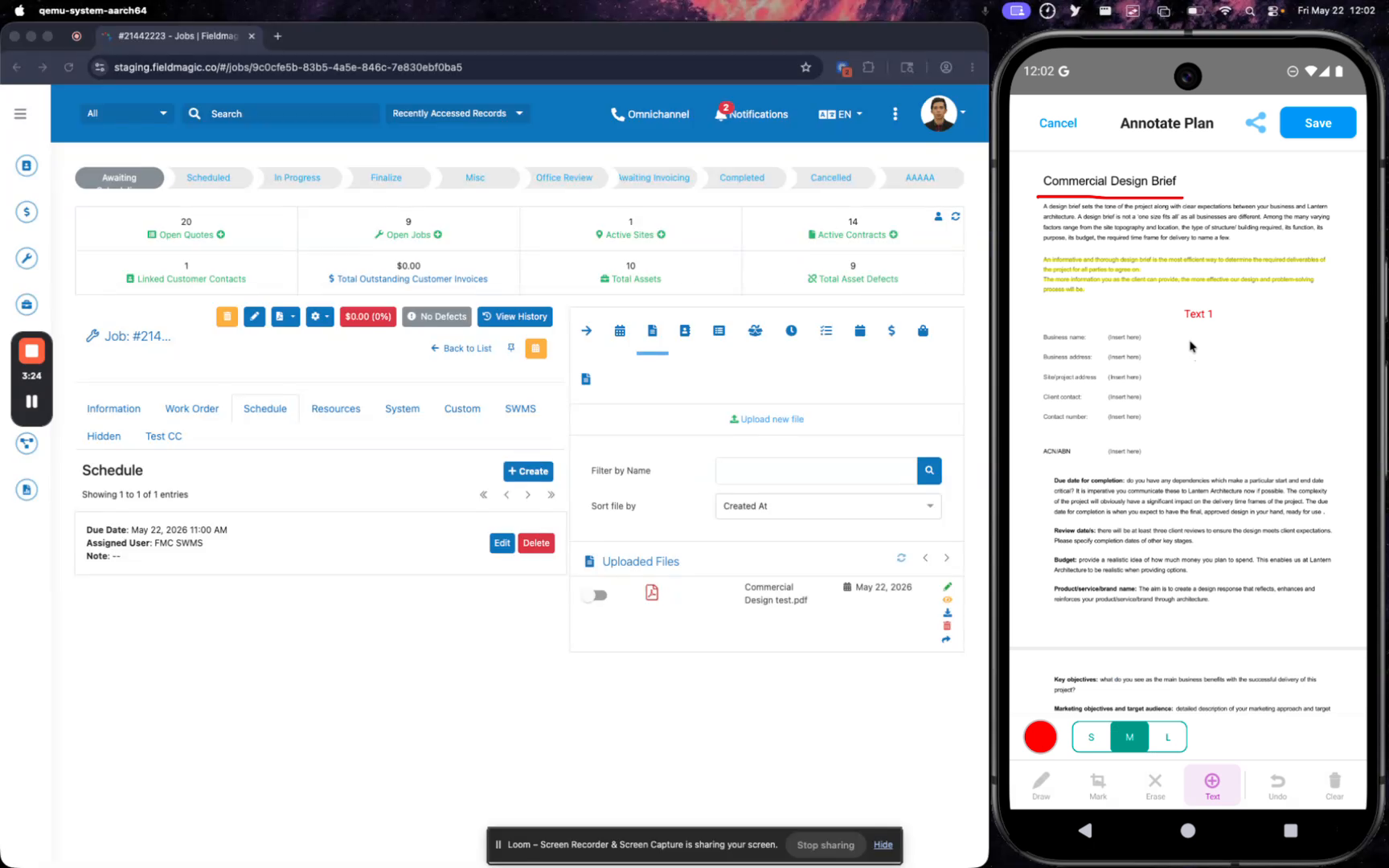
Use the Erase tool to remove existing annotations and the Text tool to add text annotations.
 Step 7
Tap Undo to reverse your last action.
 Step 8
Tap Clear All to remove all annotations, or continue adding more annotations as needed.
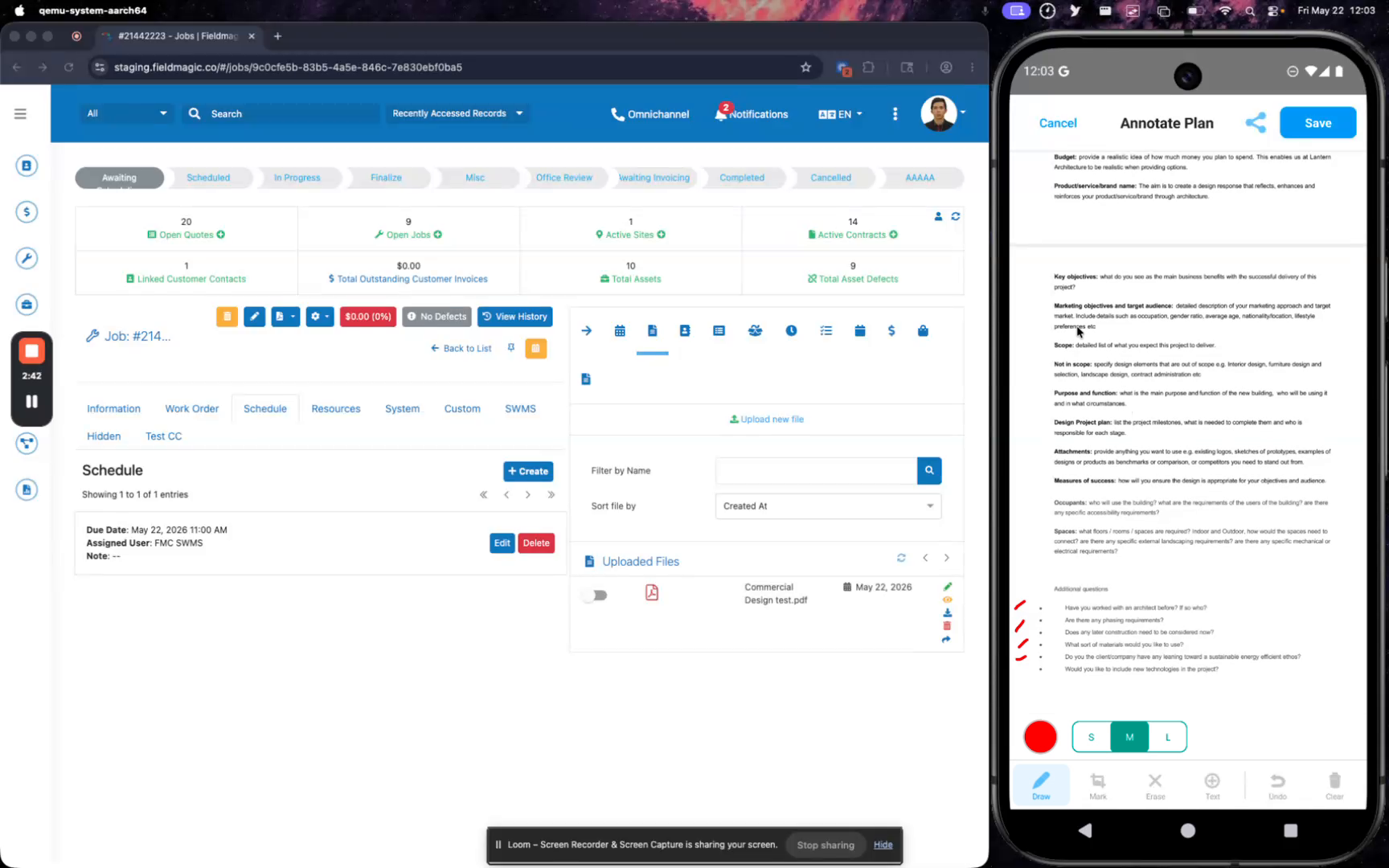 Step 9
Use the Strikeout tool to cross out text, and change annotation colors using the color palette.
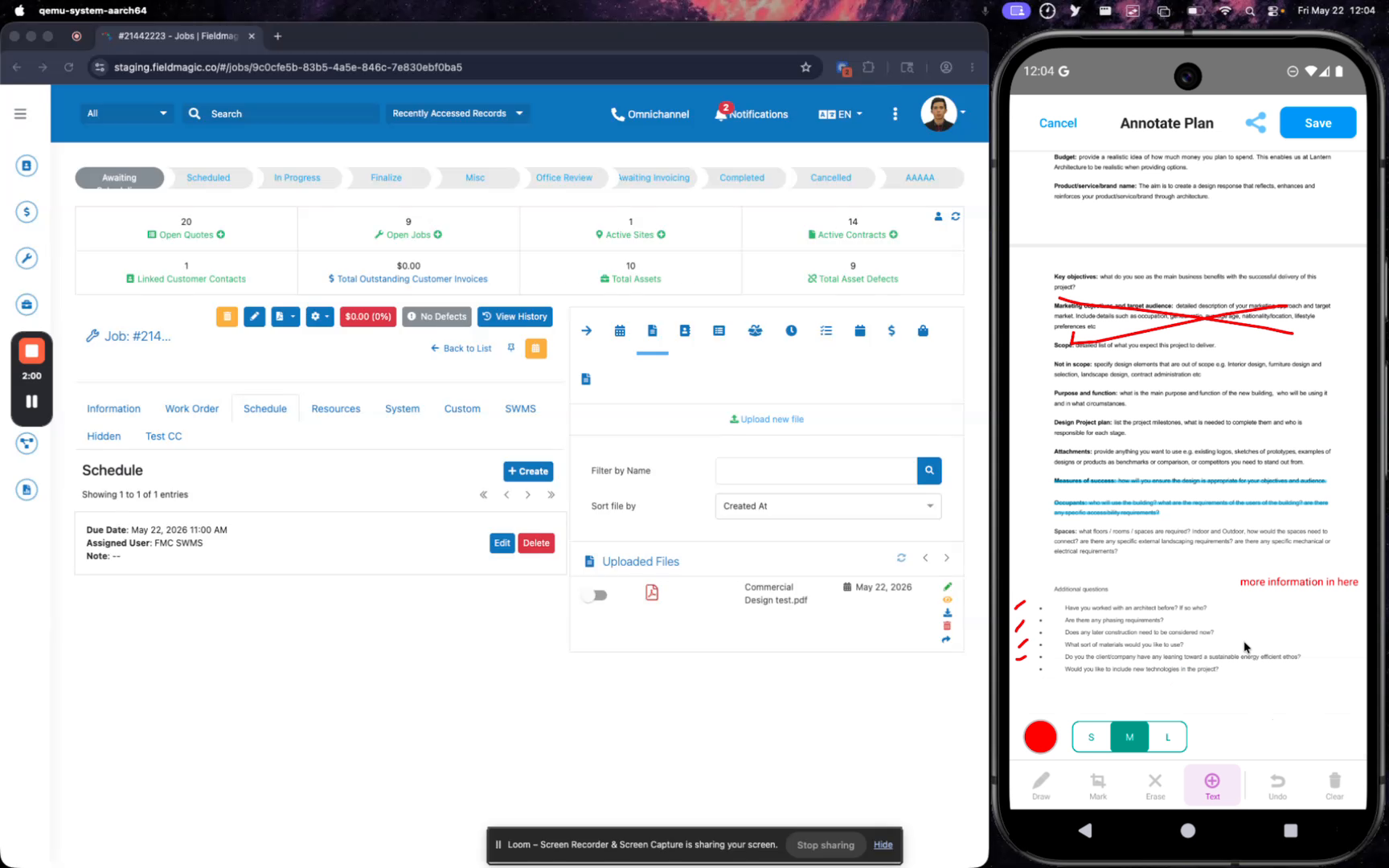 Step 10
Tap Save to apply your annotations, then open the PDF again to preview the annotated file.