PDF Annotation
How to Annotate PDF Files of a Site of the Job in the Mobile App
In the mobile app, navigate to the job that contains the site you want to annotate.
Step-by-step instructions
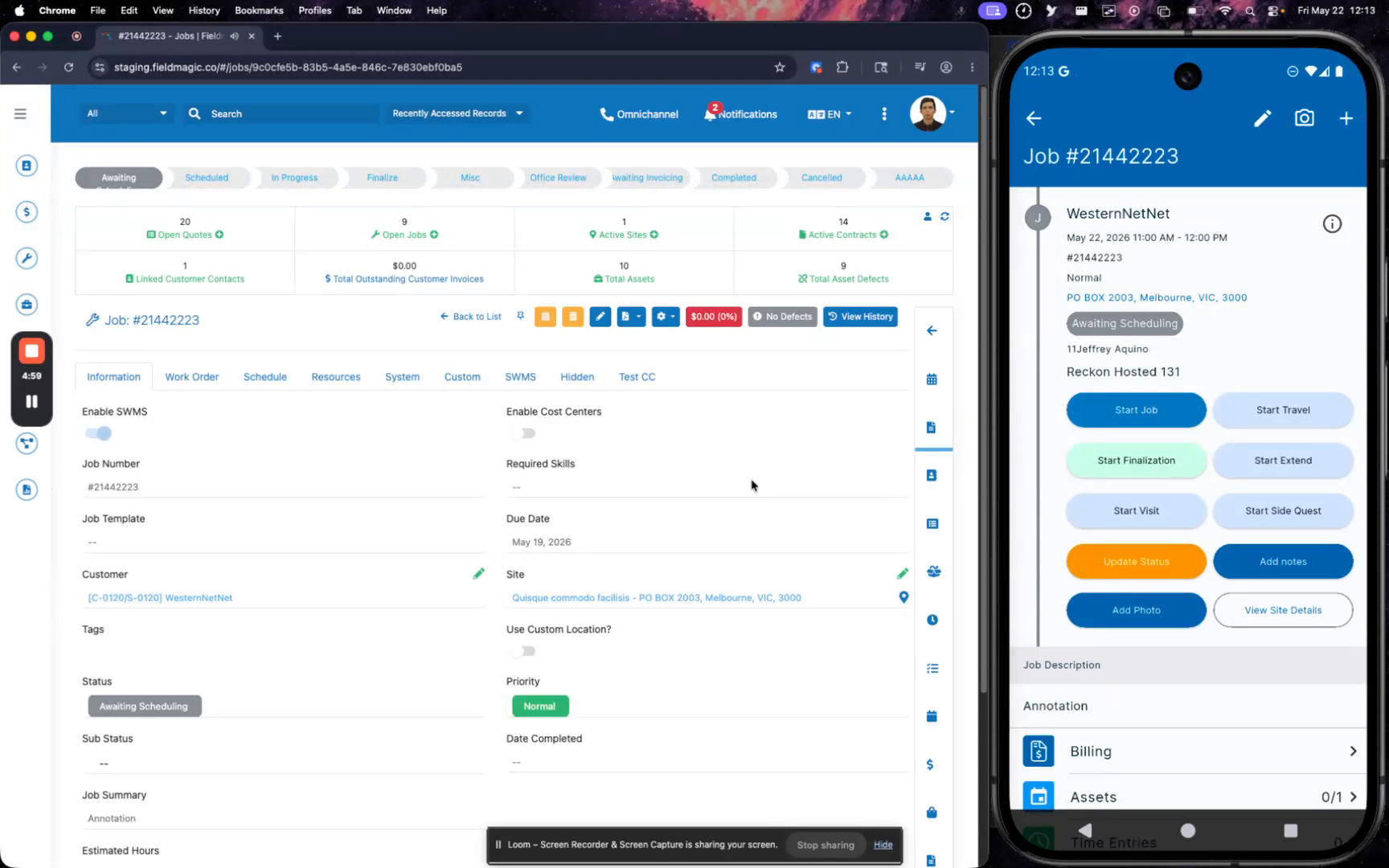 Step 1
In the mobile app, navigate to the job that contains the site you want to annotate.
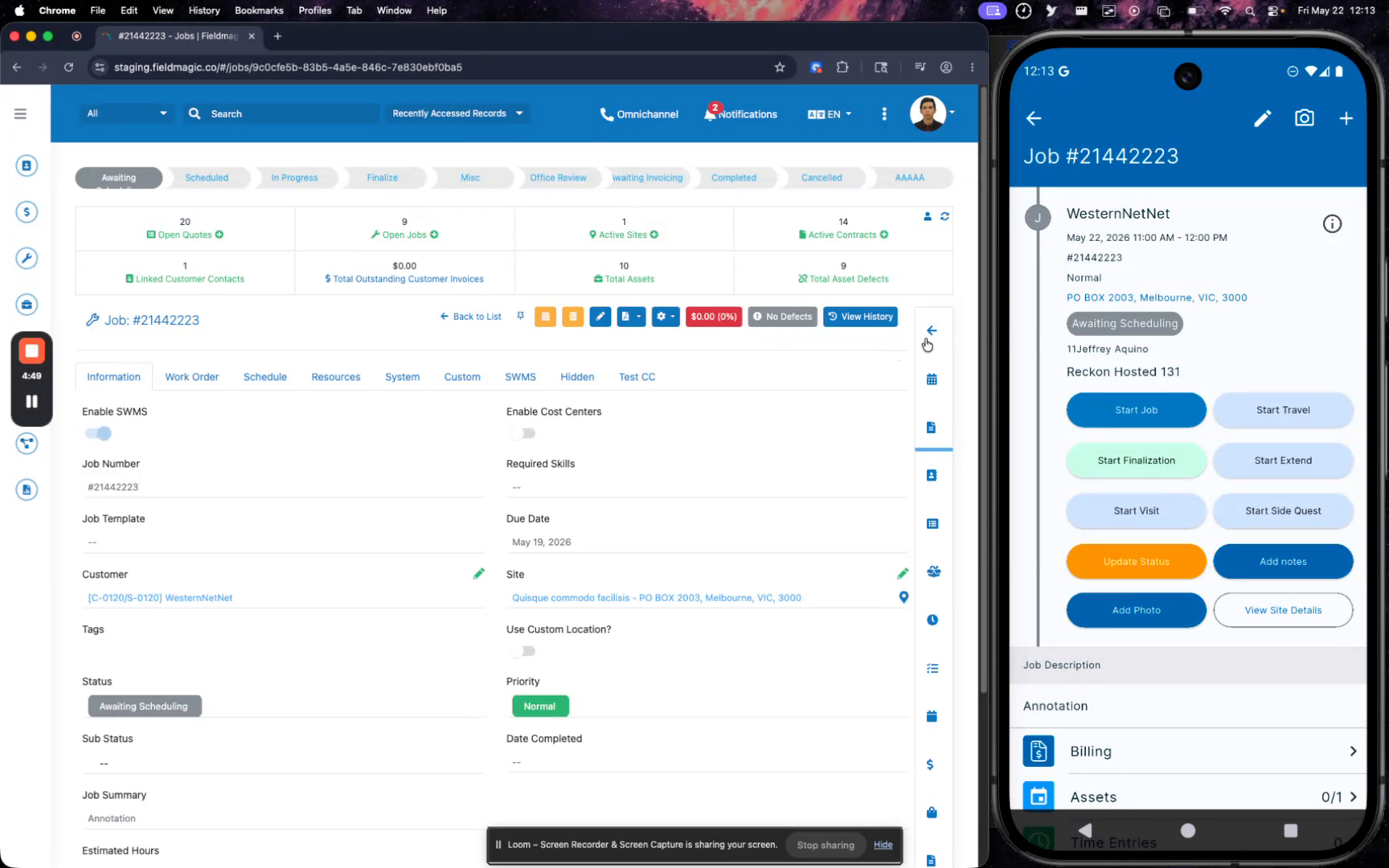 Step 2
In the job details, scroll to the Files section and locate the site PDF file.
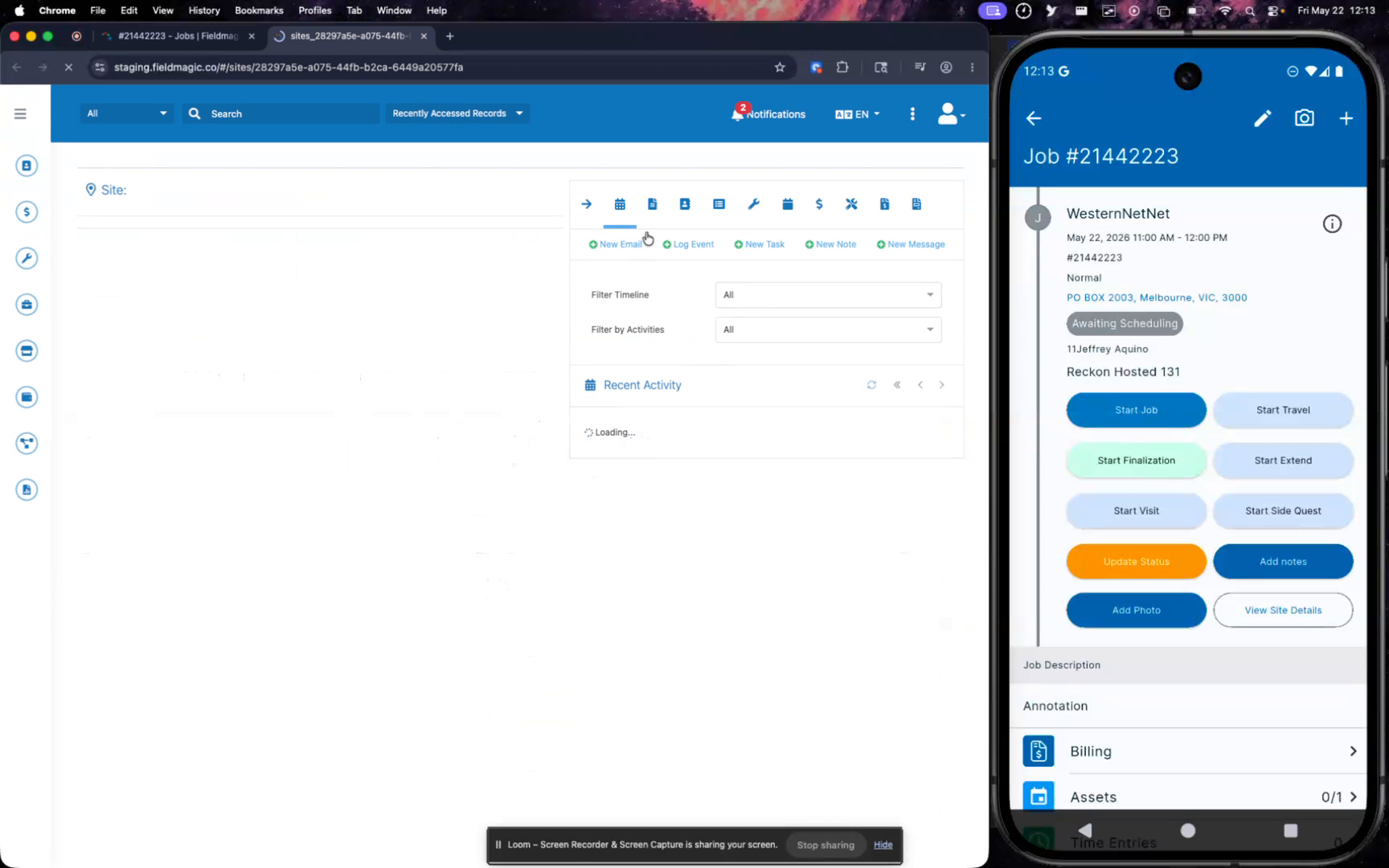 Step 3
Tap the site PDF file to open it in the document viewer.
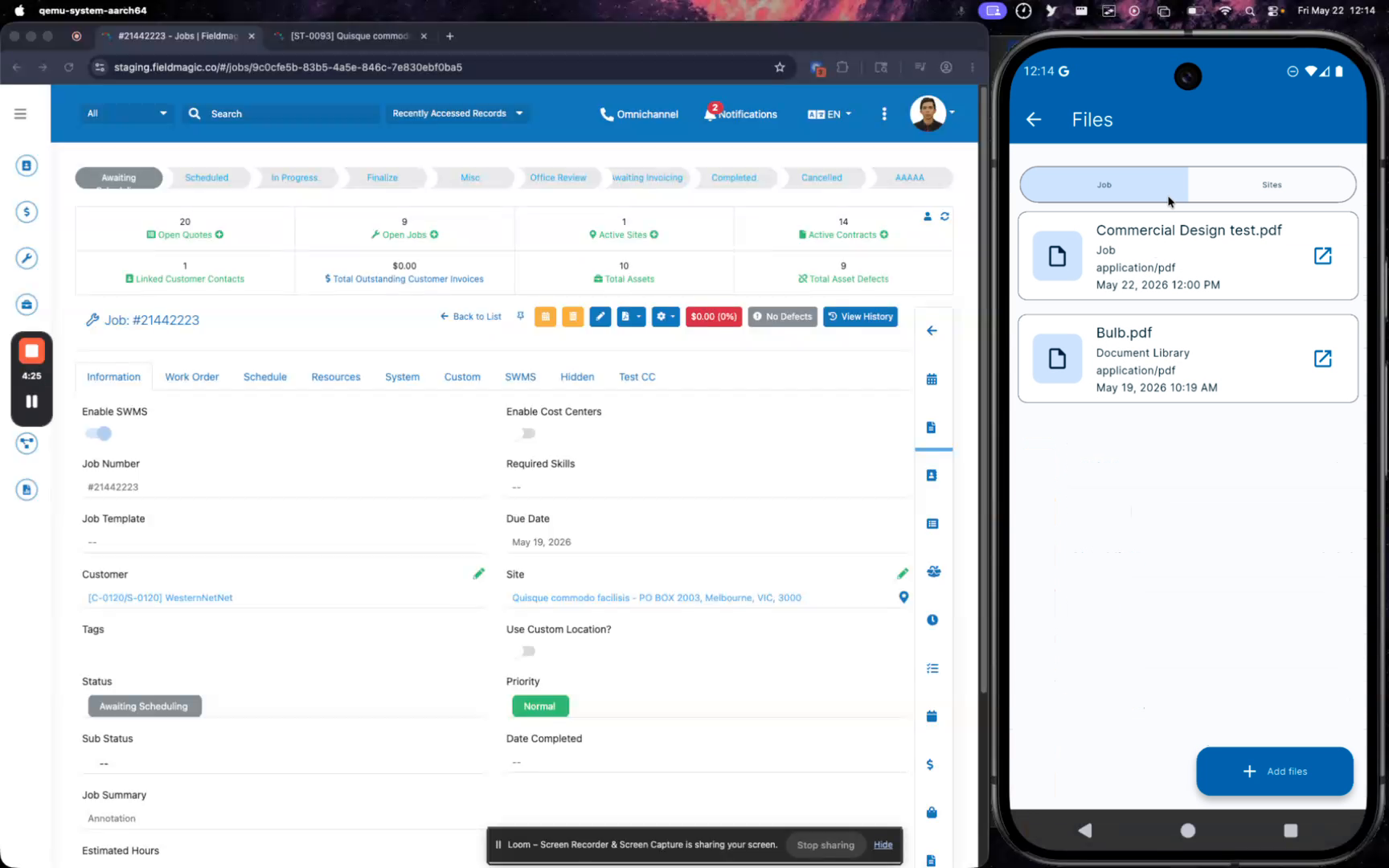 Step 4
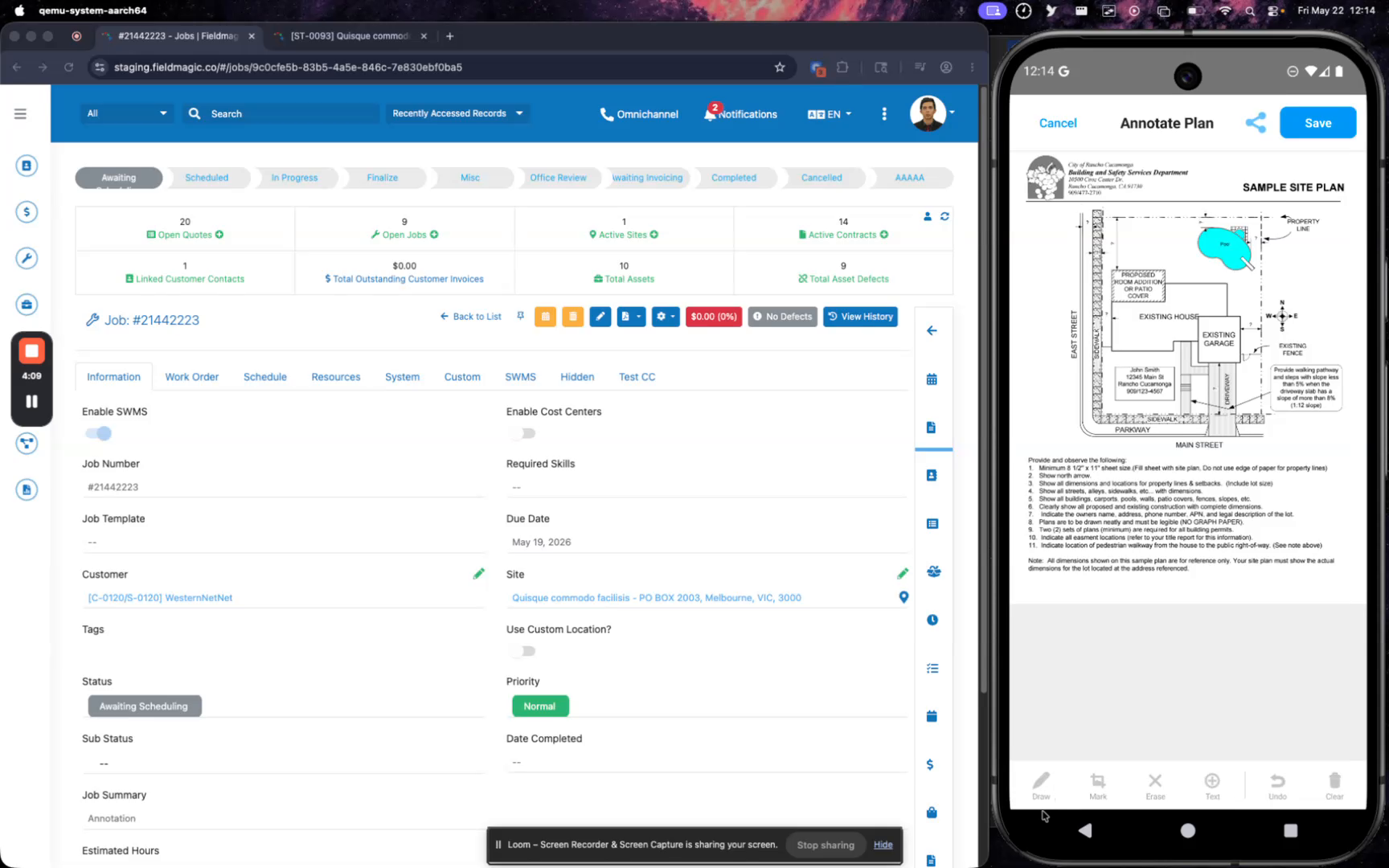
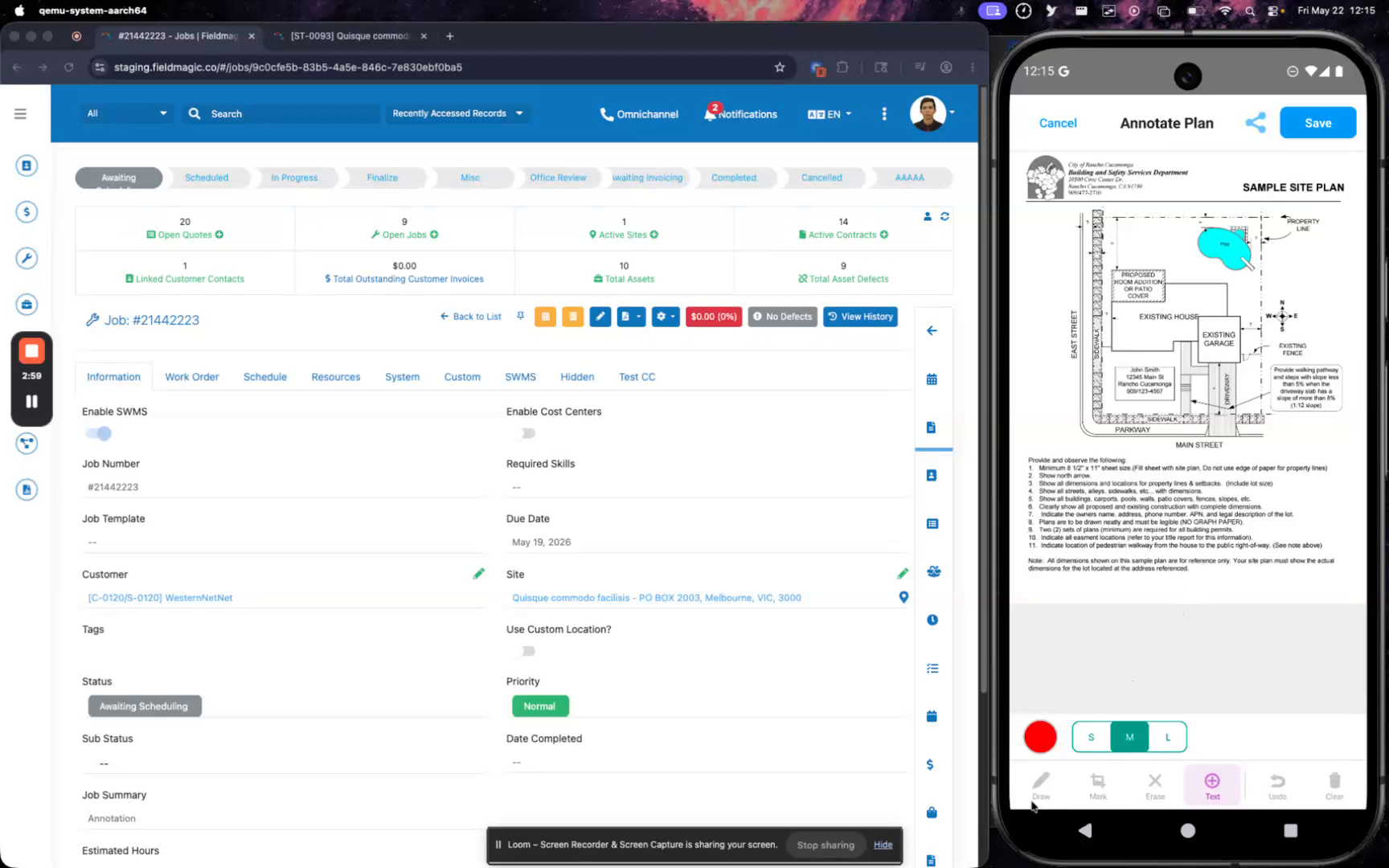
Tap the annotation toolbar to reveal the available tools such as draw, highlight, text, erase, and clear.
 Step 5
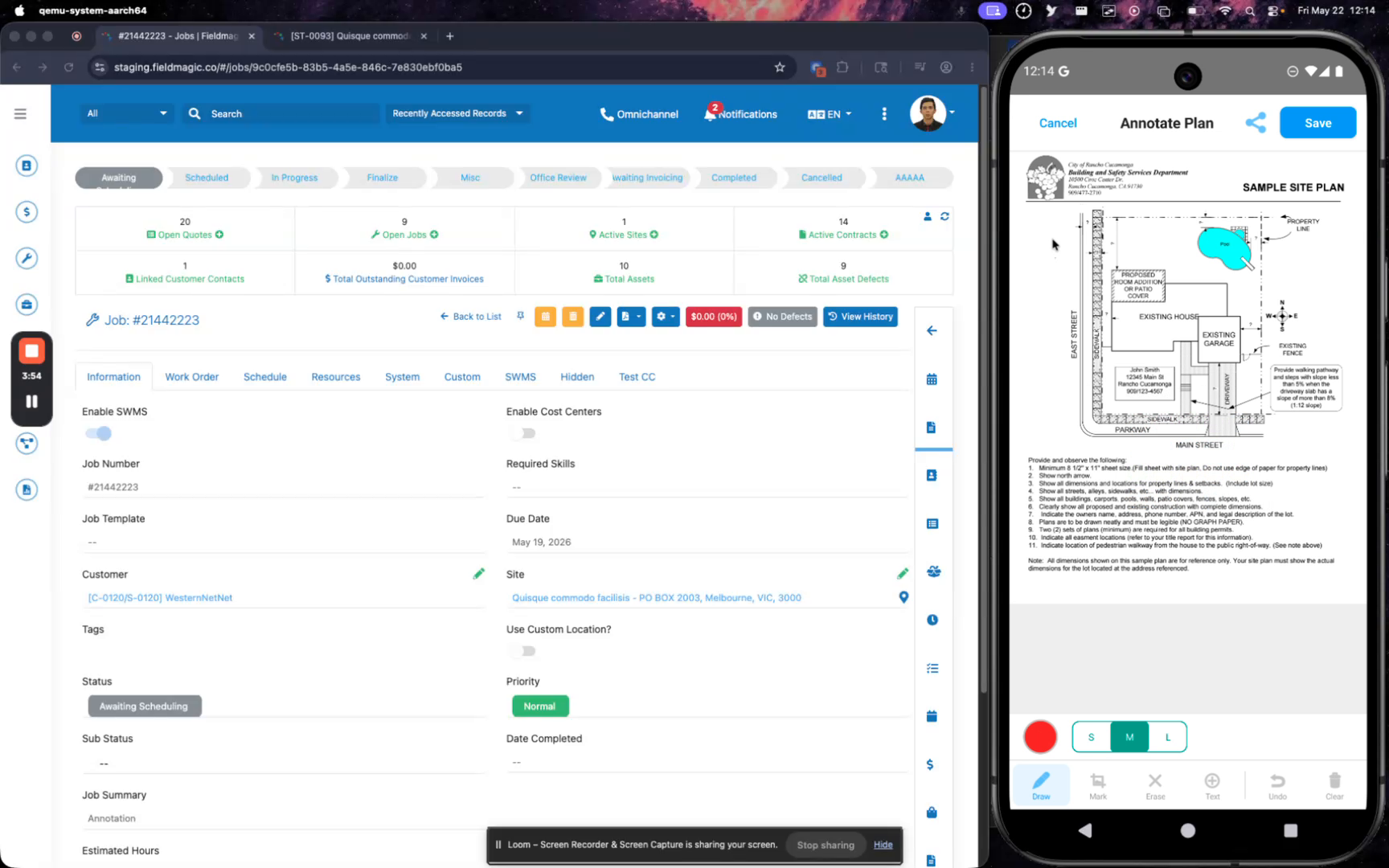
Use the draw tool to add a freehand annotation, then use the erase tool to remove any unwanted marks.
 Step 6
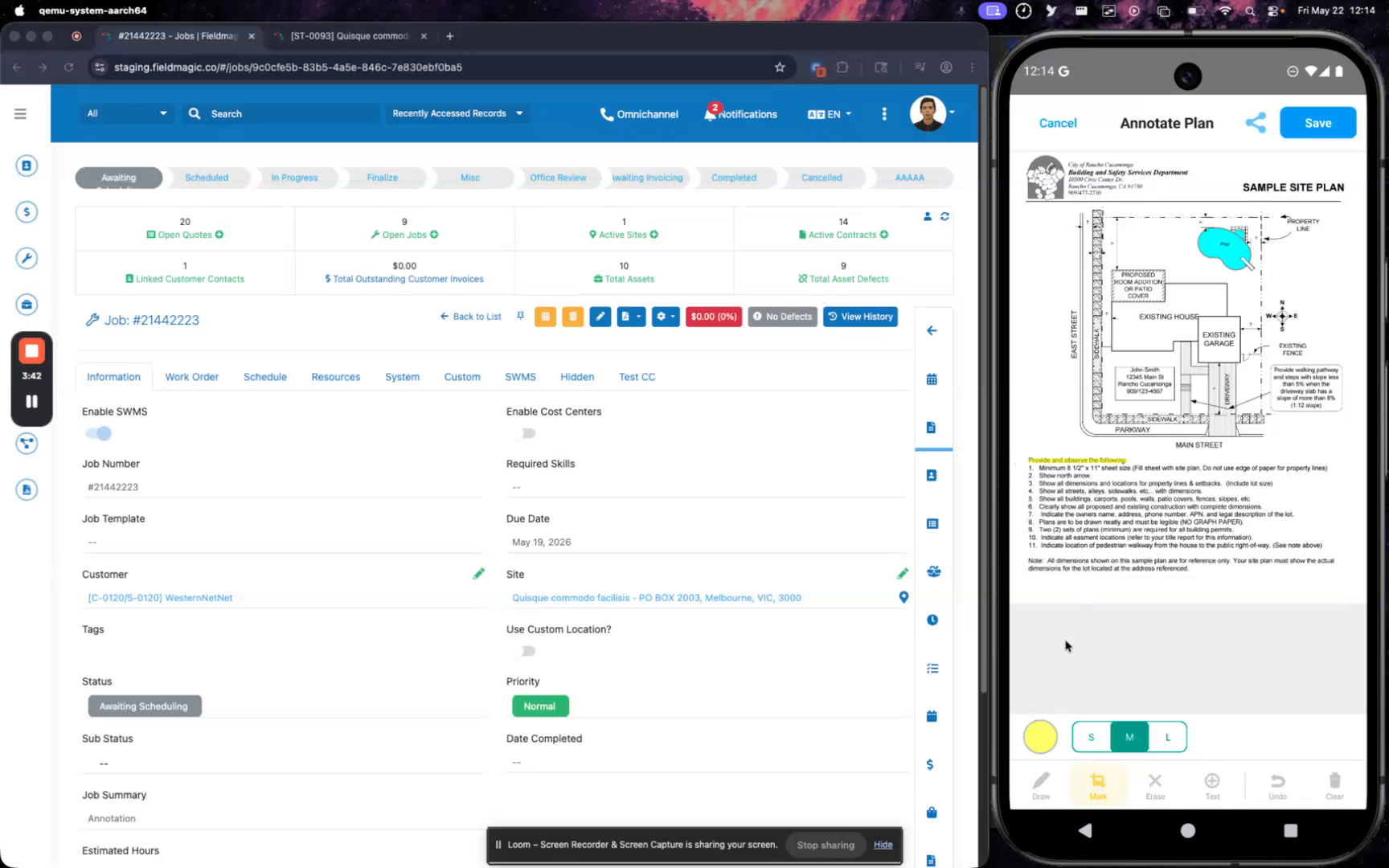
Select text with the highlight tool, then change the highlight color using the color picker.
 Step 7
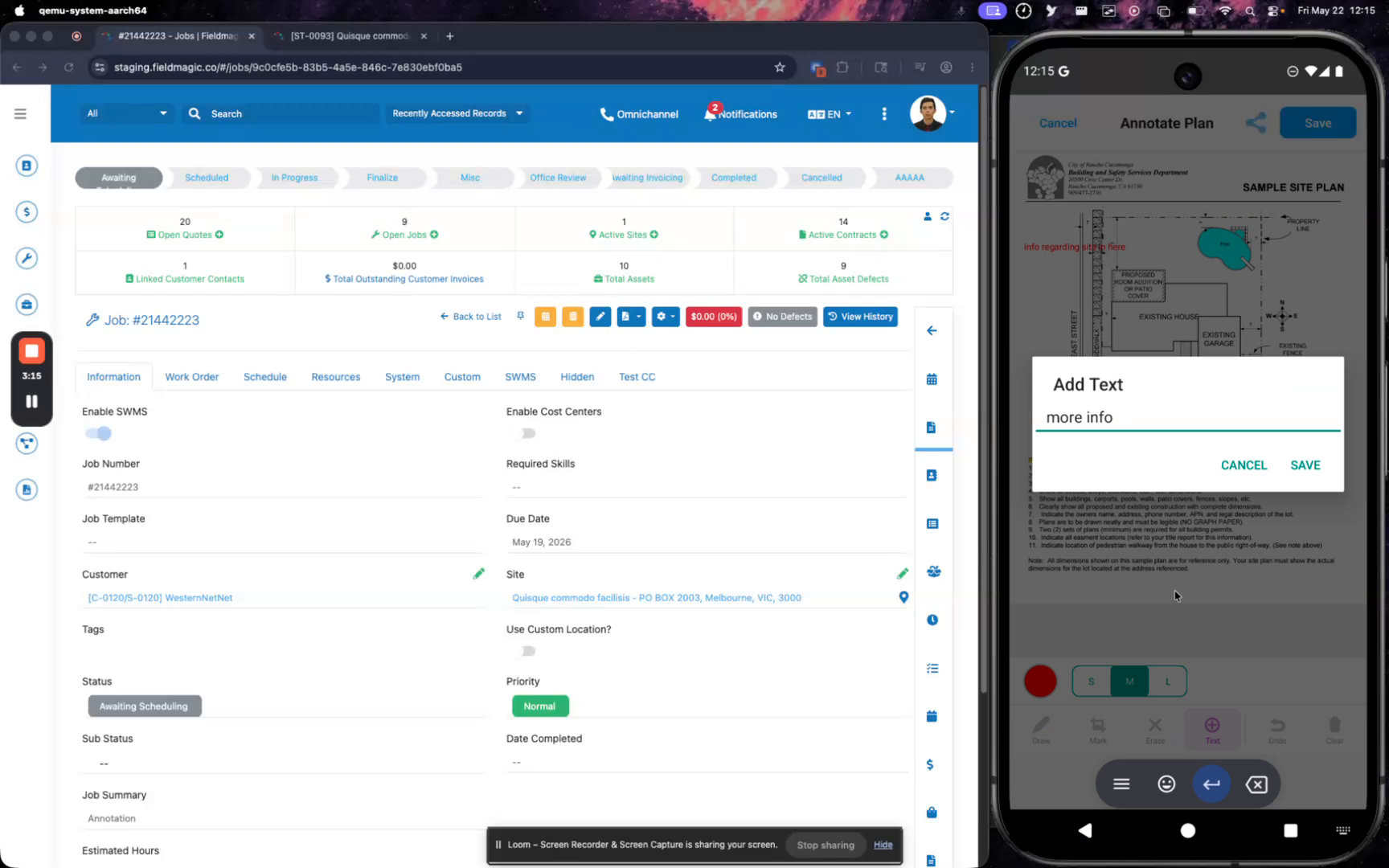
Add text annotations by tapping the text tool and entering your notes; you can add multiple text annotations.
 Step 8
Use the Undo button to remove the most recent annotation, or tap Clear All to delete all annotations.
 Step 9
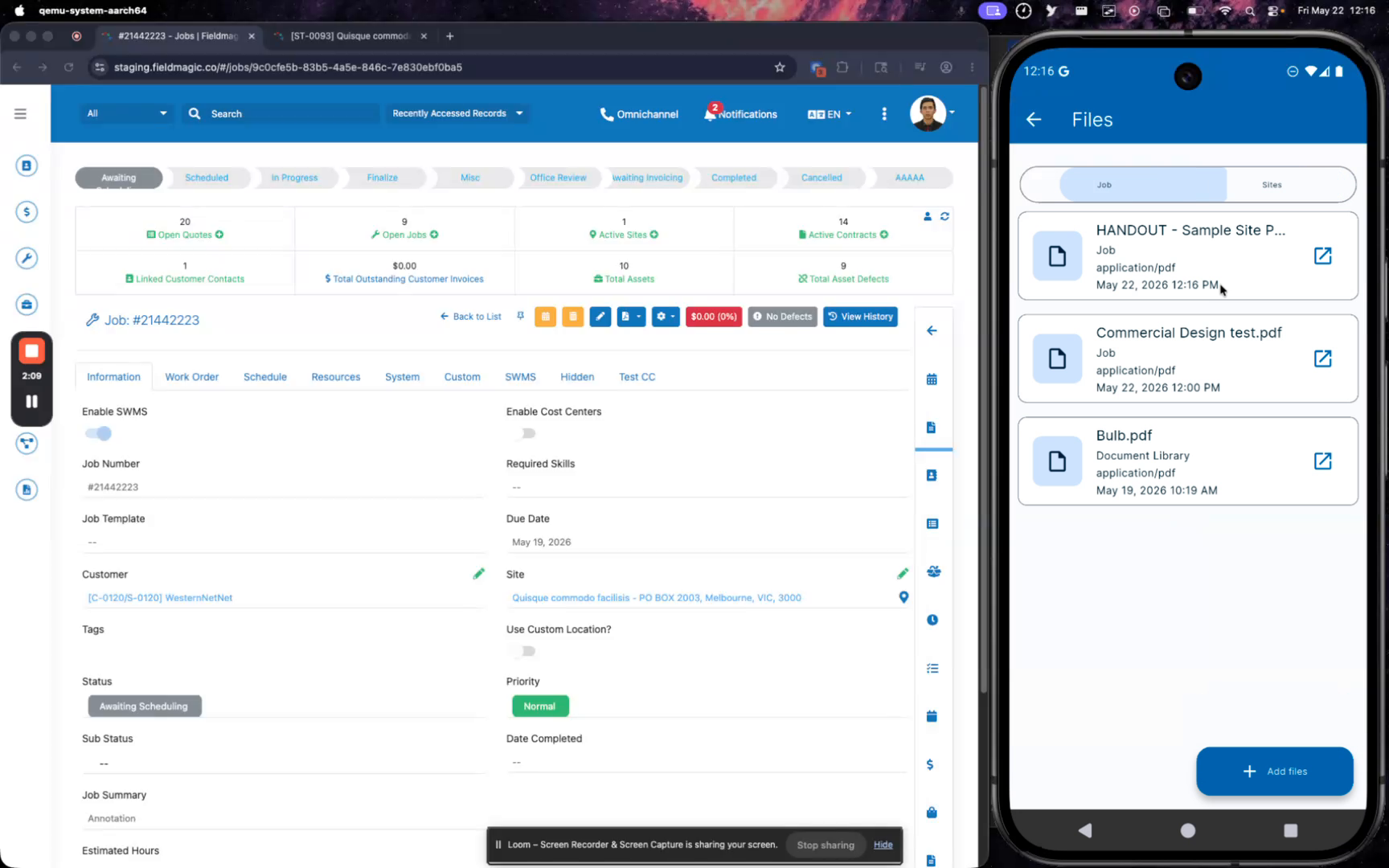
When you finish, tap Save to create a copy of the annotated PDF and attach it to the job.
 Step 10
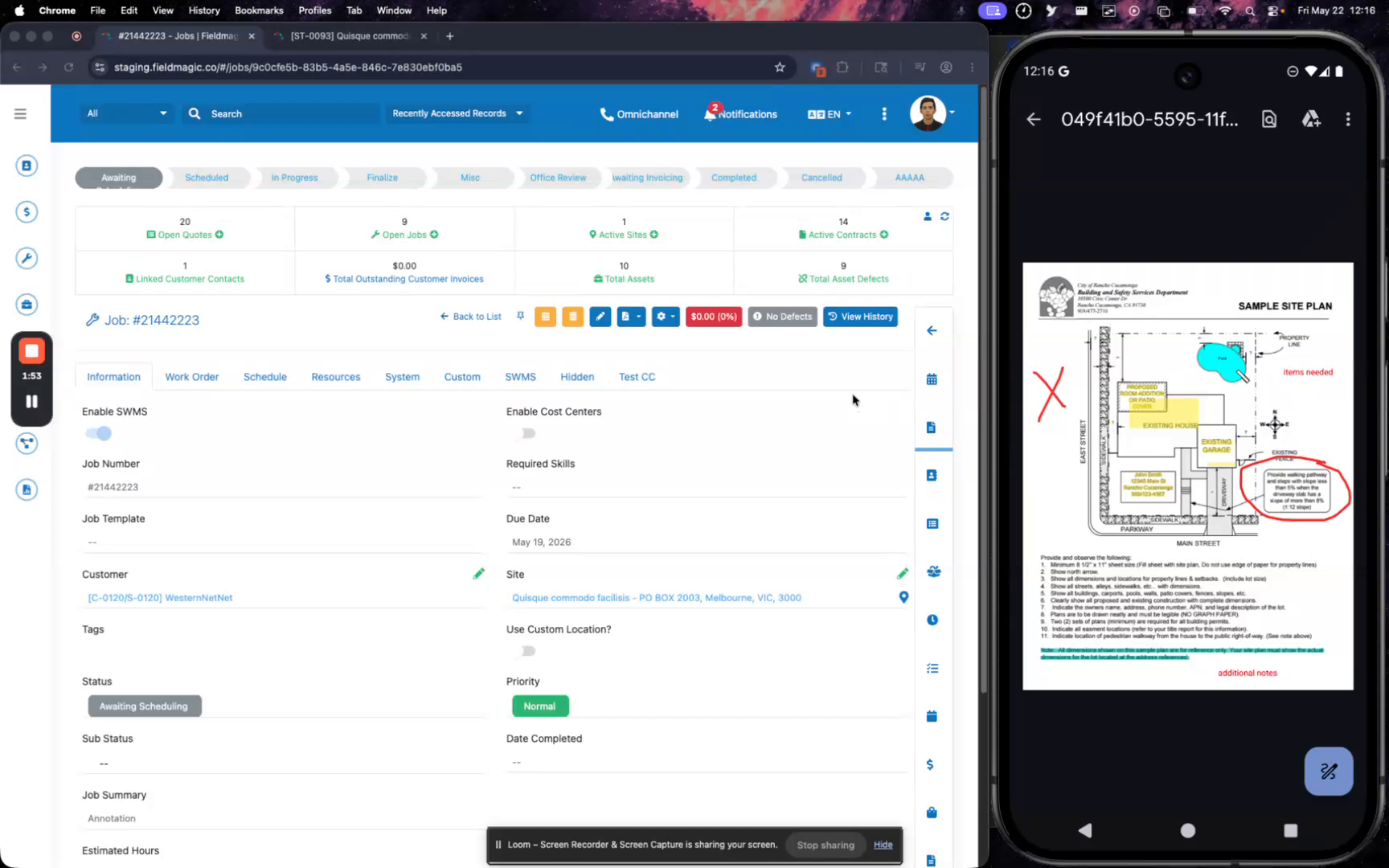
View the saved copy in the job’s Files list or preview it on the mobile device to confirm the annotations.
 Step 11
On the desktop, the annotated site PDF also appears in the job’s file list, completing the workflow.