PDF Annotation
How to Annotate PDF Files of an Asset in the Job in the Mobile App
This guide explains how to annotate PDF files attached to an asset within a job using the FieldMagic mobile app.
Step-by-step instructions
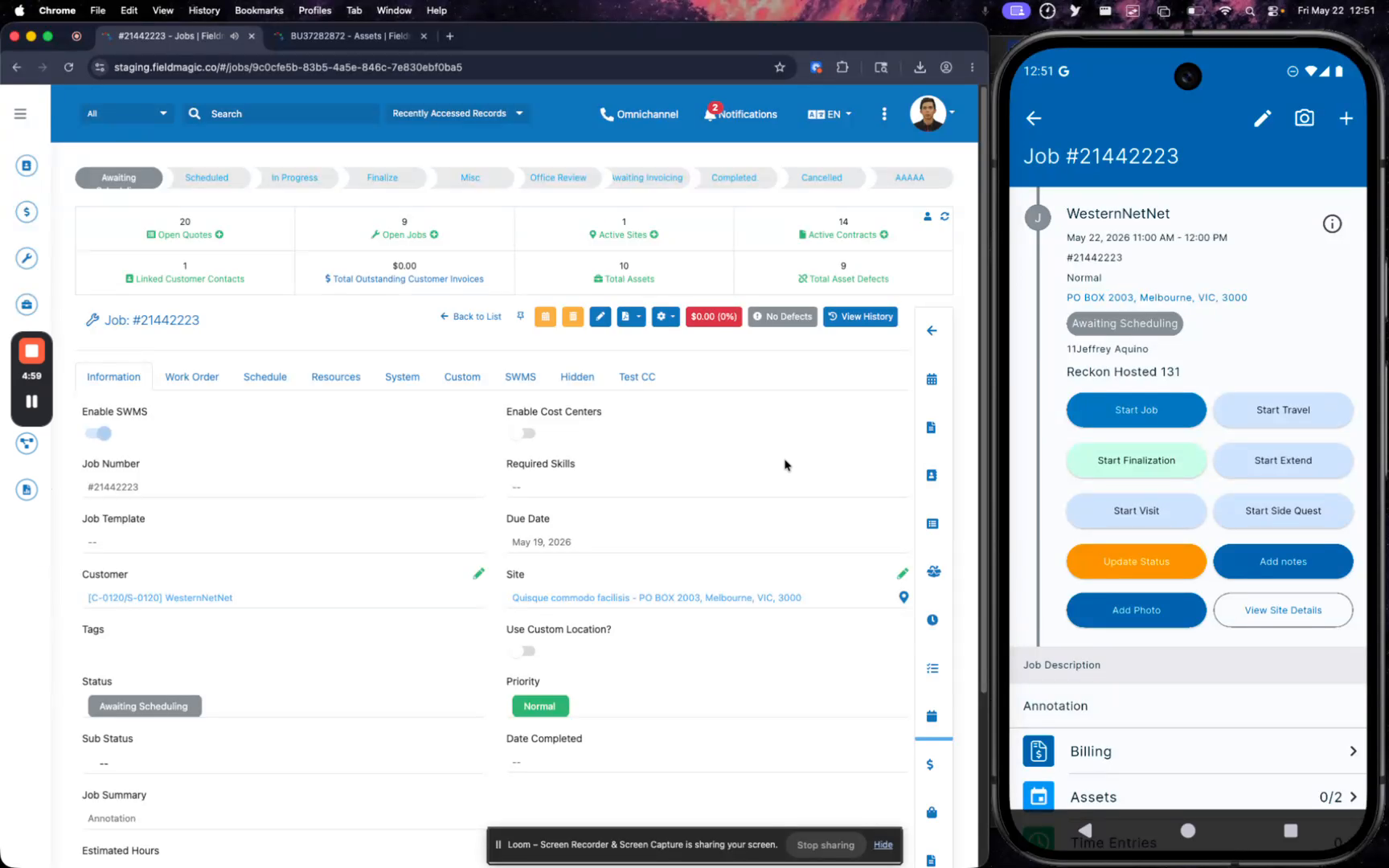 Step 1
This guide explains how to annotate PDF files attached to an asset within a job using the FieldMagic mobile app.
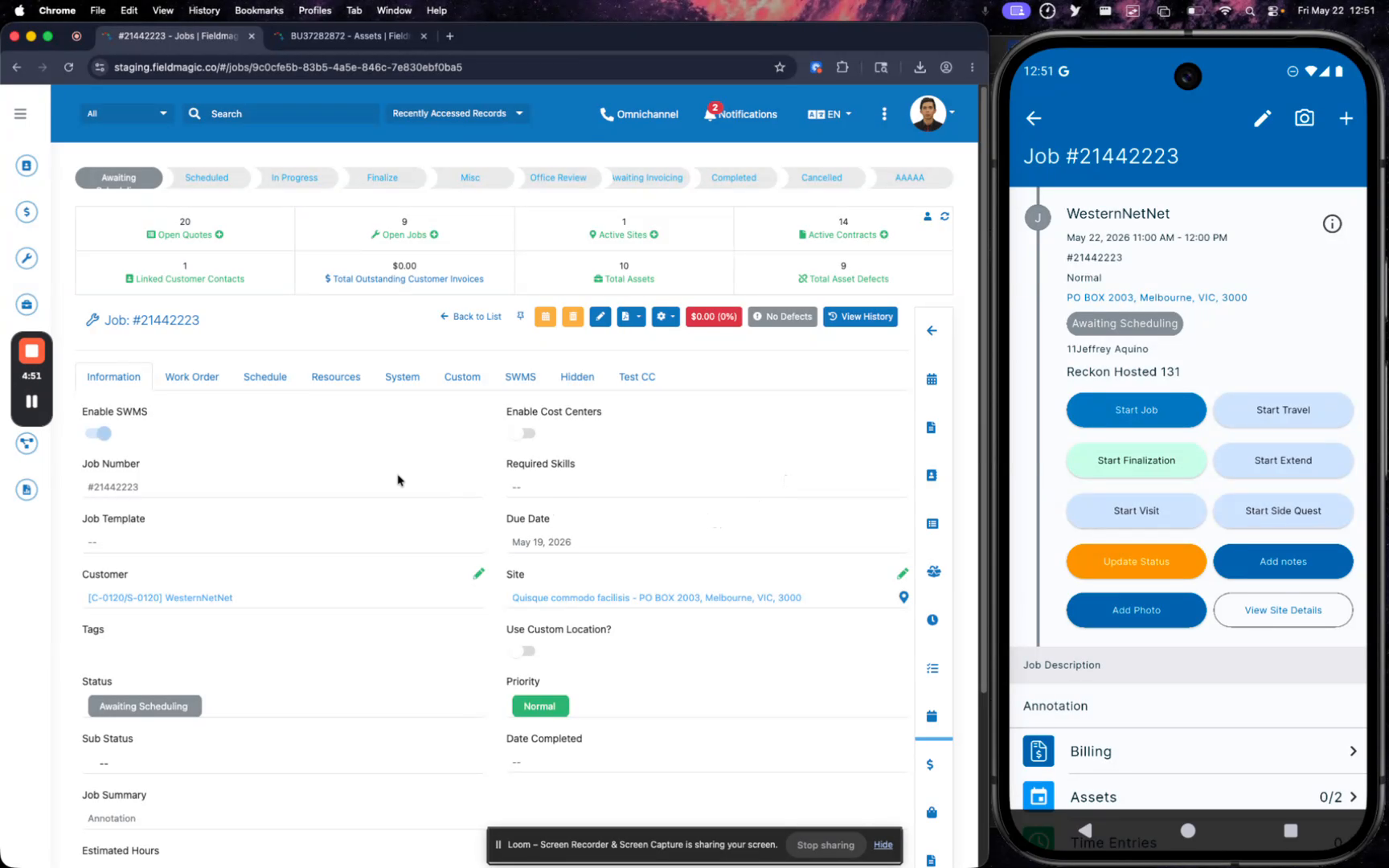 Step 2
Open the job containing the asset you need to work with, then navigate to the Assets section.
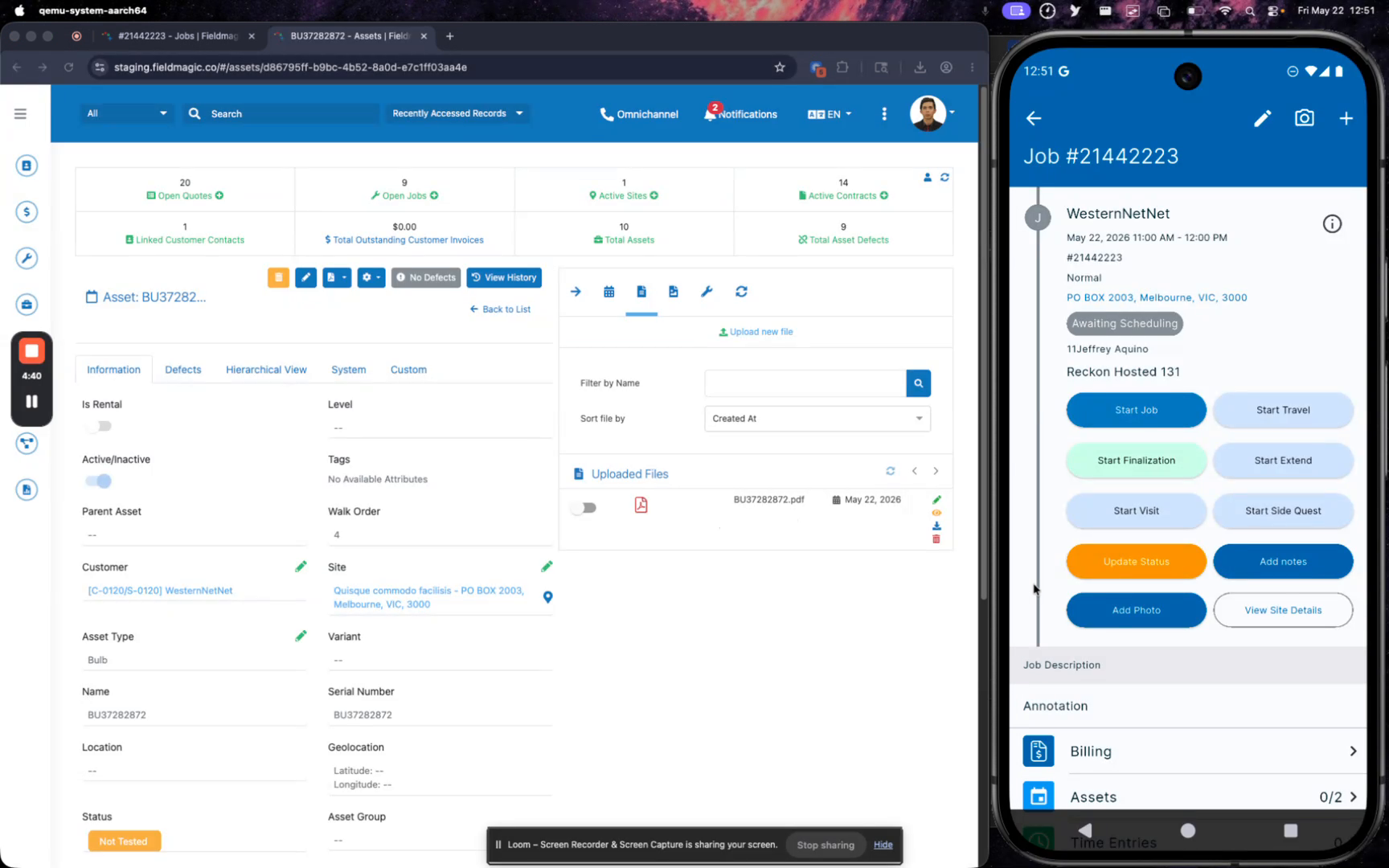 Step 3
Locate the asset by its serial number and access the Files section to find the attached PDF.
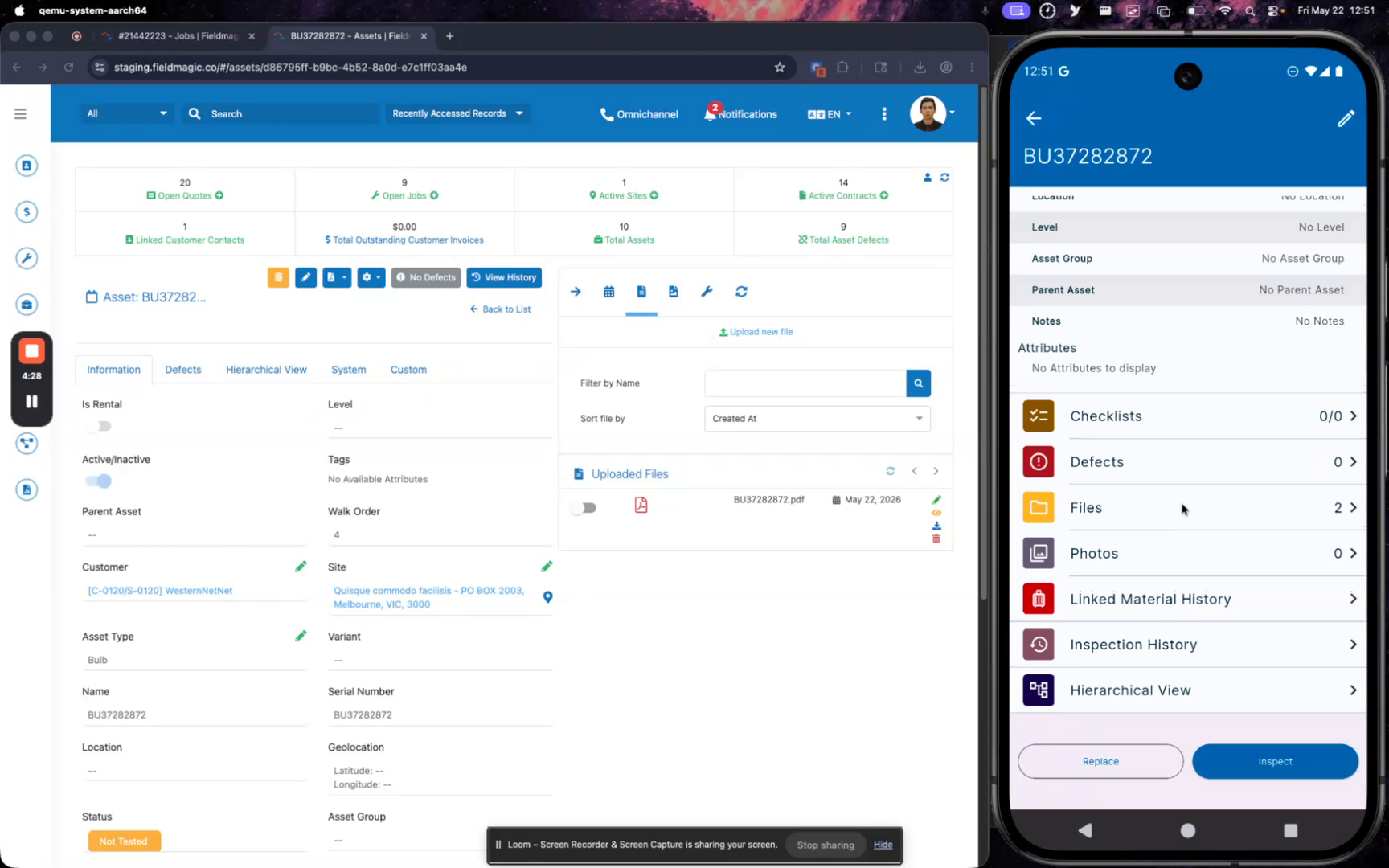 Step 4
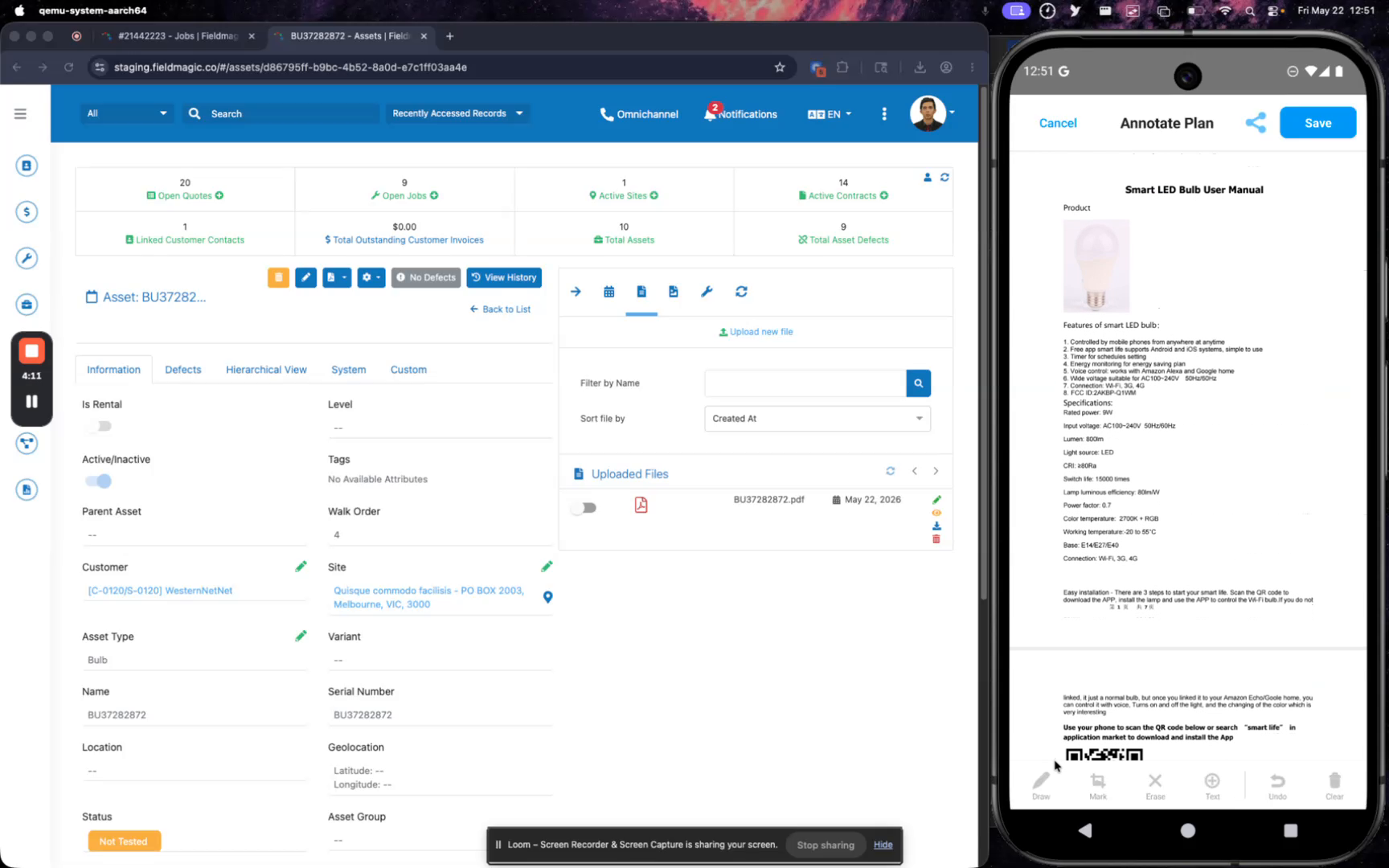
Open the PDF file and tap the Annotate option to access the annotation tools.
 Step 5
Use the available tools to highlight text, erase annotations, add text, undo the last action, or clear all annotations.
 Step 6
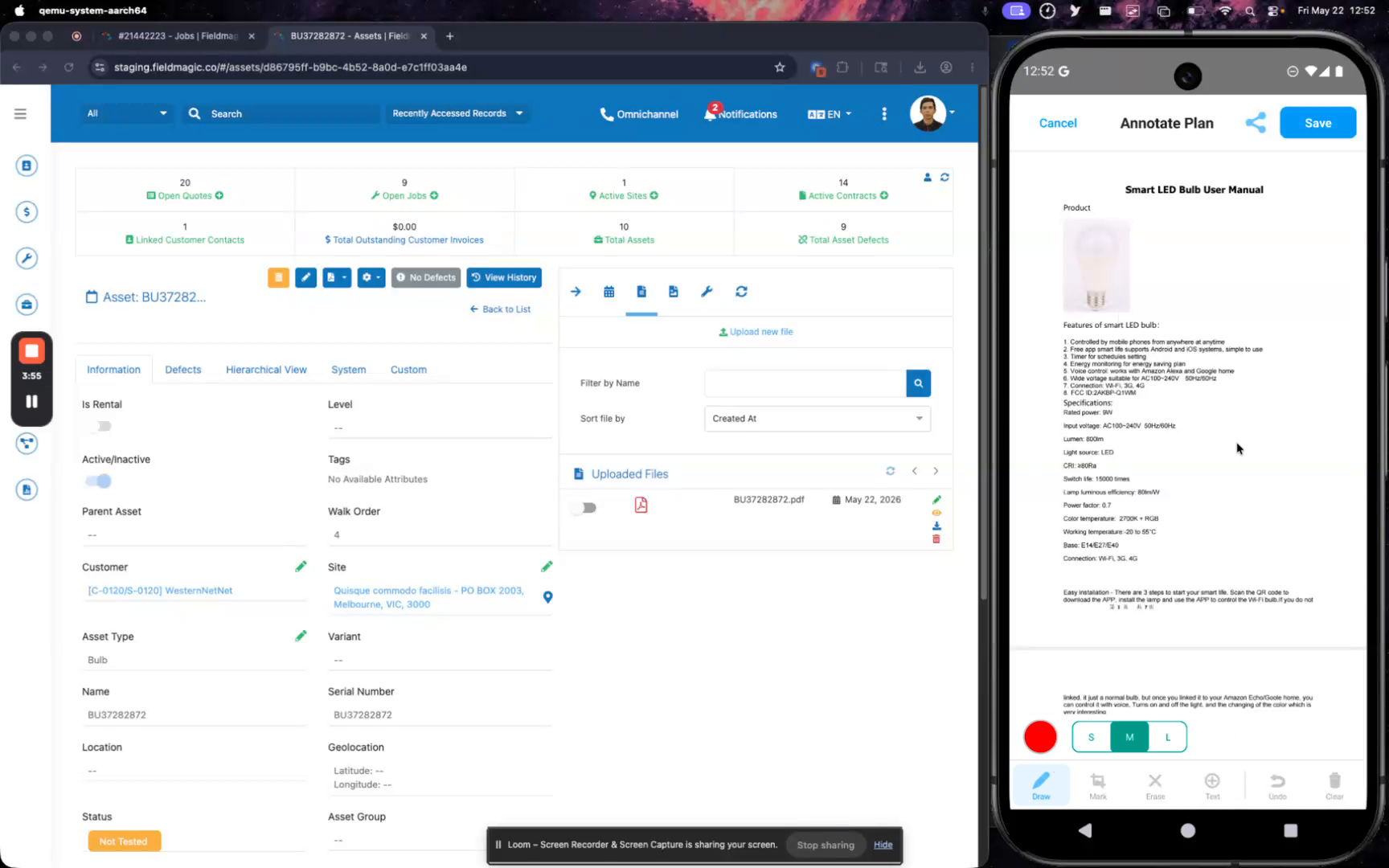
Tap a tool to select it, then draw or highlight on the PDF. Change colors as needed before applying an annotation.
 Step 7
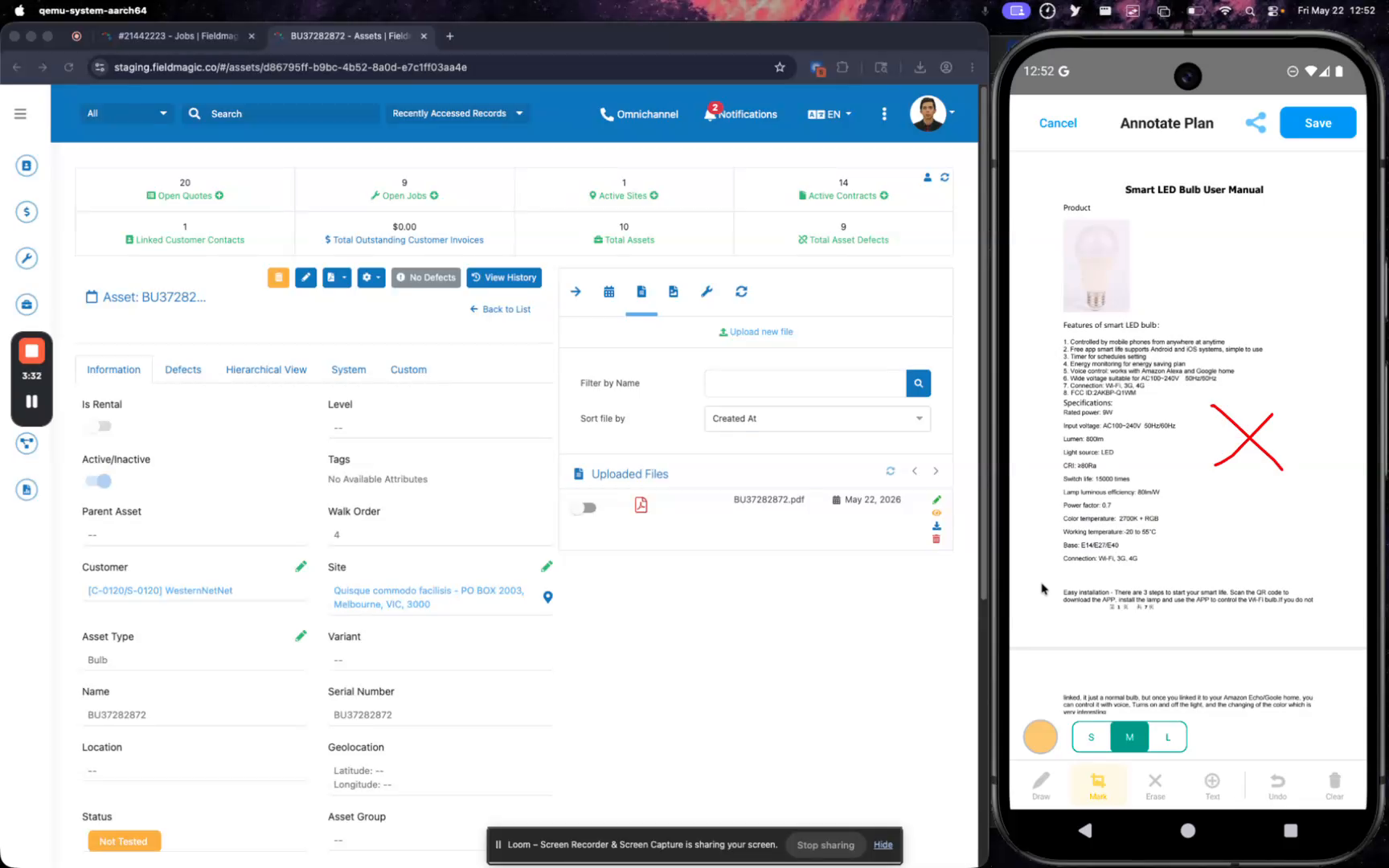
Use the erase tool to remove specific annotations or add text annotations in different colors.
 Step 8
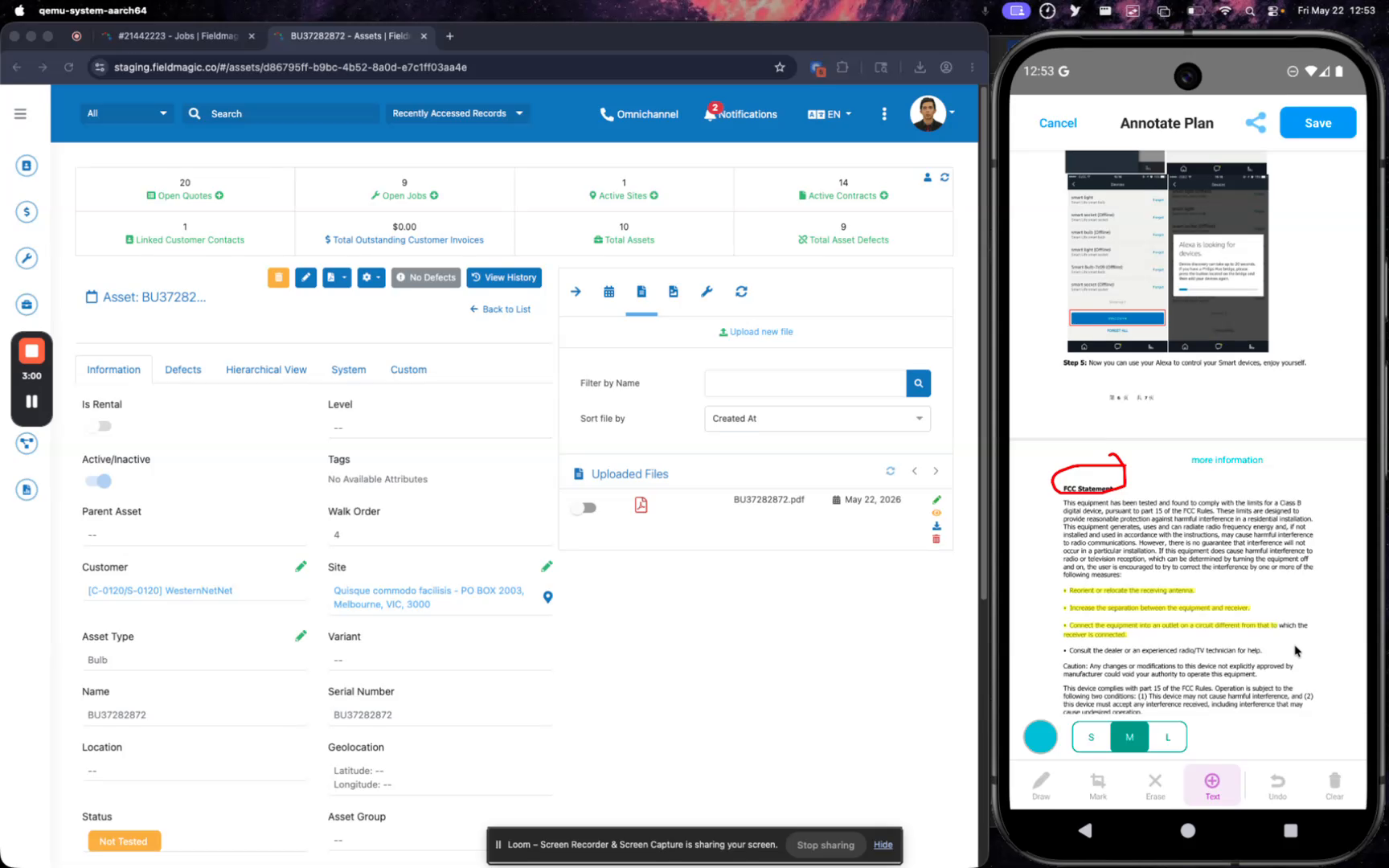
Tap Undo to remove the last annotation or Clear All to remove all annotations from the PDF.
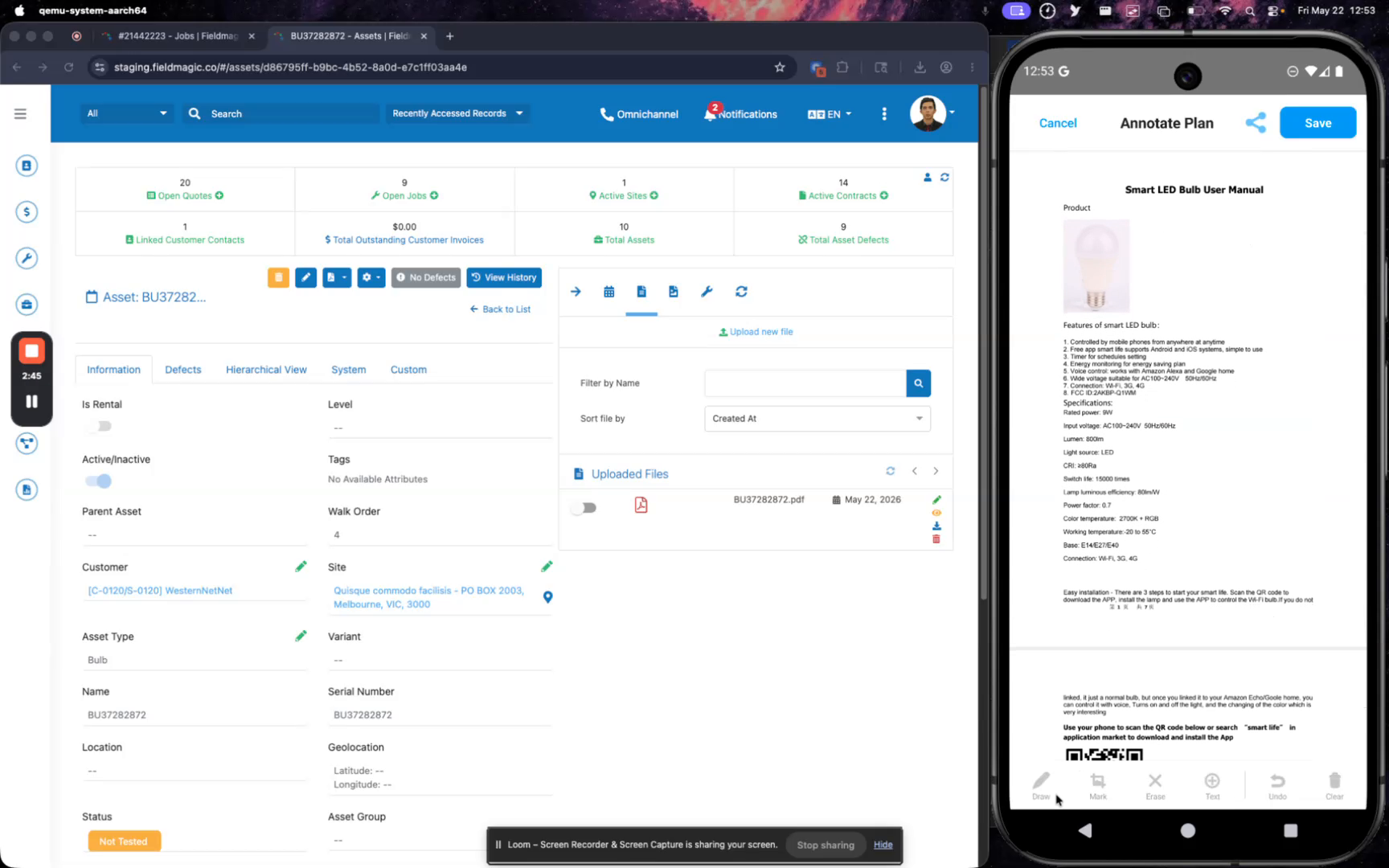 Step 9
Deselect the current tool to scroll through the PDF, then select a tool again to add new annotations.
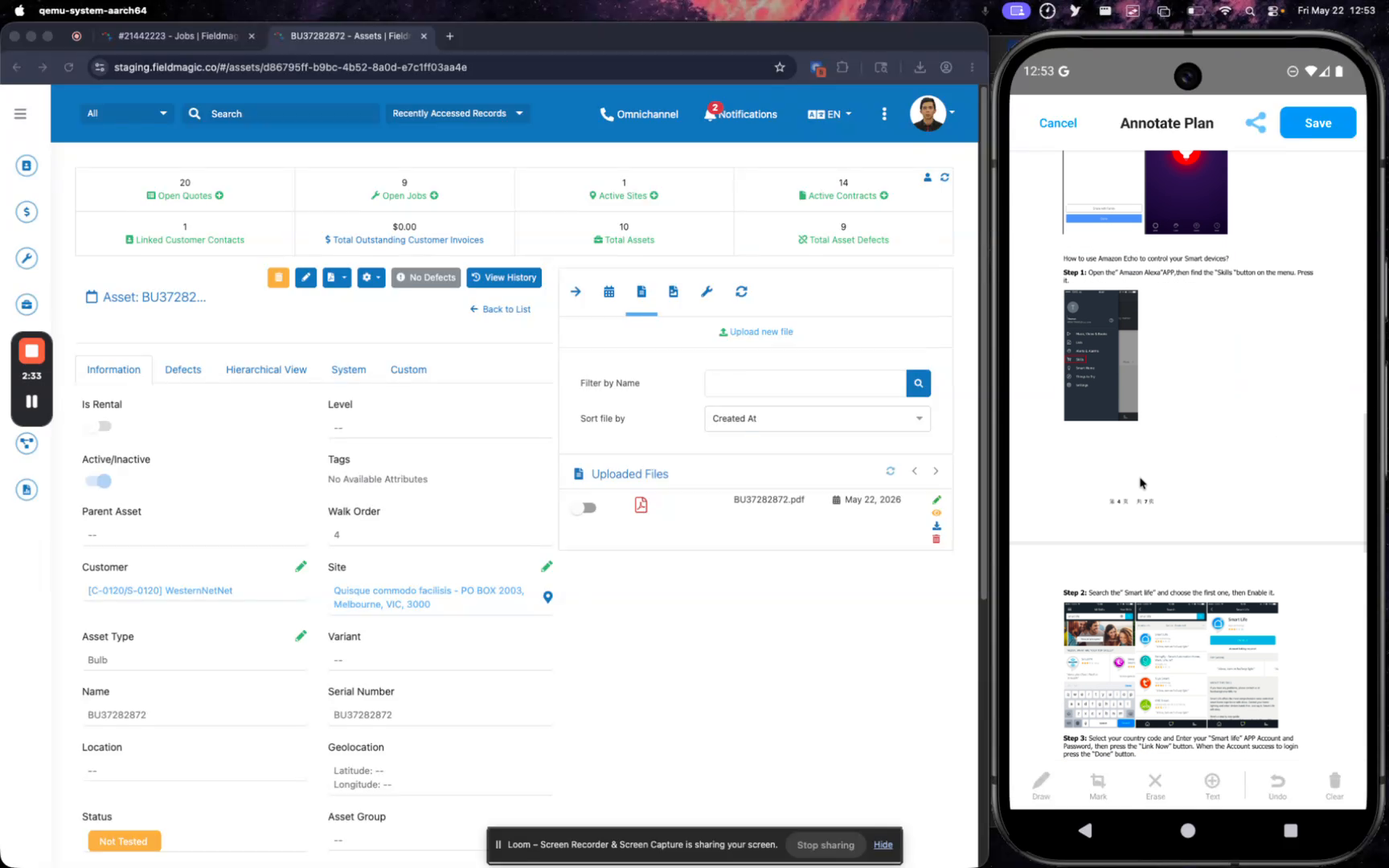 Step 10
Add highlights to text and insert text annotations as needed, then tap Save to confirm your changes.
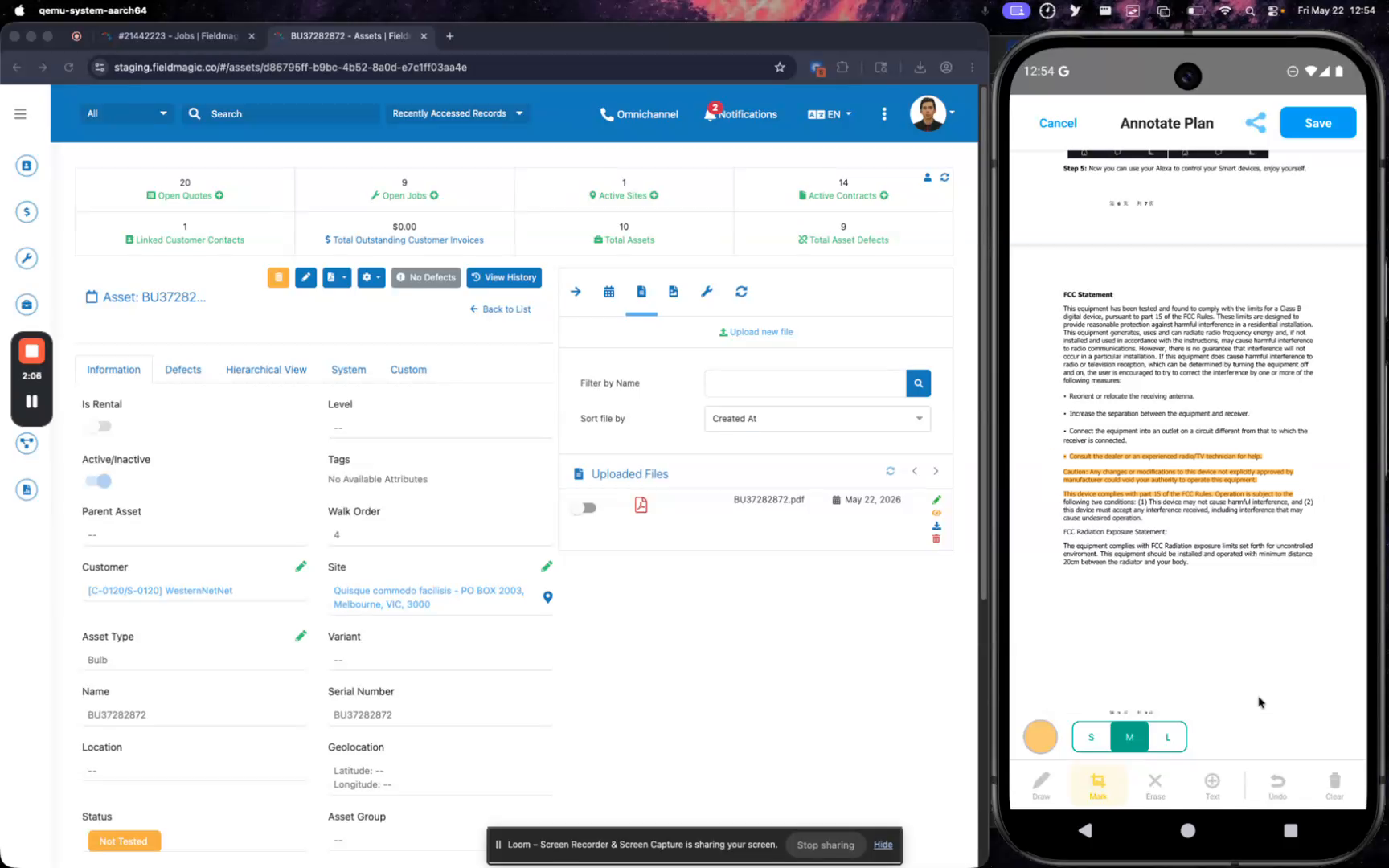 Step 11
Preview the annotated PDF to verify your changes, then return to the job to continue working.