Reporting & Dashboards
How to Compress a Job Report
Open the job you want to compress and view its report.
Step-by-step instructions
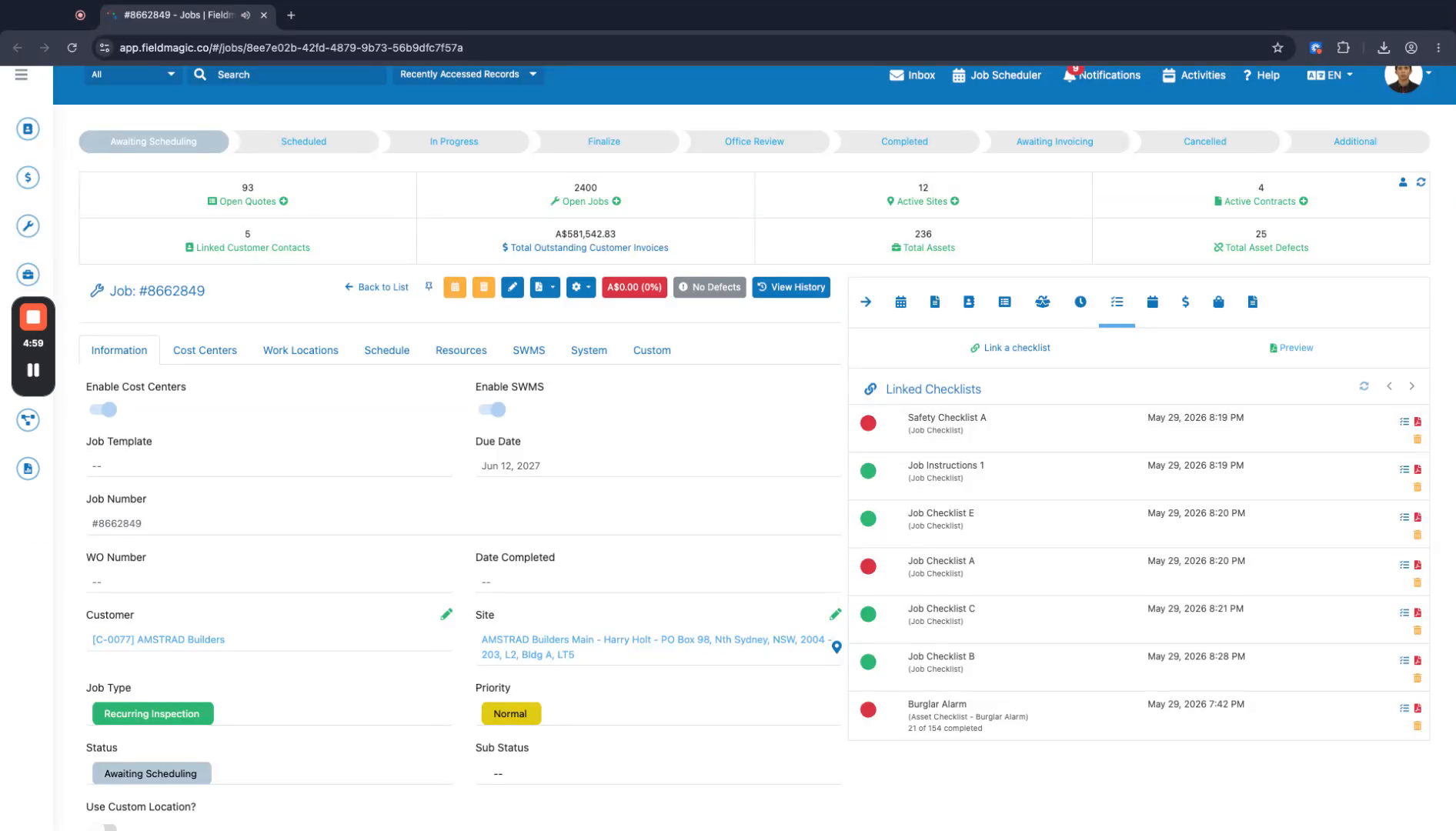 Step 1
Open the job you want to compress and view its report.
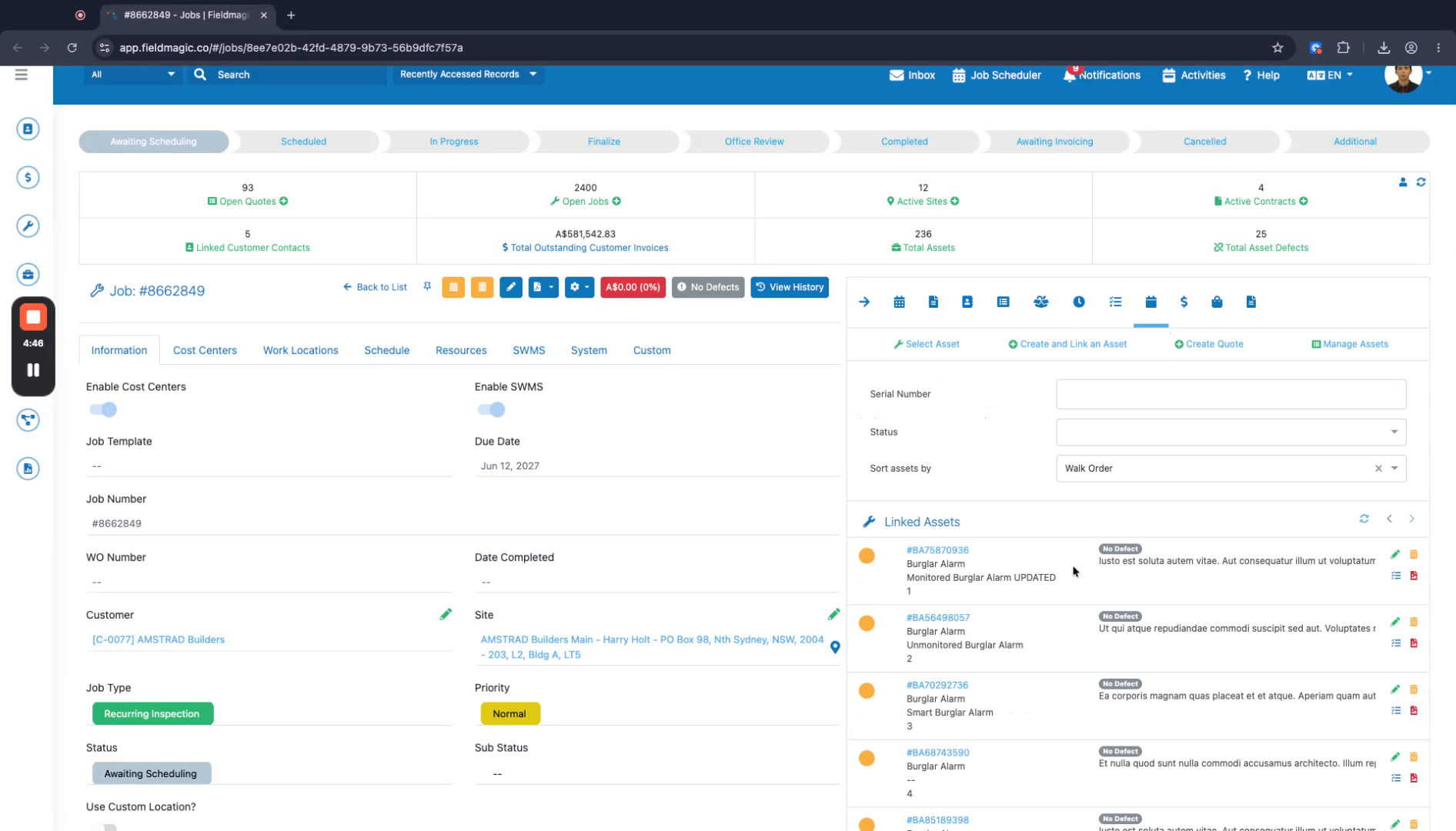 Step 2
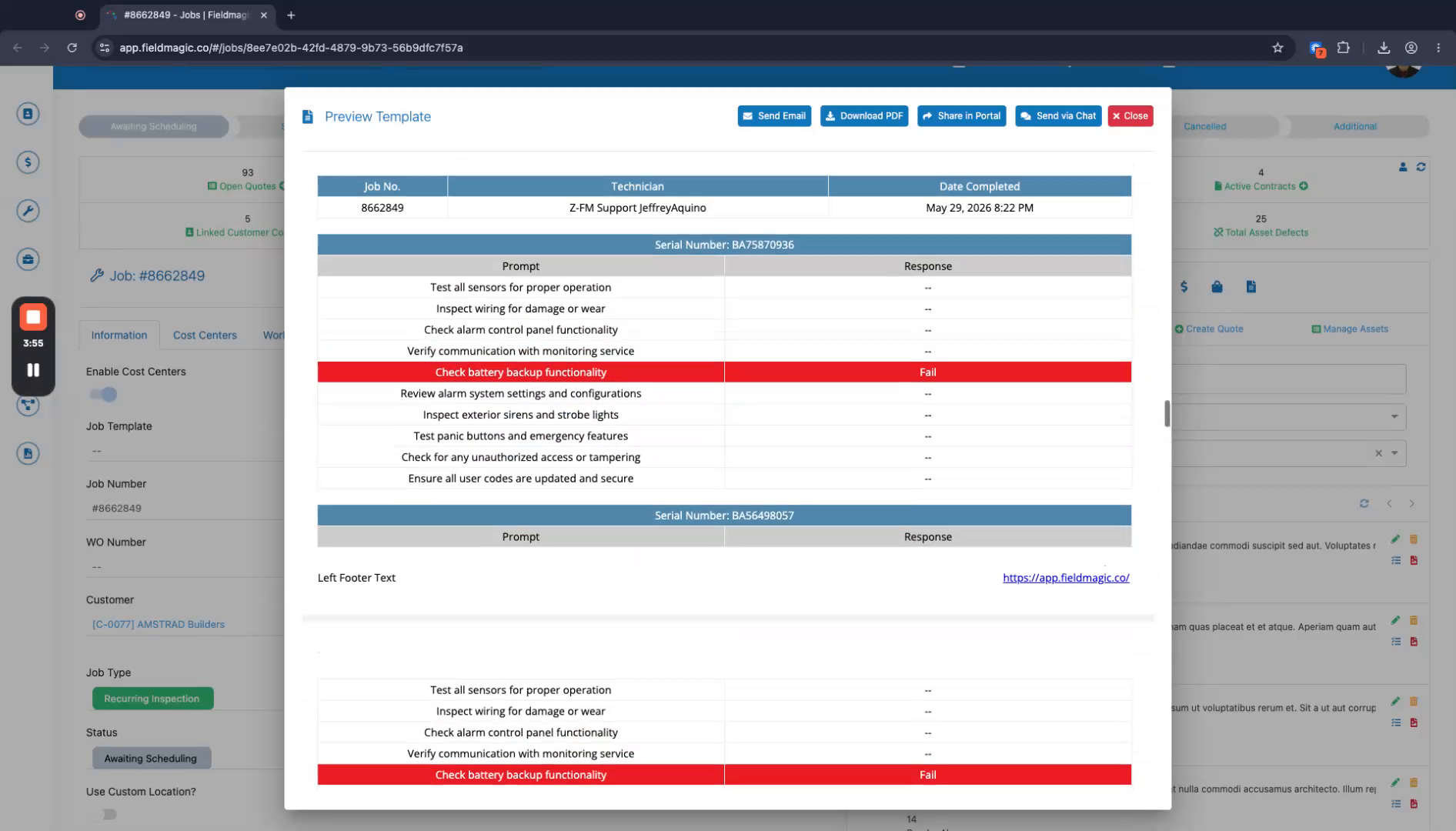
Confirm the job contains six job checklists and at least 21 assets.
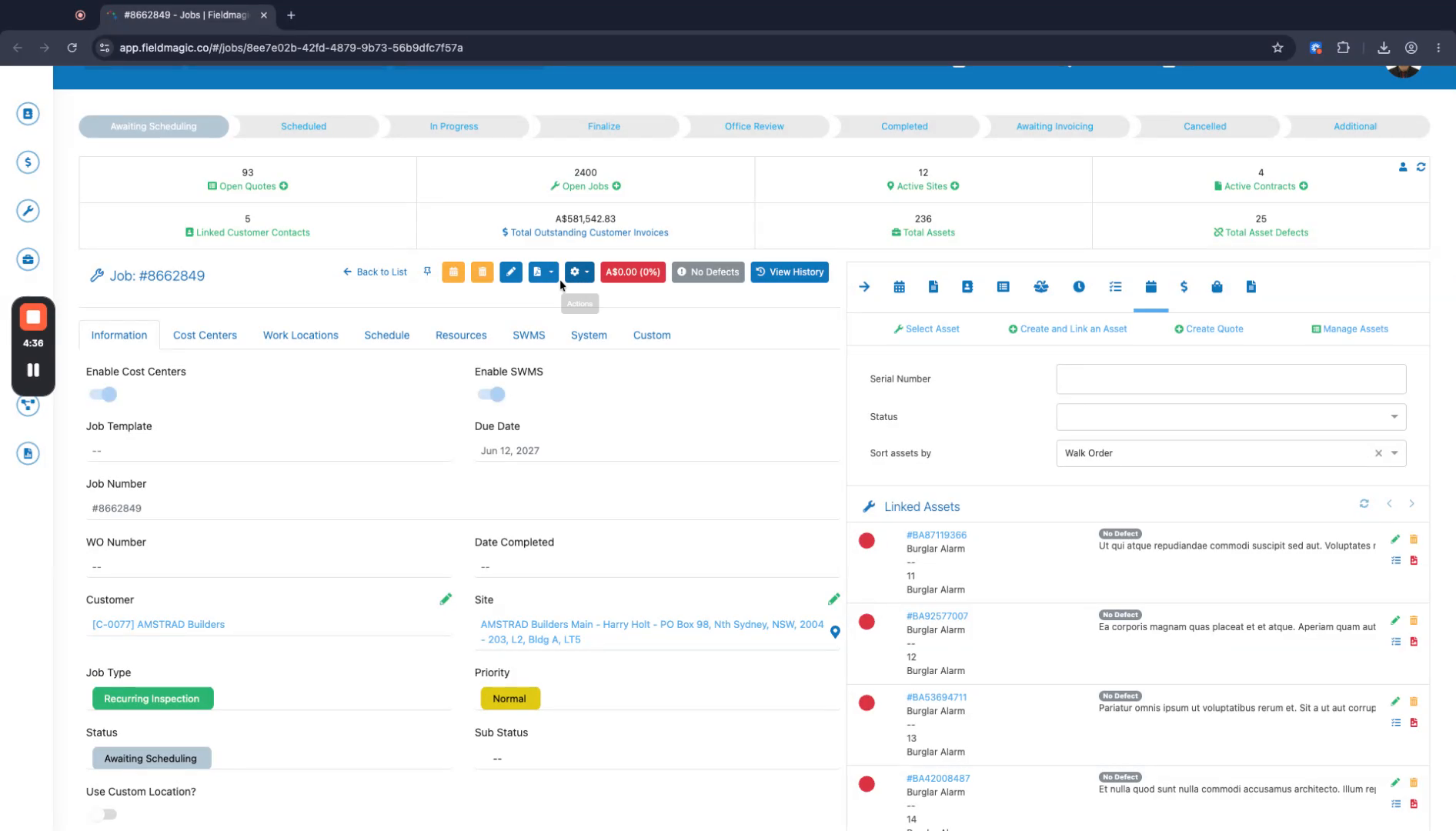 Step 3
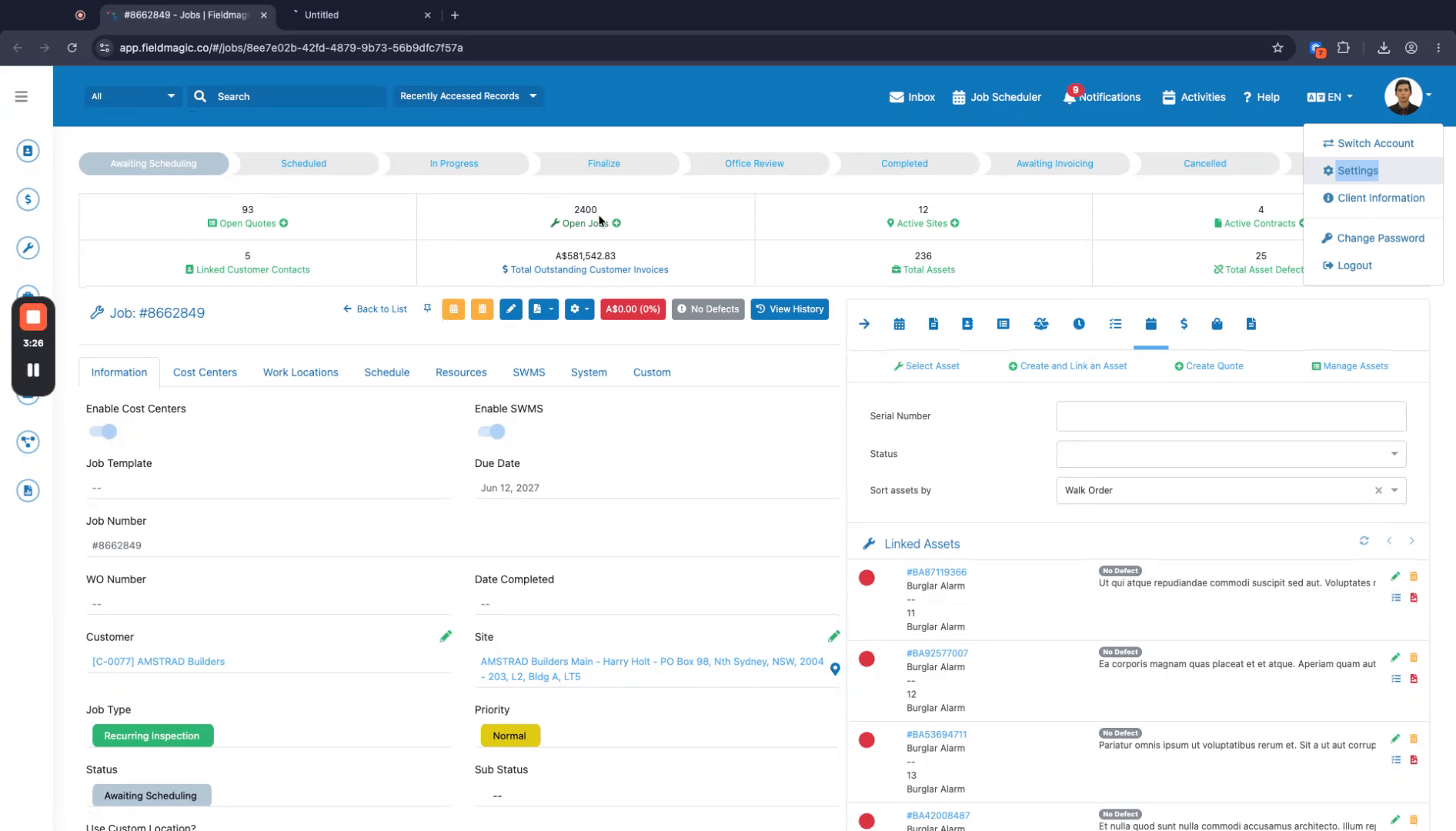
Go to Settings and select Configure PDF.
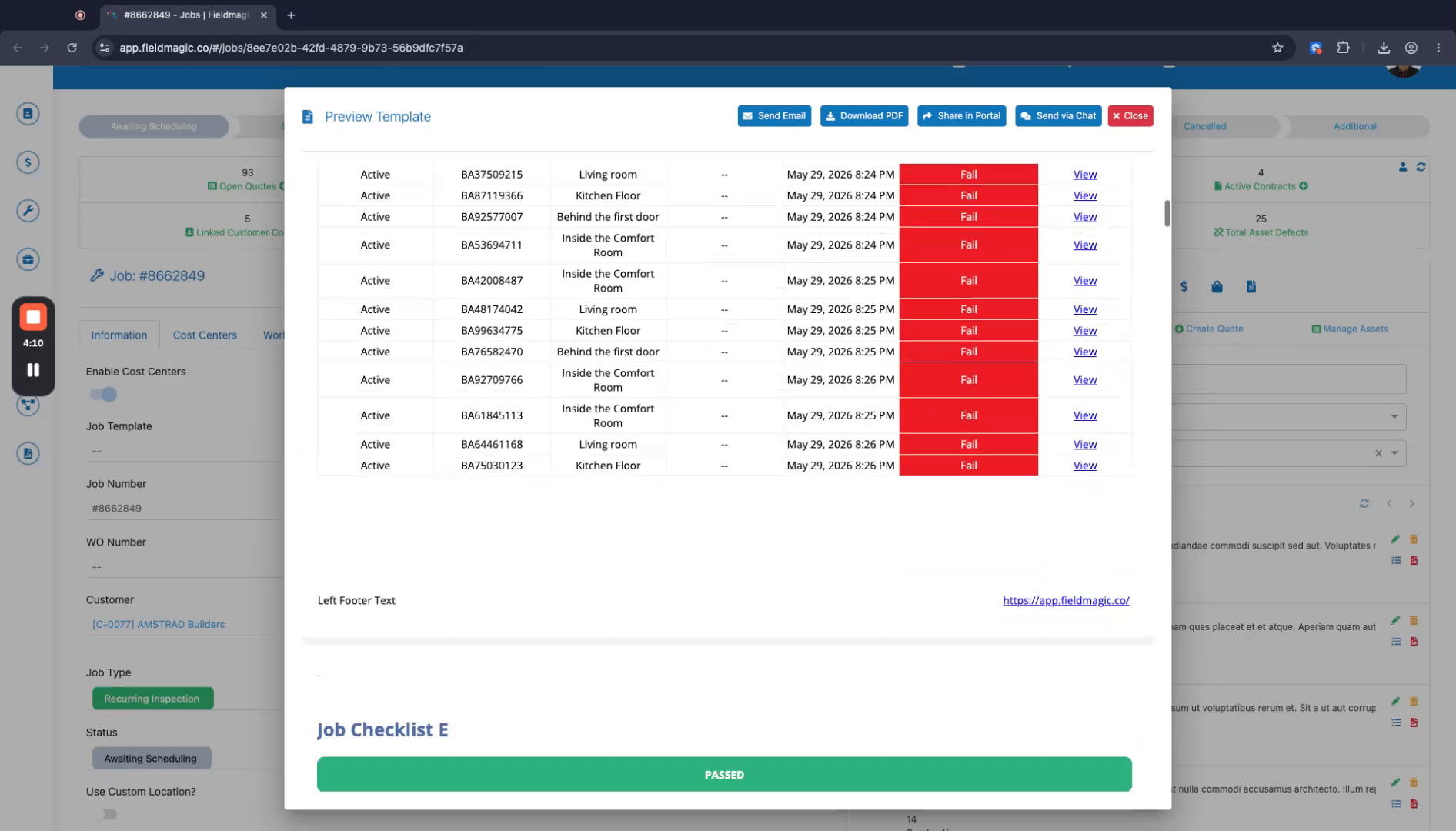 Step 4
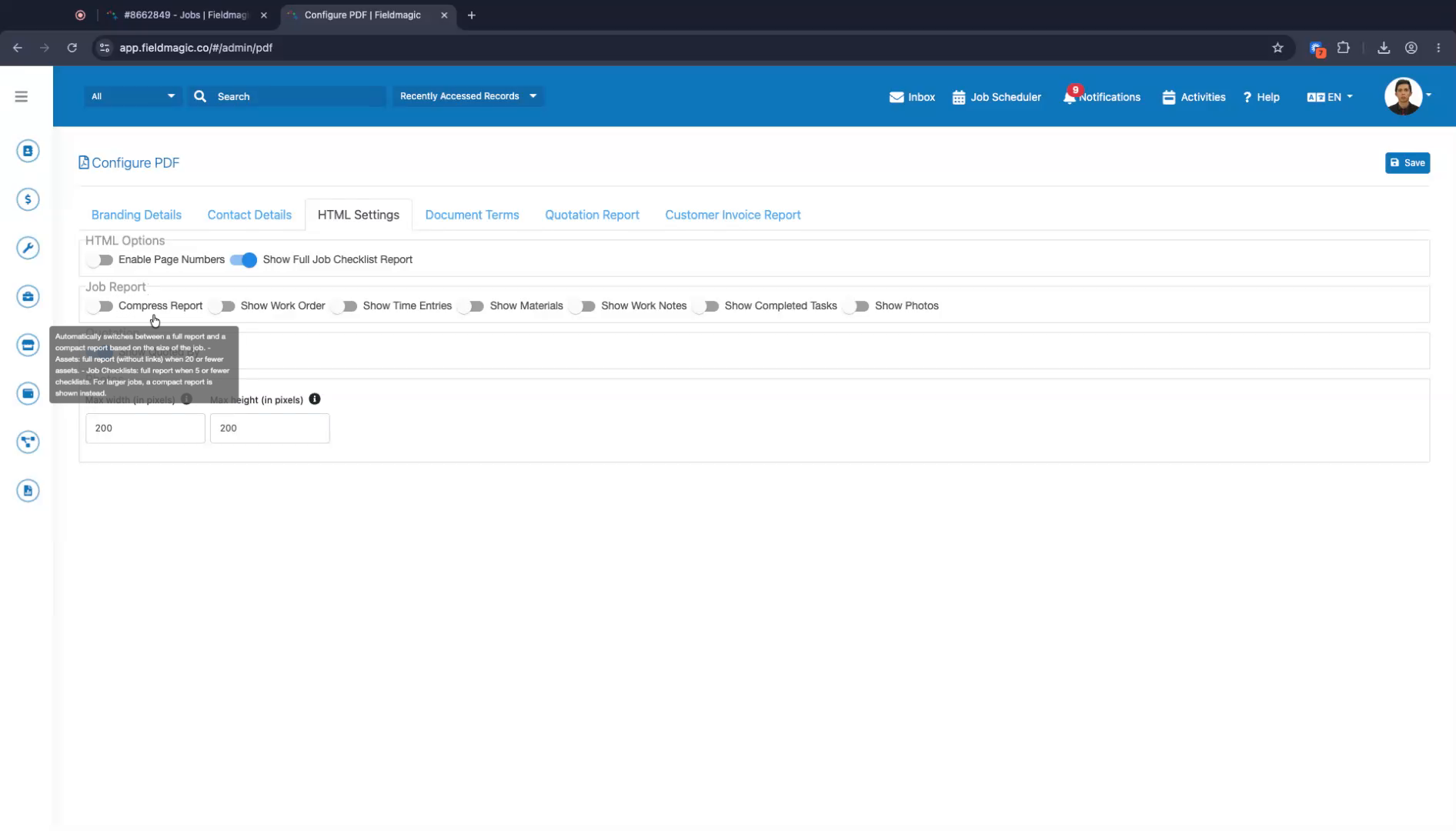
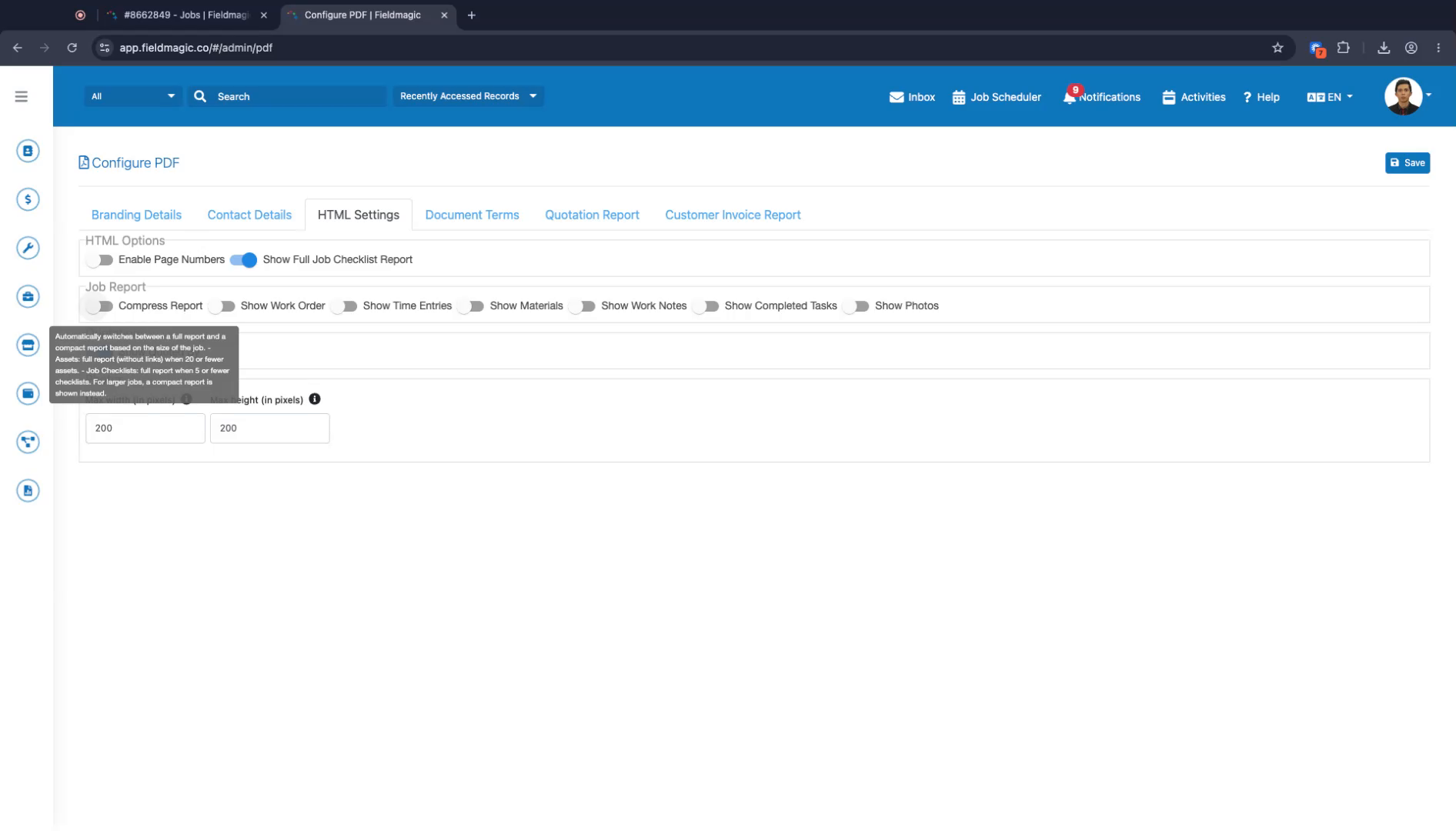
In the PDF configuration, click the HTML Settings tab.
 Step 5
Locate the job report section and enable the Compress Report option.
 Step 6
Note that compression only activates when the job has more than 20 assets and more than five job checklists.
 Step 7
Save the PDF configuration.
 Step 8
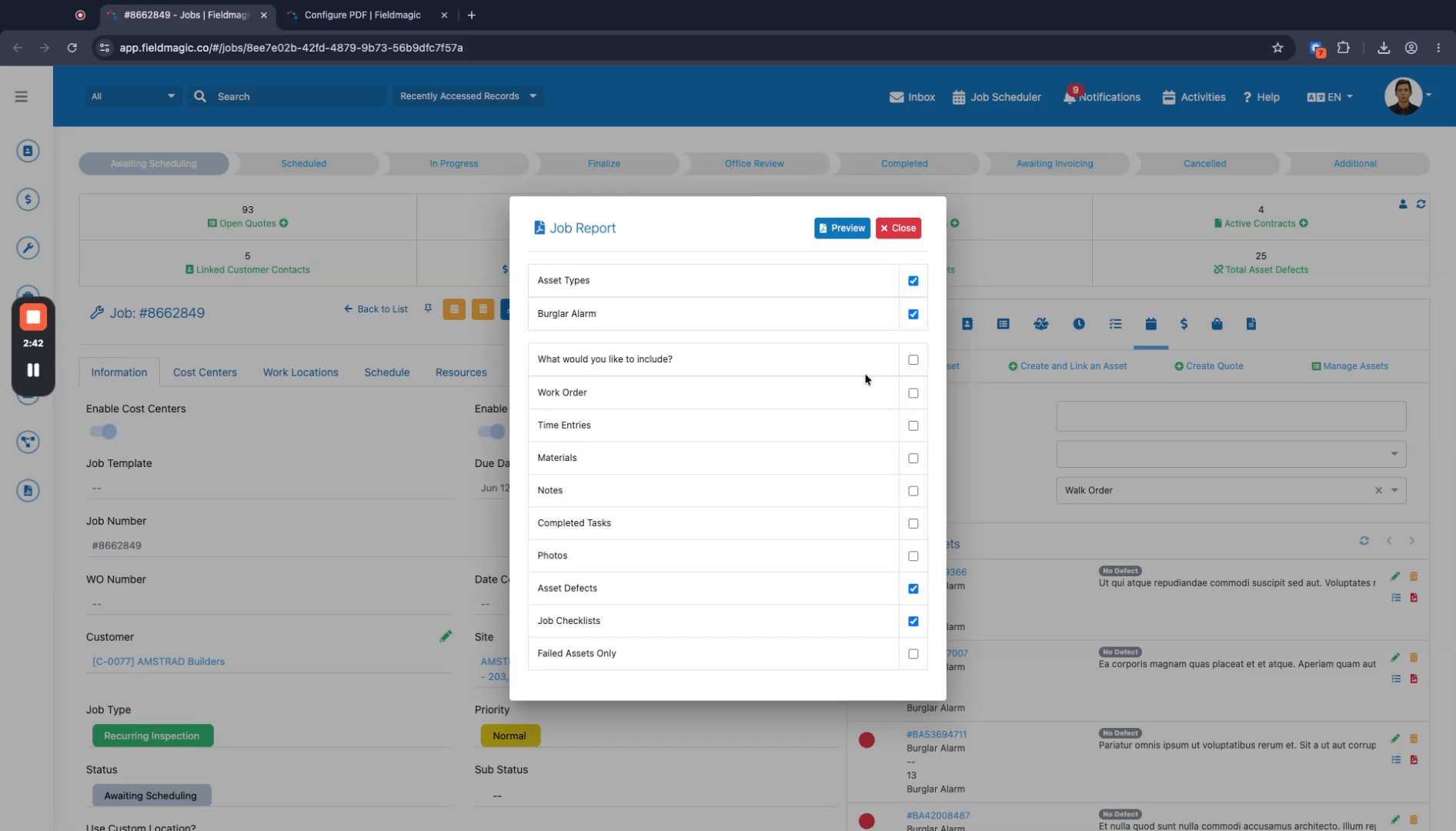
Preview the job report to verify the compressed layout.
 Step 9
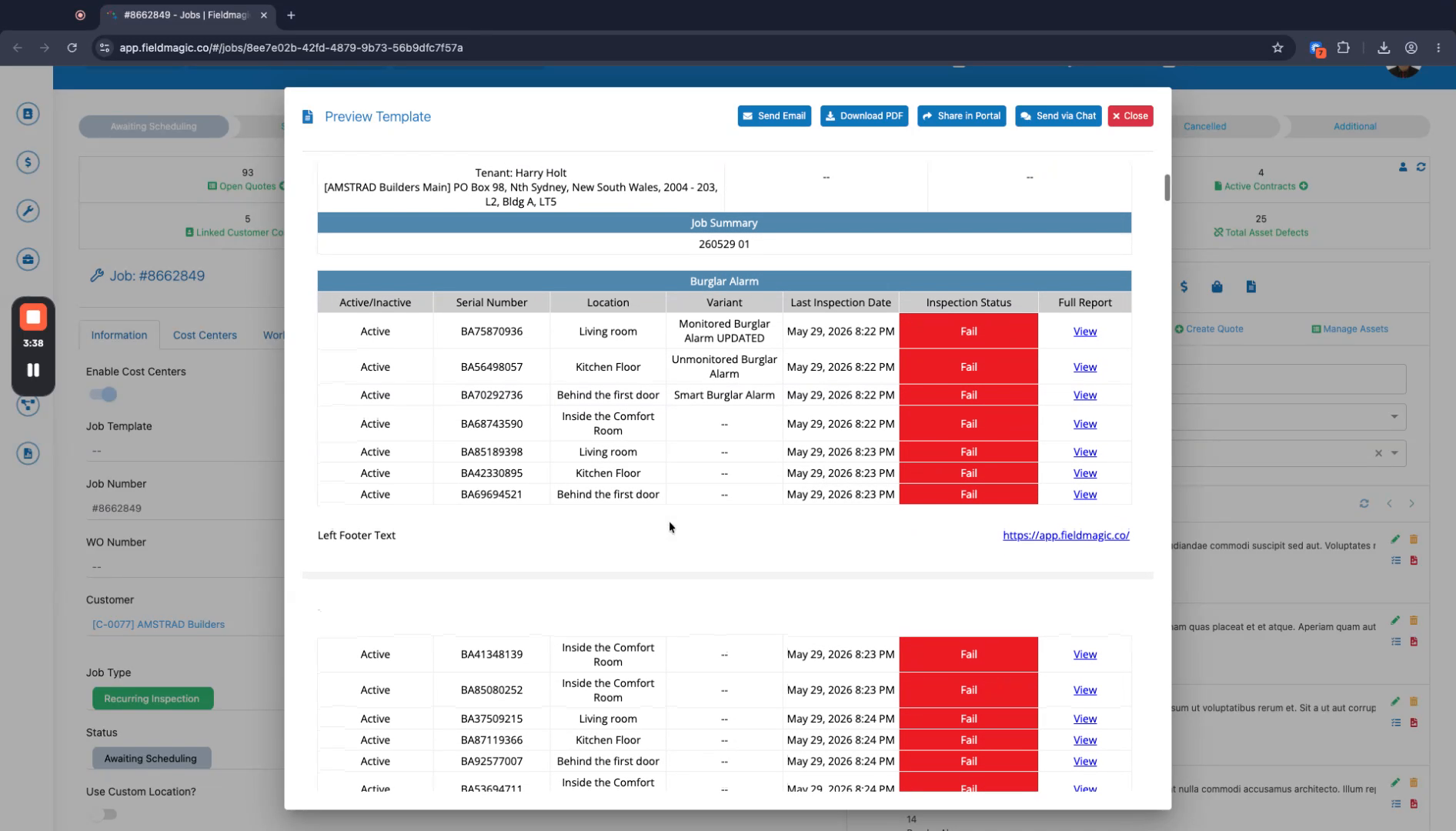
Review the generated report, ensuring the assets list appears first, followed by the compact job checklist table.
 Step 10
Distribute the compressed job report as needed.