Recurring Jobs
How To Generate Recurring Jobs Using Site
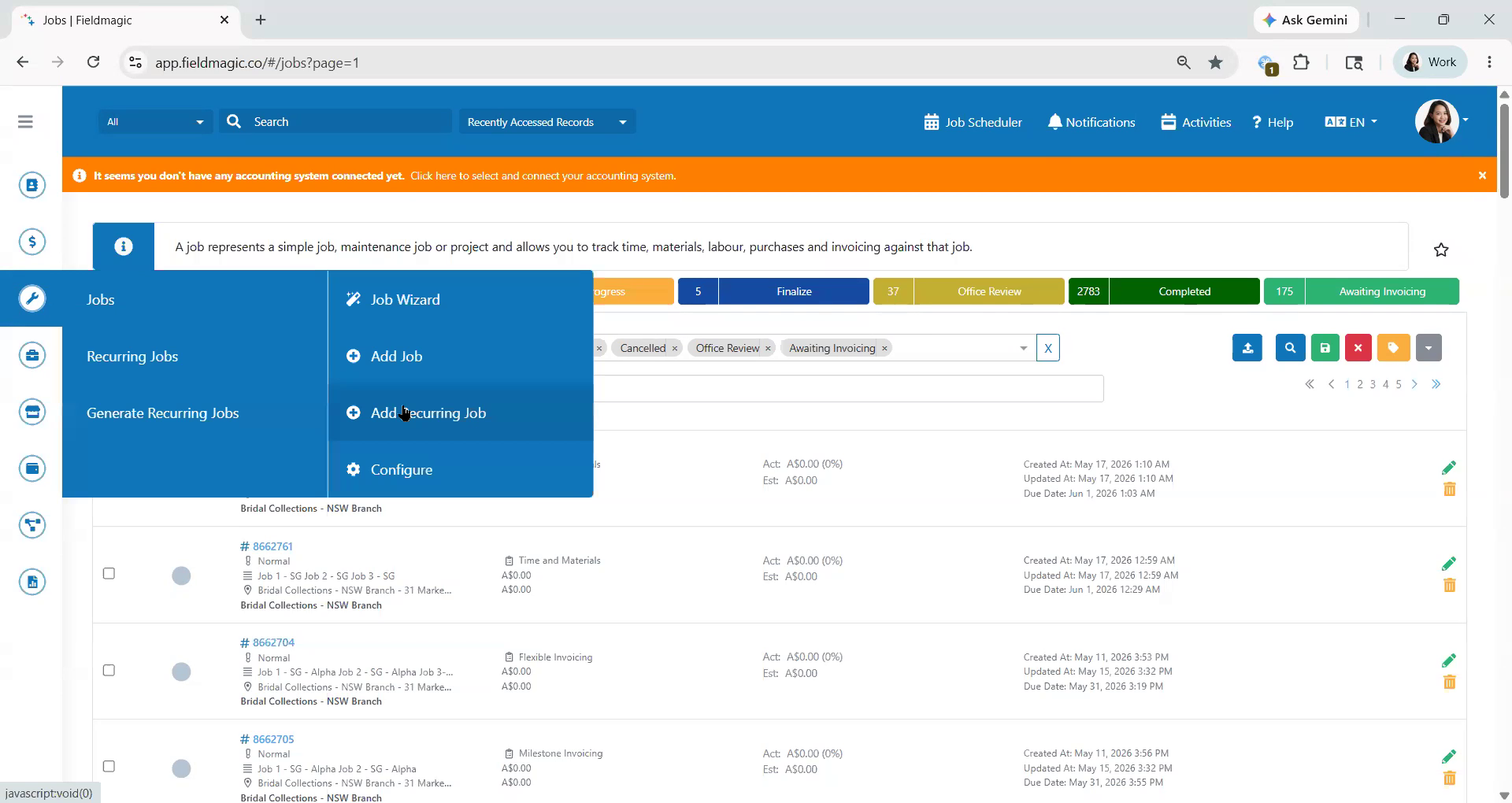
This video demonstrates how to generate recurring jobs using site. jobs using site. First, go to Jobs and click Recurring Job.
Step-by-step instructions
 Step 1
This video demonstrates how to generate recurring jobs using site. jobs using site. First, go to Jobs and click Recurring Job.
 Step 2
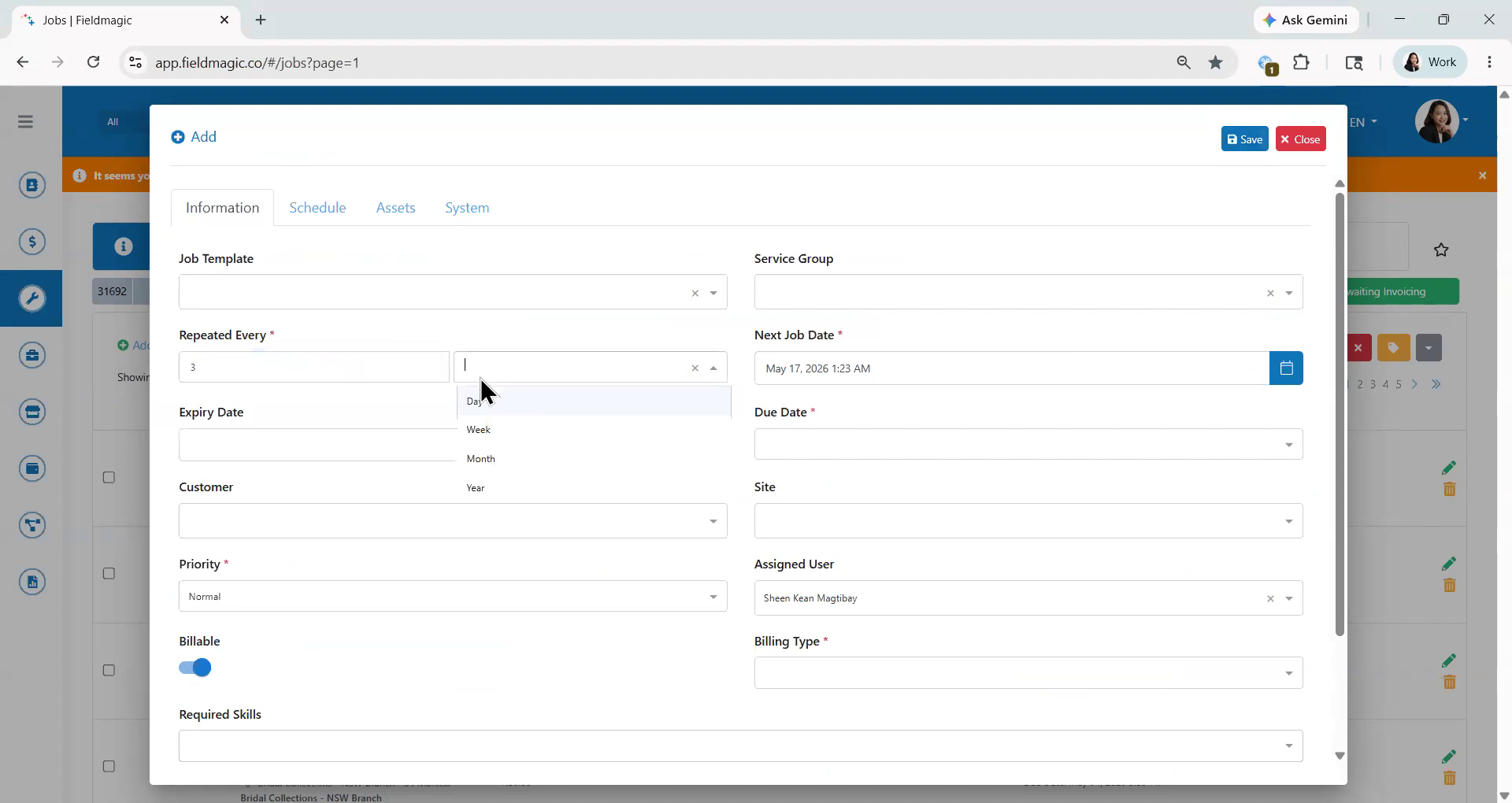
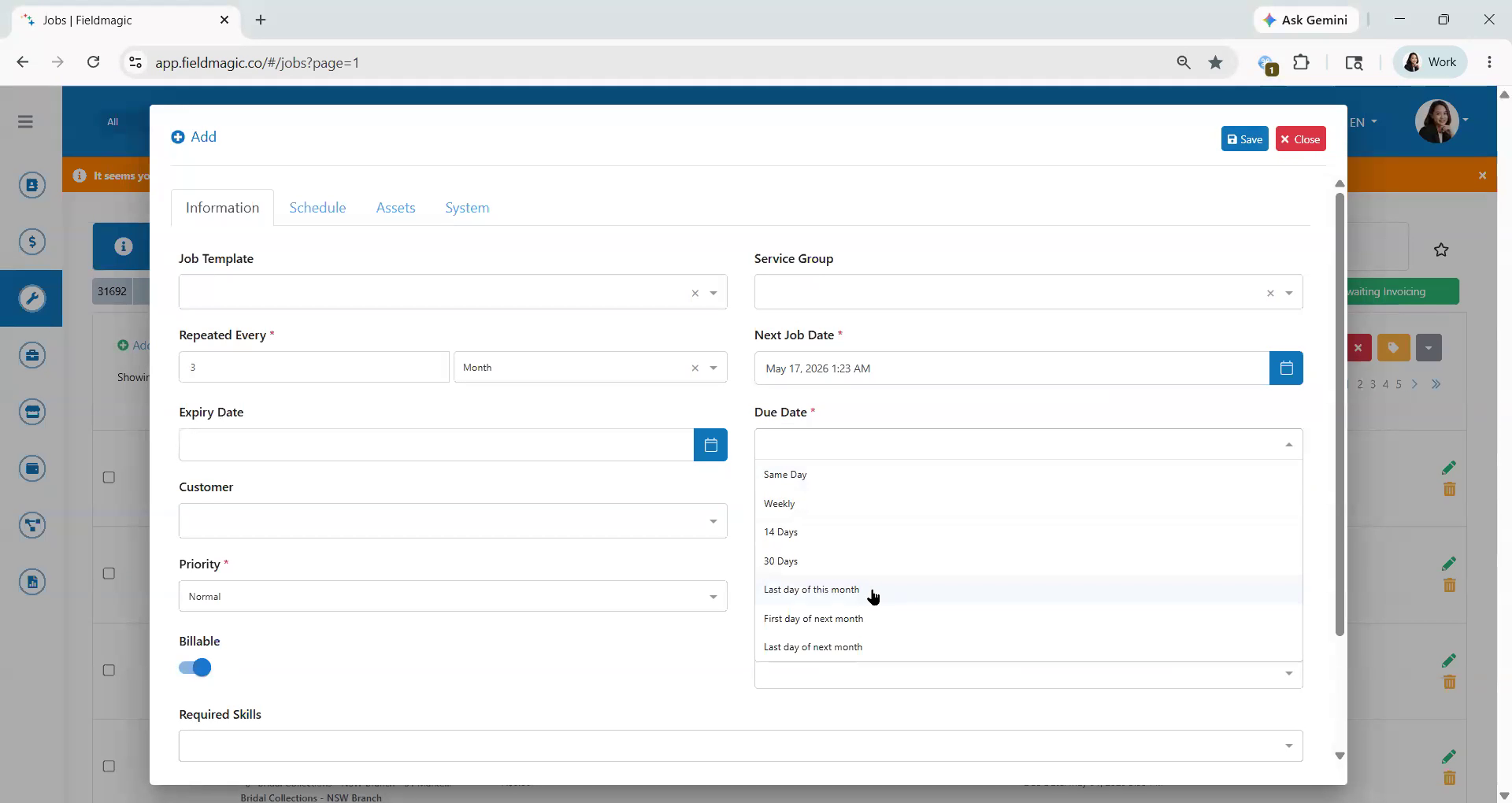
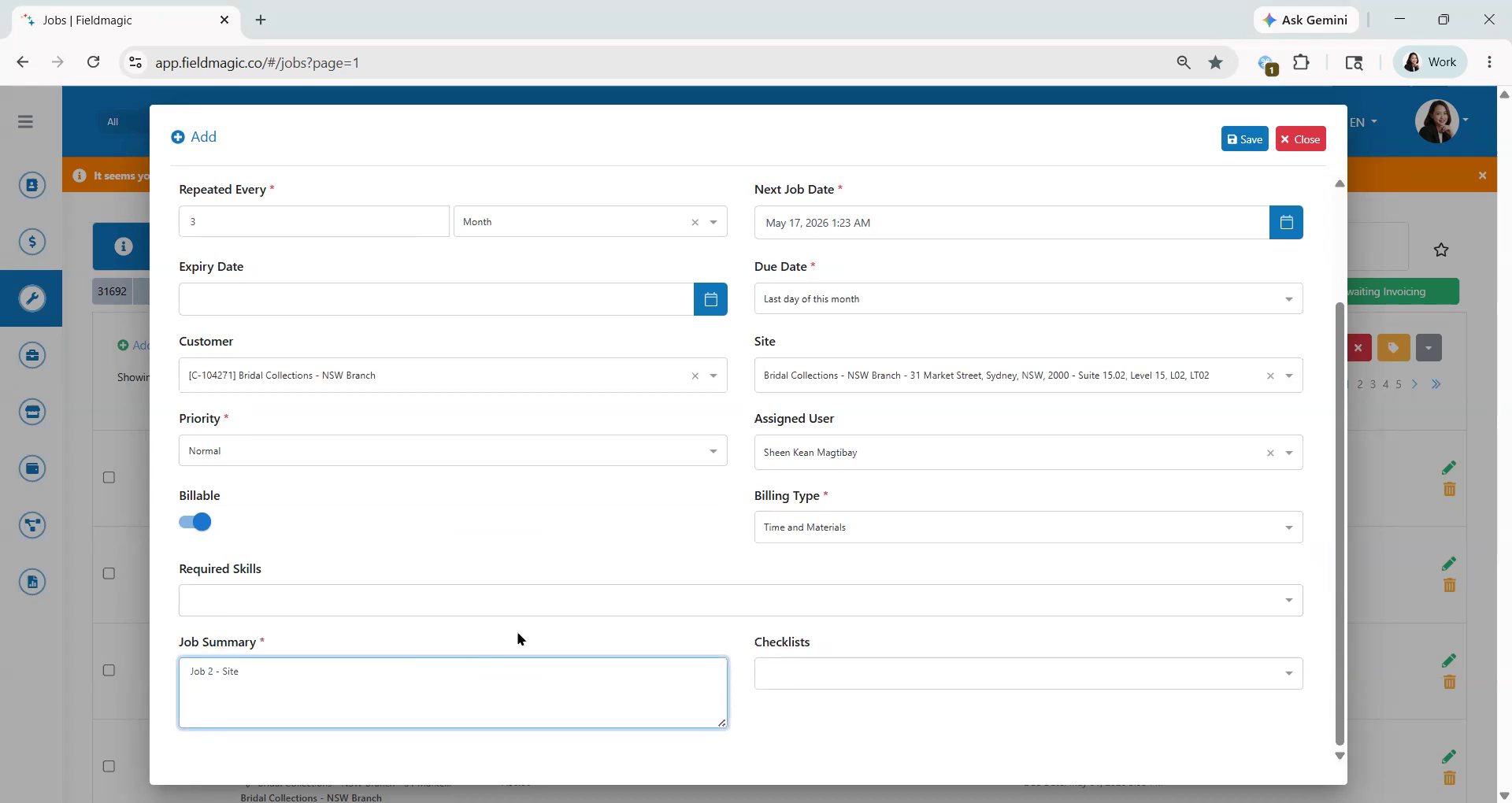
Set the recurring schedule. For this example, repeat the job every three months. Set the due date
 Step 3
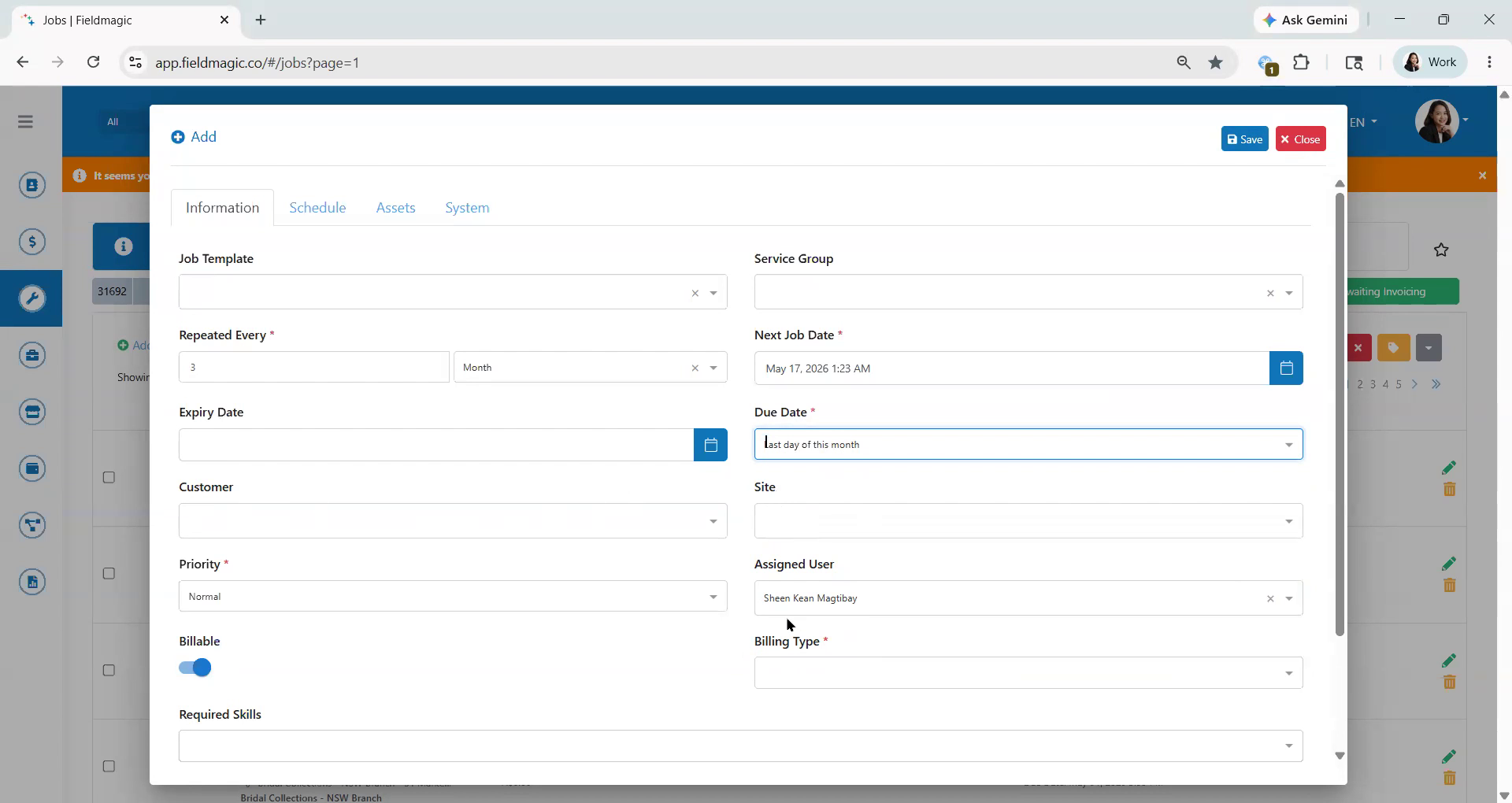
to the last day of the month. Ensure that the customer, site and billing type are the same for all recurring
 Step 4
jobs. Enter the job summary, then click Save.
 Step 5
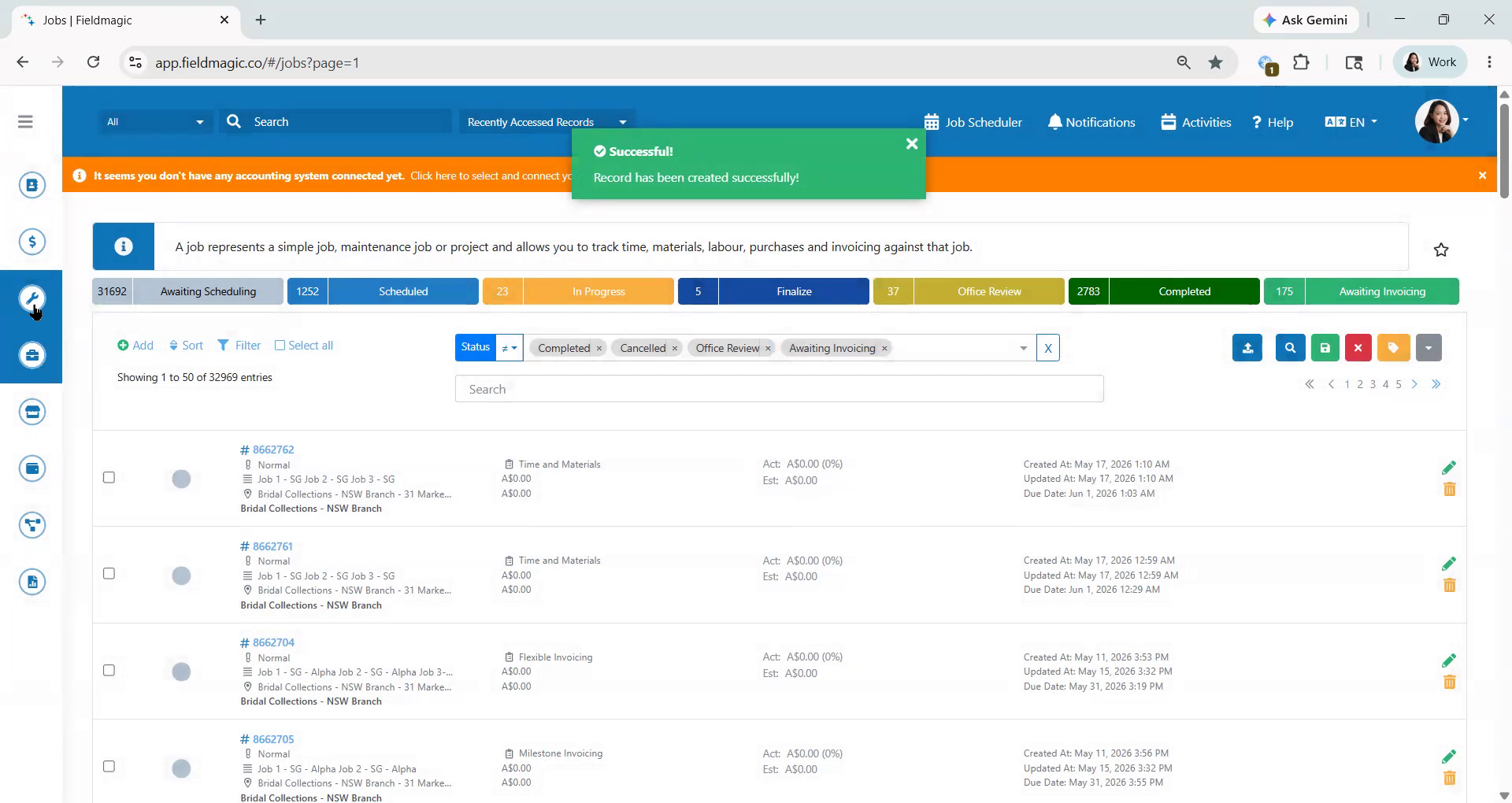
Next, go back to Jobs and select Generate Recurring Jobs. Filter by customer,
 Step 6
then select the Recurring Job you want to generate. Click Generate Jobs. Ensure that the site
 Step 7
is selected in the Group By field, then click Generate Only. The generated Job ID will appear above.
 Step 8
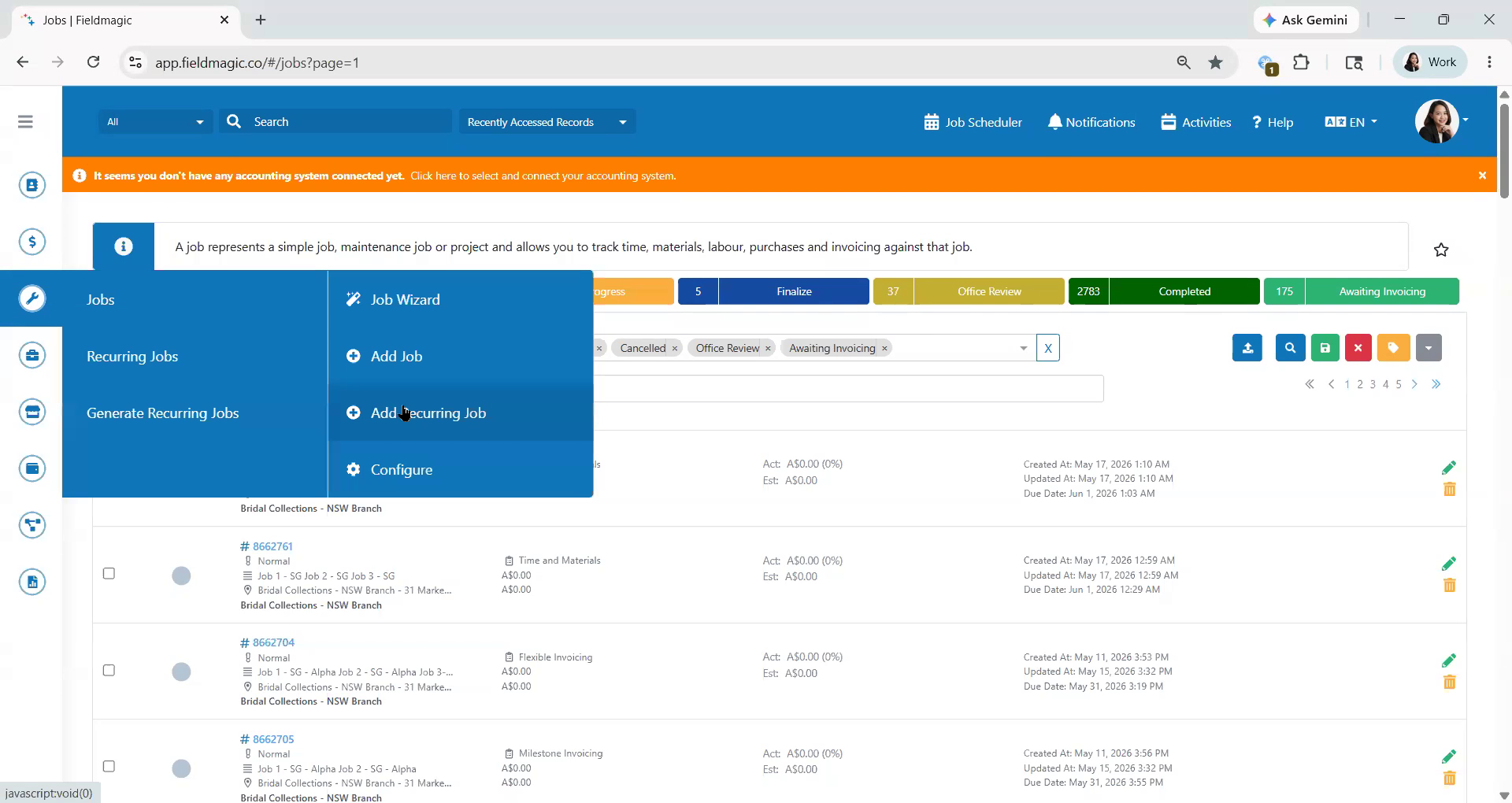
This video demonstrates how to generate recurring jobs using site. First, go to Jobs and click Recurring Job.
 Step 9
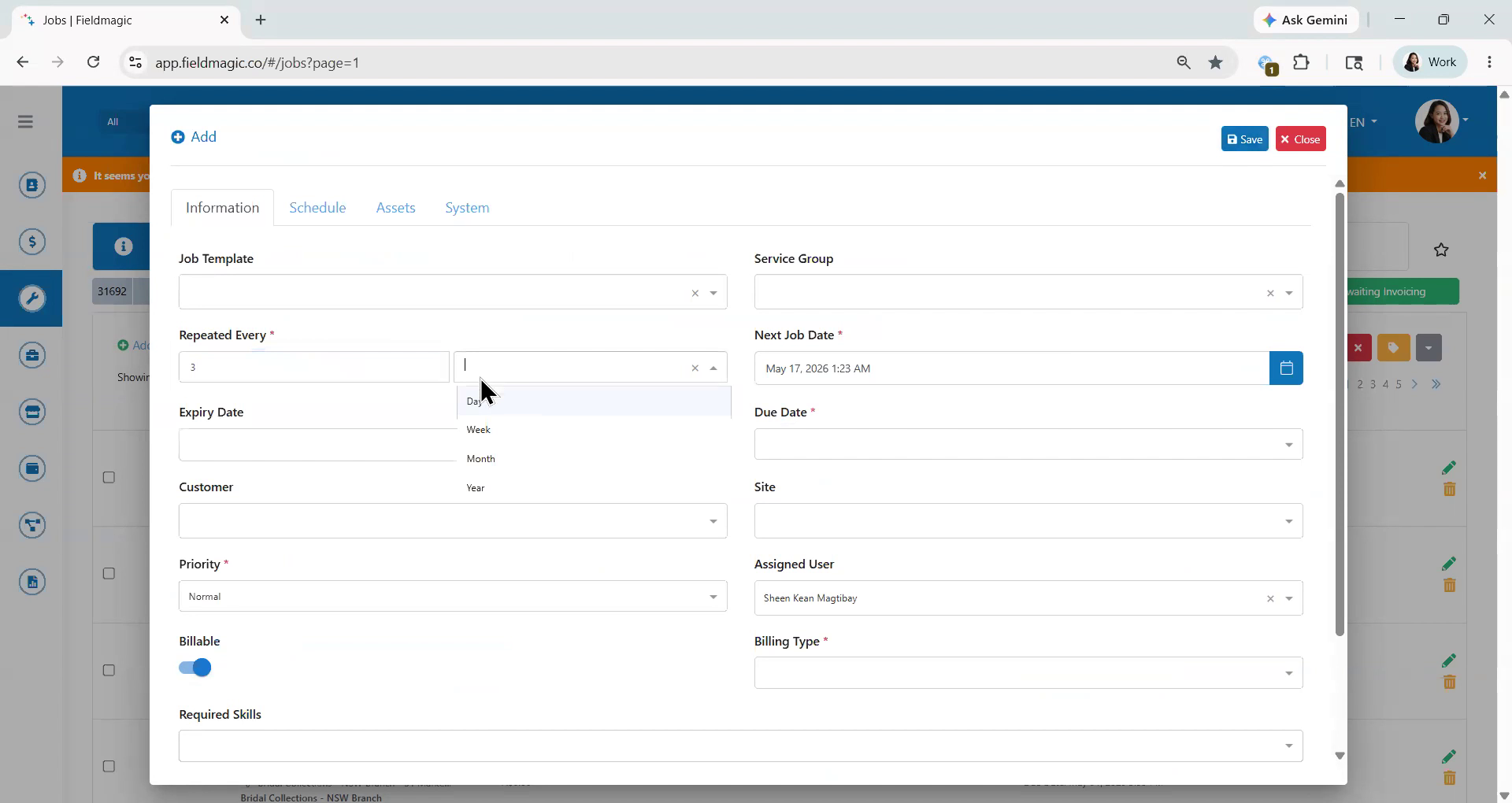
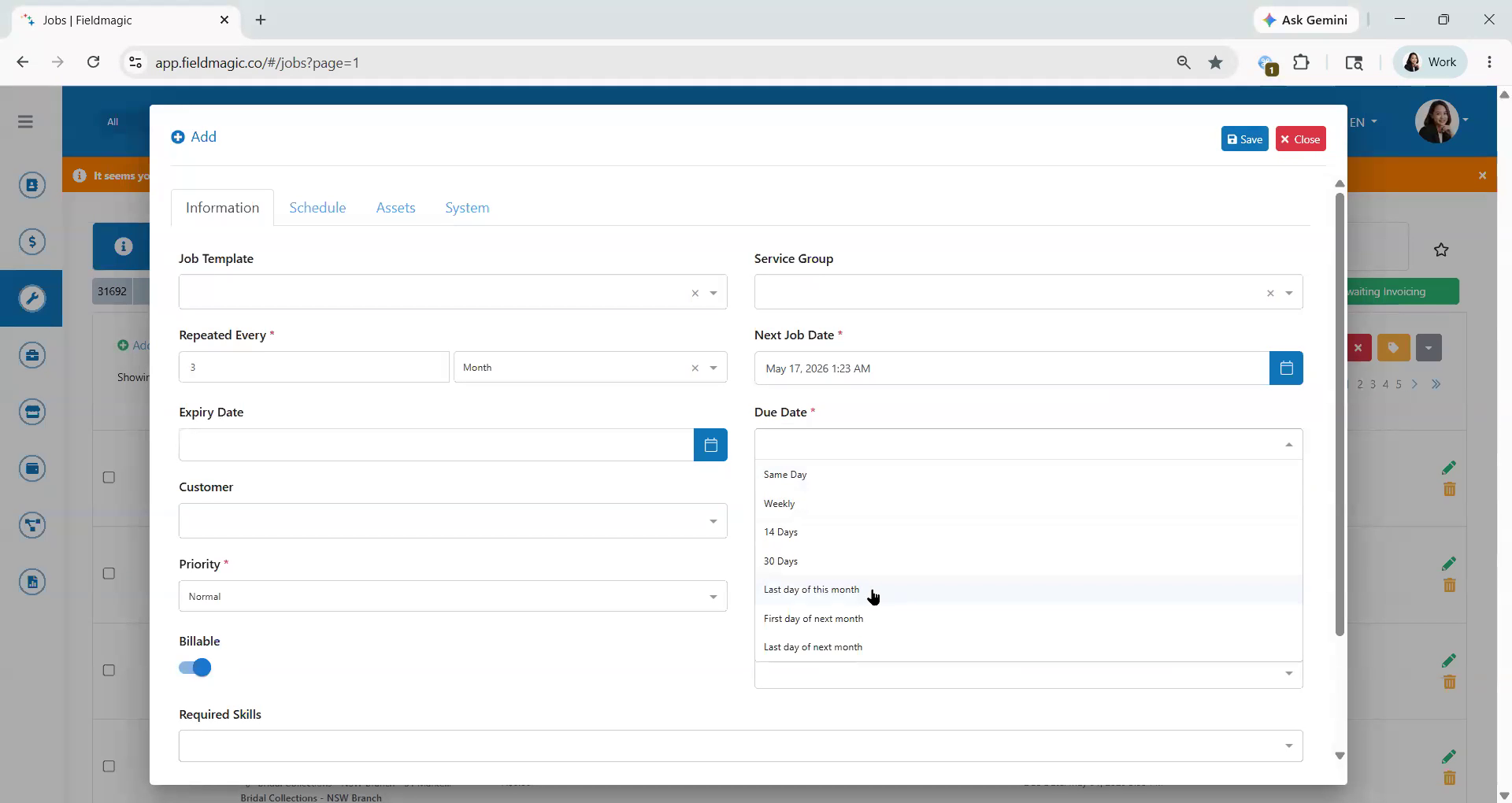
Set the recurring schedule. For this example, repeat the job every three months, with the due date set
 Step 10
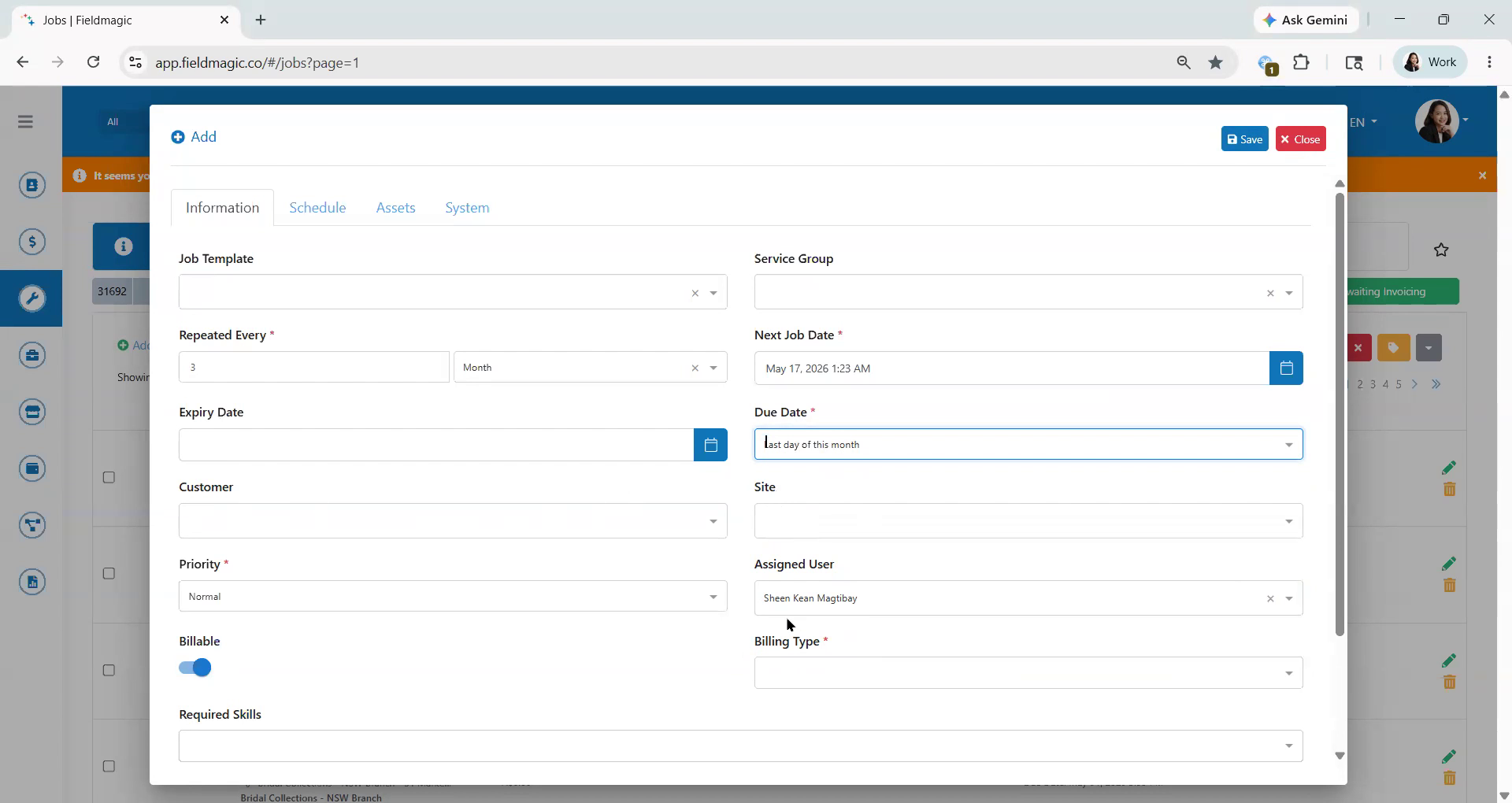
to the last day of the month. Ensure that the customer, site, and billing type are the same for all recurring jobs.
 Step 11
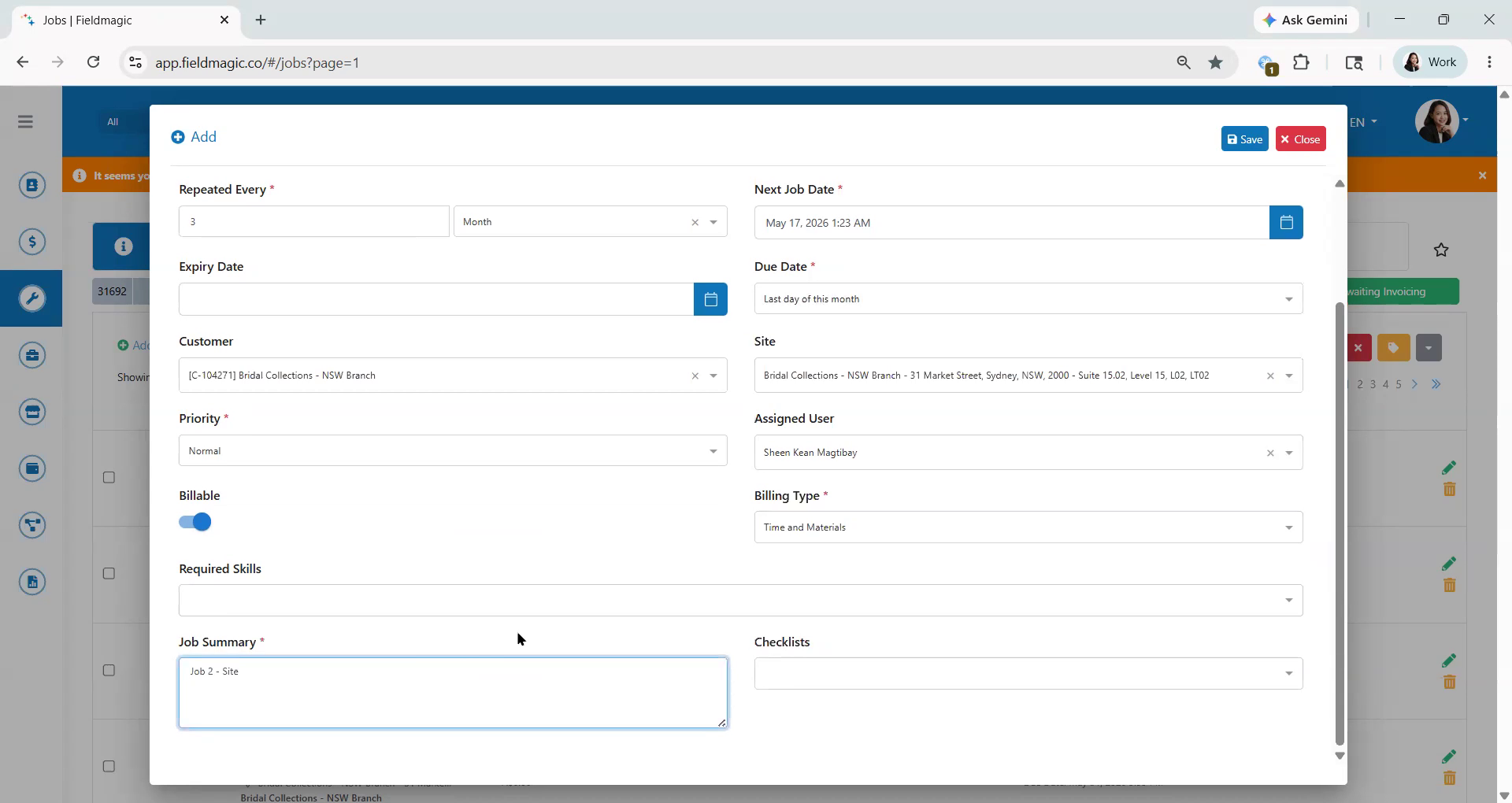
Enter the job summary, then click Save.
 Step 12
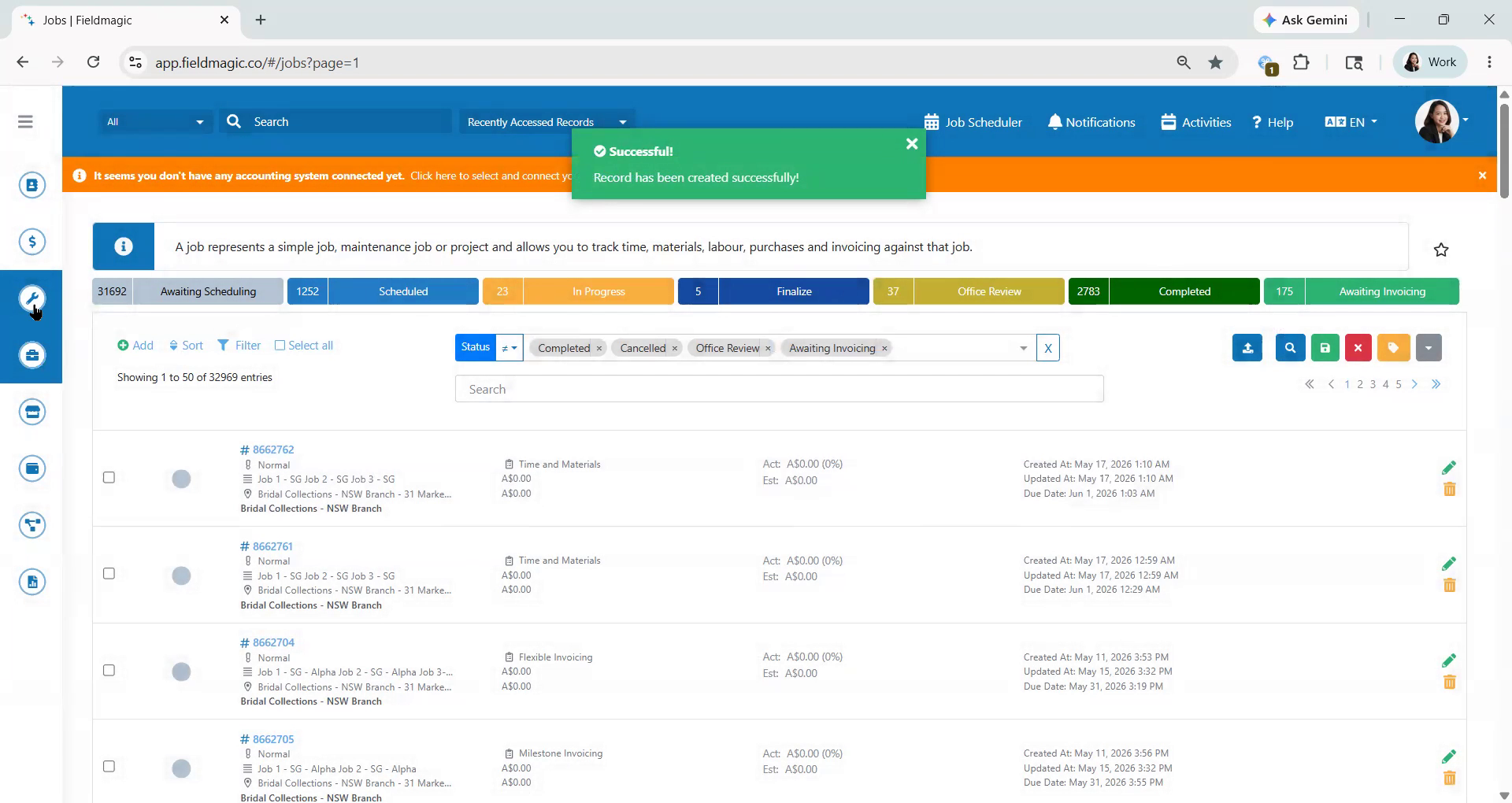
Next, go back to Jobs and select Generate Recurring Jobs. Filter by customer,
 Step 13
then select the Recurring Job you want to generate. Click Generate Jobs. Ensure that the site
 Step 14
is selected in the Group By field, then click Generate Only. The generated Job ID will appear above the filter section, and all related recurring jobs will be grouped under the same Job ID.