Job Management
How to Manage Files in Work Location
FieldMagic allows you to attach files such as photos, PDFs, documents, and spreadsheets directly to a work location on a job. To get started, open any job and click the Work Locations tab to view the list of associated w
Step-by-step instructions
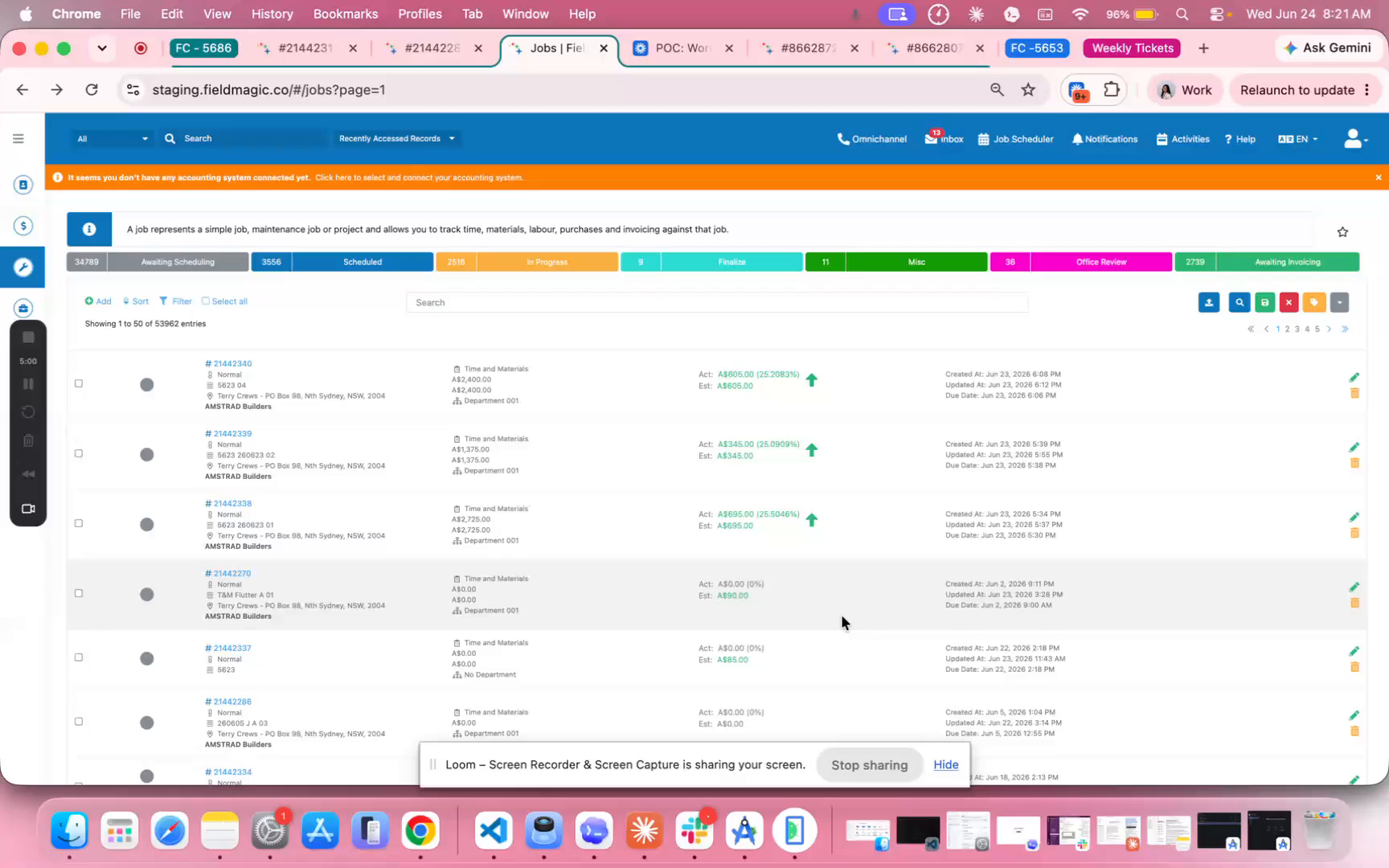 Step 1
FieldMagic allows you to attach files such as photos, PDFs, documents, and spreadsheets directly to a work location on a job. To get started, open any job and click the Work Locations tab to view the list of associated work locations.
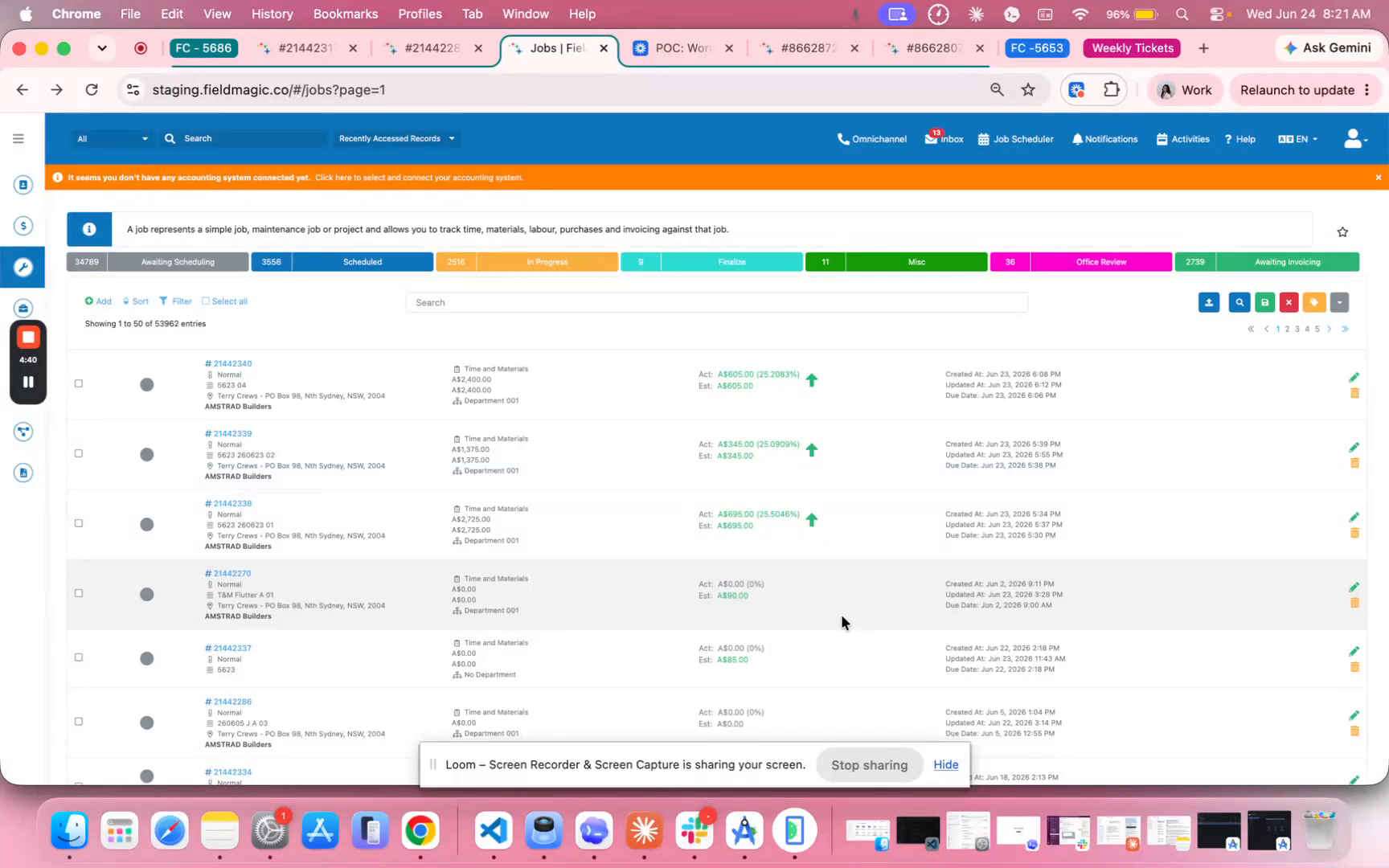 Step 2
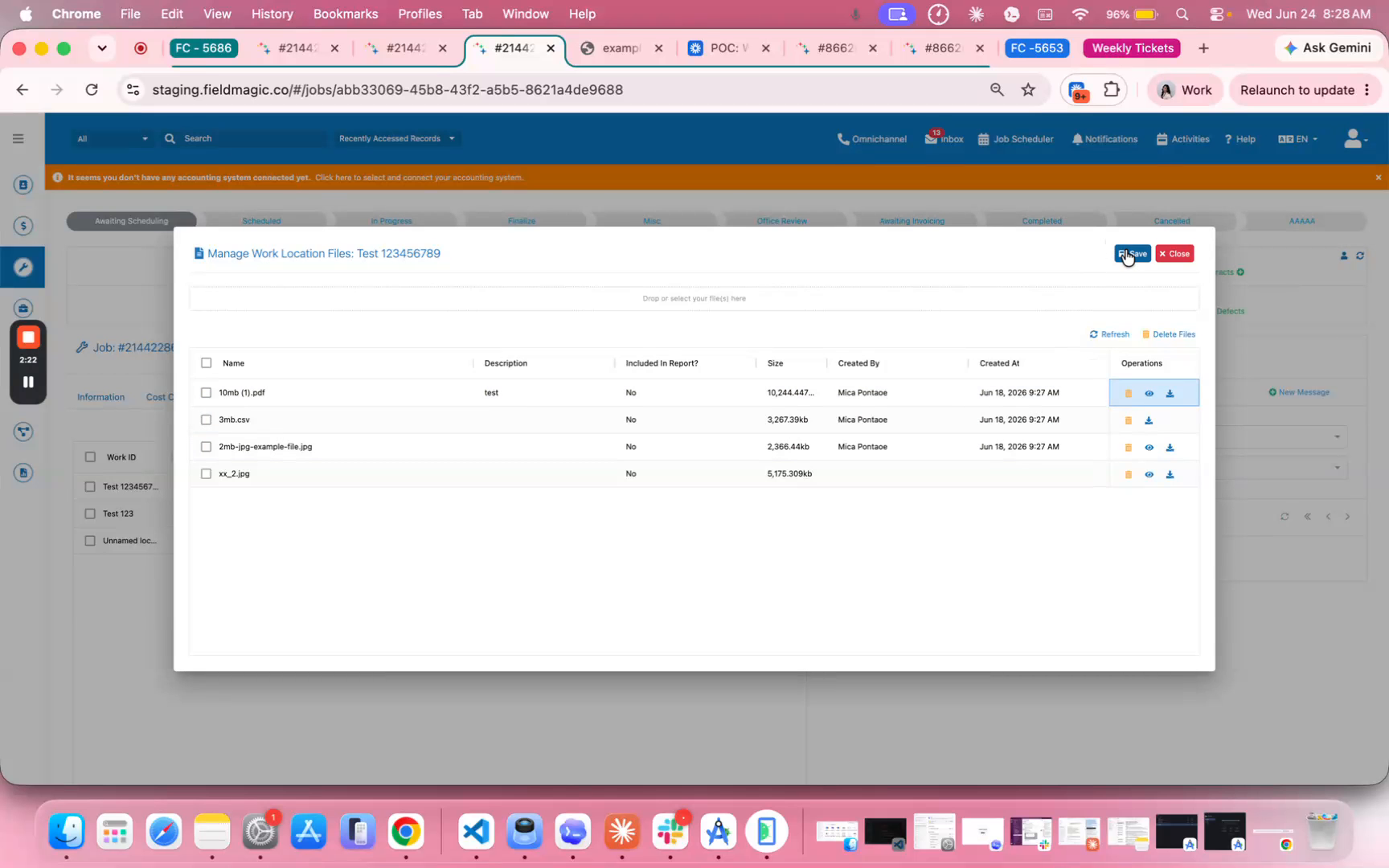
To manage files for a specific work location, click the file icon in the Operations column on the right. This opens the Manage Files panel, where you will see a drop zone at the top to drag and drop files directly.
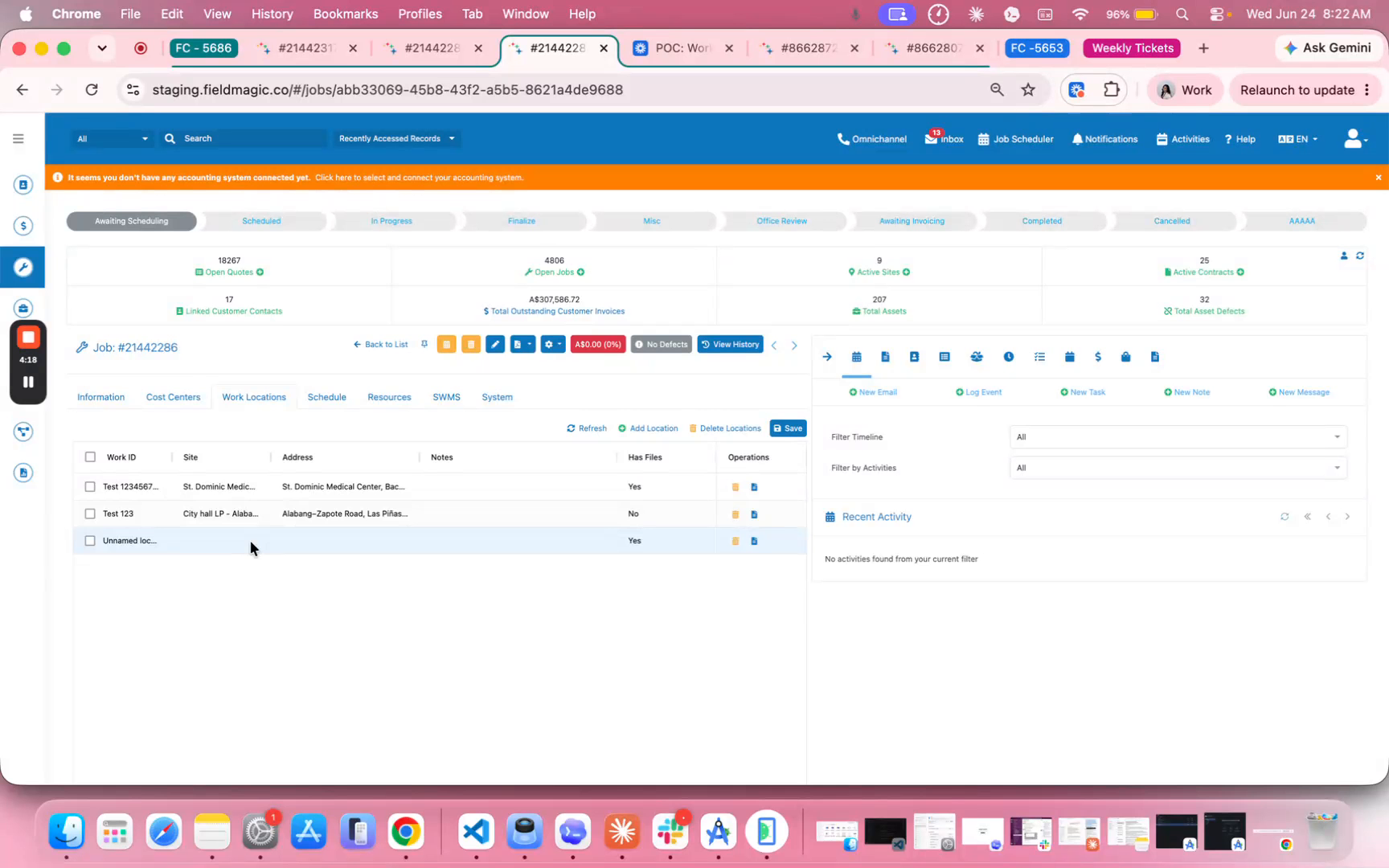 Step 3
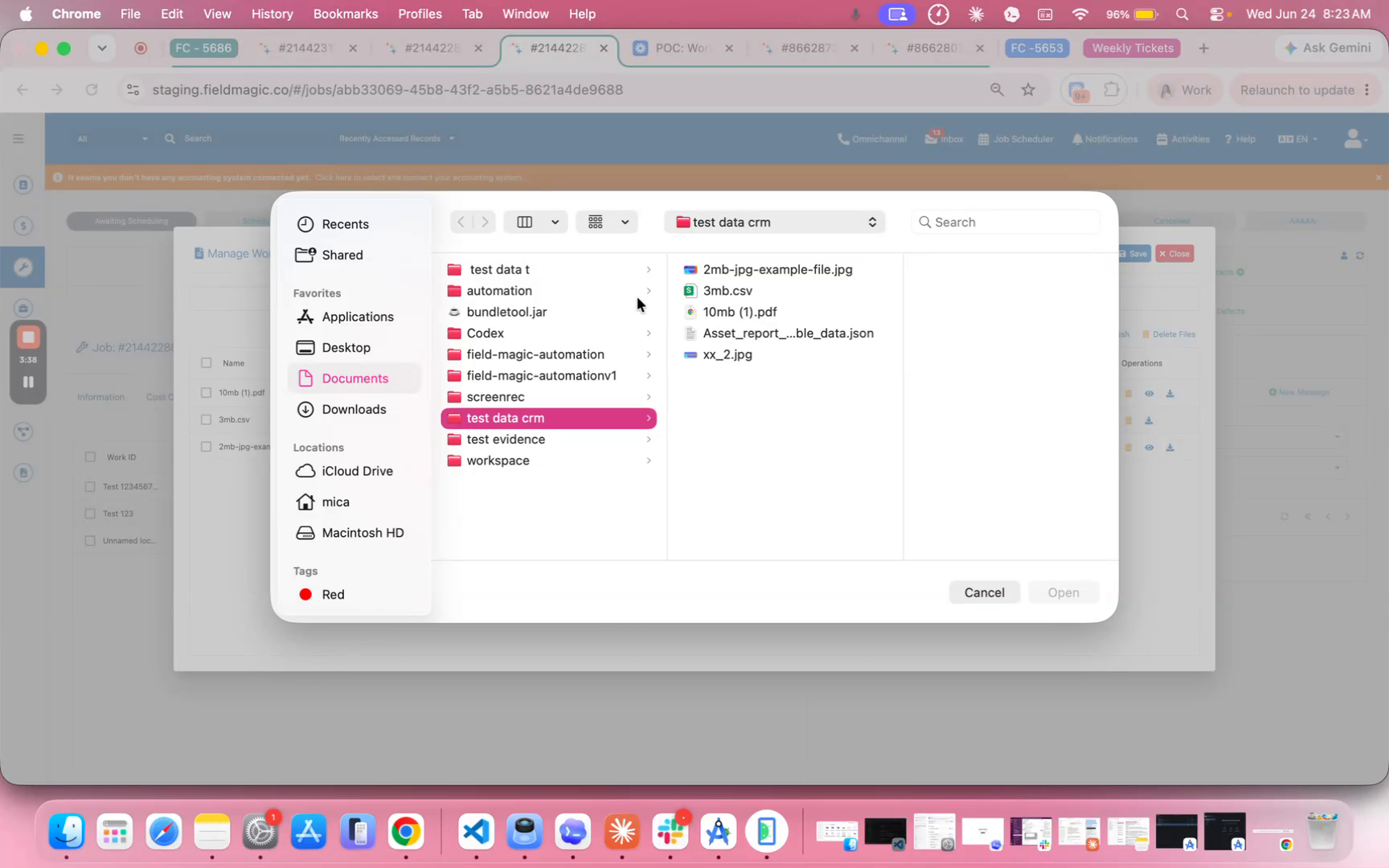
Alternatively, click the drop zone to open a file picker and select files from your computer. You can upload any file type, including images, PDFs, and spreadsheets; simply select the desired file and click Open.
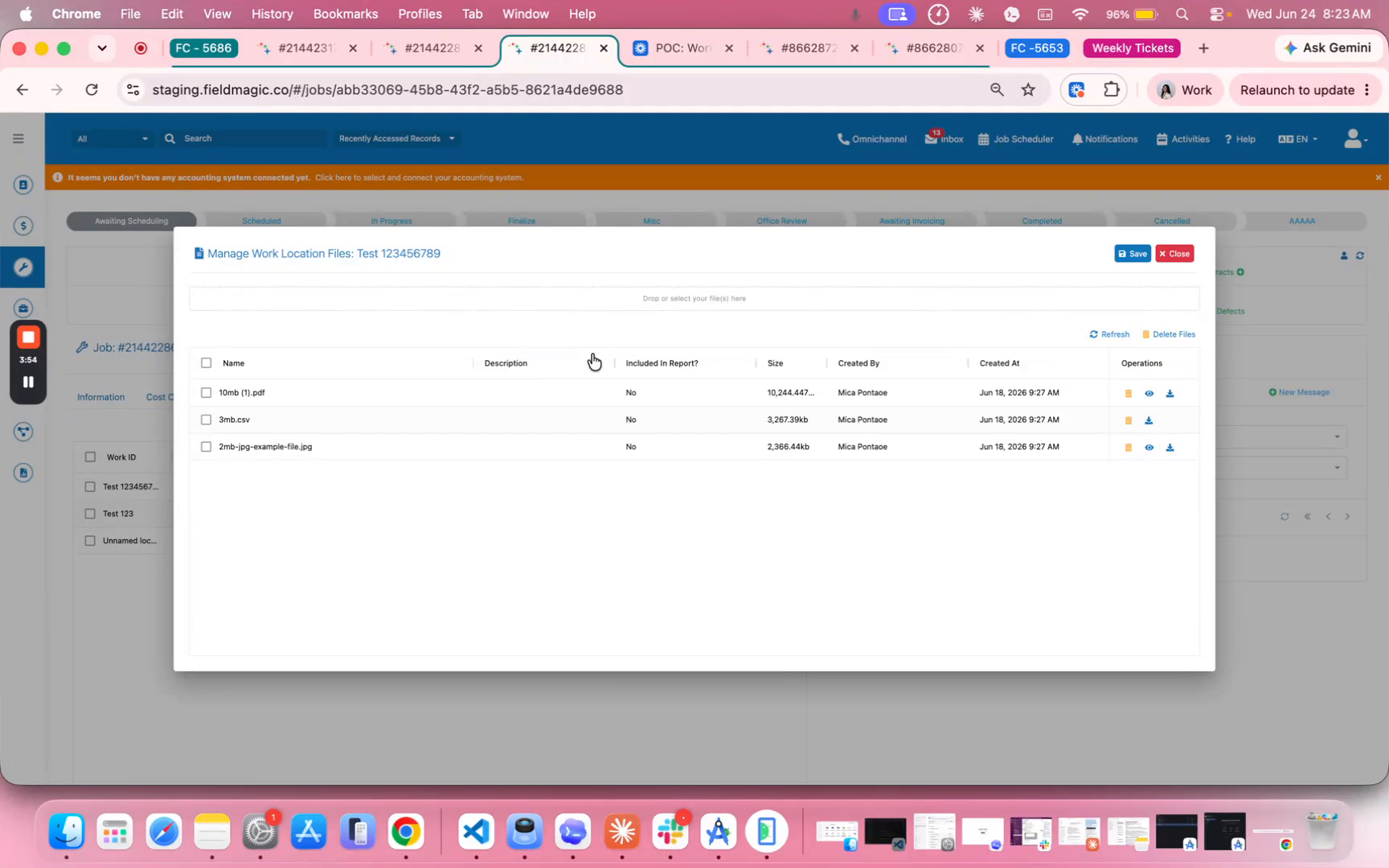 Step 4
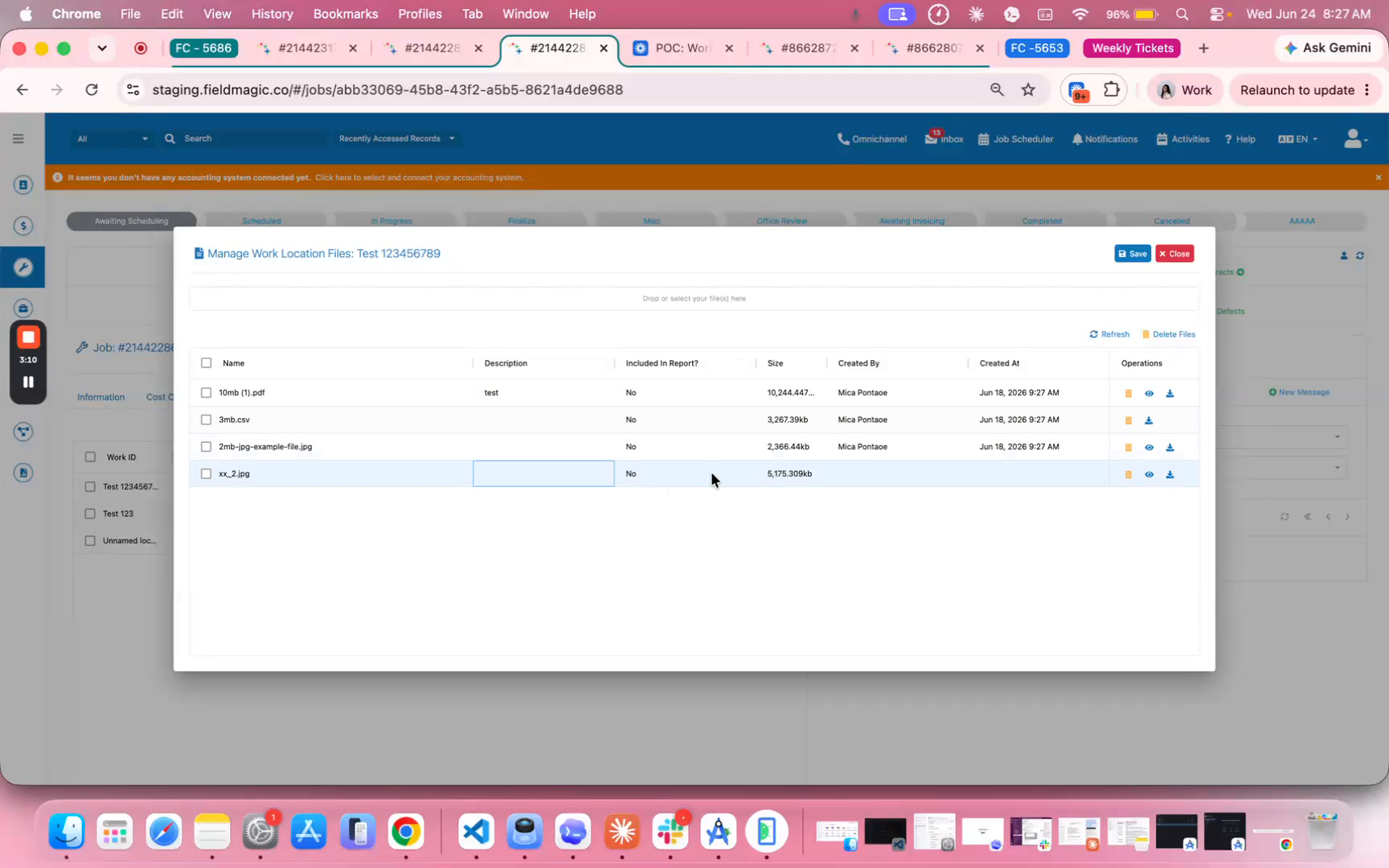
Review the uploaded files in the list below, which display the file name, an optional description, the file size, and the user who uploaded it.
 Step 5
Use the Included in Report toggle to control whether the file is attached when generating reports for the work location.
 Step 6
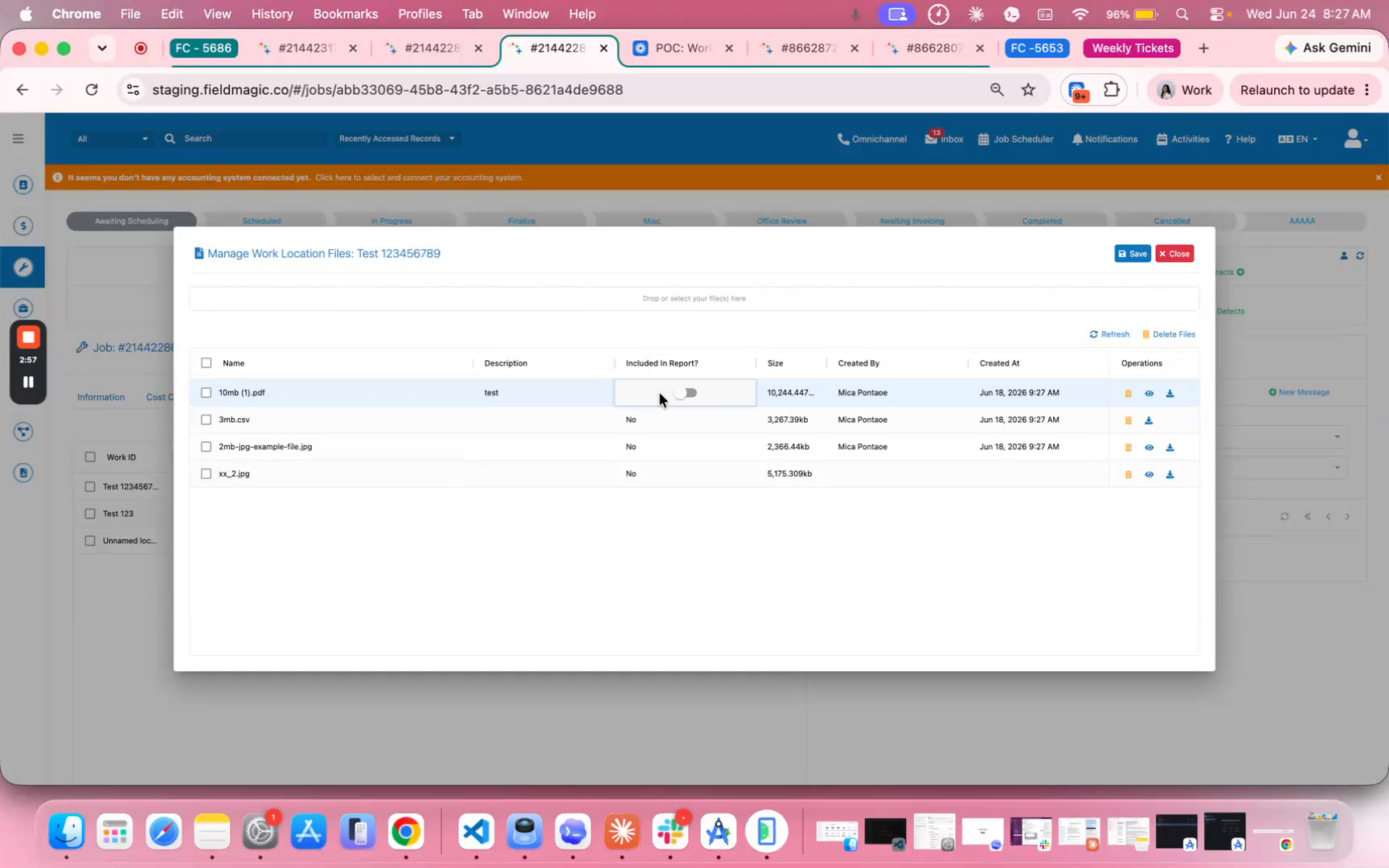
Locate the Operations column to access three actions for each file. Click the preview icon to view the file, the delete icon to remove it, or the download icon to save it to your computer.
 Step 7
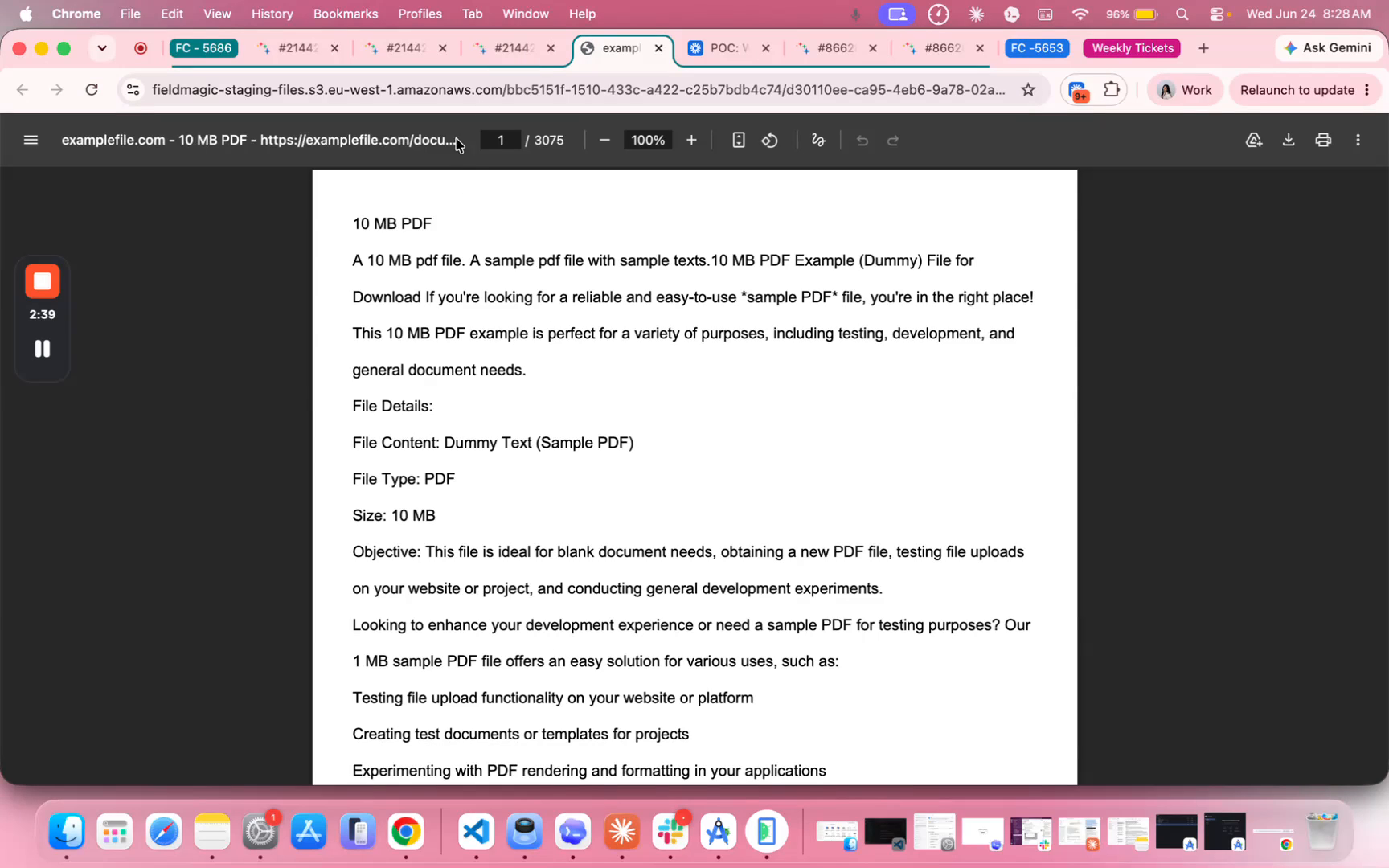
When you are done making changes, click Save to confirm your updates or click Close to exit without saving.
 Step 8
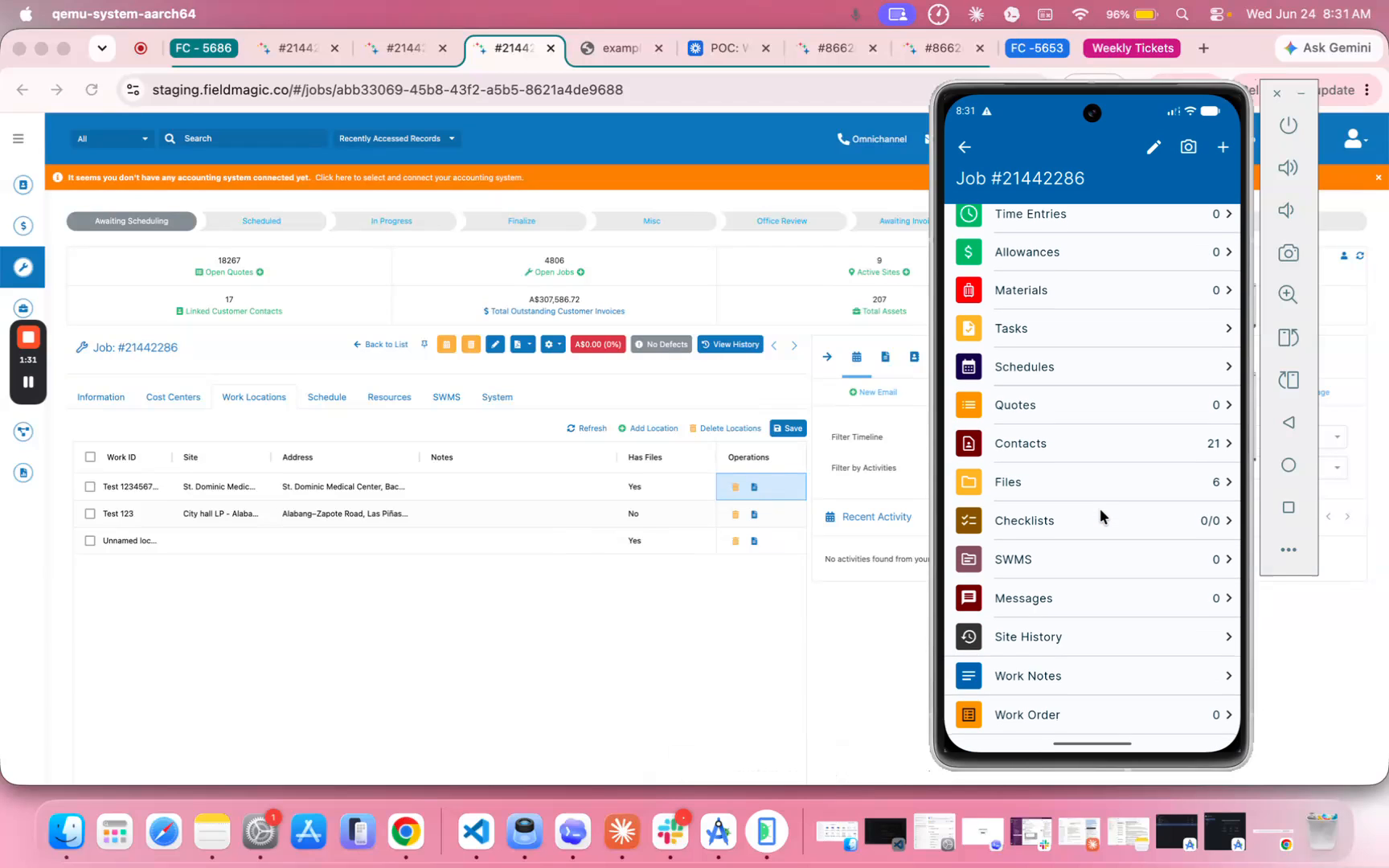
Access work location files directly from the mobile app by opening the same job on your mobile device. Scroll down to the Files section to view all attached files.
 Step 9
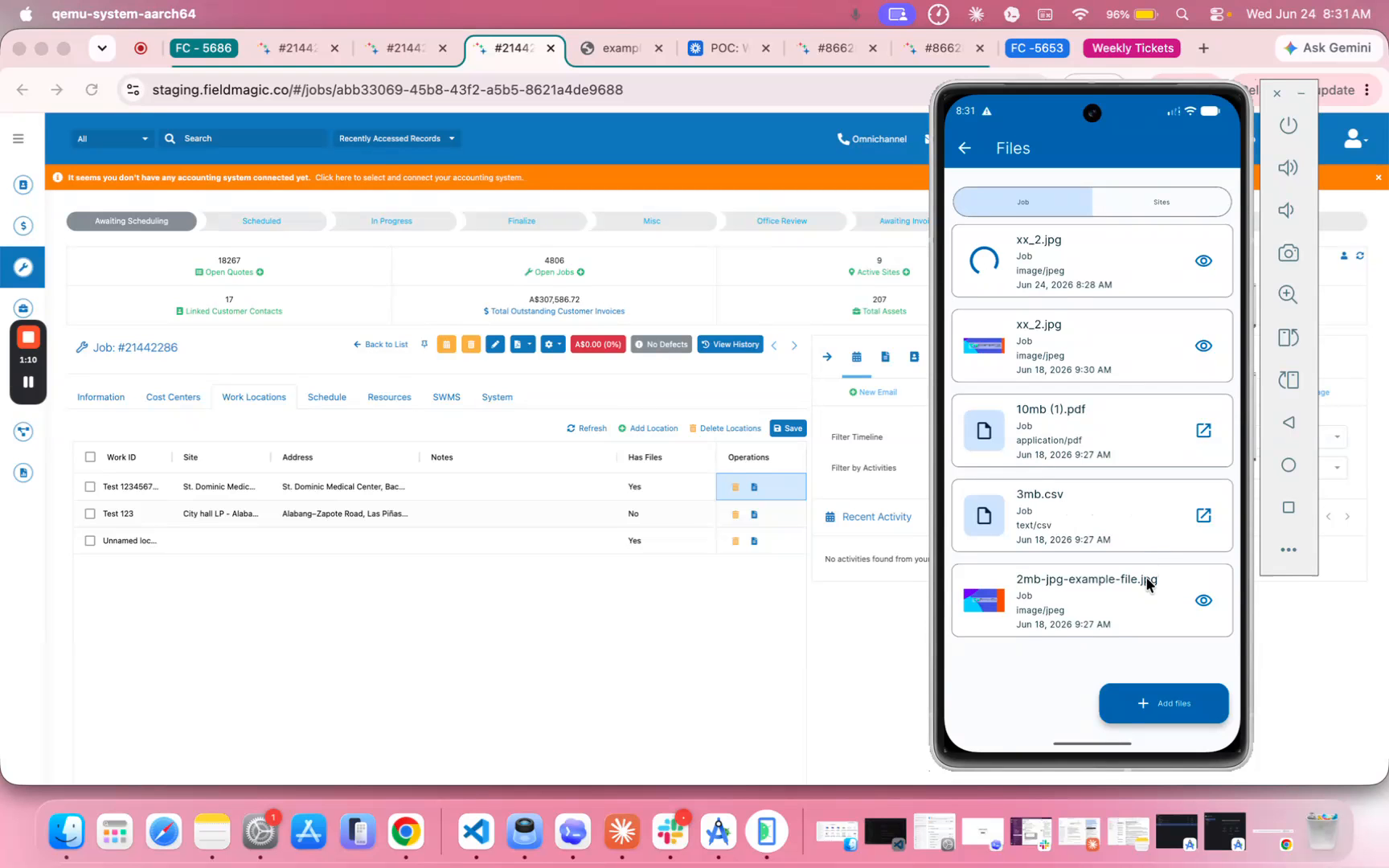
Tap the Files section to view the details of each attached file, including its name, type, and upload date.
 Step 10
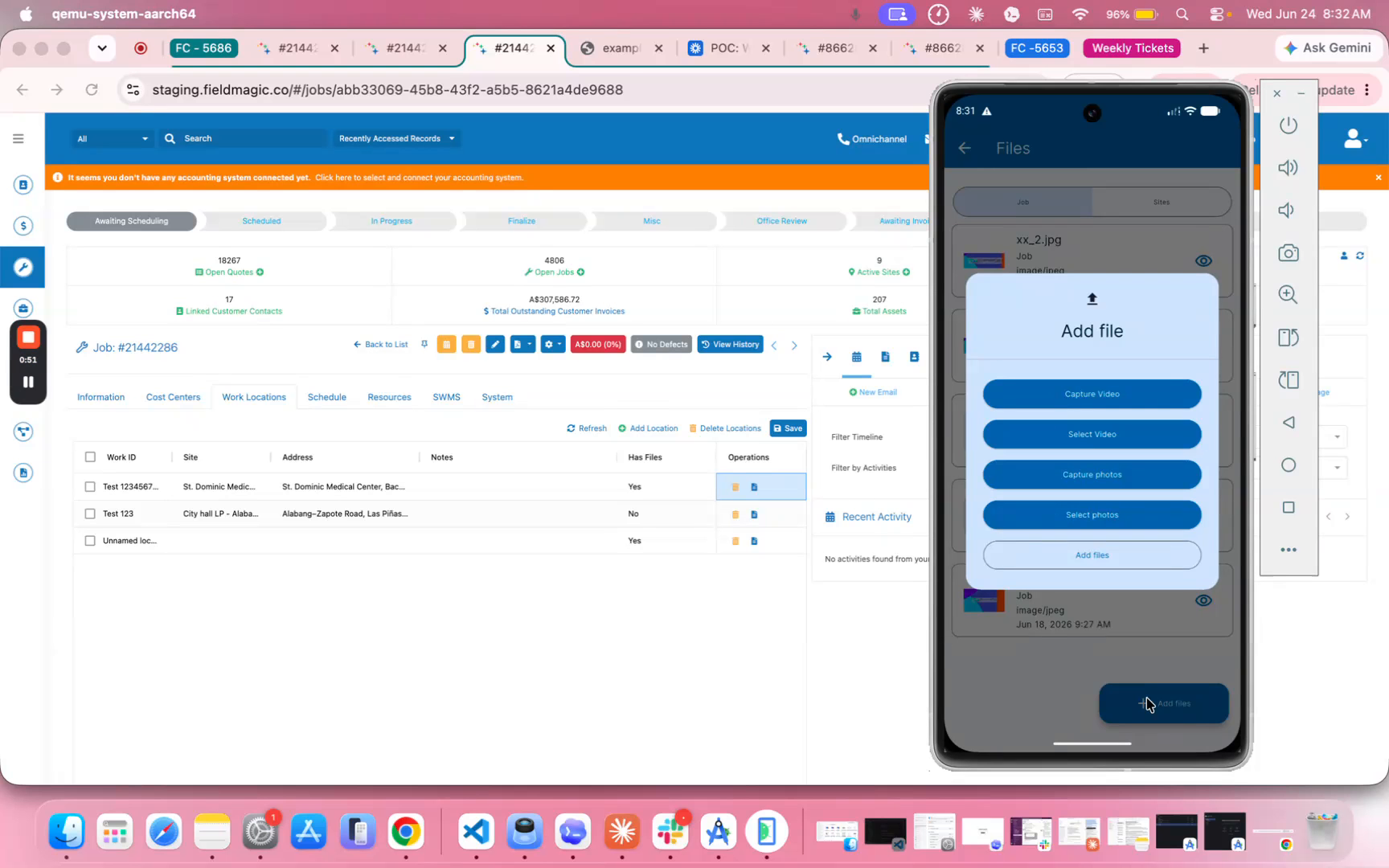
Tap the Add Files button to upload new files on the go. Use this feature to add photos taken on site, completed forms, or any relevant documents directly from your device.
 Step 11
Note that files attached to work locations stay with that specific location on the job, making it easy to keep relevant documentation organized and accessible for your team.
 Step 12
This concludes the workflow for managing files in work locations in FieldMagic from both the desktop and the mobile app. If you have any questions, please reach out to our support team.