Resource Management
How to Set Up Resource Types, Resources, and Schedule Against a Resource
Click Resource Types, then click Add Resource Type, and enter a name.
Step-by-step instructions
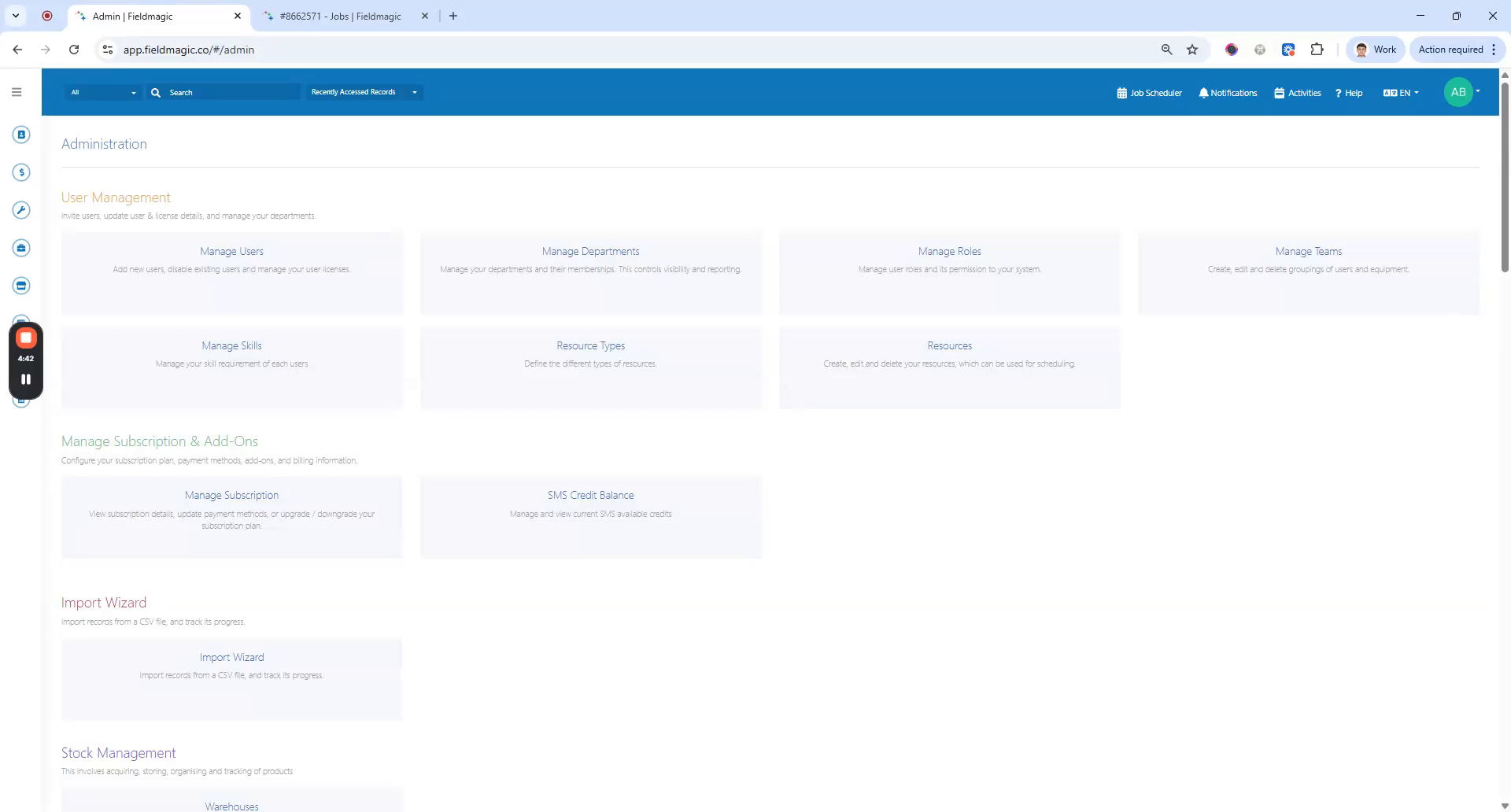 Step 1
Click Resource Types, then click Add Resource Type, and enter a name.
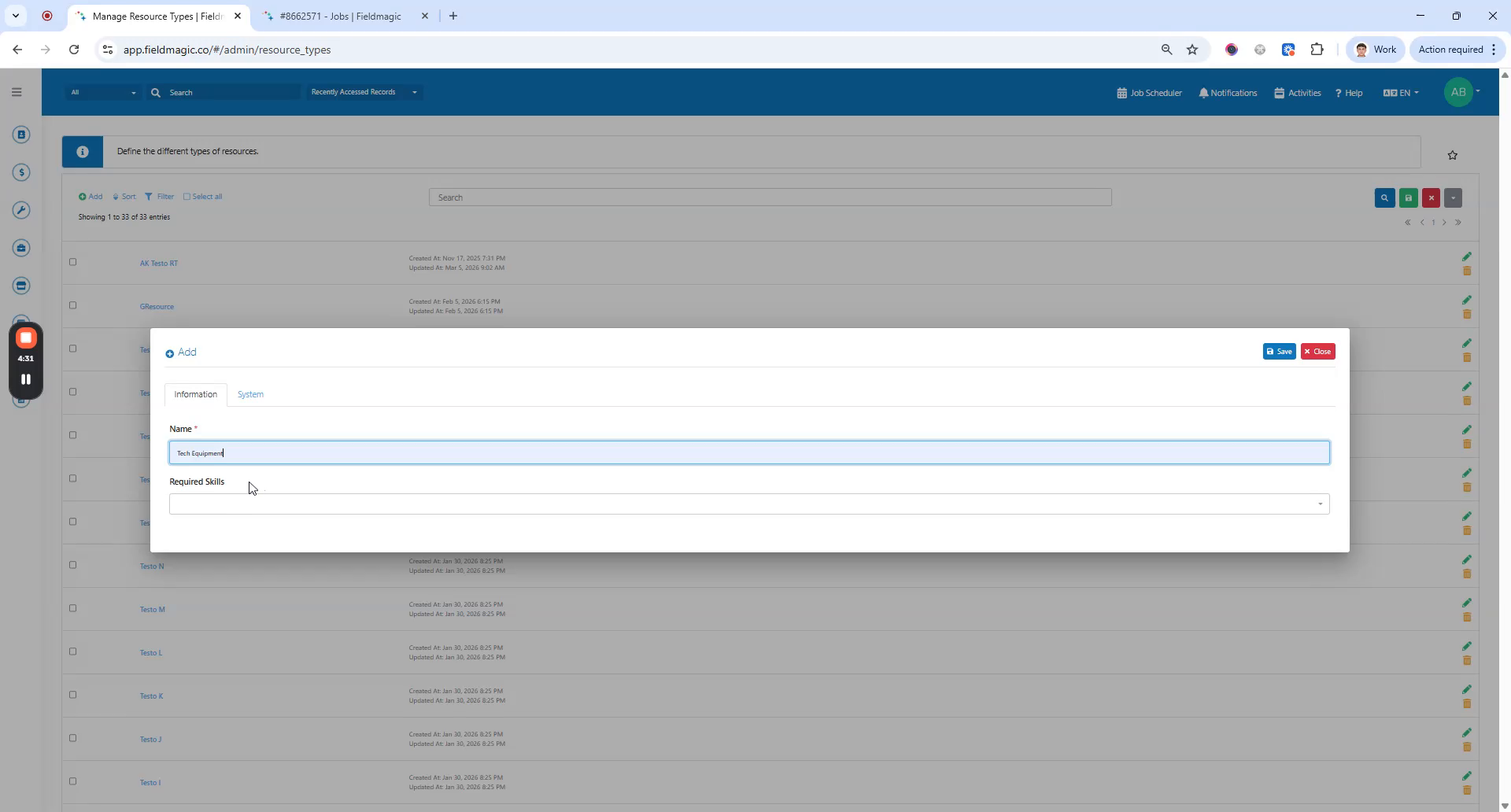 Step 2
Add the required skills for this resource type. Click Save. Return to Settings.
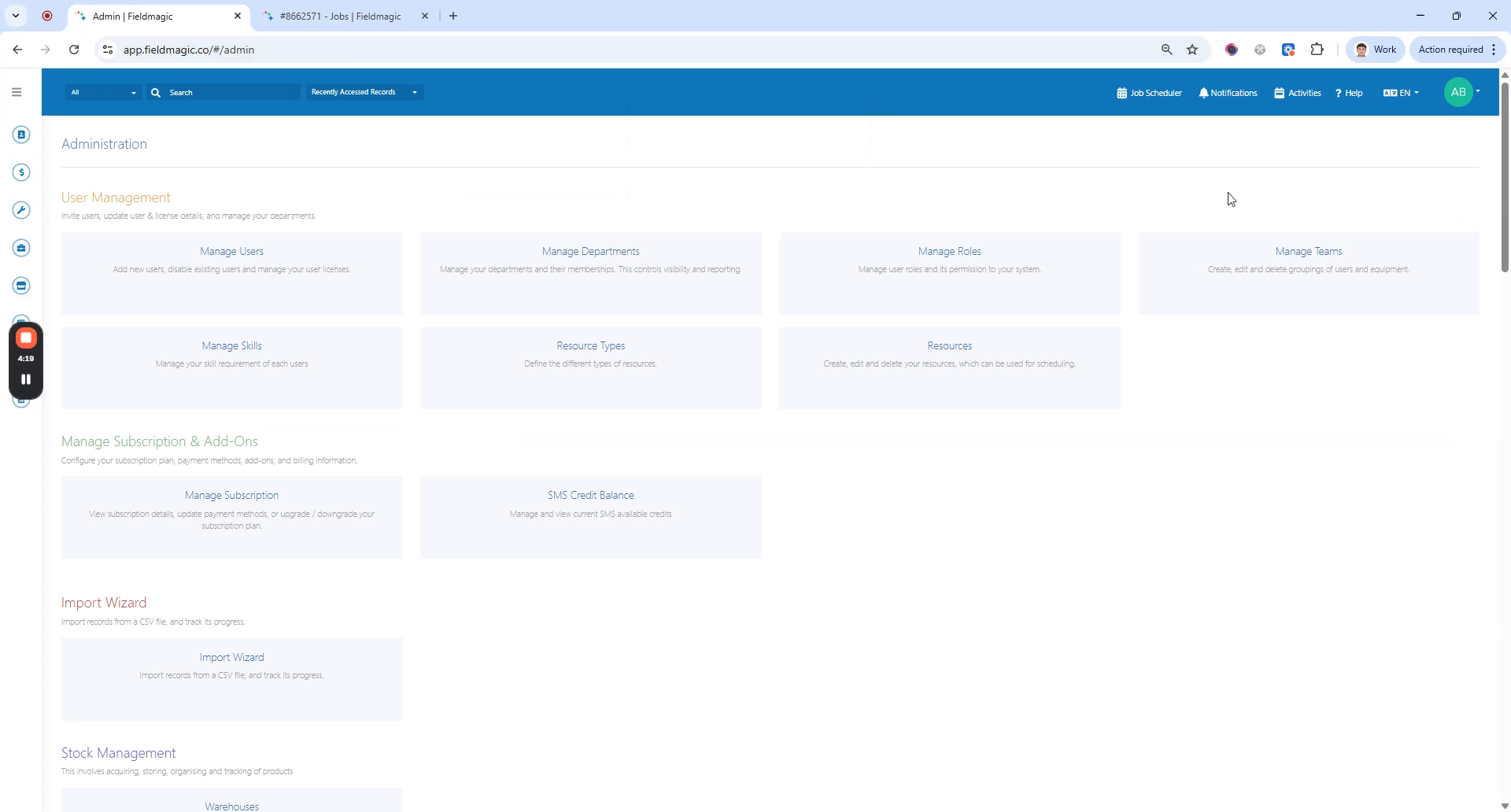 Step 3
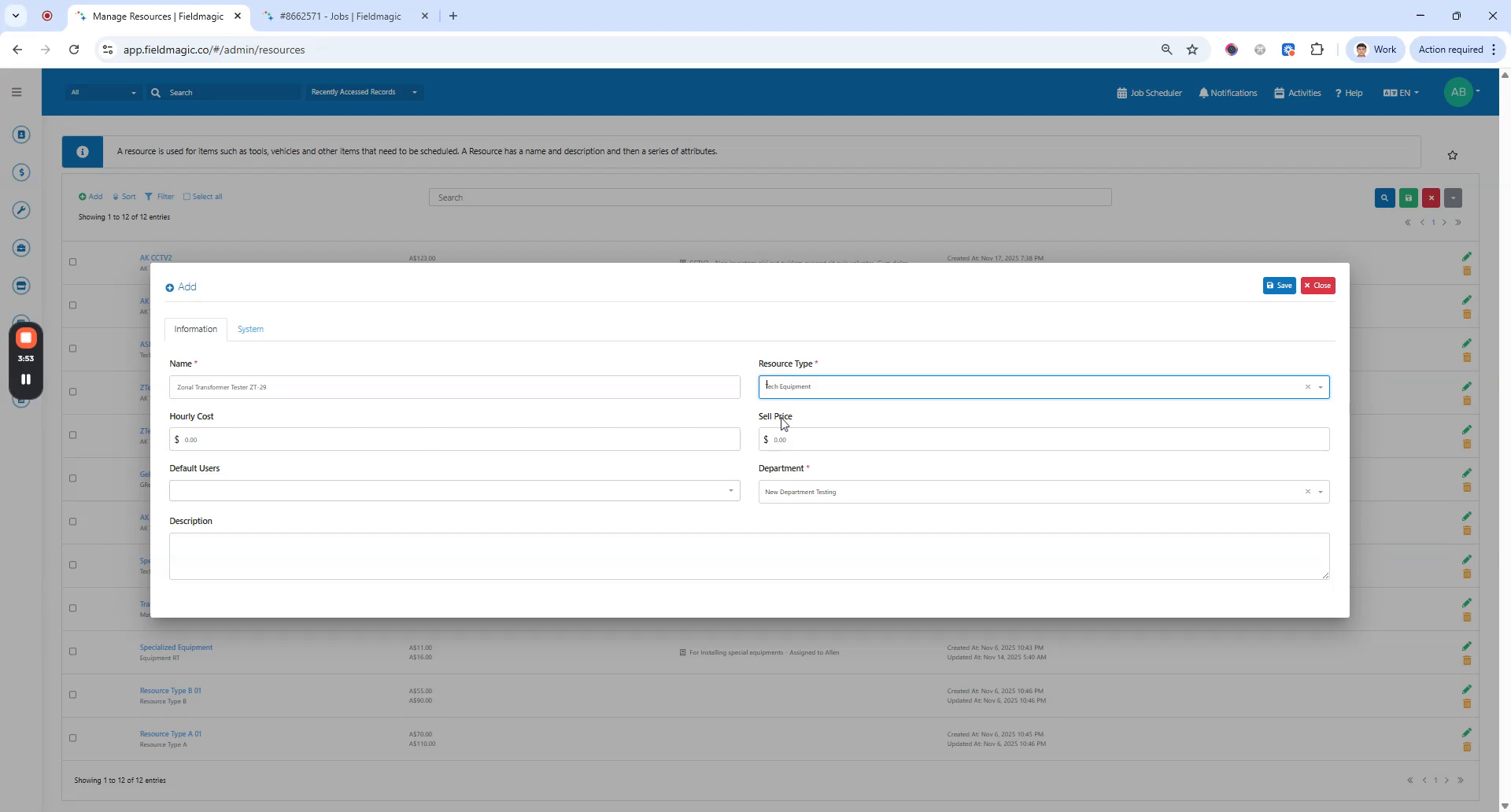
Under User Management, click Resources. Click Add Resource, enter a name, and select a resource type.
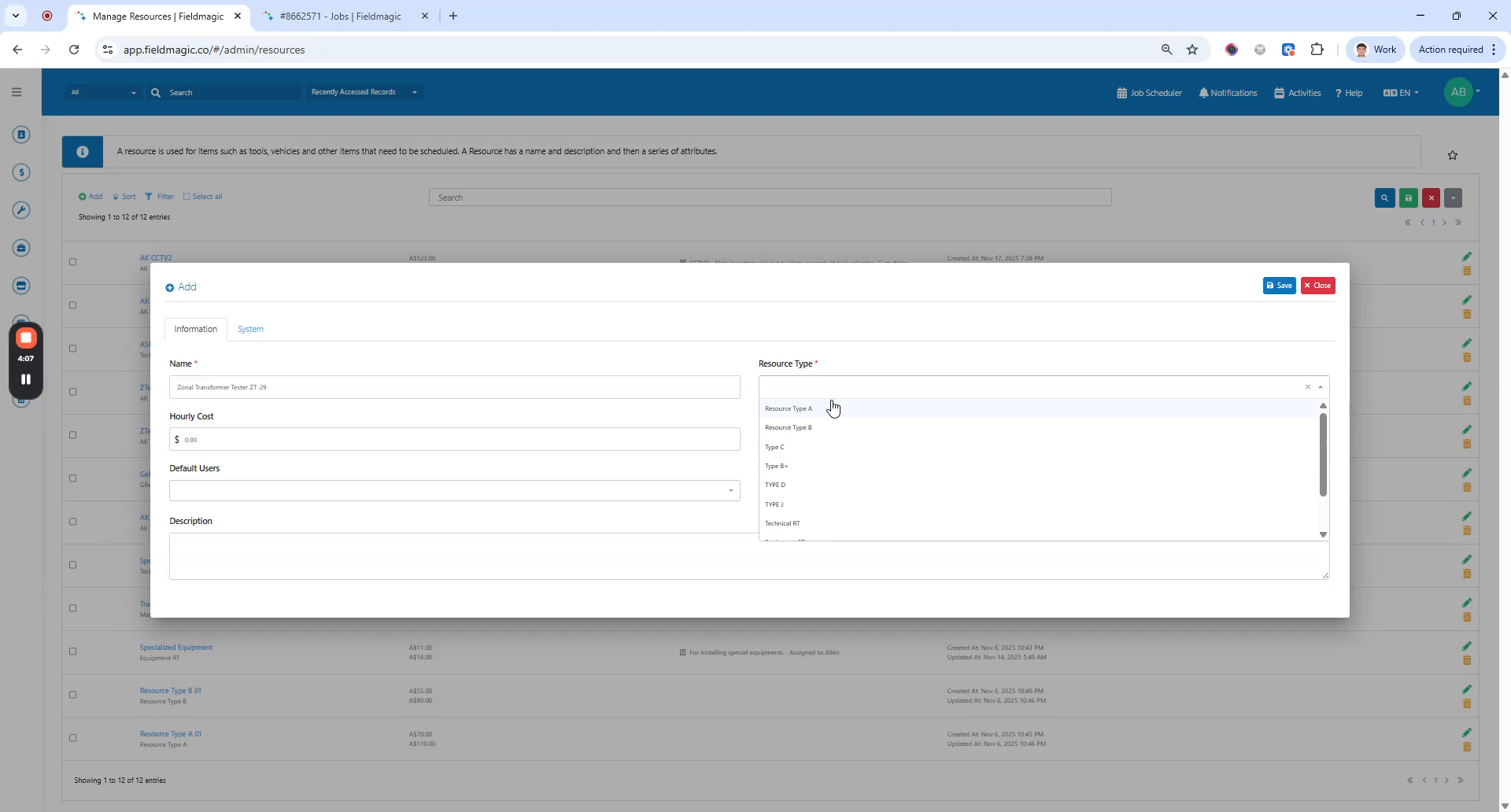 Step 4
Select the resource type you just created. Optionally, set up the hourly cost and sale price.
 Step 5
Optionally, set up the default users. Click Save.
 Step 6
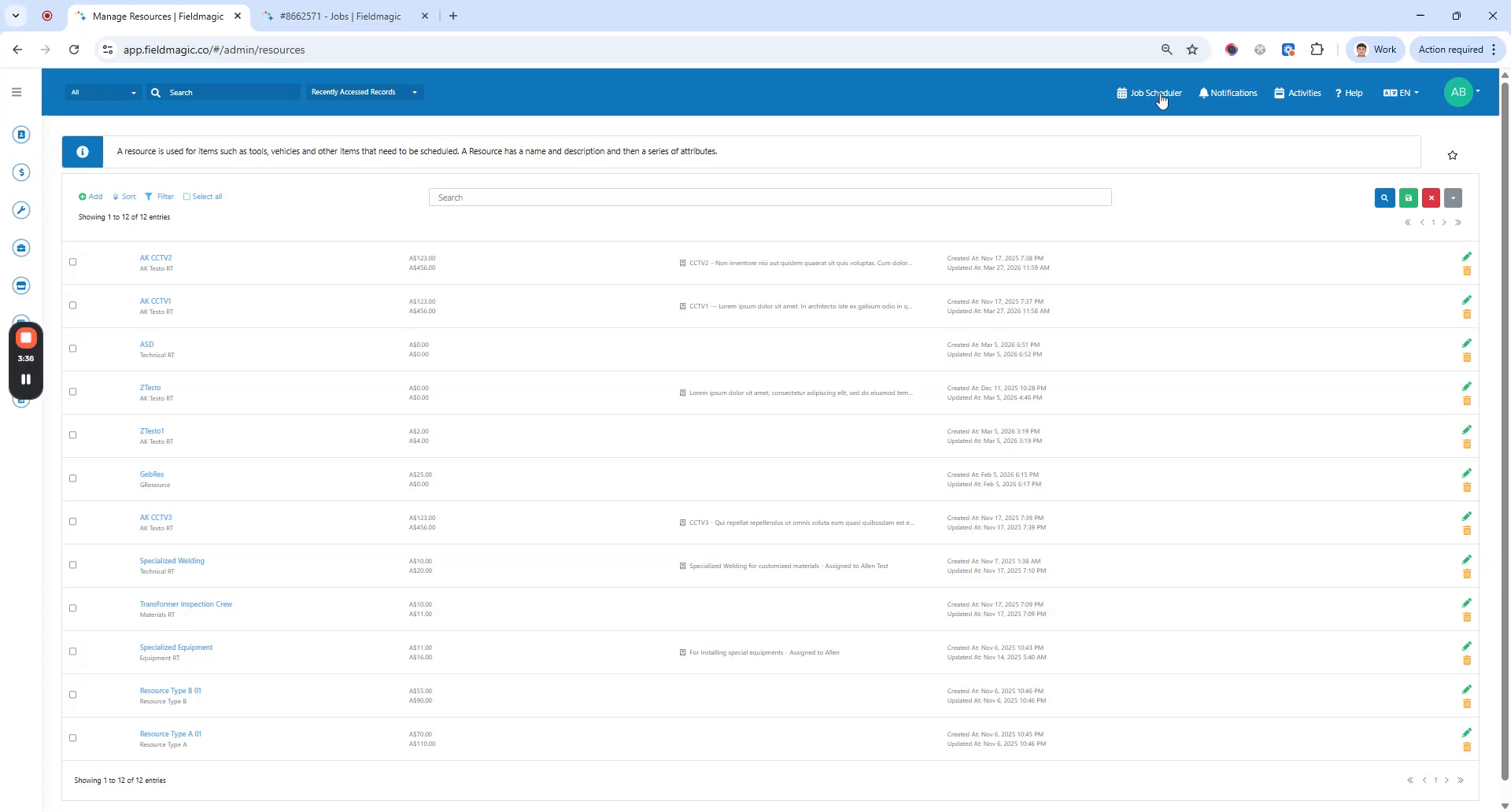
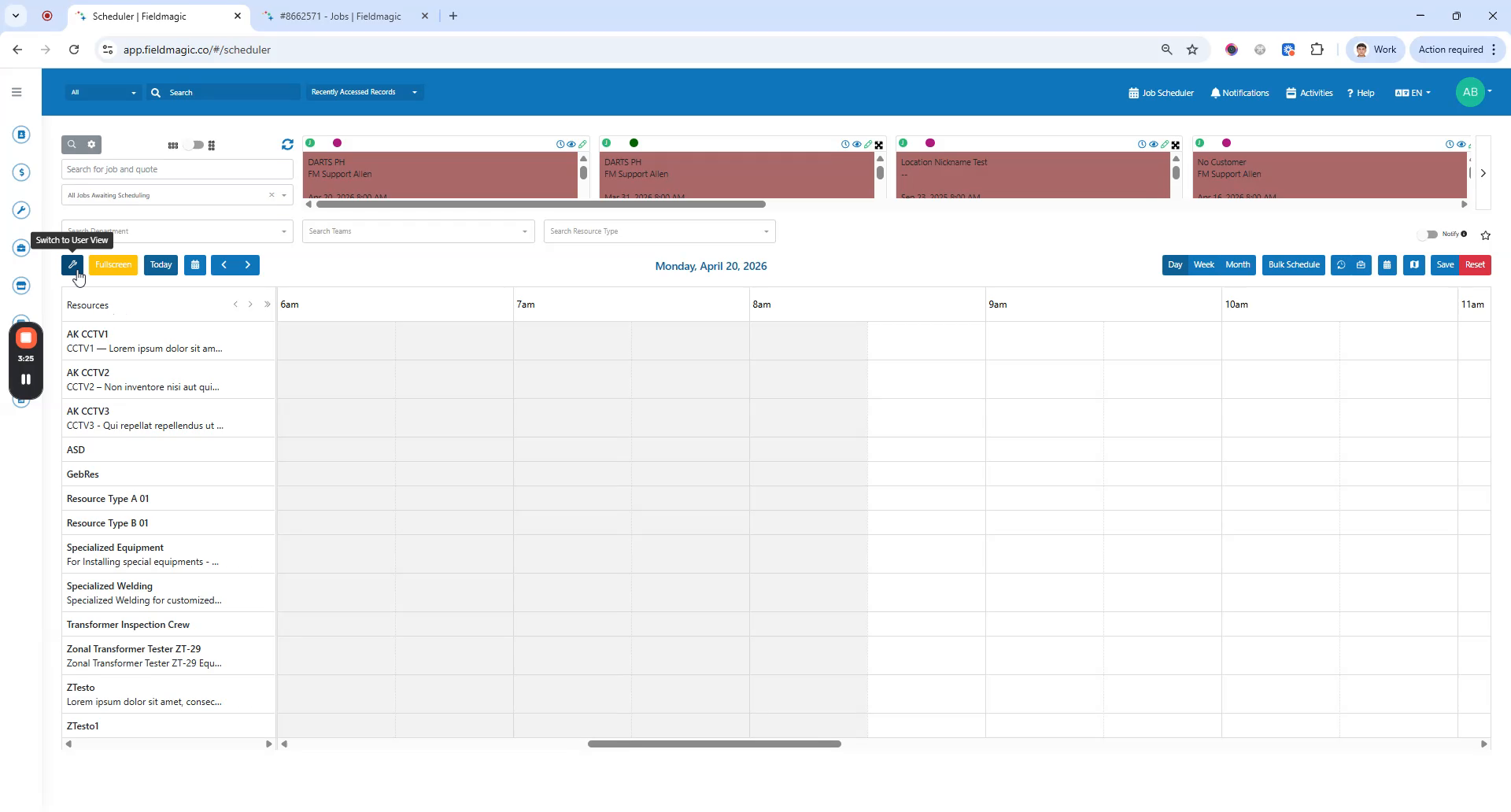
Return to the Scheduler. Ensure you are in Resources view.
 Step 7
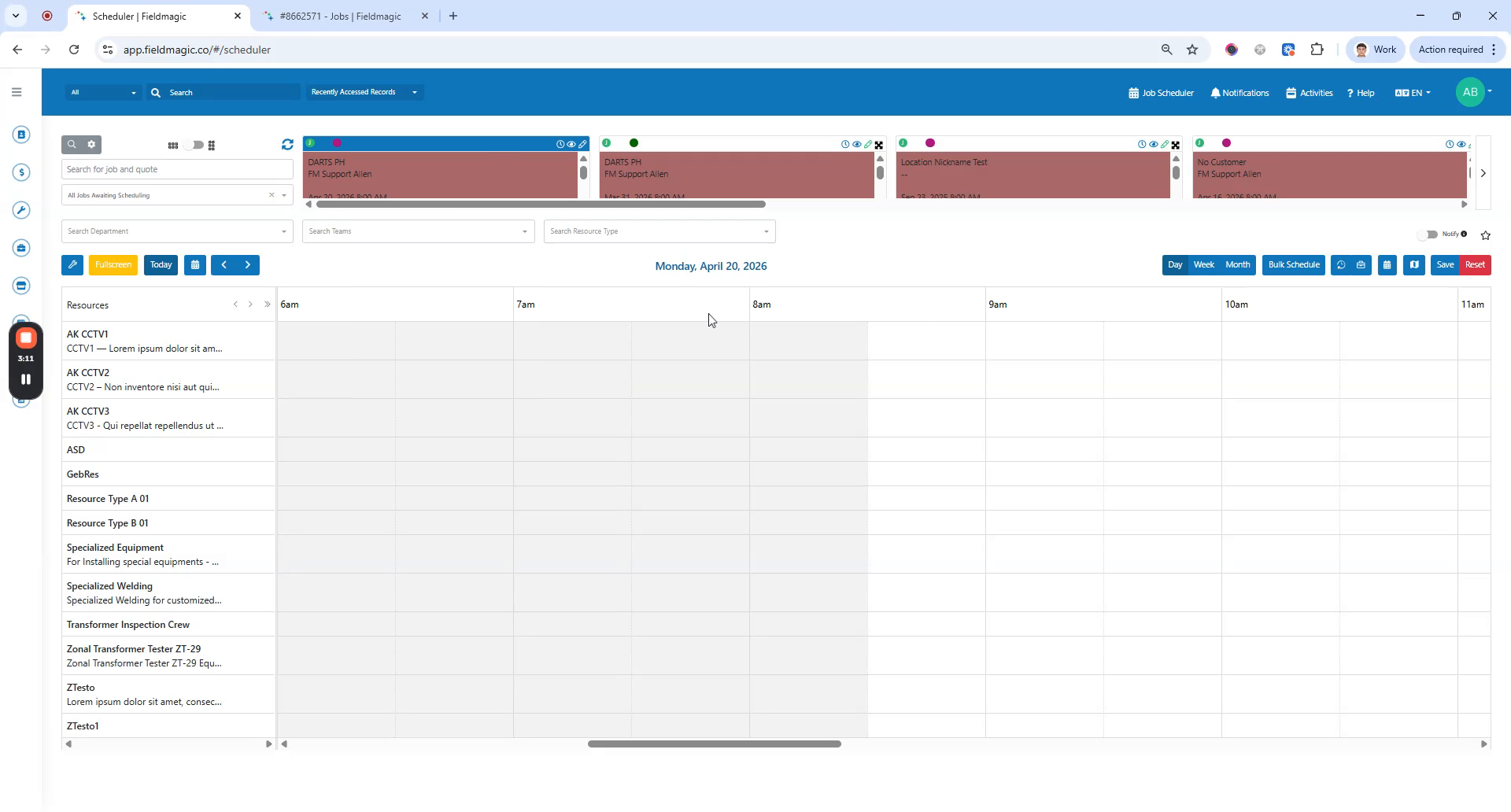
Toggle to switch between User view and Resources view. Select a job to schedule.
 Step 8
Bind the job against the resource you just created. Click Save.