Data Management
Import Supplier Pricing
Learn how to import supplier pricing into FieldMagic using the import wizard.
Step-by-step instructions
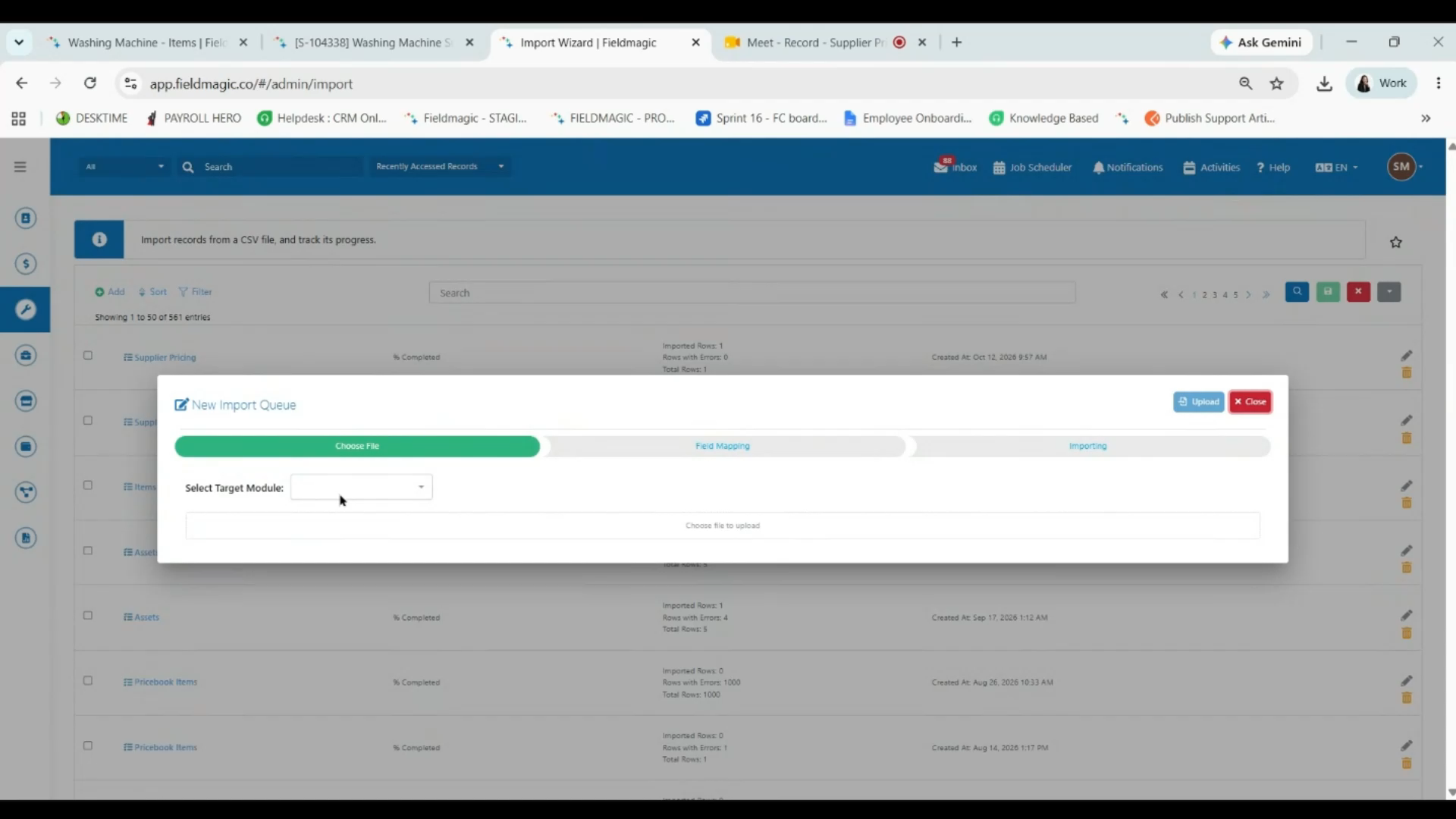 Step 1
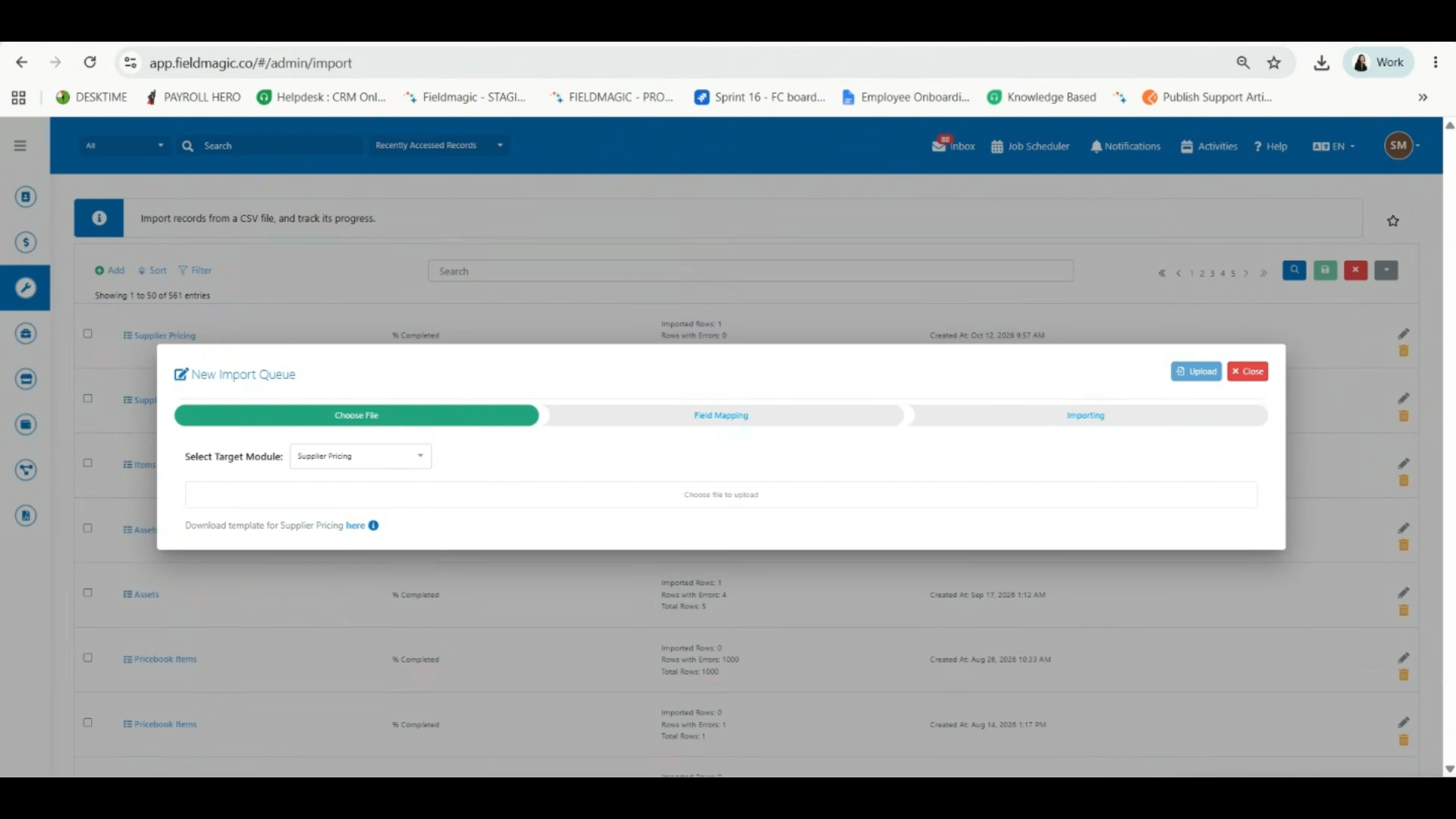
Go to Settings and search for Import Wizard, then click Add and select Supplier Pricing from the dropdown menu.
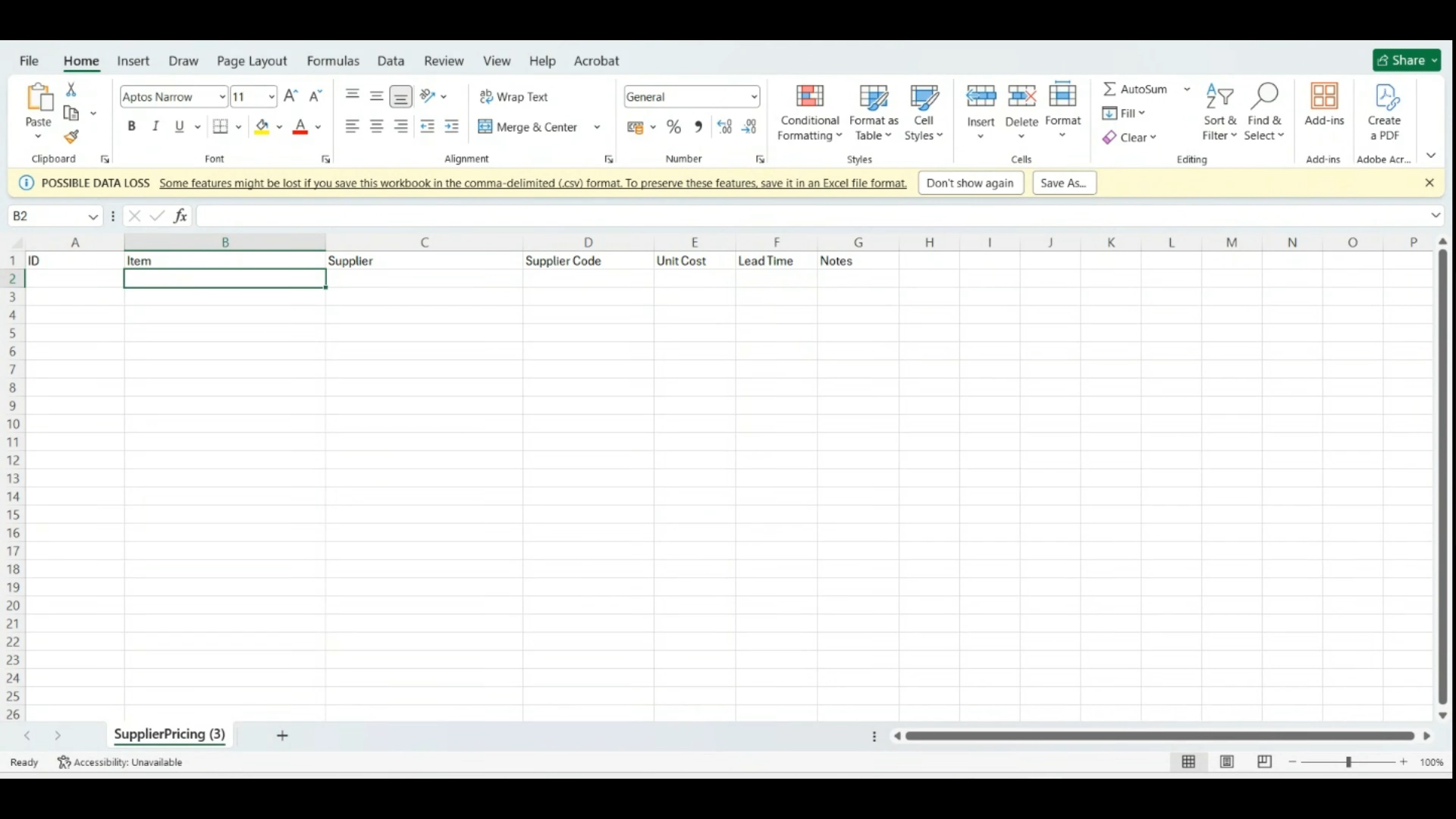 Step 2
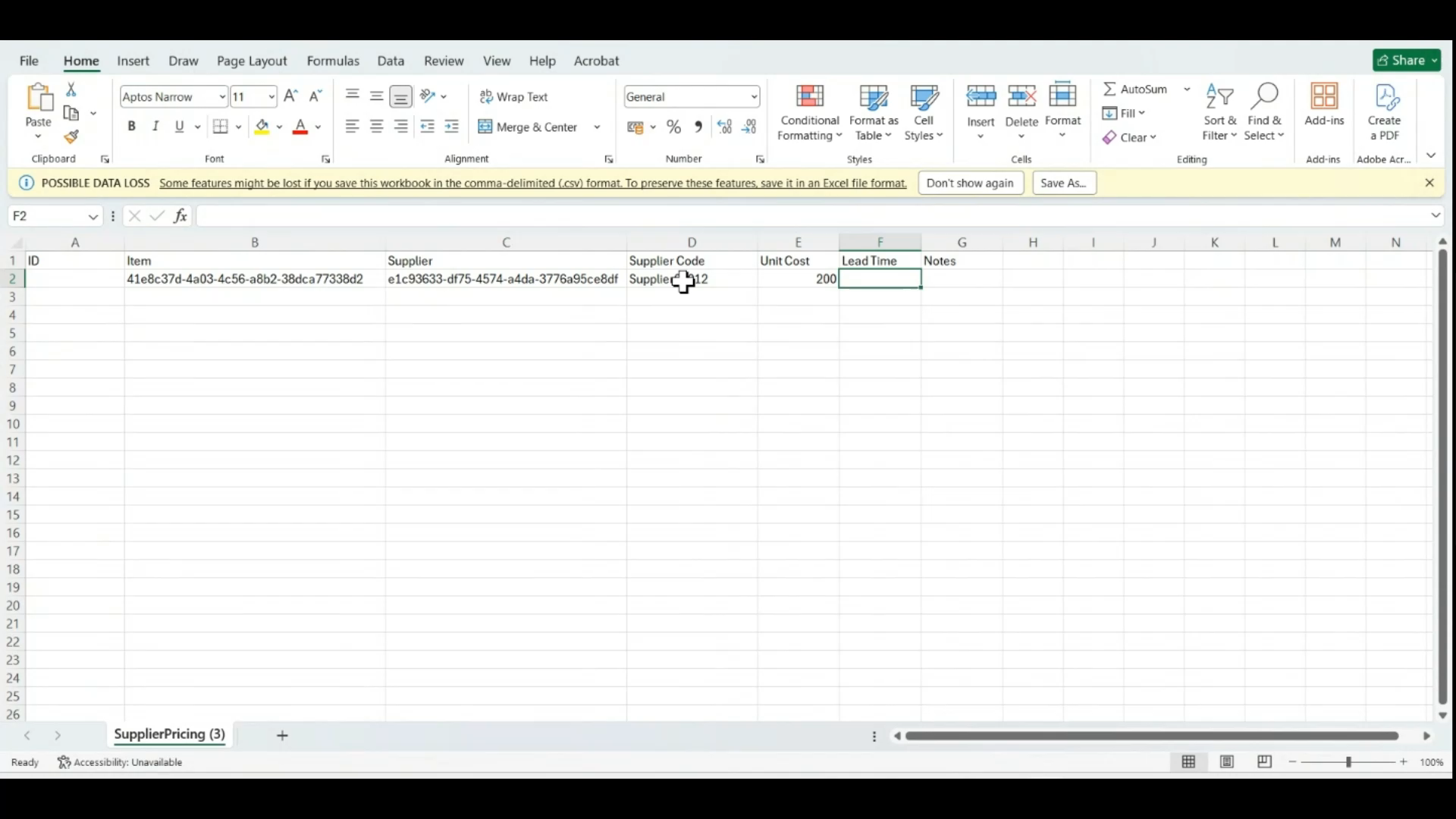
Download the Supplier Pricing template and open the file. Leave the ID column blank whether you're adding new supplier pricing or updating an existing record.
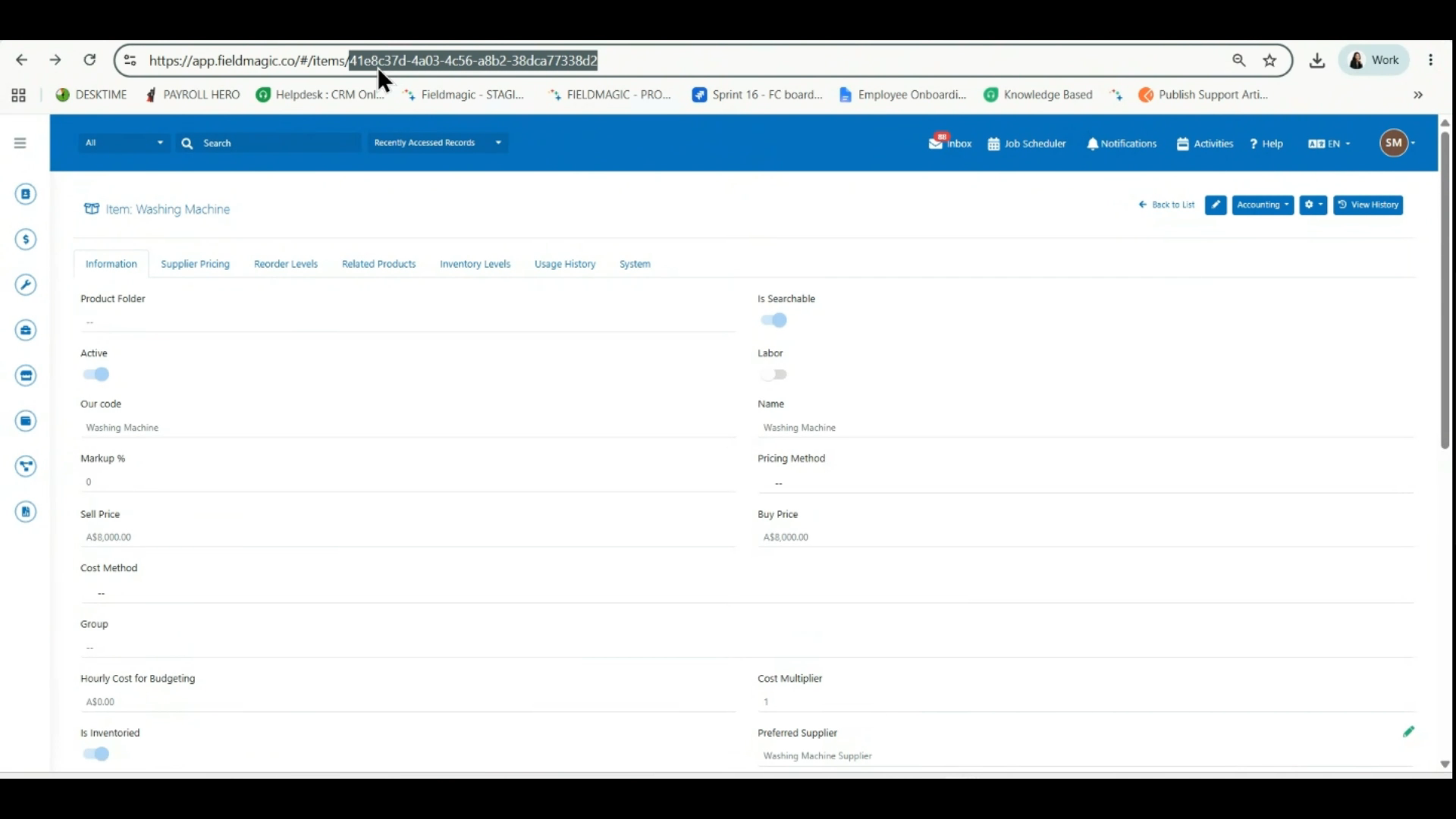 Step 3
Open the product record, copy its UUID from the browser's address bar, and paste it into the Item column of the template.
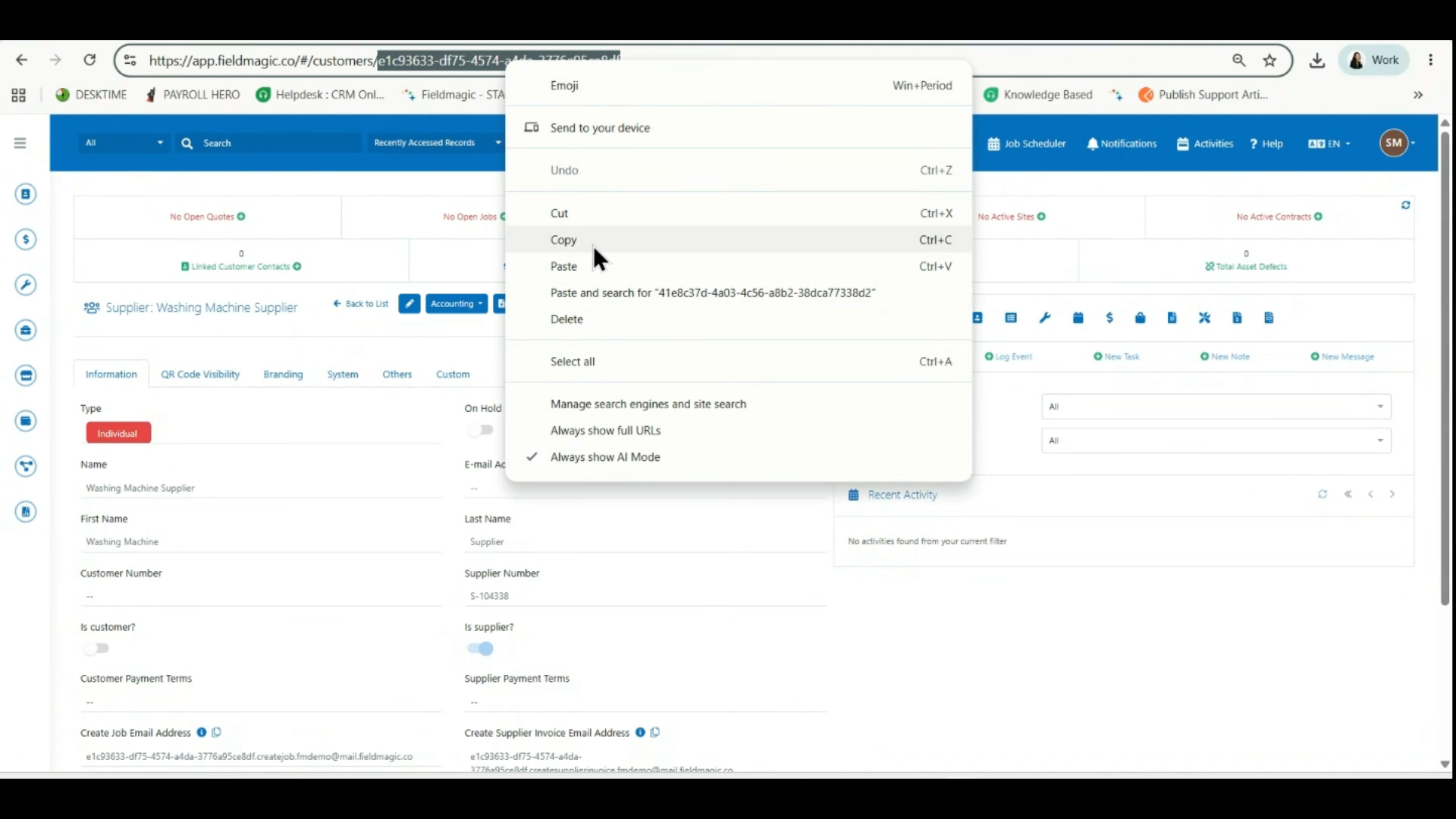 Step 4
Open the relevant supplier record, copy its UUID from the browser's address bar, and paste it into the Supplier column.
 Step 5
Enter the supplier code, unit cost, and lead time, then add any notes or descriptions as needed before saving the template.
 Step 6
Return to Settings, select your completed template, and click Upload.
 Step 7
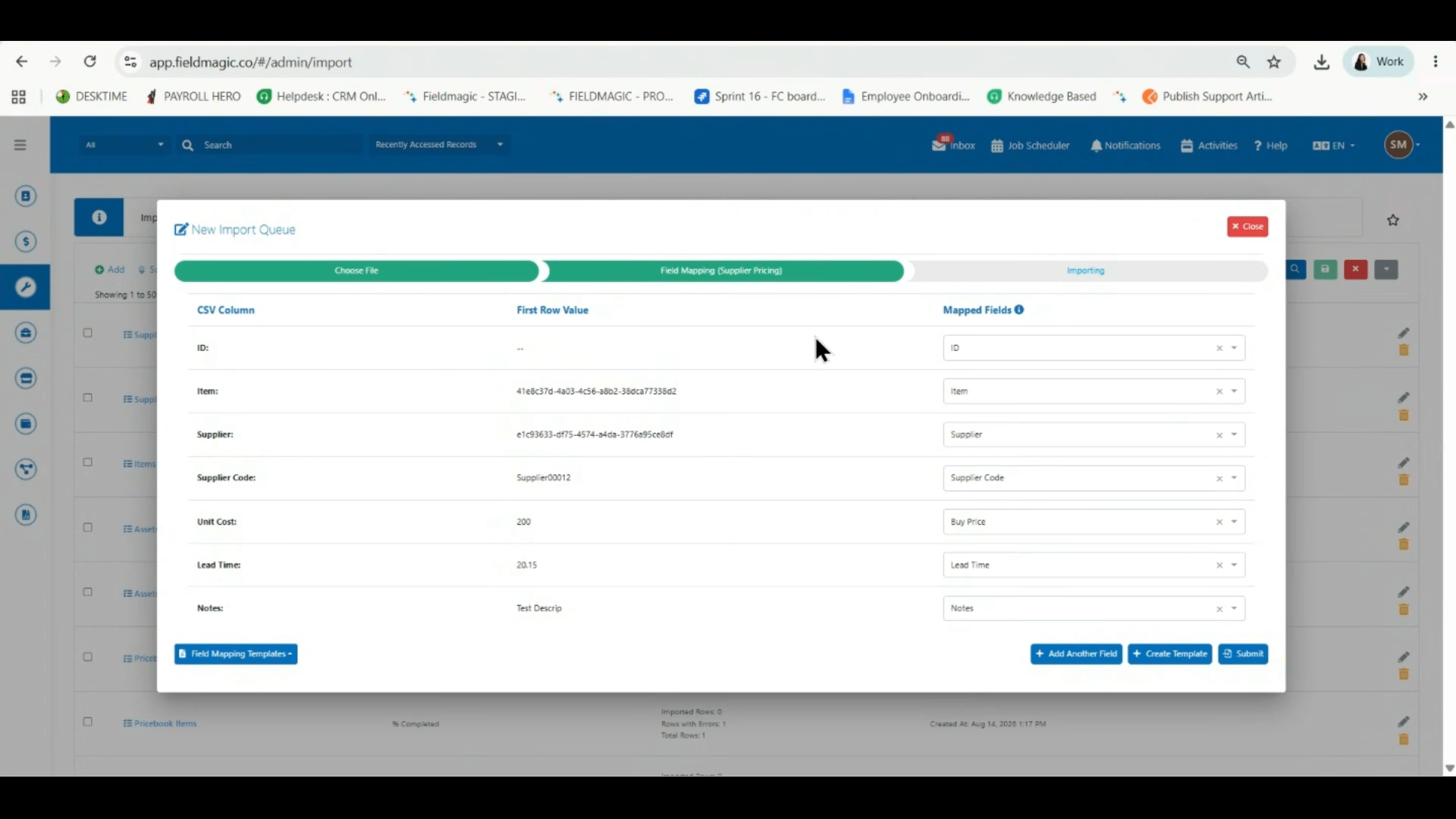
On the Field Mapping screen, leave the ID field blank and keep the remaining field mappings as they are.
 Step 8
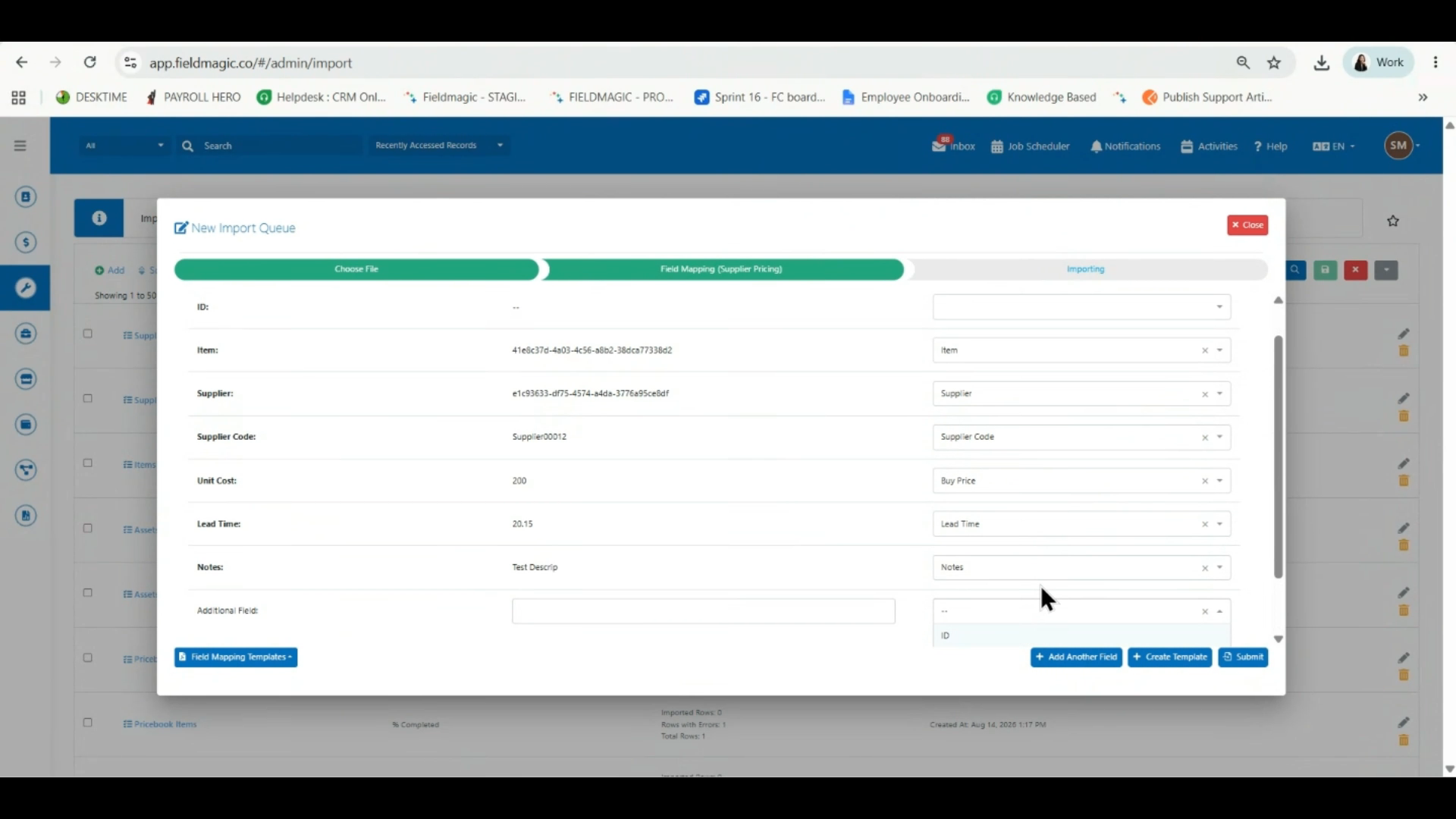
To map an extra column, click Add Another Field. Only ID, Item Code, External Item ID, and External Supplier ID can be added this way.
 Step 9
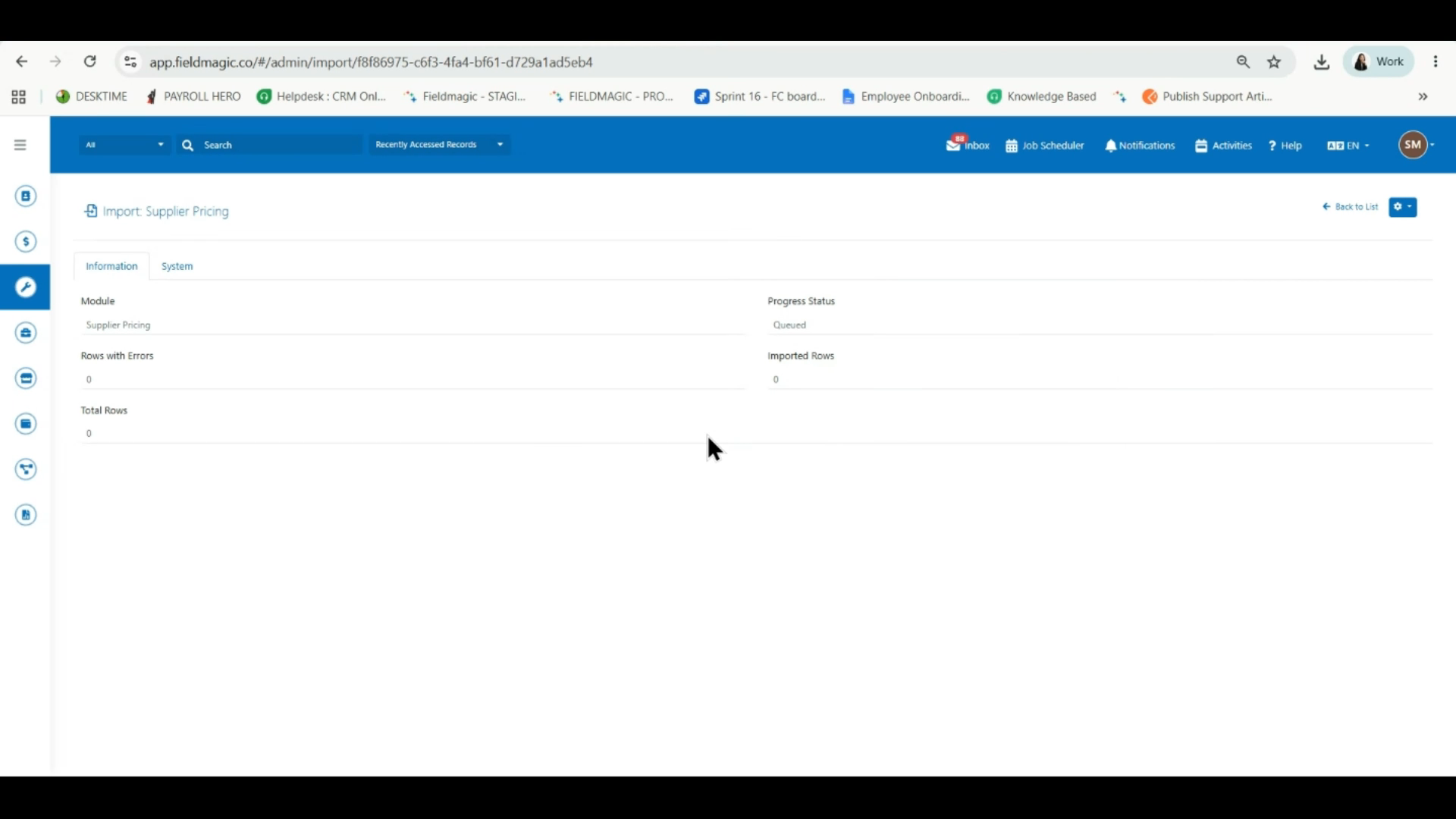
Review the field mappings, then click Submit to start the import.
 Step 10
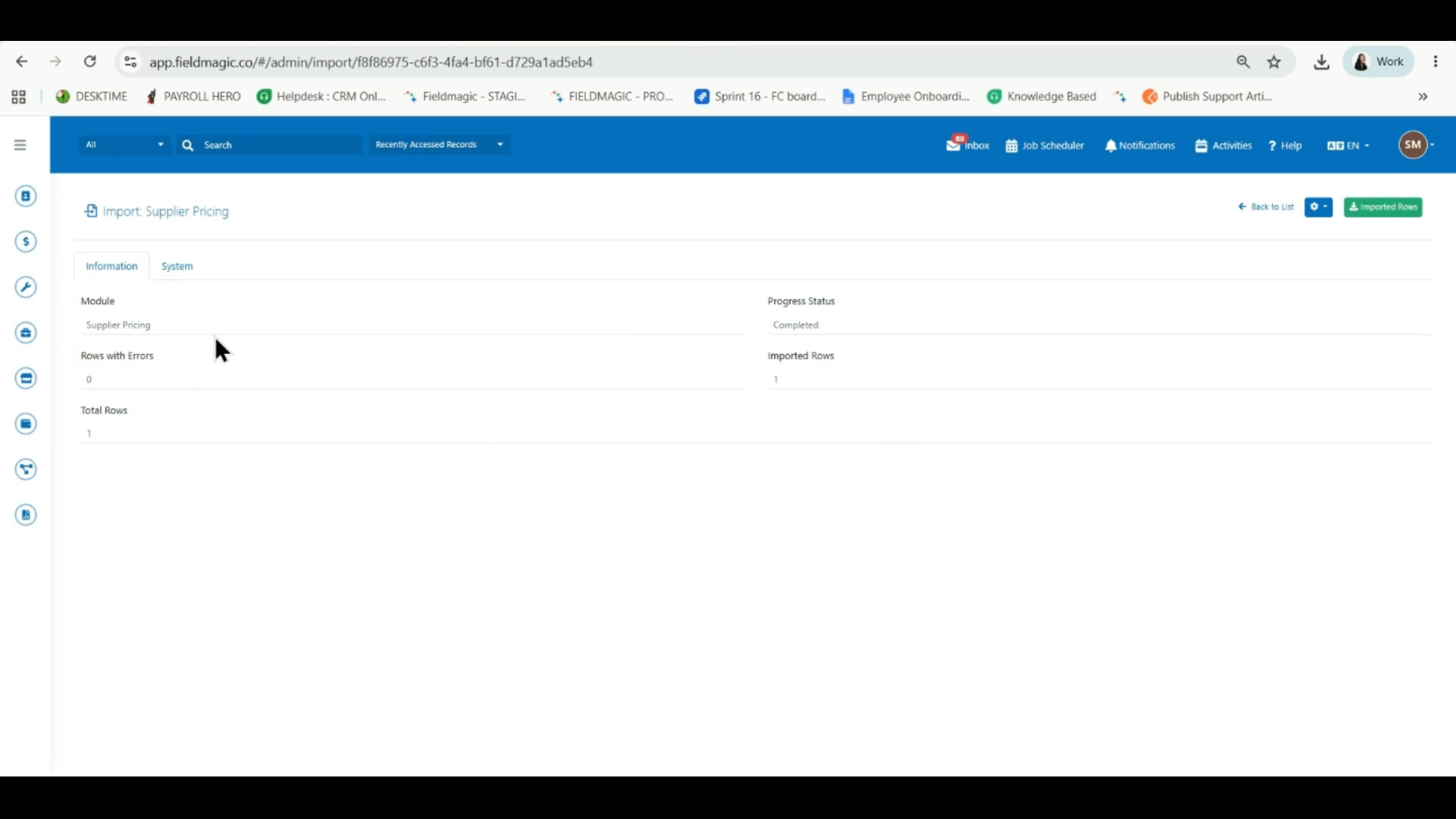
Refresh the page to check the import status. A completed import shows the number of records imported, while any issues appear as rows with errors.
 Step 11
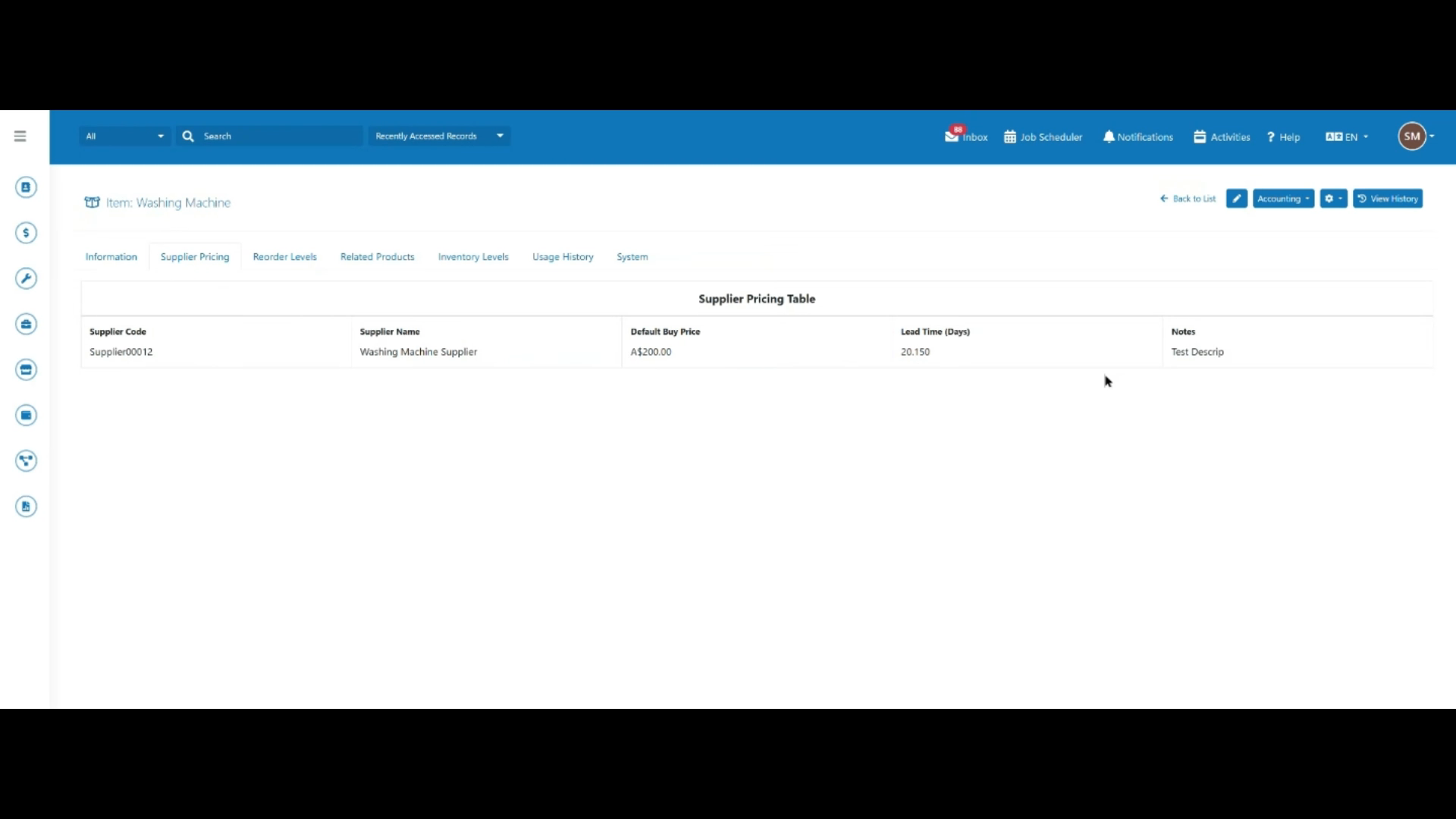
Once the import is successful, the new supplier pricing appears on the Supplier Pricing tab of the item record.