Accounting Integrations
Importing Data from a Connected Accounting System
This guide shows how to import data from a connected accounting system. Note that the current example uses a demo connection.
Step-by-step instructions
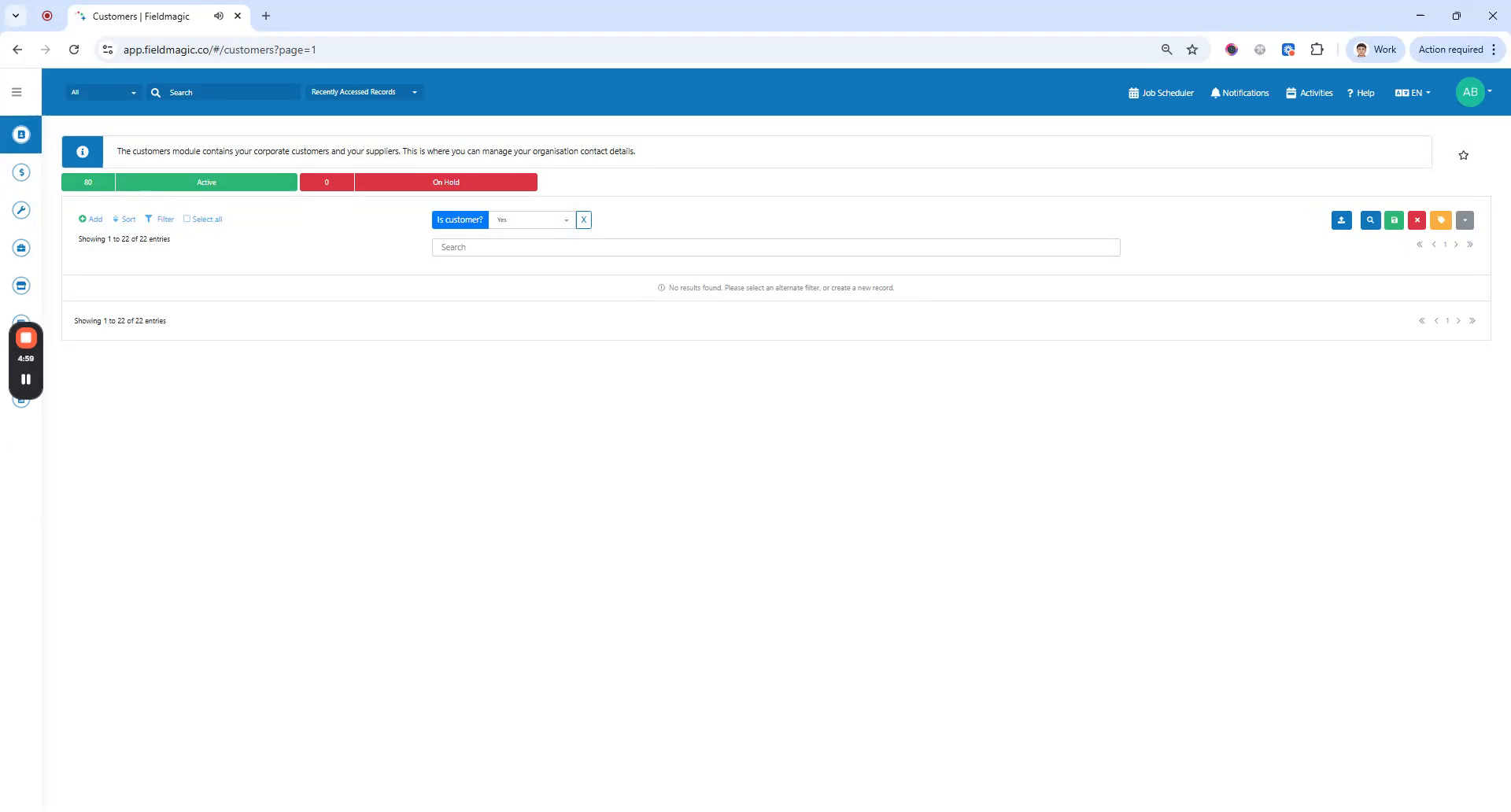 Step 1
This guide shows how to import data from a connected accounting system. Note that the current example uses a demo connection.
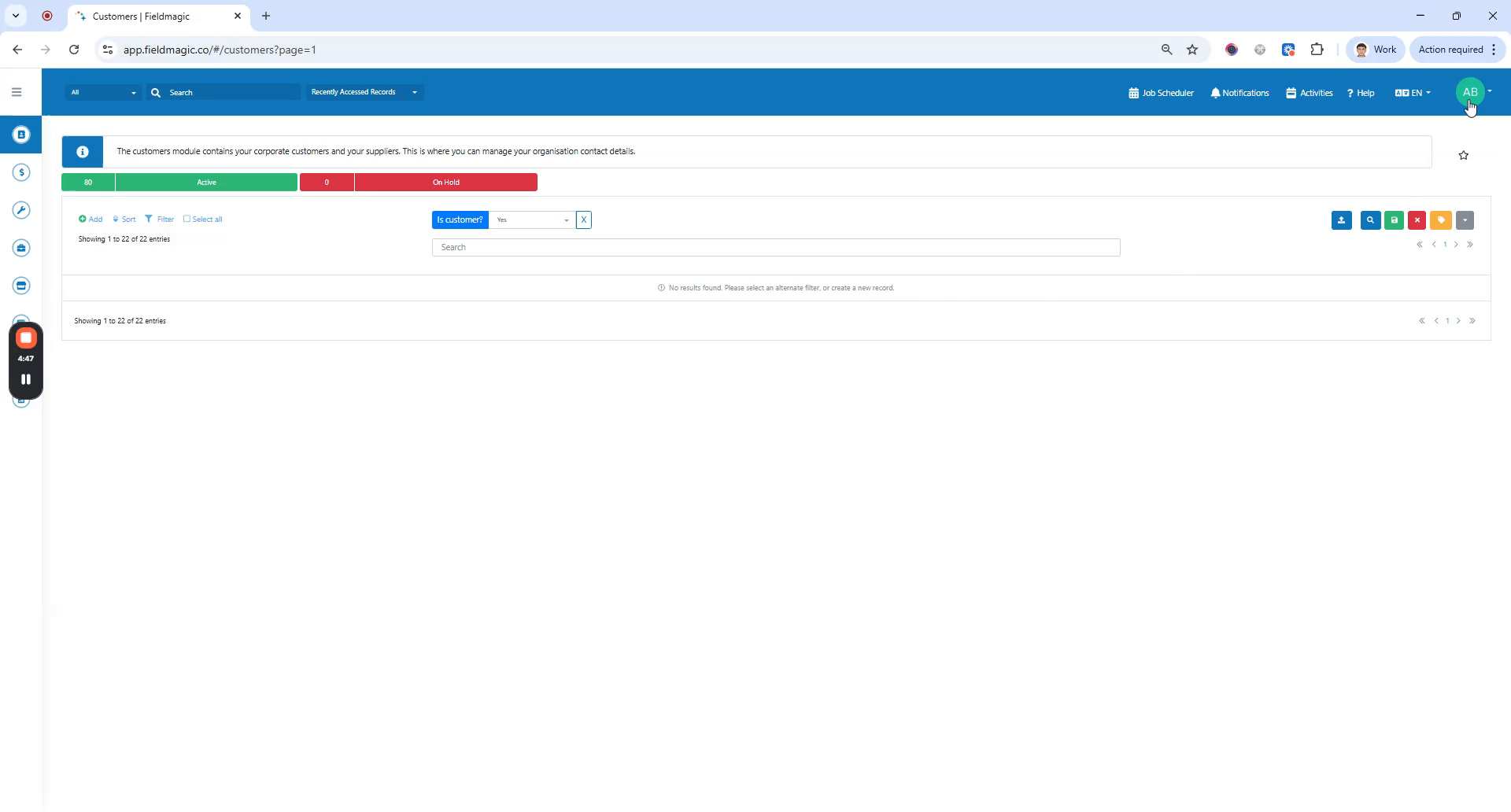 Step 2
Go to Settings in the top right corner. Under Integrations, select Connect Accounting.
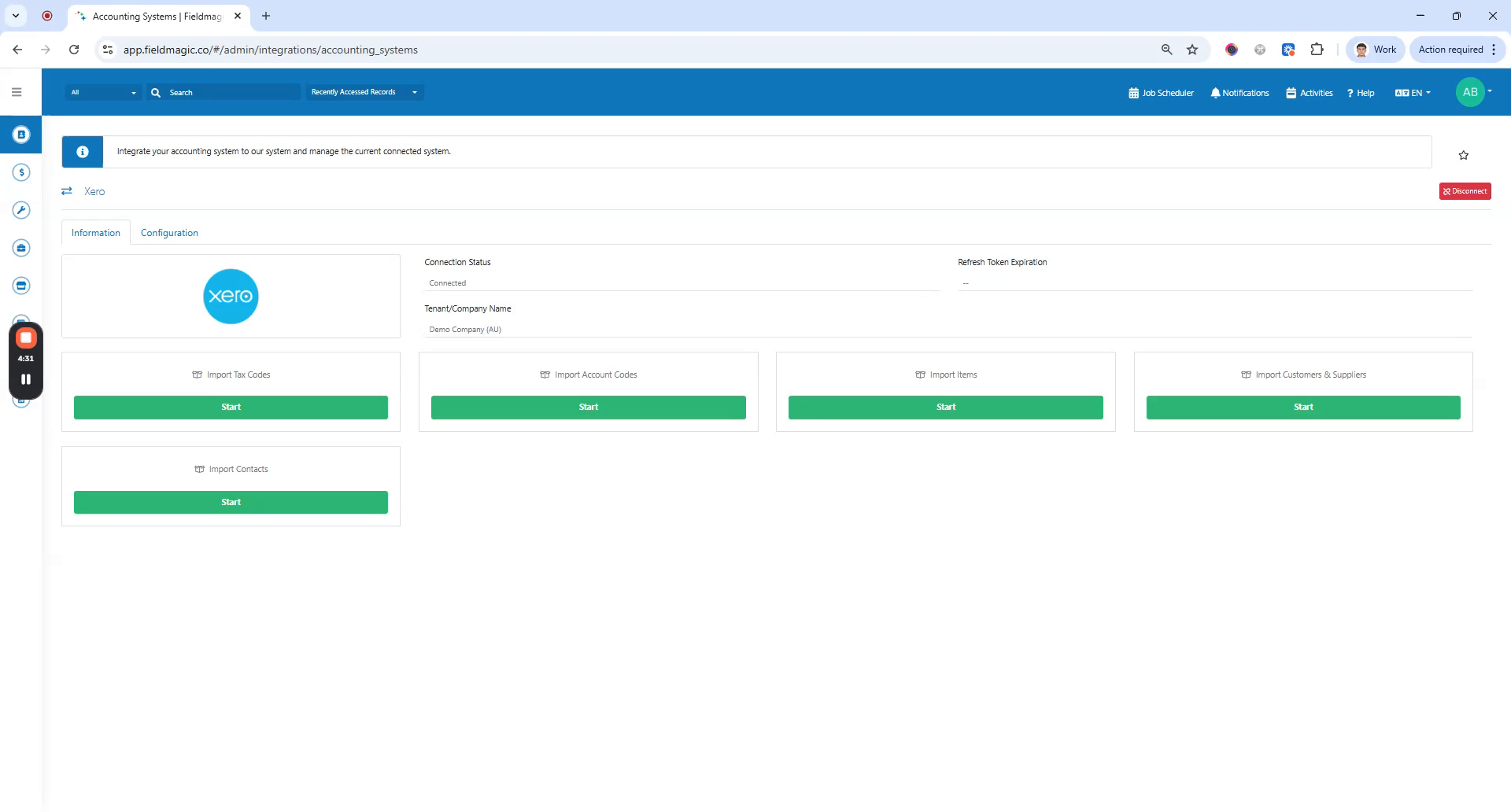 Step 3
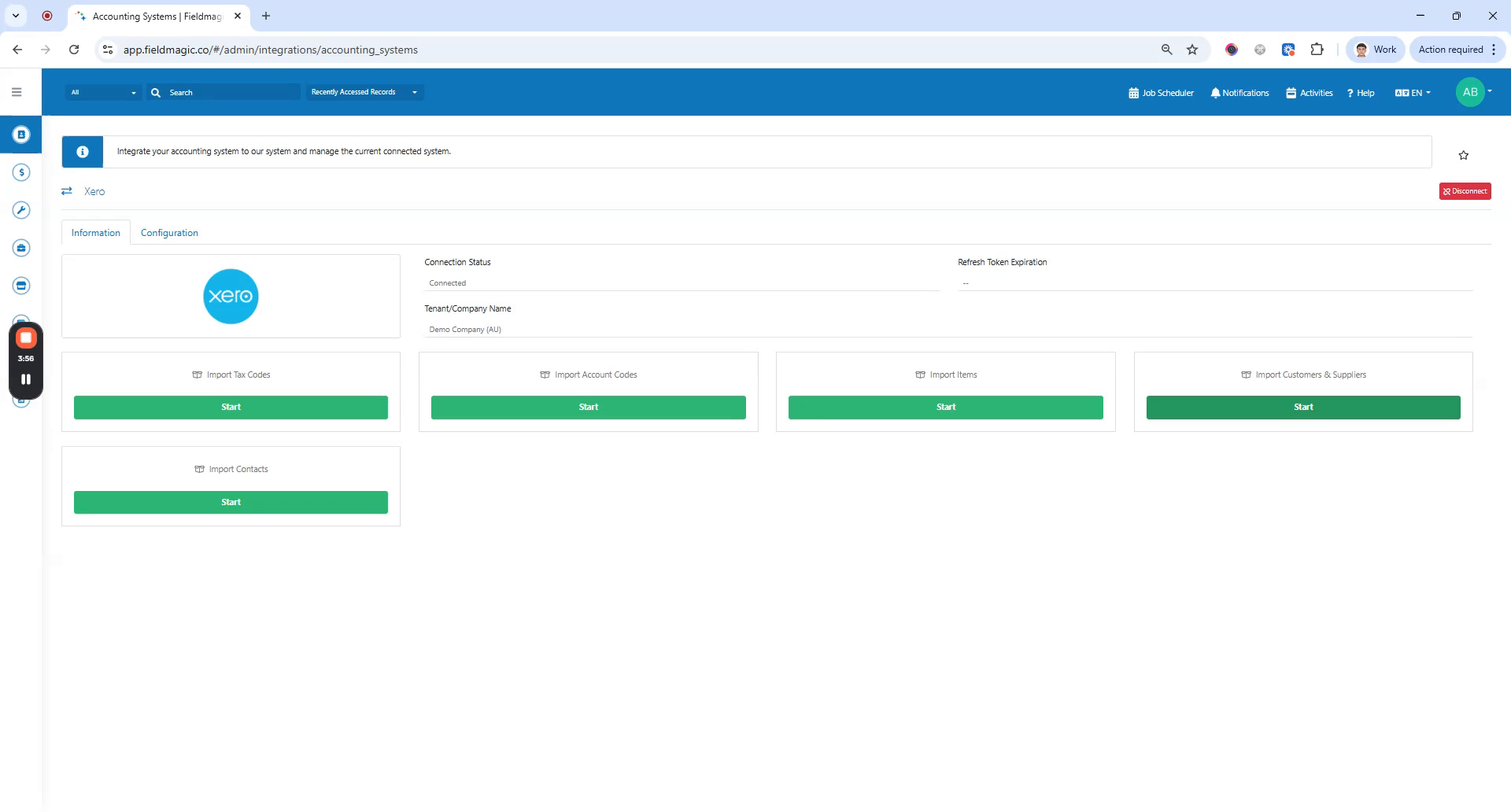
View the available import options, which include tax codes, account codes, items, customers, and suppliers.
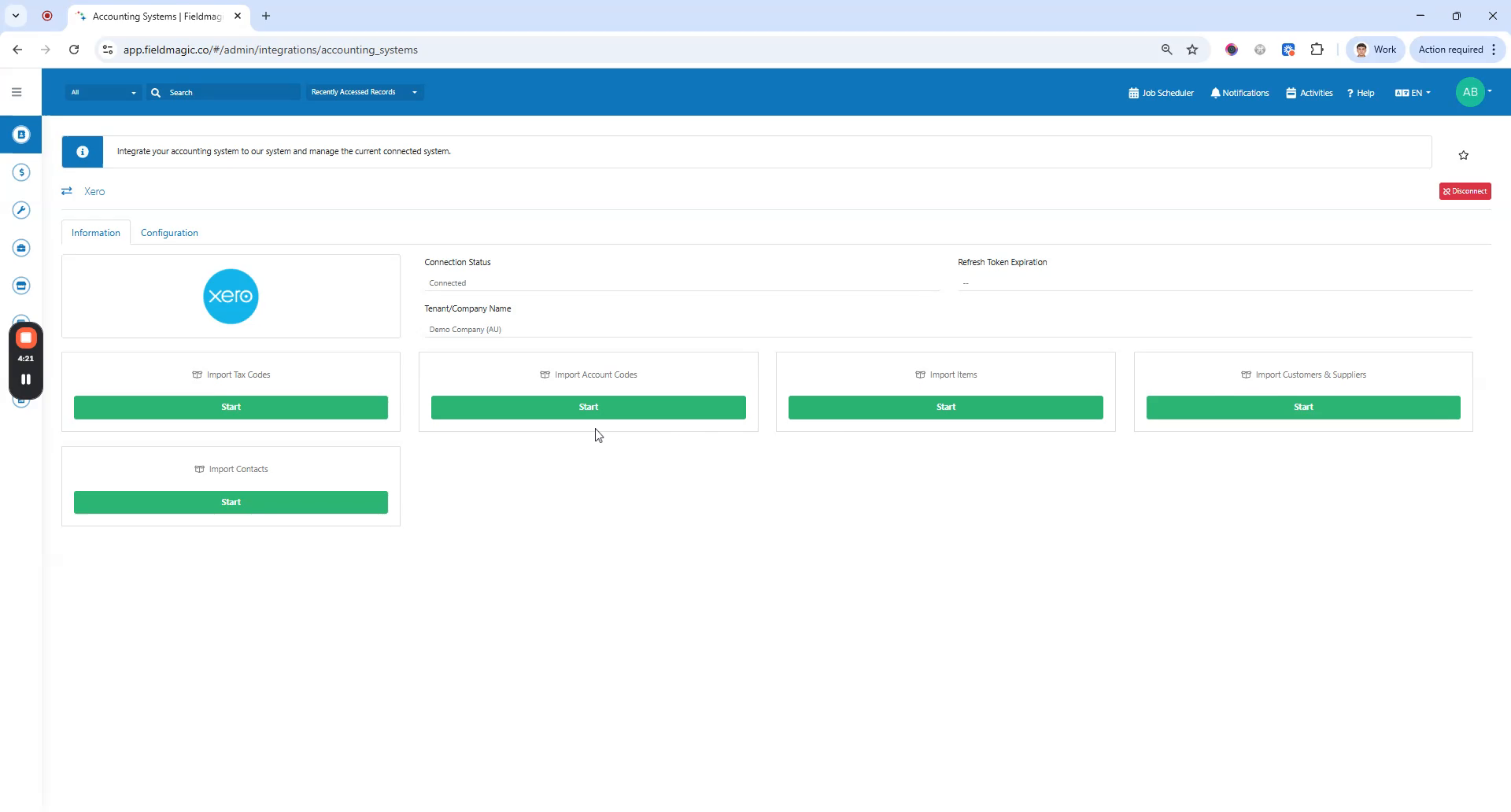 Step 4
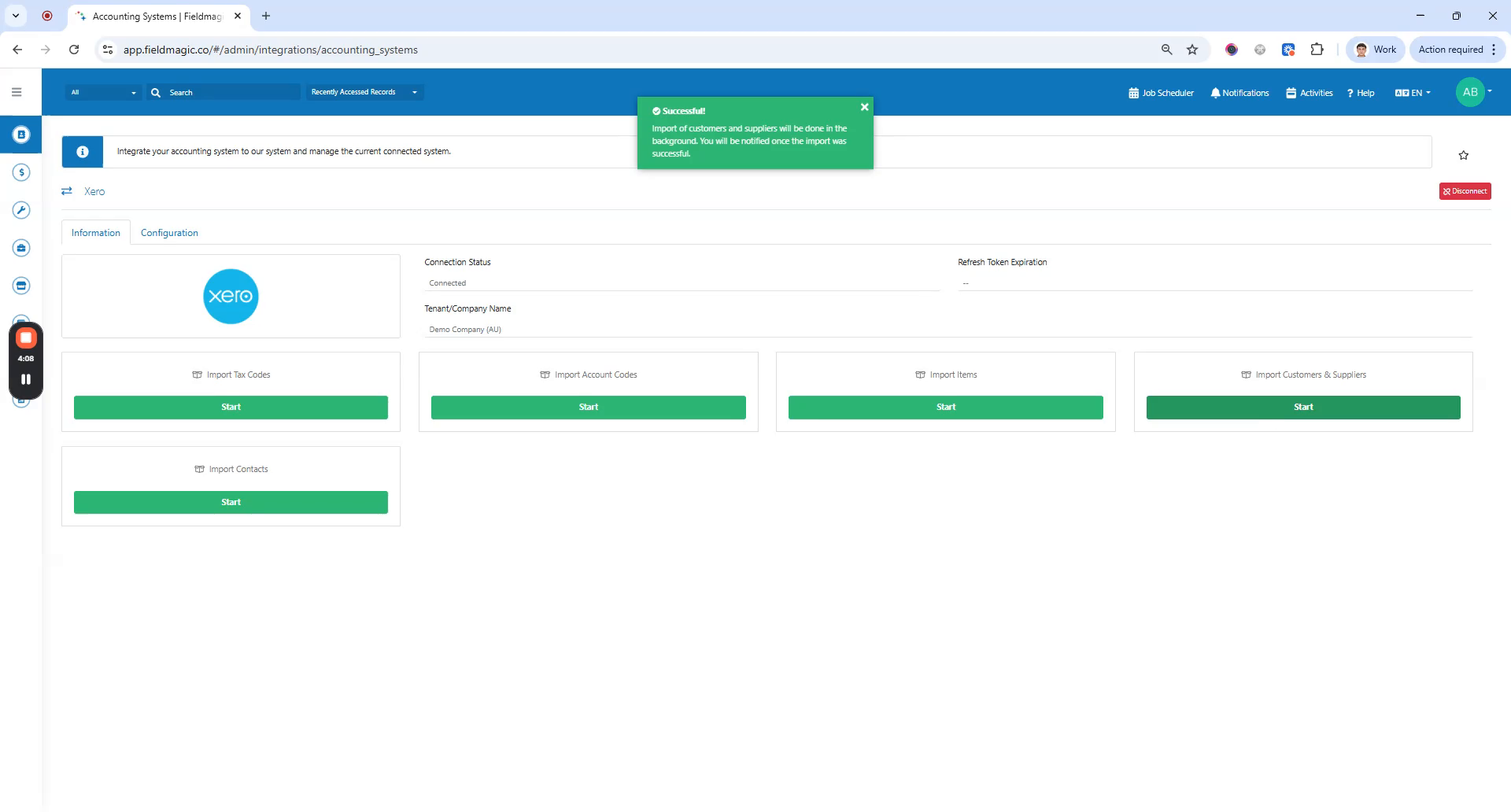
Select the customers and suppliers you want to import, then click Start to begin the import process.
 Step 5
The import runs in the background. Once completed, you'll receive an email confirming the data was successfully imported.
 Step 6
Return to the Customers module to verify the imported data.