Asset Inspections & Management
Inspecting Assets
This section covers inspecting assets. First, go to a job and click the Checklist or Assets tab. For this example, select Assets first.
Step-by-step instructions
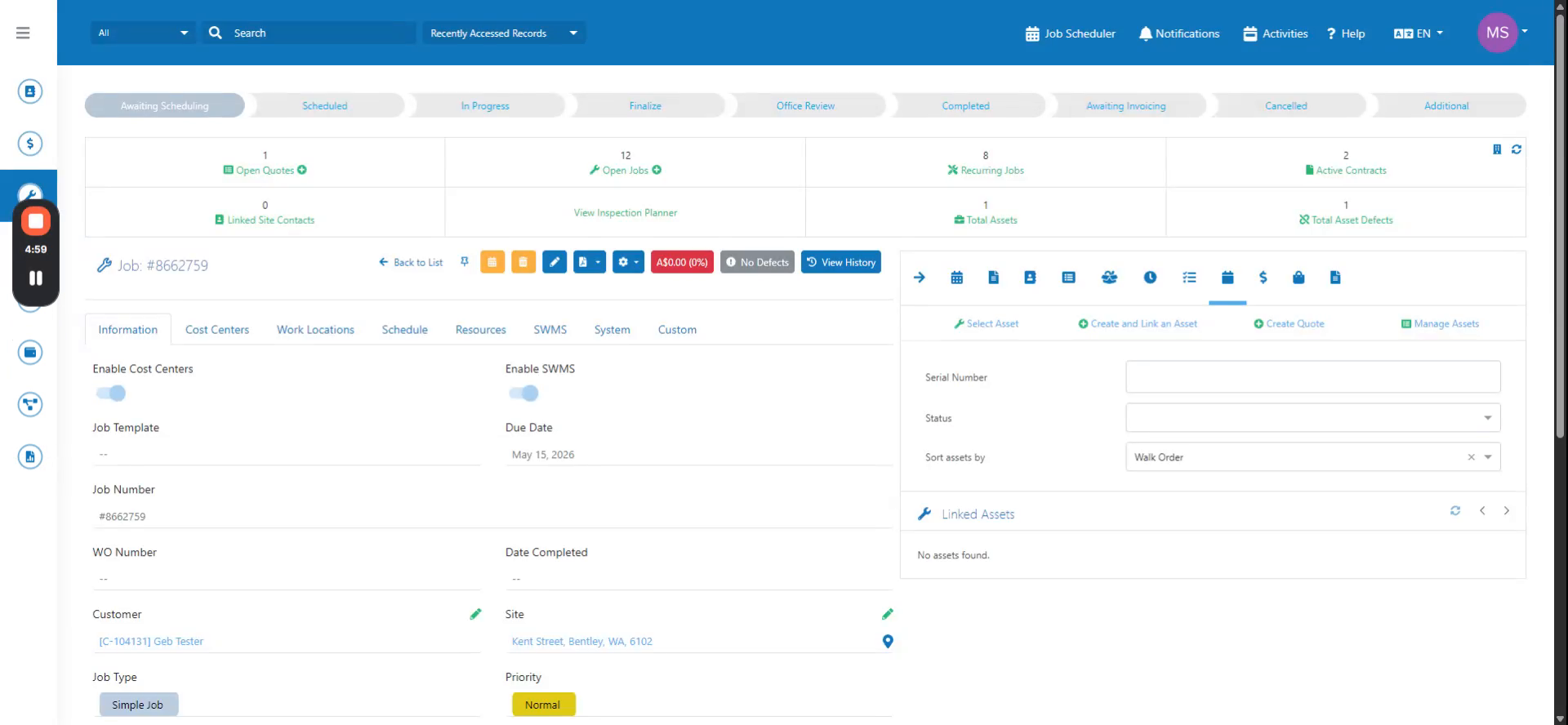 Step 1
This section covers inspecting assets. First, go to a job and click the Checklist or Assets tab. For this example, select Assets first.
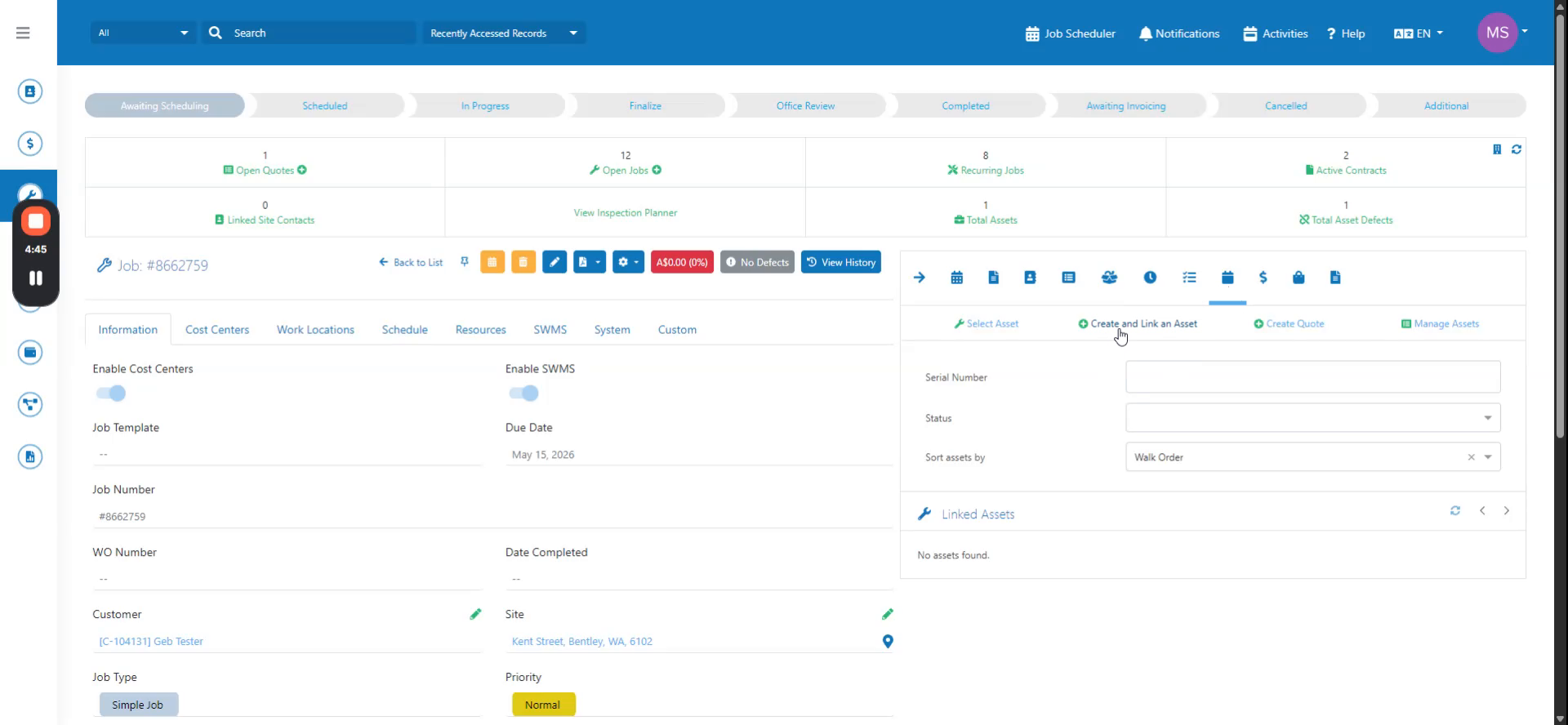 Step 2
Create and link an asset. Select your asset type. Save the asset.
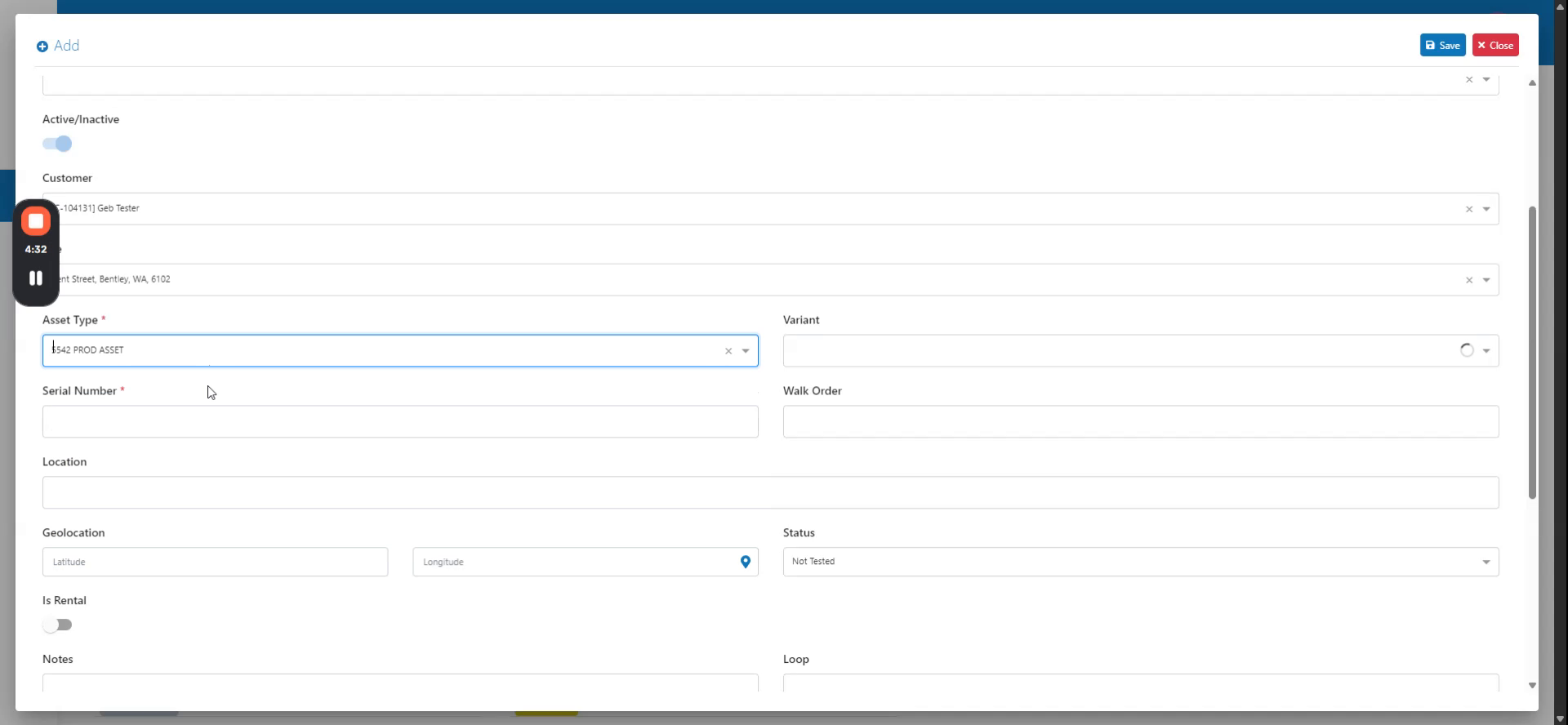 Step 3
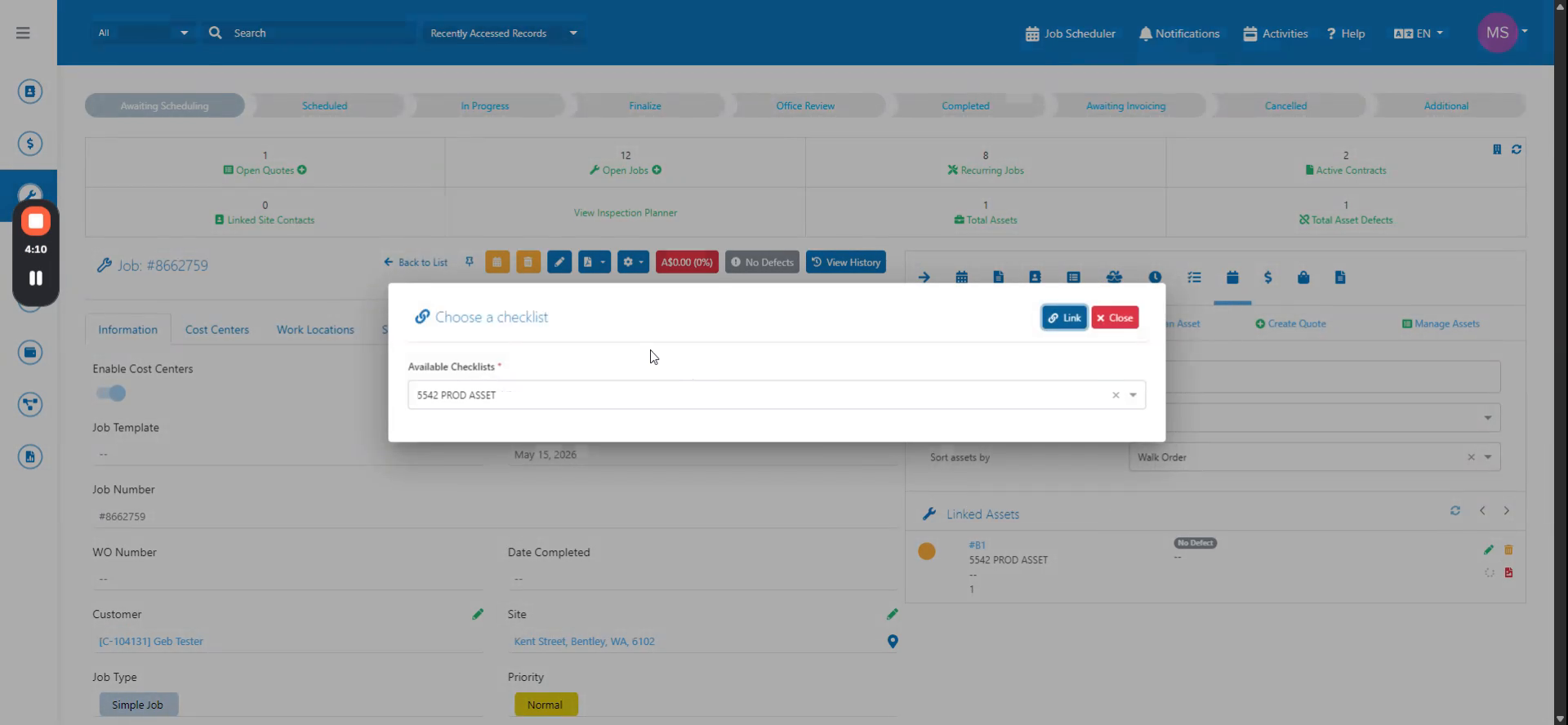
Click Add Response. This opens the Choose a Checklist prompt. Select your checklist from the list.
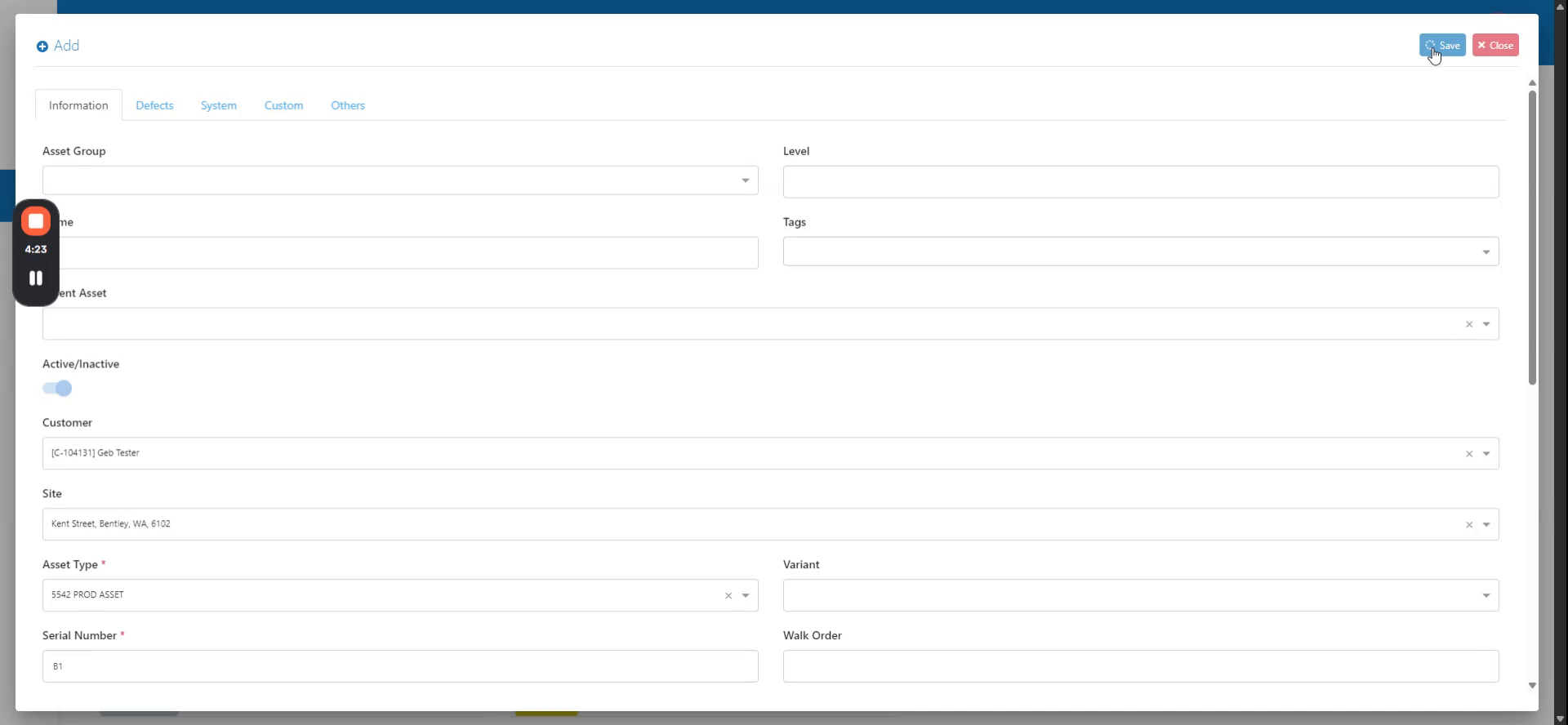 Step 4
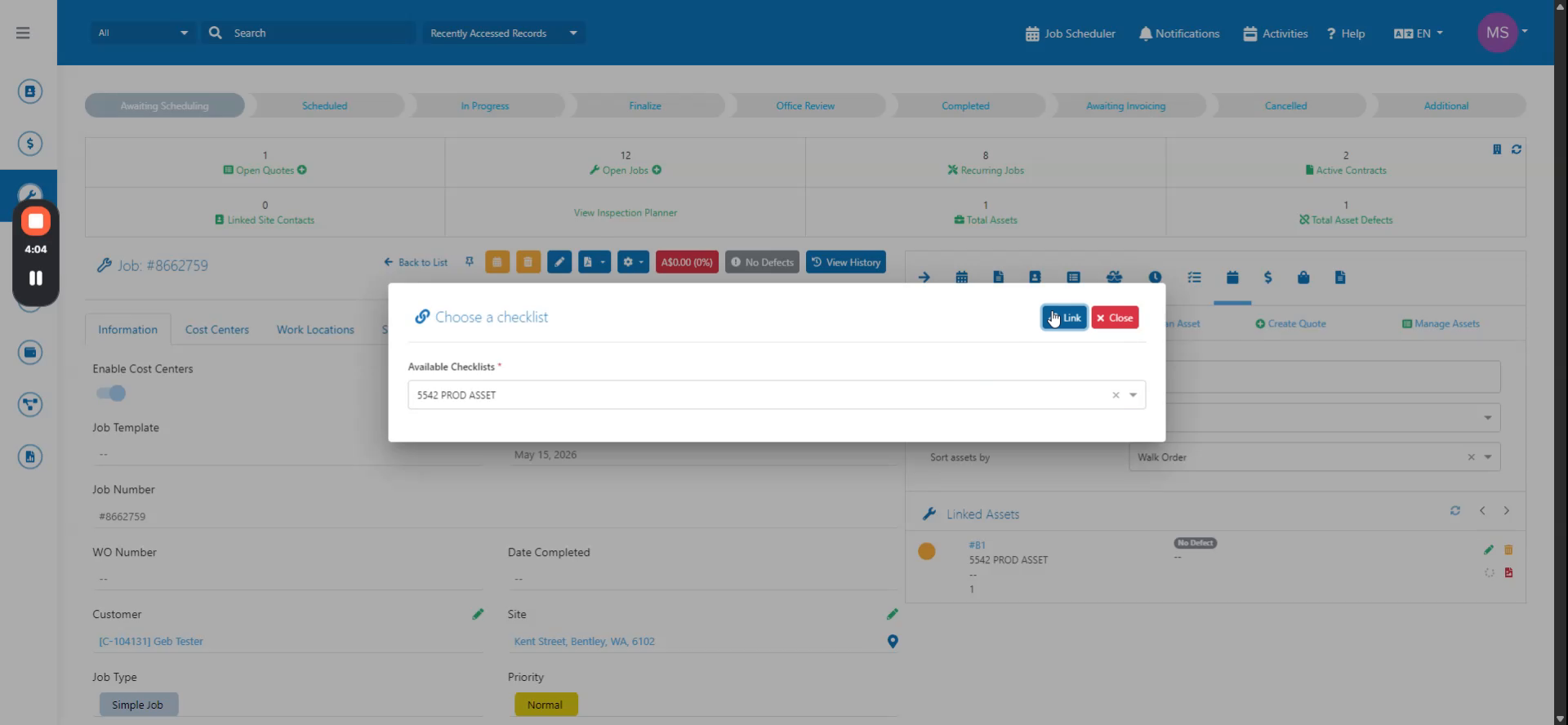
Click Link. The checklist prompt appears. The new checklist is now linked. Click Add Response.
 Step 5
Add your response and complete the checklist. The asset now shows as passed.
 Step 6
Another way to inspect an asset is to link the checklist first, then create the asset. Then create the asset.
 Step 7
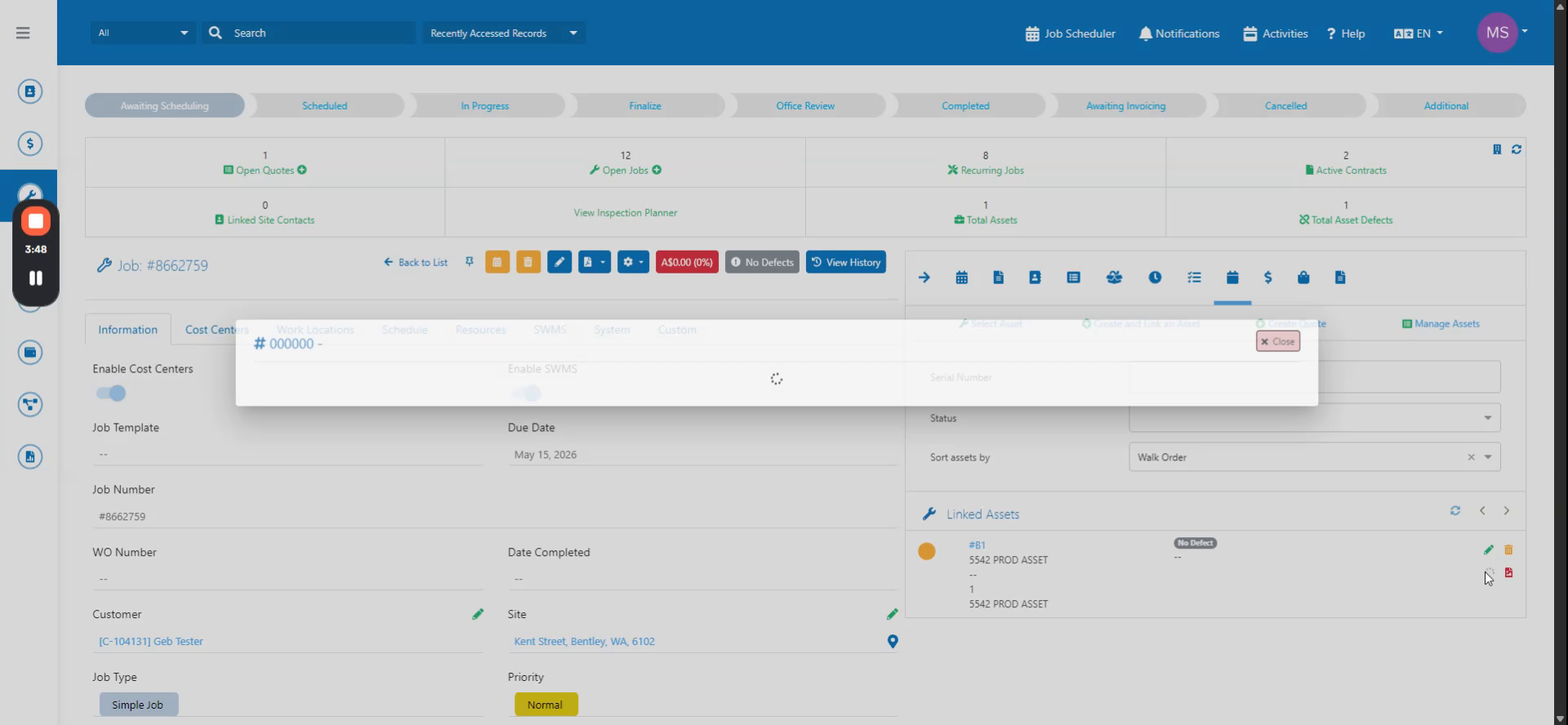
Click Add Response again, or in the Checklist tab, click Add Response. The asset appears in the linked assets section. Click Add Response to complete the inspection.