Accounting Integrations
Integrating an Accounting System and Importing Data
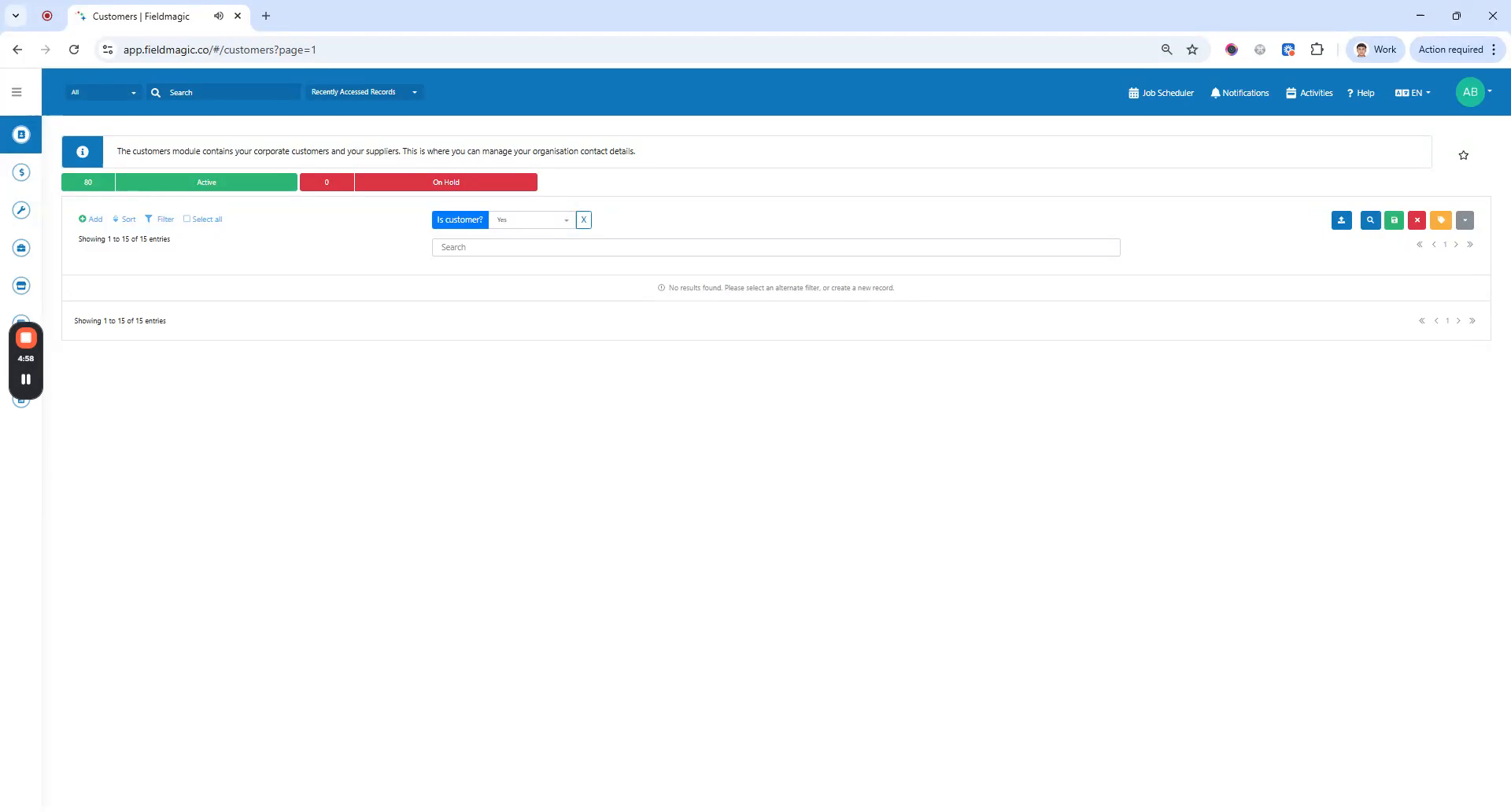
This video demonstrates how to import data from your accounting system into FieldMagic. The process is similar for other accounting systems.
Step-by-step instructions
 Step 1
This video demonstrates how to import data from your accounting system into FieldMagic. The process is similar for other accounting systems.
 Step 2
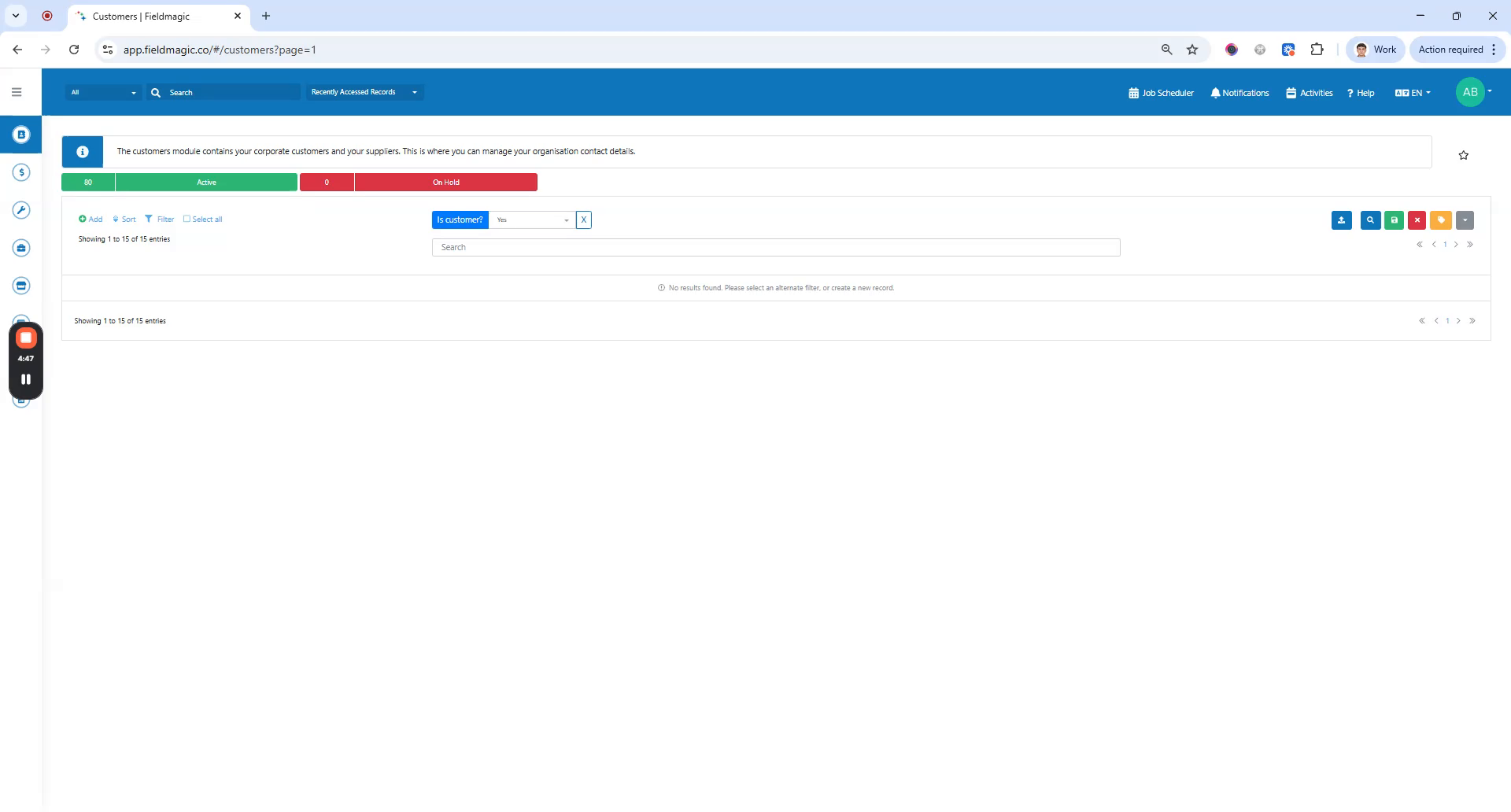
Ensure you have admin access, as it is required to connect your accounting system. Navigate to Settings by clicking the gear icon in the top right corner.
 Step 3
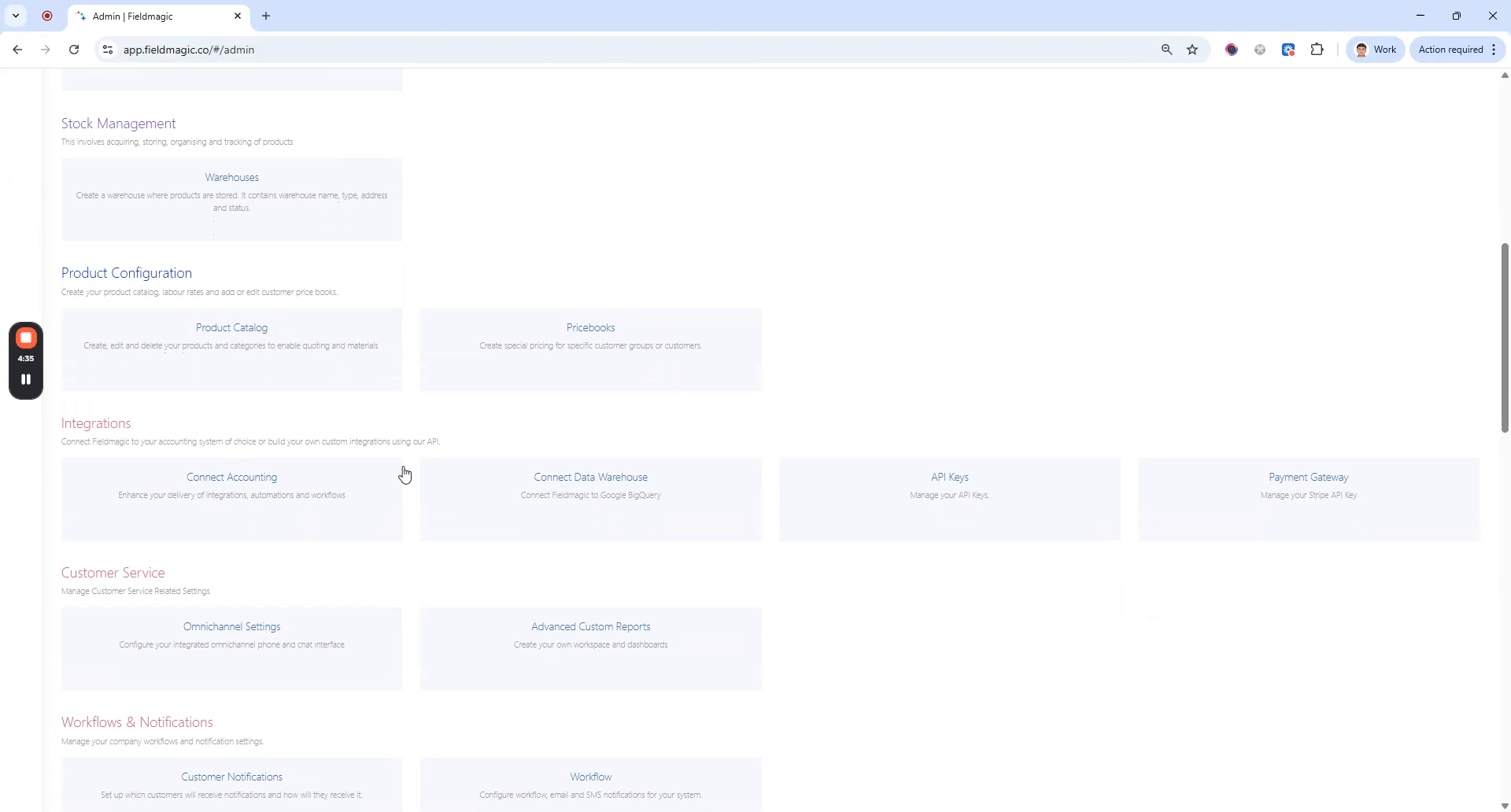
Under Integrations, select Connect Accounting. Choose your accounting system from the list of available options.
 Step 4
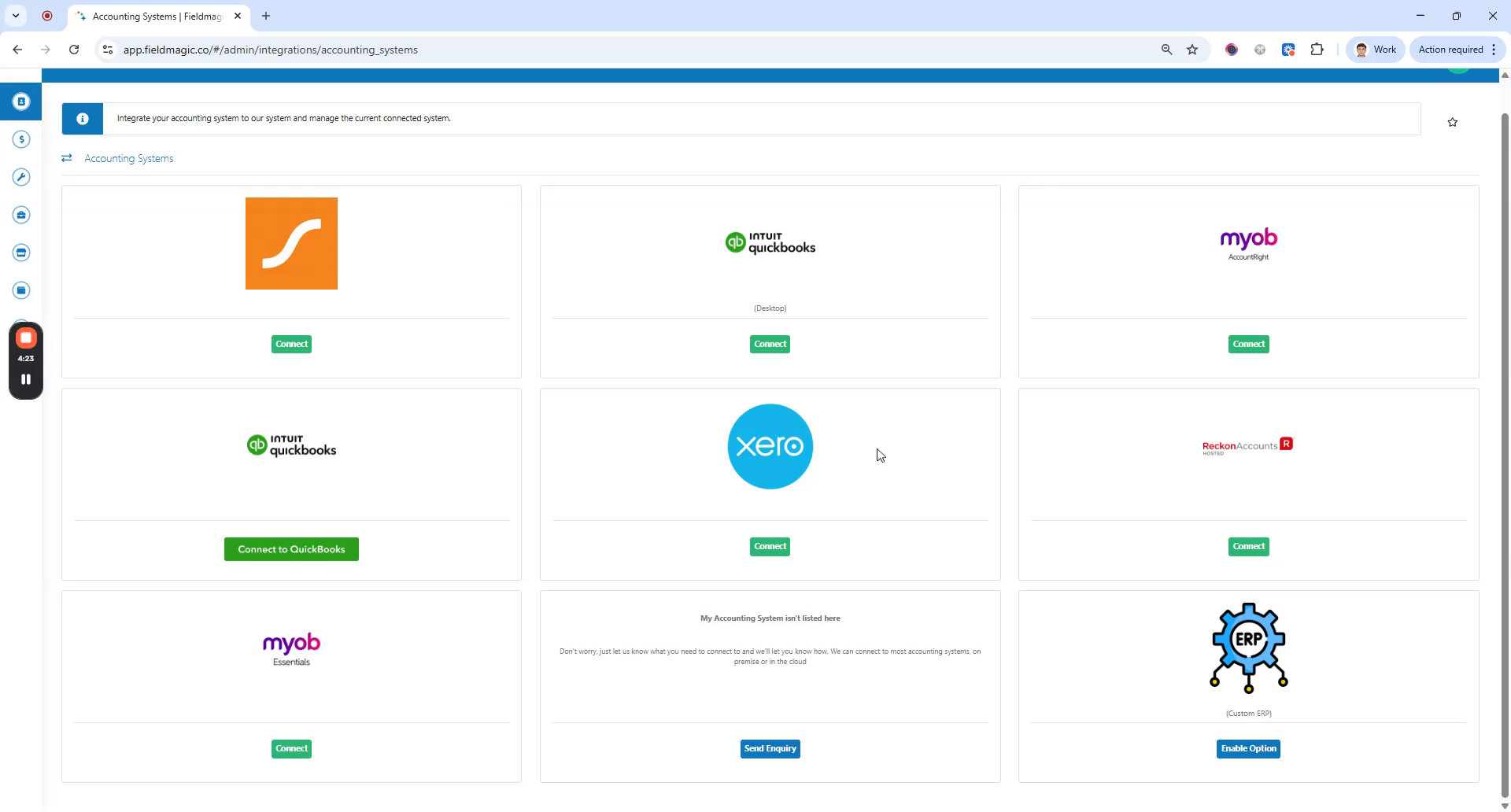
Click Connect. You will be redirected to your accounting system's login page. Enter your credentials to log in.
 Step 5
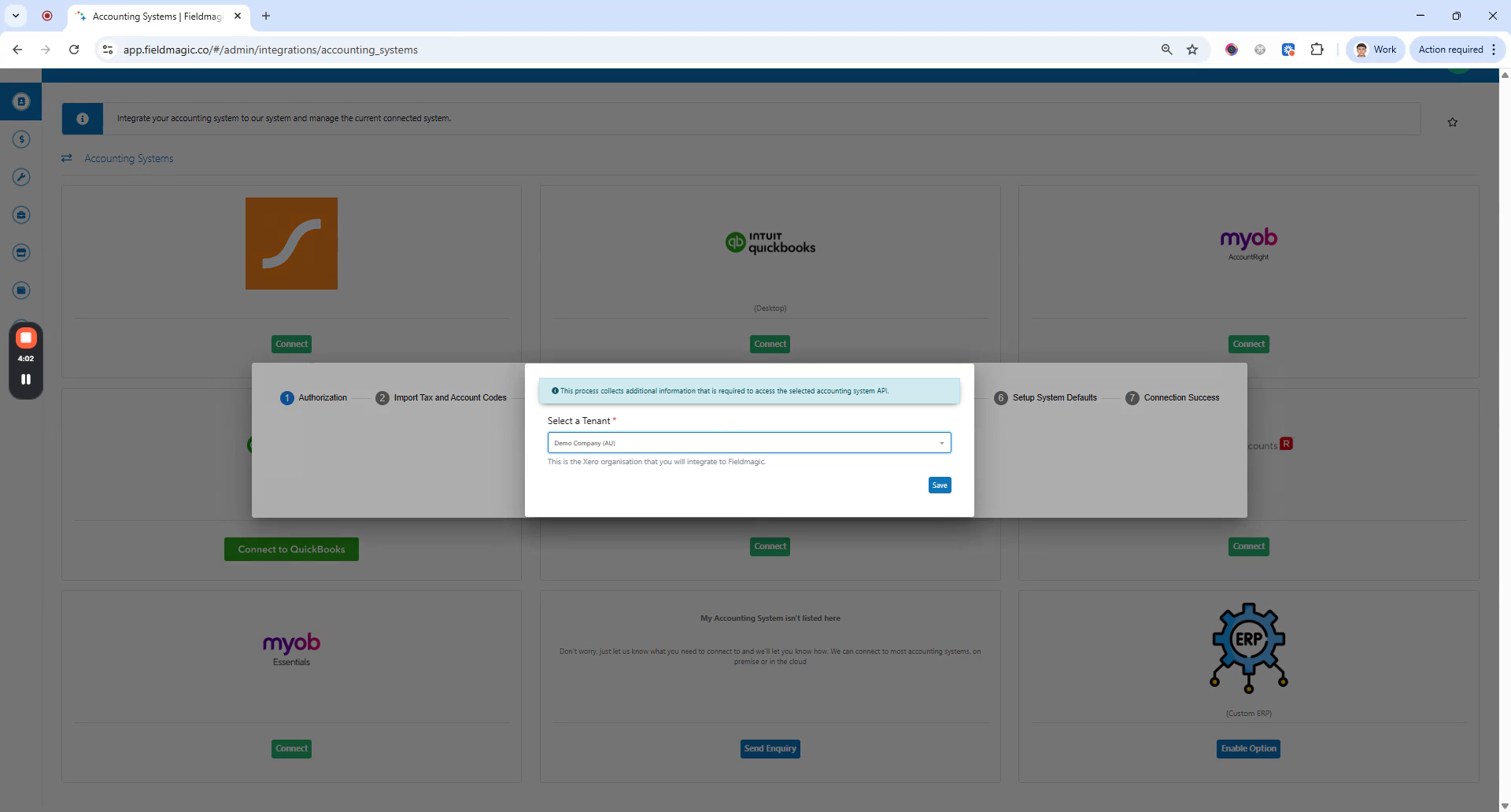
After logging in, you will be redirected back to FieldMagic. Tax codes and account codes are automatically imported.
 Step 6
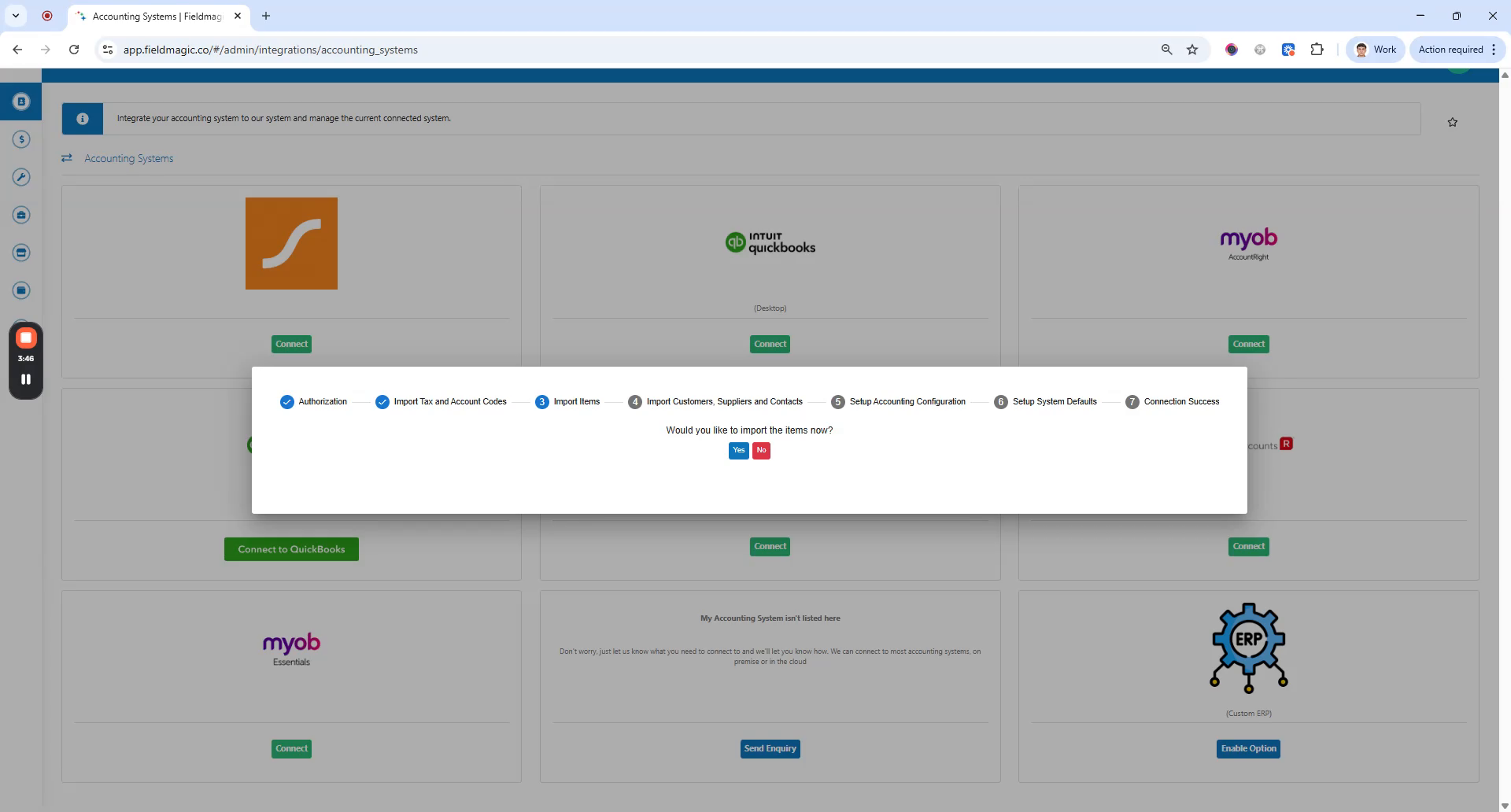
If needed, you will be prompted to import items. You can then schedule jobs and manage supply imports.
 Step 7
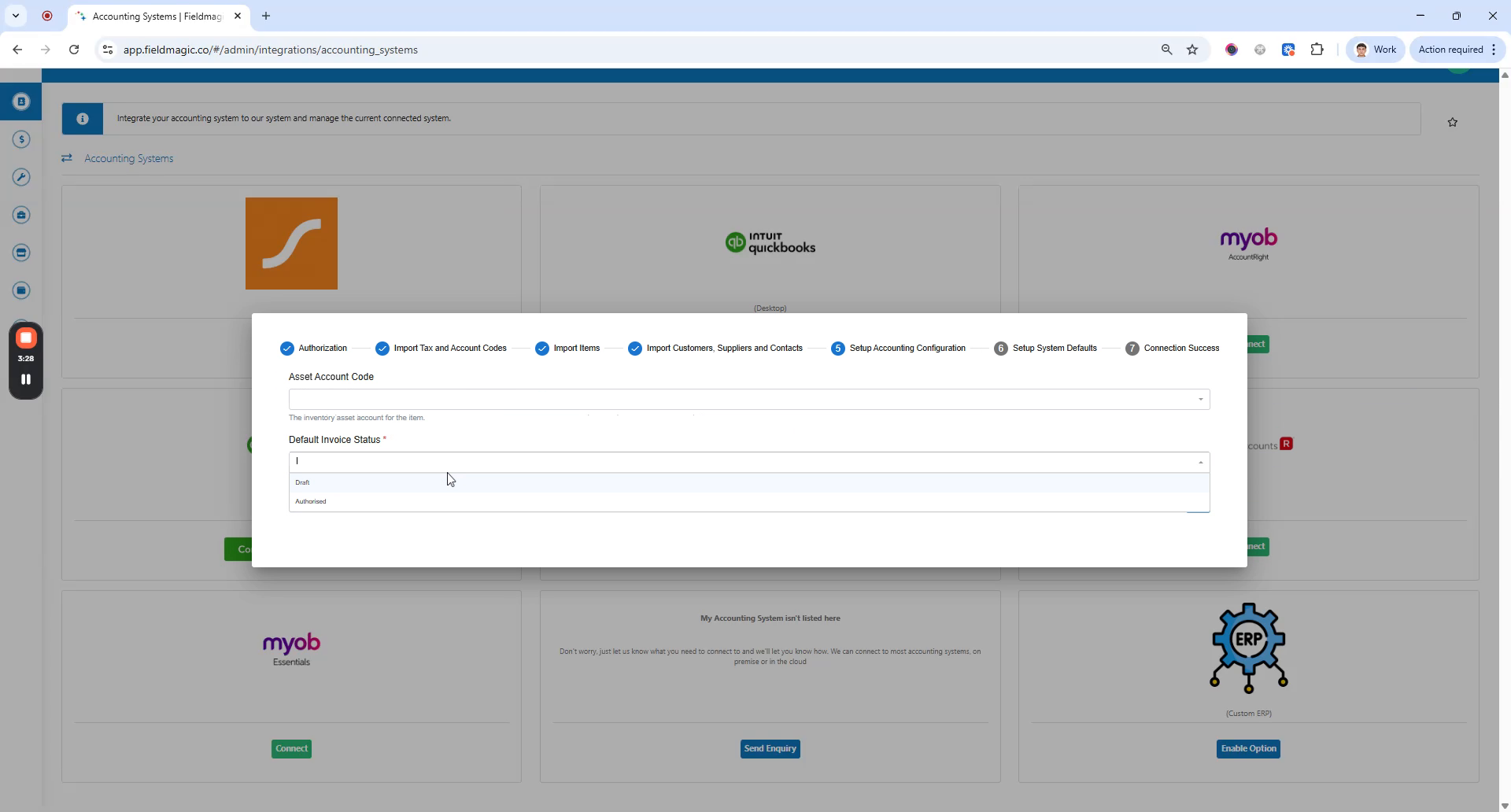
Set the default invoice status. You can also configure default account codes and task codes.
 Step 8
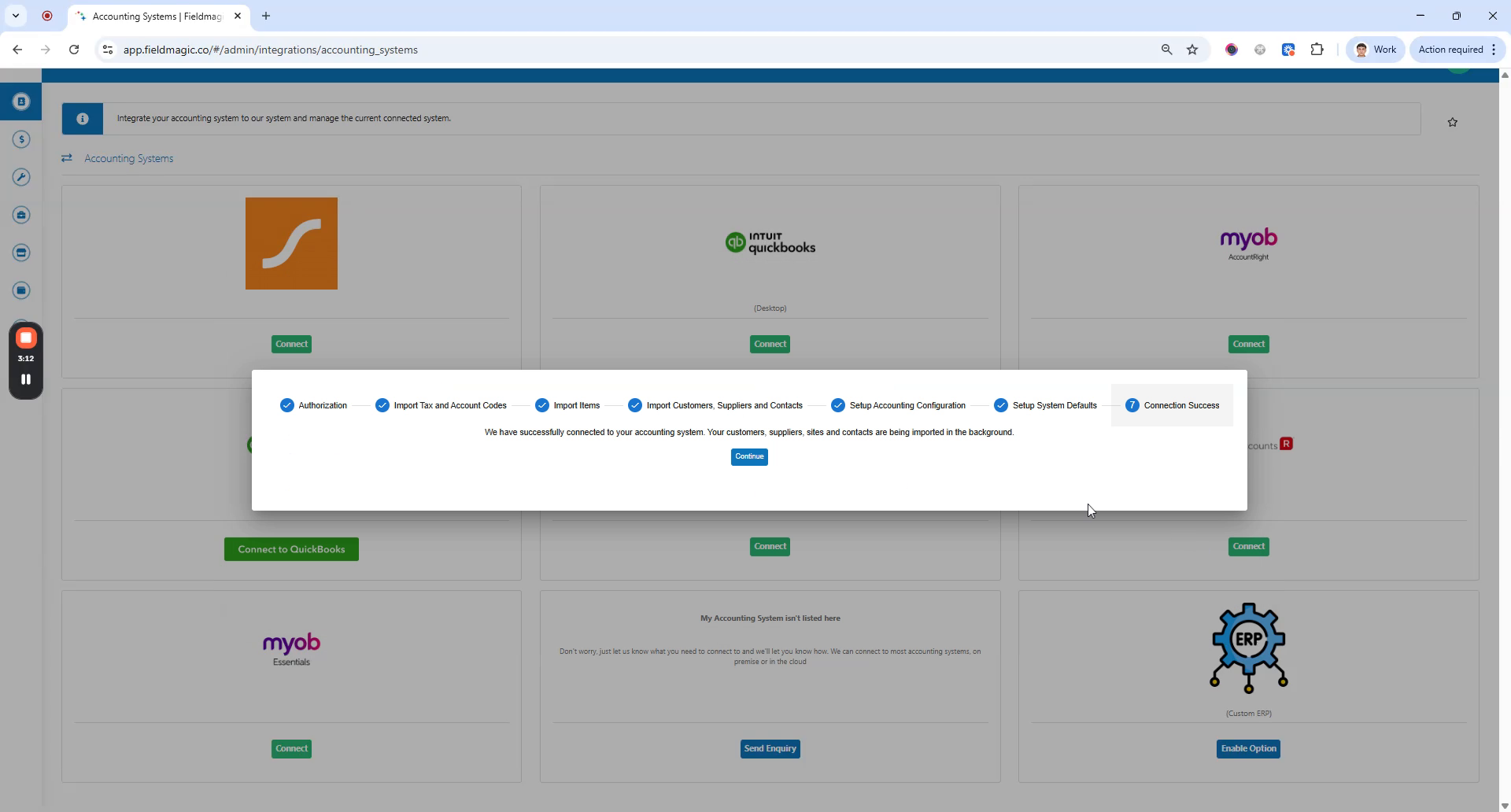
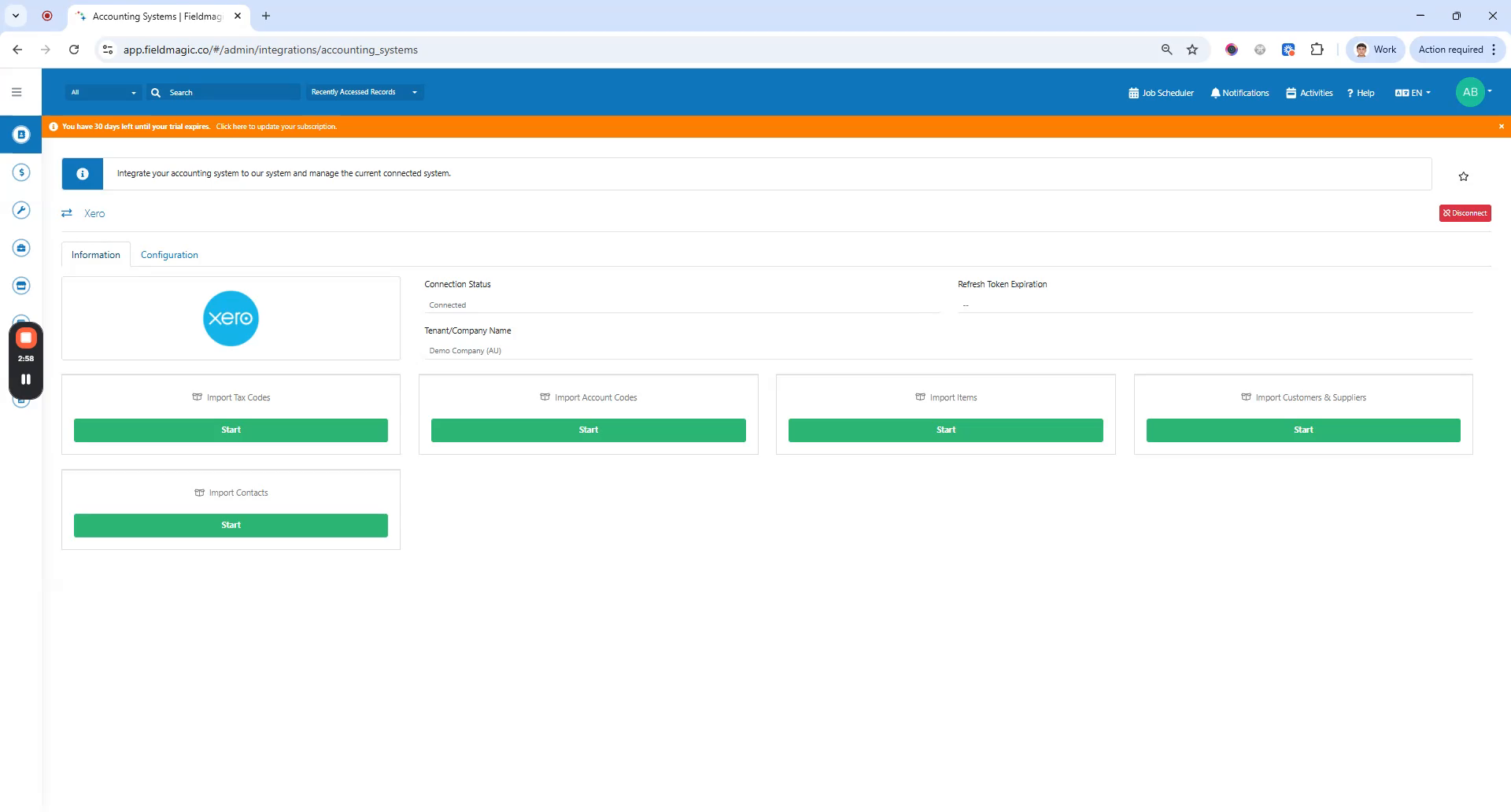
You have successfully connected your accounting system. In the Information tab, you can import additional data.
 Step 9
Available imports include task codes, account codes, items, customer suppliers, and contacts. For this demo, we will import customers and suppliers.