Job Scheduling
List screen Filters
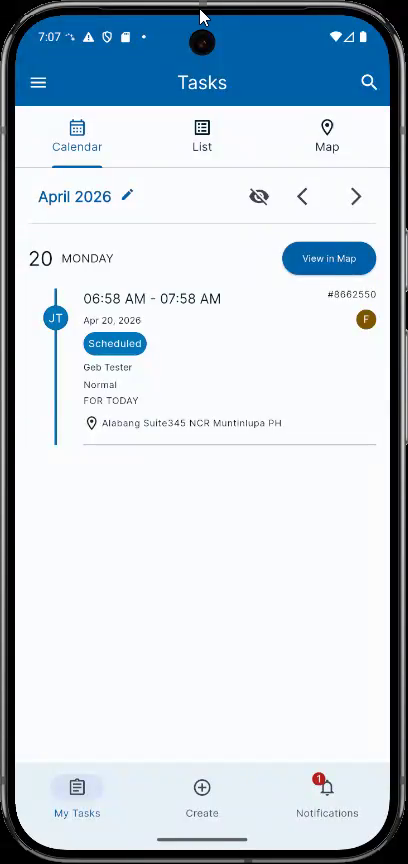
Use the Organization filter to select an organization. Select FieldMagic.
Step-by-step instructions
 Step 1
Use the Organization filter to select an organization. Select FieldMagic.
 Step 2
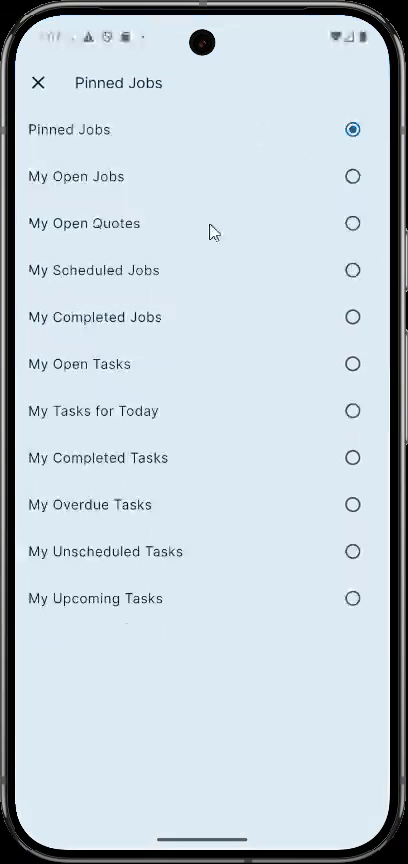
Available filters include Pin Jobs and MyOpenJobs.
 Step 3
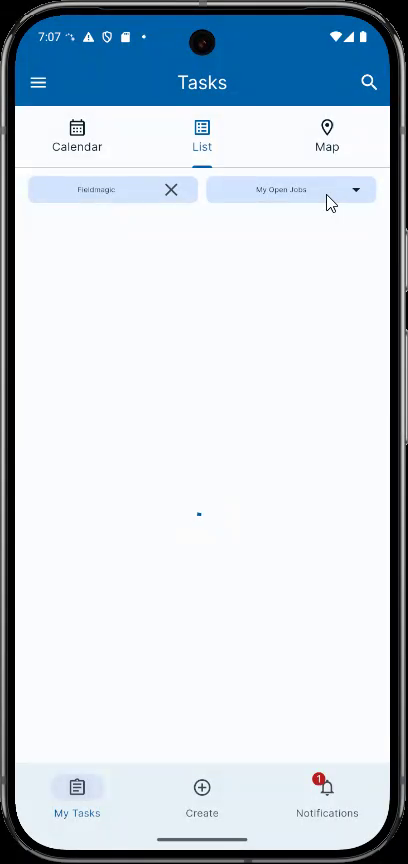
MyOpenJobs displays all jobs with open status, including Submitting, Scheduled, In Progress, or custom statuses that are not Closed.
 Step 4
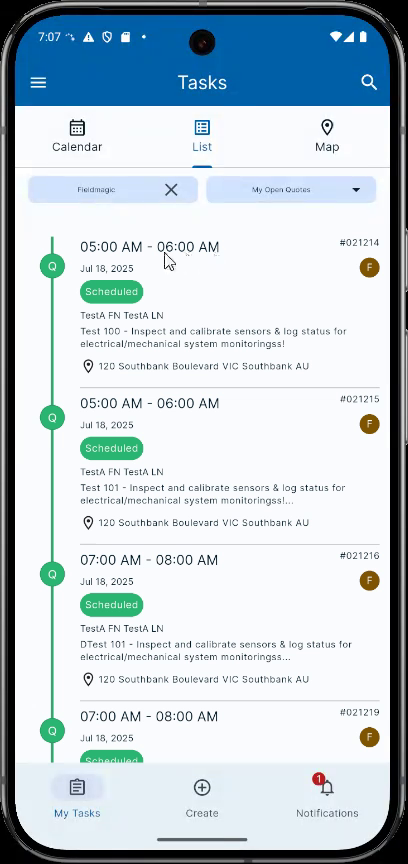
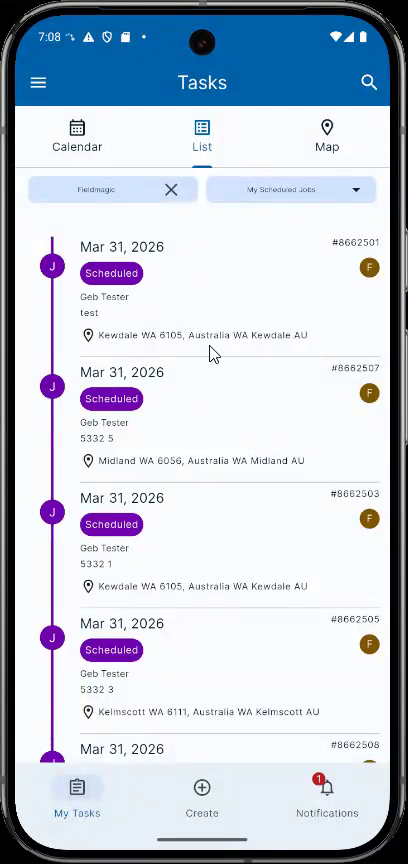
MyScheduledJobs displays all jobs in the selected organization that have a Scheduled status.
 Step 5
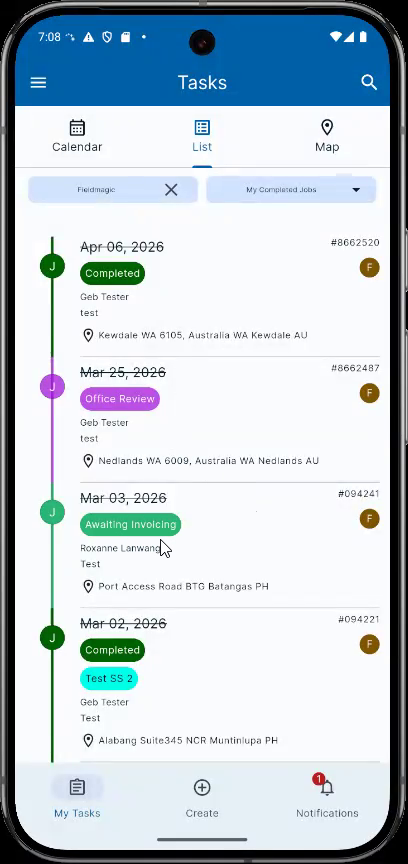
MyCompletedJobs displays all jobs that are Completed, Under Review, or Awaiting Invoicing, depending on the billing type and configuration.
 Step 6
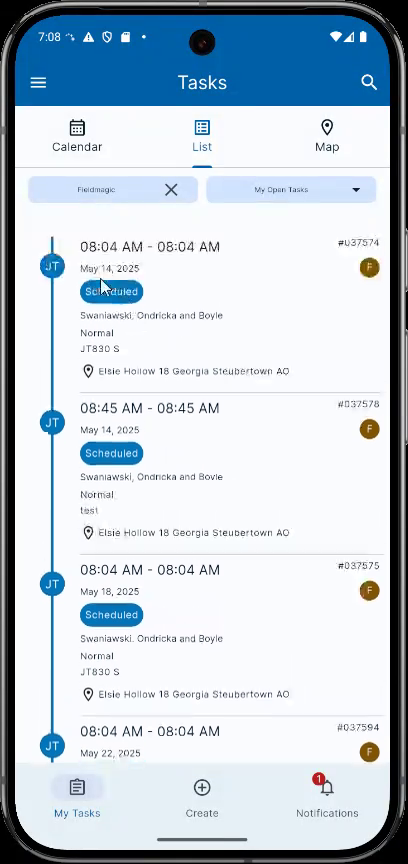
MyOpenTasks displays all tasks (job tasks or code tasks) that are Scheduled, In Progress, and not Completed.
 Step 7
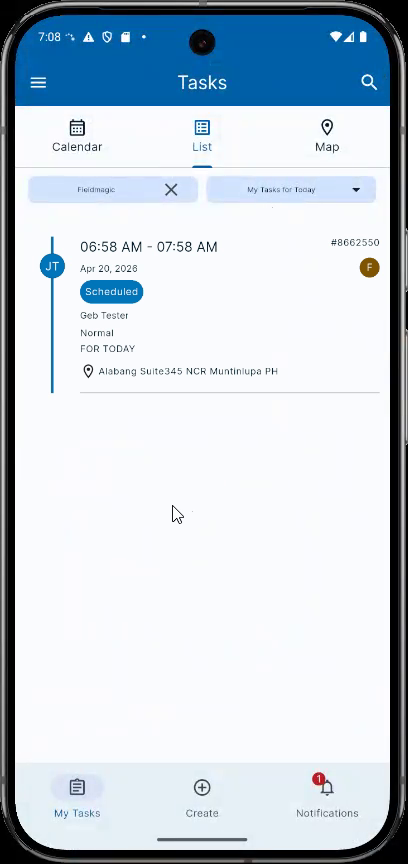
MyTasksForToday displays all tasks scheduled for the current day.
 Step 8
For example, tasks scheduled for April 20th or 26th.
 Step 9
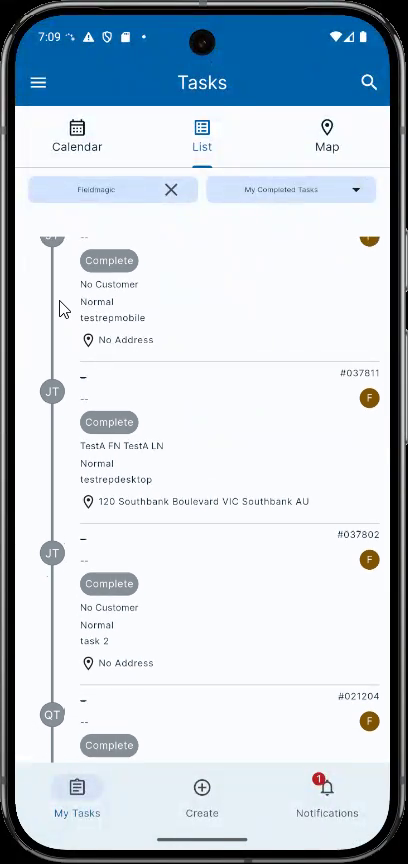
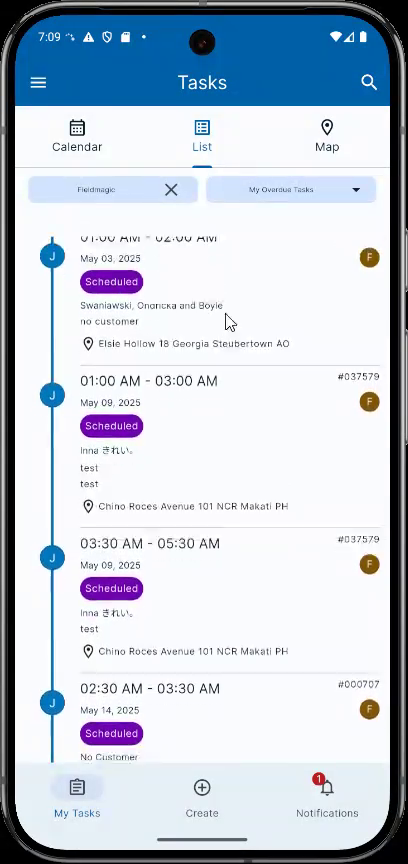
MyCompletedTasks displays all job tasks and code tasks with a Completed status. MyOverdueTasks displays all tasks past their scheduled date.
 Step 10
For example, tasks scheduled for May 14th, 2025, which is a date in the past.
 Step 11
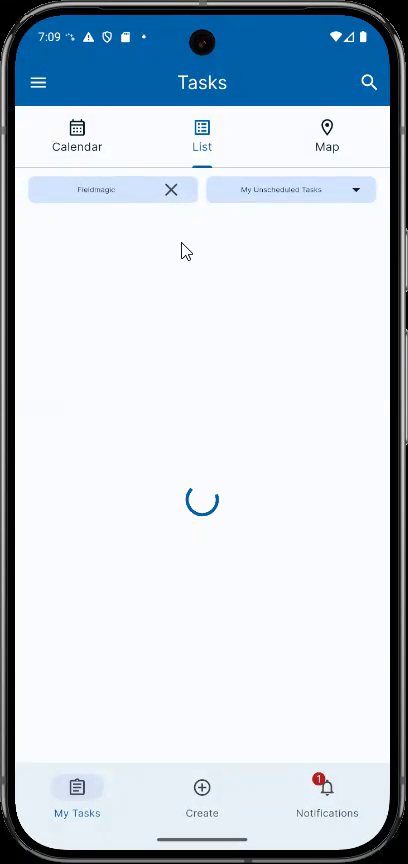
MyUnscheduledTasks displays all job tasks or code tasks that are Awaiting Scheduling and not In Progress or Scheduled.
 Step 12
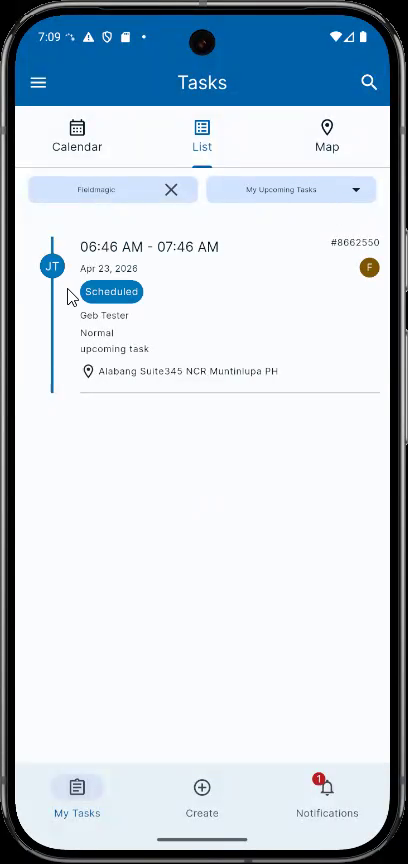
MyUpcomingTasks displays all job tasks or code tasks scheduled for a future date. For example, tasks scheduled for April 20th or 26th, which is three days from today.