Job Management
Log Materials and Update Status in FieldMagic
Navigate to the job and open the Materials widget, then click the Log Materials button.
Step-by-step instructions
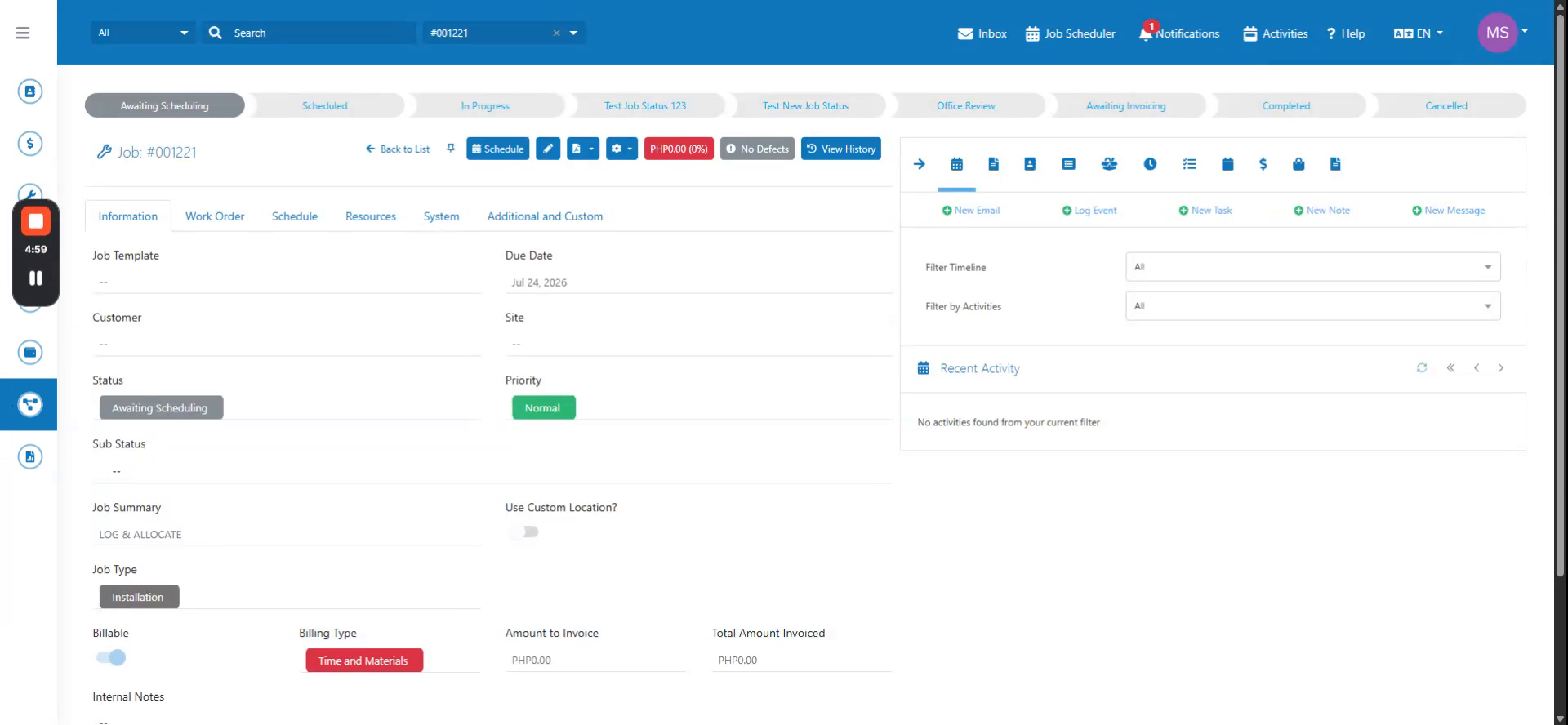 Step 1
Navigate to the job and open the Materials widget, then click the Log Materials button.
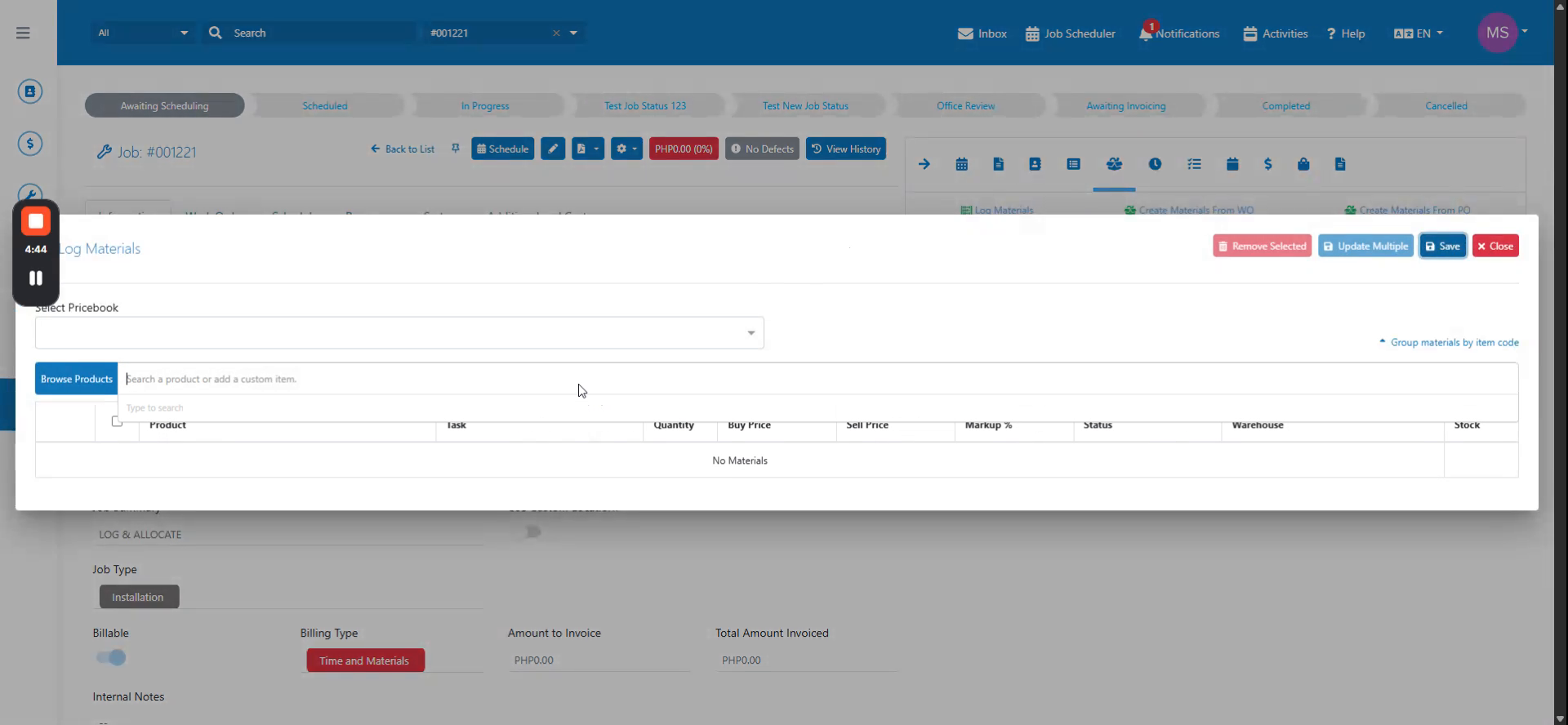 Step 2
Search for and select all materials you want to include; the default status will be set to In Use and the warehouse will default to the user's assigned warehouse.
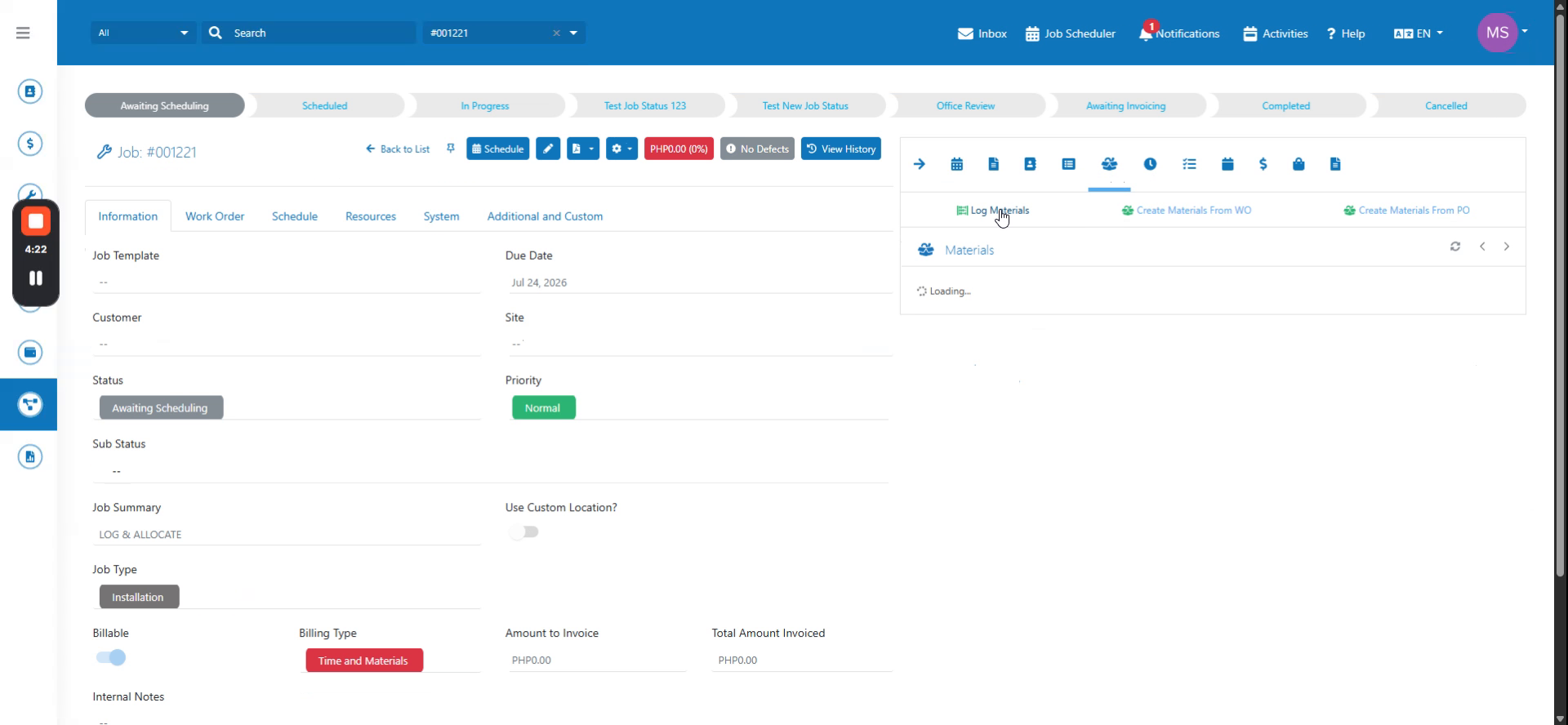 Step 3
Adjust the warehouse and status for selected materials as needed within the Log Materials interface.
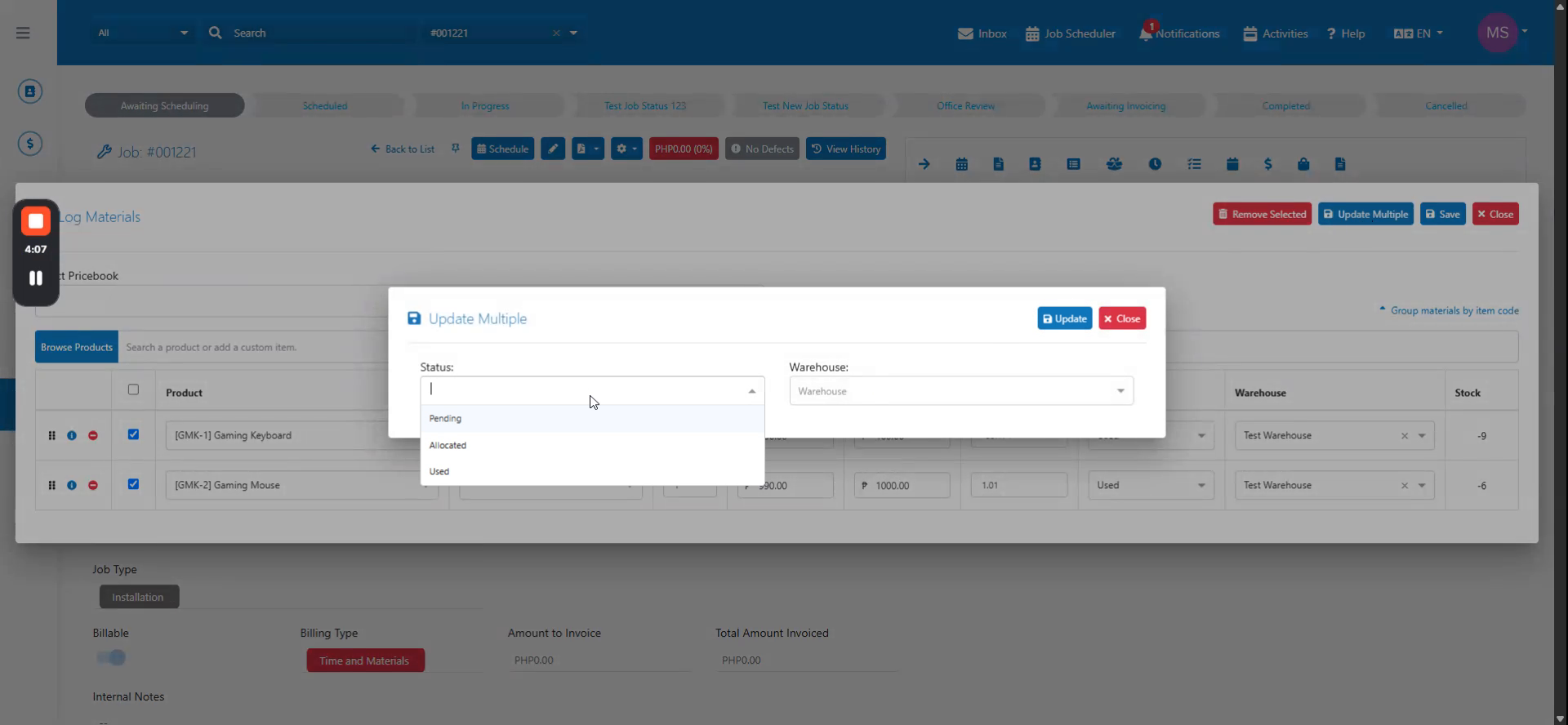 Step 4
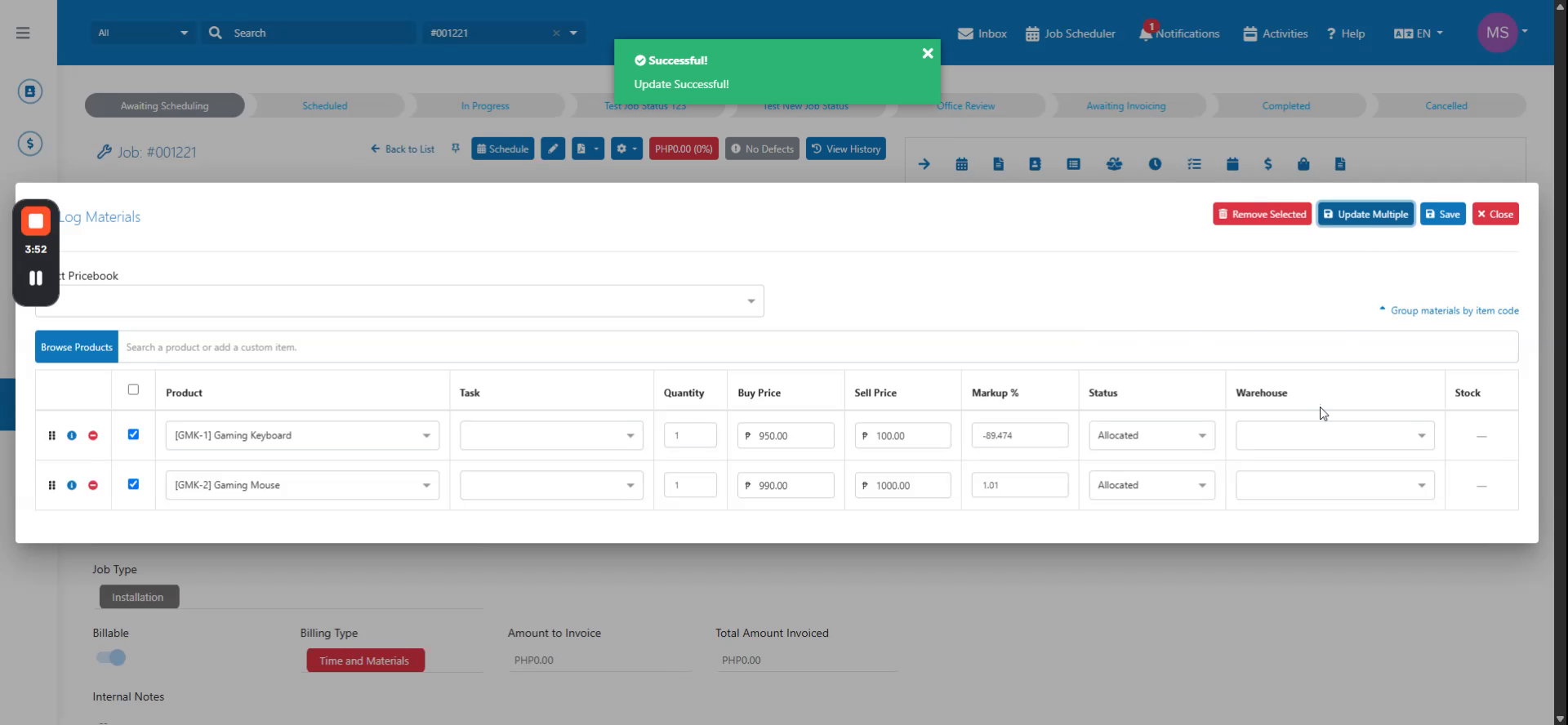
Use the Update Multiple button to change the status of multiple materials simultaneously to Pending, Used, or Unused.
 Step 5
Optionally specify the warehouse for Allocated status, remove selected materials if needed, then click Save to apply changes.
 Step 6
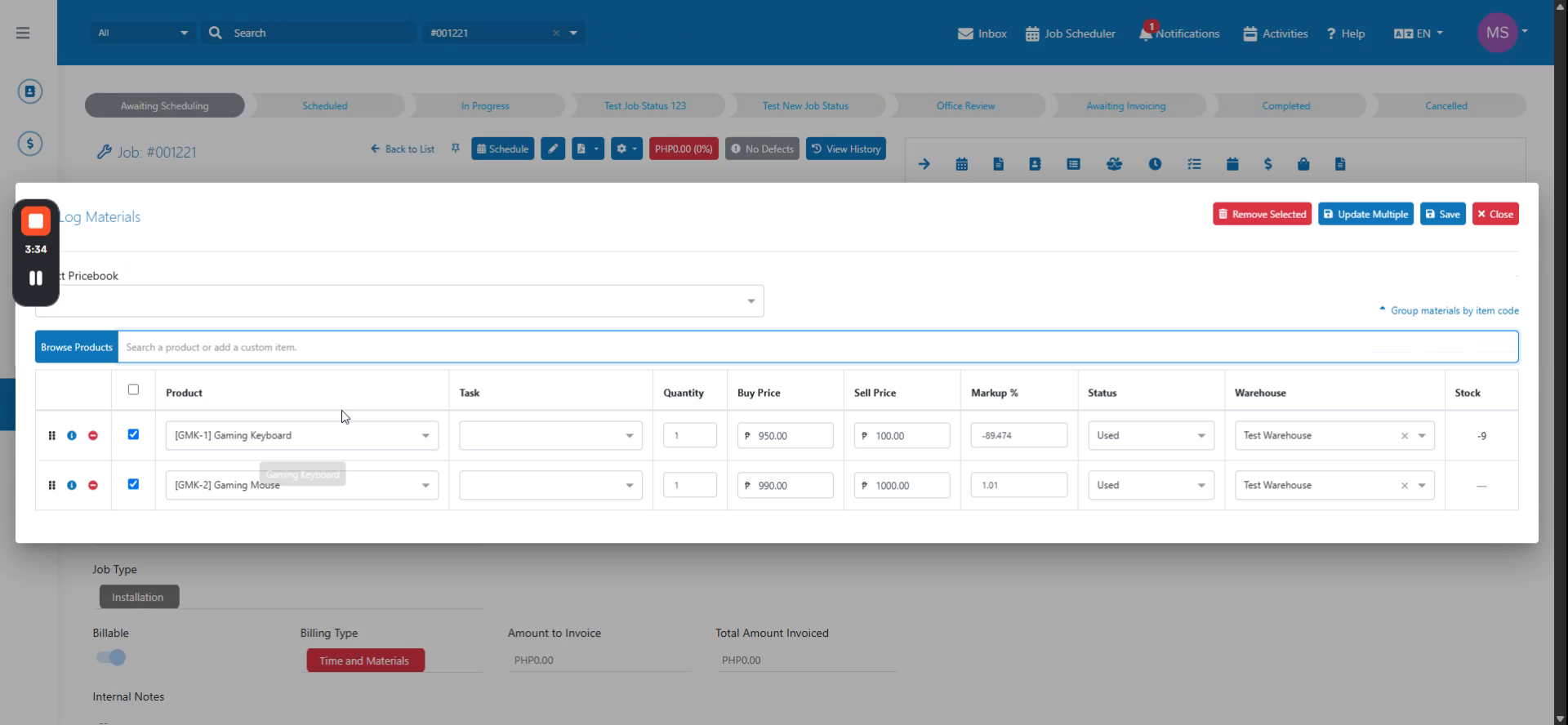
Log materials as Used and save the changes, then reopen Log Materials to change the status to Pending.
 Step 7
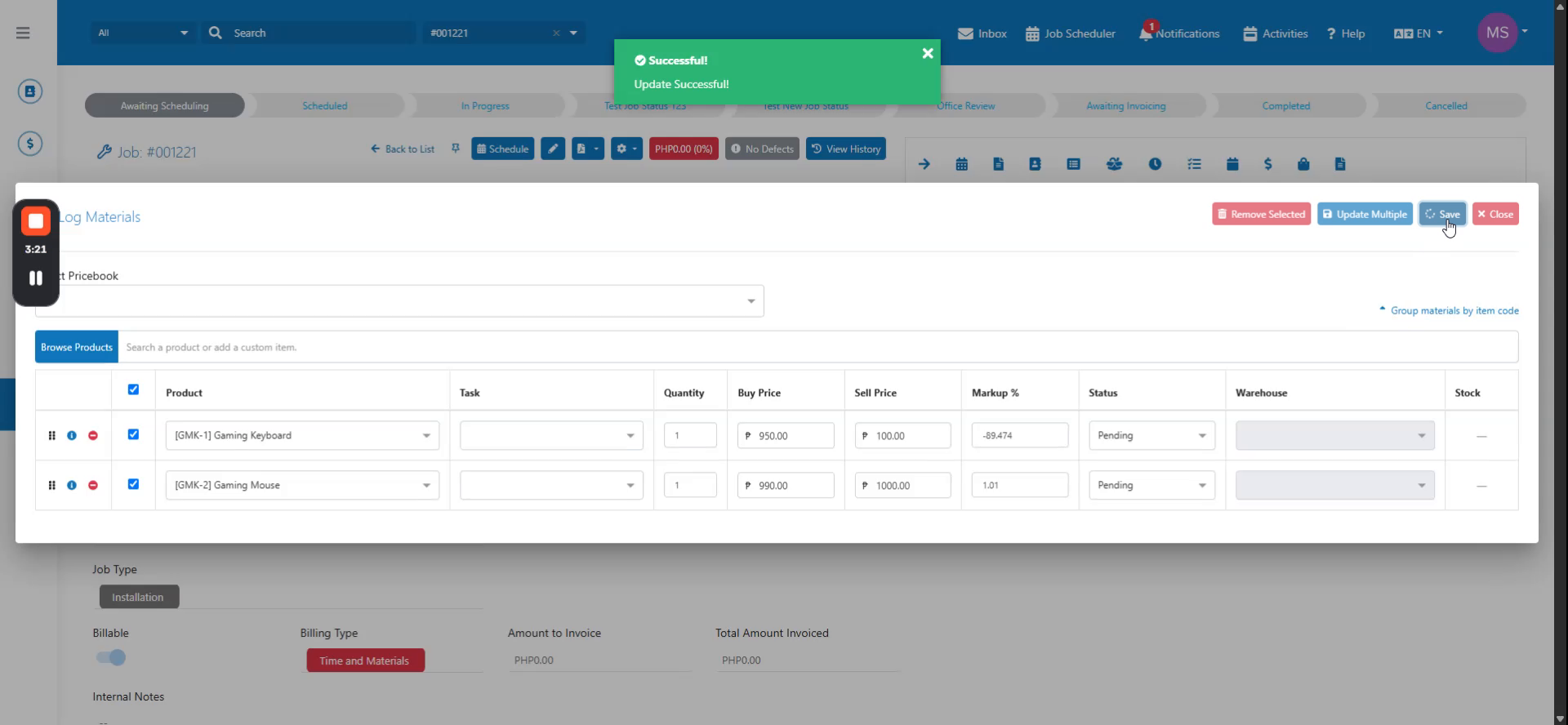
Save the Pending status, then select all materials and use Update Multiple to set their status to Allocated.
 Step 8
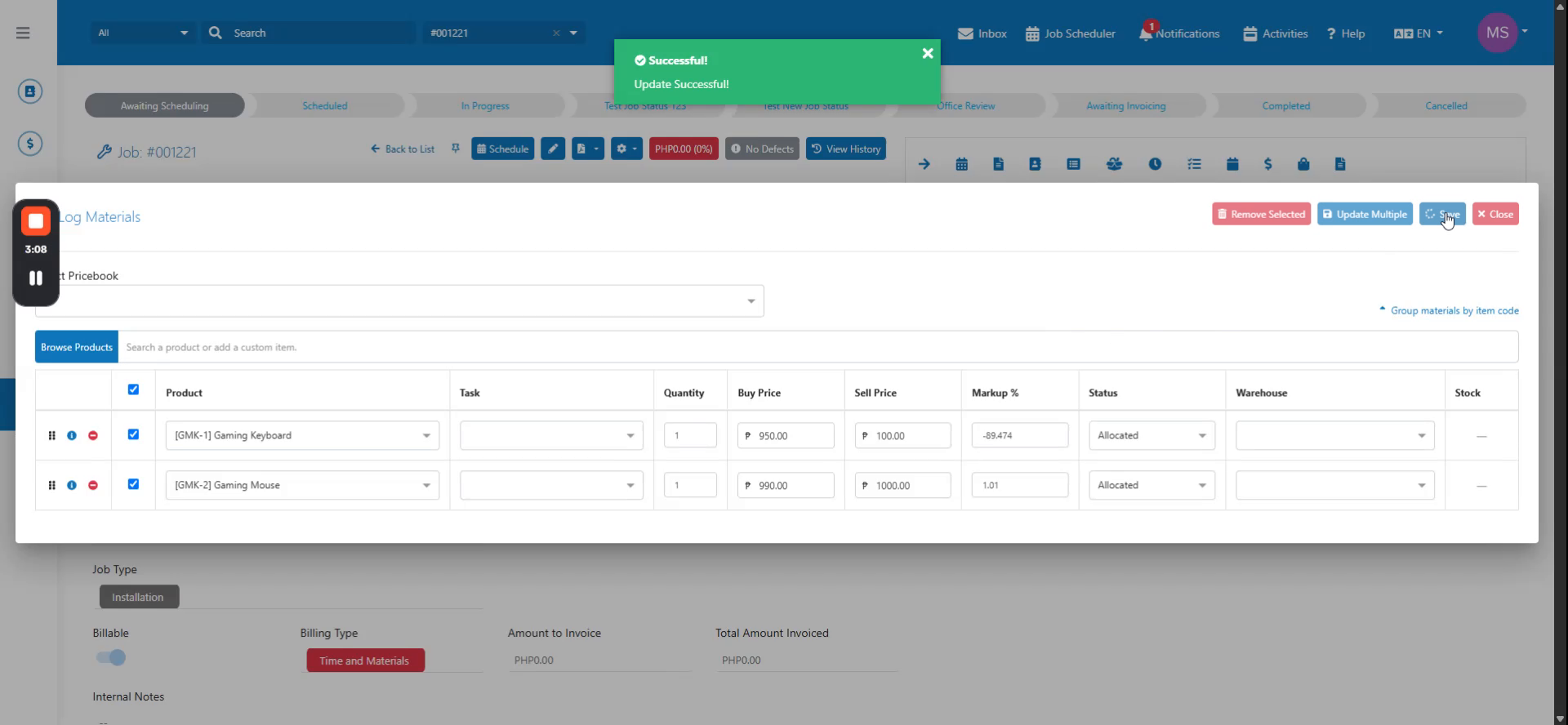
Save the Allocated status, then set materials back to Used by selecting a warehouse and updating; observe the stock quantity decrease accordingly.