Reporting & Dashboards
Master Workspace Filters, Operators Made Simple
Welcome to this guide on mastering the filtering system within your workspace. To manage data effectively, you must understand how the system interprets your search criteria. Operators act as the bridge between your raw
Step-by-step instructions
 Step 1
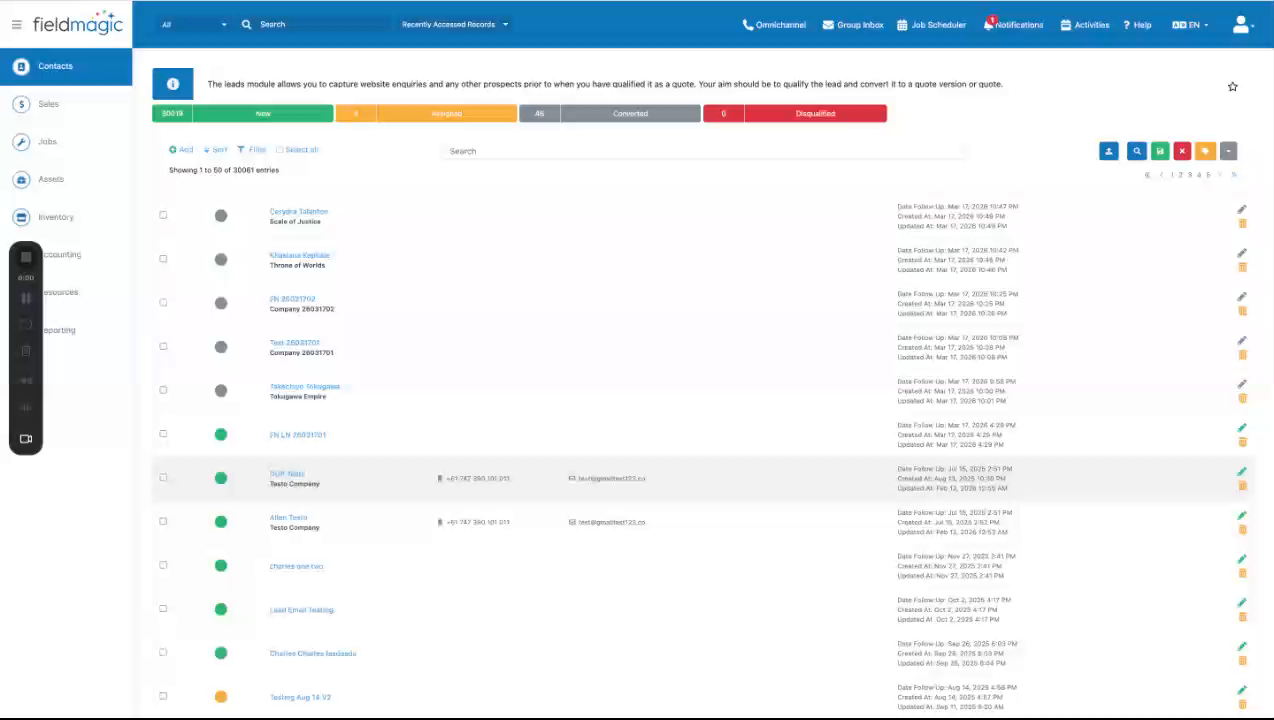
Welcome to this guide on mastering the filtering system within your workspace. To manage data effectively, you must understand how the system interprets your search criteria. Operators act as the bridge between your raw data and the specific results you need.
 Step 2
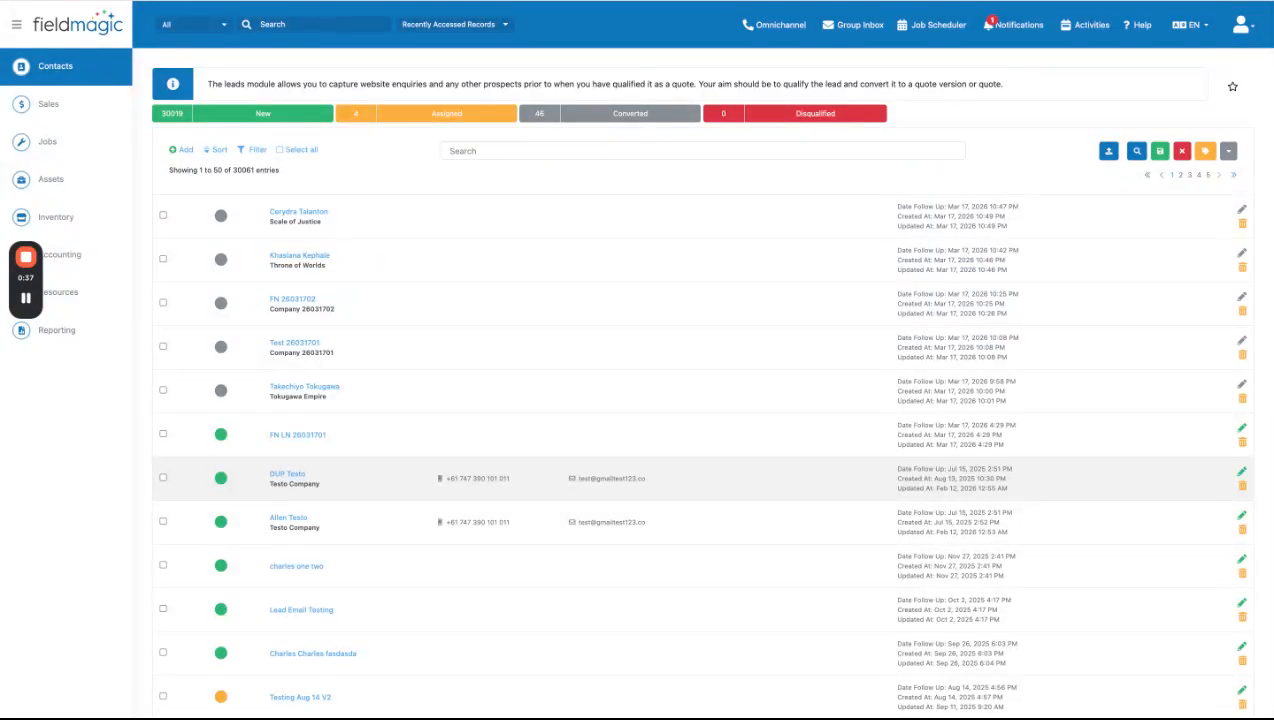
The system intelligently adapts the operator menu based on the field you select, providing only the tools relevant to that specific field type. The following sections cover each operator category—text, date, and boolean—explaining how they behave so you can build precise, powerful filters.
 Step 3
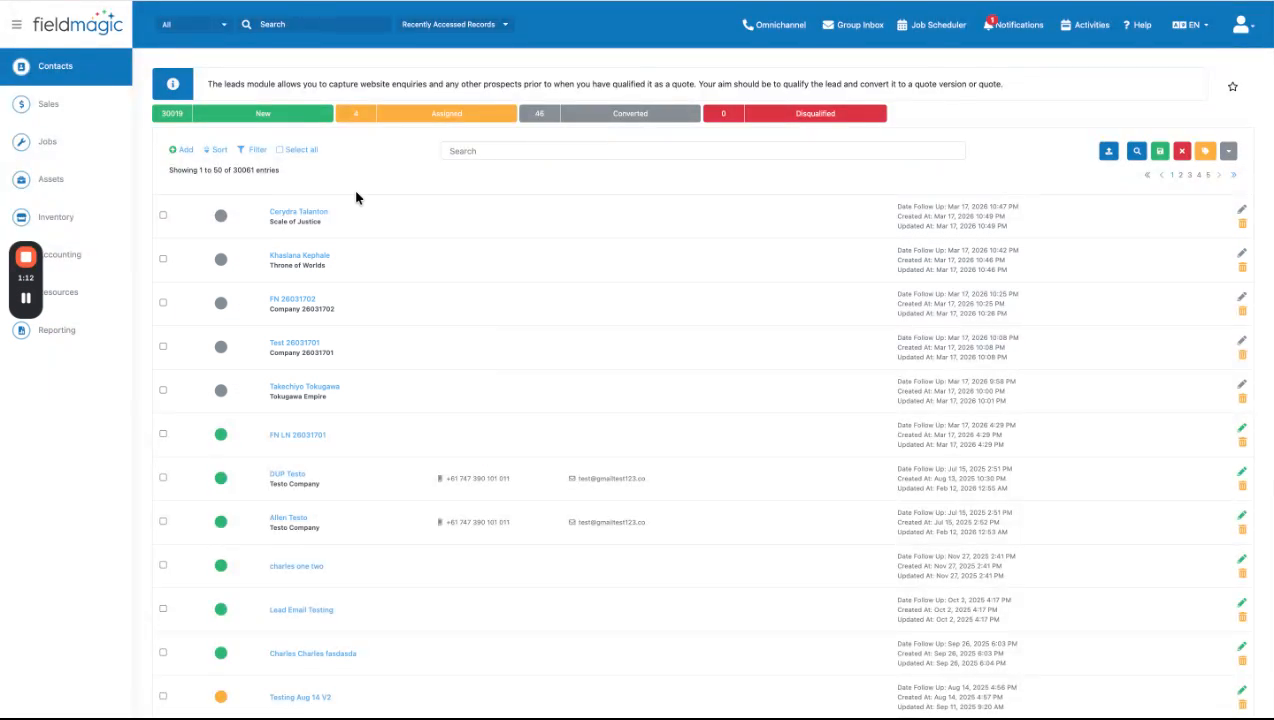
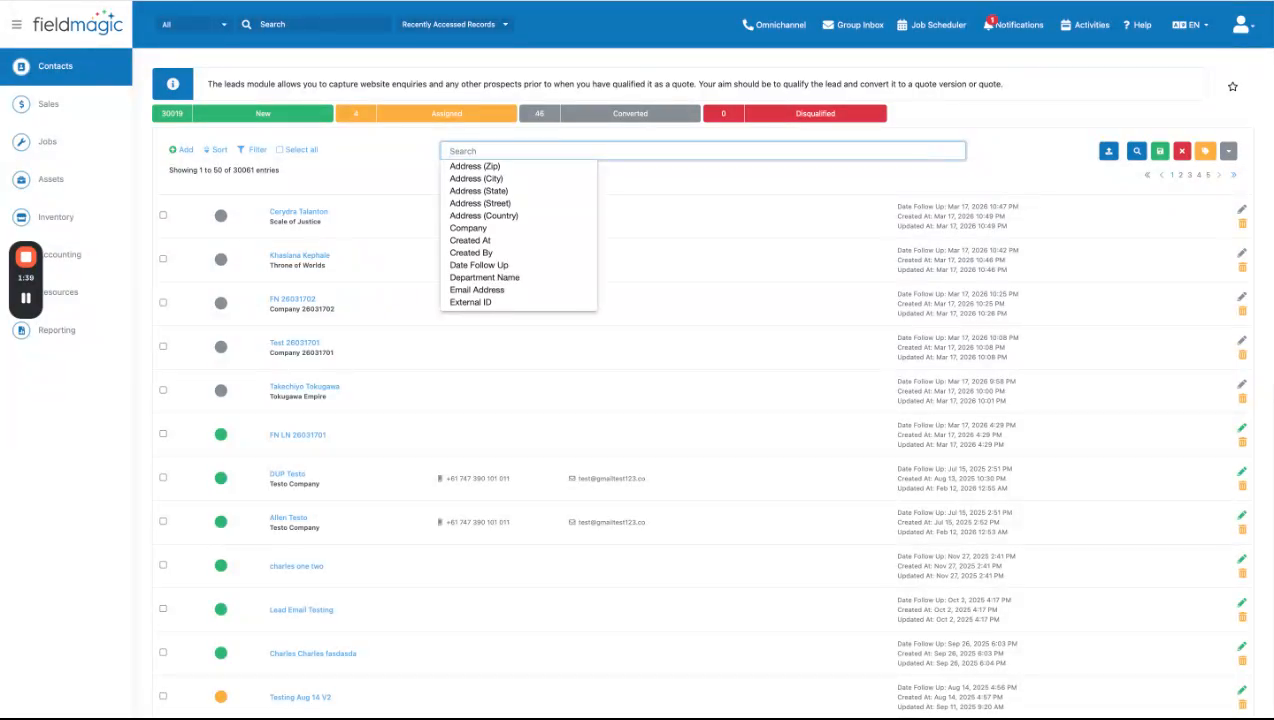
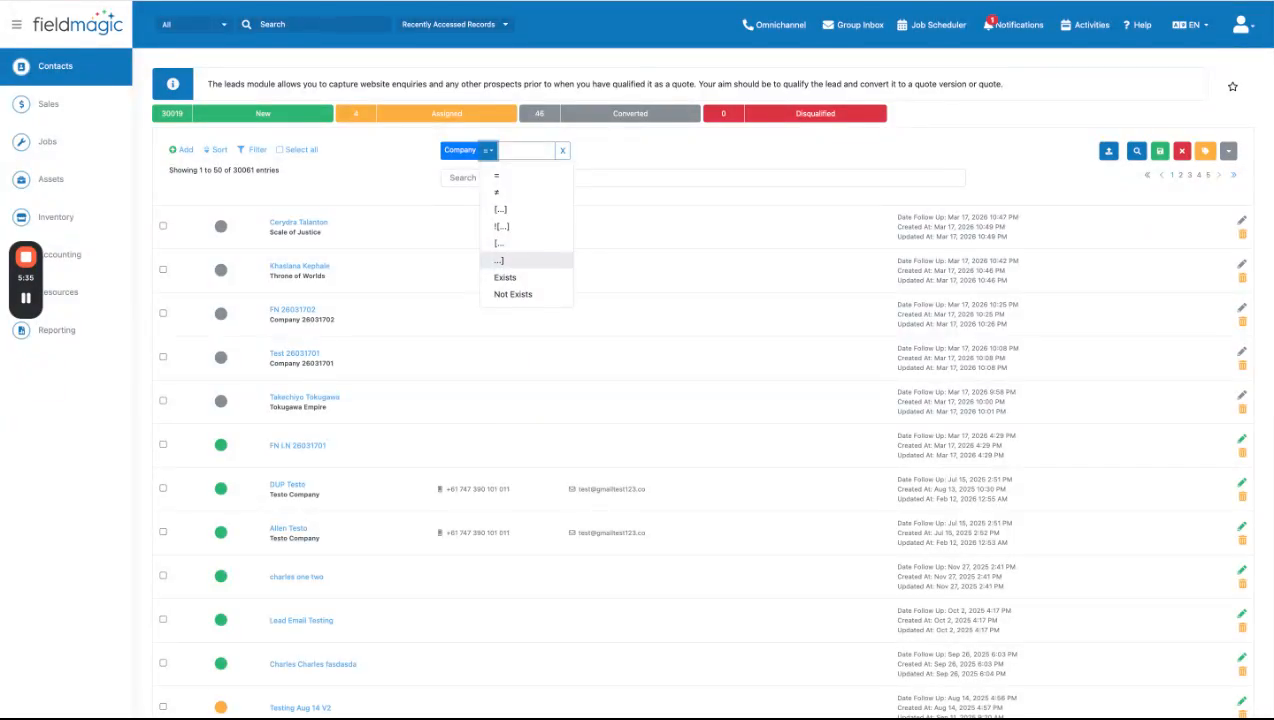
Text and string operators apply to field types such as names, addresses, company, job title, email, department, notes, and custom text areas. These operators handle alphanumeric characters.
 Step 4
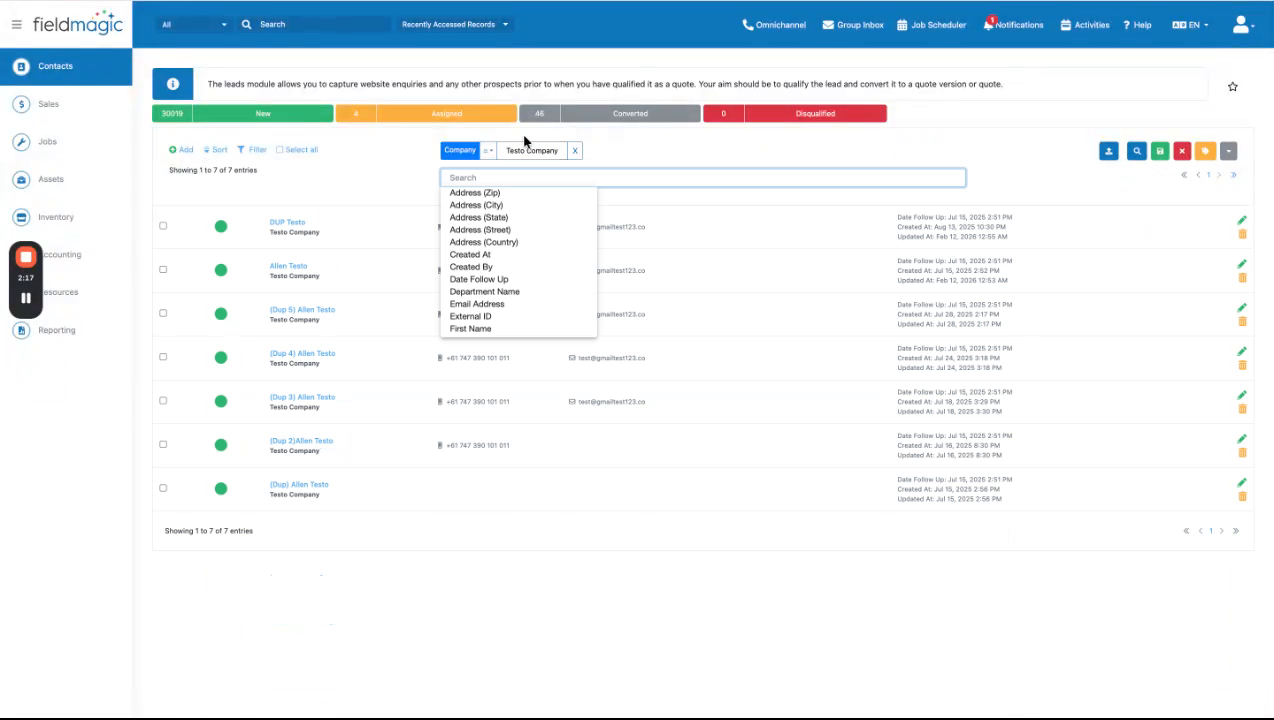
Use the Equals operator for exact matches when you know the precise entry and want to exclude all other results. For example, selecting a specific company displays only records belonging to that company.
 Step 5
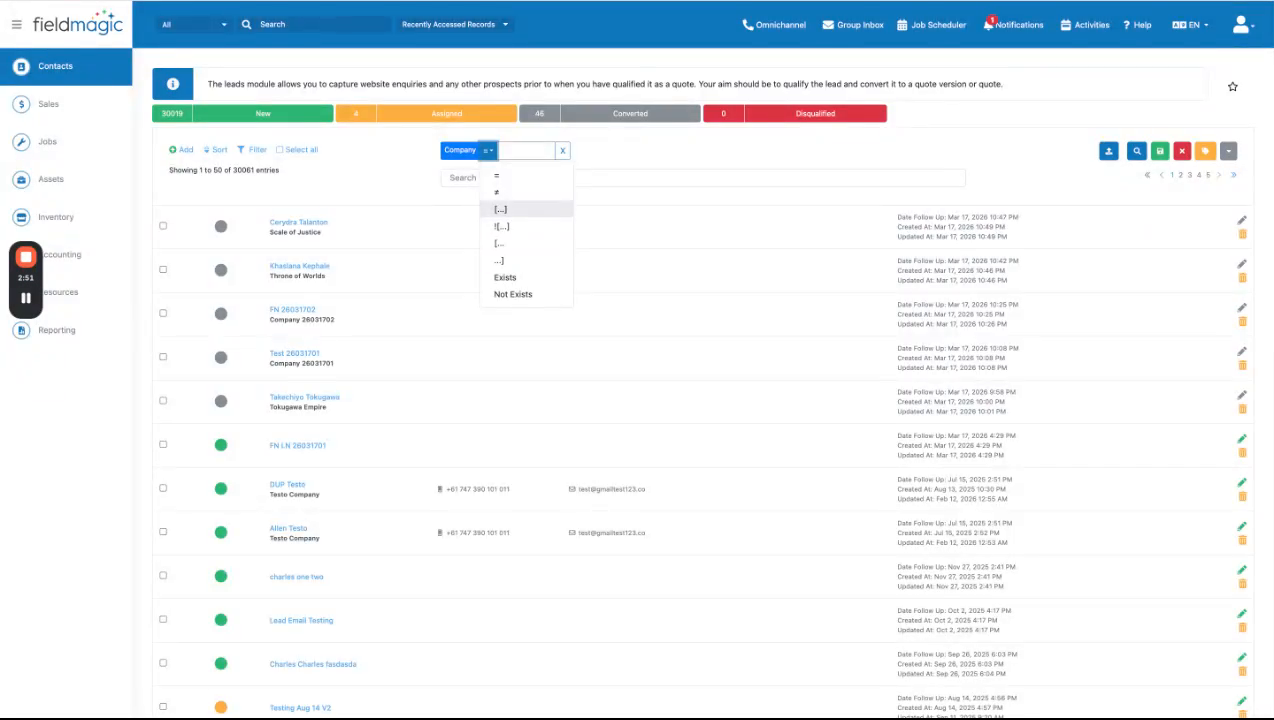
Use the NotEqualTo operator to exclude specific entries, such as filtering out a competitor or city. Use the Contains operator to find your search term anywhere within the text field, whether at the beginning, middle, or end.
 Step 6
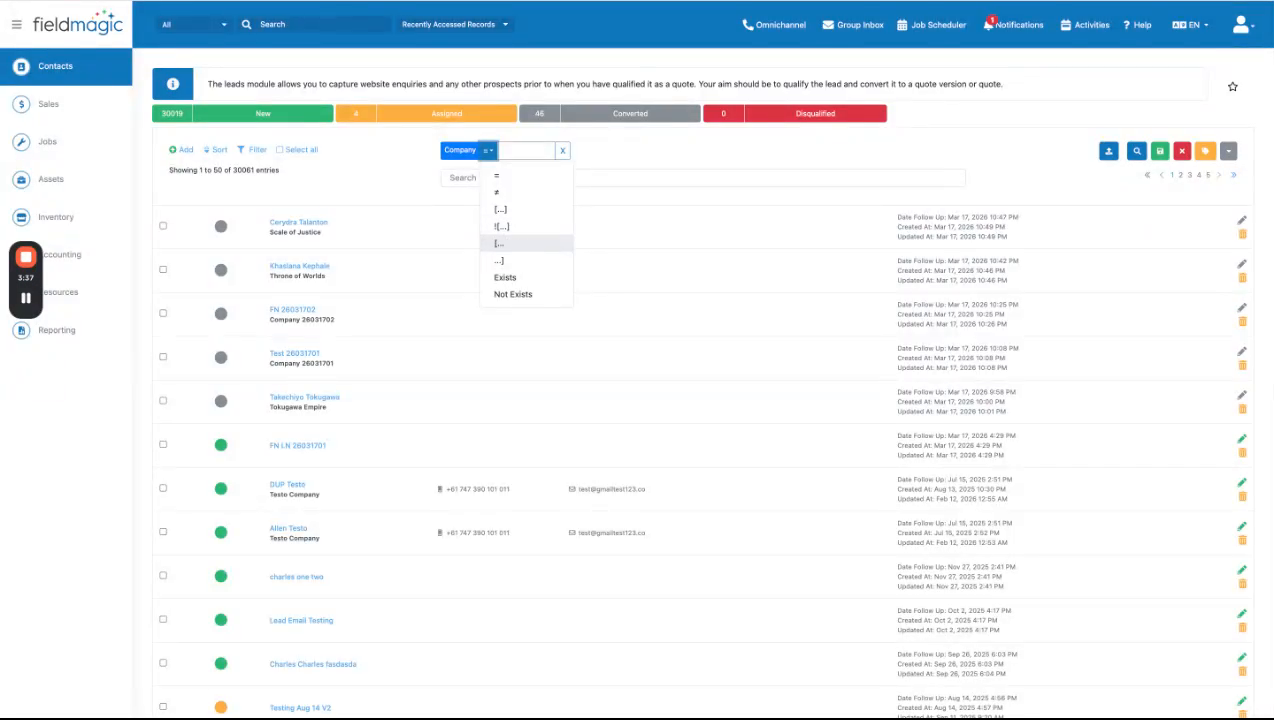
Use the DoesNotContain operator to hide records containing certain keywords you want to ignore. Use the Prefix operator to search by area codes in phone numbers or regional zip code prefixes.
 Step 7
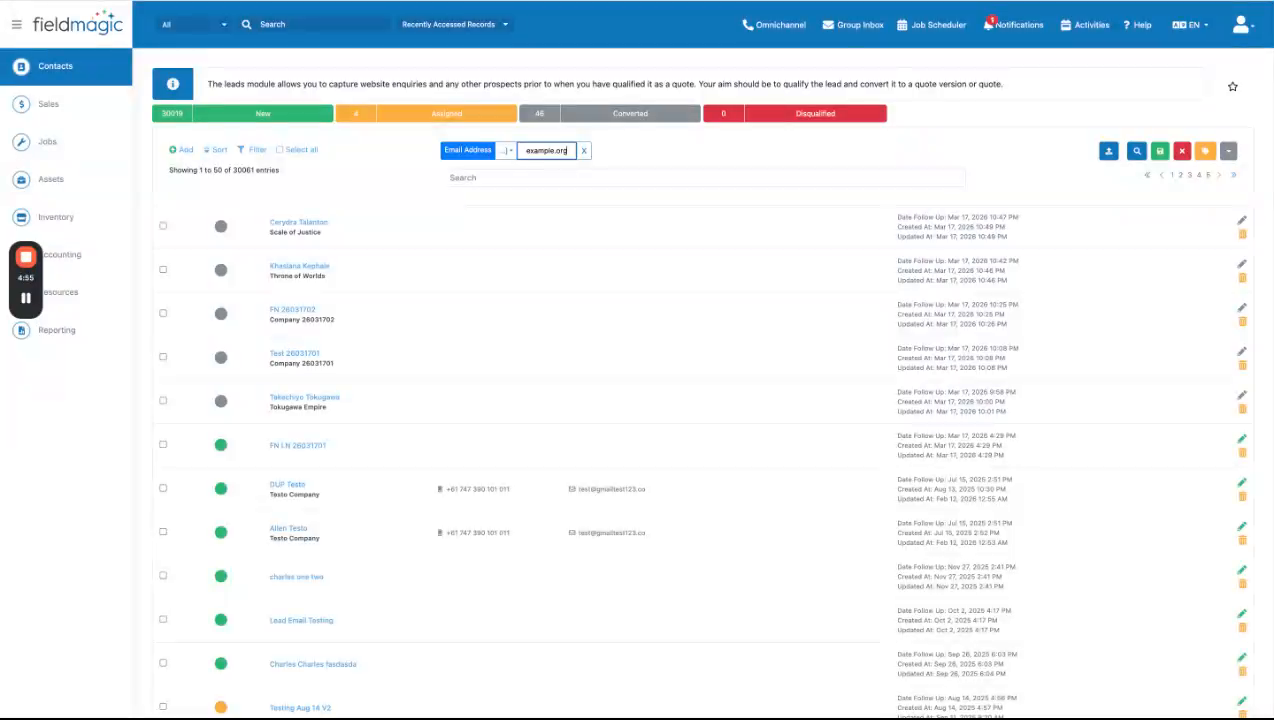
Use the EndsWith operator to filter by email domains. For example, selecting 'example.org' displays only records with email addresses ending in 'example.org'.
 Step 8
Use the Exists operator to check if a field is filled out. Use the NotExists operator to find records where vital information, such as an email address, is missing.
 Step 9
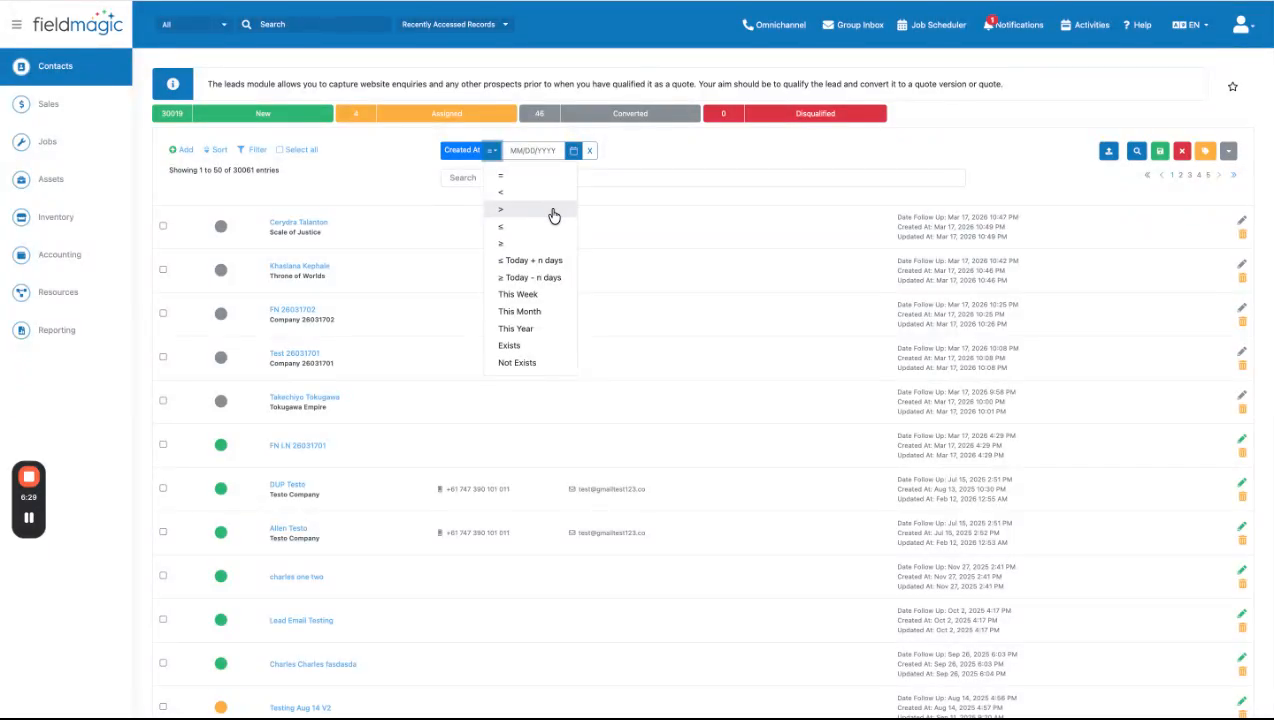
Date operators apply to date, datetime, and follow-up fields. They allow you to track progress and manage deadlines by searching along a timeline.
 Step 10
Use the Exact operator to pinpoint a specific moment in time. Use the Before and After operators to view everything prior to or following a specific date. Use the OnOrBefore and OnOrAfter operators to include your chosen date in the results.
 Step 11
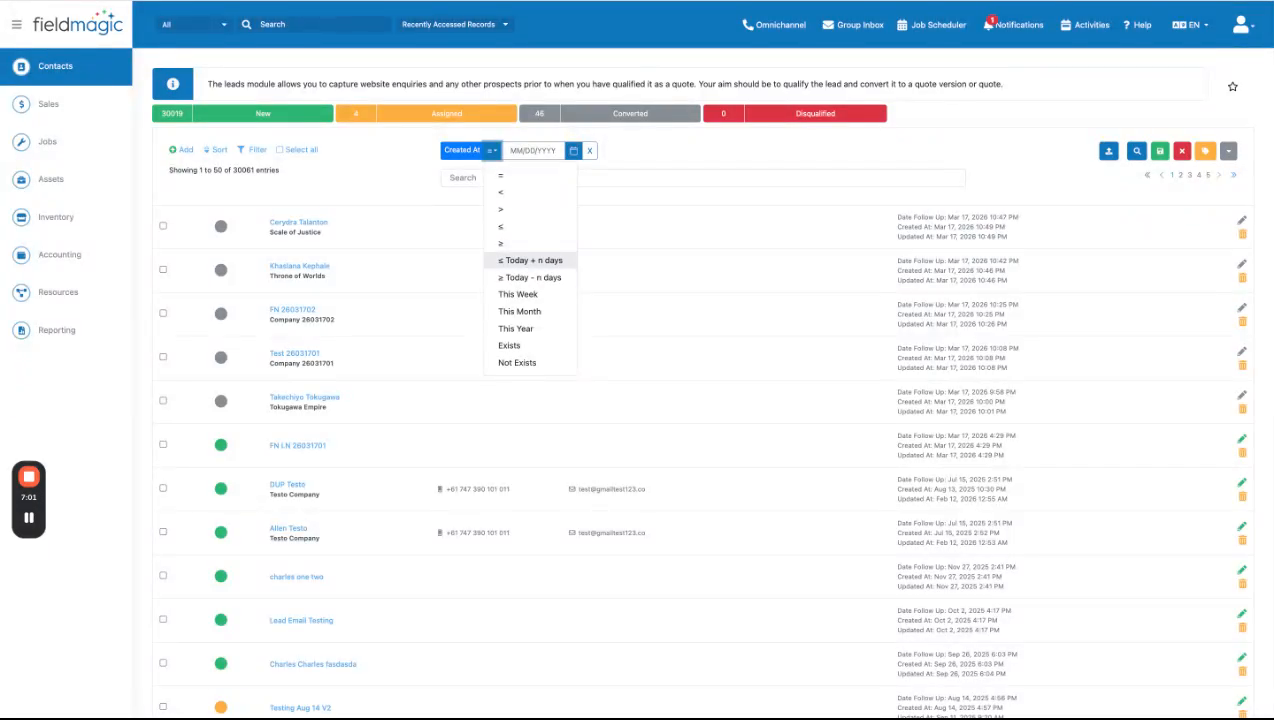
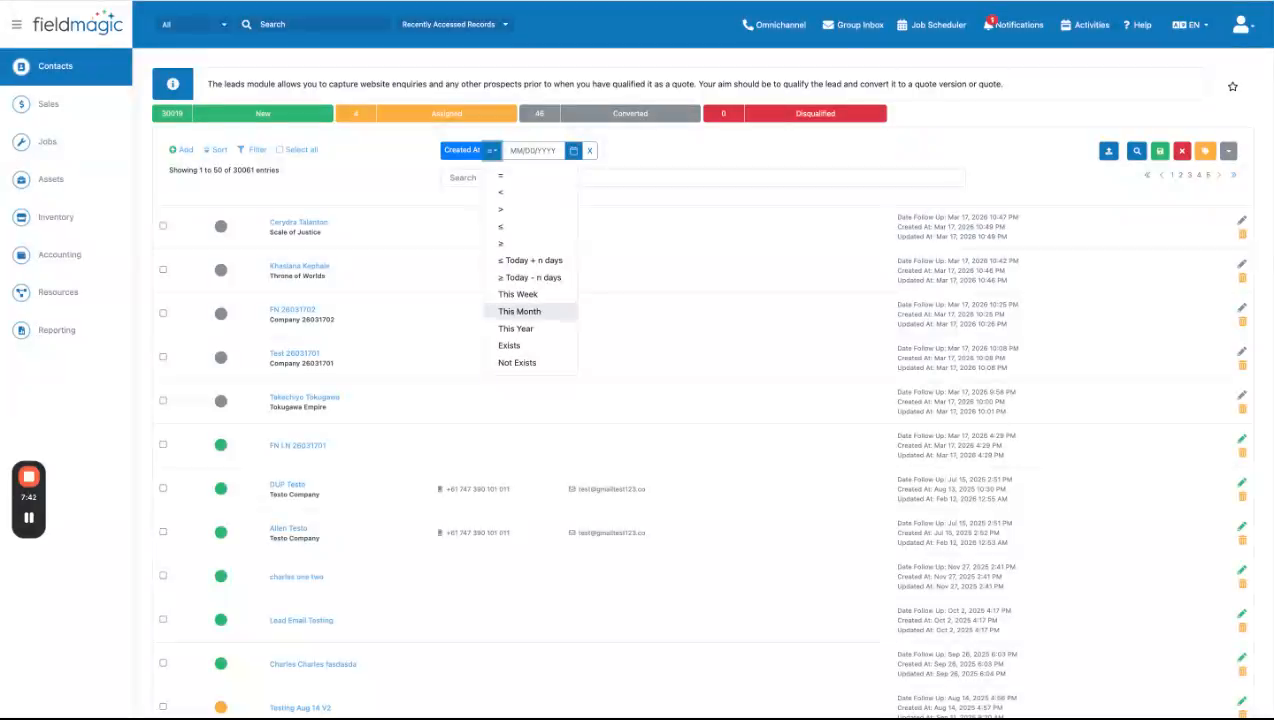
Use relative date operators such as Today, Plus days, This week, This month, and This year for proactive filtering that moves with you daily. These one-click operators are best for high-level reporting where you need to see all activities for the current calendar period.
 Step 12
Boolean operators apply to toggle fields, which are binary fields representing simple on/off states. These operators allow you to filter records based on the state of a toggle field.