Asset Management
Reporting Resolved Defects in Inspection Jobs
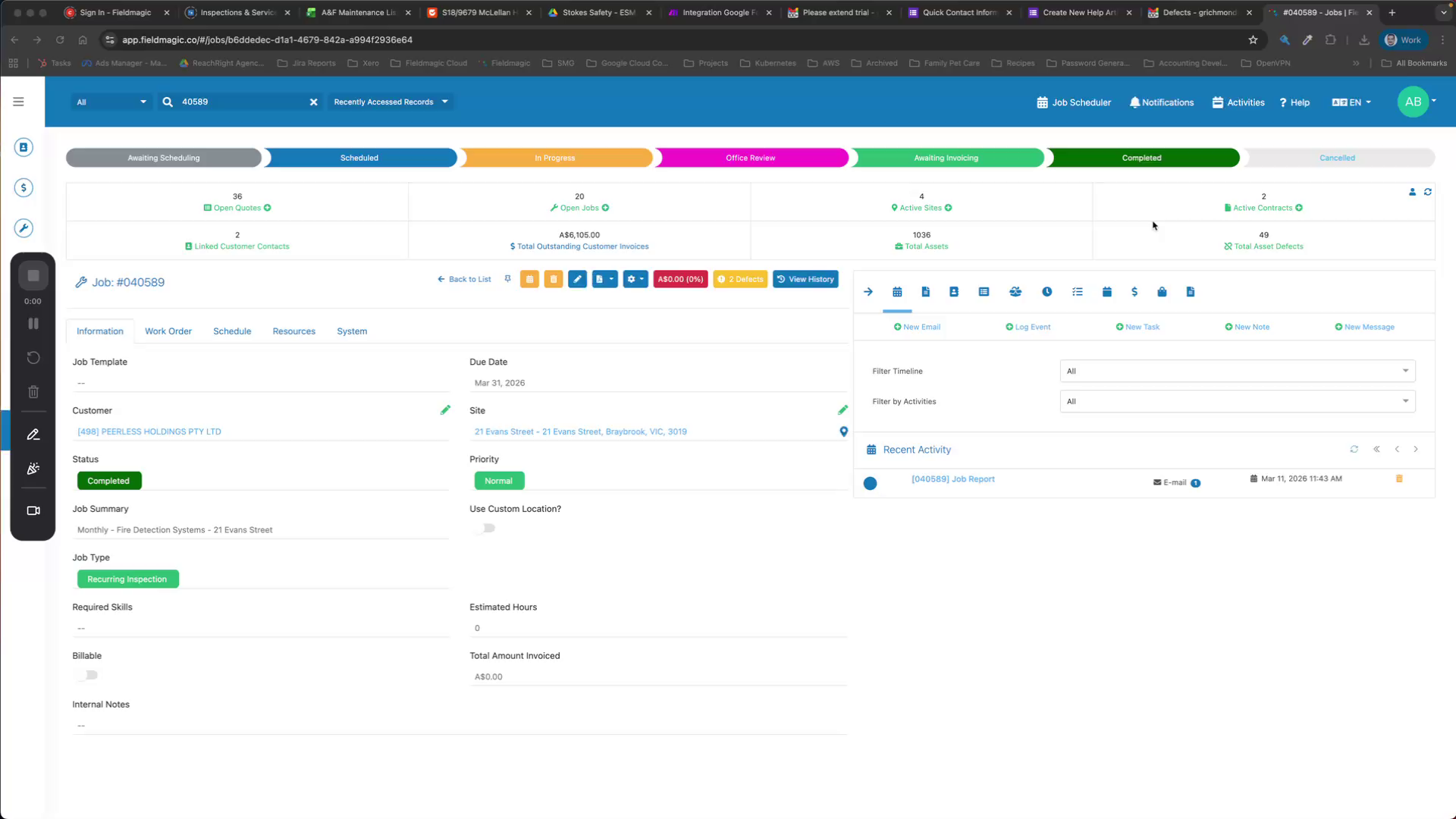
This guide covers how to report on resolved defects in an inspection job.
Step-by-step instructions
 Step 1
This guide covers how to report on resolved defects in an inspection job.
 Step 2
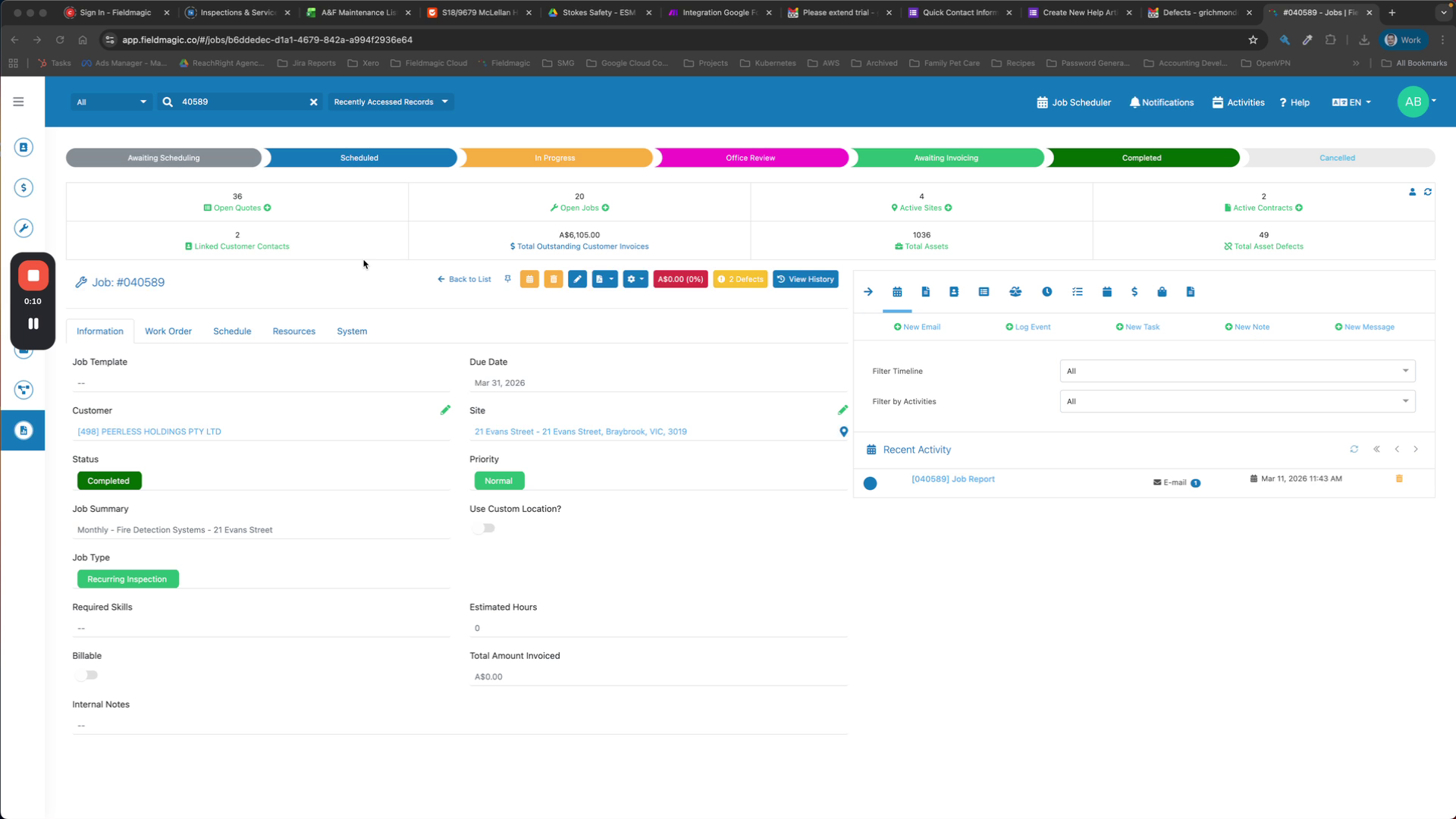
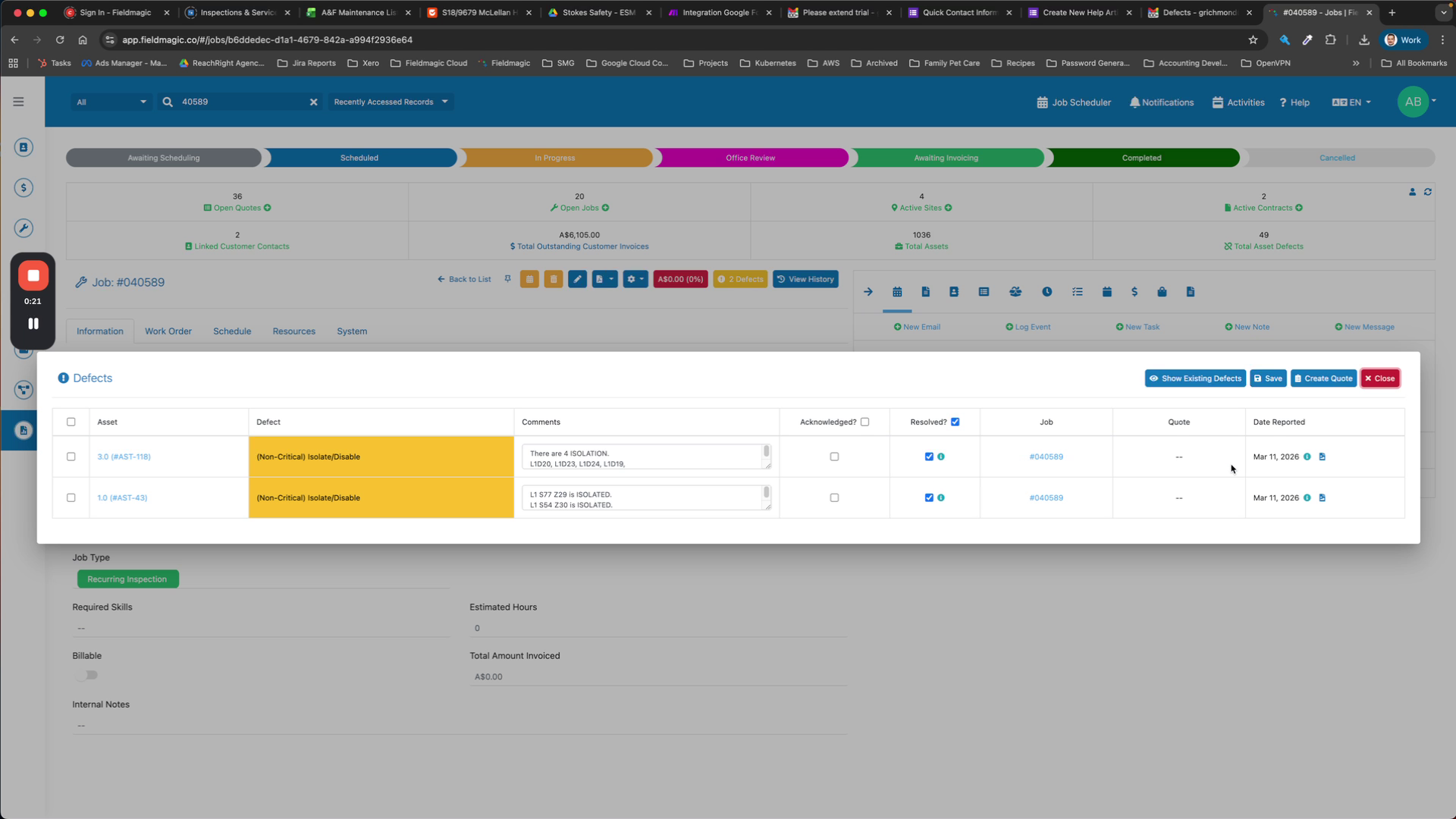
Open the job you want to review and view the defects list to see the current status of each defect.
 Step 3
Check the resolution date for each defect in the defects list.
 Step 4
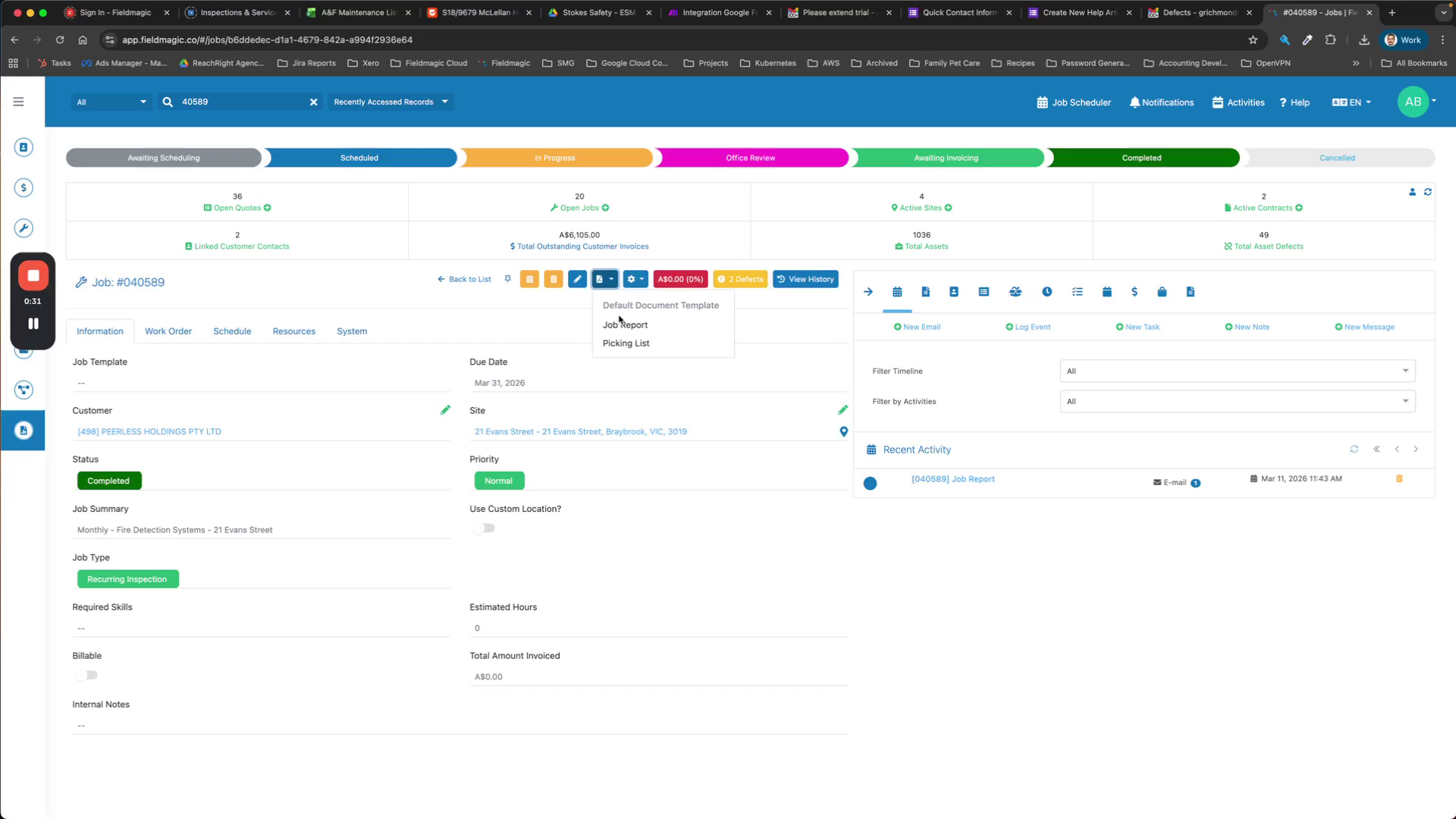
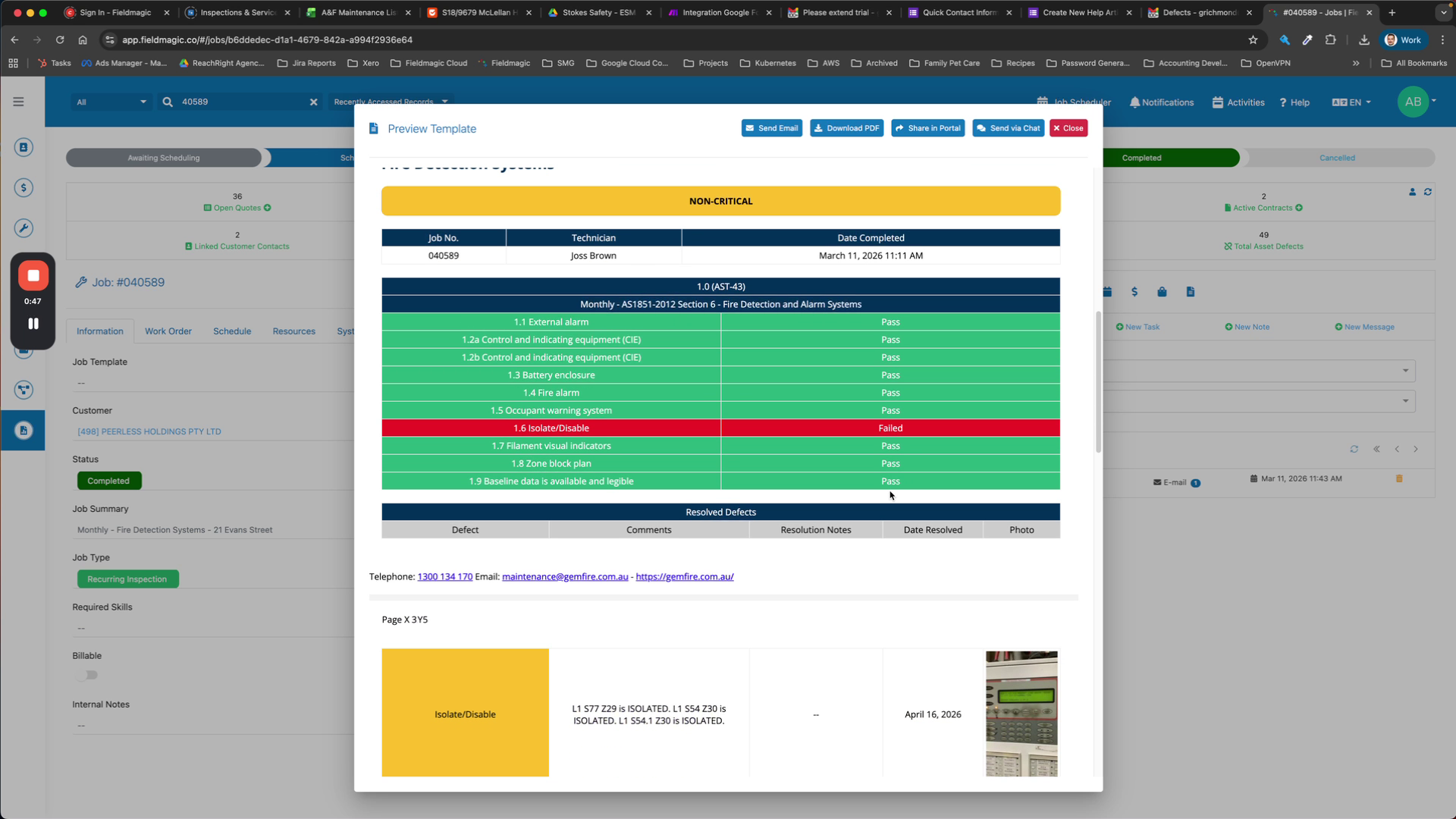
Generate a job report by selecting the asset type and clicking Preview. The report provides a summary of all assets.
 Step 5
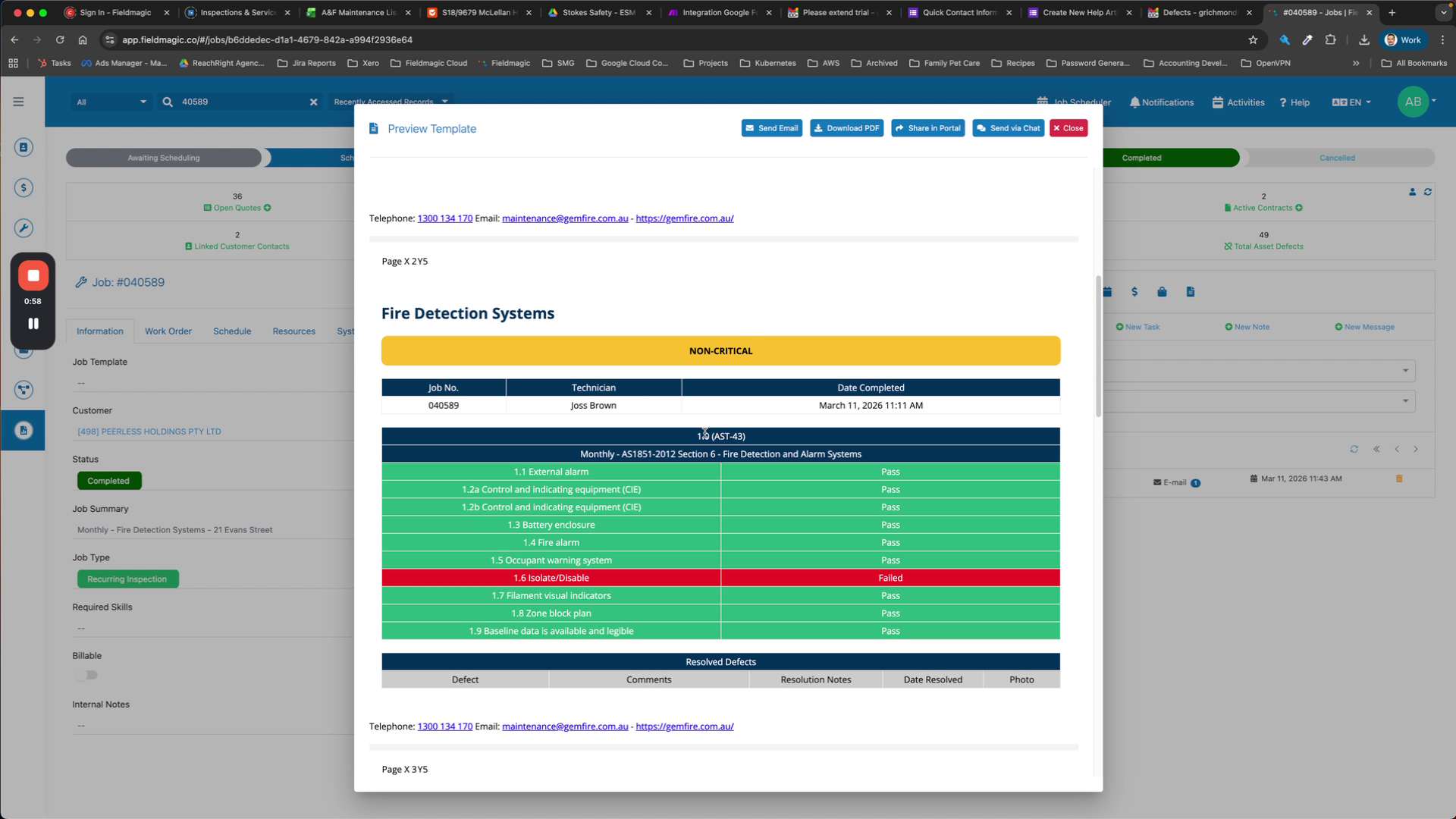
The report includes any new defects and resolved defects for the selected asset type.
 Step 6
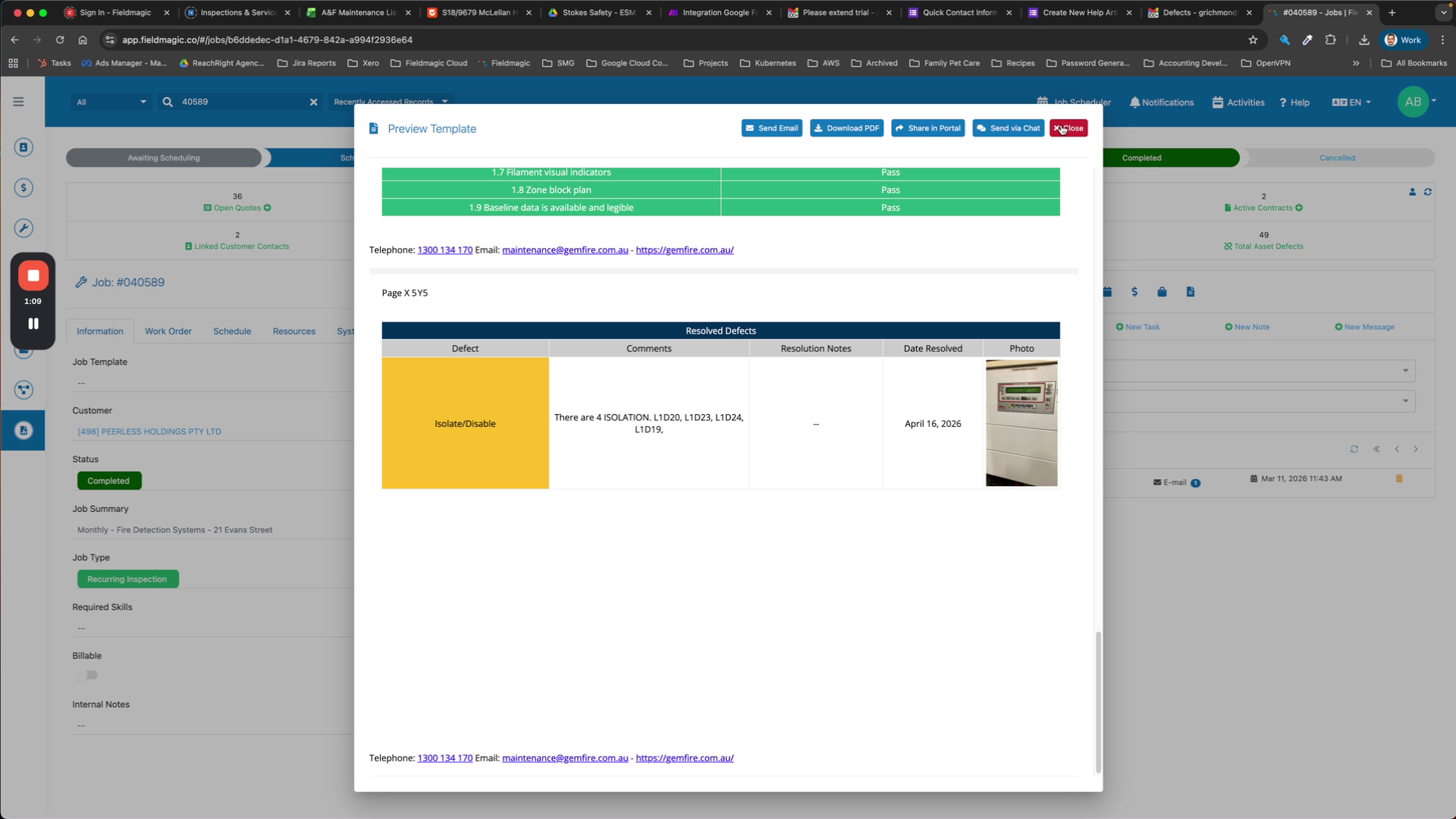
Review the resolved defects listed under each asset in the report.
 Step 7
Use the job report to view all resolved defects within the job.