Customers, Sites & Contacts
Requesting Portal Access for Contacts with Inactive Portal
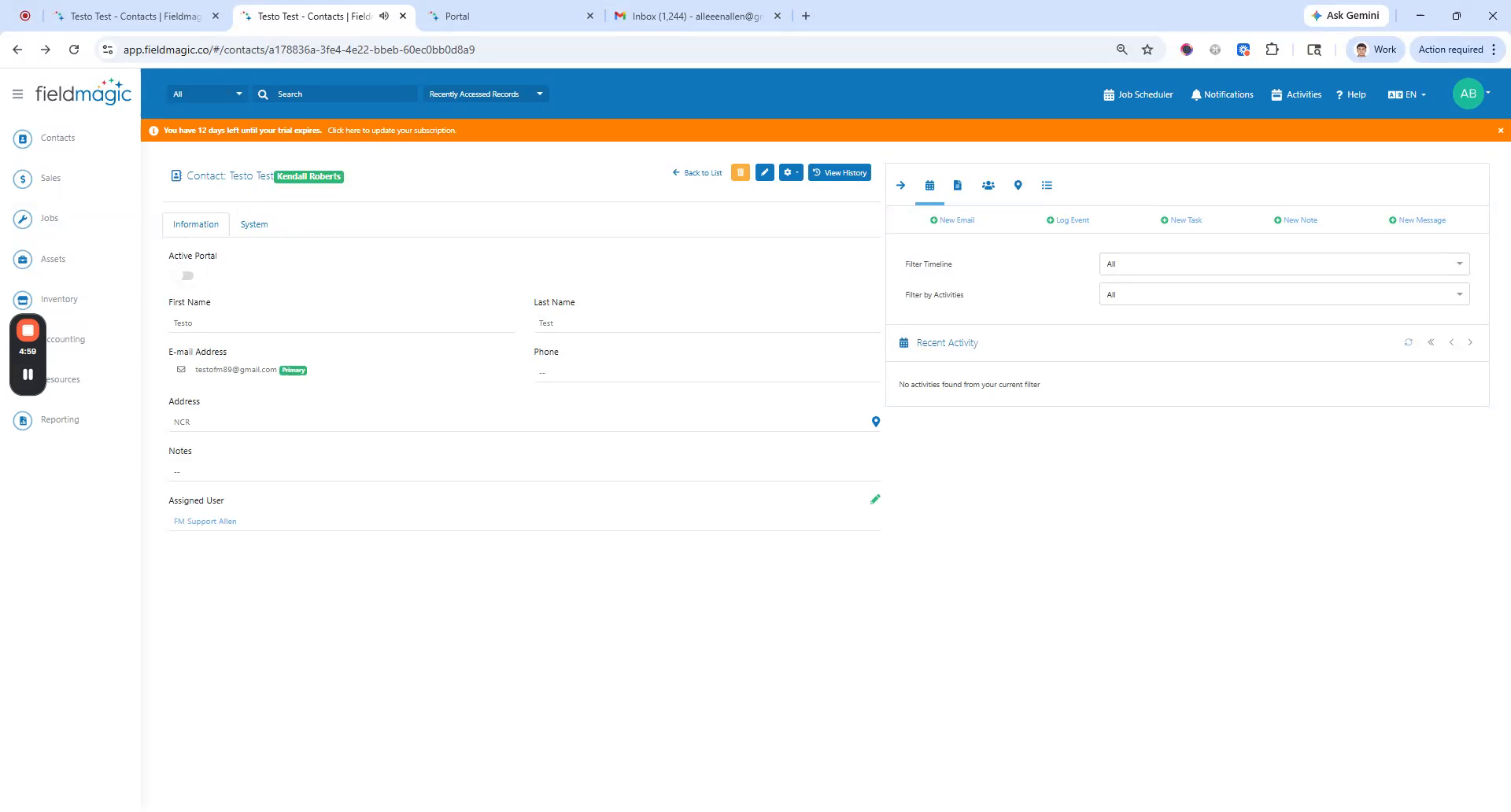
In this demo, you'll learn how a contact requests portal access when the portal is inactive. This demo uses this contact.
Step-by-step instructions
 Step 1
In this demo, you'll learn how a contact requests portal access when the portal is inactive. This demo uses this contact.
 Step 2
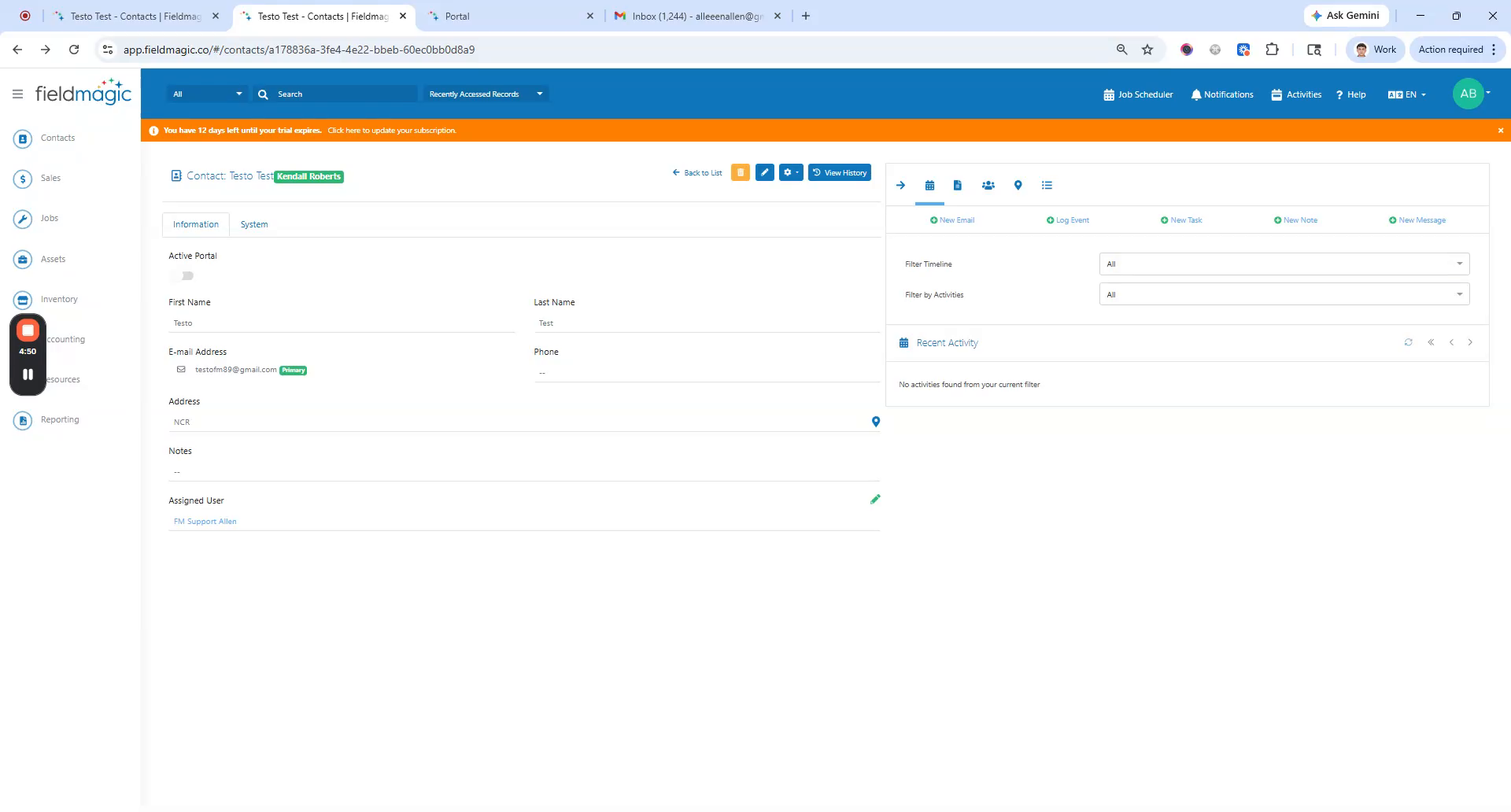
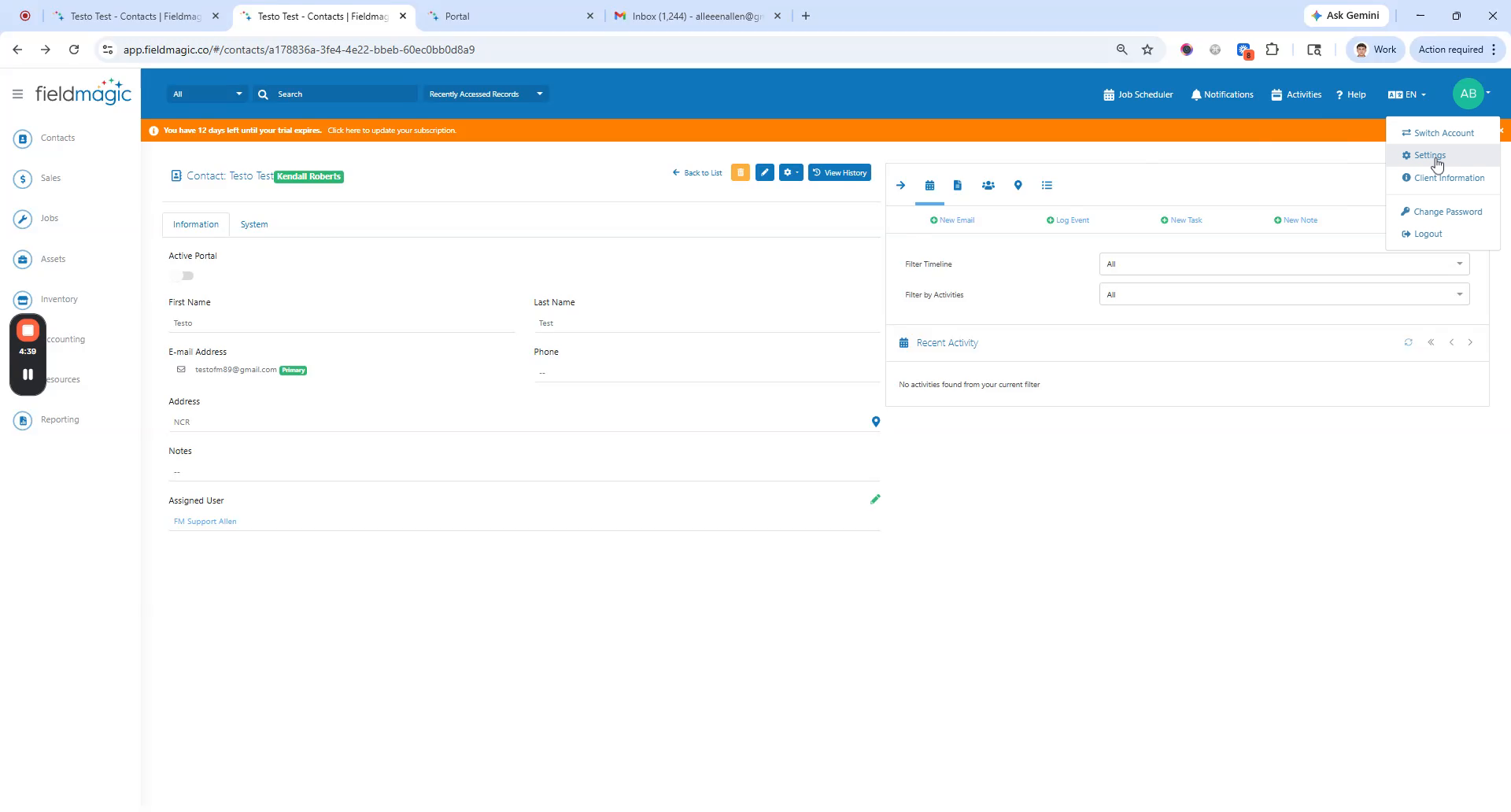
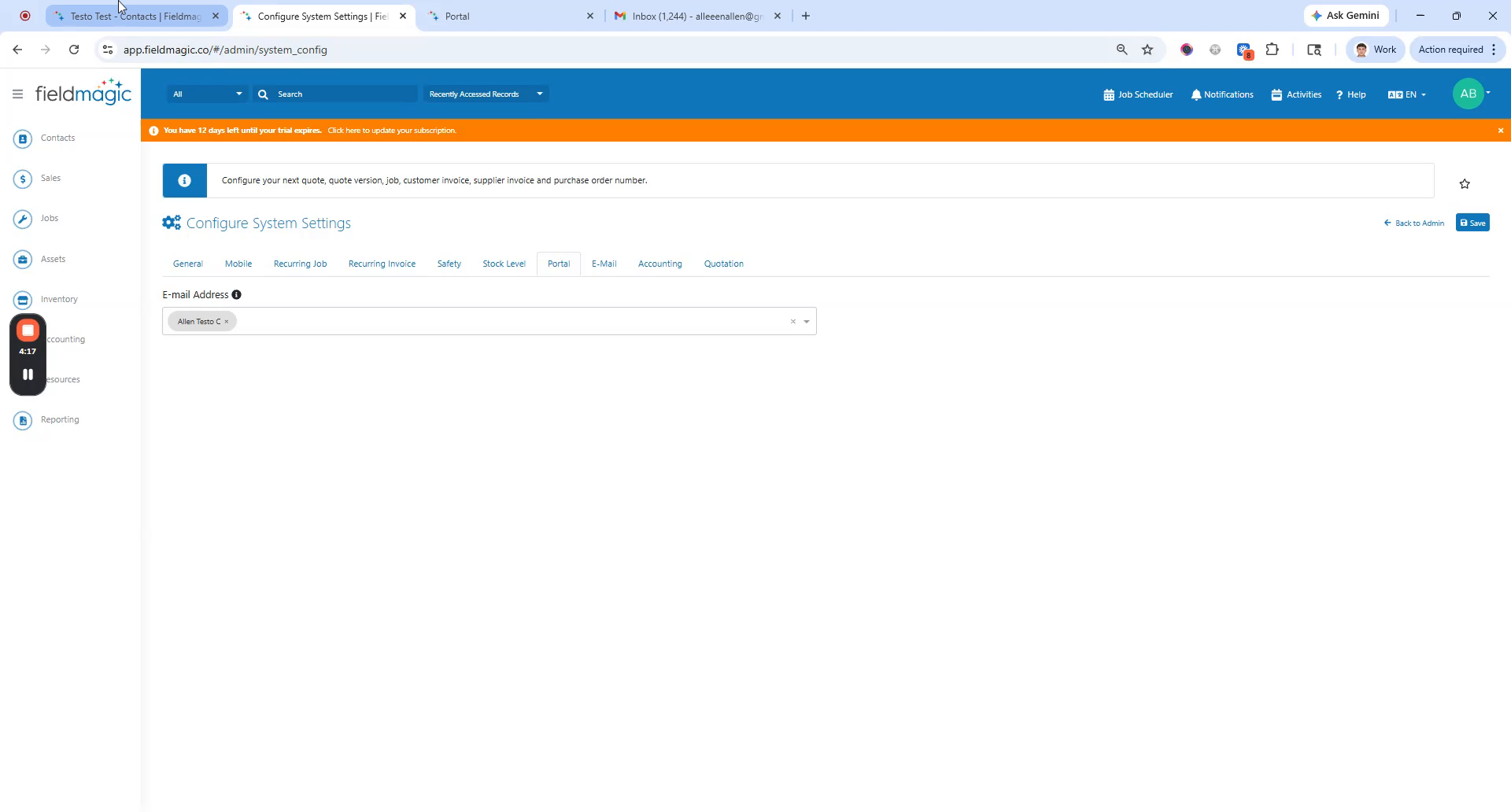
Before you begin, configure the email notifications. Go to Settings, then configure System Settings. Go to the Portal tab and add email addresses.
 Step 3
for admin users, then save. If left blank, all admins will be notified. Now, use the contact and
 Step 4
attempt to log in to the portal. The contact logs in using their email. even if the portal is inactive.
 Step 5
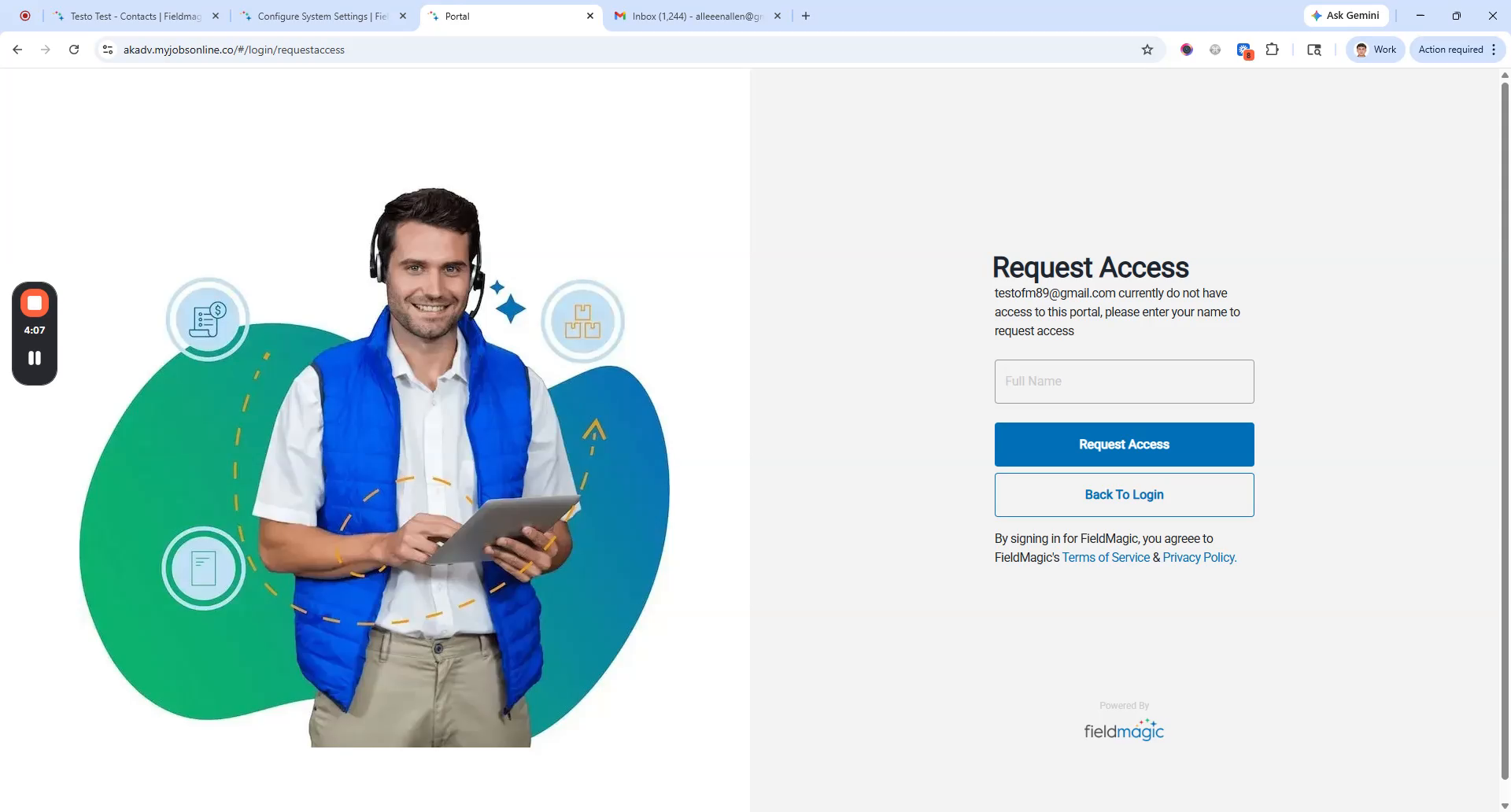
They see a request access prompt. Enter the name and request access.
 Step 6
Once the request is sent, an email is sent to the address configured in the portal notifications.