Customer Portal
Resetting and Changing Customer Portal Password
In FieldMagic, you can reset a customer's portal password from the system or change it directly within the portal.
Step-by-step instructions
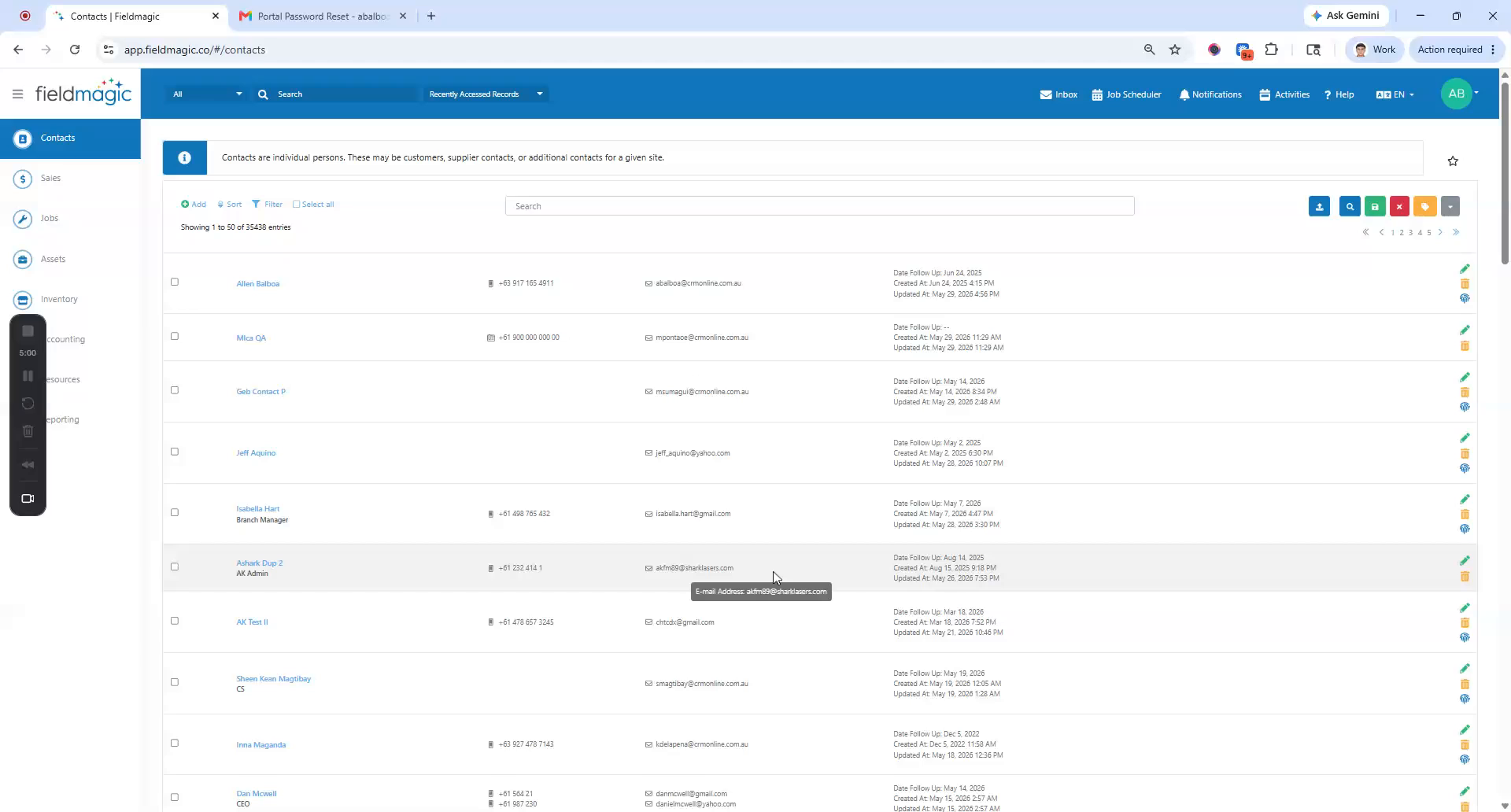 Step 1
In FieldMagic, you can reset a customer's portal password from the system or change it directly within the portal.
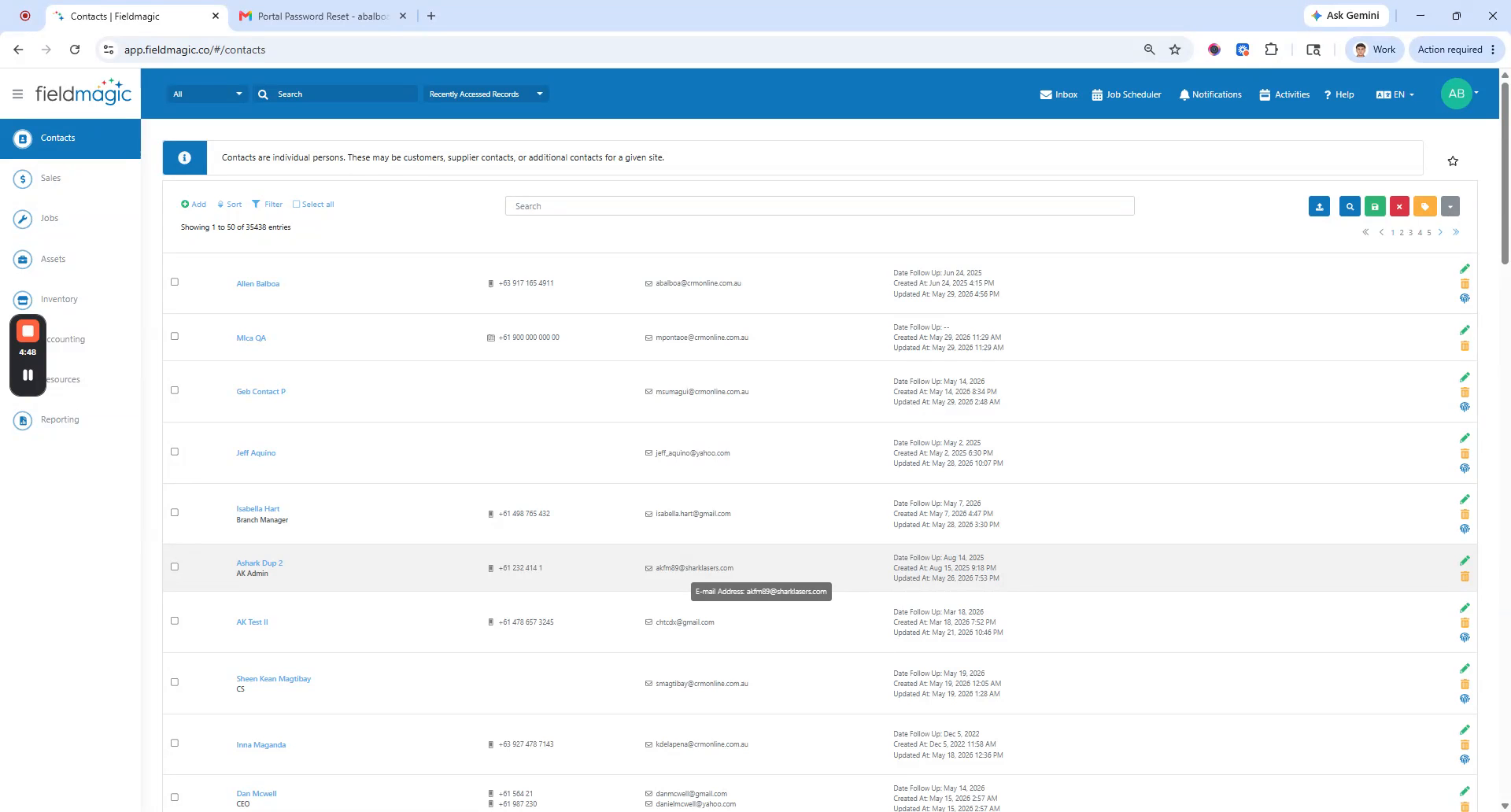 Step 2
To reset a password in the system, navigate to the Contacts list, select the desired contact, and click the Fingerprint icon next to the contact.
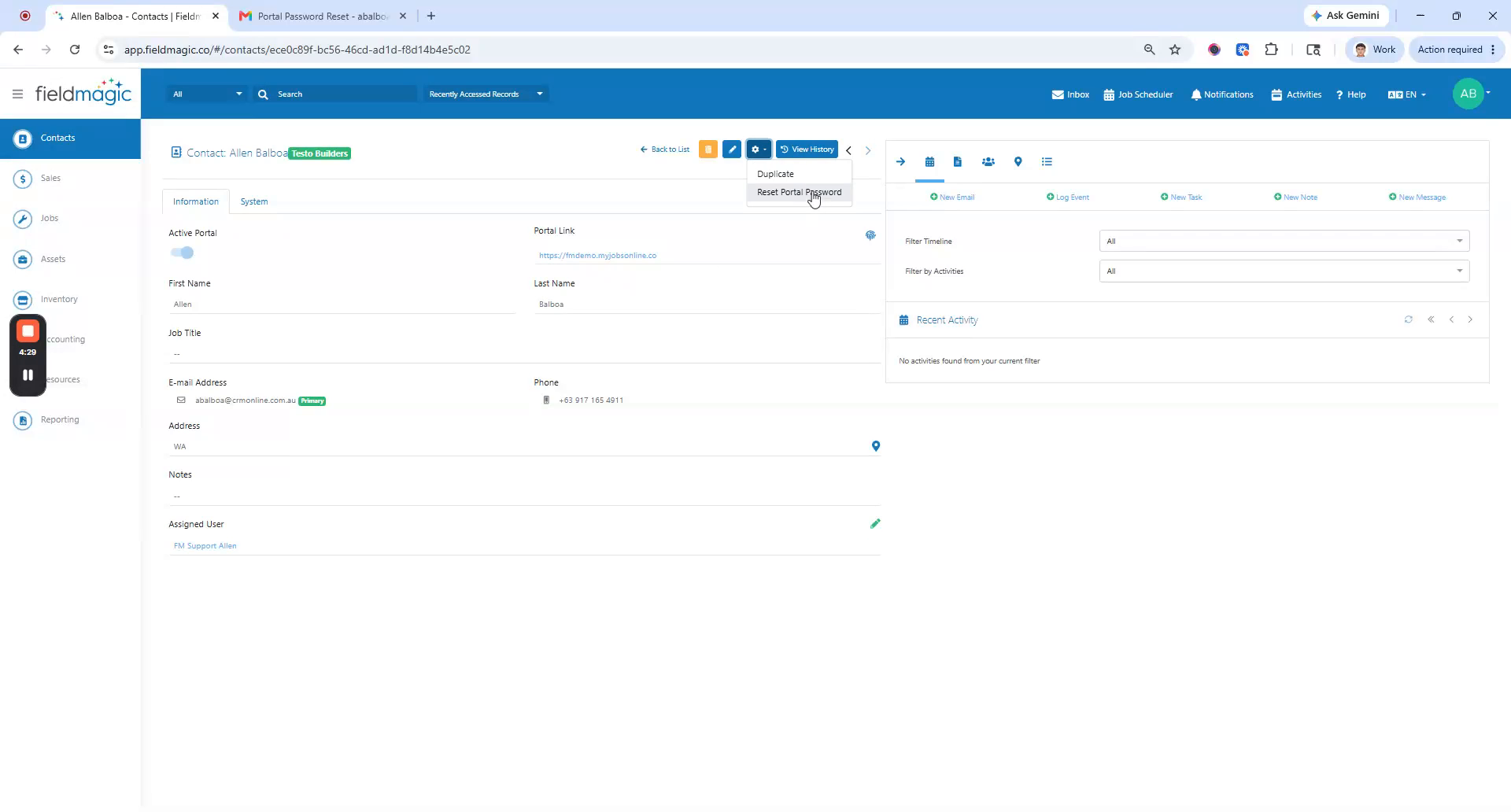 Step 3
Alternatively, click the Reset Portal Password option under the Actions menu or use the Fingerprint icon in the Portal link field.
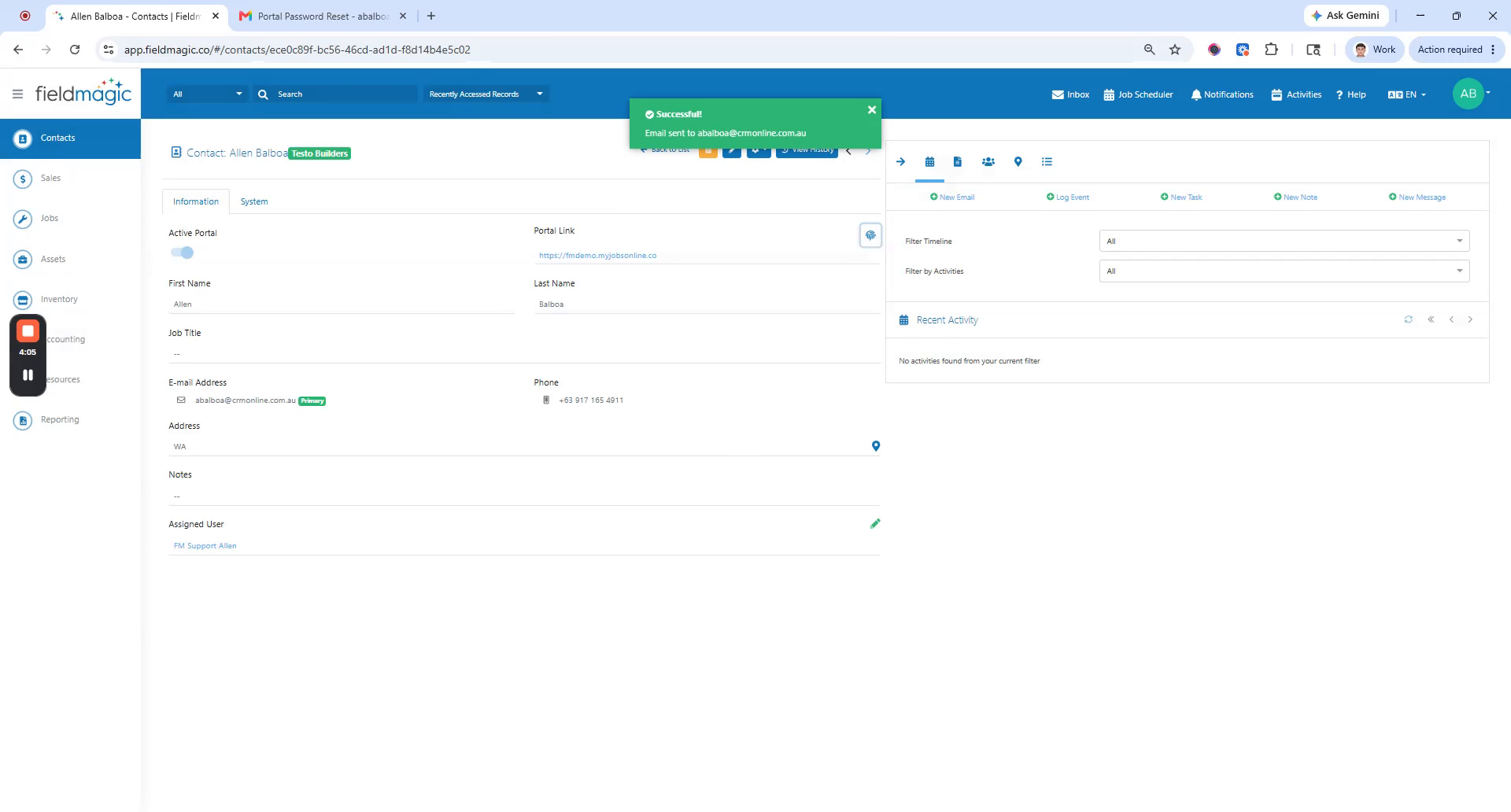 Step 4
Click Reset Portal Password and confirm the action. The system will email a temporary password to the contact and the user who initiated the reset.
 Step 5
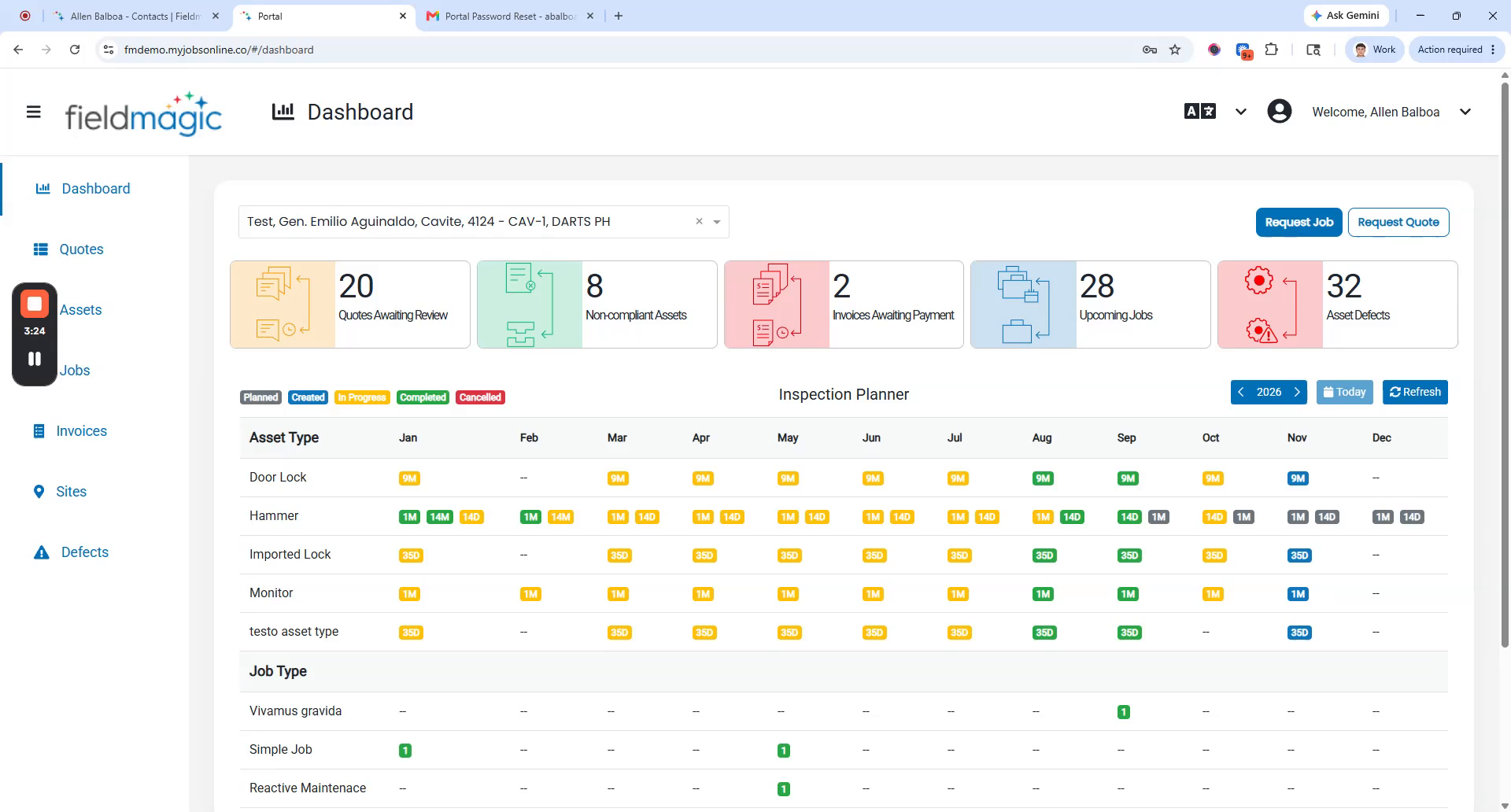
Open the email, copy the temporary password, and log in to the Customer Portal using your existing credentials.
 Step 6
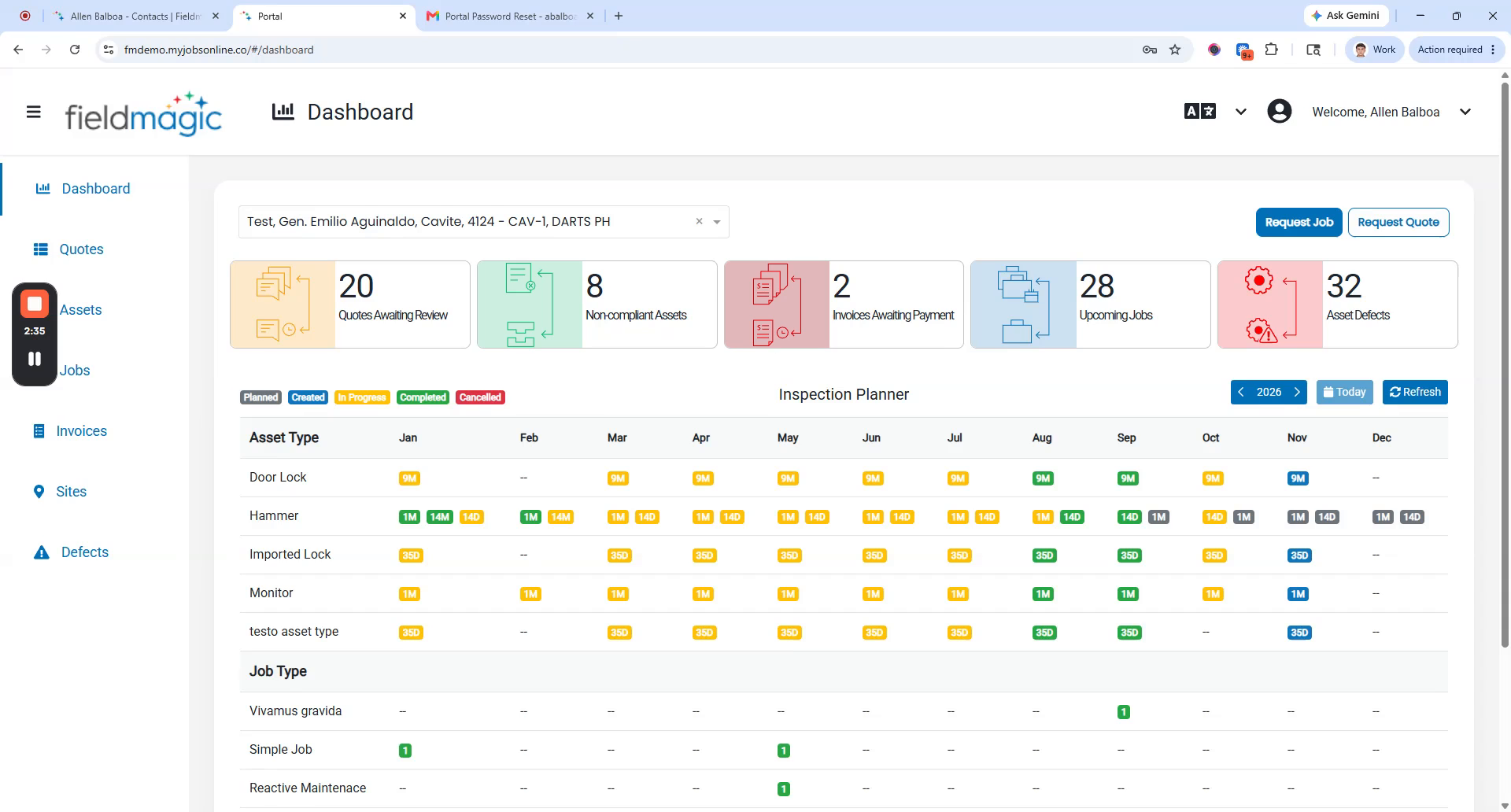
In the portal, click your account name in the top right corner and select Change Password. Enter your current password and your new password, then click Update.
 Step 7
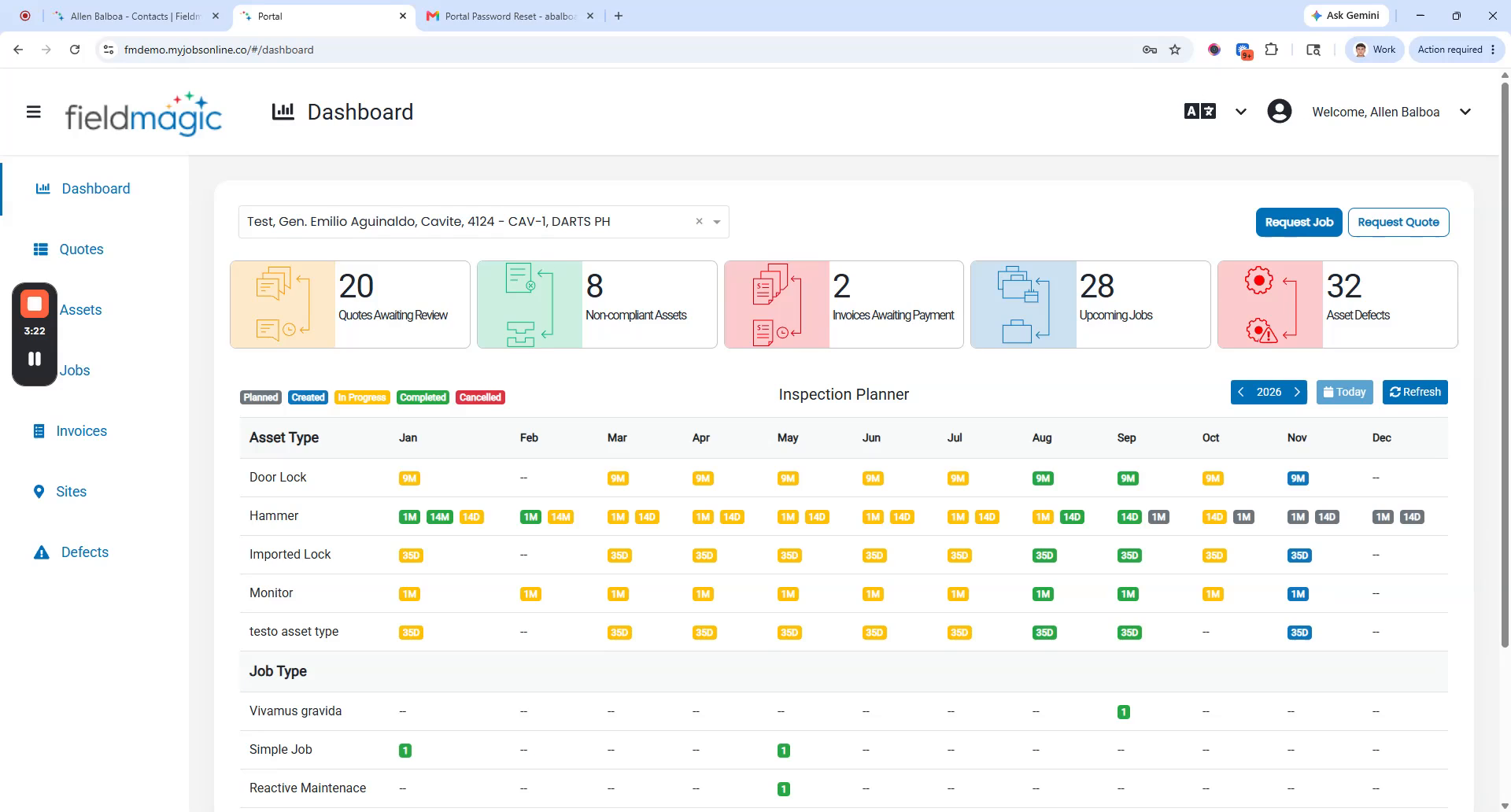
Your new password is now active. Use it to log in to the Customer Portal going forward.