Asset Inspections & Management
Scanning a QR Code for an Asset Type and Checklist in a Job
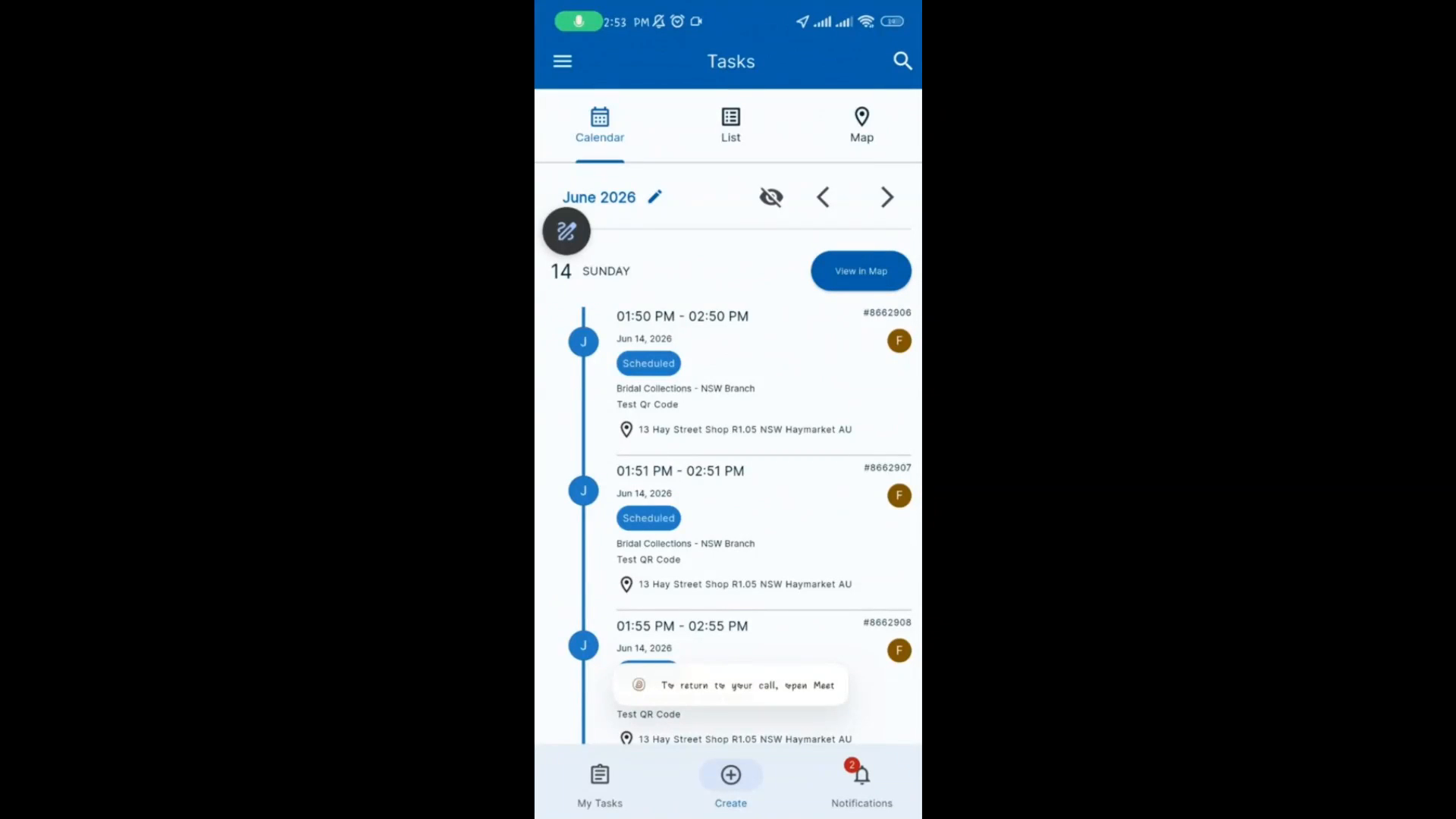
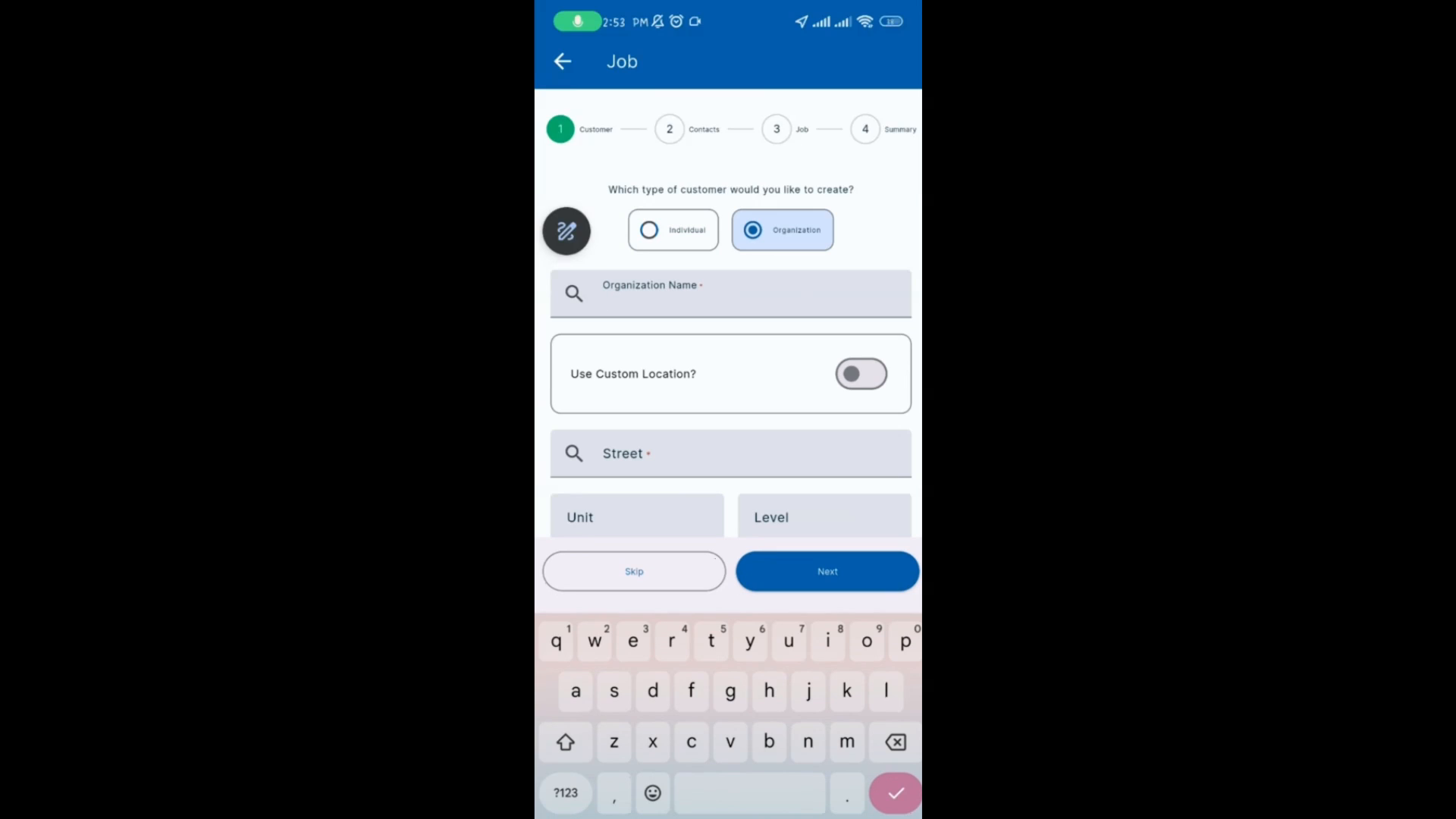
Tap the plus icon to create a new job. Select the customer type (for example, Organization), then select the organization name. Optionally, select a contact person or skip this step. Enter a summary for the job.
Step-by-step instructions
 Step 1
Tap the plus icon to create a new job. Select the customer type (for example, Organization), then select the organization name. Optionally, select a contact person or skip this step. Enter a summary for the job.
 Step 2
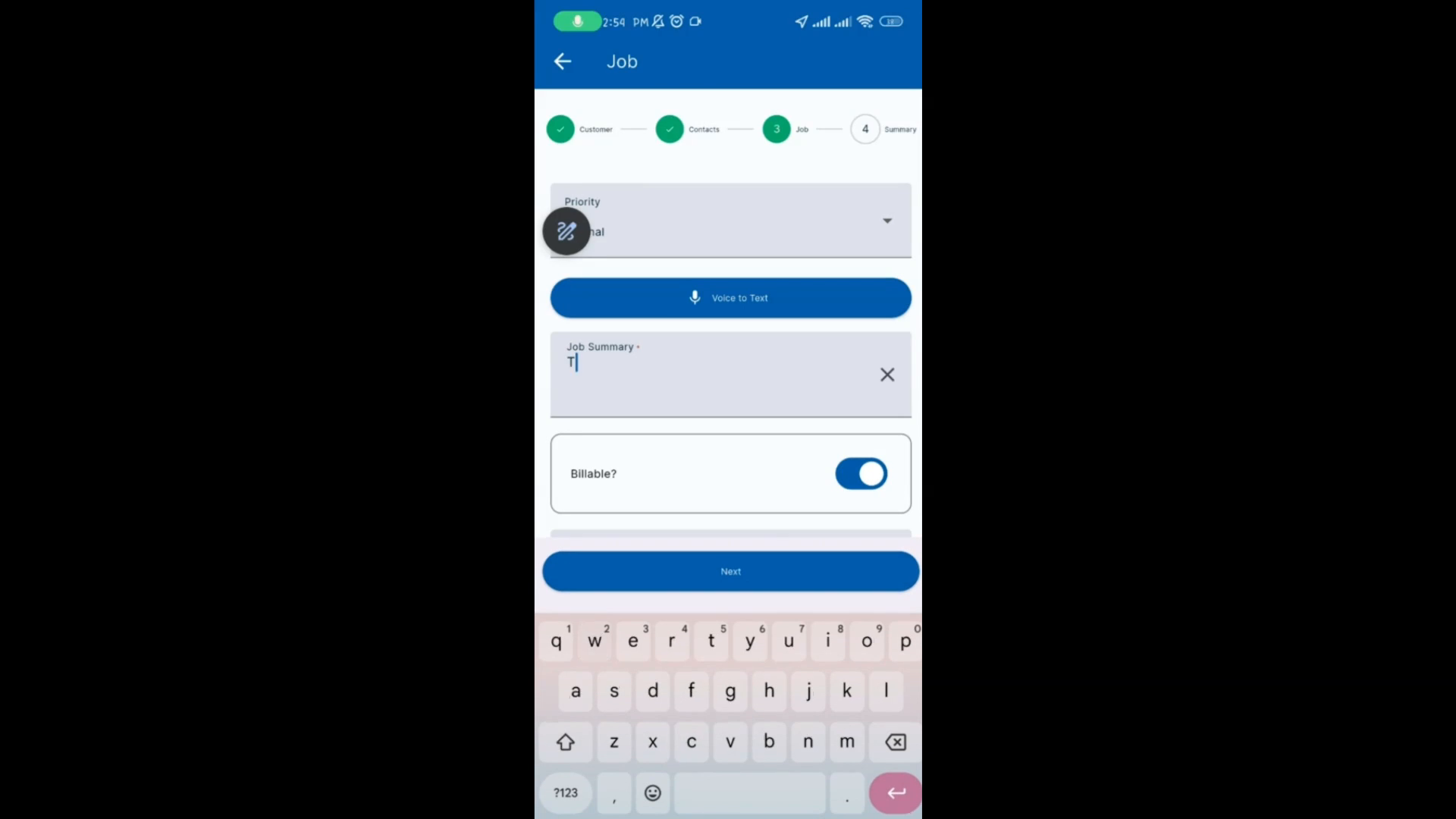
Select the billing type. Tap Next, then tap Complete. Navigate to the Assets section and tap the hamburger menu.
 Step 3
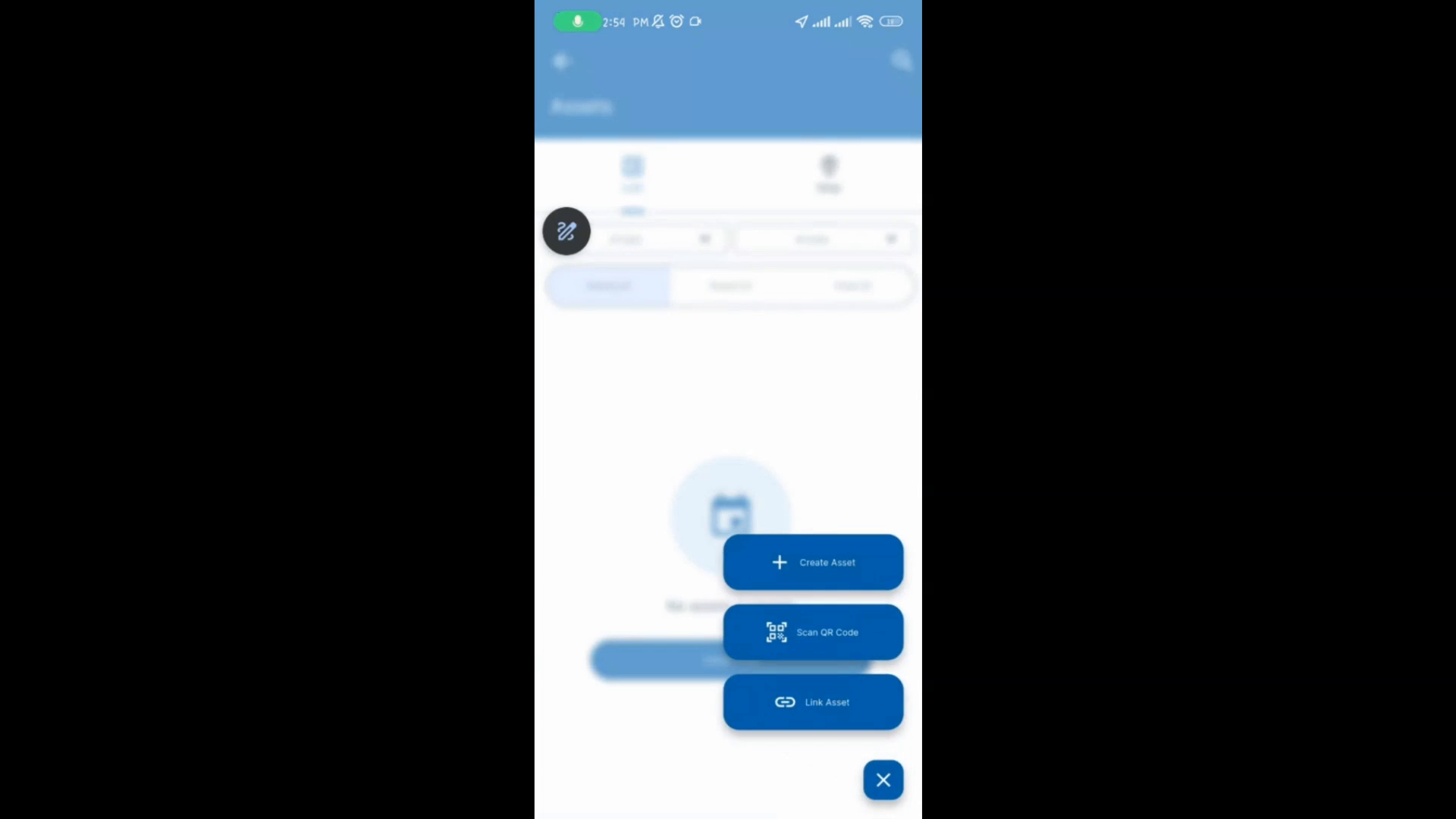
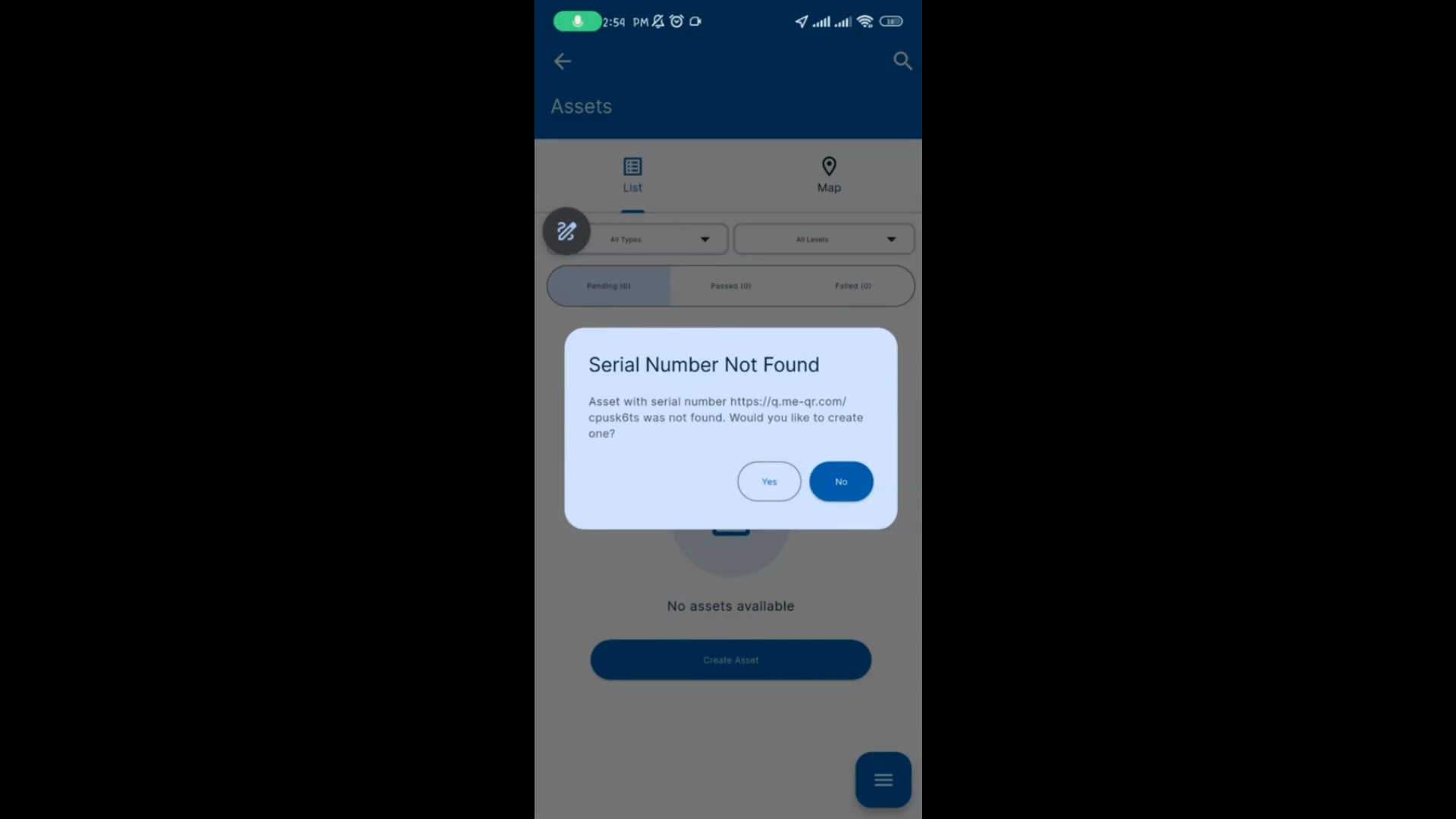
Tap Scan QR Code to open your device's camera. Scan the QR code. When prompted, tap Yes to create a new asset.
 Step 4
Tap Save. Then tap Inspect. Select the appropriate checklist and tap Confirm.
 Step 5
Complete the checklist inspection. Tap Save to submit the inspection.