Sales & Quoting
Scanning a QR Code to Add a New Item to a Quote
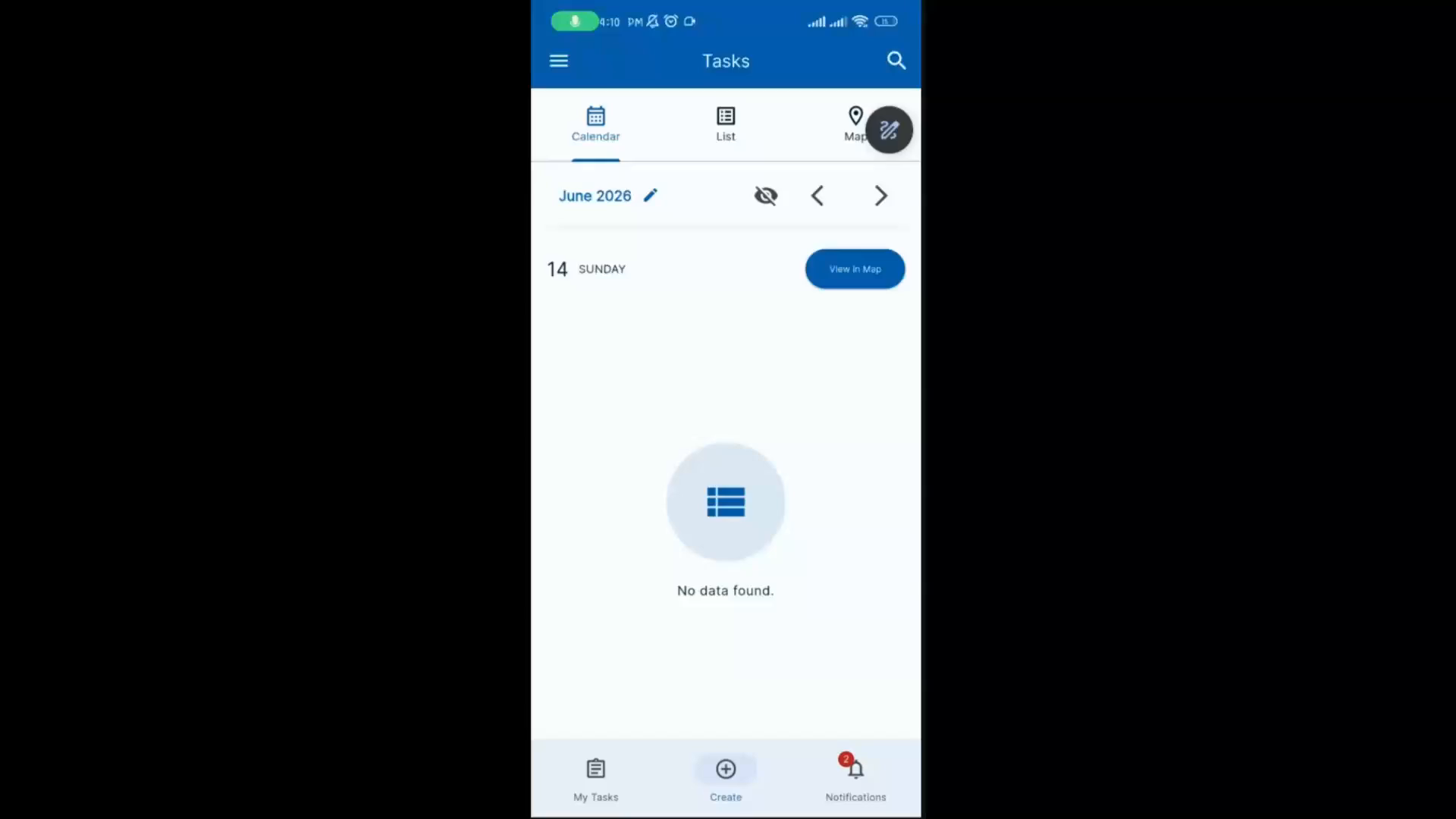
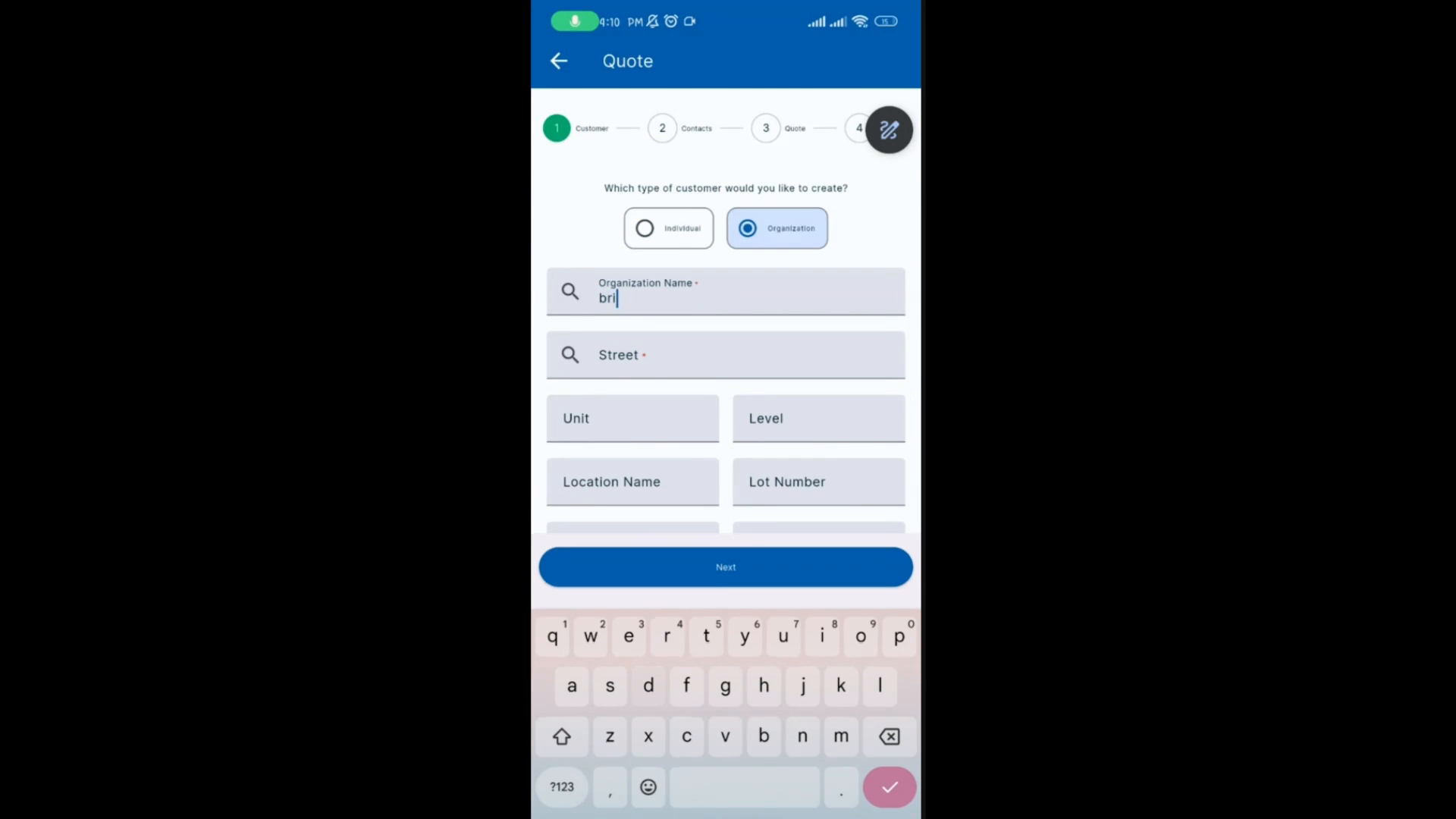
Tap the plus icon to create a new quote. Select the customer type as Organization and select the organization name.
Step-by-step instructions
 Step 1
Tap the plus icon to create a new quote. Select the customer type as Organization and select the organization name.
 Step 2
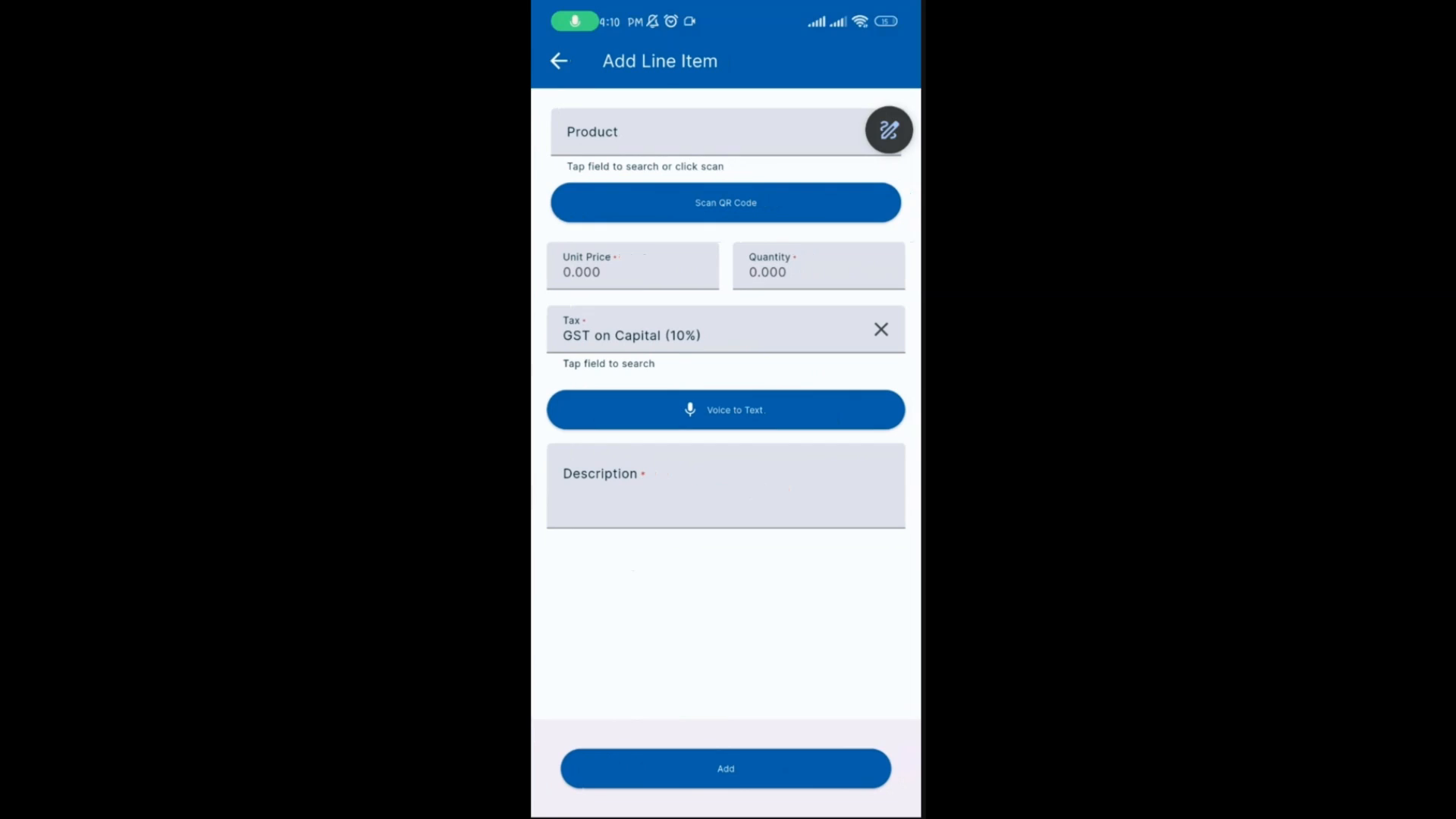
Optionally select a contact person and enter a summary for the quote. Tap the plus icon to add a new item and select Scan QR Code.
 Step 3
Scan the QR code using your device's camera to automatically select the corresponding product. Enter the quantity, click Add, and then click Next and Complete to finalize the quote.