Job Scheduling
Setting indicators using Scheduler Settings
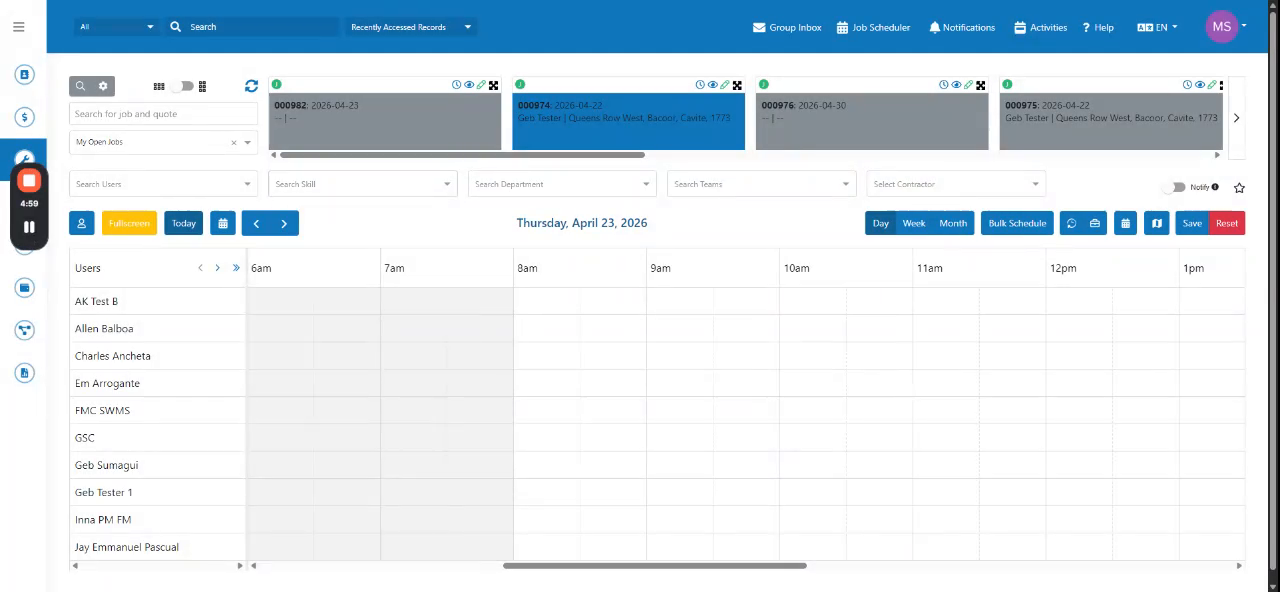
Click the gear icon to access Scheduler Settings.
Step-by-step instructions
 Step 1
Click the gear icon to access Scheduler Settings.
 Step 2
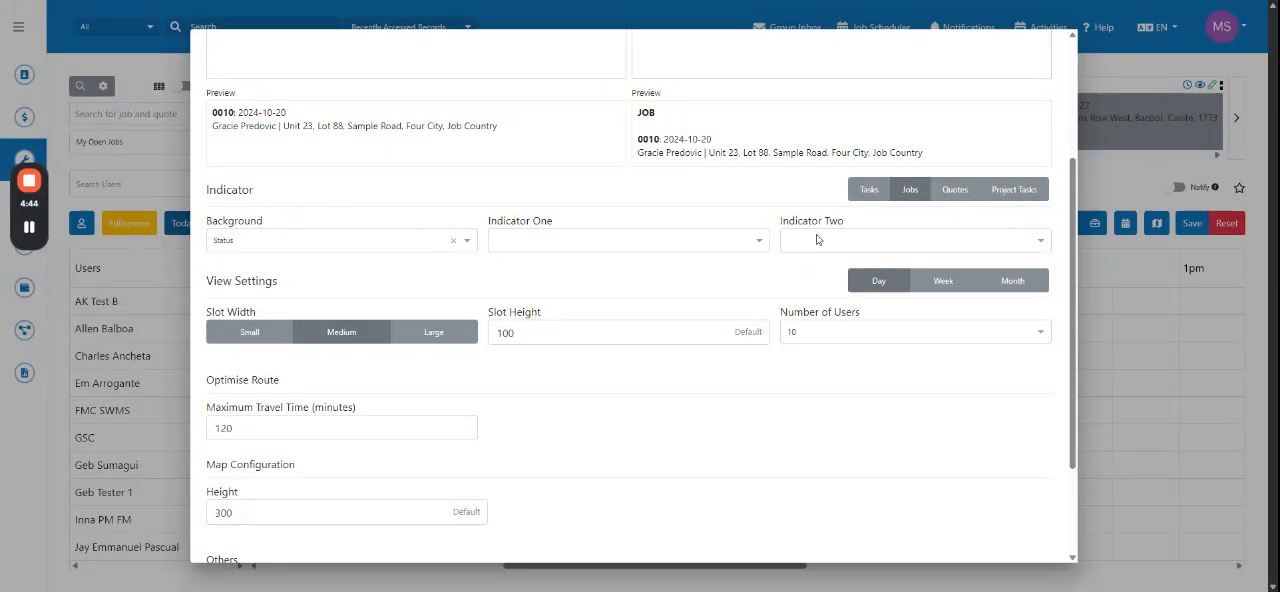
Select Jobs from the dropdown menu.
 Step 3
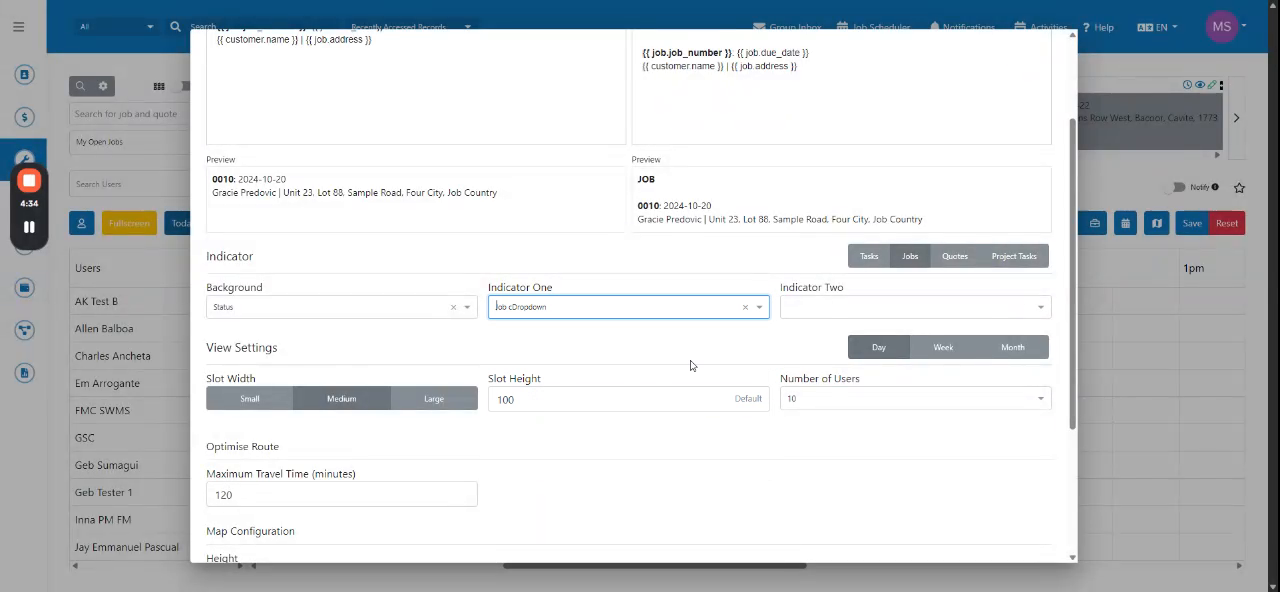
Select Customer from the dropdown menu, then click Save. The indicator colors are now displayed.
 Step 4
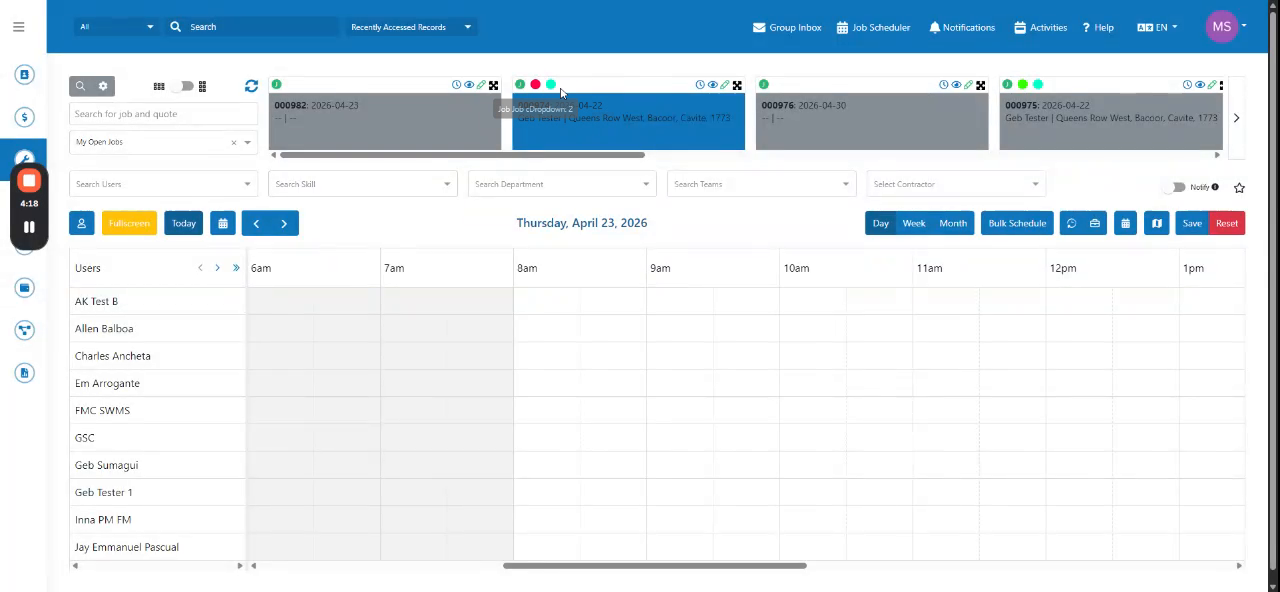
When you schedule, the indicators appear with the configured colors. To remove them, click the gear icon again.
 Step 5
Clear the indicator fields and click Save. The indicators are now hidden.