Checklists and Safety
Setting Up a Computed Value Prompt in a Checklist
A computed value prompt automatically calculates results based on other prompts in a checklist. This feature is useful for performing calculations like sums, differences, or percentages.
Step-by-step instructions
 Step 1
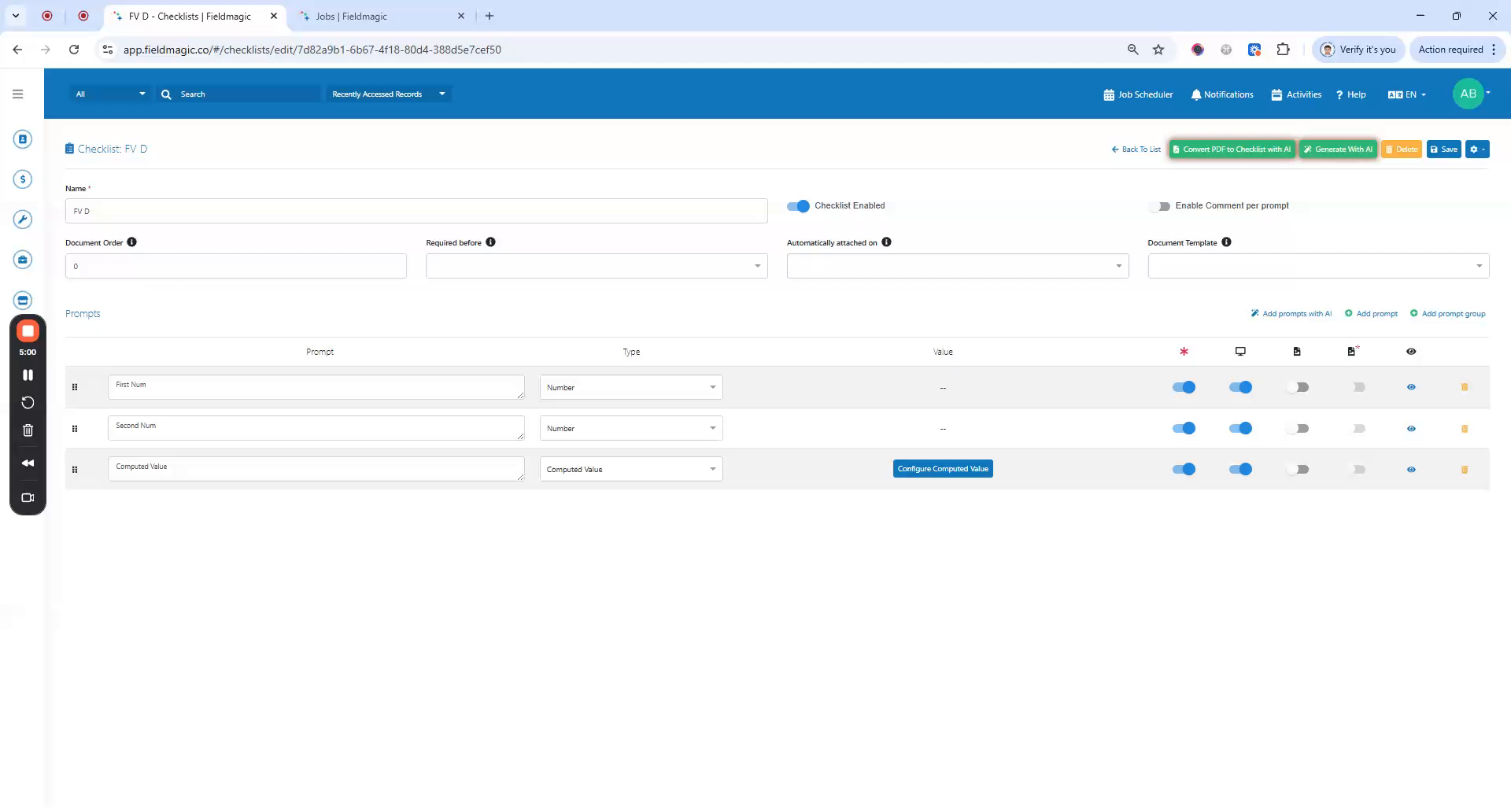
A computed value prompt automatically calculates results based on other prompts in a checklist. This feature is useful for performing calculations like sums, differences, or percentages.
 Step 2
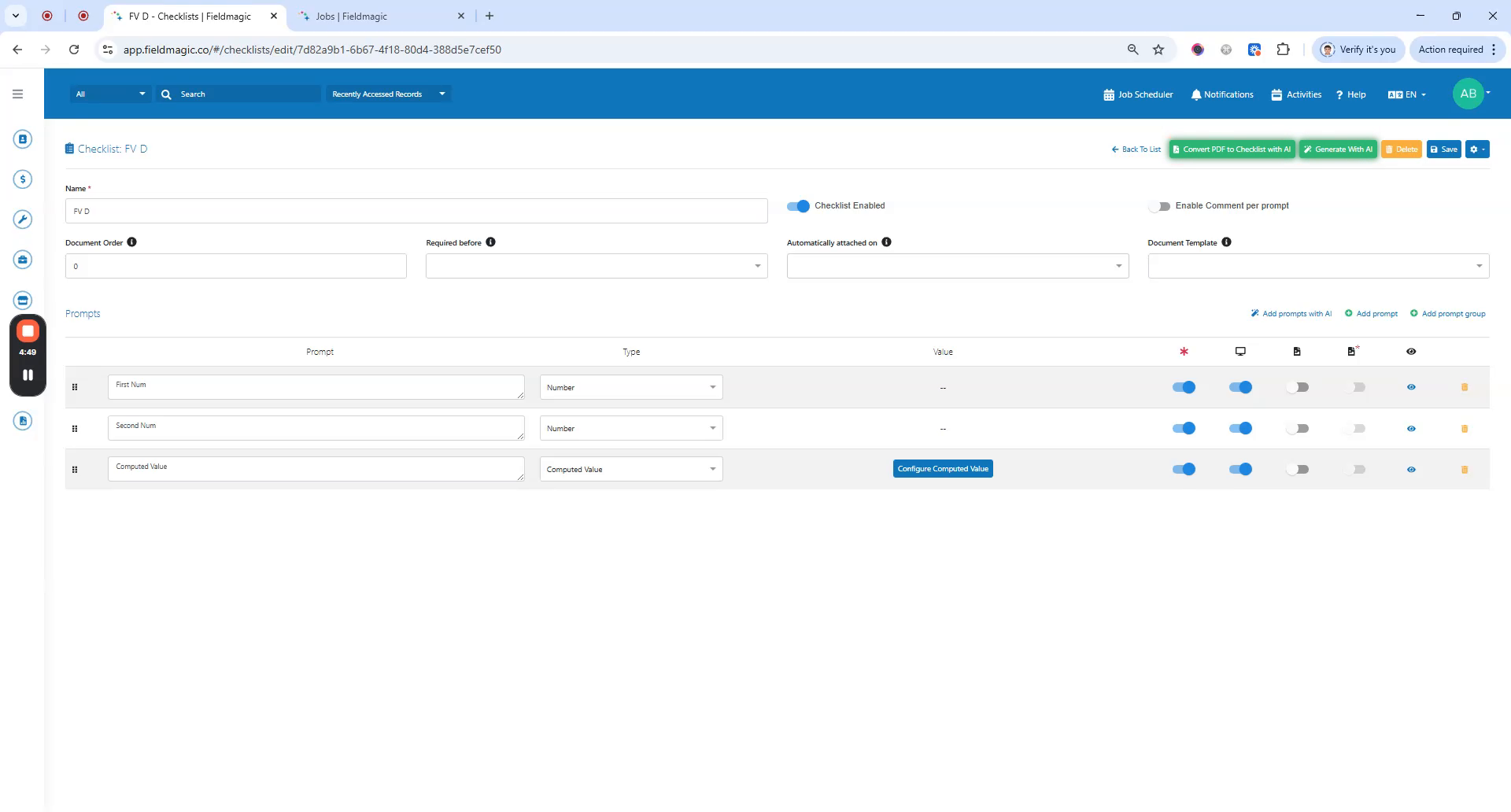
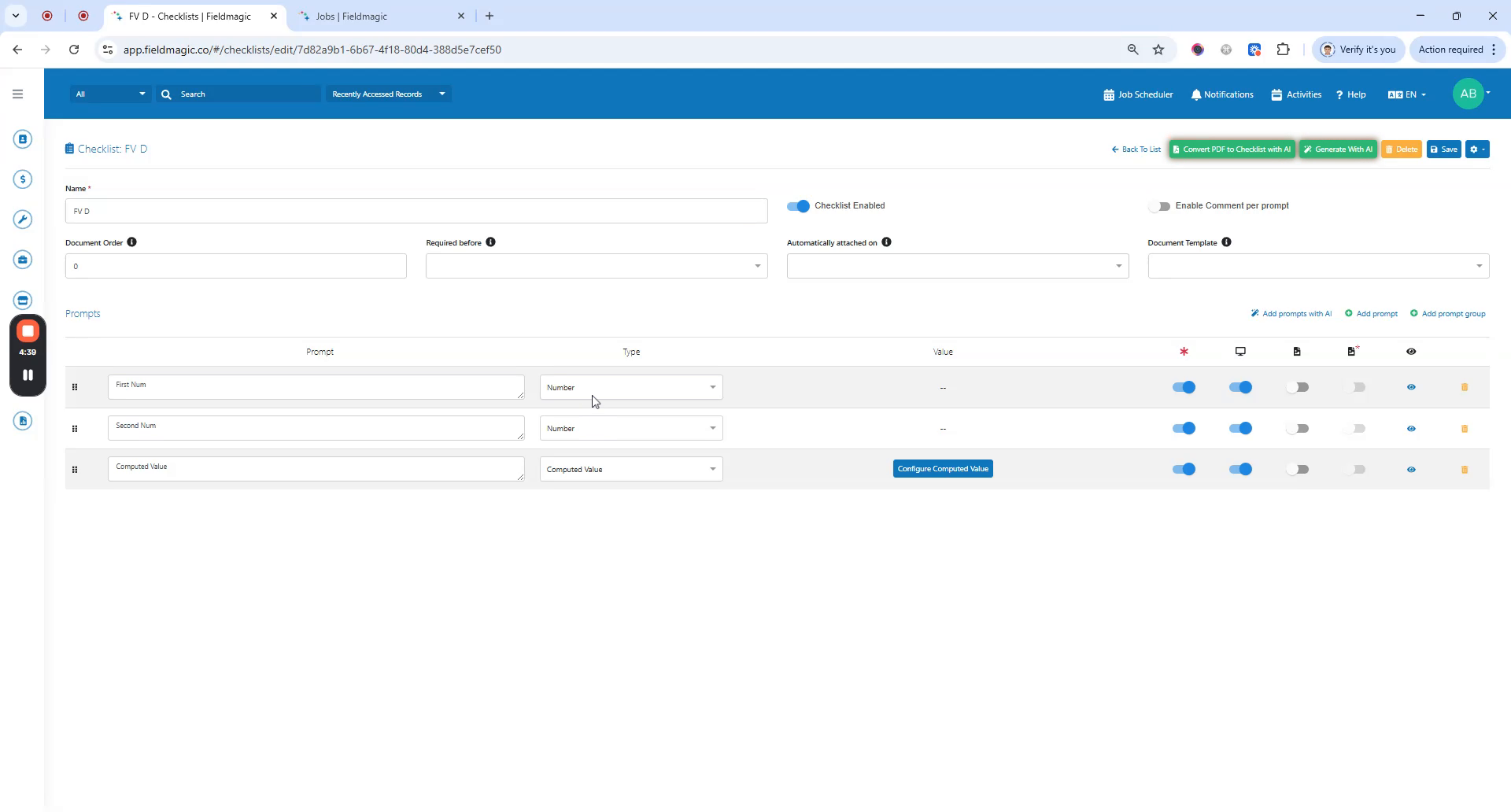
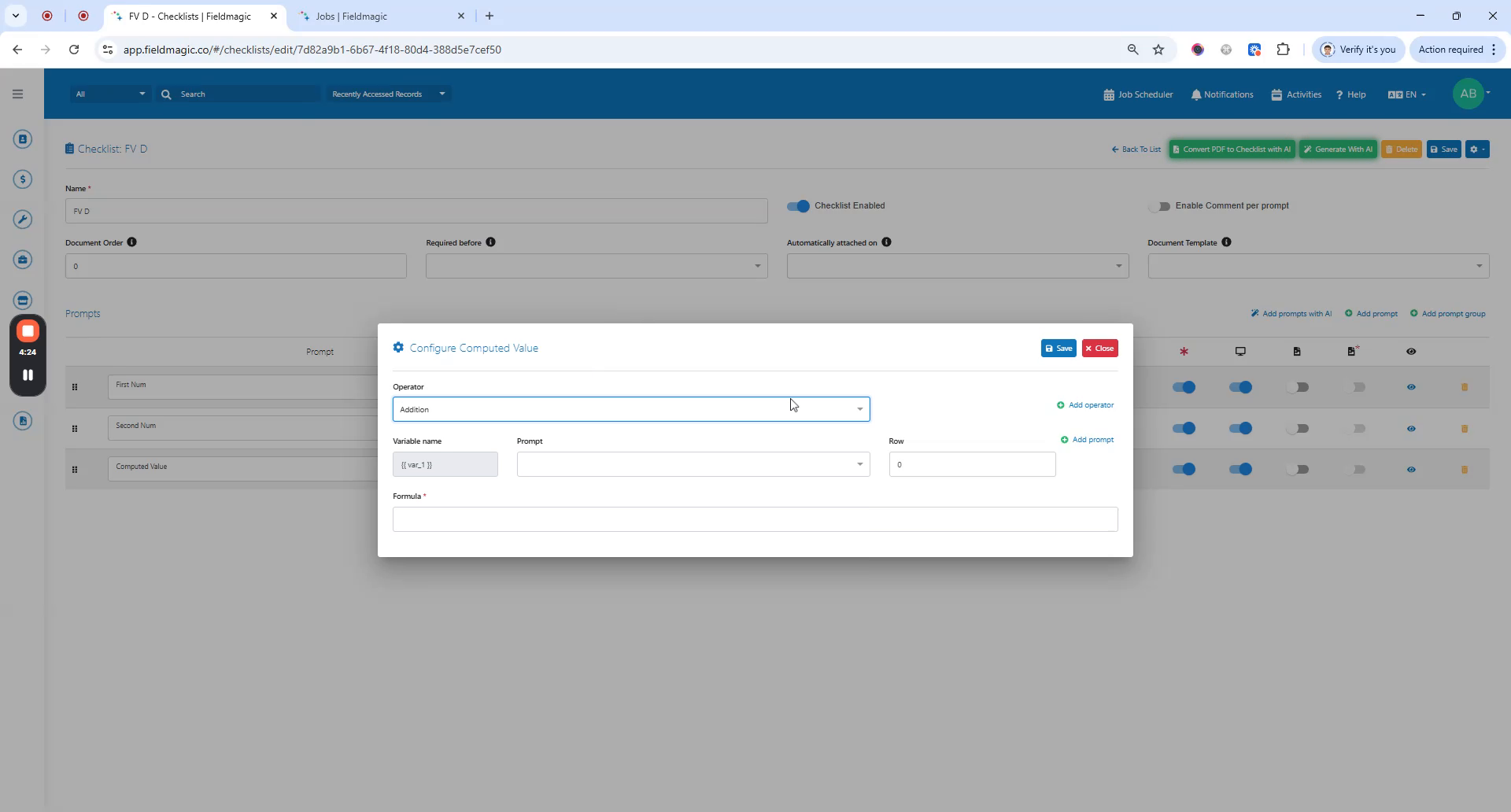
Create a checklist and add at least two number prompt types. Then create one computed value prompt and click Configure Computed Value.
 Step 3
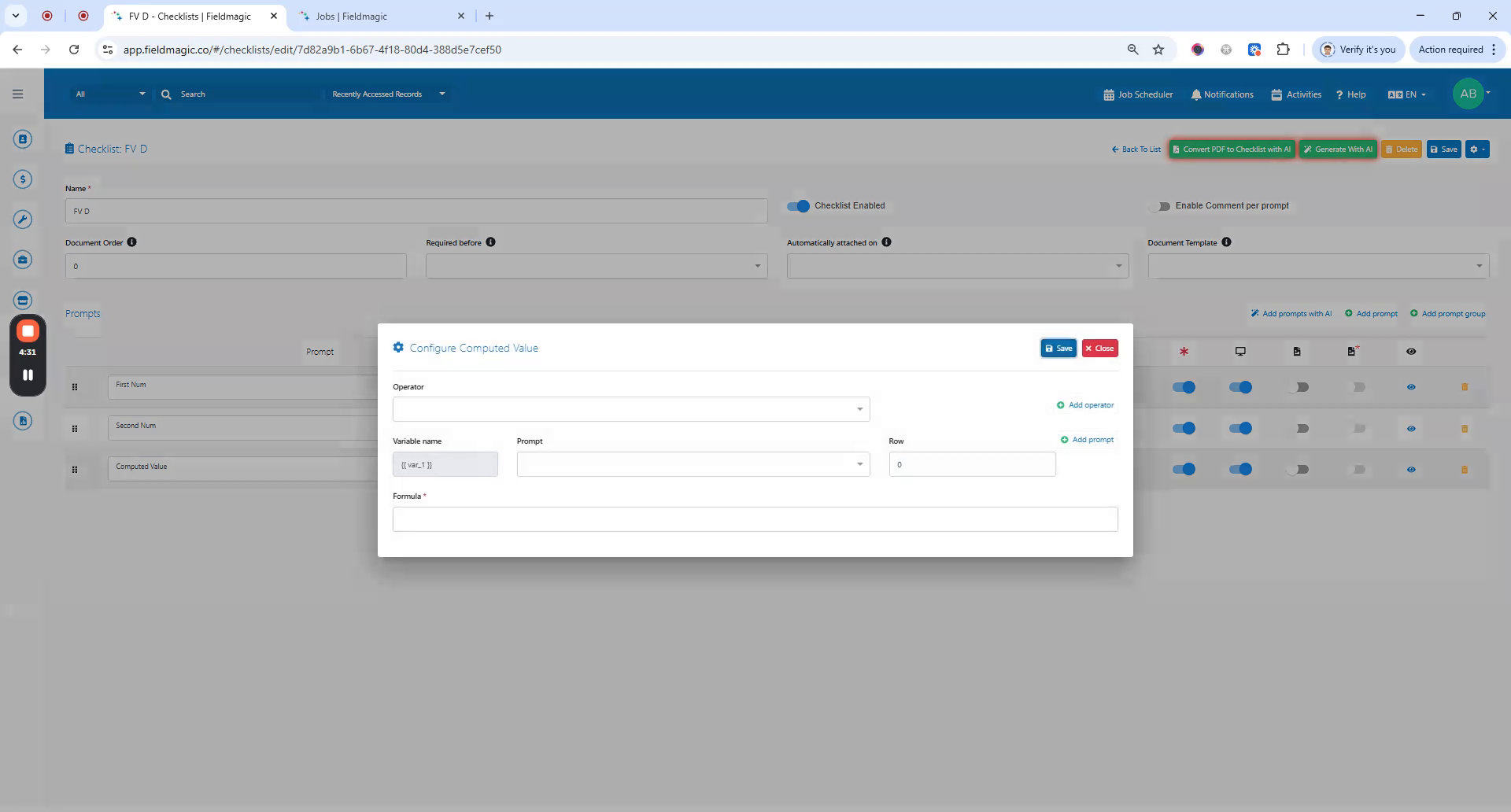
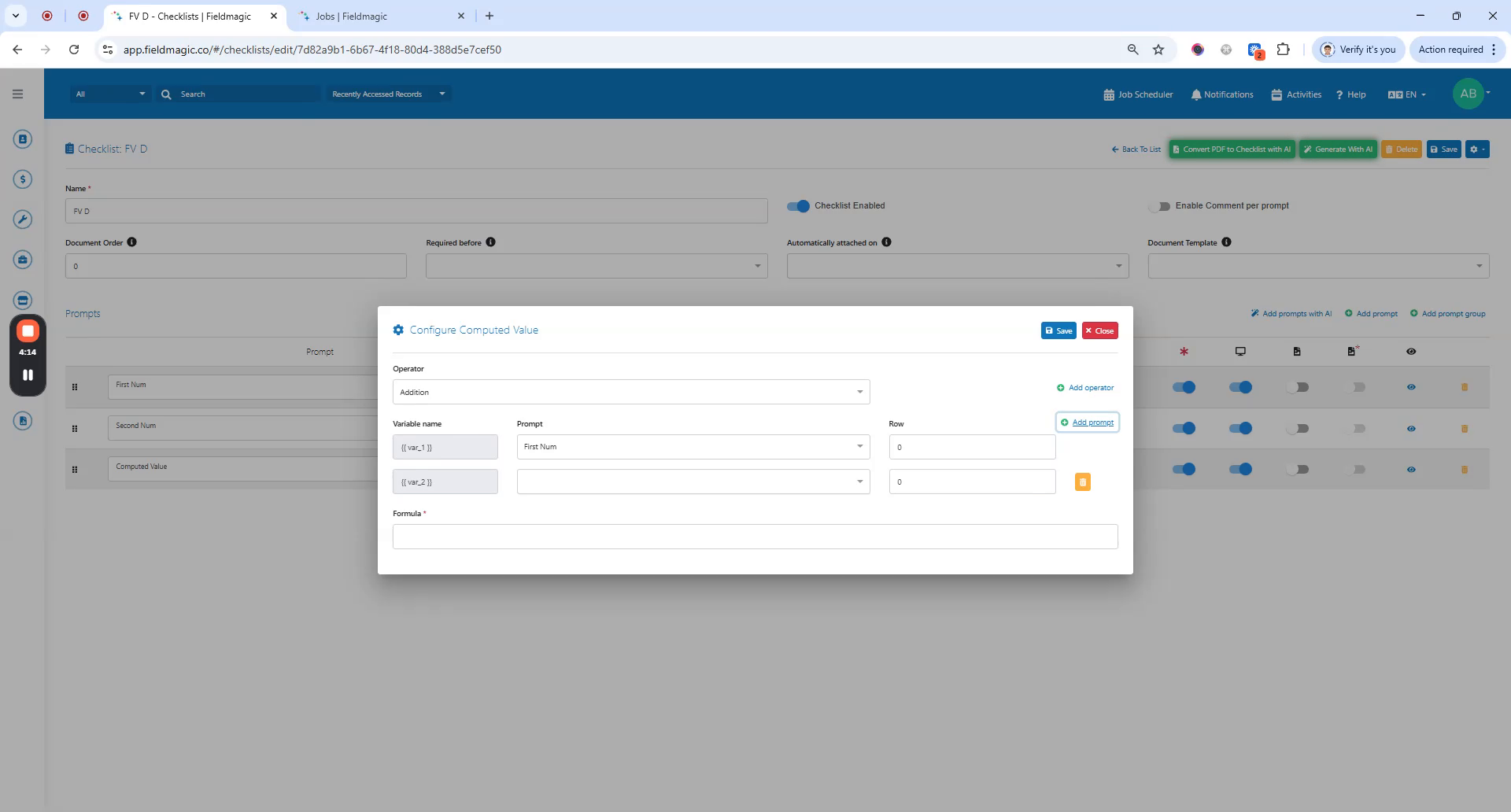
Choose an operator such as addition, subtraction, multiplication, or division. Select the first number prompt as the first variable.
 Step 4
Select the second number prompt as the second variable. Enter the operator followed by both prompt variable names separated by a comma within the parentheses.
 Step 5
Save the computed value configuration, then save the checklist. Attach the checklist to a job.
 Step 6
Enter values for the number prompts, such as 5 and 23. The computed value will automatically display the calculated result.