Checklists and Safety
Setting up display conditions for checklist prompts
Click the Display Conditions button. The Display Conditions panel opens, where you can set conditions for each prompt. For our dropdown prompt, configure the following conditions.
Step-by-step instructions
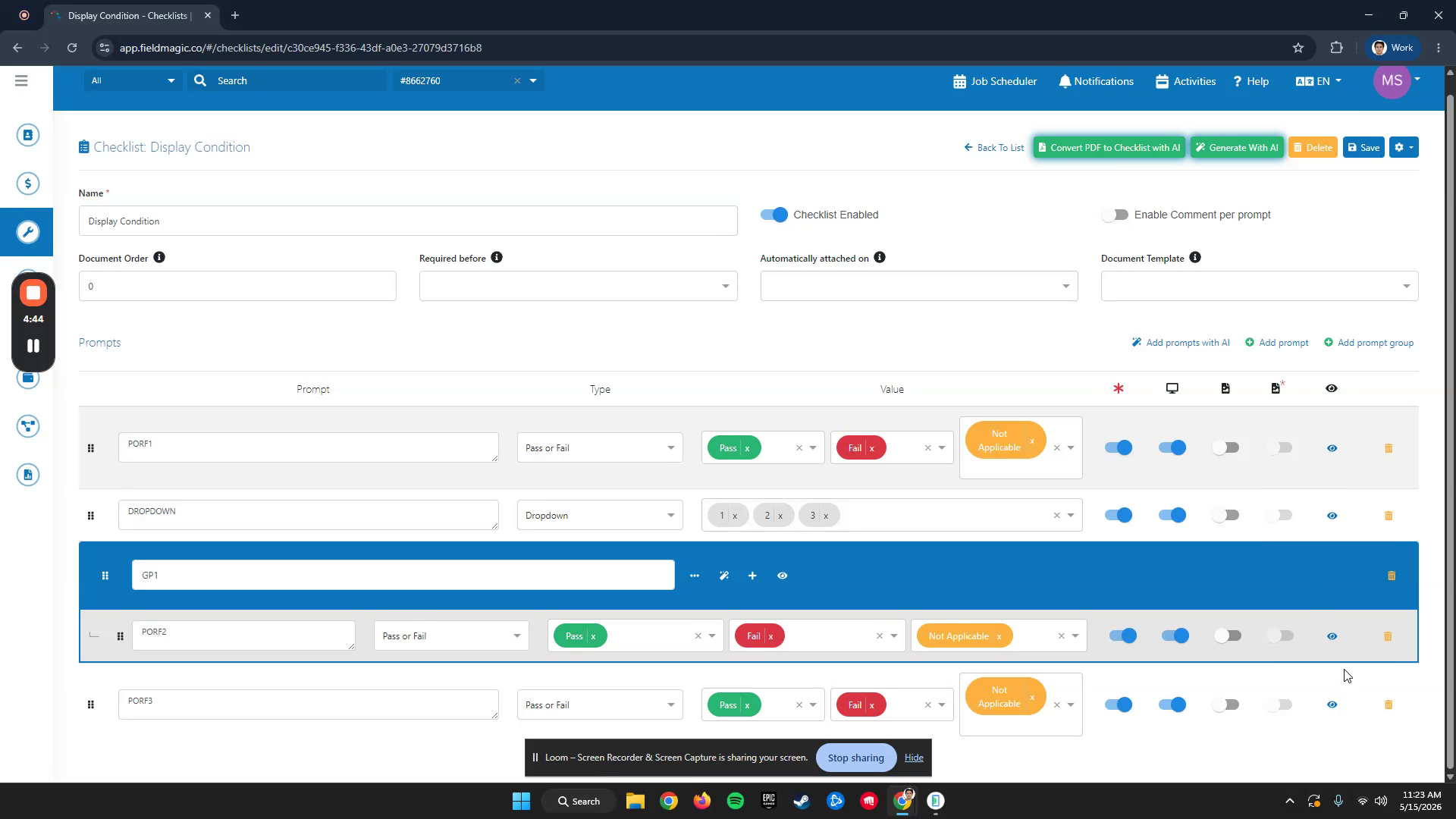 Step 1
Click the Display Conditions button. The Display Conditions panel opens, where you can set conditions for each prompt. For our dropdown prompt, configure the following conditions.
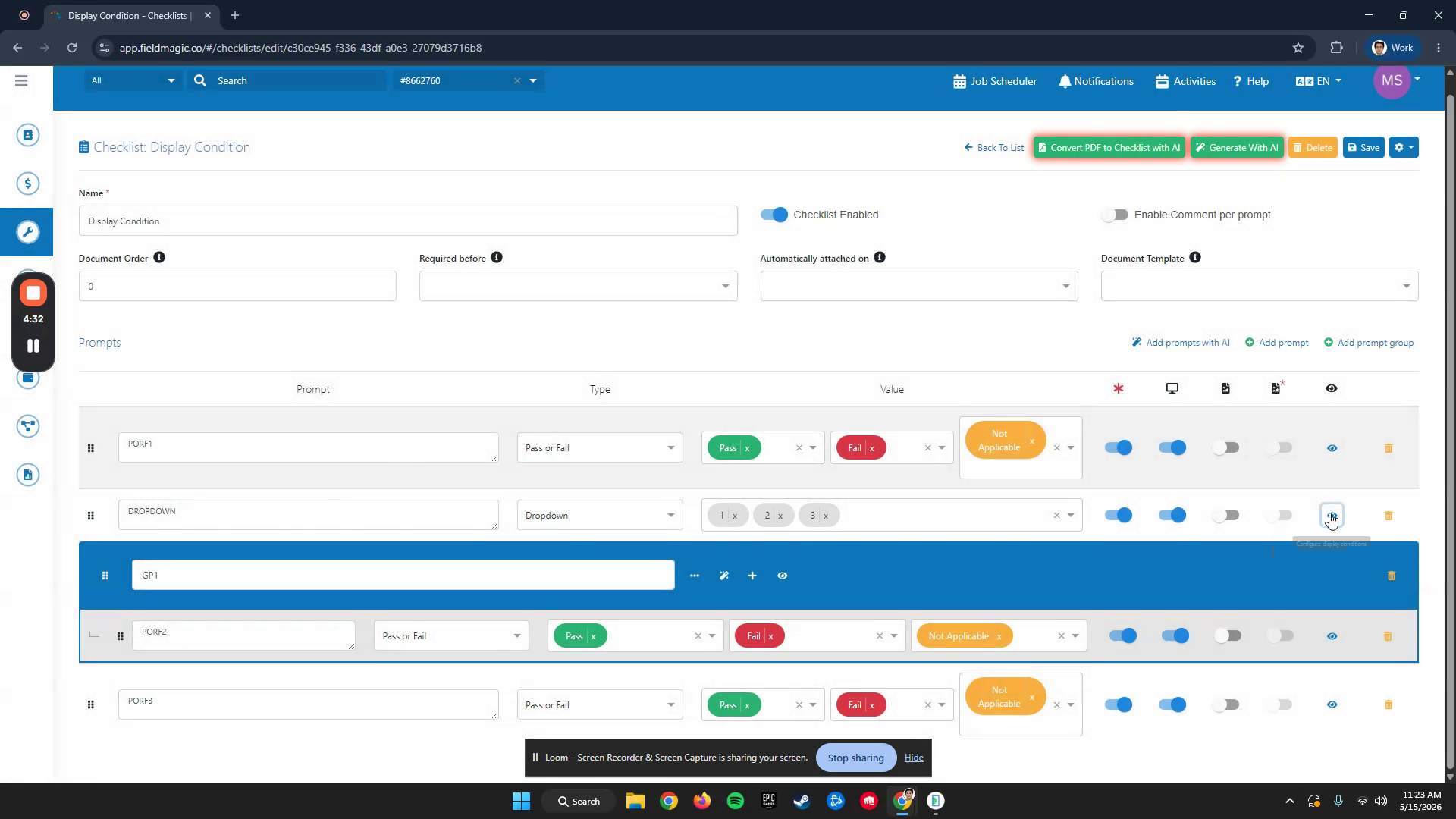 Step 2
Set a condition where PRF1 must equal Pass IQOL Display. This ensures the prompt only displays when PRF1 passes. For the group prompt, set a condition where PRF1 equals Pass IQOL Display.
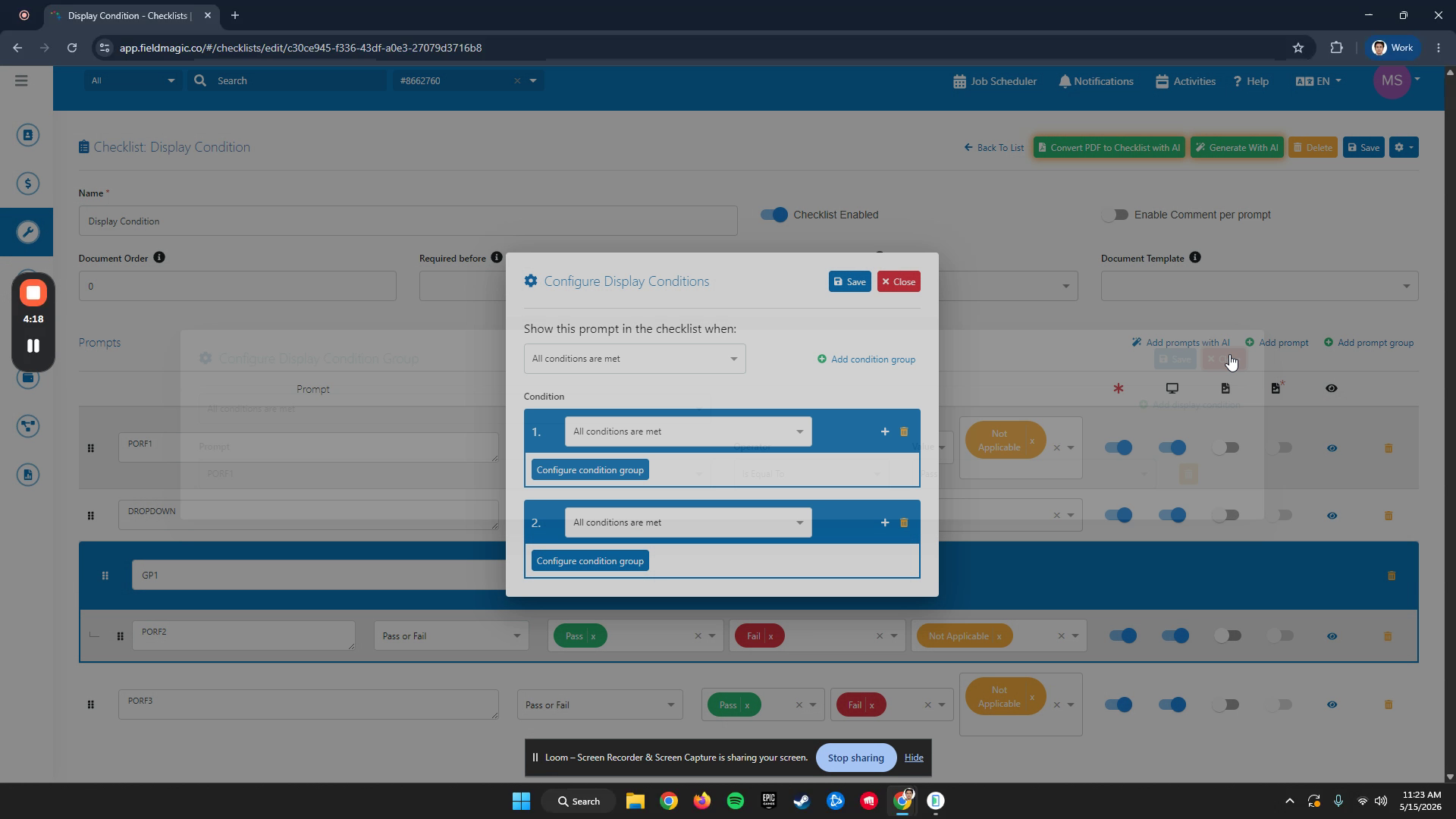 Step 3
Add another condition where PRF1 does not equal Fail. For the child prompt, set the condition to Dropdown equals One.
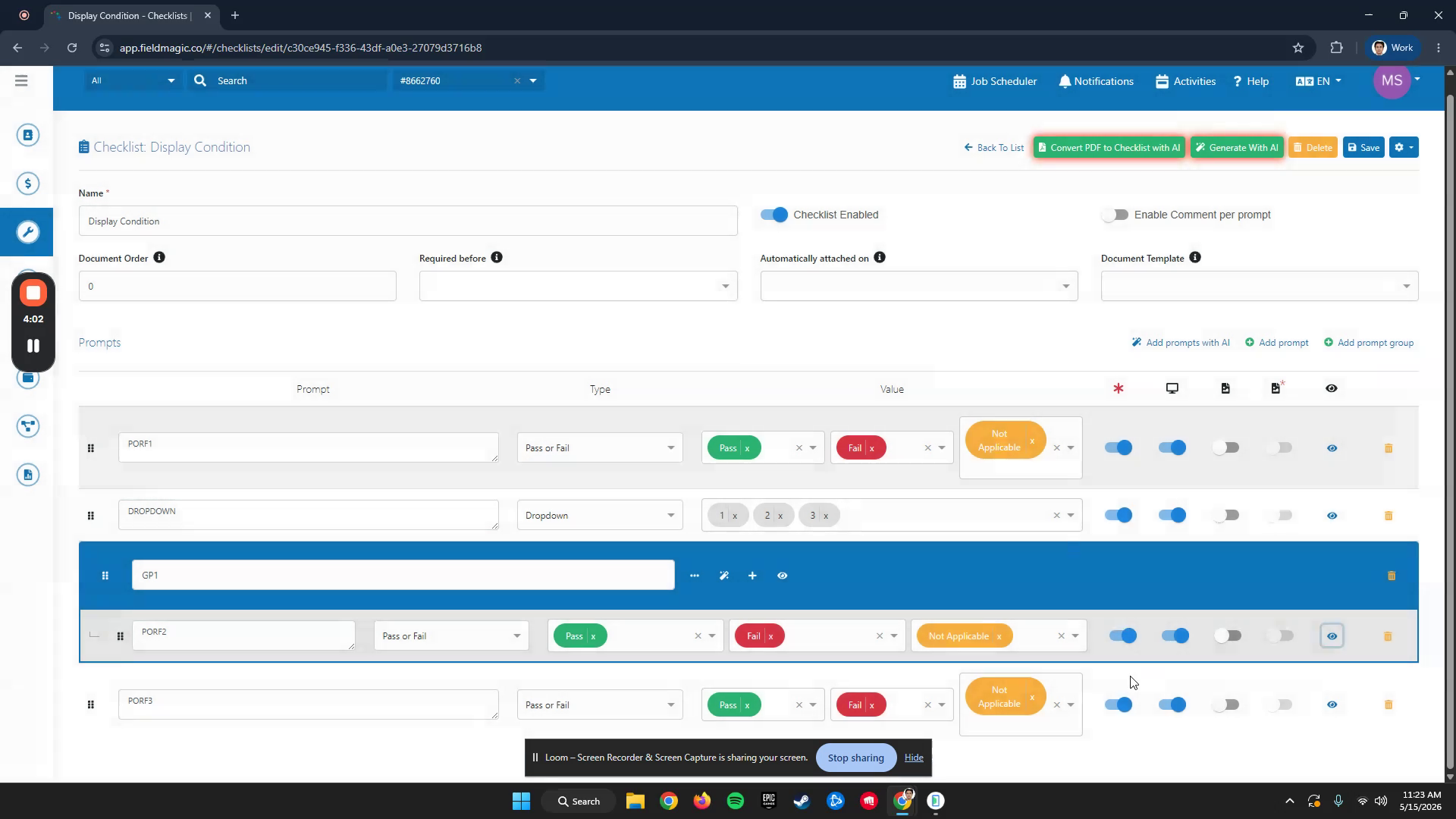 Step 4
For the last prompt, PRF3, set the condition to PRF2 equals Shadeep. Now, to test this checklist,
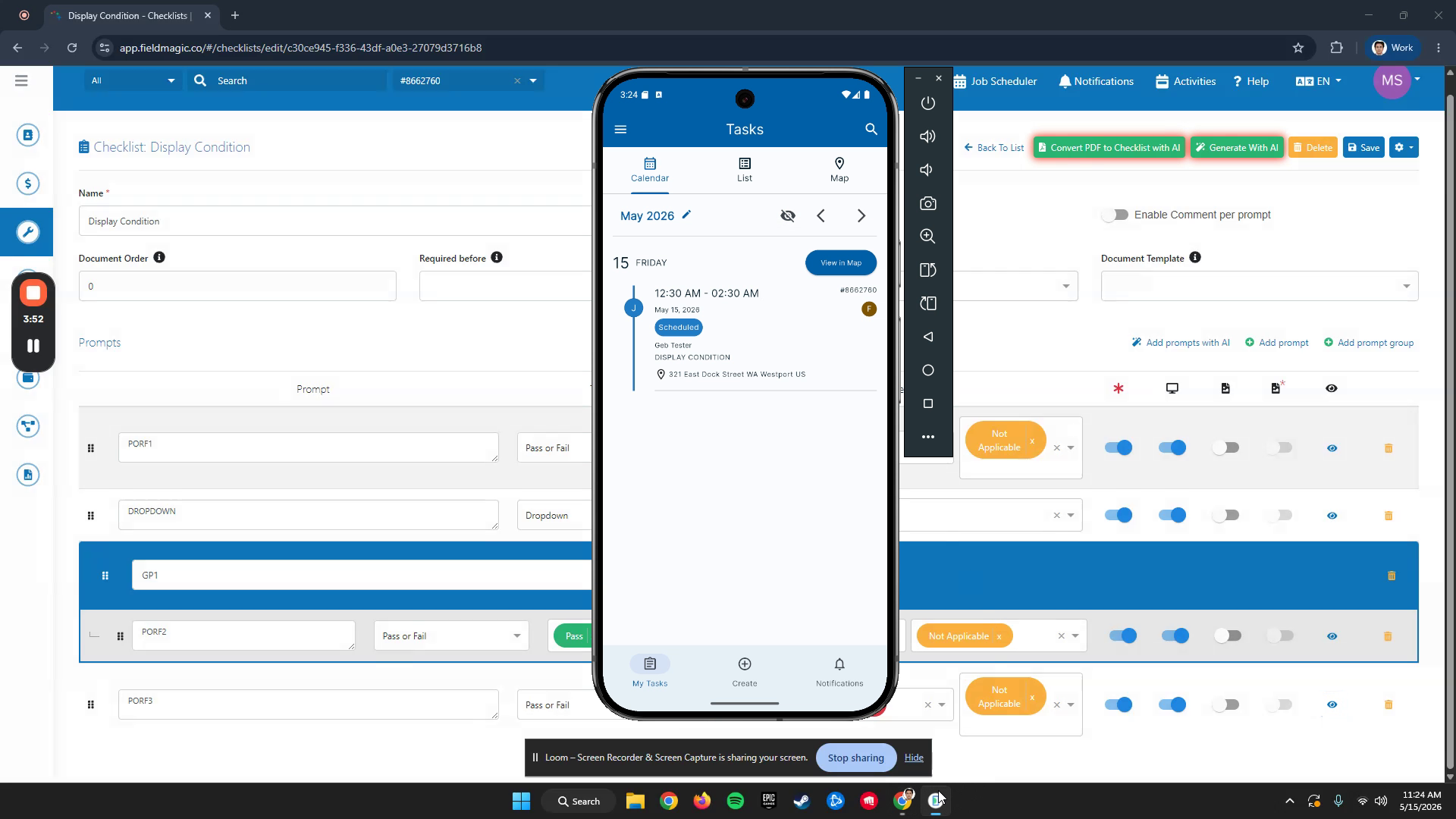 Step 5
Open the mobile app. Link the checklist. Notice that only the PRF1 prompt displays.
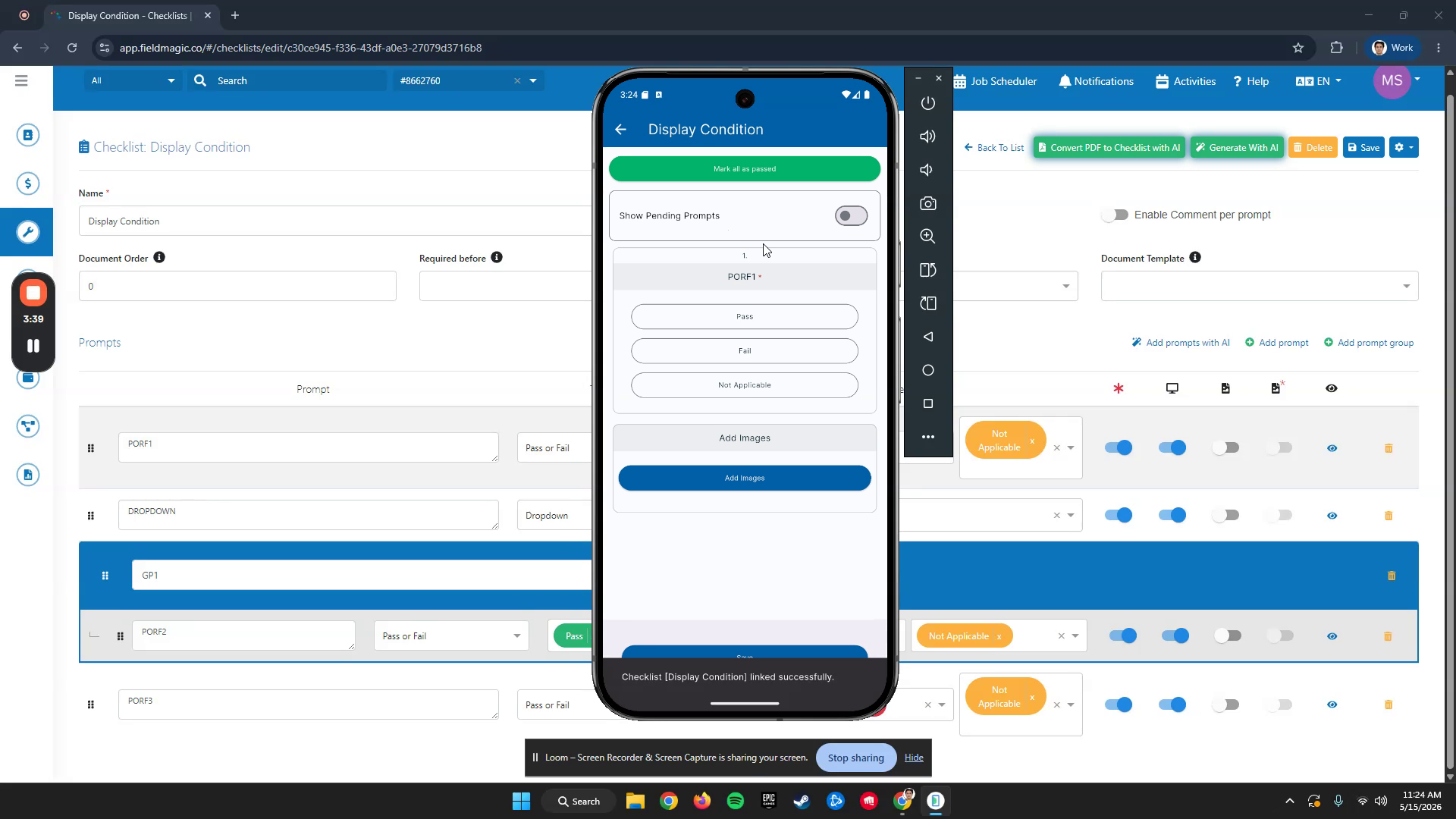 Step 6
When you select Pass, the dropdown expands and the group prompt appears. When you select Fail, the dropdown expands and the group prompt appears. The PRF3 prompt does not display.
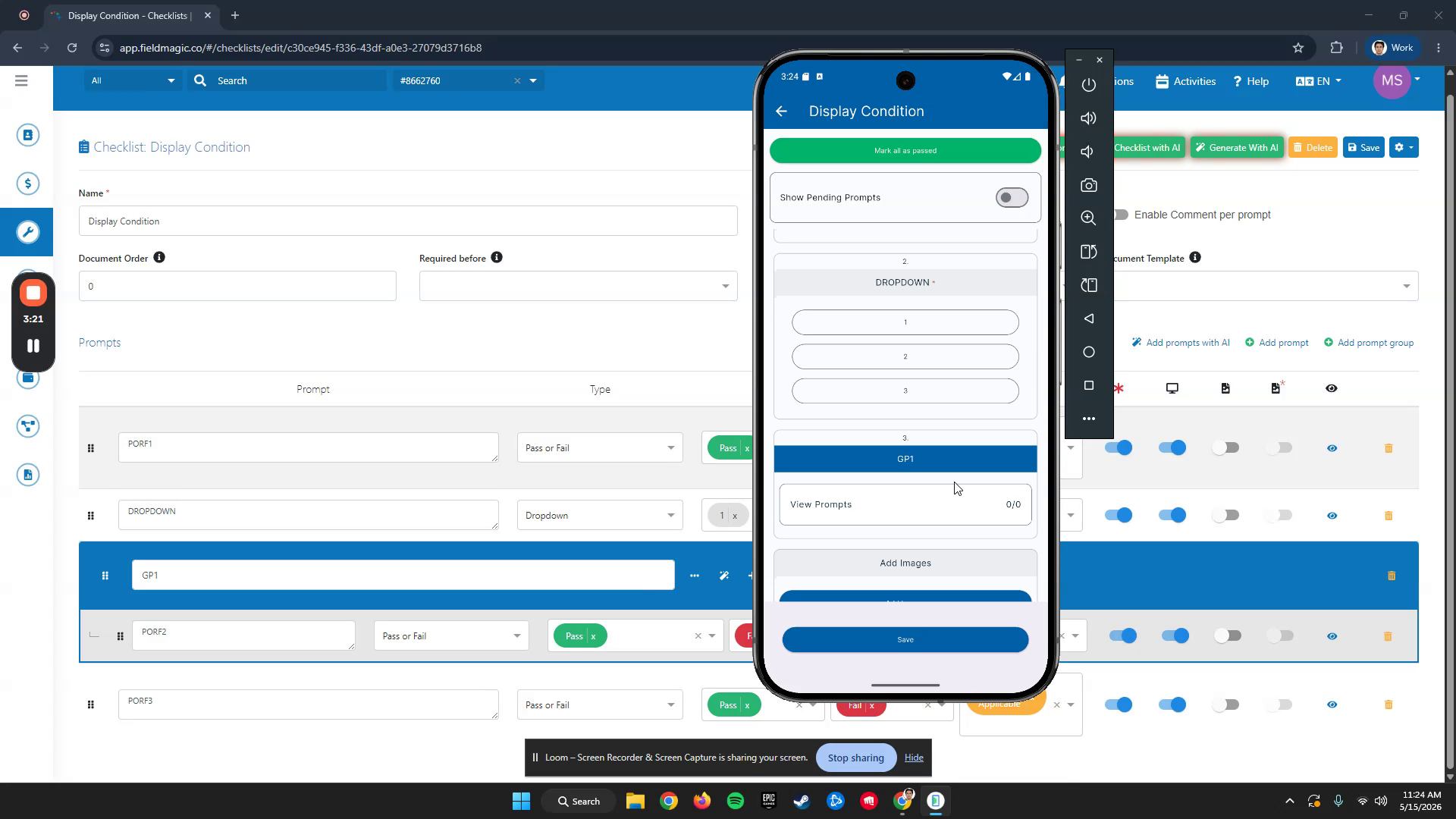 Step 7
The PRF3 prompt now displays. Pass this prompt again. The checklist is now passed.
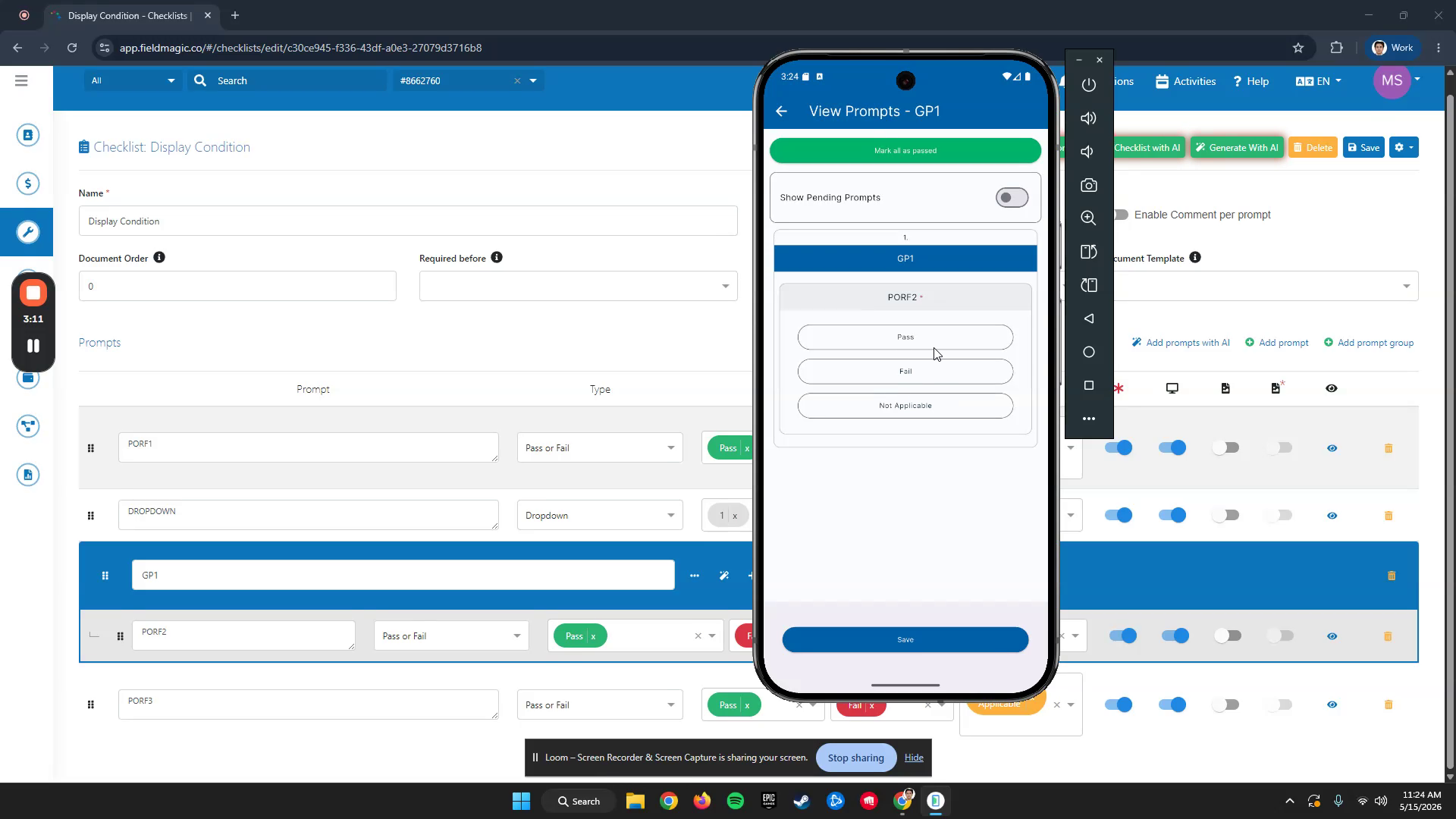 Step 8
To verify the checklist conditions, open the job and go to the Checklist tab. Review the responses to confirm the conditions worked correctly.