Checklists and Safety
Setting Up Nested Computed Values in a Checklist
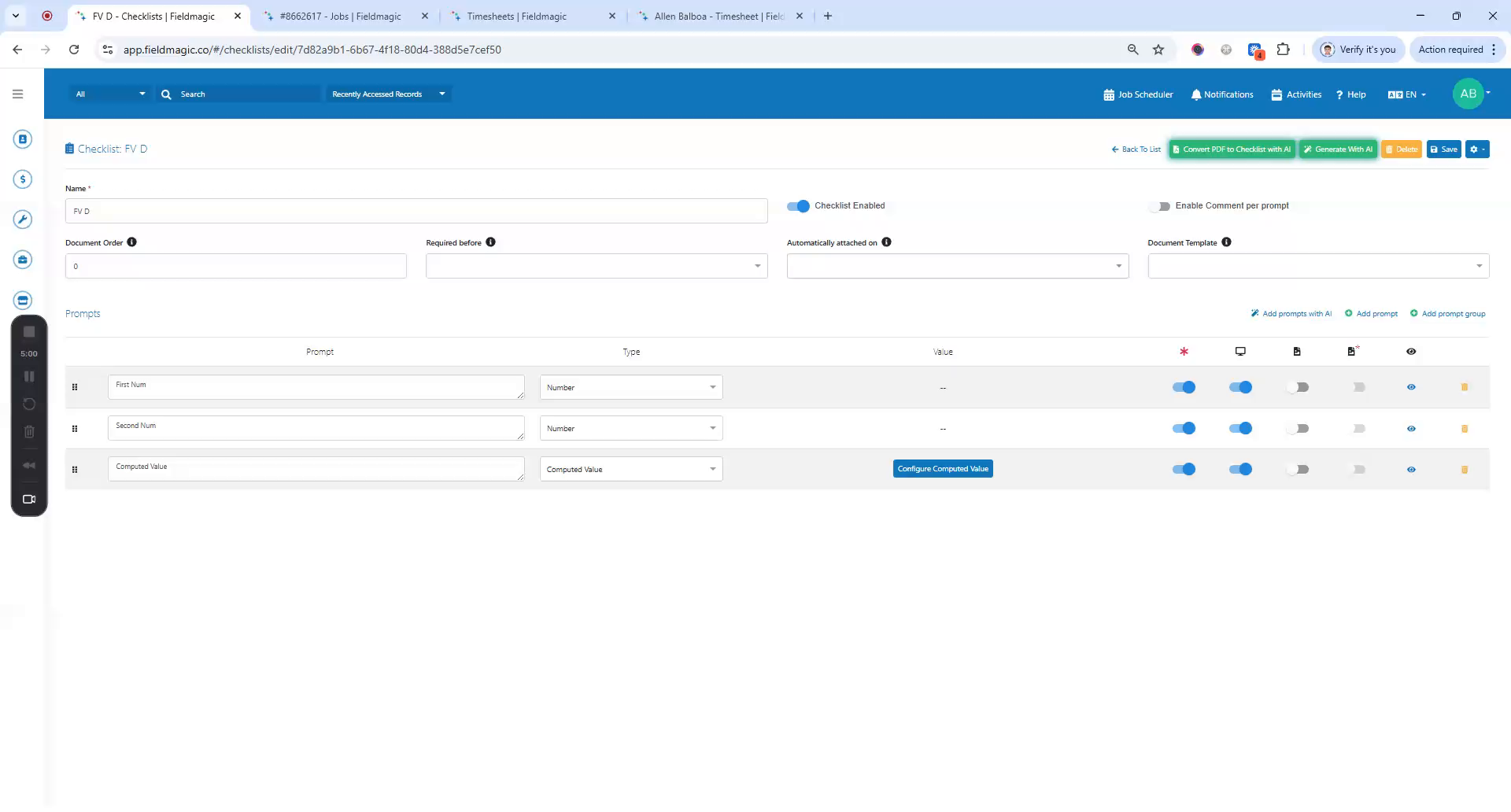
Create two number prompts in your checklist.
Step-by-step instructions
 Step 1
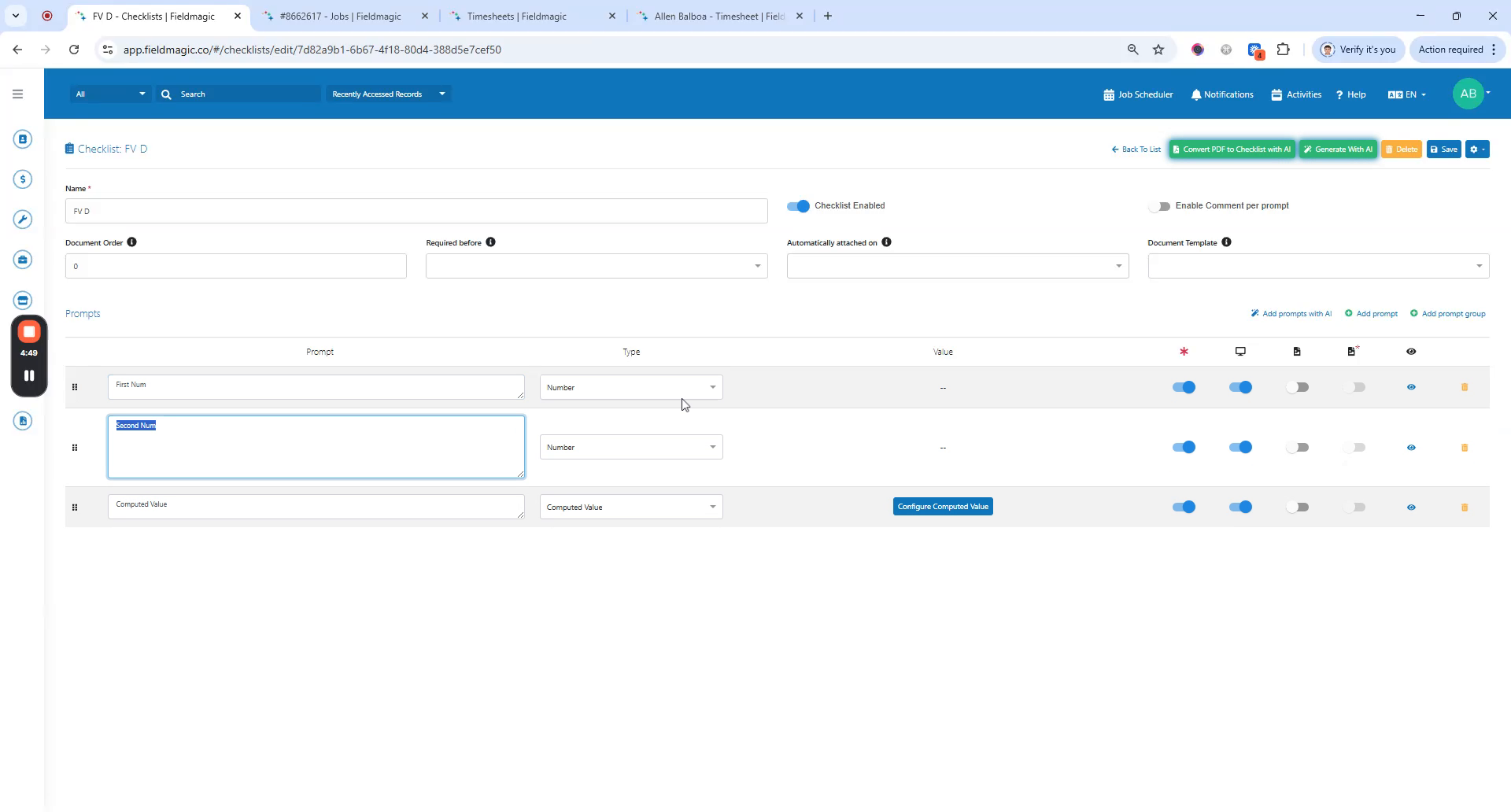
Create two number prompts in your checklist.
 Step 2
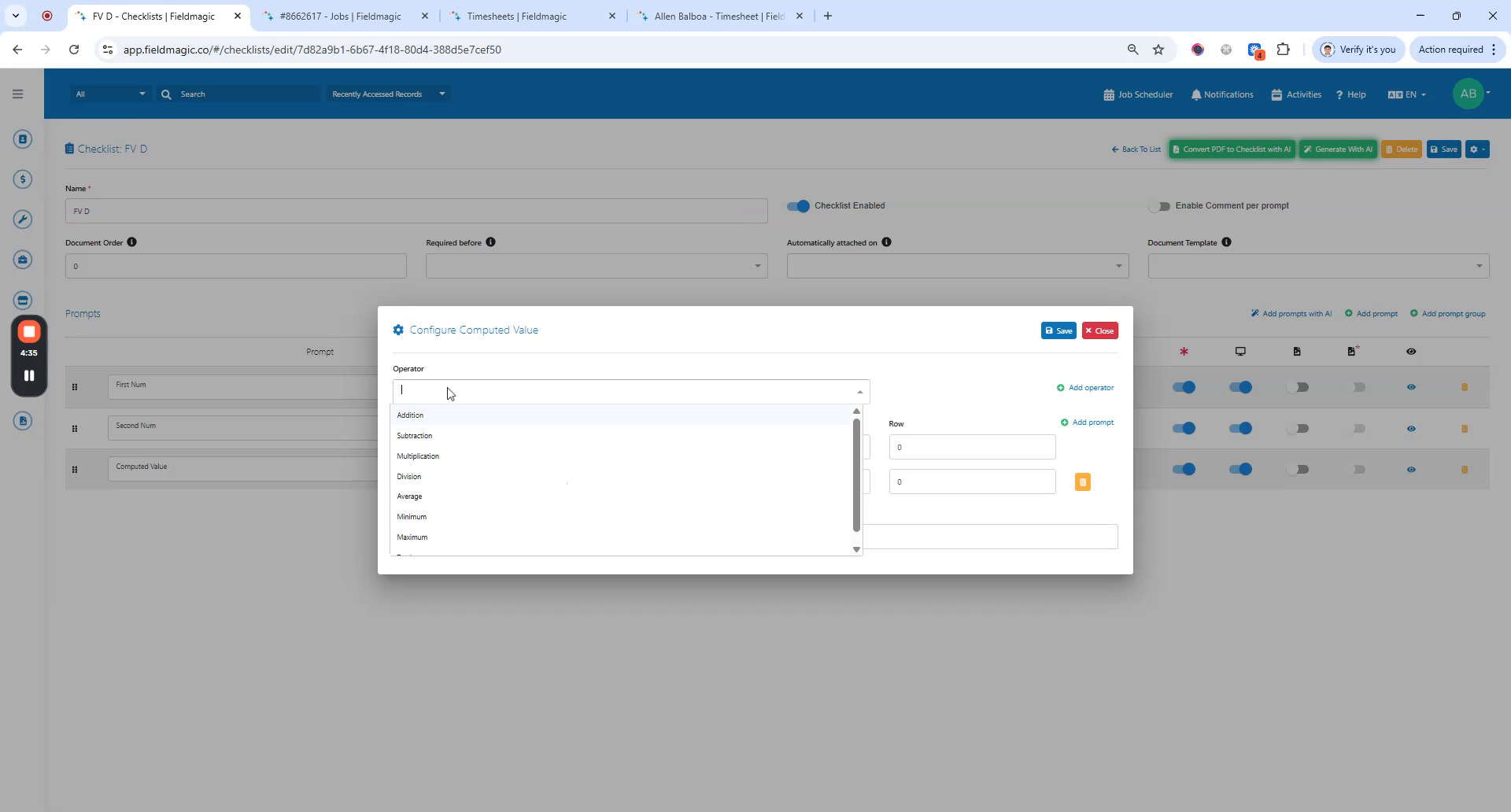
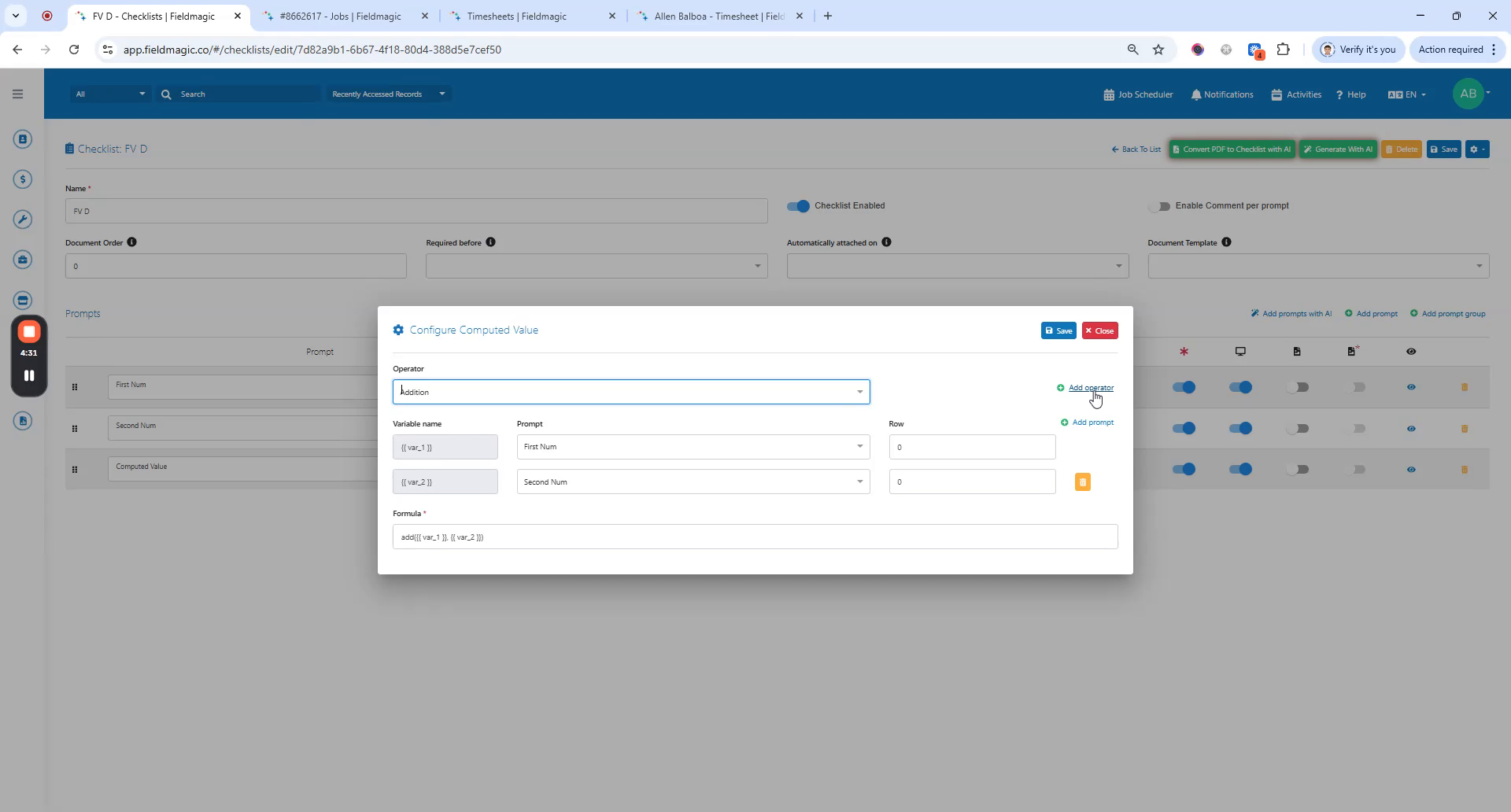
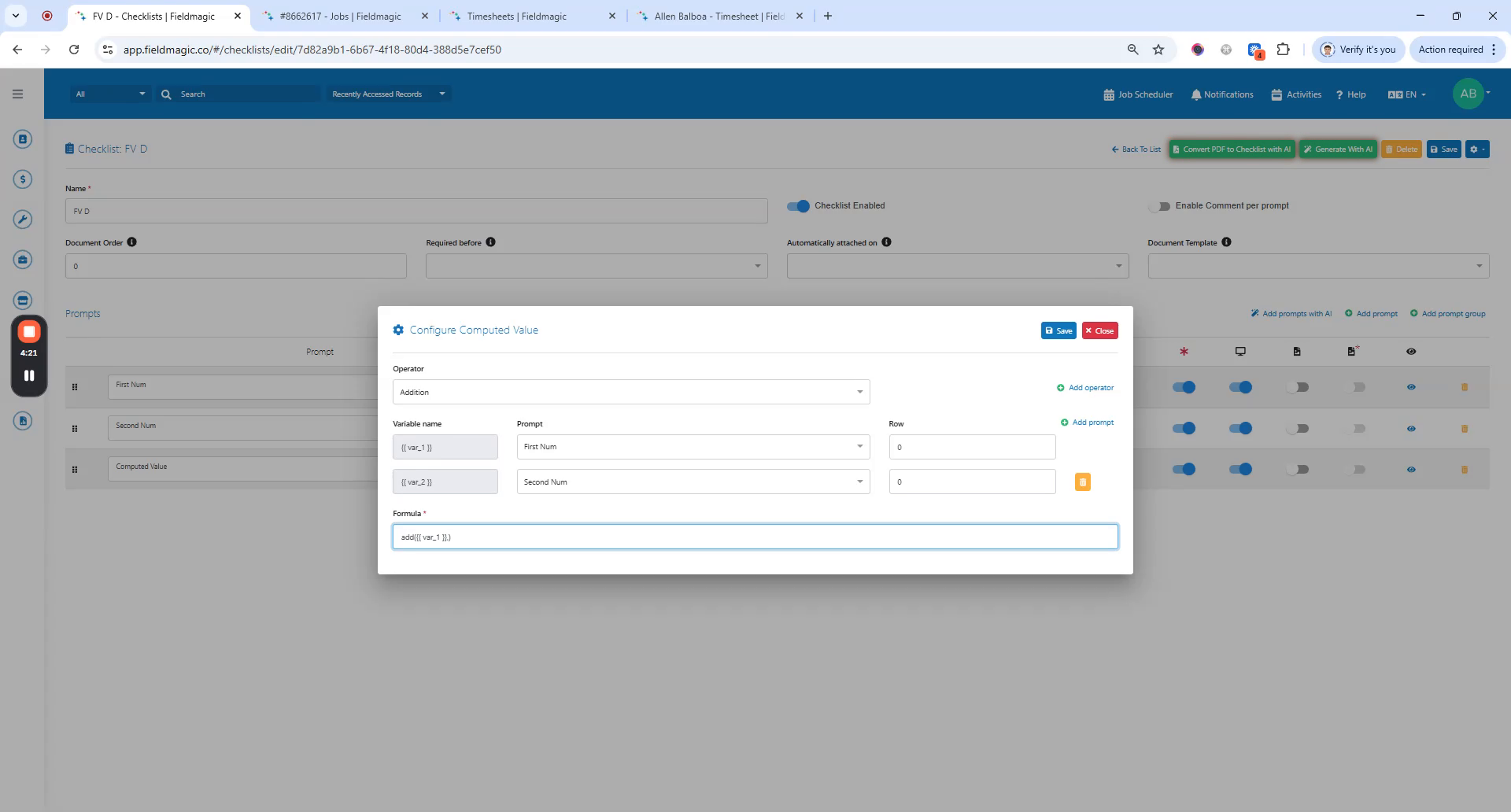
Add the first computed value prompt, then configure it by adding the prompts and assigning them to variable names inside the parentheses. Separate the variables with commas.
 Step 3
Save the computed value, then add a second computed value prompt.
 Step 4
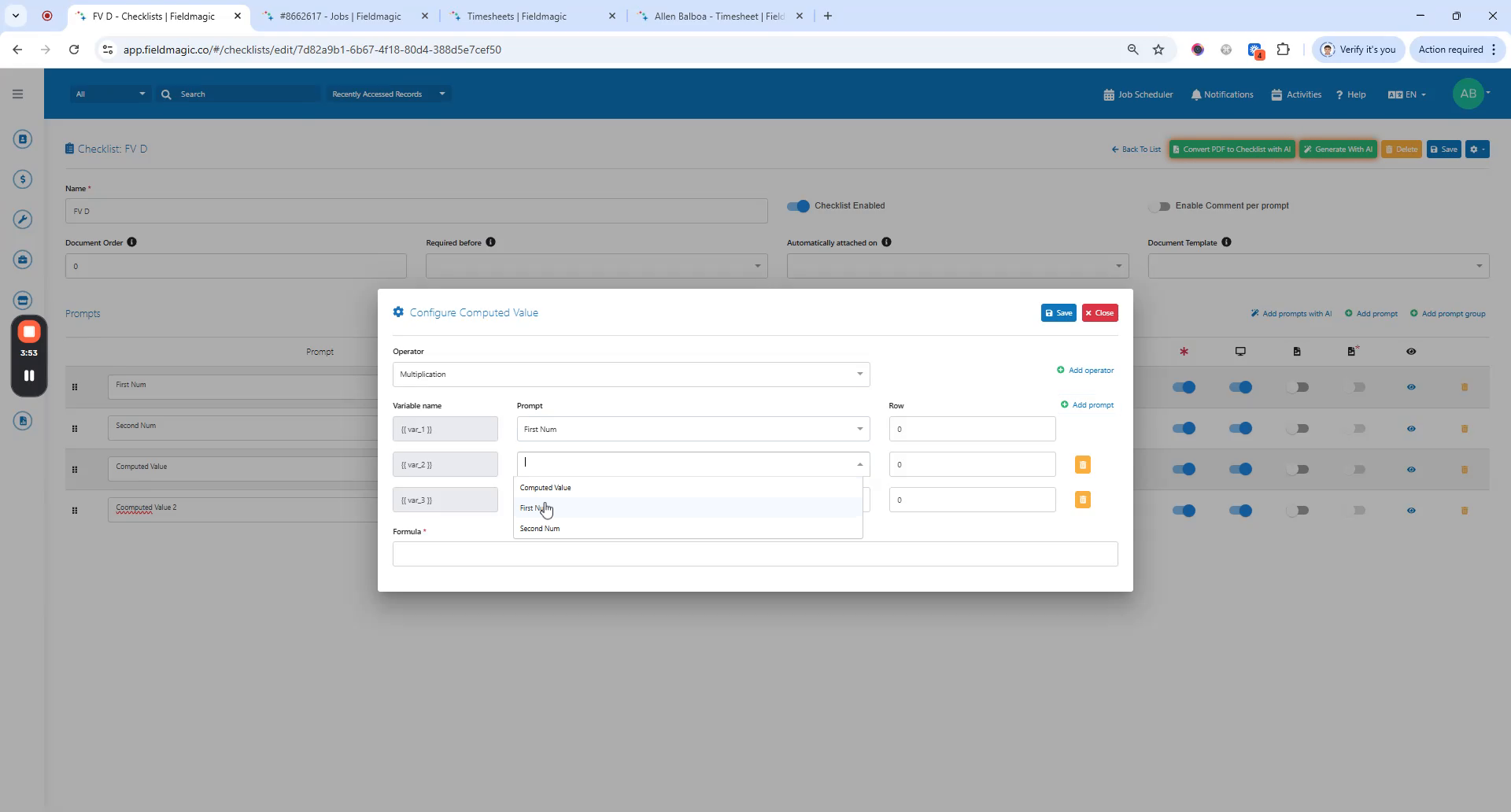
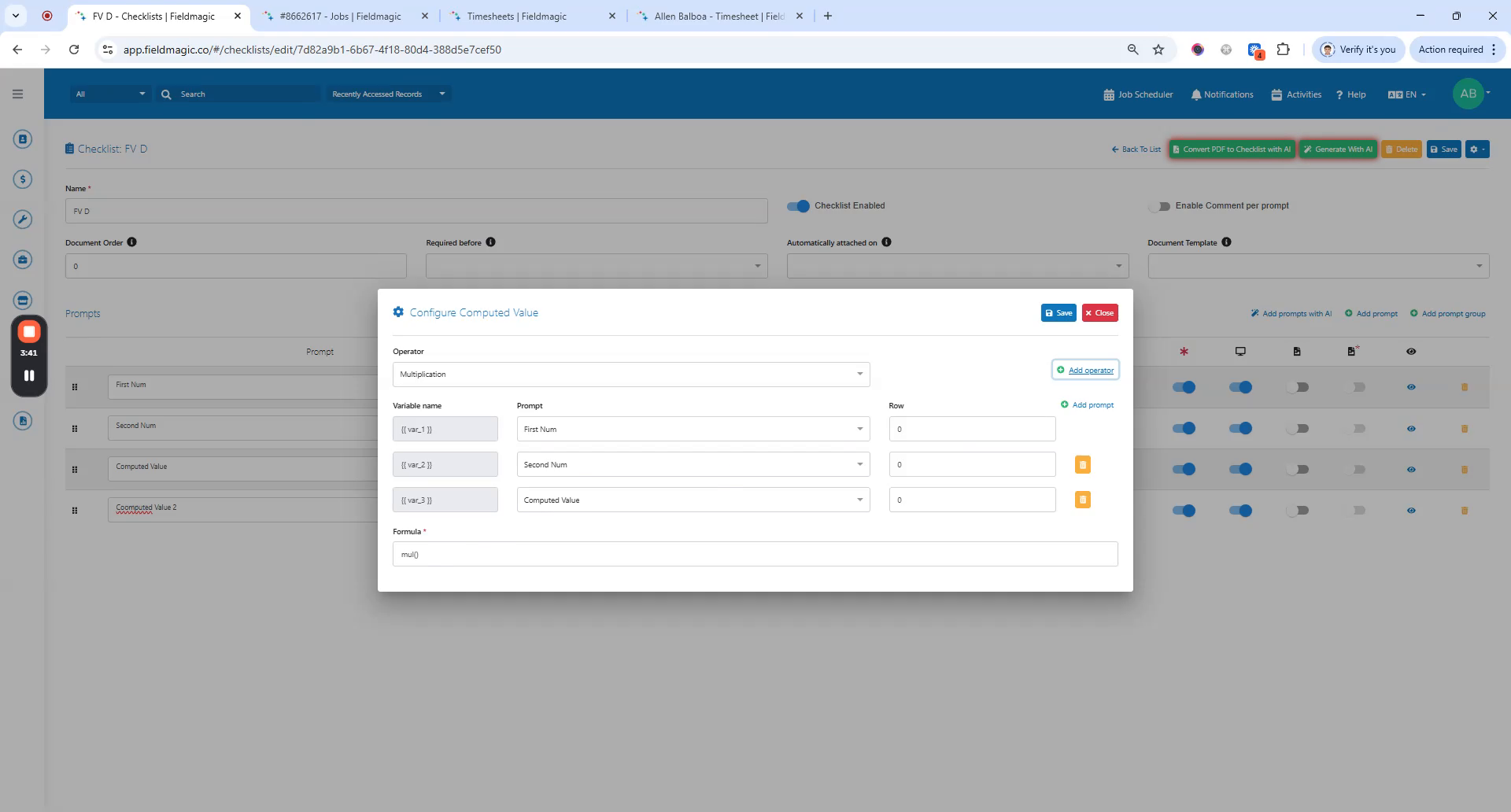
Click the second computed value and select multiplication as the operator. Assign the first number, second number, and the first computed value to variable names.
 Step 5
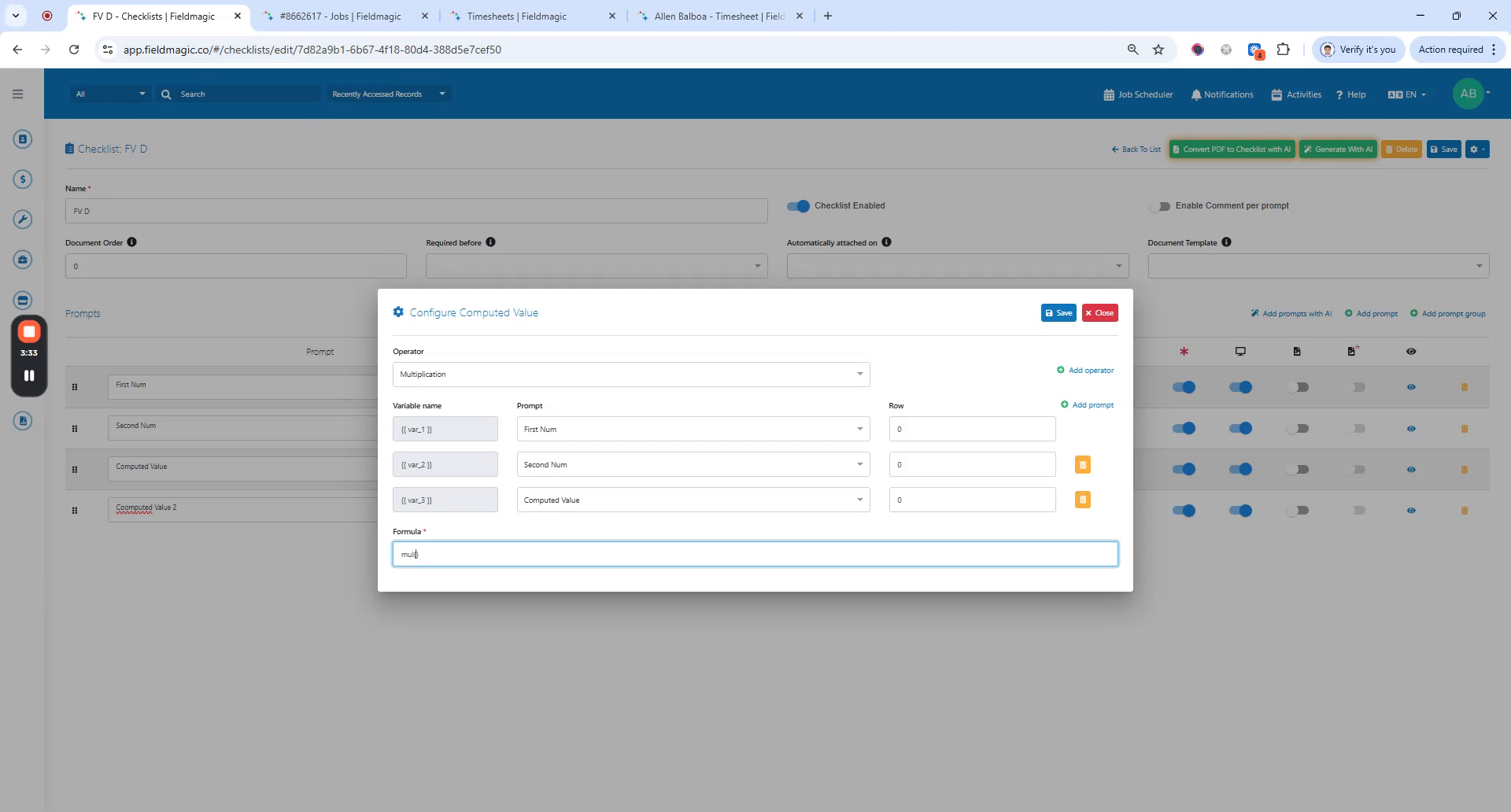
Inside the multiplication operator, copy and paste the computed value variable name, followed by a comma.
 Step 6
Select the addition operator. Inside the addition operator, copy and paste the first variable followed by a comma.
 Step 7
Add the second variable and close the parentheses. Save the computed value configuration, then save the checklist.
 Step 8
In Job Link, attach the checklist. When you enter the first number as 1 and the second number as 2, the sum will be 3.