Checklists and Safety
Starting a Job with SWMS in the Mobile App
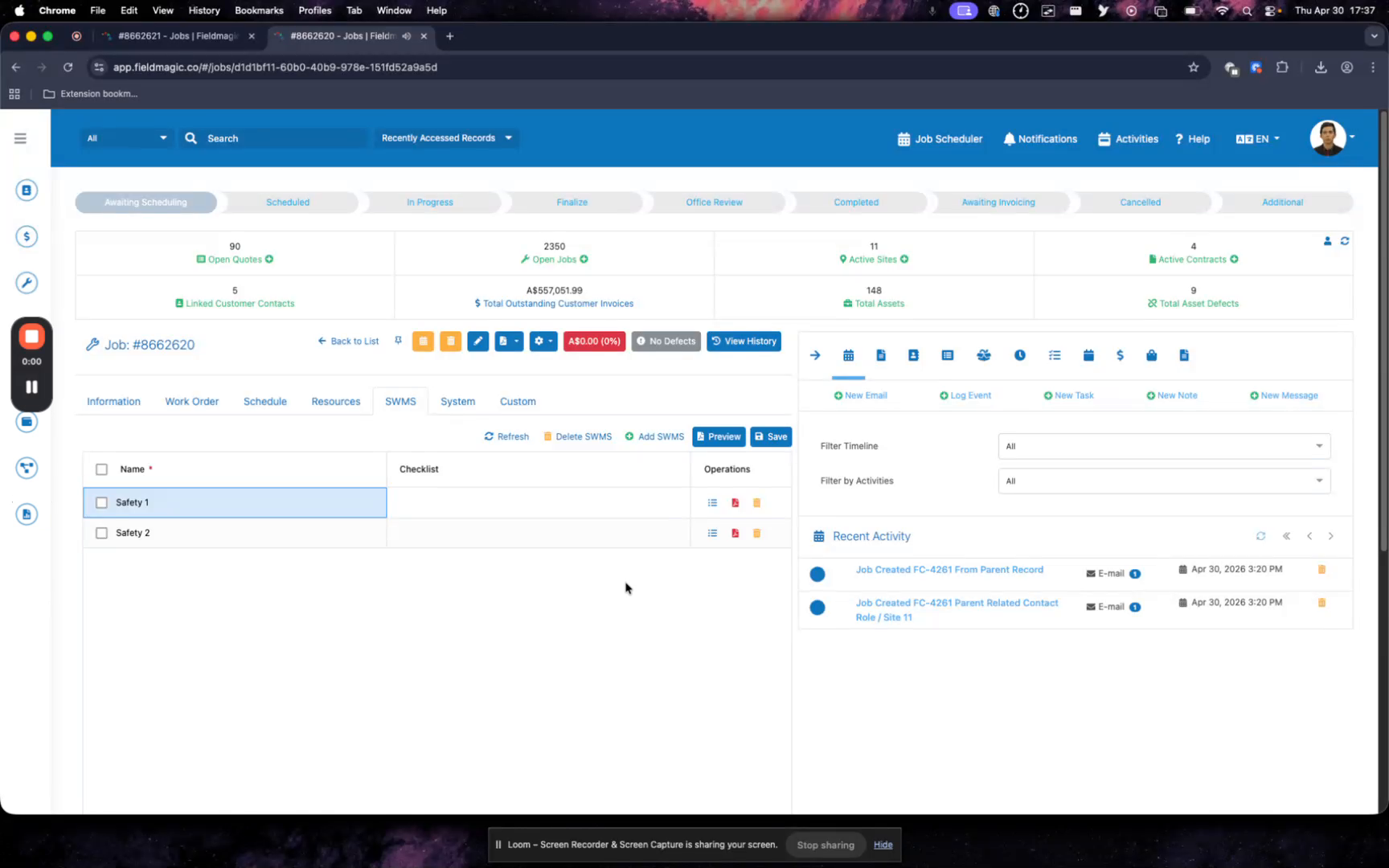
This video demonstrates starting a job with a Safe Work Method Statement (SWMS) in the FieldMagic mobile app. The job is already scheduled and includes SWMS requirements.
Step-by-step instructions
 Step 1
This video demonstrates starting a job with a Safe Work Method Statement (SWMS) in the FieldMagic mobile app. The job is already scheduled and includes SWMS requirements.
 Step 2
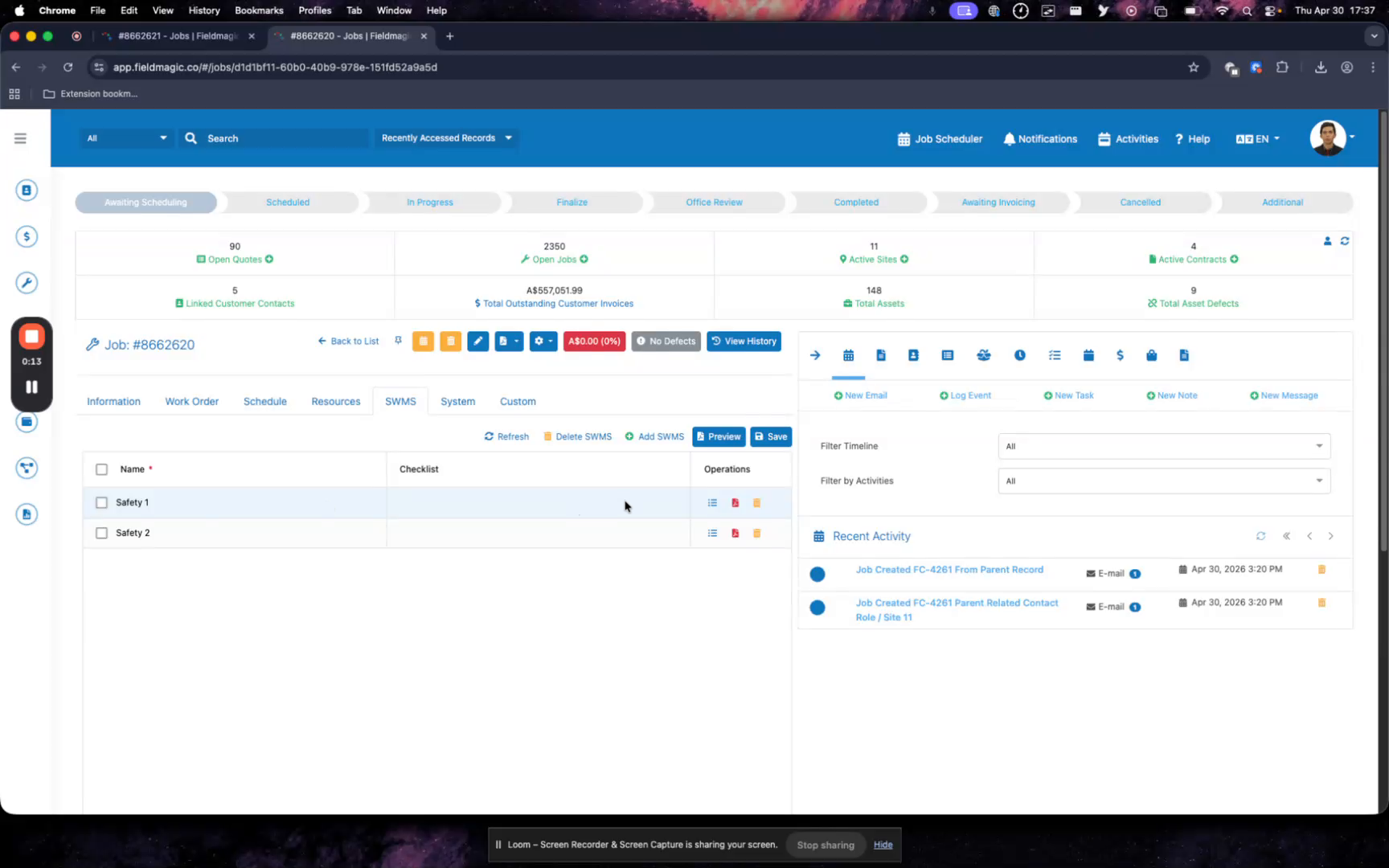
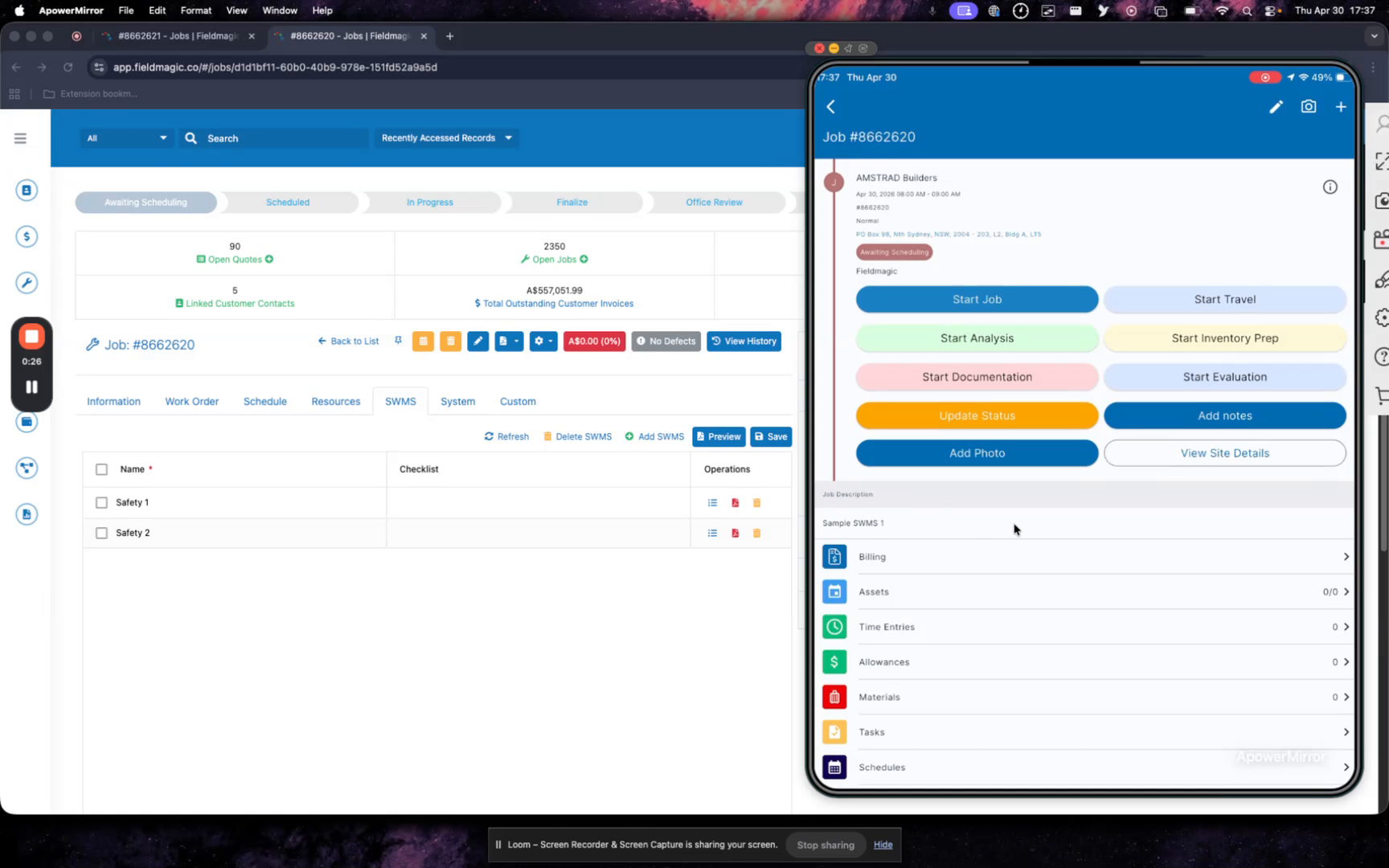
Open the FieldMagic mobile app and locate the scheduled job.
 Step 3
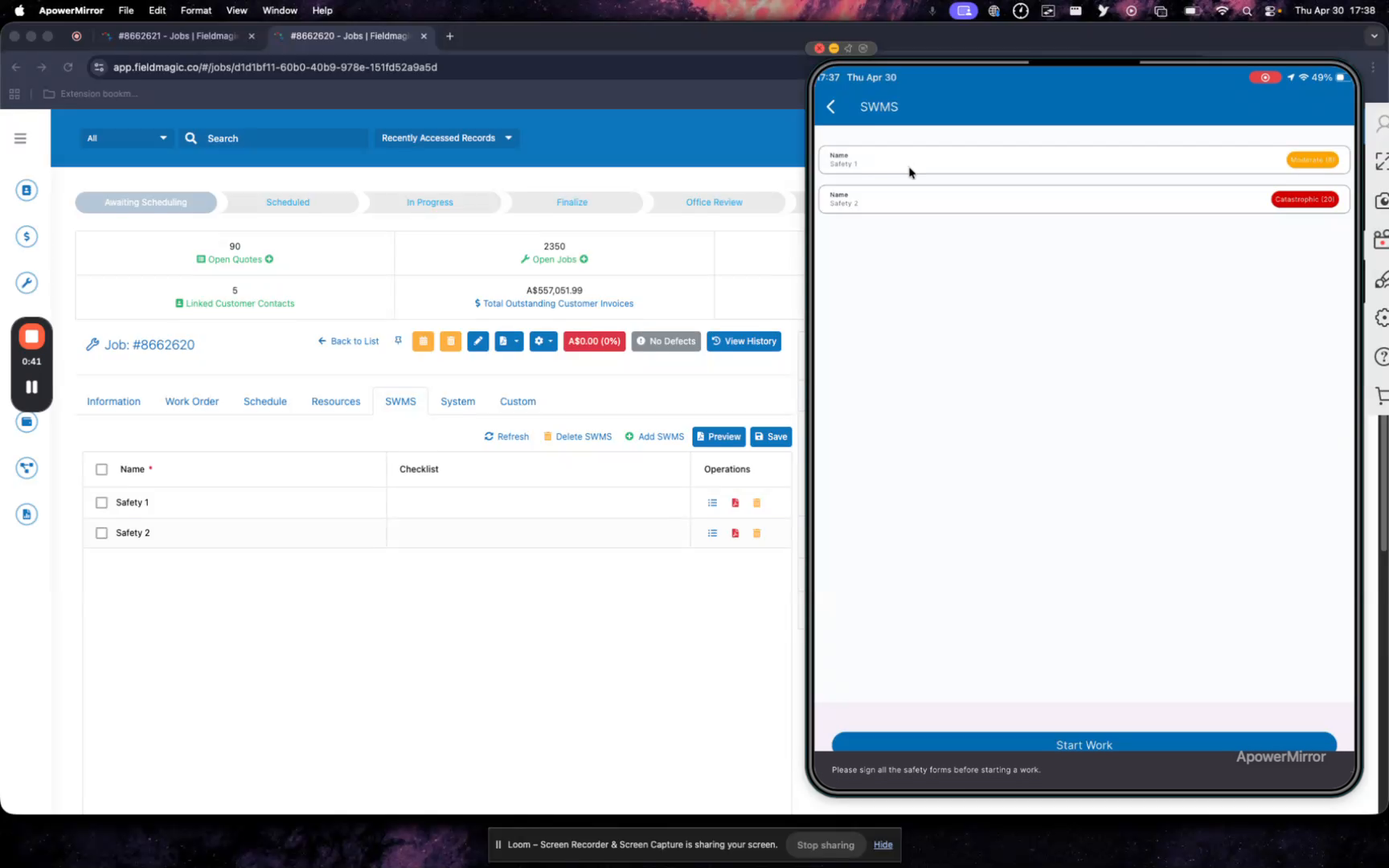
When you start the job, the app displays all associated safety tasks. You cannot begin work until all safety requirements are completed.
 Step 4
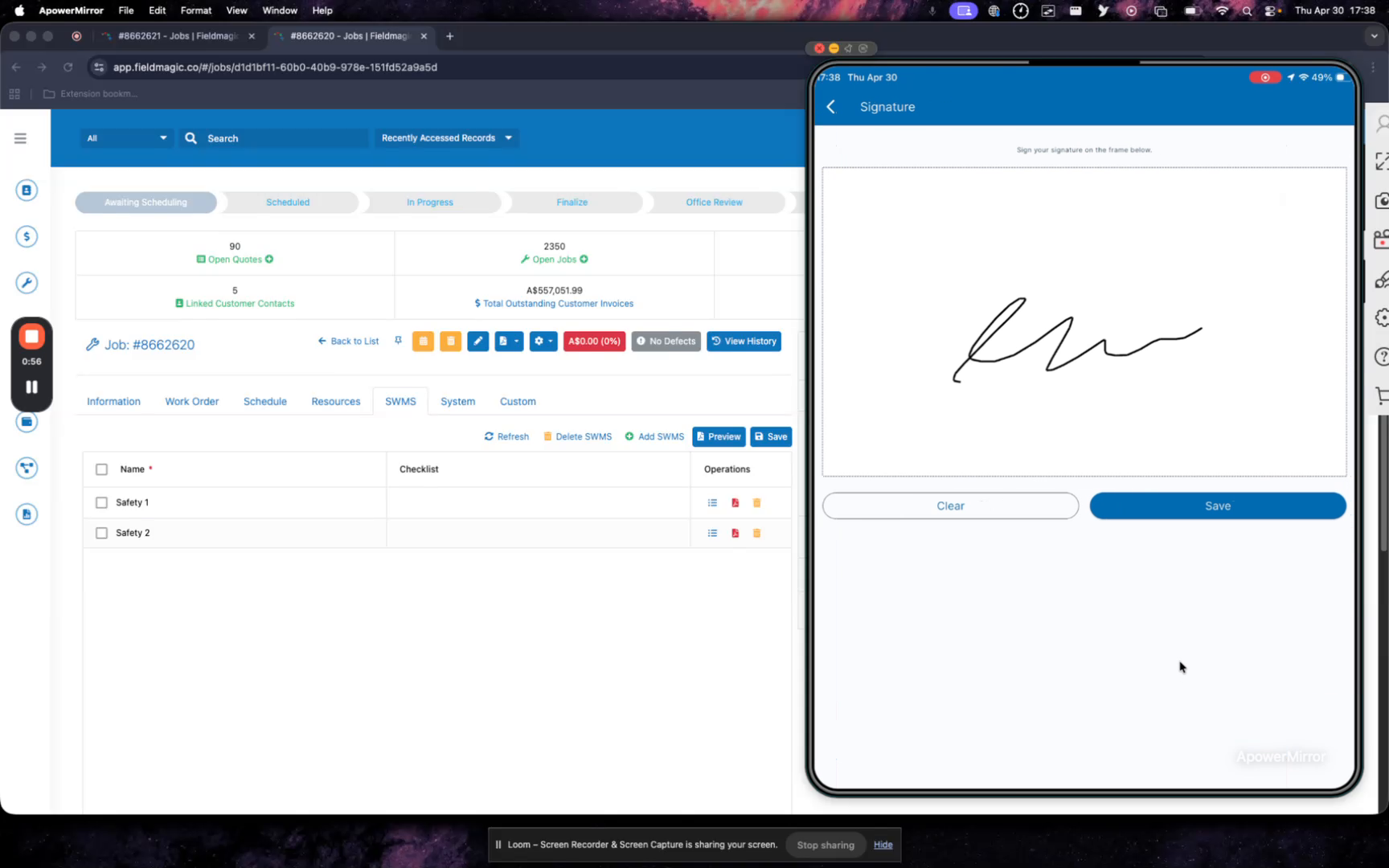
Open the first safety task and locate the Sign button at the bottom. Tap Sign and add your signature.
 Step 5
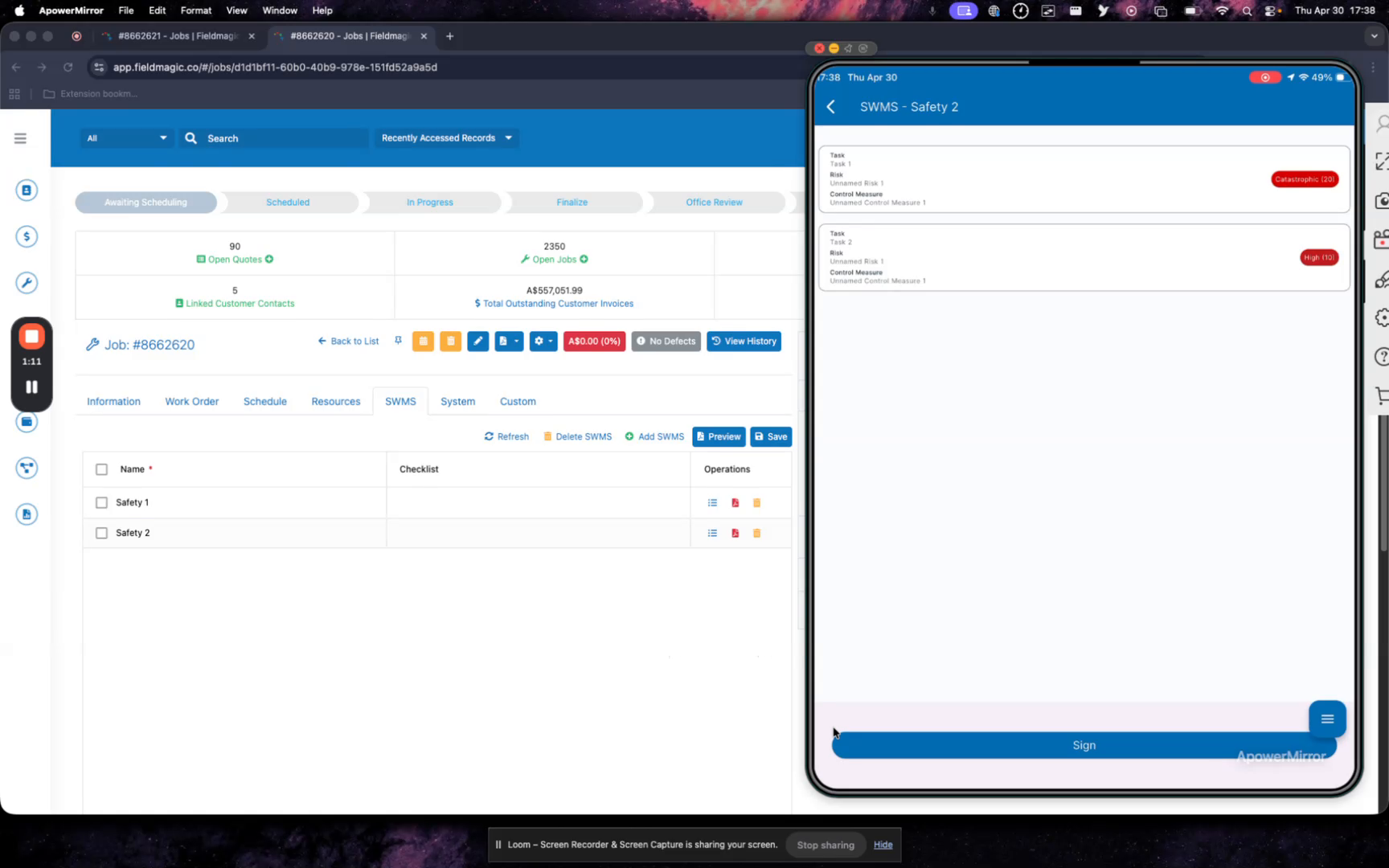
Save the signature. The second safety task displays the required tools, tasks, and associated risks.
 Step 6
Tap Sign, add your signature, then begin work on the job.
 Step 7
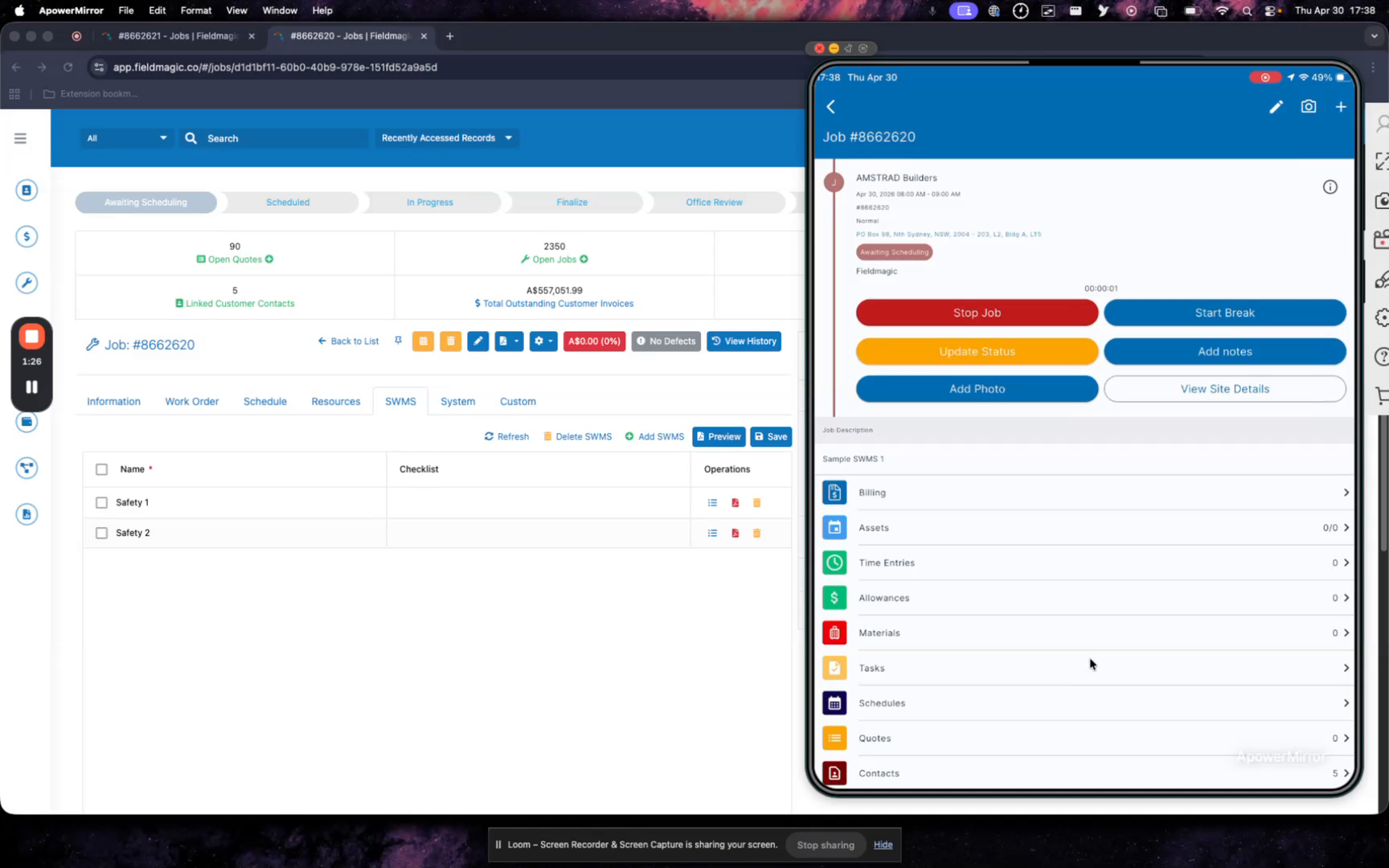
The job timer starts running after all safety tasks and risks have been signed off.
 Step 8
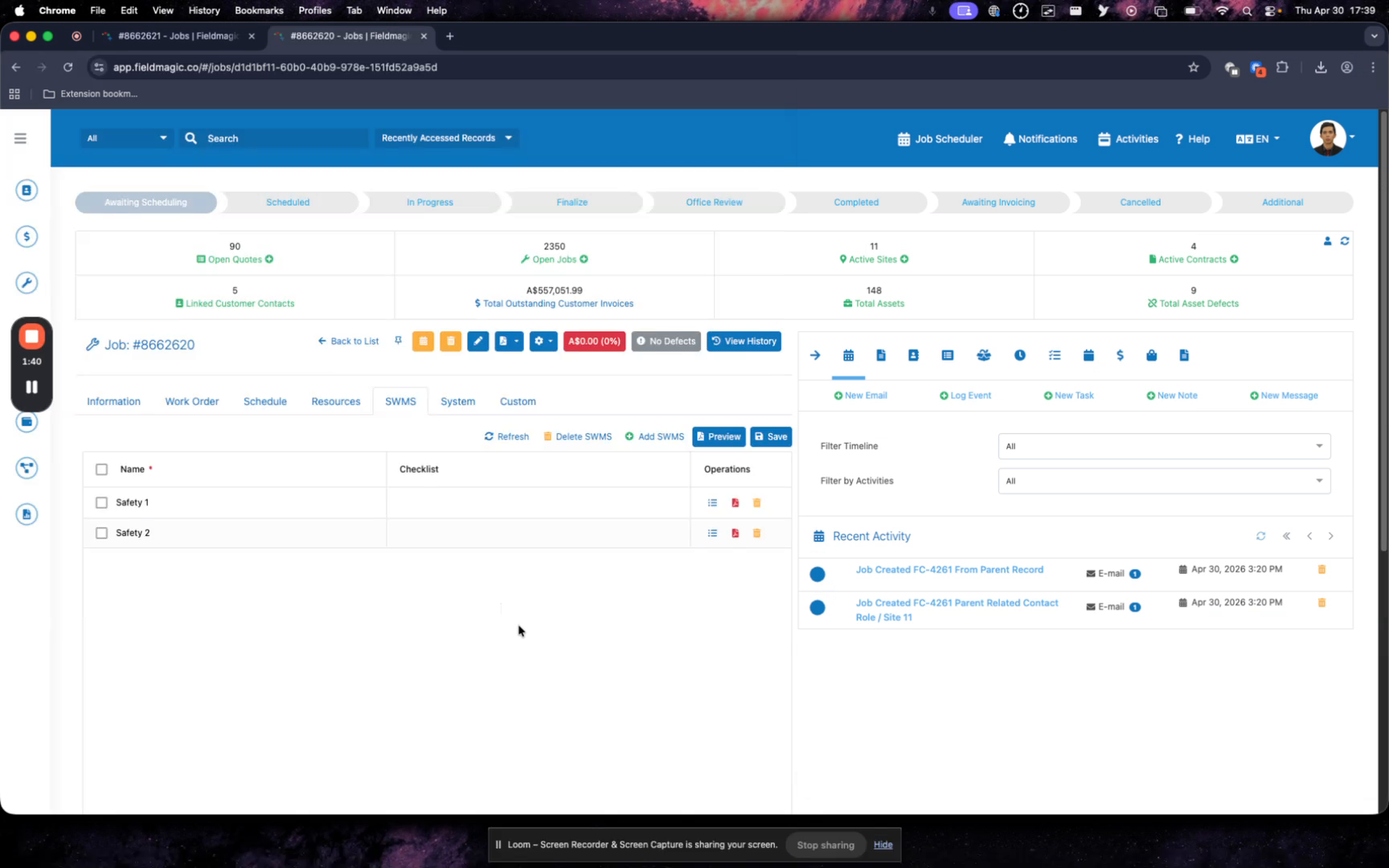
On the desktop, refresh the view to confirm the safety tasks have been completed.